Managing multiple migrations across different team members can be challenging, especially if you’re working in agencies or teams and have to manage multiple projects at once.
With the Sub-account feature, LitExtension lets you invite team members, assign roles, and control access to each migration or SLA, all within a single account.
Who should use a Sub-account?
This feature is designed for:
- Agencies managing multiple migration projects with different team members
- Store owners working with developers or partners on specific migrations
- LitExtension account managers who need access to monitor project progress.
How Sub-account works
Your main account acts as the Owner, who has full control over all migrations and settings.
The Owner can invite additional users as Members (sub accounts) and assign permissions based on their role in each project (e.g., developer, BA, project manager).
All sub accounts operate under the Owner account:
- They do not have a separate balance
- They can use the Owner’s balance if permission is granted
- If removed, the sub-account will also be deleted from the system.
Where to manage Sub-account?
To manage sub accounts (invite, assign migration permissions, or SLA permissions), go to your Profile → Members tab.
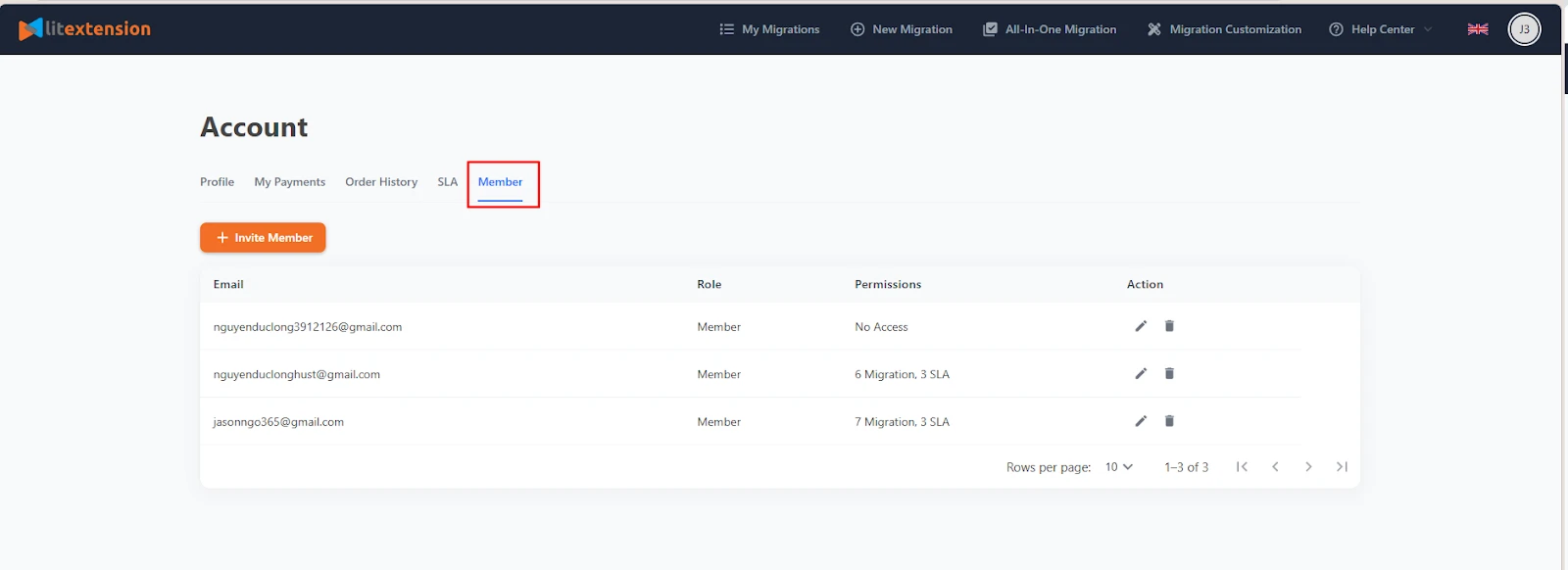
This tab is only visible to Owner accounts and will not appear for Sub-accounts.
How to invite a new member?
To add a new sub account, follow the following steps:
- Go to Profile → Members
- Click Invite Member
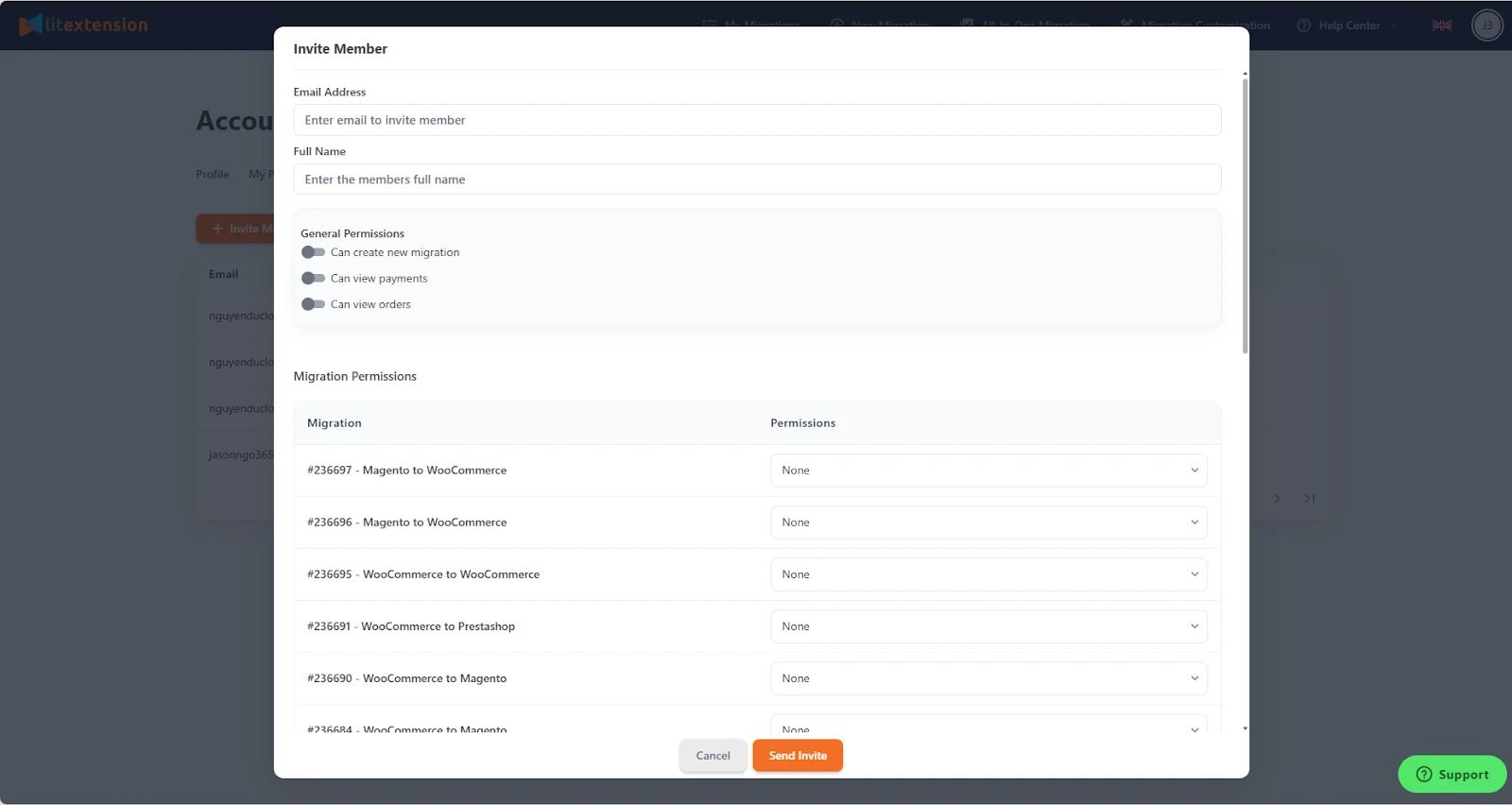
- Enter the member’s email address and full name
- Assign permissions based on their role
Please note: The email you invite must not already exist in the LitExtension system.
How to assign permissions to Sub-accounts?
You can control access for sub-accounts at two levels: general permissions and project-based permissions.
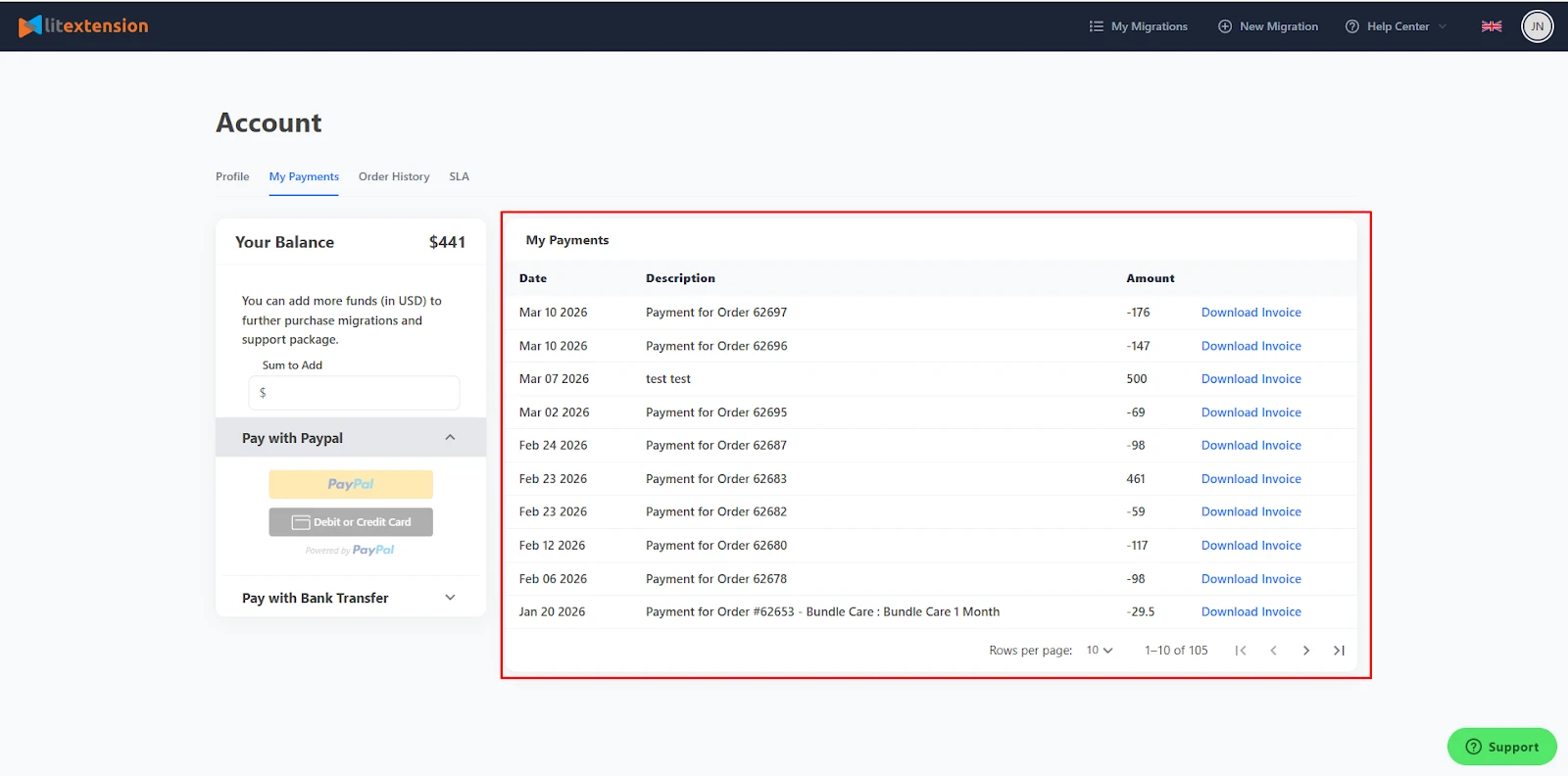
- For General permissions, you can allow members to create new migrations, view all payment transactions made by the Owner account, and view orders related to the migrations they have access to.
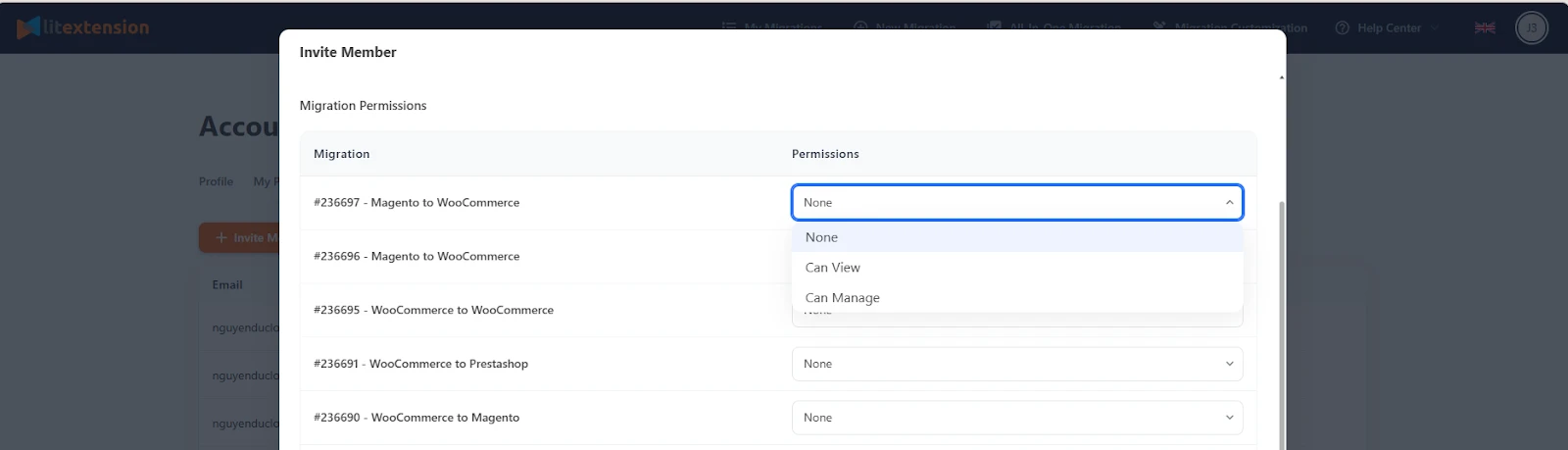
- As for SLA permissions, each SLA can be assigned one of the following:
-
- None: No access. The SLA will not appear
- Can View: View only
- Can Edit: Edit and save, but cannot sign
- Can Sign: Full access, including editing and signing.
Sub accounts help your team collaborate more efficiently while maintaining full control over your migration process. If you’re still unsure how to set up permissions for your team, feel free to reach out. Our team is available 24/7 to assist you.