Files Migration Service
Read our 3,000+ reviews on 



LitExtension Files Migration Service moves your data from CSV, Excel, and Google Sheets files to your new eCommerce platform accurately and with the highest level of security; no technical skills required.
Transfer products, categories, customers, orders, pages, and blog posts with the LitExtension Automated Migration Tool, or let LitExtension experts prepare your files and handle the entire migration.
When To Use Files Migration Service?
If a direct store-to-store connection isn’t an option, you can still move your data using your exported files with LitExtension Files Migration Service. Consider it when:

Your previous store has closed or crashed, and all its data is now saved in CSV files.

You want to keep your store credentials private and don’t want to install a connector

Your current platform doesn’t allow a direct connection, so you need to export data to files format.

Your data lives in spreadsheets or Google Sheets, such as exports from a supplier, ERP, or inventory system.
Files Migration with LitExtension: A Complete Guide
This Files Migration guide shows you how to move data from CSV, Excel, or Google Sheets files to your new eCommerce store. You’ll learn how to prepare your files, run the migration yourself or with LitExtension experts, and fix the most common issues along the way.
What You Need to Prepare Before Migrating Files
Clean, well-organized files lead to a faster and more accurate migration. Before you start, work through this checklist to make sure LitExtension can read every file and import every record correctly.
- Export each data type into its own file, such as one file for products, one for customers, and one for orders.
- Save your files as CSV, TSV, XLSX, or XLSM, and keep each file under 50 MB with no more than 50 files per migration. You can split a large export into parts like
products_export_1.csvandproducts_export_2.csv. - Share any Google Sheet as “Anyone with the link can view,” and copy a separate link for each tab you want to migrate (the link ends with
#gid=...). - Use public share links from Dropbox, Google Drive, or OneDrive that point to a single file, not a folder or a page that requires a login.
- Check that every image link in your files opens publicly, since LitExtension can’t import images from broken or private links.
- Note your old store URL if your files use relative image paths (for example,
/images/a.jpg) or if you want to set up 301 redirects. - Add a Country or Country Code column for customer and order addresses, and format phone numbers internationally.
- Give each customer a unique email address, because LitExtension merges records that share the same email.
- Export collections, pages, and blog posts with an app like Matrixify or BulkFlow if you’re moving from Shopify, since Shopify’s built-in export only covers products, customers, and orders. For Matrixify collections, upload only
Custom Collections.csv. - Turn off automatic emails and workflows on your new store, such as order notifications or Shopify Flow, so your customers don’t receive unexpected messages.
- Contact LitExtension about a custom migration if you need to move reviews, as the tool doesn’t support reviews from files yet.
How to Migrate Files Using LitExtension Automated Tool
If your files follow a standard structure without heavily customized fields, the LitExtension Automated Migration Tool lets you complete the whole Files Migration on your own, with no coding skills and no connector to install. You never need to give LitExtension access to your old store. If your files need restructuring or contain complex custom data, the All-in-One Migration Service below is a better fit.
To begin, sign in to the LitExtension app with your email and password or your Google account. Then, click “Create Migration” on the dashboard.
Step 1. Stores Setup
In the Source Cart setup, choose Files (CSV, Excel, Google Sheets) as your Source Cart Type. Under “Where is your data?“, pick how you want to add your data. You can mix all three options in one migration:
- File Upload: upload CSV, TSV, XLSX, or XLSM files from your computer.
- Google Sheets: paste the link to a tab and click “Add sheet“. Use “Add another tab link” for each extra tab.
- Link: paste a public Dropbox, Google Drive, or OneDrive link and click “Add link“.
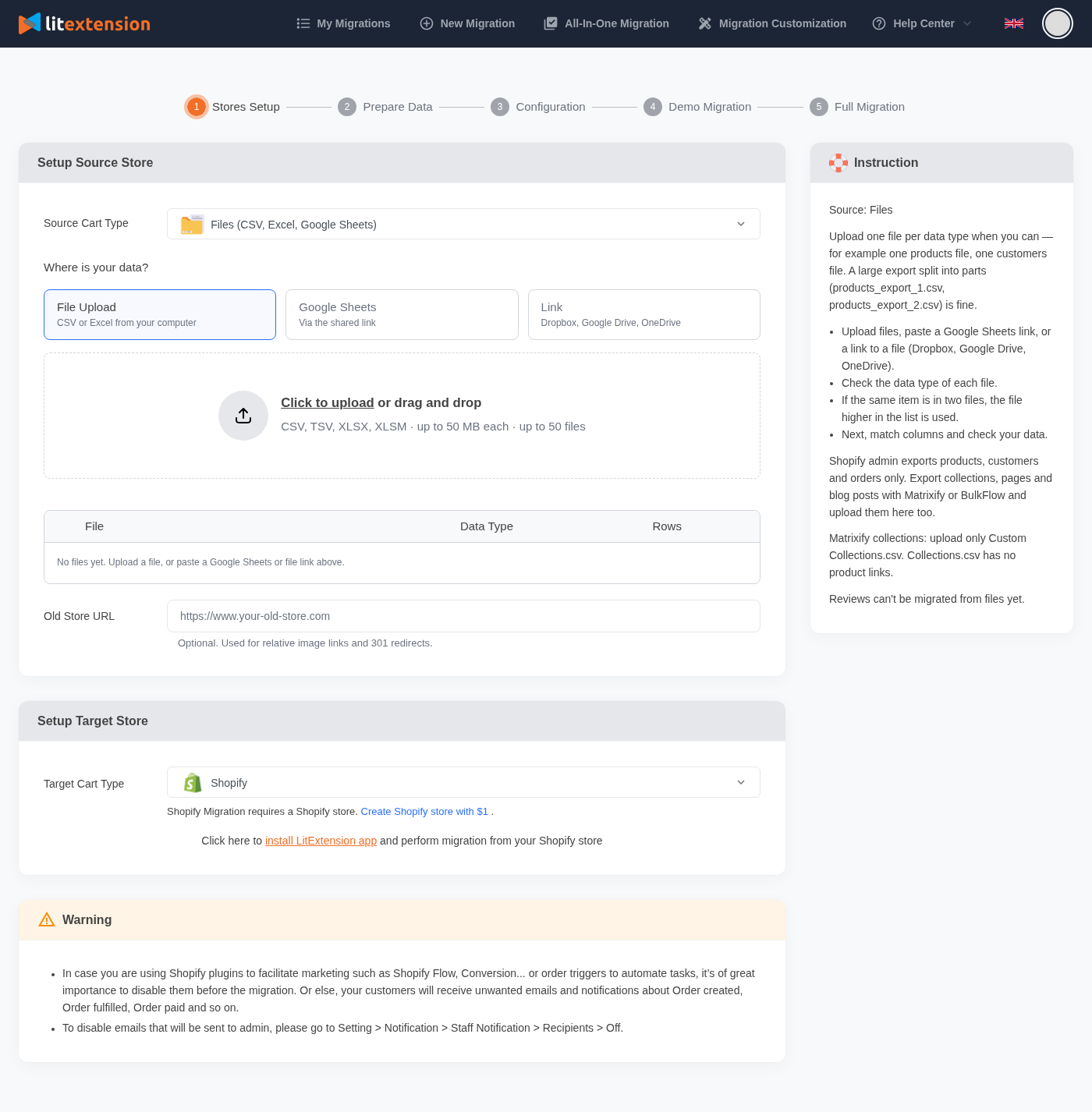
LitExtension groups your files by data type and automatically detects the format, such as “Detected format: Shopify export.” Review the Data Type column and correct it if anything looks wrong. You can replace a file with the ↑ button or remove it with ✕. If the same product or customer appears in two files, LitExtension uses the version from the file higher up in the list.
Next, select your Target Cart and connect your new store. If you hover over a field you’re not sure about, the tool shows instructions, and our support team can help with any credentials. Optionally, enter your Old Store URL, then click Next to move to Prepare Data.
If your Target Cart is Shopify, you can also run the same process from the LitExtension Store Migration app inside your Shopify admin. The app connects to your store automatically, so you only need to add your files.
Step 2. Prepare Data
This step has two parts: Field Mapping and Data Check.
Field Mapping. Here, you match the columns in your files to the fields on your new store. For common formats like Shopify, WooCommerce, Matrixify, BulkFlow, or the LitExtension template, the tool maps the fields for you, so you usually only need to review them. Each tab (Products, Customers, Orders) shows a Preview column with real values from your file.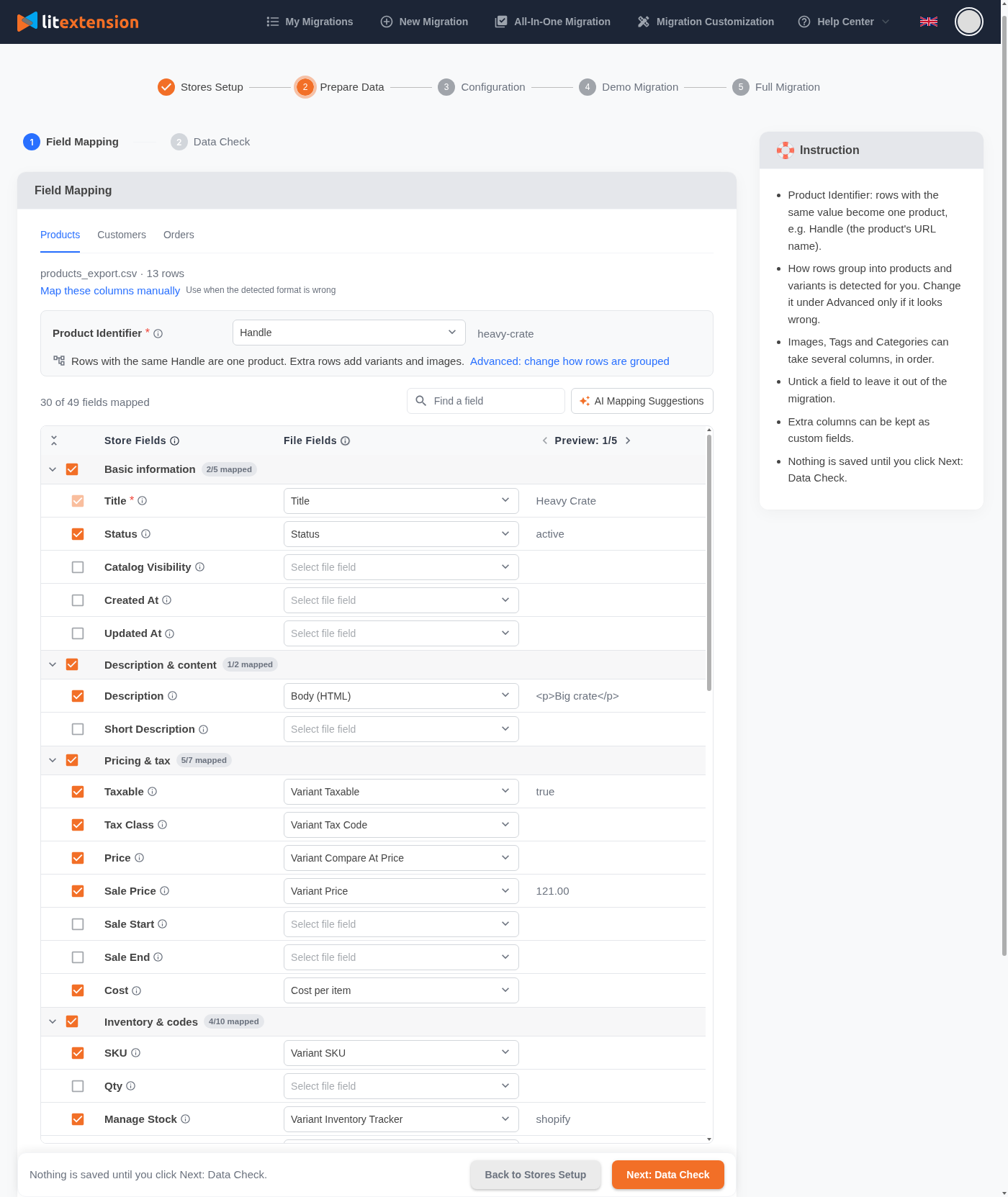
- The Product Identifier (such as Handle) groups rows with the same value into one product, and the extra rows become variants and images.
- The Customer Identifier uses an ID, Email, or Phone column.
- Untick any field you don’t want to migrate, and keep extra columns as custom fields if needed.
- Use AI Mapping Suggestions for files with unusual column names. LitExtension only sends column names to the AI, never your personal data.
Click “Next: Data Check” to save your mapping.
Data Check. LitExtension reads every row in your files and tells you how many records it will import before it moves any data. The results show Ready, Skipped, Errors, and Duplicates counts, and they flag each issue as: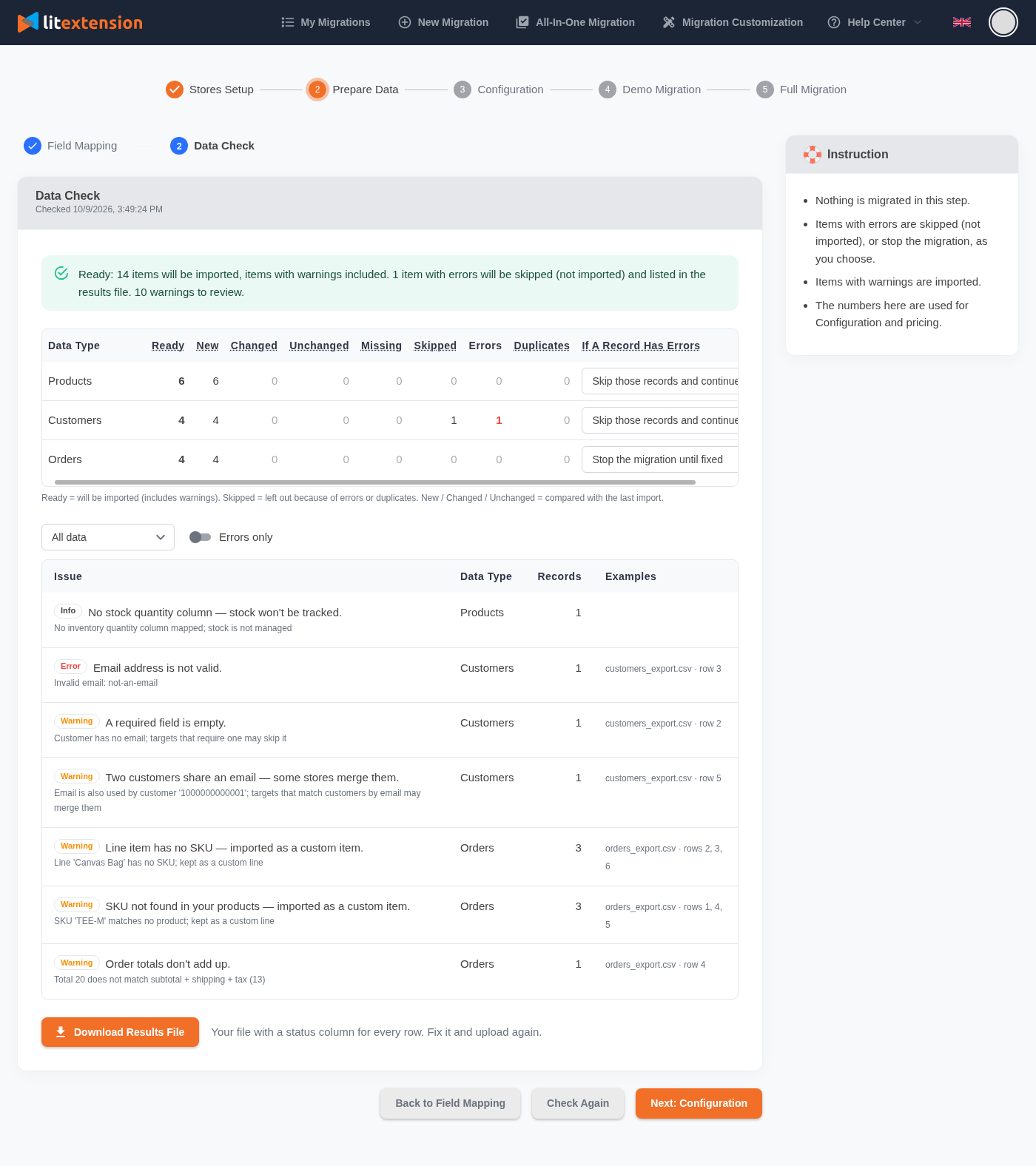
- Error: LitExtension won’t import the record, for example, because of an invalid email.
- Warning: LitExtension imports the record, but you should review it, for example, an order line without a SKU.
- Info: a note only, for example, that your file has no inventory column.
Choose what happens when a record has errors: “Skip those records and continue” or “Stop the migration until fixed“. To fix errors, click “Download Results File” to get your file with a status column for every row, correct the flagged rows, upload the file again, and click “Check Again“. When the results look good, click “Next: Configuration“.
Step 3. Configuration
Select the data you want to migrate, either with Select All or one type at a time (Orders come with Customers). Add any Additional Options you need and review Order Status Mapping so your order statuses match on the new store. Finally, tick the box confirming you’ve reviewed all mapping settings, then click “Next: Start Free Demo Migration“.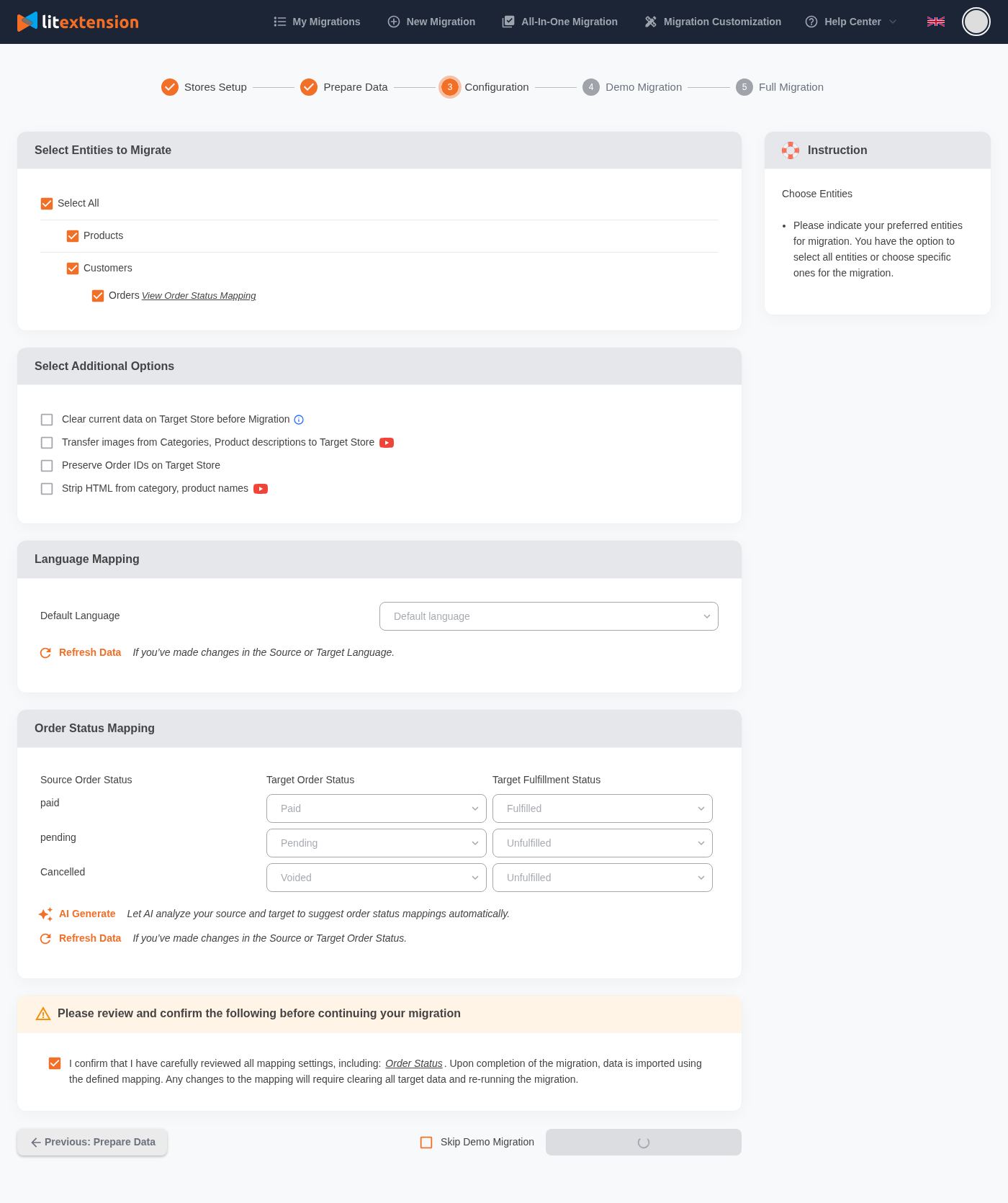
Step 4. Demo Migration
The free demo moves a small number of records from each data type so you can check the results before committing. You can close the page while it runs, and LitExtension emails you when the demo finishes. Use the “View” button to open each record in your new store’s admin and check names, prices, variants, images, customer details, and order totals. If something looks off, go back to Field Mapping, click Check Again, then “Demo Again“.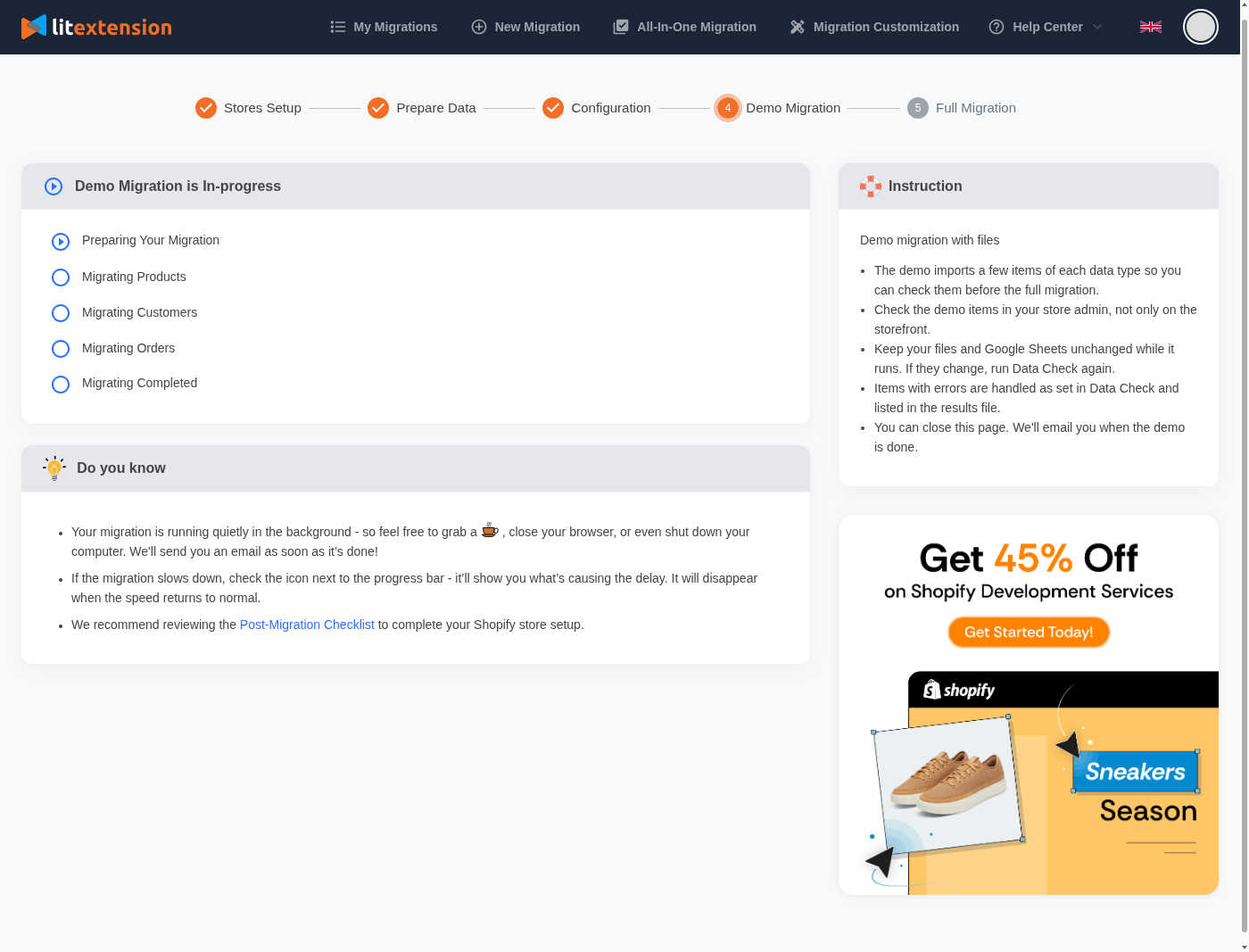
Step 5. Full Migration
When you’re happy with the demo, click “Next: Confirm Orders” to review the price and check out. LitExtension checks your Data Check results one more time before payment, so you never pay for outdated data. The full migration then transfers every record that passed Data Check and keeps running even if you close your browser. Keep your files and Google Sheets unchanged until it finishes. You’ll receive an email when the migration completes, and you can track progress anytime in My Migrations.
How to Perform Files Migration with All-in-One Services
If you’d rather not handle the technical work yourself, the LitExtension All-in-One Migration Service puts a dedicated team of experts in charge of your entire Files Migration. Here’s how our team moves your data from files to your new store, step by step.
Step 1. Technical consultation with LitExtension experts
Your project starts with a one-on-one consultation. Our experts review your files, including their formats, size, and data types, to understand exactly what you want to move. We look for missing fields, inconsistent formatting, custom attributes, and any special business rules so we can plan around them early. We then sign a Service-Level Agreement (SLA) with you that outlines the timeline, data volume, and custom requirements.
Step 2. Pre-migration setup
Next, our team prepares your files and your new store. We organize your data into separate files for each data type, make the formatting consistent, and remove duplicate or unnecessary records. We also collect the details we need to connect your new store securely and make sure it’s ready to receive your data.
Then, we map every column in your files to the right fields on your new store, including product categories, customer groups, order details, and custom fields. By the end of this step, we’ve validated the full mapping plan.
Step 3. Demo migration running
Before the full transfer, we run a demo migration with a small sample of your data. Our team reviews the results through internal testing, and if we spot any errors or mismatches, we fix the setup before moving on. This gives you a clear preview of how your data will look on your new store.
Step 4. Perform full Files Migration
Once you approve the demo results, we migrate all your selected data to your new store, following the plan we built together. The migration runs on LitExtension’s secure cloud system, so if your old store is still live, you can keep running your business as usual with no downtime.
Step 5. Migration results testing
After the transfer, our team checks every important data type to confirm LitExtension moved it accurately. If we find missing fields, inconsistencies, or formatting problems, we fix them right away. We then send you a detailed report so you can review the final results with confidence.
Step 6. Post-migration tasks
Your business may keep changing during the migration, with new orders, customers, or product updates. To keep your new store up to date, LitExtension offers these services free of charge during the Technical Support window:
- Unlimited Recent Data Migration if your new data is less than 5% of the initial migration.
- Two Re-migrations if you need to run the full migration again.
- Unlimited Smart Update to refresh data LitExtension already migrated during the full migration.
Step 7. Customer support post migration
Our support doesn’t end when the migration does. For up to 60 days after your Files Migration, our Customer Support Team helps you answer questions, fix issues, and get comfortable with your new store. Whenever you need help, our team responds promptly and professionally, so you can focus on growing your business.
Troubleshoot Common Issues with Files Migration
Even with well-prepared files, a few common issues can come up during a Files Migration. Here’s what usually causes them and how LitExtension helps you fix them.
| Migration issue | Why it happens | How LitExtension helps |
|---|---|---|
| “Your files changed after the Data Check” | You edited a file, Google Sheet, or field mapping after the last Data Check, so the results no longer match your data. | LitExtension pauses the migration to protect your data and checks again before payment. Go to Prepare Data, click Check Again, then restart the migration. |
| Google Sheets or file links can’t be read | The sheet isn’t shared publicly, the link points to a folder or login page, or you added only one link for a multi-tab sheet. LitExtension also downloads linked files once, so later edits don’t update automatically. | LitExtension shows a clear error for each link. Share the file as “Anyone with the link can view,” add one link per tab, and use Refresh link after editing a linked file. |
| Products migrate without images | The image links in your files are private, broken, or use relative paths without an Old Store URL. | LitExtension still creates the products. Enter your Old Store URL for relative paths or replace private links with public ones, and our team can help you re-import the images. |
| Records skipped because of data errors | Some rows have invalid emails, missing required fields, phone numbers in the wrong format, or addresses without a country. | Data Check flags every problem row before import. Download the Results File, fix the rows, and click Check Again, or skip those records and continue. With the All-in-One service, our experts clean the files for you. |


How Your Data Is Secured During Migration
We at LitExtension prioritize data security and have a set of practices, technologies and policies in place to ensure the highest level of security for your data. Check out our Data Security Policy.

Server Security
All migration jobs are securely processed on Linode servers located in the US, Europe, Australia, Singapore, and other regions.

Data Security
Your data is protected with HTTPS and 128-bit SSL encryption. No migrated data is stored on LitExtension’s servers after the migration.
Data Access Restriction
Only authorized LitExtension experts can access your data or source code when required to handle custom migration requests.

GDPR Compliance
LitExtension complies with the General Data Protection Regulation (GDPR), the European Union’s data protection law.

NDA
We do not retain your credentials or imported records after the migration. Your data is used solely for the migration and is never disclosed or used for any other purpose.

Payment Security
Payments are securely processed through PayPal, a globally trusted payment gateway. LitExtension does not store your payment information.
Numbers We’ve Been Passionately Building

15+

300,000+

200,000+

99%

600+

100+
Who We Truly Are? Let Our Customer Define!

The LitExtention team performed a great migration with just a .csv file in a time crunch for us. They performed troubleshooting after the migration and made sure everything was working smoothly. It was a great experience working with them.
My first time using this service for a sync from a csv file to Woocommerce. It went smoothly and staff provided timely responses. Truly look forward for future works.
This service saved me hours and hours of messing around with CSV files! The technicians were very professional, very helpful, very easy to work with. I highly recommend LitExtension for transitioning data from Woocommerce to Shopify.