WooCommerce Migration
 Based on 3,000+ reviews on:


Move your online store to WooCommerce from Shopify, Magento, BigCommerce, OpenCart, PrestaShop, or any of 140+ supported eCommerce platforms. Configure and run the transfer yourself with LitExtension’s automated WooCommerce migration tool, or choose our All-in-One Migration Service to have LitExtension experts manage the setup, data mapping, migration validation, and agreed post-migration requirements.
Transfer products, categories, customers, orders, reviews, coupons, images, SEO URLs, and other supported store data while keeping your source store available during migration. Start with a Free Demo Migration to transfer up to 100 entities and preview how your data will appear in WooCommerce before running the full migration.
Not sure which option fits your store? Compare common migration scenarios below, or talk to our experts about an All-in-One migration.
What Data Can Be Migrated to WooCommerce
LitExtension’s WooCommerce migration tool transfers supported store data while preserving important relationships between records, such as customers and their orders, variants and parent products, and products with their associated categories, images, and reviews.
The exact migration scope depends on your source platform, store configuration, and WooCommerce setup. Certain data may require compatible WooCommerce plugins, additional configuration, or customization. Check the Migration Details for your source platform or run a Free Demo with up to 100 entities to preview the results before the full migration.


-
Products
- Name, SKU, Short Description, Full Description, Status.
- Manufacturer.
- Tax Class.
- Price, Special Price.
- Quantity, Manage Stock.
- Meta Title, Meta Description.
- Weight, Width, Height, Depth.
- Product Tags.
- Up-sells, Cross-sells.
- Attributes: Name, Values.
- Downloadable Products: Files, Max Downloads, Expiration Date.
- Grouped Products: Associated Products.
- Variants: Name, SKU, Weight, Quantity, Manage Stock, Image, Price, Special Price.
- Thumbnail Image, Additional Images.
Product Categories
- Name, Description.
- Sort Order.
- Image.
- Meta Title, Meta Description.
-
- First Name, Last Name, Email.
- Billing Address: First Name, Last Name, Company, Address 1, Address 2, Country, State, City, Zip Code, Telephone.
- Shipping Address: First Name, Last Name, Company, Address 1, Address 2, Country, State, City, Zip Code, Telephone.
-
- Order ID.
- Order Date.
- Order Status.
- Order Items (Name, SKU, Option), Product Price, Quantity.
- Sub Price, Discount Price, Tax Price, Shipping Price, Total Price.
- Order Comments.
- Customer Name, Email.
- Billing Address (First Name, Last Name, Company, Address 1, Address 2, Country, State, City, Zip Code, Telephone).
- Shipping Address (First Name , Last Name, Company, Address 1, Address 2, Country, State, City, Zip Code, Telephone)
-
- Name.
- Image.
-
- Tax Class (Name).
- Tax rate (Country, Rate).
-
- Name.
- Description.
- Coupon Code.
- Coupon Date.
- Customer Groups.
- Uses Per Coupon, Uses Per Customer.
- Discount Amount/Percent.
- Coupon from date, Coupon to date.
-
- Created Date.
- Status.
- Rate.
- User Name, User Email.
- Comment.
-
- Title.
- Created Date.
- Description.
- Categories.
- Thumbnail Image.
-
- Title.
- Created Date.
- Description.
- Categories.
- Thumbnail Image.
-
- Products (Name, Description, Attribute)
- Categories (Name, Description)
- CMS Page (Name, Description)
- Blogs (Name, Description)
- Note: Additional fee may apply
(*) Please note that the data listed above may vary depending on your Source Store.
Leave The Work For The Experts
If you’re non-tech, let our WooCommerce migration experts handle your migration from A to Z.
Save your time for more important tasks.

WooCommerce Migration: Before You Start
1. Backup source store
Before starting the WooCommerce migration, create a reliable copy of the data and files available from your current store. This gives you a reference point for reviewing the migrated results and helps reduce risk if you need to restore or verify any records later.
The backup process depends on your source platform:
- Hosted platforms (such as Shopify or BigCommerce): Use the platform’s built-in export tools to download the available products, customers, orders, and other supported data. Keep in mind that CSV or XML exports may not include every store setting, app-generated field, or data relationship.
- Open-source platforms (like Magento or WooCommerce): Back up both the database and website files, including media, themes, extensions or plugins, and relevant custom code. You can usually do this through your hosting control panel, database management tool, or FTP client.
Store the backup files securely and avoid making unnecessary structural changes to the source store until the migration and data review are complete.
2. Set up your WooCommerce store
Before transferring any data, make sure your target WordPress site and hosting environment meet the latest official WooCommerce requirements. You should also prepare the store’s basic settings, including its URL structure, currency, language, tax configuration, and required plugins, before reviewing the migration setup. To install WooCommerce:
- Go to Plugins > Add New Plugin in your WordPress dashboard.
- Search for WooCommerce.
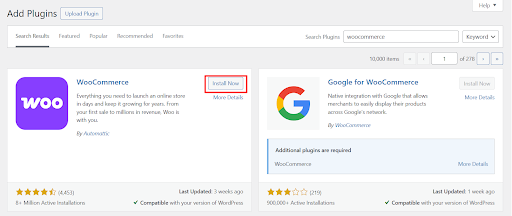
- Select Install Now, then activate the plugin.
- Complete the WooCommerce Setup Wizard to configure your basic store information.
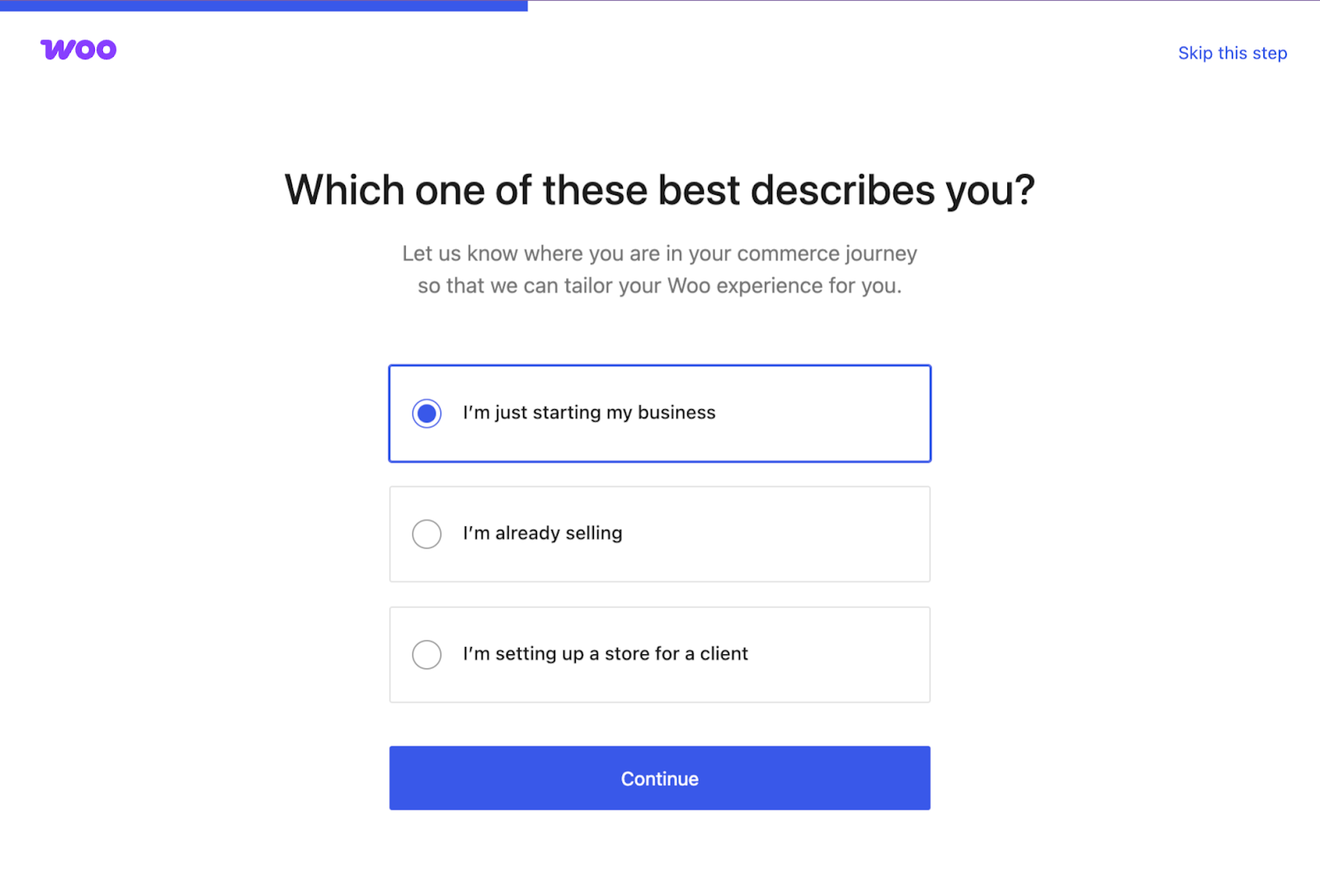
Avoid adding products, customers, or orders manually before migration unless they are required for testing. Existing data on the target store may create duplicates or require additional handling during the transfer.
How to Perform WooCommerce Migration with Automated Migration
This walkthrough explains how to configure and run a WooCommerce migration using LitExtension’s Automated Migration tool. For guidance on the All-in-One Migration Service, please refer to the subsequent section below.
Step 1: Set up Source Cart & Target Cart
First, you need to create your LitExtension account if you don’t already have one. You can either sign up with an email and password or connect with a Google account.
From the dashboard, head to the Create New Migration tab. This will guide you through the configuration of your migration project, starting with the Source and Target Cart.
To set up your Source Cart, select your current eCommerce platform and enter the required store information. The connection method varies by platform:
- For self-hosted platforms, you may need to install the LitExtension Connector in the store’s root directory.
- For hosted platforms, you may need to authorize LitExtension through an app or provide the API credentials required by the selected platform.
LitExtension will display the connection steps for the platform you select.
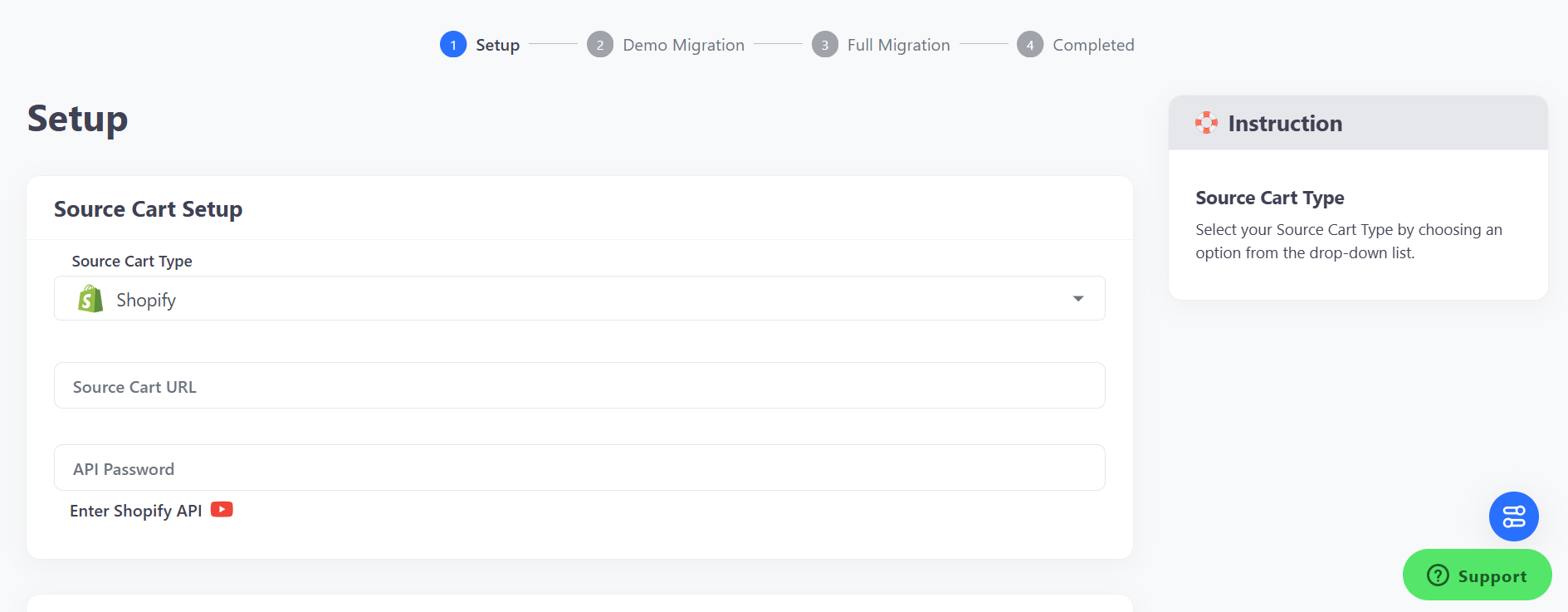
For the Target Cart, select WooCommerce and enter your target store URL. Then, follow the on-screen instructions to install the LitExtension Connector in the root directory of your WooCommerce website. The Connector enables LitExtension to establish the data connection required for the migration.
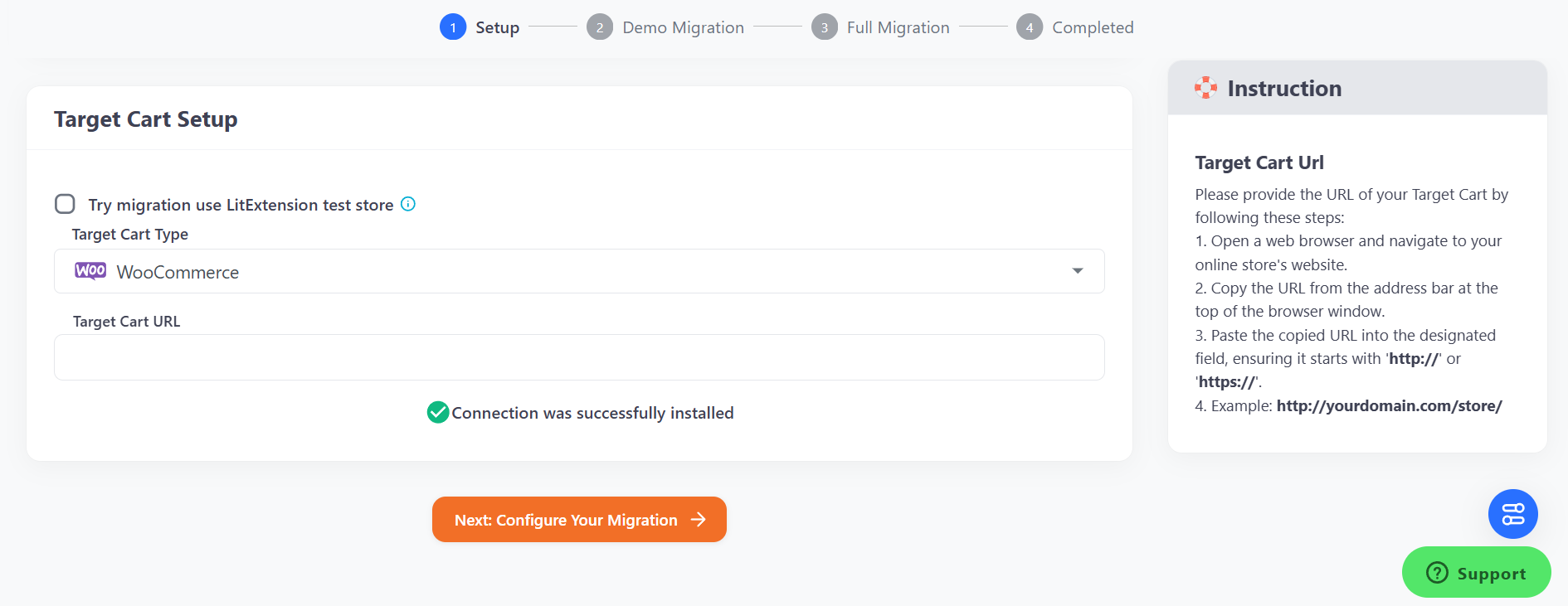
Once both carts are connected, you’re ready to proceed to the next step: selecting the data you want to migrate.
Step 2: Select migration entities
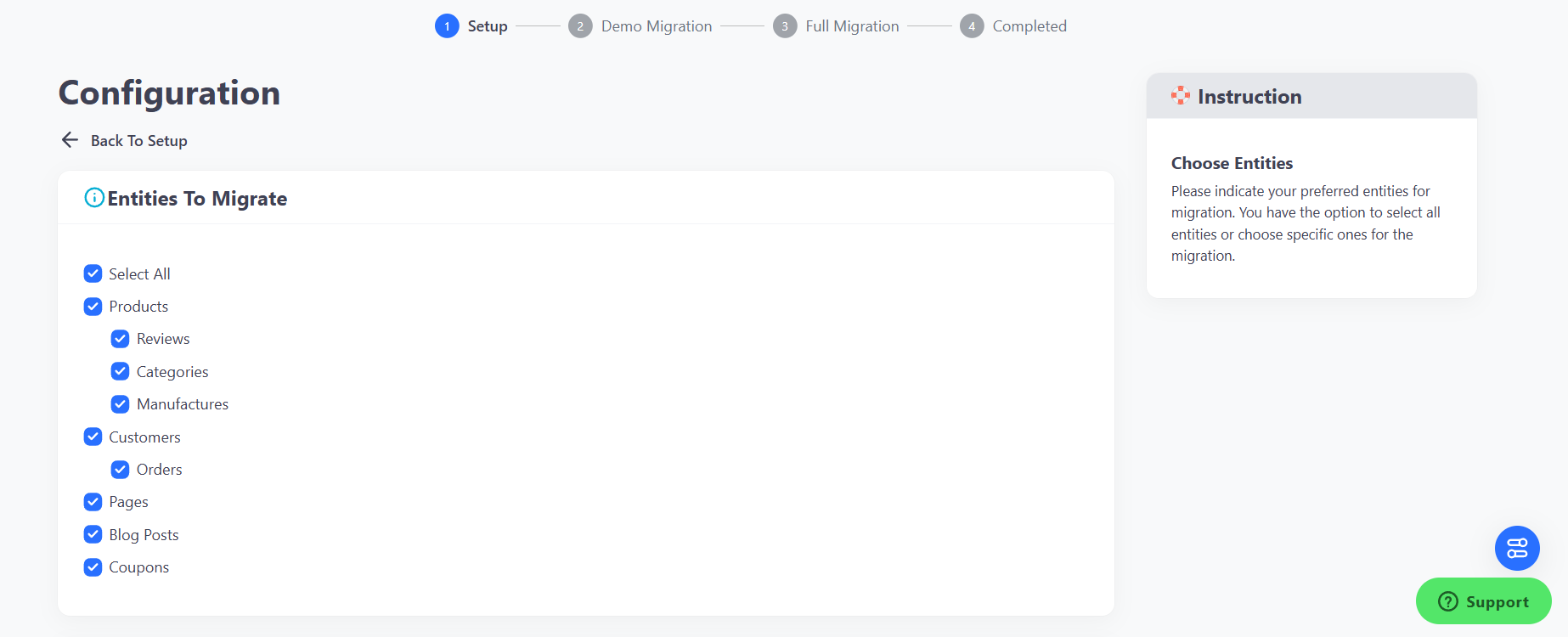
Select the entities you want to transfer, such as products, categories, customers, orders, coupons, or reviews. The available entities depend on your source platform and store configuration. You can select individual data types or use “Select All” to include all entities available for your migration setup.
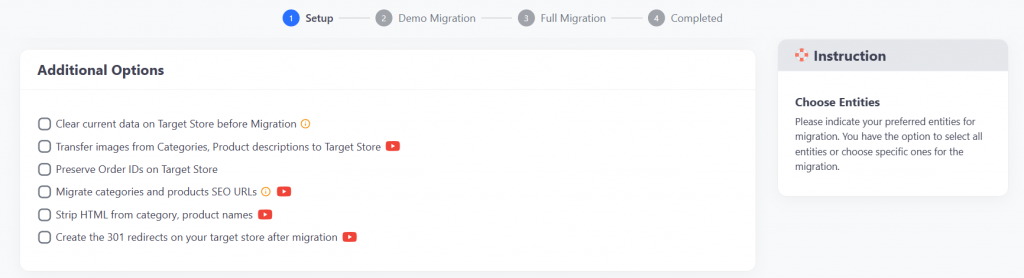
You can also configure the Additional Options available for your migration. Depending on the source platform, these options can help preserve supported record IDs, manage existing target data, handle URL changes, transfer embedded images, or reduce manual cleanup after migration.
Next, you can map your language and order status in this section so that they will display correspondingly on WooCommerce. Before moving on to the next section, make sure to review all of your migration options carefully!
Step 3: Run Full Migration
With everything set up, you’re now ready to move on to the final step: running your full WooCommerce migration!
Before starting the Full Migration, run a Free Demo Migration to transfer up to 100 entities and preview how your selected data appears in WooCommerce. Review the migrated records, field mapping, images, and relationships before proceeding with the complete transfer.
Once you’re satisfied with the demo results, click “Start Full Migration” to begin transferring all selected data. The migration process runs automatically in the background, so you can continue working on your business while the transfer completes.
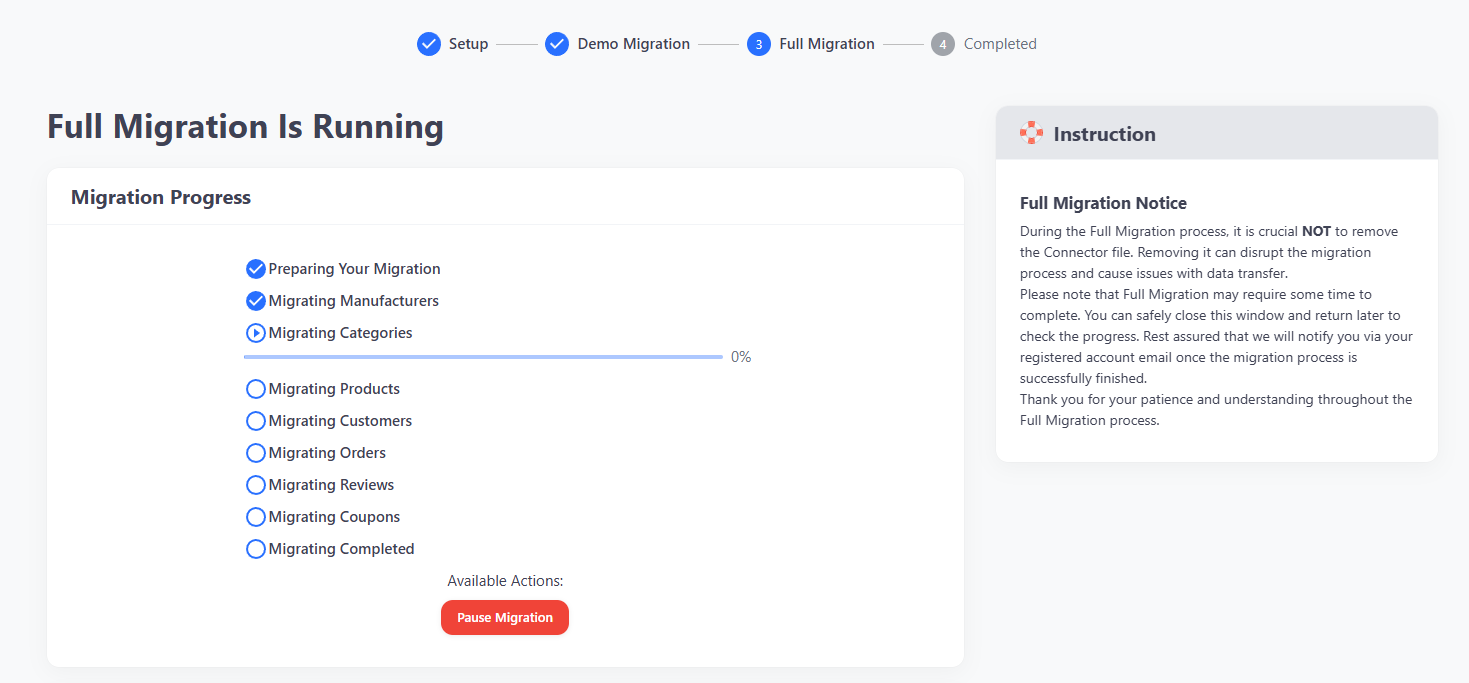
You can track the migration progress from your LitExtension dashboard. Completion time varies depending on the amount and complexity of the selected data. LitExtension will notify you by email when the migration is complete.
After the migration, review the results in your WooCommerce store. Check the record counts and inspect products, variations, customers, orders, images, and other selected entities to confirm that the migrated data matches the agreed scope. If you find an issue, contact LitExtension’s 24/7 support team for assistance.
How to Perform WooCommerce Migration with All-in-One Migration Service
The All-in-One Migration Service is a fully managed option for businesses that want LitExtension experts to coordinate their WooCommerce migration from initial planning through data validation and post-migration support.
A dedicated Personal Assistant will work with you to review the project scope, prepare the migration setup, coordinate demo and full migrations, communicate progress, and assist with agreed requirements throughout the project.
Step 1: Consultation with LitExtension Experts
The first step is to book a free 1-on-1 consultation with a LitExtension expert. Before the meeting, share your source platform, WooCommerce target setup, data scope, timeline, and any custom requirements so our team can review your project. During the consultation, we will discuss your requirements and prepare a migration plan covering the agreed data scope, mapping requirements, timeline, and responsibilities. Once the plan is approved, the SLA is signed, payment is completed, and the required store access is available, our team will begin the migration setup according to the agreed schedule.
Step 2: Migration Setup and Data Mapping
At this stage, our team configures the migration and maps supported elements such as product categories, order statuses, customer groups, attributes, and other agreed fields to the appropriate WooCommerce structure. Custom fields, plugin-generated data, or platform-specific relationships are reviewed according to the project scope.
We will then run a Demo Migration so you can preview the migrated data in WooCommerce. The All-in-One Migration Service includes unlimited Free Demo Migrations during the preparation stage, allowing you to:
- Review the data structure: Inspect sample products, categories, customers, orders, and other selected entities in WooCommerce.
- Validate mapping: Check agreed fields, statuses, relationships, images, and platform-specific mappings included in the Demo scope.
- Provide feedback: Report issues or request adjustments within the agreed migration scope before approving the Full Migration.
- Test agreed requirements: Review custom data or integrations when testing them is included in the project scope.
Once you have reviewed and approved the Demo Migration, our team will finalize the configuration for the Full Migration. This review stage helps confirm the agreed mapping and identify required adjustments before the complete data transfer begins.
Step 3: Run and Validate the Full Migration
Once the configuration is approved, LitExtension experts will run the Full Migration and monitor the transfer of the selected data to WooCommerce. LitExtension’s Smart Controller helps detect migration issues, while our experts review and address them according to the agreed project scope.
After the Full Migration, we conduct two stages of result validation:
- Phase 1 – Automated Testing: LitExtension’s testing system checks supported migrated records, counts, and data relationships for detected discrepancies.
- Phase 2 – Manual QA Review: Our QA team reviews representative migrated data and the custom requirements included in the agreed project scope. Any detected issues are documented and addressed before the results are delivered for your review.
Once testing is done, you’ll receive a detailed migration report so you can review the results. If anything needs adjusting, our team is ready to assist you.
Essential Post-Migration Activities for WooCommerce Migration
After the data transfer is complete, review your new WooCommerce store and finish the necessary configuration before launch. Focus on synchronizing recent data, validating the storefront, checking required plugins, and completing the final launch tests.
1. Synchronize Data Added or Updated After Migration
Your source store may continue receiving new orders, customers, or product updates while the migration is in progress. Depending on what has changed since the Full Migration, you can use the appropriate LitExtension post-migration service
- Recent Data Migration: Transfer newly created data, such as recent orders, customers, or products, from the source store to WooCommerce.
- Smart Update: Apply supported changes made to previously migrated source data without repeating the entire migration.
- Re-Migration: Run the migration again when the configuration or complete data transfer needs to be repeated.
Before proceeding, compare the latest data on both stores and select the service that matches the changes you need to transfer. Availability, usage limits, and the included service period depend on your migration plan and project conditions.
2. Review and Customize the WooCommerce Storefront
Once you have reviewed and approved the migrated data, configure the storefront to match your brand and customer experience requirements.
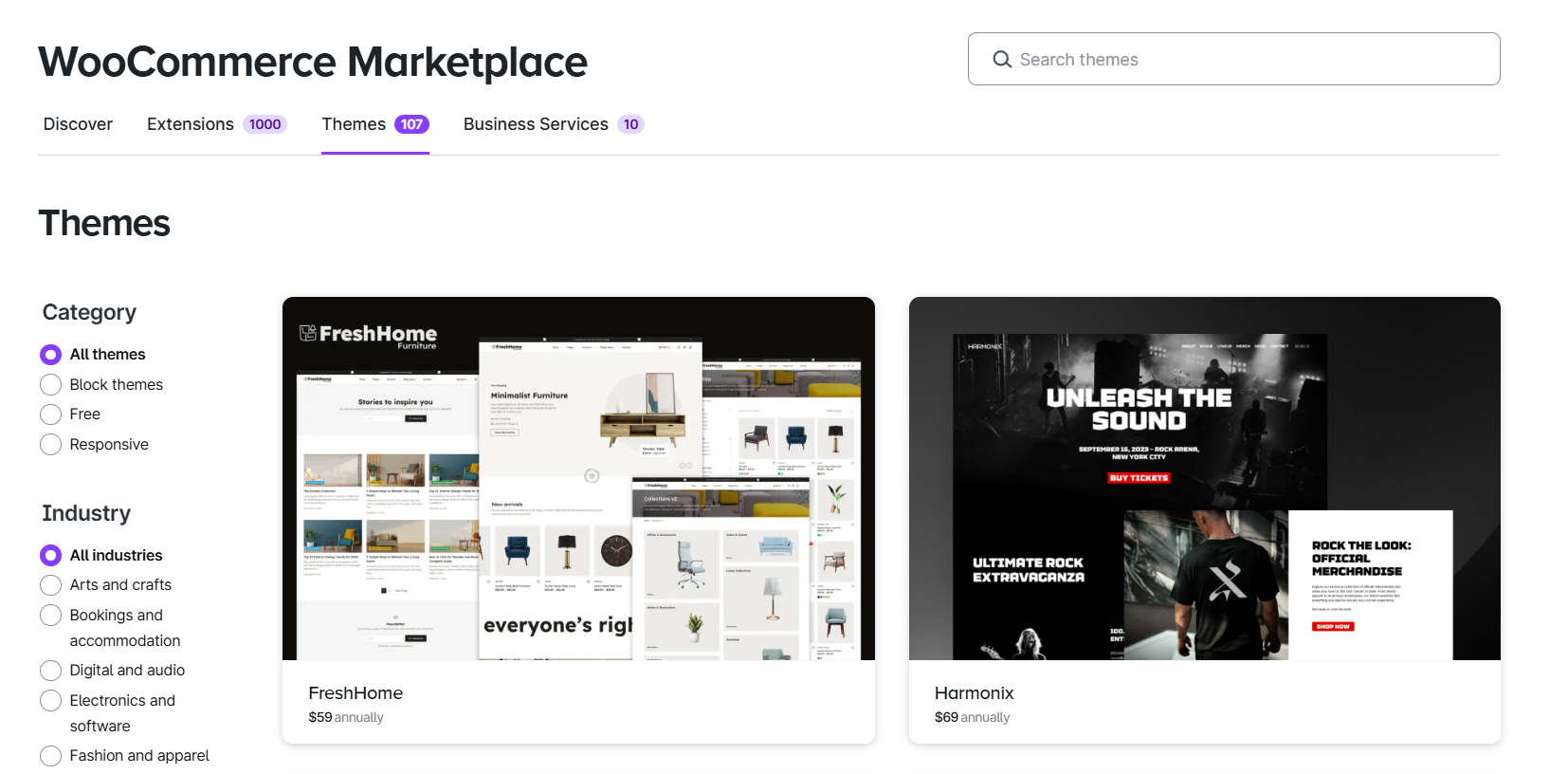
Choose a compatible WooCommerce theme and review key storefront areas, including:
- Product and category pages.
- Product variations and images.
- Navigation and search.
- Cart and checkout.
- Customer account pages.
- Mobile and responsive layouts.
Avoid making major design changes before validating the migrated data, as they may make migration-related issues more difficult to identify.
3. Install and Test the Required Plugins
Install only the plugins needed for your store’s core operations, such as payment, shipping, tax, SEO, marketing, inventory management, or subscriptions.
Before launch:
- Confirm that each plugin supports your current WordPress and WooCommerce versions.
- Configure the plugin settings and integrations.
- Test any functions that rely on migrated data.
- Check for conflicts that could affect performance, checkout, customer accounts, or order processing.
4. Complete the Final Launch Checks
After reviewing the data, design, and plugins, prepare the WooCommerce store for launch.
Before updating the domain and DNS:
- Verify important 301 redirects and URLs.
- Install and test the SSL certificate.
- Test payment gateways with the correct live or test settings.
- Confirm shipping methods, rates, and tax rules.
- Test order emails and other customer notifications.
- Verify analytics and conversion tracking.
- Place test orders from the product page through checkout and order confirmation.
Before proceeding, compare the latest data on both stores and select the service that matches the changes you need to transfer. Availability, usage limits, and the included service period depend on your migration plan and project conditions.
Steps to Perform WooCommerce Migration Manually
Manual migration may be suitable if you have a limited amount of data, compatible export files, and the technical resources to prepare, map, import, and validate the records yourself. Although it can reduce the upfront cost of using a dedicated migration solution, the process may require additional plugins and considerable manual work.
WooCommerce includes a built-in CSV importer for products. Importing customers, orders, coupons, custom fields, or other store data generally requires additional import tools and correctly structured files. Before choosing this method, review what your source platform can export and whether the available WooCommerce import tools support the data you need to preserve.
Step 1: Export Data from the Source Store
Use the export tools available on your current platform to download the data you want to move. Export capabilities and file formats vary by platform, so confirm which entities and fields are included before proceeding.
- Export products, customers, orders, coupons, reviews, and other available data into separate files where possible.
- Retain stable identifiers such as SKUs, customer emails, order numbers, and source record IDs for mapping and validation.
- Review the files for missing columns, duplicate records, inconsistent formats, unsupported characters, and incomplete relationships.
- Keep an untouched copy of every original export before editing the files for WooCommerce.
Step 2: Prepare and Import the Data into WooCommerce
Format each export file according to the requirements of the WooCommerce importer or plugin you plan to use.
For products:
- Go to Products > All Products > Import.
- Upload the product CSV file.
- Match each source column with the corresponding WooCommerce field.
- Import a small sample first and review products, variations, prices, inventory, categories, and images before processing the complete file.
WooCommerce does not include built-in importers for every store entity. To transfer customers, orders, coupons, reviews, subscriptions, or custom fields, you may need a compatible import extension. When orders must be linked to customer accounts, import customers before orders and confirm that the import tool can match them using supported identifiers such as customer IDs or email addresses.
Customer passwords require separate review. Standard customer CSV exports often do not include reusable passwords, and password hashes from the source platform may not be compatible with WordPress. Unless your export and import tools explicitly support the source password format, prepare a password-reset process for customers after migration.
Avoid importing every file at once. Complete and validate one entity group before moving to the next.
Step 3: Prepare Product Images and Media
Check whether your product export includes publicly accessible image URLs. WooCommerce can download product images from valid URLs included in the CSV and add them to the WordPress Media Library during import.
If the image URLs are unavailable, restricted, or no longer accessible:
- Download the original product and category images from the source store.
- Upload them through the WordPress Media Library or use a compatible media import tool.
- Update the image references in the import file where necessary.
- Review featured images, product galleries, variation images, and images embedded in descriptions after import.
Avoid relying only on an FTP upload to the wp-content/uploads directory, because the files may not automatically be registered and linked correctly within WordPress.
Step 4: Configure URLs and 301 Redirects
Review the permalink structure of the new WooCommerce store before launch. Where practical, keep important URLs consistent with the source store. When the URL structure changes, create a one-to-one redirect map from each valuable old URL to its closest corresponding WooCommerce page.
- Configure product and taxonomy permalinks under Settings > Permalinks.
- Prepare redirects for important product, category, CMS, and blog URLs.
- Use permanent 301 redirects for pages that have moved.
- Test the redirects for 404 errors, incorrect destinations, redirect chains, and loops.
LitExtension’s Create 301 Redirects on WooCommerce Store Additional Option can automate supported URL redirects during migration, reducing the amount of manual configuration required. Redirects help search engines and visitors reach the relevant new pages, but rankings should still be monitored after launch.
Step 5: Review the Migrated WooCommerce Store
After completing the imports, compare the target store with the original data and test the customer journey before launch.
- Check products, variations, categories, customers, orders, reviews, coupons, and other imported entities.
- Confirm that relationships between customers, orders, products, and variations remain accurate.
- Review images, URLs, metadata, inventory, prices, taxes, and order totals.
- Test customer registration, login, cart, checkout, payments, shipping, emails, and order processing.
- Place test orders on desktop and mobile.
- Record missing or incorrect data before editing the target store so the issues can be traced back to the relevant import file or mapping.
Manual migration often requires several rounds of file correction, re-import, and validation before the store is ready to launch. If your migration includes a large catalog, extensive order history, customer accounts, custom fields, or complex data relationships, compare LitExtension’s Automated Migration and All-in-One Migration Service before deciding which approach is more practical for your project.
How Your Data Is Secured During Migration?

Server Security

Data Security

Data Access Restriction

GDPR Compliance

NDA

Payment Security
Why choose LitExtension For WooCommerce Migration Services


Other Popular WooCommerce Migrations








Can not find your current platform to migrate to WooCommerce? Contact Us, our experts are eager to help!
Who We Truly Are? Let Our Customer Define!

Perfect, we have completed with success our migration (from Woocommerce to a new Woocommerce installation) without any problem and published our new site, thanks to your great support. We higly recommend this service. Thanks and see you soon, we won’t miss to get in touch for our future projects.
If your development team comes across a platform such as Magento, nop Commerce, Big Commerce that needs to get migrated into a WooCommerce environment.. Look no further… LitExtensions has the developers needed to confidently get you migrated. 2 Thumbs Up!
This saved us HOURS of time. On top of that, one minor issue with pricing and tax classes in woocommerce was fixed overnight by the Lit Extension team. Thank you Tony Do and the LE team for making the process easy!


