Based on 3,000+ reviews on:


LitExtension makes BigCommerce to WooCommerce migration easy and secure. You can migrate from BigCommerce to WooCommerce with all your essential data including products, customers, orders, and more transferred accurately to your new store.
Throughout the WooCommerce migration process, your current store remains fully active. We guarantee no downtime, no data loss, and provide dedicated support to ensure everything runs smoothly from start to finish.
How to Perform BigCommerce to WooCommerce Migration

Select BigCommerce as “Source Cart” and WooCommerce as “Target Cart” from the dropdown list. Afterward, enter store URL and follow brief instructions to set up the WooCommerce migration process.

Choose the entities you want within the BigCommerce to WooCommerce migration such as products, categories, orders, customers, SEO URLs, and even more.

Let’s start the BigCommerce WooCommerce migration. Once the migration process is kicked off, it will constantly run even when you turn off your browser.
Why Should You Migrate from BigCommerce to WooCommerce
#1. WooCommerce gives you full ownership of your store instead of BigCommerce’s hosted structure.
BigCommerce hosts your store on its own infrastructure and enforces its own plan tiers, feature caps and platform rules. WooCommerce runs as a plugin on top of WordPress, which you install on hosting you choose, so you own the code, the server and every customization without depending on a vendor’s release schedule or pricing changes.
#2. WooCommerce removes the revenue-based plan limits that BigCommerce ties to annual online sales.
BigCommerce assigns merchants to pricing tiers partly based on how much revenue their store processes each year, which can force a fast-growing business onto a pricier plan whether it needs the extra features or not. WooCommerce charges no fee tied to sales volume, so store owners keep more of their revenue as the business scales.
#3. WooCommerce offers a larger, more flexible plugin and theme ecosystem for custom functionality.
WordPress’s plugin marketplace covers everything from custom checkout flows to subscriptions, loyalty programs and advanced SEO, giving WooCommerce merchants many low-cost ways to extend their store. BigCommerce’s app store is more curated and tends to push merchants toward paid apps for functionality that WooCommerce often covers with a free or low-cost plugin.
BigCommerce to WooCommerce Migration Checklist – What to Prepare
A few things on both the BigCommerce and WooCommerce side are worth sorting out before you start, so the migration runs smoothly and nothing catches you off guard after launch.
| Area to Prepare | Why It Matters |
|---|---|
| A backup of your BigCommerce store | Gives you a safety net to fall back on and a reference point to check your data against once it lands on WooCommerce. |
| WordPress hosting with WooCommerce installed | WooCommerce runs as a plugin on your own WordPress site rather than a fully hosted platform like BigCommerce, so your target store needs a hosting environment, a fresh WordPress installation and the WooCommerce plugin active before the migration starts. |
| A clean product catalog, including variants and attributes | Products with mismatched or incomplete attributes and variants are more likely to need manual fixes after the transfer, so cleaning up SKUs, options and stock data beforehand keeps the catalog accurate on WooCommerce. |
| Your current payment gateways and shipping methods | LitExtension migrates your store data, not platform configuration, so payment gateways, shipping rules and tax settings need to be reconnected manually on WooCommerce before the store goes live. |
| A list of BigCommerce apps and their WooCommerce plugin equivalents | Custom functionality built through BigCommerce apps does not carry over automatically, so mapping each app to a comparable WooCommerce plugin in advance avoids losing features after the switch. |
| A plan for your URL structure and redirects | WooCommerce and BigCommerce generate product and category URLs differently, so planning 301 redirects ahead of time helps protect your SEO rankings once the new store is live. |
How to Migrate from BigCommerce to WooCommerce with LitExtension Automated Migration Tool
Step 1. Set up Source Cart and Target Cart
First, sign in to the LitExtension app with your registered email or your Google account, then select “Create Migration” from your dashboard to begin.
In the Source Cart setup, choose BigCommerce from the drop-down list and fill in the requested store details. If you are unsure where to find a credential, hover over the field for guidance or reach out to LitExtension support.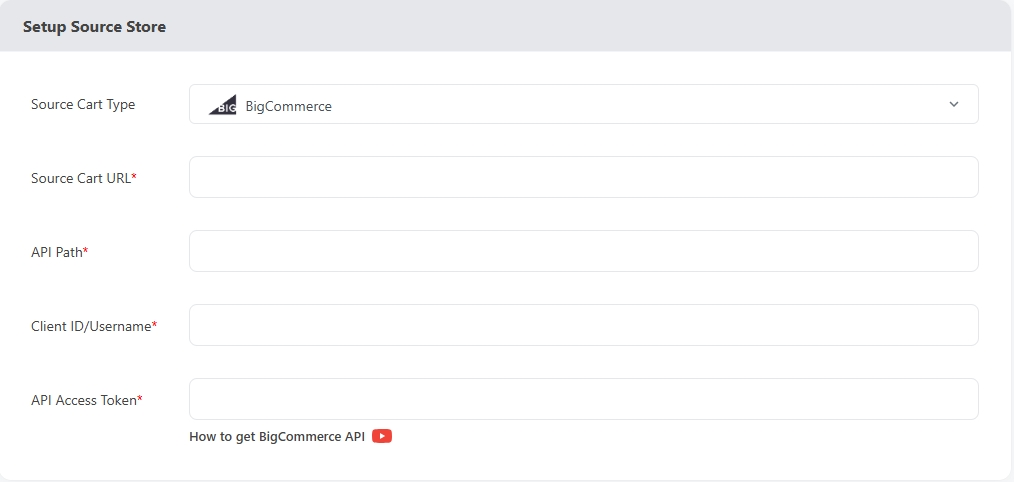
Next, scroll to the Target Cart section and select WooCommerce from the drop-down list. Then, choose your preferred method to configure your store, such as Log your store, Manual setup, and FTP/SFTP, then fill in the required fields.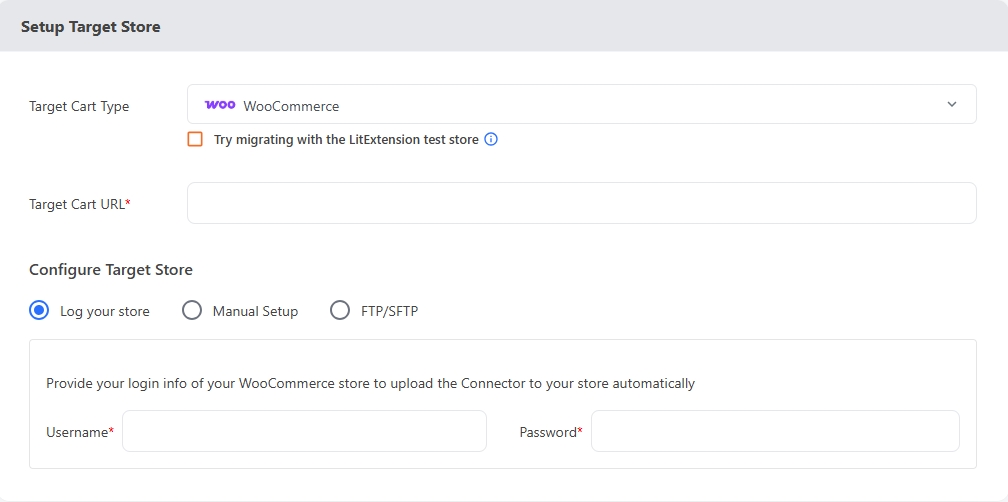
When everything is ready, click “Next: Configure Your Migration” to continue.
Step 2. Select data to migrate
Tick the data types you want to bring over to your new store. Our Automated Migration Tool supports data transfer of Products, Categories, Customers, Orders, and other essential entities from BigCommerce to WooCommerce. If you have custom data beyond this list, send a message through the Support button and a migration expert will follow up on your request promptly.
You can also turn on Additional Options to refine the migration further, with an instruction wizard and video tutorial available next to each one. Before moving on, map your language and order status settings so they display correctly on your new WooCommerce store.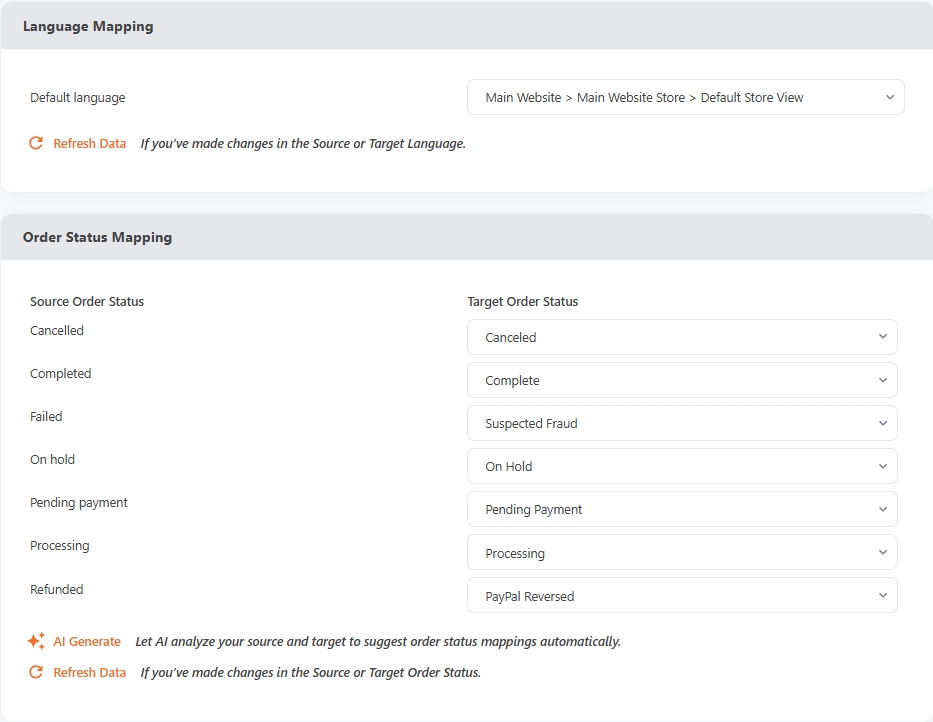
Once everything is set, you can run a Free Demo Migration to preview how your data will look on WooCommerce, or click “Skip Demo Migration” to go straight to checkout.
Step 3. Perform full migration
From here, LitExtension handles the transfer entirely on our secure cloud servers, so you do not need to keep your computer on while the migration runs. Your BigCommerce store stays live throughout the process, letting you keep taking orders as usual.
Once your BigCommerce to WooCommerce migration finishes, LitExtension will send you an email notification. Additionally, you can click the “Check Result” button on the result dashboard to review exactly what was transferred to your new WooCommerce store.
How to Migrate from BigCommerce to WooCommerce with LitExtension Migration Service

Step 1. Technical consultation with LitExtension experts
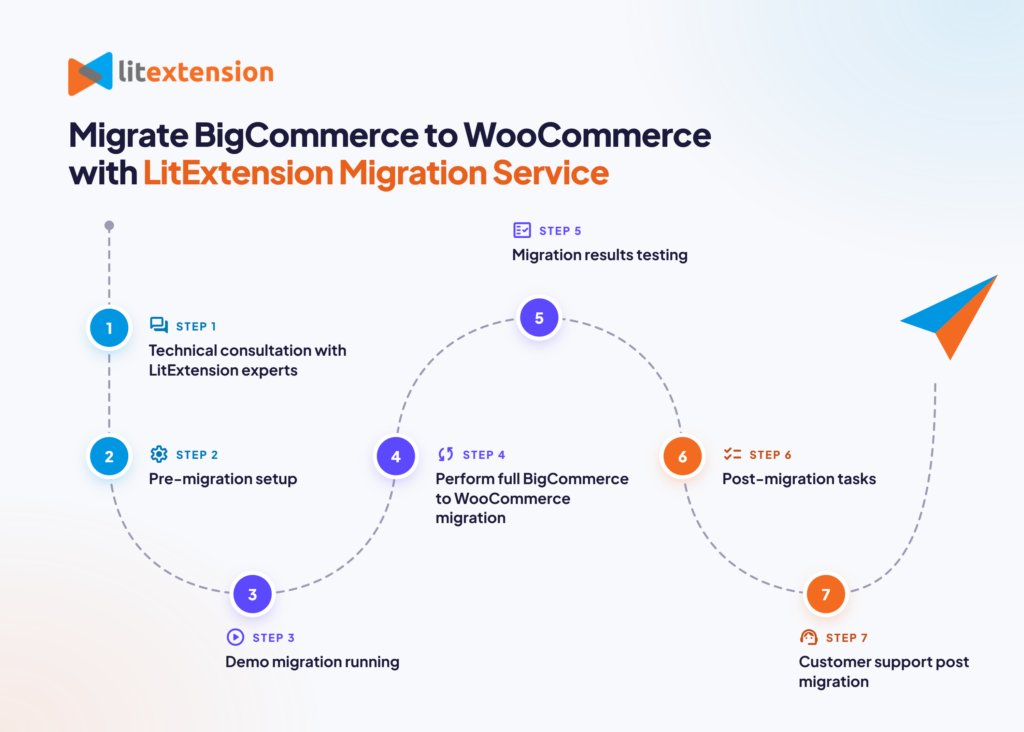
Your BigCommerce to WooCommerce migration starts with a one-on-one technical consultation with our expert team. During this call, we review your BigCommerce store’s size, structure and specific business needs, looking closely at your products, orders, customers, blog content and any custom fields to map out exactly what needs to move. Flagging potential challenges at this stage lets us shape a migration plan suited to your store.
If your BigCommerce store uses custom fields or non-standard workflows, we document these in detail so nothing gets lost or misaligned once your data reaches WooCommerce. This step wraps up with a signed Service-Level Agreement covering the project timeline, data volume and any custom requirements we’ve discussed.
Step 2. Pre-migration setup
With the plan in place, we prepare both platforms for the transfer. We confirm your BigCommerce store is ready on the source side and collect what’s needed on the WooCommerce side, including your WordPress hosting details, admin access and any technical settings required to connect the two platforms securely. We also verify your WooCommerce installation is properly configured to receive the incoming data.
From there, we map your BigCommerce data structure, such as product categories, customer groups and order details, to WooCommerce’s format. Any custom fields or business rules from BigCommerce get adapted so they transfer cleanly into WooCommerce. By the end of this step, every critical element is mapped and validated, setting up a reliable migration.
Step 3. Demo migration running
Before touching your full store, we run a demo migration using a small sample of your BigCommerce data. This gives you a preview of how your products, customers and orders will look on WooCommerce, and gives us a chance to catch and fix any configuration issues before the real transfer begins.
Step 4. Perform full BigCommerce to WooCommerce migration
Once you approve the demo results, we move into the full migration, transferring all your selected data into your new WooCommerce store according to the plan built in the earlier steps. Your BigCommerce store stays live and fully operational the entire time, since the transfer runs on our secure cloud system, so you never need to pause your business or put your store into maintenance mode.
Step 5. Migration results testing
After the full migration completes, we run through everything that was transferred to confirm it landed accurately on WooCommerce. Any inconsistencies, missing fields or formatting issues get fixed right away. Once everything checks out, we send you a detailed report of the migration results to review.
Step 6. Post-migration tasks
Since your BigCommerce store stays active during the migration, it may pick up new orders, customer sign-ups or product changes while the transfer is running. To keep your WooCommerce store current, we include a set of free post-migration services during the Technical Support window:
- Unlimited Recent Data migration, for new data under 5% of your original migration volume
- Two Re-migrations, if you need to run the full migration again
- Unlimited Smart Update, to refresh data already brought over in the initial migration
Step 7. Customer support post migration
Our support doesn’t stop once your BigCommerce to WooCommerce migration is done. For up to 60 days afterward, our Customer Support Team is available to answer questions and resolve migration issues, so you can run your store with confidence while knowing help is close by.
Manually Transfer Data from BigCommerce to WooCommerce
If you’d rather not pay for a migration tool or service, you can consider migrating from BigCommerce to WooCommerce on your own.
That said, a manual transfer comes with real trade-offs. Exporting and reimporting data through spreadsheets is easy to get wrong, especially with product variants, images and order history, and even a small mapping mistake can leave your catalog incomplete or your orders misattributed. The process also eats up hours that scale with your store size, and it demands a working knowledge of CSV structures, WordPress plugins and WooCommerce’s import tools to get a clean result.
For most merchants, LitExtension’s Automated Migration Tool or Migration Service handles this far more accurately and with a fraction of the manual effort. If you’d still like to move your BigCommerce to WooCommerce store yourself, here’s how.
Step 1. Export BigCommerce data
In your BigCommerce admin, export your products, customers and orders as separate CSV files. You’ll find these export options under Products, Customers and Orders respectively, and each file carries the core fields for that data type, such as product names, SKUs, prices, customer details and order history.
Step 2. Configure your CSV file to match WooCommerce format
BigCommerce and WooCommerce structure their CSV columns differently, so your exported files need reformatting before WooCommerce will accept them. Rename and reorder your columns to match WooCommerce’s expected fields, such as its product import template for names, SKUs, prices and variants, and check that attributes, categories and variant groupings are laid out the way WooCommerce reads them. Taking time here avoids import errors later.
Step 3. Import your CSV file to WooCommerce
For products, go to Products > All Products > Import in your WordPress admin and upload your reformatted CSV through WooCommerce’s built-in Product CSV Importer, mapping each column to its WooCommerce field as you go. WooCommerce has no native importer for customers or orders, so you’ll need a CSV import plugin for each, following that plugin’s own setup and mapping instructions to bring the data in correctly.
Step 4. Manually recreate unsupported data
Some data simply doesn’t travel through a CSV file, including product reviews, payment gateway and shipping configurations, your store’s theme and design, and any app or plugin-specific settings. Recreate these directly in your WooCommerce store once your core data is in place, and test each one before launch.
BigCommerce to WooCommerce Data Mapping
Knowing how your BigCommerce fields line up with their WooCommerce equivalents makes it easier to check your migrated data and spot anything that needs a second look. The table below maps each field by data type, including Product Categories, Products, Customers, Orders, Coupons, Pages, and Blogs.
| BigCommerce Field | WooCommerce Field |
|---|---|
| Product Categories | |
| Name | Name |
| Description | Description |
| Friendly URL | Slug or Redirects |
| Category Image | Thumbnail |
| Meta title | Meta Title (App Yoast SEO or Rank Math) |
| Meta description | Meta description (App Yoast SEO or Rank Math) |
| Products | |
| Product Name | Product Name |
| Description | Product Name |
| Image Thumbnail & Images | Product image (First image) & Product gallery |
| Default Price | Default Price |
| Sale price | Sale price |
| Categories | Categories |
| SKU | SKU |
| Quantity | Quantity |
| UPC/EAN/MPN | GTIN, UPC, EAN, or ISBN |
| Weight | Weight |
| Track inventory | Track inventory |
| Dimensions | Dimensions |
| Customizations / Variants | Variations |
| Status | Status |
| Product URL | Redirects |
| Meta Tag Title | Meta Title (App Yoast SEO or Rank Math) |
| Meta Tag Description | Meta description (App Yoast SEO or Rank Math) |
| Customers | |
| Name | First Name + Last Name |
| Addresses | Address |
| First name | First Name |
| Last name | Last Name |
| Company | Company |
| Address line 1 | Address line 1 |
| Address line 2 | Address line 2 |
| Suburb/City | City |
| Zip/Postcode | Postcode / ZIP |
| Country | Country / Region |
| State/Province | State / County |
| Phone Number | Phone |
| Orders | |
| Order ID | Order number (App sequence order number) |
| Date ordered | Date created |
| Status | Status |
| Contact | Customer |
| Subtotal | Items Subtotal |
| Discount | Discount |
| Shipping | Shipping |
| Total | Paid |
| Invoice/Shipping address | Billing/Shipping address |
| Note | Order Notes |
| Order Items | |
| Product name | Product name |
| Base price | Item Price |
| Qty | Qty |
| SKU | SKU |
| Coupons | |
| Coupon Code | Coupon Code |
| Expiration | Coupon expiry date & Coupon expiry time |
| Uses per Customer | Usage limit |
| Discount Amount | Coupon amount |
| Minimum purchase | Minimum spend |
| Pages | |
| Page Name | Page Name |
| SEO Title | Meta Title (App Yoast SEO or Rank Math) |
| SEO Description | Meta description (App Yoast SEO or Rank Math) |
| Page content | Content |
| Blogs | |
| Title | Title |
| Body | Content |
| Author | Author |
| Summary thumbnail image | Featured image |
| Publication Date | Date |
| Tags (optional) | Tags |
| Meta description | Meta description (App Yoast SEO or Rank Math) |
3 Simple Steps to Migrate from BigCommerce to WooCommerce
Are you finding that BigCommerce no longer meets your business needs? Want to seamlessly migrate your online store to WooCommerce? You’re in the right place! With LitExtension’s BigCommerce to WooCommerce migration service, you can effortlessly transfer your entire store, ensuring all your data is fully preserved. Your store will be up and running on WooCommerce in no time, ready to grow and scale.
Here’s a complete, step-by-step guide to the migration process:
- Step 1: Backup database of the BigCommerce store
- Step 2: Set up a new WooCommerce store
- Step 3: Set up Source and Target Cart
- Step 4: Select entities to migrate
- Step 5: Perform full migration from BigCommerce to WooCommerce
- Step 6: Follow a go-live checklist for WooCommerce stores after data migration
In case you want to dig deep into a complete guide on switching from BigCommerce to WooCommerce, please look at our comprehensive BigCommerce to WooCommerce migration guide here! Now, let’s head straight to 3 critical steps of the BigCommerce to WooCommerce migration with LitExtension.
Step 1: Set up Source Cart & Target Cart
To set up your shopping cart, select BigCommerce as your source cart type, and provide the store URL. Follow the brief instruction to get your API info and fill them in the form.

Follow the same steps to set up your WooCommerce store as the target cart. Then you need to download the connector file by clicking LitExtension Connector.
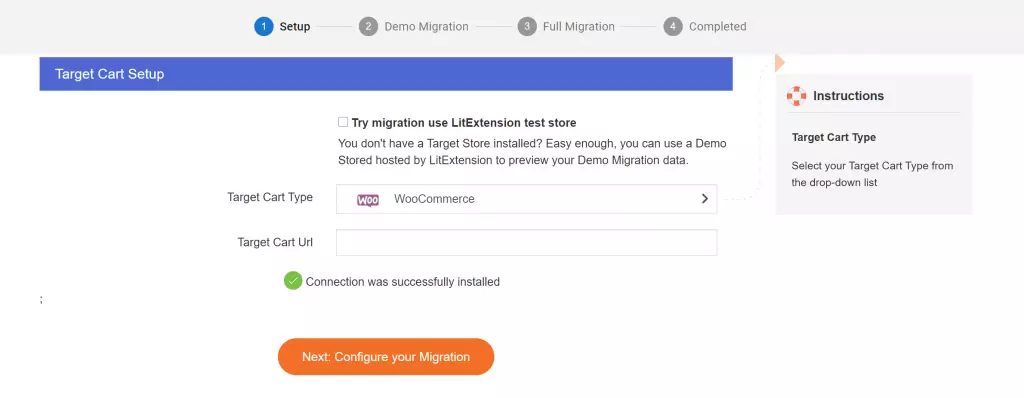
If you meet any problems while installing the connector, don’t hesitate to contact our support team.
Then, click Next: Configure your migration to select entities to migrate and additional options.
Step 2: Select Entities to Migrate BigCommerce to WooCommerce
In this step, you can choose any data that you want to migrate or all of them.
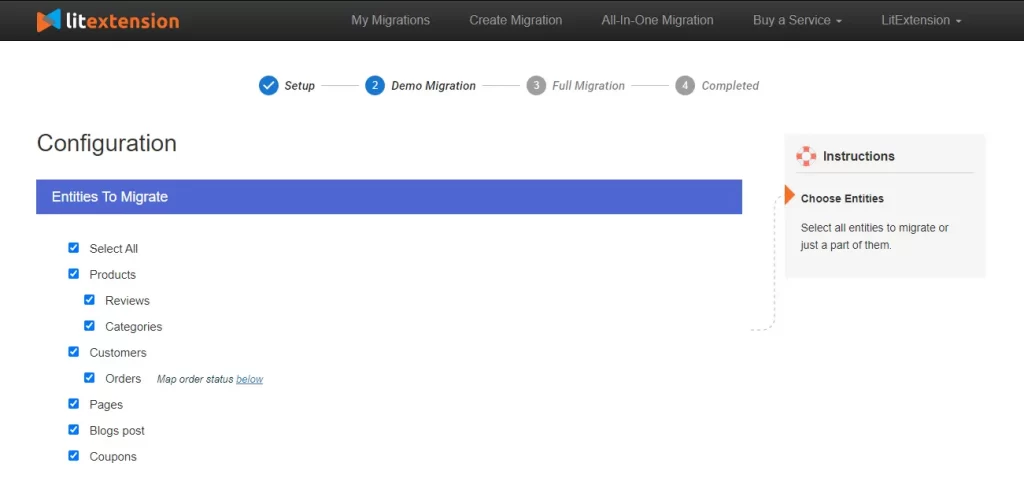
Then, scroll down to select additional options to expand your migration possibilities.
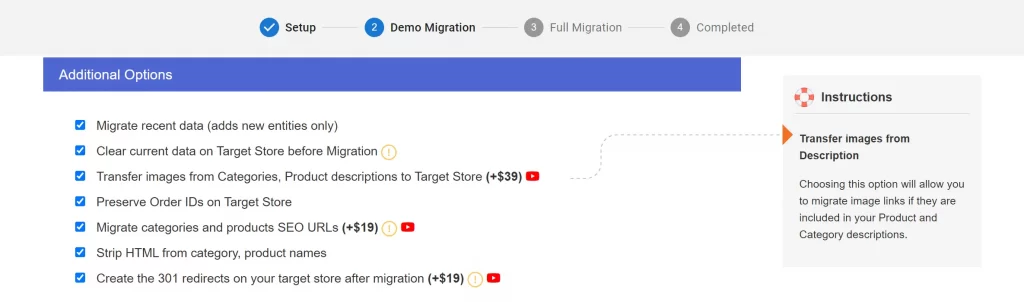
With SEO URLs Migration & 301 Redirect, you can migrate Products and Categories URLs to the new store or create 301 redirects to the new URL. Therefore, this will help maintain the SEO rankings you have built up for years.
Step 3: Perform BigCommerce to WooCommerce Migration
Right now, everything is ready for the full cart to cart migration. However, I suggest you choose Start Demo Migration free option to know how your migration process operates and visualize your new store.
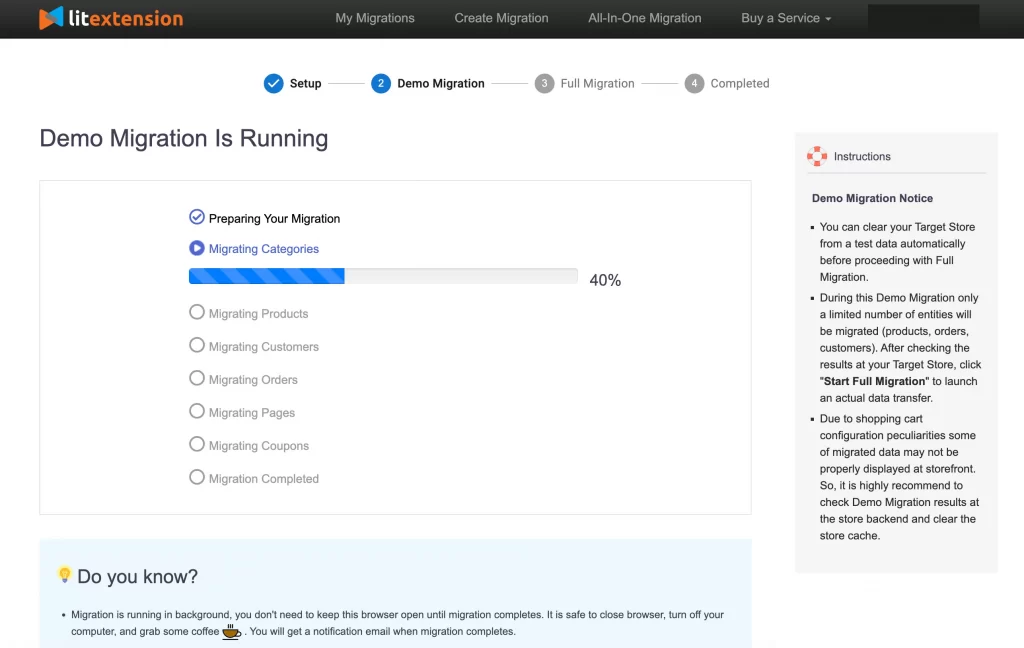
By doing free demos with different target carts, you can visualize your new store in various cart types. Thereby, you could choose the one you prefer most. In addition, you also know how your migration process operates before you decide to take the full migration.
After that, you can perform the Full Migration.
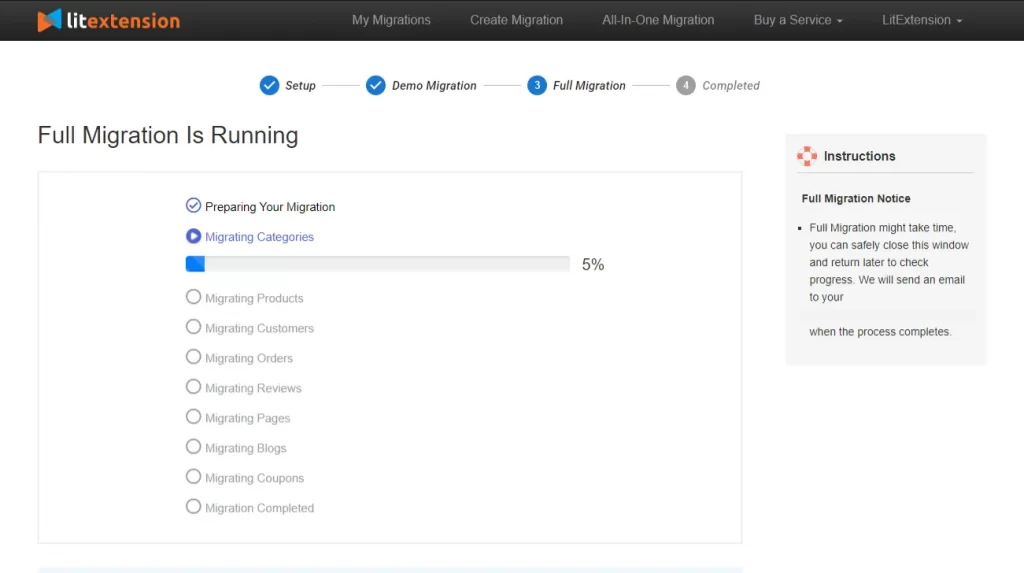
Once the migration is started, you can shut down your PC or disconnect the internet. Your data will be transferred seamlessly to your target store on the server and you will be informed via email when the migration completes.
So, don’t hesitate to move to WooCommerce with LitExtension since the process is easy peasy! If you aren’t tech-savvy, leave your BigCommerce to WooCommerce migration in good hands with our All-in-One Migration Package. Our WooCommerce migration experts will lift the weight of manual tasks off your shoulder and handle the migration at a committed response time, with a personal assistant and free additional options.
Join 200,000+ customers who have grown business with LitExtension. Try free demo to visualize how easy and efficient the cart to cart migration can be.
What Data Can Be Migrated From BigCommerce To WooCommerce


-
Product
- Product Name, Description
- Image Thumbnail & Images
- Default Price, Sale price
- Categories, SKU
- Quantity
- UPC/EAN/MPN
- Weight
- Track inventory
- Dimensions
- Customizations / Variants
- Status
- Product URL
- Meta Tag Title, Meta Tag Description
Product Categories
- Name, Description
- Friendly URL
- Category Image
- Meta title, Meta description
-
Customer
- Name
- Addresses
Customer Address
- First name, Last name
- Company
- Address line 1, Address line 2
- Suburb/City
- Zip/Postcode
- Country
- State/Province
- Phone Number
-
Order
- Order ID
- Date ordered
- Status
- Contact
- Subtotal
- Discount
- Shipping
- Total
- Invoice/Shipping address
- Note
Order items
- Product name
- Base price
- Qty
- SKU
-
- Coupon Code
- Expiration
- Uses per Customer
- Discount Amount
- Minimum purchase
-
- Page Name
- SEO Title
- SEO Description
- Page content
-
- Title
- Body
- Author
- Summary thumbnail image
- Publication Date
- Tags (optional)
- Meta description
(*) If you cannot find the data you want to migrate, please get in touch with us.


Leave The Work For The Experts
If you’re non-tech, let our WooCommerce migration experts handle your migration from A to Z.
Save your time for more important tasks.

Migrate From BigCommerce To Other Platforms








How Your Data Is Secured During Migration?

Server Security

Data Security

Data Access Restriction

GDPR Compliance

NDA

Payment Security
Why choose Automated Migration for WooCommerce Migration


Who We Truly Are? Let Our Customer Define!

Mr. Dylan Tran did an awesome job in assisting us on migration from BigCommerce to WooCommerce. We had several hiccups and false starts. He is patient and an effective communicator.