Migrate from Squarespace to Shopify with LitExtension using exported files or expert migration support. Transfer your products, customers, orders, and other supported data accurately while keeping the migration process simple and controlled.
If you already have Squarespace exports, LitExtension Files Migration helps you prepare, map, validate, and transfer your data to Shopify.
For more complex stores, LitExtension’s All-in-One Migration Service lets our experts handle the migration from setup and data mapping to transfer, testing, and post-migration support.
No advanced technical skills are required. Your migration is handled through a structured process designed to reduce errors and keep your data secure throughout the transfer.
Read our 3,000+ reviews on 



 | LitExtension is an Official Shopify Partner
Migrating your store from Squarespace to Shopify with LitExtension is straightforward. Our experts handle the entire process for you in three simple steps, so you can stay focused on running your business while we take care of the technical work.

Share your store details with our team and we will review your data, clarify your requirements, and put together a clear migration plan before anything gets started.

Our experts map your Squarespace data to the correct Shopify fields, set up your target store environment, and run a Demo Migration so you can preview the results before the full transfer begins.

Once you approve the demo, we kick off the full migration. It runs on our servers and keeps going in the background, with our team monitoring every step until your Shopify is ready to launch.
Method 1: Migrate from Squarespace to Shopify with Migration Experts
Want to move from Squarespace to Shopify without handling the technical work yourself? With LitExtension’s All-in-One Migration Service, our experts manage the entire process, from data preparation and transfer to testing and post-migration support.
- Technical Consultation: We review your Squarespace store, identify migration requirements, and define the scope of the transfer.
- Pre-Migration Preparation: Our team prepares Shopify, configures migration settings, and maps your Squarespace data to the corresponding Shopify fields.
- Demo Migration: We transfer sample records for your review and resolve any issues before the full migration.
- Full Migration: Our experts transfer your selected data to Shopify while your Squarespace store remains operational.
- Migration Results Testing: We verify the transferred products, customers, orders, images, and data relationships, resolving migration-related discrepancies.
- Post-Migration Services: Recent Data Migration, Smart Update, and Re-migration help transfer eligible new or updated records, subject to service terms.
- Dedicated Customer Support: Your Personal Assistant provides guidance throughout the process, with up to 60 days of technical support after completion. Refund eligibility is subject to LitExtension’s terms.
Method 2: Migrate from Squarespace to Shopify with LitExtension Automated Migration
If you want to manage the migration yourself without manually restructuring every CSV file for Shopify, you can use LitExtension Files Migration. Export the available data from Squarespace, upload your files to LitExtension, map the fields, validate the records, and transfer them to Shopify.
Step 1: Export Your Squarespace Data and Upload the Files
Squarespace exports products, customers, and orders separately. Prepare the files you want to transfer and keep each data type in its own file where possible.
Export Squarespace products:
- Go to Products & Services > Products in your Squarespace dashboard.
- Click Export all to download all available products, or select individual products and click Export.
- Save the product CSV file and review its columns and image references.
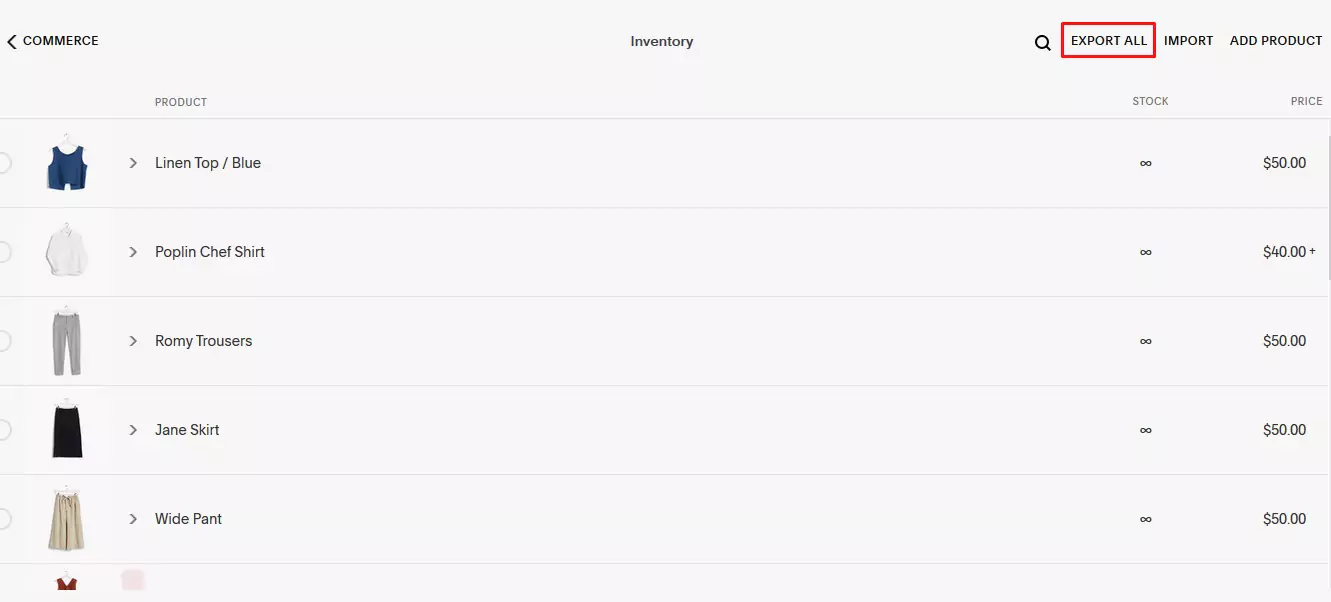
Squarespace’s product CSV export covers physical and service products and is limited to 10,000 products. It excludes certain additional product information, customer reviews, featured images, image alt text, and variant images. Digital products and other unsupported details may require separate handling.
Export Squarespace customers:
- Go to Lists & Segments > Customers.
- Click the export icon in the top-right corner and select Confirm.
- Download the exported customer file.
Export Squarespace orders:
- Go to Products & Services > Orders and select Export data > Download CSV.
- Choose the order statuses and date range based on order creation date.
- Select All products and download the order CSV.
Once your files are ready, sign in to the LitExtension app and create a New Migration. Select Files (CSV, Excel, Google Sheets) as the Source Cart Type and upload your Squarespace exports.
Choose Shopify as the Target Cart Type and follow the instructions to connect your Shopify store.
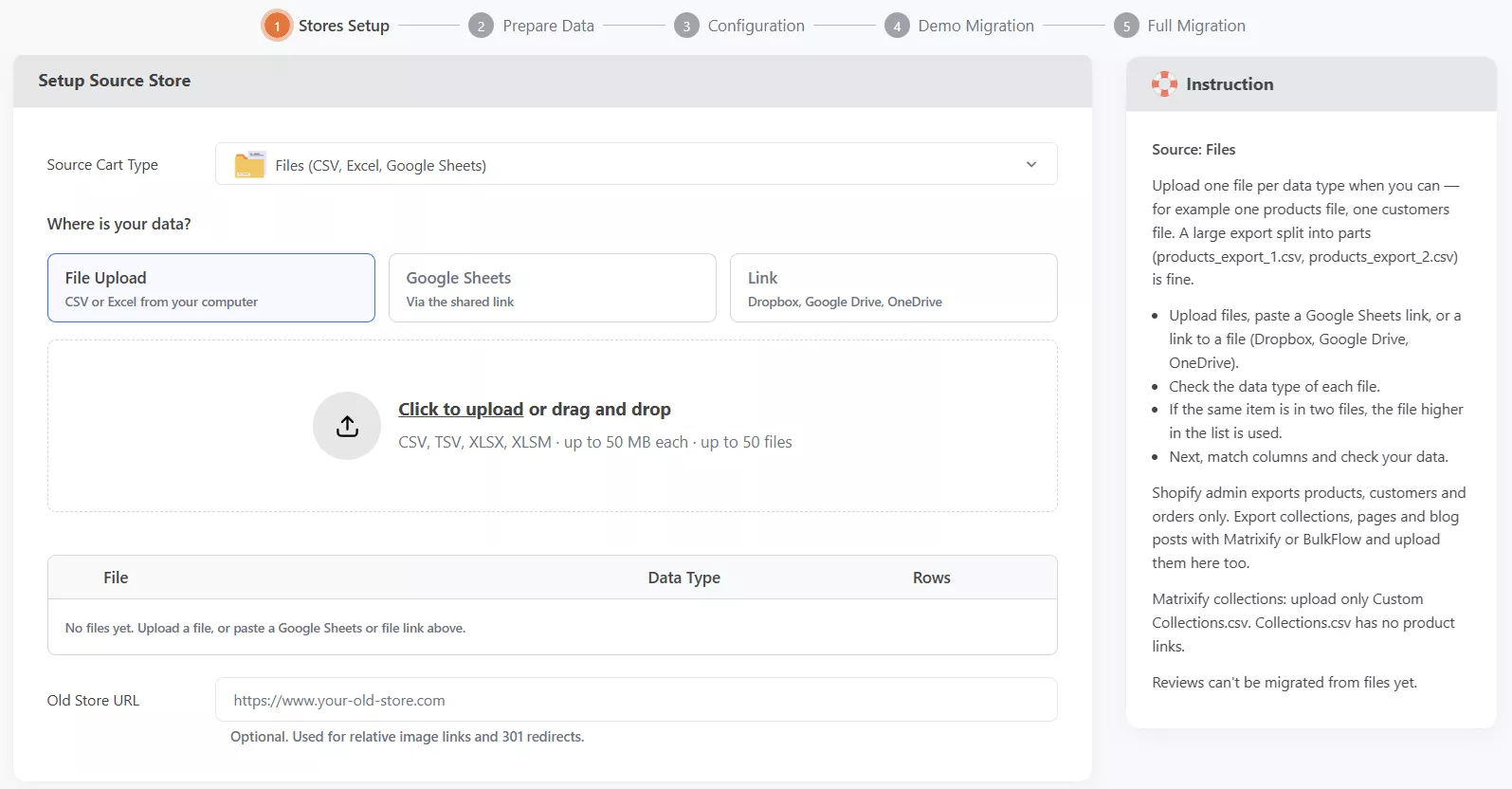
Review the uploaded files and confirm that LitExtension has detected the correct Data Type for each one. Keep image URLs accessible during the migration so supported product images can be transferred.
Step 2: Map Squarespace Fields to Shopify and Check the Data
Continue to Prepare Data and open Field Mapping. Match your Squarespace file columns with the corresponding Shopify fields, then review the sample records to confirm the values are mapped correctly.
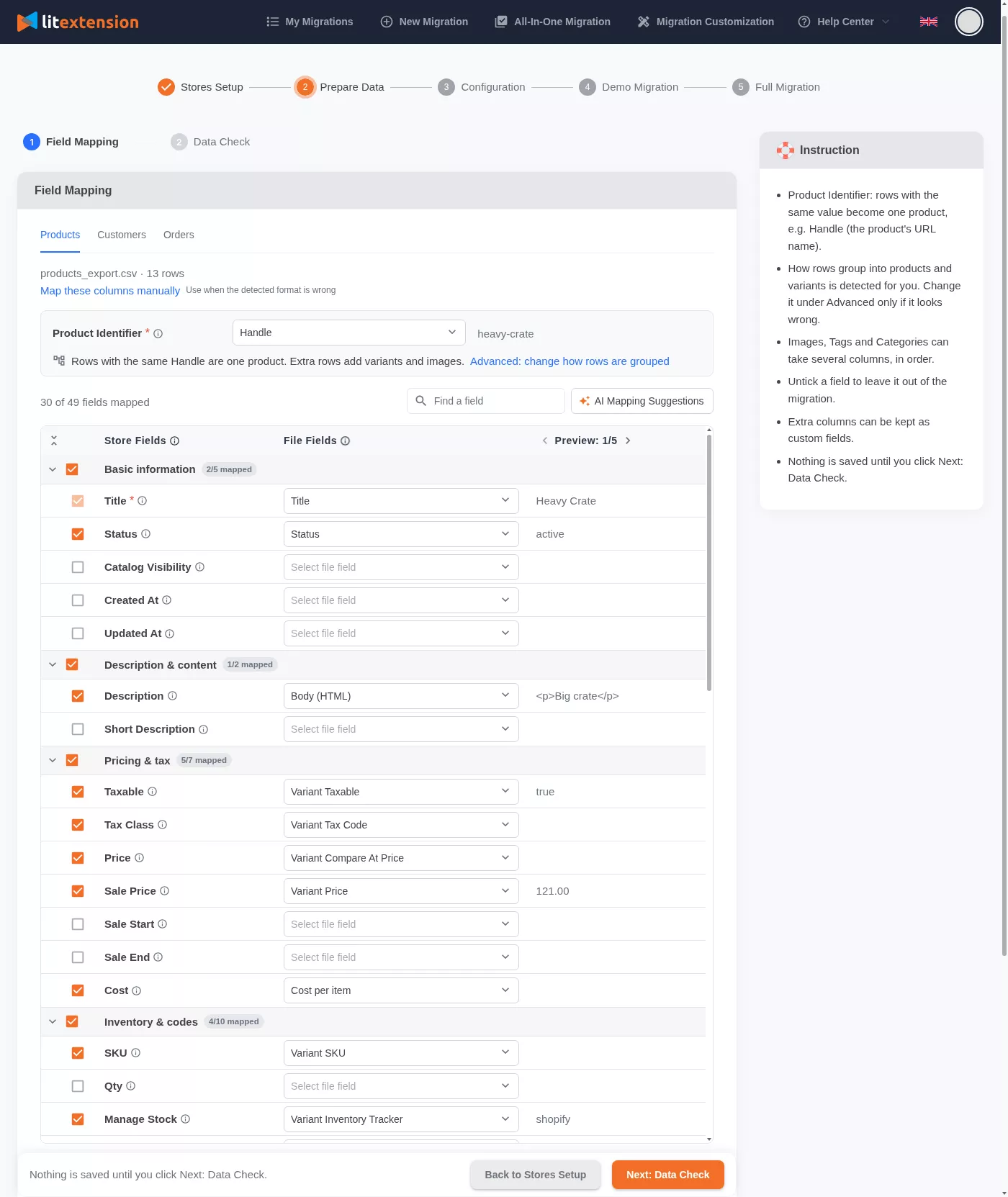
Select the appropriate Product Identifier to group each product with its variants and images. Check product names, SKUs, prices, inventory, option values, and image references. Products with more than three options may need restructuring to fit Shopify’s product model.
For customers, choose a suitable Customer Identifier, such as an available ID, email, or phone column. Deselect fields you do not want to transfer and review additional fields that may need separate handling.
If the source columns are unfamiliar, use AI Mapping Suggestions and check the suggested matches.
Click Next: Data Check to validate the dataset without transferring records to Shopify.
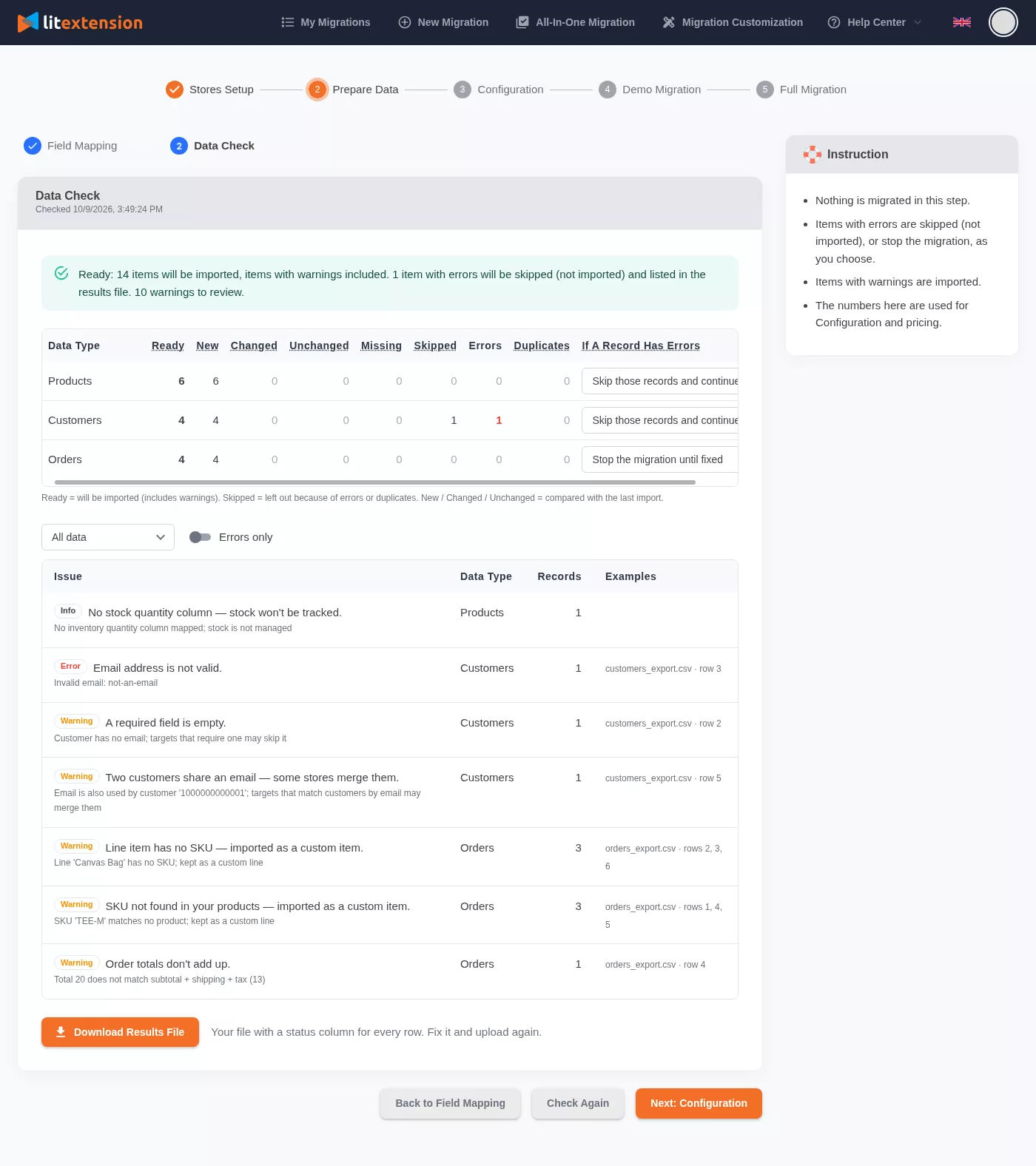
Review the validation results:
- Ready: Records eligible for migration, including those with warnings.
- Errors: Issues preventing affected records from being imported.
- Warnings: Issues that should be reviewed but do not block migration.
- Skipped / Duplicates: Records excluded because of errors or duplication.
If errors appear, download the Results File, correct the affected rows, replace the uploaded file, and click Check Again. Run Data Check again whenever you change a file or field mapping.
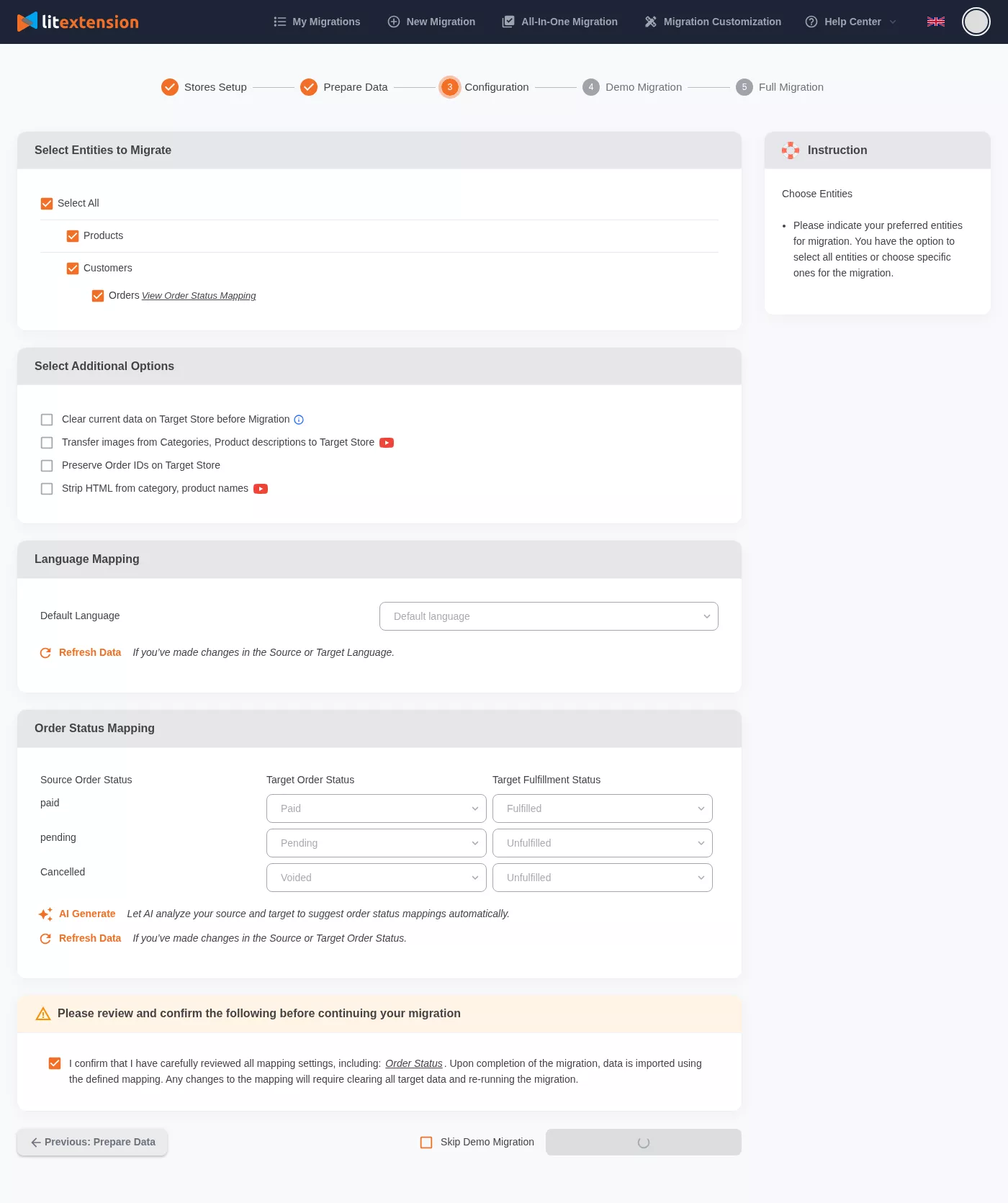
Once your data is ready, open Configuration. Select the supported data types to transfer, enable any additional options you need, and review Order Status Mapping where available.
Step 3: Run a Demo and Complete the Migration
Start Free Demo Migration to transfer a small sample of your Squarespace data to Shopify. Check the imported products, variants, prices, images, customers, orders, and other selected records directly in the Shopify admin.
If you find incorrect or missing information, return to the source files or Field Mapping, make the necessary changes, run Check Again, and select Demo Again.
When the demo results are correct, click Next: Confirm Orders, review the price, complete payment, and start Full Migration to transfer the eligible selected records.
The migration runs on LitExtension’s servers, so you can close your browser and track progress later in My Migrations. After completion, compare the migrated records with your Squarespace exports and review the results in Shopify.
Some data, including digital products, reviews, subscriptions, blog content, Extensions data, and unsupported custom fields, may require separate migration methods or additional preparation.
Method 3: Switch from Squarespace to Shopify via Manual CSV Import
You can also move supported Squarespace data directly into Shopify without using a migration service. This approach works best for smaller stores with straightforward product and customer data.
Use the Squarespace exports described in Method 2, Step 1. Unlike LitExtension Files Migration, manual importing requires you to restructure the files to match Shopify’s CSV templates. Shopify’s built-in CSV importer supports products and customers, but not historical orders.
Step 1: Set Up Your Shopify Store
Create your Shopify account and choose a plan that fits your business. Select a theme and configure the basic store settings, including payments, shipping, and currency, before importing data. Our Shopify tutorial can help you get started.
Check the store settings and plan a small test import before uploading your complete files.
Step 2: Format Your CSV Files for Shopify
Shopify requires specific CSV column headings and supported values. Download the official Shopify templates and use them to restructure your Squarespace exports.
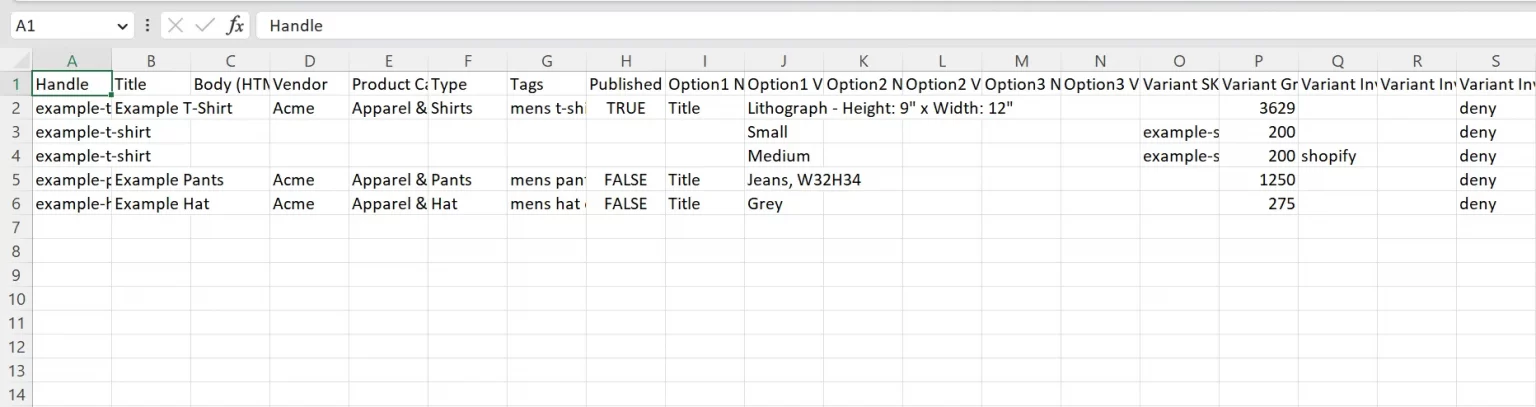
Use these templates as your formatting reference:
Common Shopify product CSV fields include:
- Handle
- Title
- Body (HTML)
- Vendor
- Type
- Tags
- Option names and values
- Variant SKU
- Variant Price
- Image Src
Common Shopify customer CSV fields include:
- First Name
- Last Name
- Phone
- Address1
- City
- Province
- Province Code
- Country
- Country Code
- Zip
Map the exported Squarespace columns to Shopify’s required structure for each data type. Pay particular attention to product variants, option values, images, customer addresses, and missing fields.
Keep your original Squarespace exports unchanged and test with a small file first. Shopify product CSV uploads are limited to 15 MB per file, so split larger files before importing.
Step 3: Import Your Data into Shopify
Once the CSV files are formatted correctly, upload them through the Shopify admin.
- Products: Go to Products > Import, select your prepared CSV file, and click Import products.
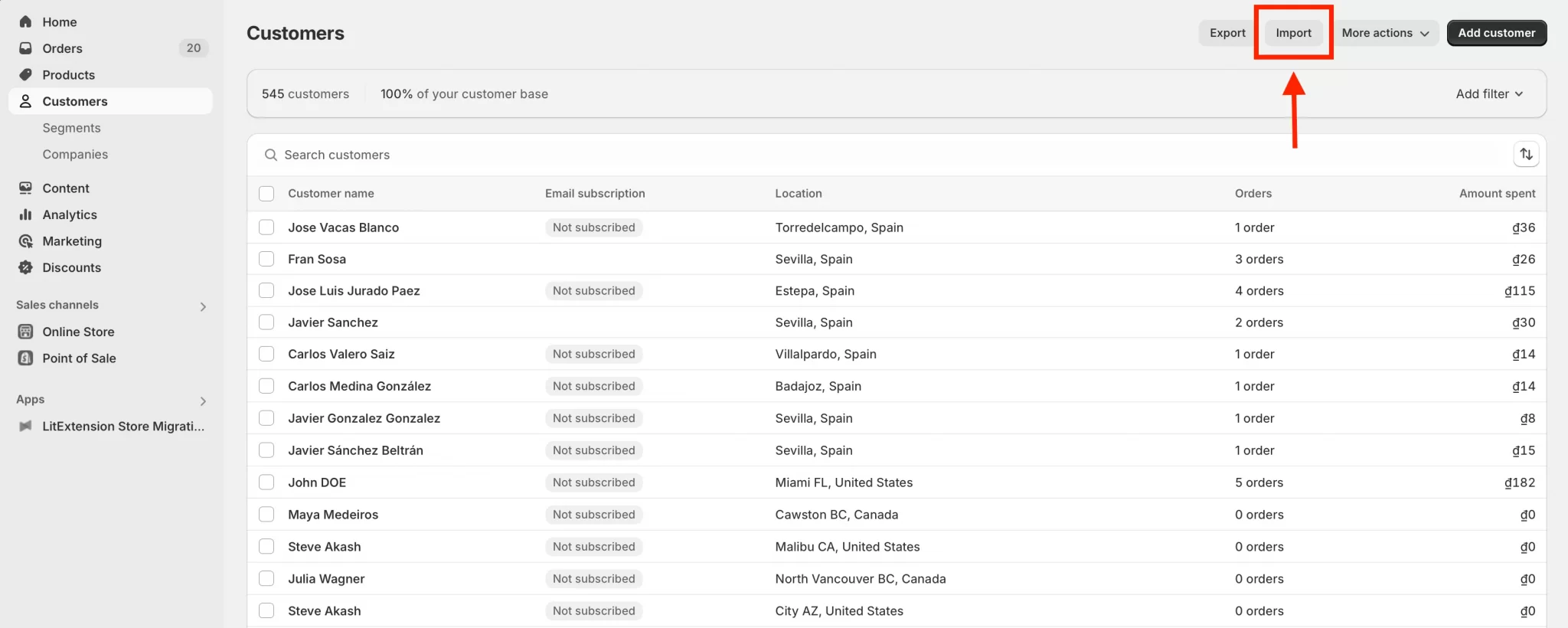
- Customers: Go to Customers > Import, upload the customer CSV file, review the data, and click Import customers.
- Orders: Shopify does not provide a built-in CSV importer for historical orders. Use a compatible migration app or custom API-based process, then verify order statuses and customer associations.
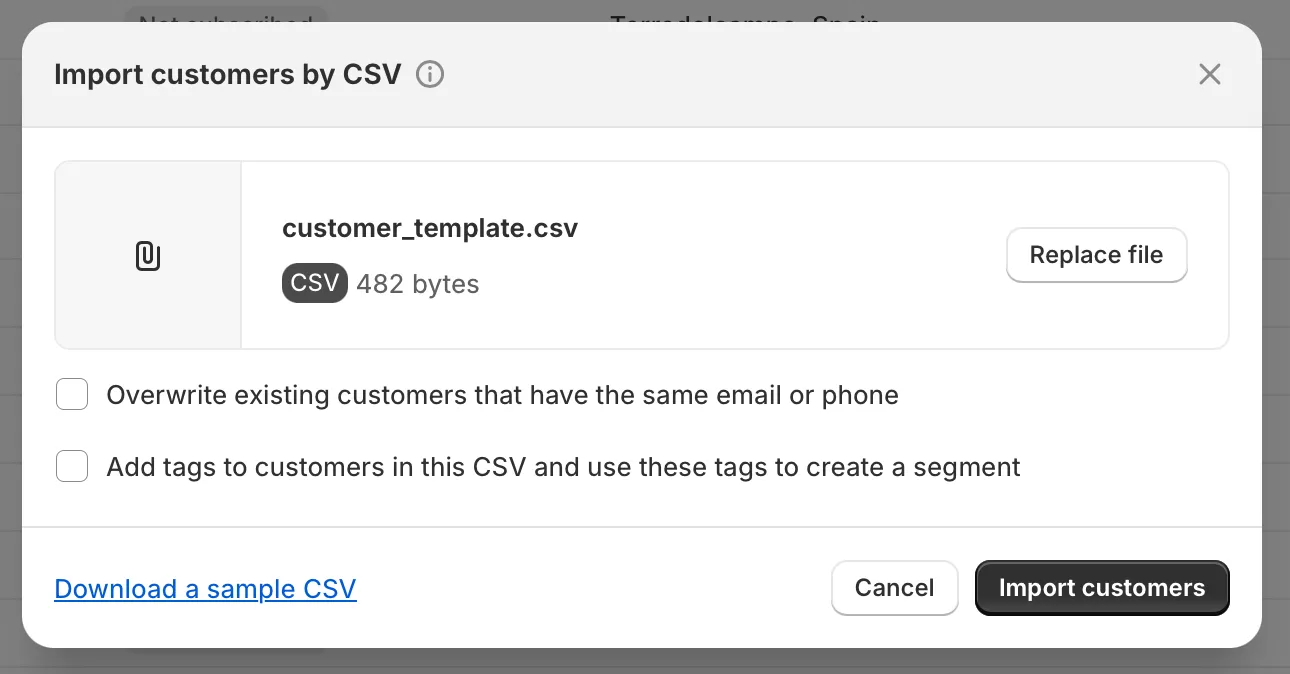
After each import, review the results for errors or failed records and correct any issues before continuing with the next file.
Step 4: Recreate Your Design and Content
Your Squarespace theme and custom code cannot be installed directly on Shopify. Rebuild your storefront using a Shopify theme and recreate any pages or custom content not included in your data exports.
Squarespace also does not export blog posts through CSV. To export available blog content, open Import & export content in Squarespace, select Export, choose the WordPress icon, and download the XML file. Squarespace exports only one blog page this way.
Shopify does not have a built-in XML blog importer, so use a compatible app or recreate your posts manually. Review the imported images, formatting, and links afterward.
If you haven’t chosen a theme yet, see our guide to the best eCommerce Shopify themes.
Step 5: Set Up Redirects and Prepare for Launch
Squarespace and Shopify use different URL structures. Create 301 redirects from important Squarespace URLs to their corresponding Shopify pages to preserve access to existing links and help search engines find the new destinations.
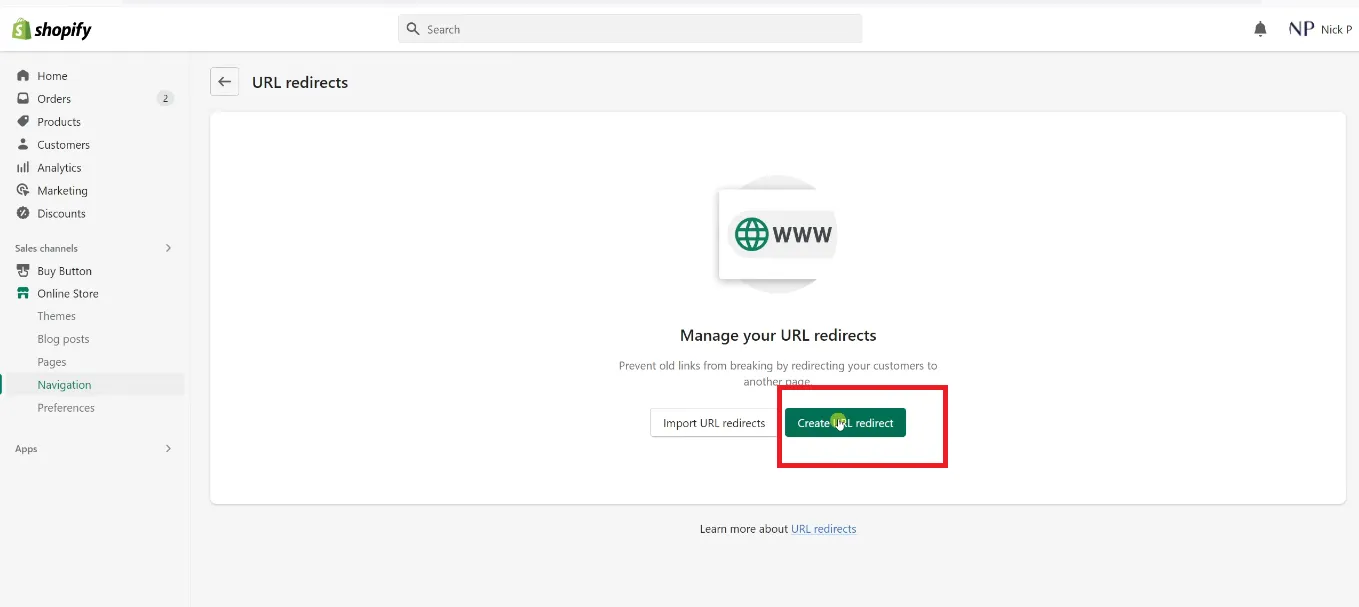
In Shopify admin, go to Content > Menus > URL Redirects to add redirects individually or import them in bulk using CSV.
Once your new domain is connected, verify the property in Google Search Console and submit your Shopify sitemap at yourdomain.com/sitemap.xml.
Before directing customers to Shopify, complete the post-migration checks below. Remember that redirects help preserve access to your content but do not guarantee unchanged search rankings.
Post-Migration Checklist Before Completion
After transferring your Squarespace data, review both the imported records and the customer-facing Shopify store before closing your migration project.
Confirm your domain, DNS, and SSL are configured correctly
If you’re connecting your existing domain to Shopify, update the required A and CNAME records following Shopify’s domain instructions. Allow up to 48 hours for DNS propagation, depending on your registrar and TTL settings.
See Shopify’s guide to connecting a third-party domain for the required settings.
Check that Shopify’s SSL certificate is active and your storefront loads securely over HTTPS. Keep your Squarespace website available until the domain transition is complete.
Test the customer-facing experience end to end
Place a test order and verify checkout, payment processing, taxes, shipping rates, and discount codes. Check migrated customer profiles and historical orders, including their relationships where applicable.
Test customer sign-in, product pages, and variant selectors on desktop and mobile. If you sell subscriptions, verify the purchase flow and the connected subscription app separately.
Verify your 301 redirects and canonical tags
Test a representative selection of old Squarespace product, category, and content URLs to confirm they redirect to the correct Shopify destinations without errors or redirect loops.
Shopify’s URL redirect documentation explains how to create and manage redirects, including bulk imports.
Check that canonical tags reference the intended Shopify URLs rather than the old Squarespace pages. For larger sites, use a crawling tool such as Screaming Frog to identify broken links, redirect chains, and unexpected canonical destinations.
Monitor Search Console, crawl stats, and rankings
After submitting your sitemap, monitor the Page indexing report for indexing problems and the Crawl Stats report for unusual changes in crawl activity.
Track organic traffic and rankings for your important pages during the first few weeks. Some fluctuations are normal after a platform change, but persistent declines should be investigated through redirects, indexability, canonical URLs, content, and internal links.
Reconnect third-party integrations and webhooks
Squarespace Extensions and third-party services do not automatically become Shopify apps. Reconnect the payment, fulfillment, email marketing, review, loyalty, analytics, and other integrations your business requires.
Check whether each service supports transferring historical data and confirm that its workflows operate correctly in Shopify.
Help existing customers access their Shopify accounts
Existing Squarespace customer passwords cannot be transferred directly to Shopify through CSV files. Inform your customers how to access their accounts using the invitation, password reset, or sign-in process supported by your Shopify customer account setup.
Test the chosen account access process before launch to reduce login-related support requests.
Join 200,000+ businesses that have migrated with LitExtension. Start a Free Demo Migration to preview how your Squarespace products, customers, orders, and URLs will be transferred to Shopify before running the full migration.
What Data Can Be Migrated from Squarespace to Shopify
Transfer Squarespace to Shopify with all your essential store data. We migrate products, customers, and orders accurately, so you can start selling on Shopify without rebuilding your store from scratch.


-
Products
- Name, SKU
- Short Description, Full Description
- Status
- Price, Special Price
- Quantity, Manage Stock
- Meta Title, Meta Description
- Weight, Width, Height, Depth
- Tags
- Variants
- Thumbnail Image
- Additional Images
Products Categories
- Name, Description
- Image
- Meta Title
- Meta Description
-
Customers
- First Name
- Last Name
Billing Address
- First Name
- Last Name
- Company
- Address 1
- Address 2
- Country
- State
- City
- Zip Code
- Telephone
-
Orders
- Order ID
- Order Date
- Order Status
- Order Items
- Total Price
- Sub Price
- Discount Price
- Tax Price
- Shipping Price
- Order Comments / Order Note
- Customer Name, Email
- Billing Address
- Shipping Address
Can’t find the data you need to migrate? Contact Us or click on the Live Chat for a free consultation.


Leave The Work For The Experts









How Your Data Is Secured During Migration?






Why Choose LitExtension for Squarespace to Shopify Migration


Who We Truly Are? Let Our Customer Define!

Working with LitExtension was a very positive experience for us. Their team seamlessly migrated my blogs from Squarespace to Shopify, making the transition smoother than I could have imagined. From start to finish, their communication was prompt and professional, and they handled every aspect of the migration with precision and care… Thank you, LitExtension, for your outstanding service and expertise!
Got in touch with Litextension to export order history from Squarespace to Shopify for an online grocer and it was a truly easy and smooth process. Even when something is amiss from the import, they were very prompt in their responses and very responsible with their follow-up emails. Highly recommended service! Special shoutout to Tracee, thank you!
I own an agency that builds ecommerce sites, and I don’t trust just anyone to work on my client sites. This team did an amazing job helping us migrate lots of data from Squarespace to Shopify. Super timely, professional, and great QA process.