Wix Migration Service
 Based on 3,000+ reviews on:


LitExtension’s Wix Migration service helps store owners migrate their online store to Wix or move from Wix to another eCommerce platform securely and accurately. We support data migration across 140+ platforms, including products, customer data, and other essential store information.
The migration takes just three simple steps. Your current store stays live throughout the entire process, so there is no downtime or disruption to sales. We transfer your data securely with zero data loss and full data integrity, helping you maintain business continuity and start using your new store as soon as the migration is complete.
Data Types Supported for Wix Migration
When migrating from Wix, our service can transfer products, customers, and orders to your new store. When migrating to Wix, our migration tool allows you to migrate products and customers, quickly rebuild your catalog and customer base on the new platform.


-
Products
- Name, SKU.
- Short Description, Full Description.
- Status.
- Manufacturer.
- Tax Class.
- Price, Special Price.
- Quantity, Manage Stock.
- Meta Title, Meta Description.
- Weight, Width, Height, Depth.
- Attributes: Name, Values.
- Variants: Name, SKU, Weight, Quantity, Manage Stock, Image, Price, Special Price.
- Thumbnail Image, Additional Images.
Products Categories
- Name.
- Description.
- Image.
- Meta Title, Meta Description.
-
Customers
- First Name, Last Name.
- Email.
- Billing Address.
- Status.
- Created Date.
- Display Name.
Can’t find the data you need to migrate? Click on the Contact Us in the right corner for a free consultation.
Wix Migration Made Easy with Experts

Migrating an online store to Wix means transferring the data your new store needs–such as products, customers, and orders–then rebuilding and testing anything the data transfer cannot carry over. If you are moving from Shopify, WooCommerce, BigCommerce, Magento (Adobe Commerce), or another eCommerce platform, the right approach depends on your data, your timeline, and how much of the work you want to manage yourself.
There are three practical Wix migration options: have specialists manage the transfer, use an automated Wix migration tool, or prepare a product import with Wix’s CSV template. For a store with order history, complex variants, or custom fields, start by confirming what Wix can receive and how each source field will map. Moving the data does not automatically recreate your storefront design, apps, checkout configuration, or every original URL.
Wix migration services and tools: Which option fits your store?
| Approach | Who handles the transfer? | Best fit | What to plan separately |
|---|---|---|---|
| LitExtension All-in-One Migration Service | LitExtension specialists assess, configure, run, and validate the agreed data migration. | Stores with multiple data types, custom requirements, or limited staff time. | Design, apps, payment and shipping setup, and launch tasks unless included in the agreed scope. |
| LitExtension automated Wix migration tool | You configure and review the migration using LitExtension’s self-service tool. | Supported, relatively straightforward stores whose teams can manage setup and testing. | Unsupported or custom records, field differences, and storefront setup. |
| Wix product CSV import | You export, reformat, import, and check the files. | Small, simple catalogs when product data is the main priority. | Customer and order history, other unsupported data, and the rest of the store setup. |
Before choosing a Wix migration method, compare the supported source platforms, transferable data types, demo results, and total cost. A product-only import may be sufficient for a simple catalog; stores that need customer and order history should assess a fuller data migration.
Method 1. Use LitExtension’s expert-managed Wix migration service
With LitExtension’s All-in-One Migration Service, a migration specialist manages the data-transfer project rather than asking your team to configure and run it. The service is useful when products have extensive options or variants, you need to retain customer and order relationships, or your source store contains data that needs custom mapping. The exact records, additional work, timeline, and price should be confirmed for your source platform and Wix setup.
Step 1. Assess the source store and agree on the scope
LitExtension reviews the source platform, record counts, product structure, and the data you want to move. Typical items to assess include products, images, categories, customers, and order history. Blog content, custom fields, and platform-specific data require an explicit compatibility check; they should not be assumed to transfer in the same way as standard store records. The team identifies exclusions, any required customization, and a migration plan before the full transfer.
Step 2. Set up the connection and data mapping
The migration team connects the source store and Wix, selects the supported entities, and maps fields to their destination. For example, it checks how product options, variant prices, category assignments, and customer or order references will appear in Wix. Any source field without a suitable Wix destination needs a decision: map it differently, handle it as a custom requirement, or leave it out of scope.
Step 3. Review a Demo Migration
The team transfers a sample so you can inspect actual records in Wix before approving the full migration. Check a simple product and a complex product, including their images, SKUs, prices, options, and variants. Review customer and order samples where supported. If a field lands incorrectly or a relationship is missing, the team can revise the mapping before transferring the complete dataset.
Step 4. Run the Full Migration and validate the results
After you approve the demo, LitExtension runs and monitors the agreed transfer. Compare source and target record counts, then spot-check products, variant combinations, images, customer details, and order history. Keep your original store available for reference and continue recording new activity until your Wix store is ready to launch.
Step 5. Plan for changes made during the migration
Orders and customer records can be added to the source store while the transfer is running. LitExtension offers post-migration options such as Recent Data Migration and Smart Update to address eligible new or changed records. Agree on the applicable option and its terms before the final cutover; a full migration should not be assumed to include every change made afterward.
Want LitExtension to manage your migration to Wix? Contact our migration team with your source platform, approximate product and order counts, and any custom data requirements. We can assess the scope before you commit to a transfer.
Method 2. Use an automated Wix migration tool
If your source and target stores are supported and you can manage setup and checks, LitExtension’s automated Wix migration tool offers a self-service route. It can transfer supported store entities without manually rebuilding each record. Availability of categories, images, variants, customers, orders, and additional options depends on the source platform and the target’s capabilities, so inspect the available entities before starting.
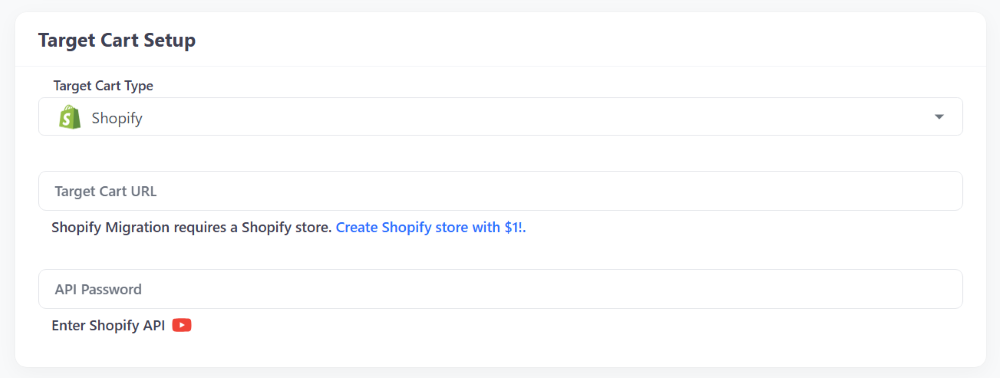
Step 1. Connect your source store and Wix store
In the LitExtension migration wizard, select your existing platform as the Source Cart and Wix as the Target Cart. Follow the connection instructions for each store; the source platform may require API credentials, administrative permissions, or a connector.
Step 2. Select data and test the mapping
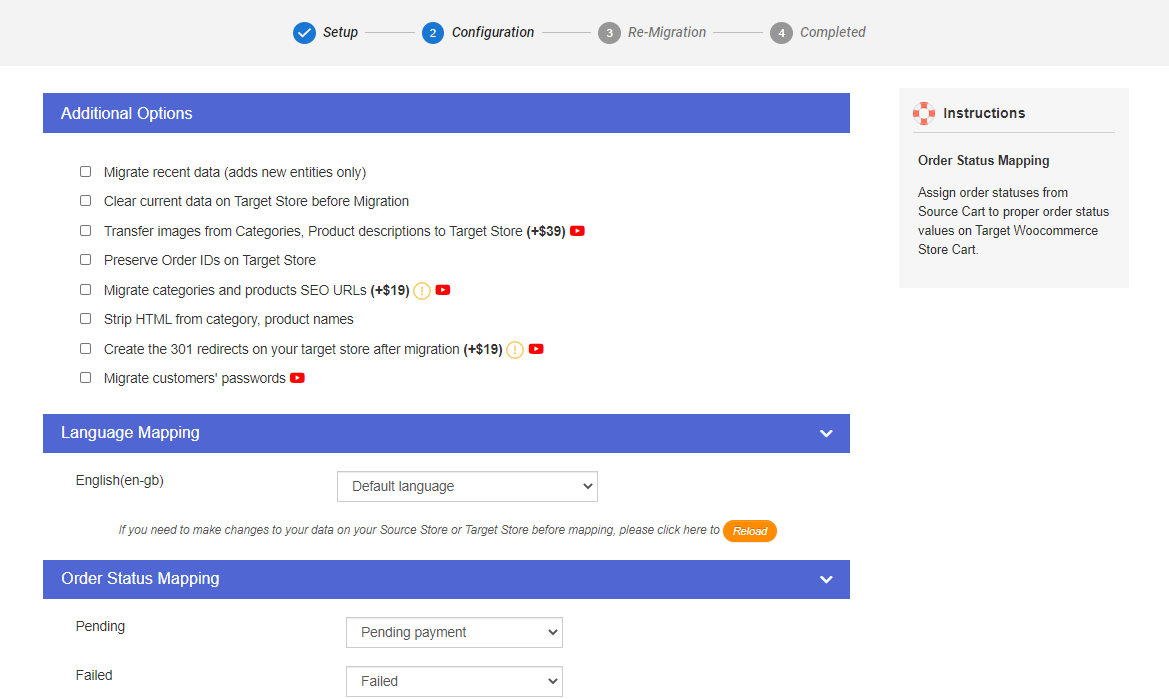
Choose the entities and additional options available for your source-to-Wix route. Run a Demo Migration and inspect the records in Wix, especially products with options or variants and any customer or order data you need to retain. Check the migration preview for unsupported fields before starting the full transfer.
Step 3. Run the full transfer and check Wix
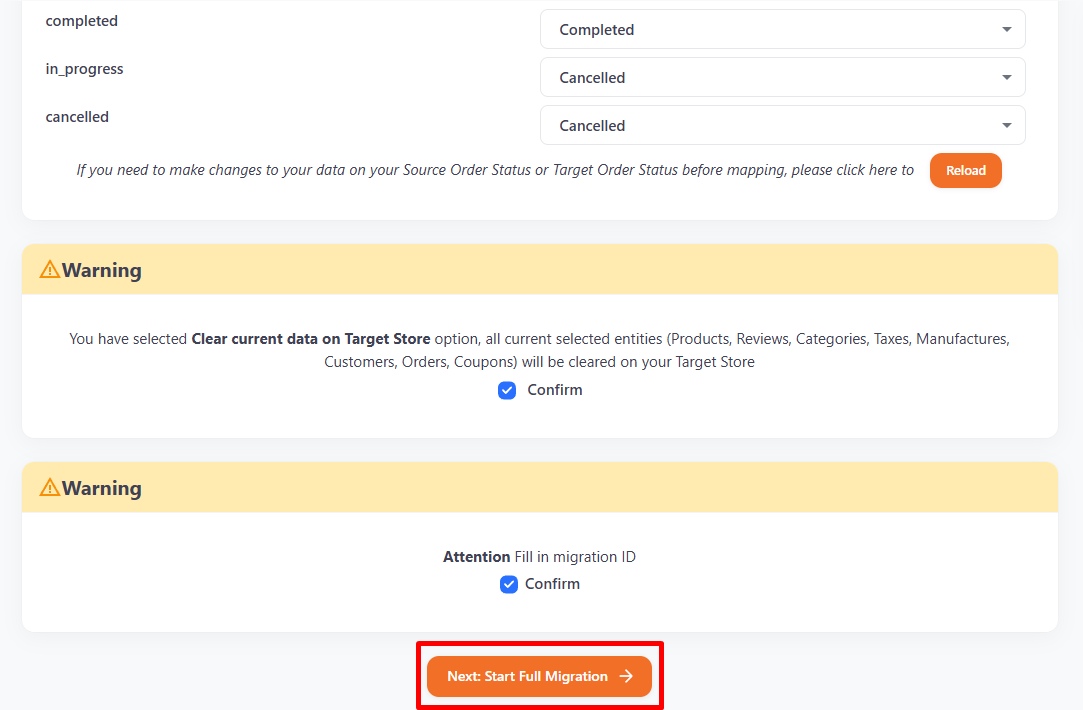
Start the Full Migration after the demo results meet your requirements. The process runs in the background; once it finishes, compare counts and review actual product, customer, and order records. The transfer of store data does not finish your launch work: configure Wix payments, tax, shipping, domain, and any necessary redirects before taking orders on the new site.
Try a Free Demo Migration to check how a sample of your data appears in Wix. If the demo exposes custom mapping or unsupported records, ask our specialists to assess the case.
Method 3. Import products to Wix manually with CSV
Wix’s product CSV template is a direct route for a limited catalog. It is a product import, not a complete migration of your customer accounts, order history, design, or store settings. For a store that needs those records, compare a migration service or tool before committing to CSV alone.
Step 1. Export your data and download the Wix template
Back up the source store and export its product data. In Wix, go to Store Products > More Actions > Import and download the blank CSV template. Wix’s product import instructions explain the required columns and show sample product and variant rows.
Step 2. Reformat products and variants
Map the source export to Wix’s supported columns without changing the template’s column names. Each product needs the required identifiers and price; variants must share their parent product’s handle and use the appropriate option fields. Confirm SKU uniqueness, option values, variant price adjustments, inventory values, and image URLs. Wix notes that images hosted on a former platform may stop loading if that source store is deleted, so keep those URLs accessible until you verify the imported images.
Wix’s guide to importing products from another platform states a per-file limit of 15 MB and 10,000 rows; split larger exports before importing. A row limit is not the same as a product limit because variants can take additional rows. Check the current rules in your Wix dashboard when preparing the file.
Step 3. Import, correct errors, and set up the rest of the store
Upload the CSV, correct any rejected rows, and review products in Wix rather than relying only on an import count. Check variant selections, images, category placement, and prices on the storefront. Then configure payments, tax, shipping, apps, pages, and checkout behavior. Rebuild any design and functionality that belonged to the former platform; its theme code does not move with the product CSV.
What changes when you migrate from another eCommerce platform to Wix?
Whether you come from Shopify, WooCommerce, BigCommerce, Magento, or another platform, the source system determines what can be exported and how fields are represented. The destination determines what can be created in Wix. Assess the following before choosing a method:
- Products and variants: Compare option names, variant combinations, SKUs, prices, inventory, images, and category assignments. Test products that use your most complex configurations.
- Customers and orders: Verify which records and relationships can transfer for your exact platform pair. Plan account access separately; existing customer passwords should not be assumed to carry over.
- Content and custom data: Blogs, reviews, custom fields, apps, and platform-specific settings may need separate migration, reconstruction, or a custom solution.
- URLs and search traffic: Record valuable old URLs, match them to Wix destinations, and set up 301 redirects where paths change. Wix provides a URL Redirect Manager, but a data migration alone does not preserve search rankings.
- Storefront and operations: Rebuild or reconnect the theme, navigation, payment methods, shipping rules, taxes, analytics, and marketing integrations before launch.
Wix migration checklist before launch
- Back up source records and keep the original store available until the Wix store is checked.
- Confirm the exact data entities and any exclusions before a demo or full transfer.
- Review sample products with complex variants, images, discounts, and inventory.
- Compare customer and order records and arrange how to handle new activity during the cutover.
- Check key URLs, redirects, metadata, internal links, and Google Search Console after the domain switch.
- Place test orders on desktop and mobile, including payment, tax, shipping, confirmation emails, and refunds where relevant.
If your migration needs more than a standard product import, tell LitExtension about your current platform and Wix requirements. We will help you determine which data can be transferred and whether an expert-managed or automated migration fits your store.
Why Choose LitExtension Wix Migration Service


How Your Data Is Secured During Wix Migration
We at LitExtension prioritize data security and have a set of practices, technologies and policies in place to ensure the highest level of security for your data. Check out our Data Security Policy.

Server Security
All migration jobs are securely processed on Linode servers located in the US, Europe, Australia, Singapore, and other regions.

Data Security
Your data is protected with HTTPS and 128-bit SSL encryption. No migrated data is stored on LitExtension’s servers after the migration.
Data Access Restriction
Only authorized LitExtension experts can access your data or source code when required to handle custom migration requests.

GDPR Compliance
LitExtension complies with the General Data Protection Regulation (GDPR), the European Union’s data protection law.

NDA
We do not retain your credentials or imported records after the migration. Your data is used solely for the migration and is never disclosed or used for any other purpose.

Payment Security
Payments are securely processed through PayPal, a globally trusted payment gateway. LitExtension does not store your payment information.






Who We Truly Are? Let Our Customer Define!

Worked Great! Took a while but I’m happy with the result thanks. I would help if the variants were already adjusted like it was on my wix site, so that there would less work. Thanks anyway.
Kane is absolutely a pleasure to work with. He made the whole migration process smooth and stress free. I love how Kane answered all my questions immediately and provided me with explanations. THANK YOU so much Kane for your professional and prompt responses. I would recommend HIGHLY to use LitExtension for migration, and don’t think twice.
Very friendly and fast service. Reply always within few minutes, even seconds. I am very happy with the results of the migration. We had a complex store at WIX with over 200 articles and 15-20 subcategories per article. Everything on the right place. Even customers and purchase history is correct. This all within 24hours. Thank you very much!