Migrate from Magento to OpenCart with LitExtension using our automated migration tool, CSV/Excel files, or expert-managed service. Transfer supported products, categories, customers, orders, manufacturers, taxes, coupons, reviews, multilingual product and category data, and more.
Choose your preferred migration method, review a Free Demo, and proceed with the full migration when you’re ready. Your Magento store can remain live and continue selling as usual throughout the migration process.
 Based on 3,000+ reviews on:


How to Migrate from Magento to OpenCart in 3 Steps
Use LitExtension’s Automated Migration Tool to transfer your data directly from Magento to OpenCart.
Set up your migration, run a Free Demo, and review the results before the full transfer.

Step 1. Connect Your Stores
Create a migration in LitExtension, select Magento as your Source Cart and OpenCart as your Target Cart, then enter your store URLs and follow the connection instructions.

Step 2. Select Your Data and Options
Choose the products, categories, customers, orders, and other supported data you want to migrate. Configure language mapping and any Additional Options you need.

Step 3. Free Demo and Full Migration
Run a Free Demo to check sample data in OpenCart. Once you’re satisfied with the results, start Full Migration and review your transferred data before launching your new store.
If you prefer to work with exported data instead of connecting your Magento store directly, LitExtension Files Migration lets you transfer supported records to OpenCart using CSV, Excel, or Google Sheets. You can upload your files, map the fields, validate the data, and run the migration without manually converting every file into OpenCart’s native import format.
How to Migrate from Magento to OpenCart Using CSV Files
Follow these three steps to complete your Magento to OpenCart migration using LitExtension Files Migration.
Step 1. Export Magento Data and Connect OpenCart
Start by exporting the Magento data you want to migrate, such as products, product categories, customers, and orders.
For Magento 2, open System > Data Transfer > Export. Select Products, keep CSV as the file format, choose the required attributes and filters, then click Continue. Retrieve the completed export from your Magento installation. See the official export guide for your setup. For Magento 1, use the export tools available in your installed version.
Export Customers Main File and Customer Addresses separately where available. Keep identifiers that connect customers with their addresses and orders. For order history, check the CSV export in your Orders grid, then inspect its columns: a summary export may need a fuller export or developer-prepared file to include purchased items and customer relationships.
Keep configurable parent products and their associated simple-product SKUs identifiable in your files. Retain relevant store-view values and image paths. Category descriptions, category images, coupons, or other records may need separate exports. Before uploading, make sure your files contain the details you want to transfer, rather than assuming a product CSV contains every Magento entity.
When exporting product or category images, choose public image URLs where available. This helps LitExtension retrieve the images during migration. Keep your Magento store accessible until the transfer is complete.
Next, sign in to the LitExtension app, create a New Migration, and choose Files (CSV, Excel, Google Sheets) as the Source Cart Type.
Add your exported data using one or more of the following methods:
- File Upload: Upload CSV, TSV, XLSX, or XLSM files. You can add up to 50 files, with a maximum size of 50 MB per file.
- Google Sheets: Set sharing to Anyone with the link can view, then paste the URL of the sheet you want to import. Each link reads one tab, so add separate links for additional tabs.
- Link: Add a public link to an individual CSV or Excel file hosted on Google Drive, Dropbox, or OneDrive. The file must be accessible without signing in.
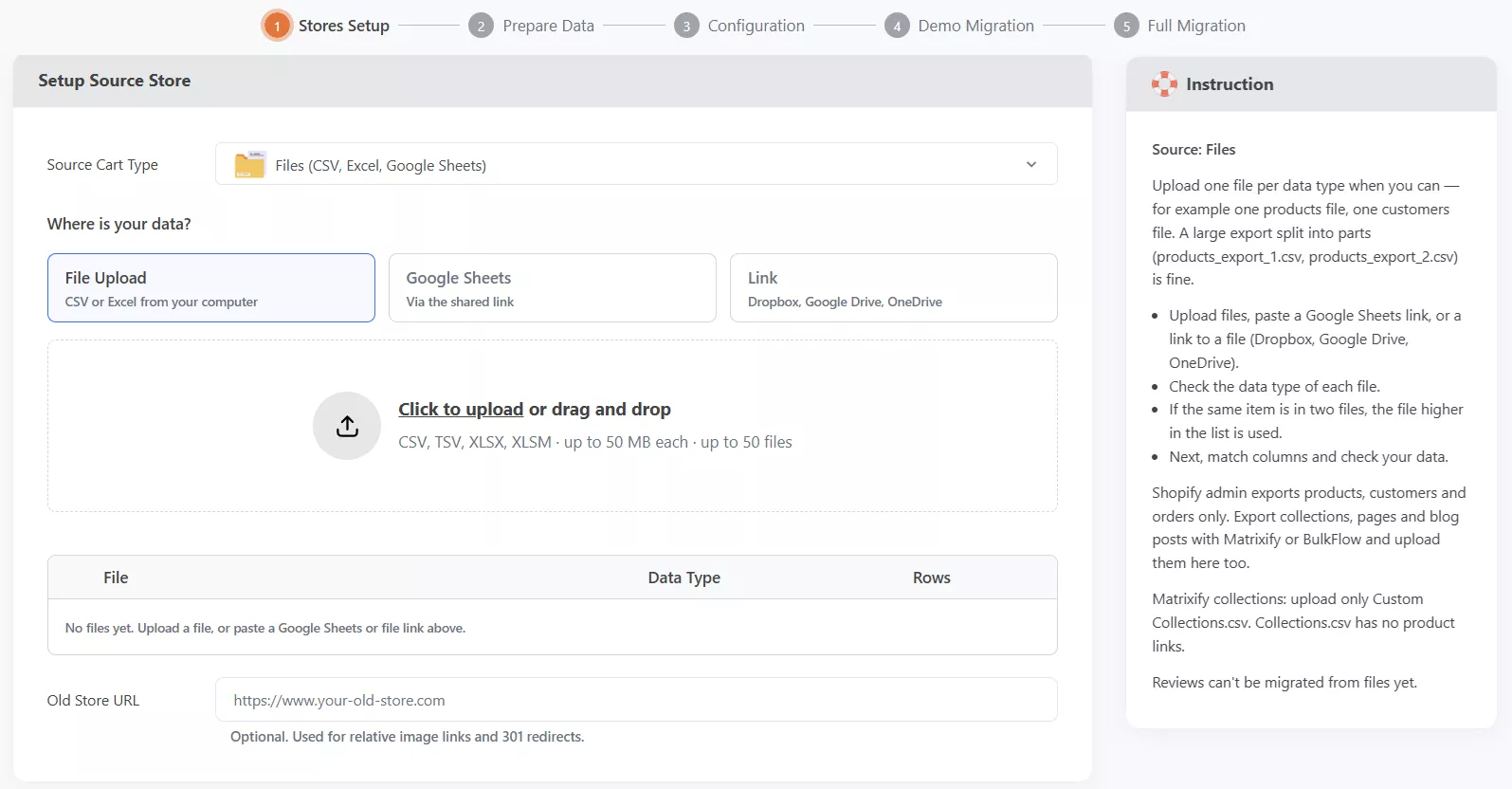
Check each uploaded file’s Data Type and Rows, and correct any incorrect detection. If the same product or customer appears in multiple files, the system prioritizes the record in the file listed first.
Make sure your image URLs are accessible. You can also provide the optional Old Store URL to help resolve relative image paths and identify your original store URLs.
Finally, select OpenCart as the Target Cart Type, enter your OpenCart store details, and follow the on-screen connection instructions. Back up your existing OpenCart data and pause any automated emails or workflows that imported records might trigger before continuing to Prepare Data.
Step 2. Map Your Fields, Run Data Check, and Configure Migration
In Field Mapping, match the columns from your Magento exports to the corresponding OpenCart fields. LitExtension automatically recognizes some common data structures, but you should review the record previews and correct any mismatched fields.
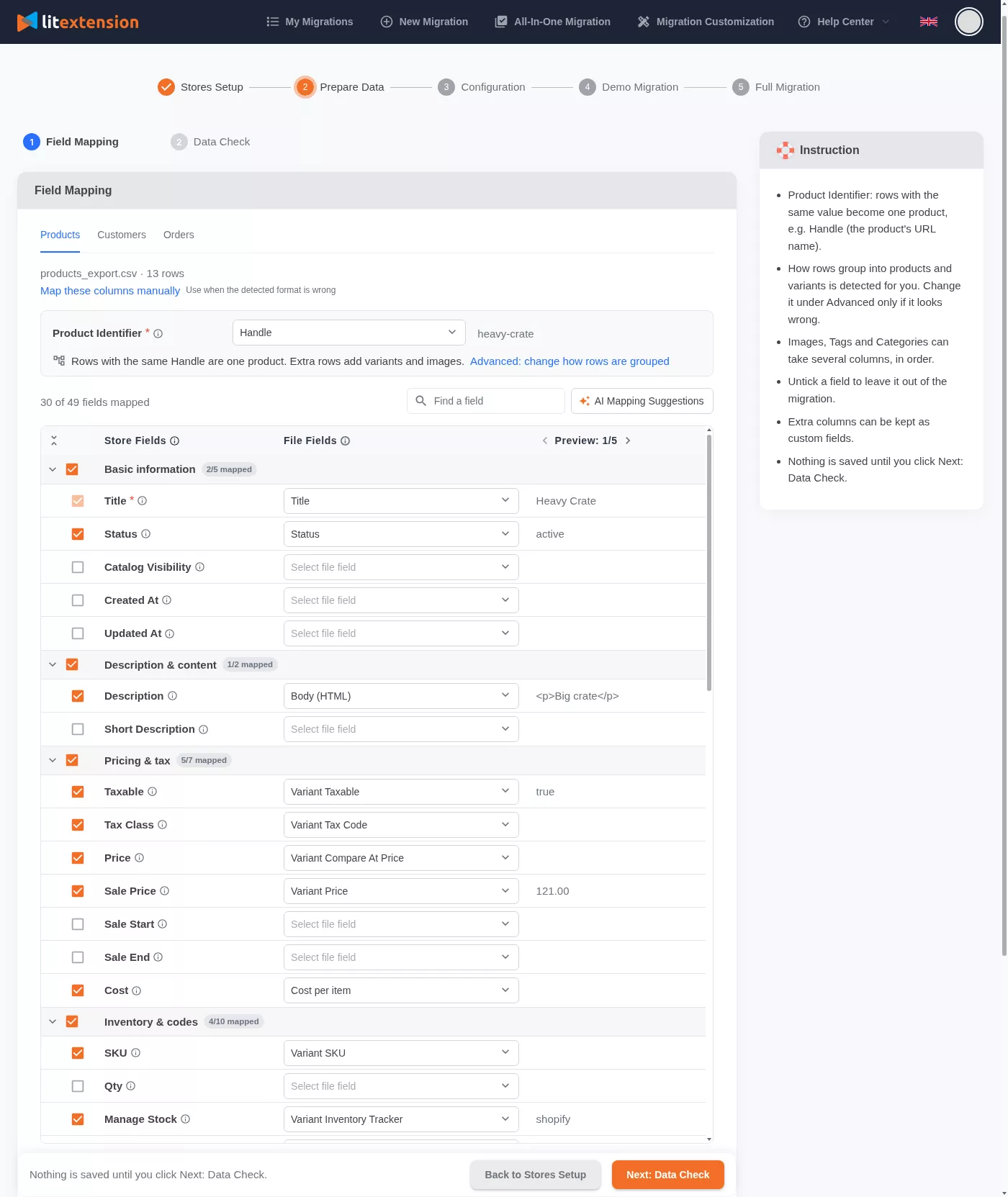
Choose the appropriate Product Identifier to group product records with their variants and images. Review product names, SKUs, descriptions, prices, inventory, categories, and other available fields.
For customer records, select a suitable Customer Identifier, such as an ID, email address, or phone number. You can also deselect fields you don’t need, adjust supported custom fields, or use AI Mapping Suggestions when column names are difficult to match.
When the mapping is ready, click Next: Data Check. LitExtension checks your files for data issues before anything is transferred to OpenCart.
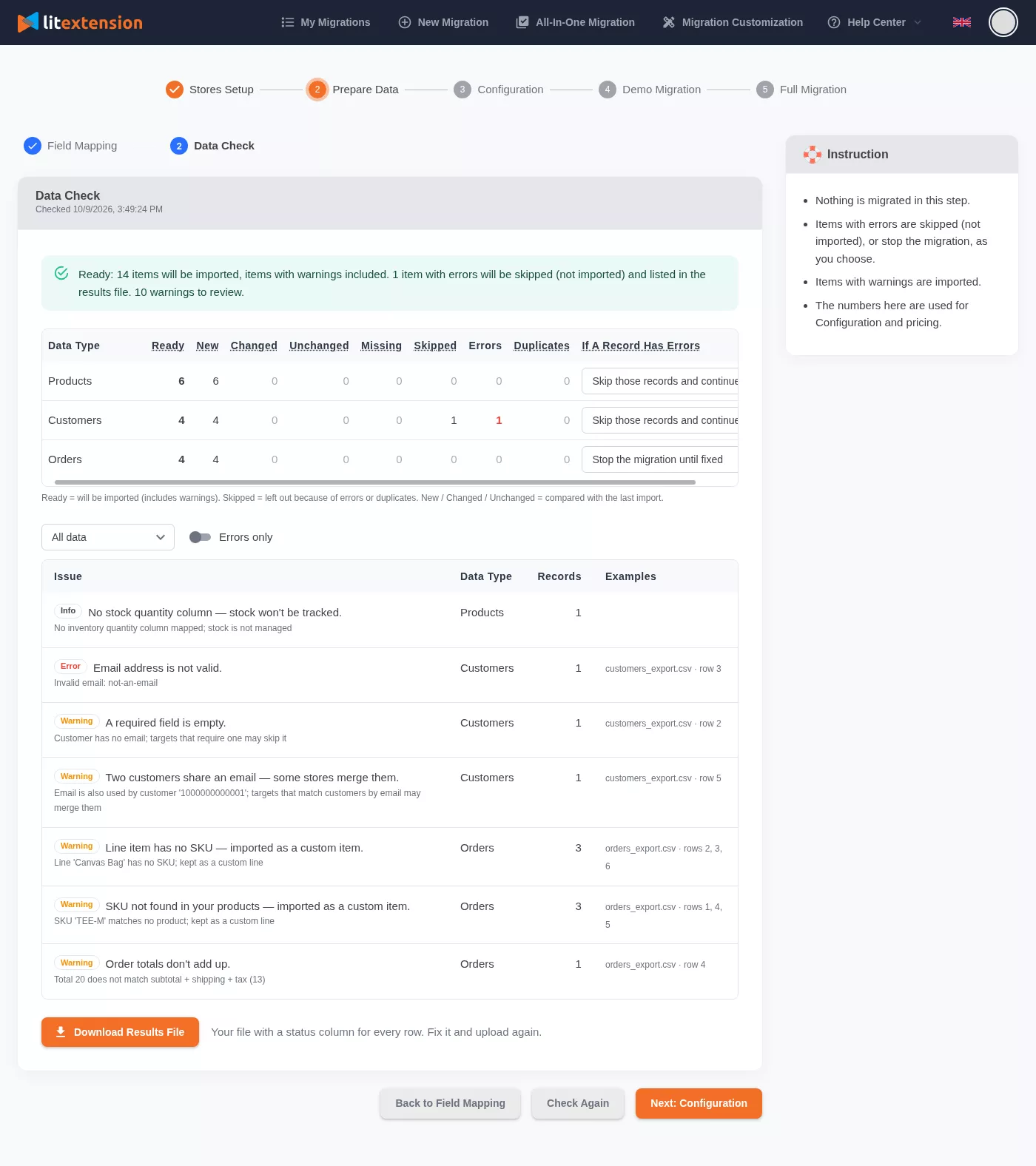
Review the validation results:
- Ready: Records eligible for migration, including records with warnings.
- Errors: Issues that prevent affected records from being migrated.
- Warnings: Issues worth reviewing, although the affected records can still be transferred.
- Skipped / Duplicates: Records excluded because of errors or duplicate entries.
If errors are found, download the Results File to identify the affected rows. Correct the source data, replace the uploaded files, and click Check Again. You can also choose to skip invalid records or hold the affected data type until its errors are resolved.
If you update a file connected through a public link, use Refresh link or add the updated link again. Run Data Check again whenever you change the source files, Google Sheets, or Field Mapping.
Once the data is ready, open Configuration to select the supported entities you want to migrate and configure the available Additional Options.
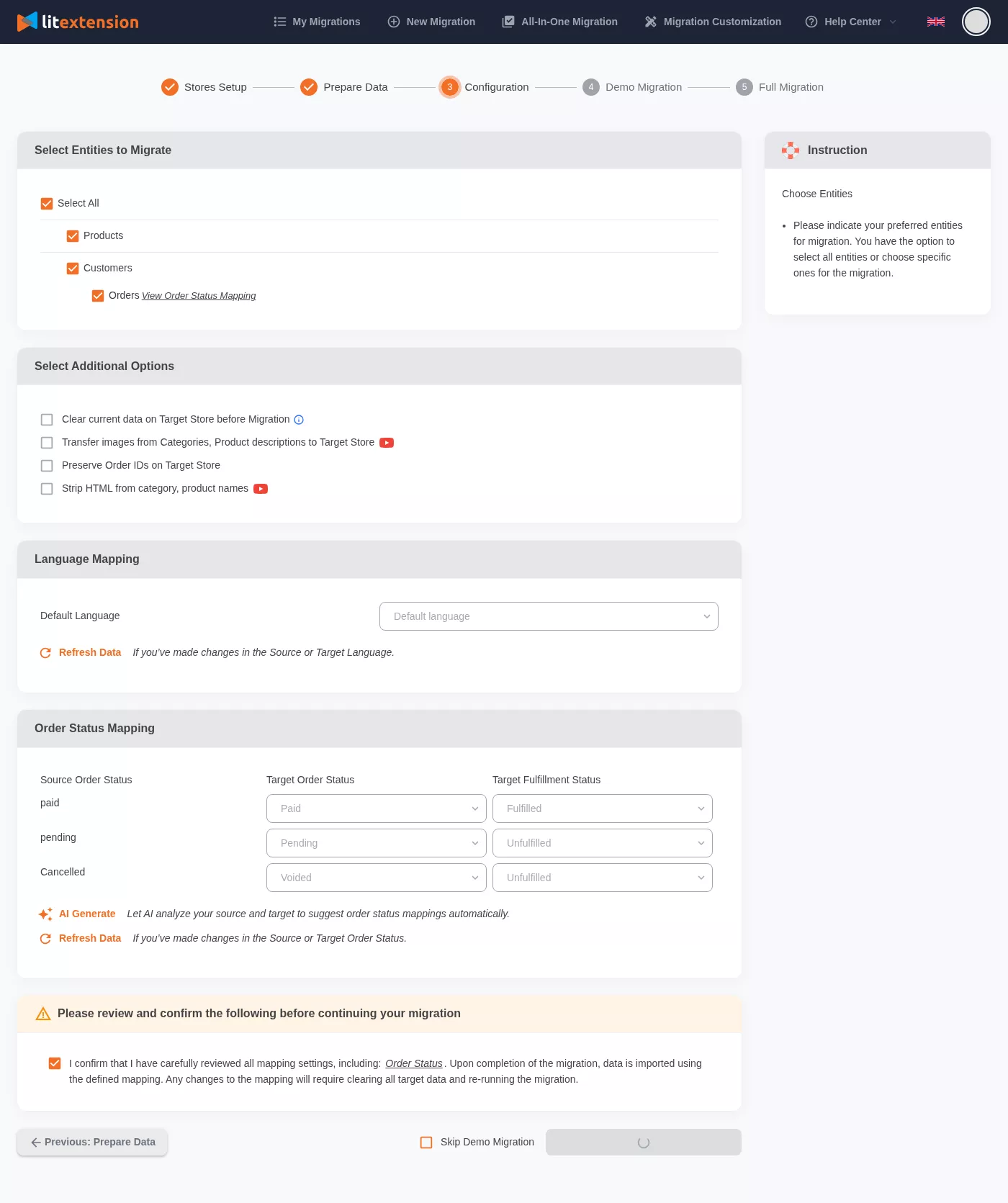
Review Order Status Mapping where available, confirm your selected data types and settings, and continue to the Free Demo. Note that product reviews are not currently supported through Files Migration; contact our experts if you need to transfer review records.
Step 3. Run a Free Demo and Full Migration
Start Free Demo Migration to transfer sample records from your Magento files to OpenCart. Once the Demo finishes, use View to inspect the migrated records in your OpenCart admin.
Compare the results with your source data, paying particular attention to:
- Products: Names, descriptions, SKUs, prices, options, images, and inventory.
- Customers: Names, email addresses, and available address information.
- Orders: Order items, statuses, totals, and customer relationships.
Also verify the results of any Additional Options you’ve selected. If something is missing or incorrect, update the source files or Field Mapping, run Check Again, and select Demo Again.
When you’re satisfied with the Demo, click Next: Confirm Orders, review the migration price, complete payment, and start Full Migration. LitExtension transfers the selected records that passed Data Check.
You can monitor the process in My Migrations and return later without keeping your browser open. Once migration is complete, review the transferred records in OpenCart and test your product pages, shopping cart, and checkout.
Your Magento store can continue selling during the migration. If new orders, customers, or product updates are created after your files were exported, make sure those changes are accounted for before switching to OpenCart.
Magento to OpenCart Data Mapping
Use the table below to review the Magento fields and corresponding OpenCart fields for your migration. Available fields depend on the migration method, source data, and store setup.
| Magento Data | OpenCart Data |
|---|---|
| Products | |
| Name | Name |
| SKU | SKU |
| Short Description | Short Description |
| Full Description | Full Description |
| Status | Status |
| Manufacturer | Manufacturer |
| Tax Class | Tax Class |
| Price | Price |
| Special Price | Special Price |
| Quantity | Quantity |
| Manage Stock | Manage Stock |
| Meta Title | Meta Title |
| Meta Description | Meta Description |
| Weight | Weight |
| Width | Width |
| Height | Height |
| Depth | Depth |
| Tags | Product Tags |
| Attributes | Attributes |
| Thumbnail Image | Thumbnail Image |
| Additional Images | Additional Images |
| Product Categories | |
| Name | Name |
| Description | Description |
| Sort Order | Sort Order |
| Image | Image |
| Meta Title | Meta Title |
| Meta Description | Meta Description |
| Customers | |
| First Name | First Name |
| Last Name | Last Name |
| Billing Address | Billing Address |
| Password | Password, for eligible store-connected migrations |
| Username | Username |
| Status | Status |
| Created Date | Created Date |
| Display Name | Display Name |
| Orders | |
| Order ID | Order ID |
| Order Date | Order Date |
| Order Status | Order Status |
| Order Items | Order Items |
| Total Price | Total Price |
| Sub Price | Sub Price |
| Discount Price | Discount Price |
| Tax Price | Tax Price |
| Shipping Price | Shipping Price |
| Order Comments | Order Comments |
| Customer Name | Customer Name |
| Billing Address | Billing Address |
| Shipping Address | Shipping Address |
| Manufacturers | |
| Name | Name |
| Taxes | |
| Tax Class | Tax Class |
| Tax rate | Tax rate |
| Coupons | |
| Description | Description |
| Coupon Code | Coupon Code |
| Coupon Date | Coupon Date |
| Customer Groups | Customer Groups |
| Uses Per Coupon | Uses Per Coupon |
| Uses Per Customer | Uses Per Customer |
| Discount Amount/Percent | Discount Amount/Percent |
| Coupon From Date | Coupon From Date |
| Coupon To Date | Coupon To Date |
| Product Reviews | |
| Status | Status |
| Rate | Rate |
| Comment | Comment |
| Created Date | Created Date |
| Multiple Languages | |
| Product Name, Description, and Attribute | Product Name, Description, and Attribute |
| Category Name and Description | Category Name and Description |
Review configurable, grouped, bundle, and downloadable products separately. Confirm the intended OpenCart structure with our experts before including these product types. A matching product attribute does not establish how parent-child relationships, option combinations, or downloadable files will be transferred.
Not every field is available through every migration method. Product reviews are not currently supported through Files Migration, and password migration requires a compatible store-connected setup. For CMS pages, blog posts, custom attributes, or extension-managed data, contact LitExtension experts to review your requirements.
Join 200,000+ businesses that have migrated with LitExtension. Start a Free Demo Migration to preview how your
Magento products, customers, orders, and other supported data will be transferred to OpenCart before running the full migration.
What Data Can You Migrate from Magento to OpenCart?
See which Magento data can be migrated to OpenCart, including products, customers, orders, coupons, and more.
Available fields depend on your migration method and store setup.


-
Products
- Name
- SKU
- Short Description
- Full Description
- Status
- Manufacturer
- Tax Class
- Price
- Special Price
- Quantity
- Manage Stock
- Meta Title
- Meta Description
- Weight
- Width
- Height
- Depth
- Tags
- Attributes
- Thumbnail Image
- Additional Images
Product Categories
- Name
- Description
- Sort Order
- Image
- Meta Title
- Meta Description
-
Customers
- First Name
- Last Name
- Billing Address
- Password (eligible store-connected migrations)
- Username
- Status
- Created Date
- Display Name
-
Orders
- Order ID
- Order Date
- Order Status
- Order Items
- Total Price
- Sub Price
- Discount Price
- Tax Price
- Shipping Price
- Order Comments
- Customer Name
- Billing Address
- Shipping Address
-
Manufacturers
- Name
-
Taxes
- Tax Class (Name)
- Tax Rate (Country, Rate)
-
Coupons
- Description
- Coupon Code
- Coupon Date
- Customer Groups
- Uses Per Coupon
- Uses Per Customer
- Discount Amount/Percent
- Coupon From Date
- Coupon To Date
-
Reviews
- Status
- Rate
- Comment
- Created Date
Product reviews are available through an eligible store-connected migration. Reviews are not currently supported through Files Migration.
-
Multiple Languages
- Products (Name, Description, Attribute)
- Categories (Name, Description)
Can’t find the data you need to migrate? Contact Us for a free consultation.


Let Our Experts Handle Your Migration
Prefer a hands-off migration? Talk with our team about your Magento data, OpenCart setup, and custom requirements. We’ll recommend a suitable migration plan, explain what our experts will handle, and answer your questions before you get started.

How Your Data Is Secured During Migration
LitExtension transfers data through secure connections and restricts access to authorized specialists when necessary. All data is handled in accordance with our security, GDPR, and NDA policies. Learn more in our Data Security Policy.

Server Security
All migration jobs are securely processed on Linode servers located in the US, Europe, Australia, Singapore, and other regions.

Data Security
Your data is protected with HTTPS and 128-bit SSL encryption. No migrated data is stored on LitExtension’s servers after the migration.

Data Access Restriction
Only authorized LitExtension experts can access your data or source code when required to handle custom migration requests.

GDPR Compliance
LitExtension complies with the General Data Protection Regulation (GDPR), the European Union’s data protection law.

NDA
We do not retain your credentials or imported records after the migration. Your data is used solely for the migration and is never disclosed or used for any other purpose.

Payment Security
Payments are securely processed through PayPal, a globally trusted payment gateway. LitExtension does not store your payment information.
Why Choose LitExtension for Magento to OpenCart Migration?


Who We Truly Are? Let Our Customer Define!

I am in the process of moving my existing website over to Shopify. As this is my 4th iteration of my website, I knew I didn’t want to do the migration part myself again! Using this service meant that I could concentrate on running my business for a couple of days while the migration was being done for me.
Lotus was phenomenal! She is detailed-oriented and works extremely fast! She helped with the migration from Wix to Shopify in no time. Thank you so much Lotus and everyone at LitExtension!

We migrate with Litextension our shop from shopware to shopify. The team was great to work with. During the process we identified a few issues. But everything was fully resolved in two days. We are satisfied with the work from Litextension.
It was great service from those guys! Verry complex case with very old Woocommerce to new Woocommerce store!
I built our new Shopify site myself but with no developer experience. I really struggled migrating products, customers and order history. It was a bit overwhelming until I found Lit. They helped me set it up and did the contract. Emailed me at every stage and listened to my feedback. I found them on Thursday and by Monday the work was completed.
I built our new Shopify site myself but with no developer experience. I really struggled migrating products, customers and order history. It was a bit overwhelming until I found Lit. They helped me set it up and did the contract. Emailed me at every stage and listened to my feedback. I found them on Thursday and by Monday the work was completed.
The team at LitExtension was great to work with, and also showed great patience with my migration needs. We had a large website, with many products and variants and they were able to do everything we needed, even some custom requests. Great people and great company.
Took most of the work off our hands. The team were great and went out of their way to get the migration from J2store to Shopify completed. The time zone differences were slightly difficult but that didn’t stop the work from being completed.