A Square API key is a unique credential that lets your app connect to Square. It works like a secure bridge. With it, apps or third-party service providers can access your data such as payments, orders, customers, and inventory without exposing sensitive information.
In this guide, we will show you how to get Square API key and access token step by step. You can follow along easily, even if you’re new.
- Step 1: Log in to the Square Developer Dashboard.
- Step 2: Create a new application and give it a name.
- Step 3: Get your Square API key and access token.
Let’s dig into the details!
How to Get Your Square API Key (Access Token)
Below is a simple walkthrough to help you generate your Square API key and access token. Just follow these steps in order.
Step 1: Log in to the Square Developer Dashboard
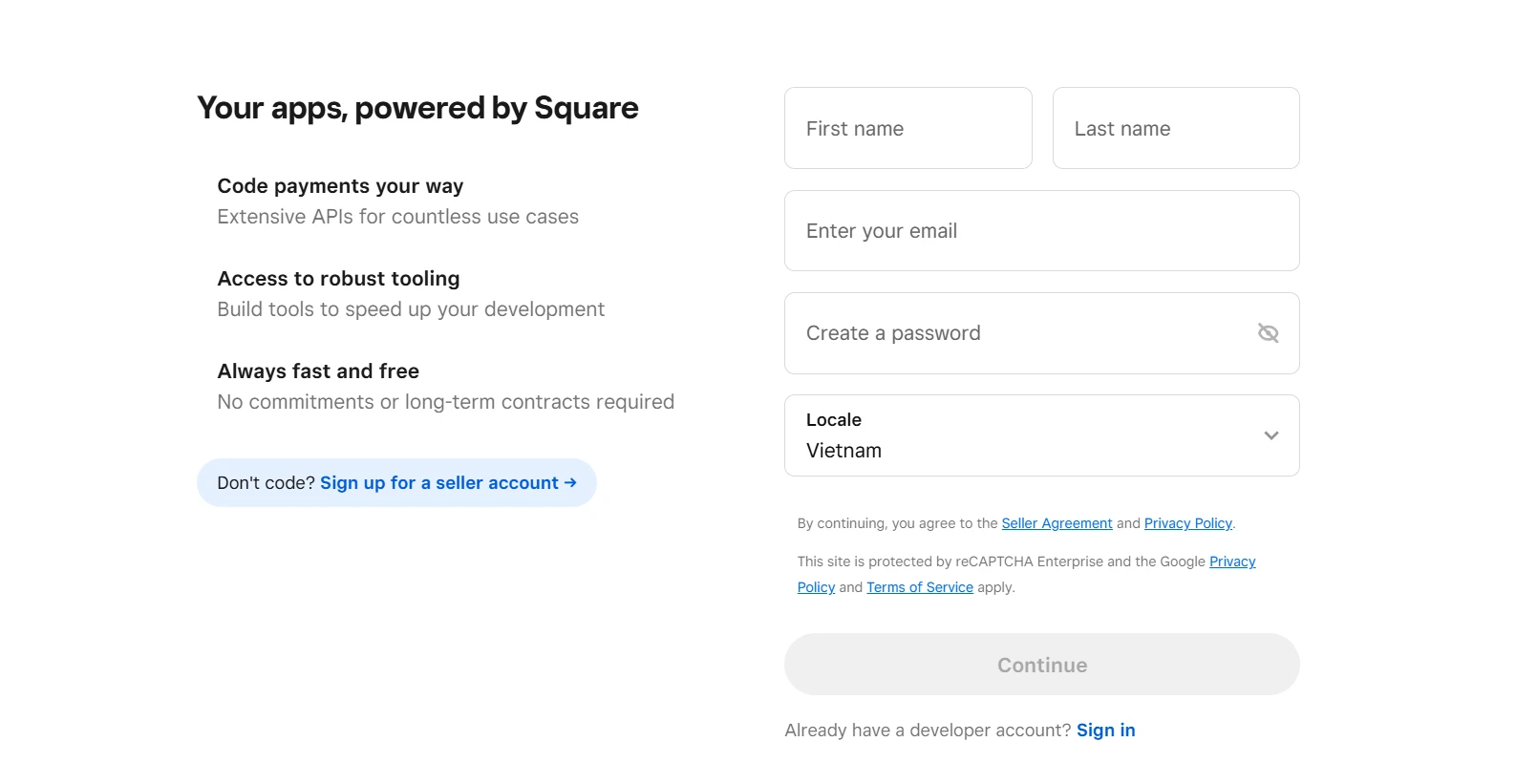
First, go to https://developer.squareup.com/console/en/apps and log in using the store owner’s Square account.
Step 2: Create a new application
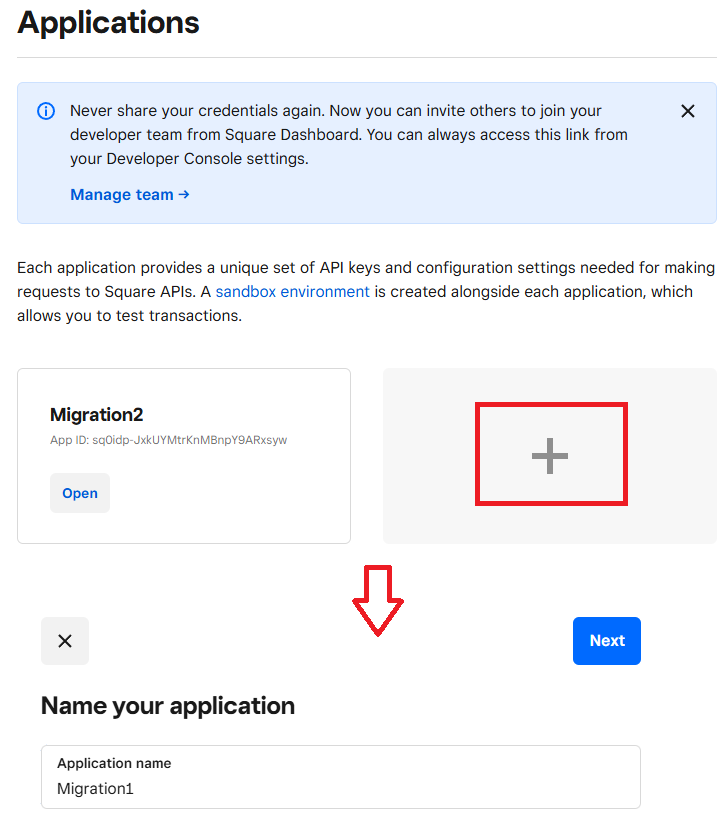
Once logged in, click Create a new app (+).
Step 3: Get the Production Access Token
After creating the app, select the Production tab.
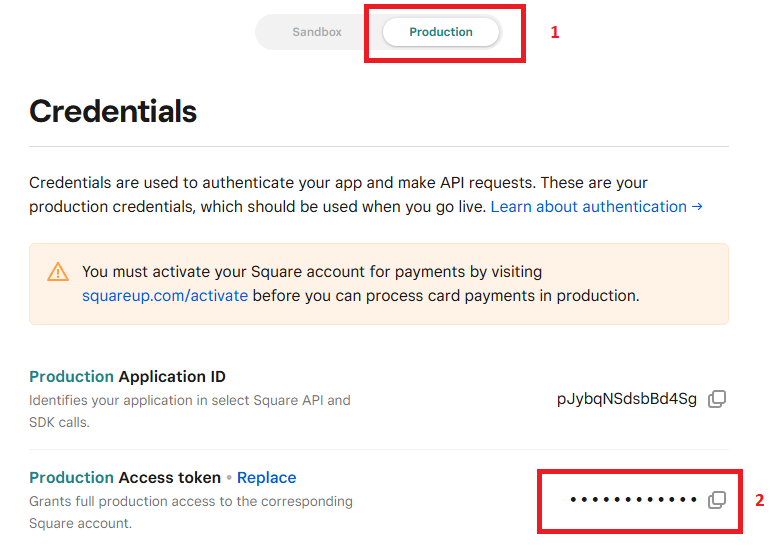
Here, you’ll see the Production Access Token. Copy this value, as it’s the API credential required for your migration with LitExtension.
Note: Make sure you use the Production Access Token, not the Sandbox one, to ensure the migration works with live store data.
How to Use Your Square API Key?
Once you have your Square API key, you can start connecting your app or third-party service to Square. This key is used to authenticate your requests, so Square knows which account the data belongs to.
In most cases, you will use your access token when making API calls. The token is usually added to the request header as a Bearer token. This allows your app to securely interact with Square’s services, such as processing payments, managing orders, or retrieving customer data.
If you are planning a migration, you can use your Square API key with LitExtension. You just need to enter your Application ID and Access Token into the migration setup. Once connected, our LitExtension Automated Tool will automatically transfer your data, including products, customers, and orders, with high accuracy and minimal downtime.
Before going live, it is recommended to test everything in the Sandbox environment. This helps you catch any issues early without affecting real transactions. When everything works as expected, you can switch to Production and start using your Square API key in a live environment.
Troubleshooting Common Square API & Token Errors
Working with Square API keys is usually straightforward. However, a few common errors can still come up during setup or integration. The sections below explain what each issue means and how you can resolve it.
1. “Unauthorized” or 401 error
This error often relates to authentication issues. In most cases, the access token is either incorrect or not recognized by the system. A 401 status code or an “Unauthorized” message appears when you send an API request.
How to fix it:
Your access token should be copied again directly from the Square Developer Dashboard to avoid any formatting issues. A quick check for extra spaces or missing characters is important. The selected environment also needs to match the token, so a Sandbox token should not be used in Production, and vice versa.
2. “Forbidden” or 403 error (missing permissions)
A 403 error is usually linked to permission settings. The request is understood by the system, but access is not allowed. A 403 status code appears, often with a “Forbidden” message, even when your token is valid.
How to fix it:
Your application settings should be reviewed in the Square Developer Dashboard. The required permissions for the API you are calling, such as Orders, Payments, or Customers, need to be enabled. In some cases, reconnecting or regenerating the token may be necessary to apply updated permissions.
3. Sandbox vs production mismatch
This issue is related to environmental inconsistency. It happens when credentials and endpoints are not aligned. Unexpected errors may appear, or data may not load correctly. In some cases, authentication errors still occur despite using a valid token.
How to fix it:
The environment settings should be checked both in your code and in the Square dashboard. The API endpoint (Sandbox or Production) must match the access token you are using. A quick switch to the correct environment, followed by updating the token if needed, will usually resolve the issue.
4. Expired OAuth tokens
If you are using OAuth, your token may expire after a period of time. When that happens, your connection will no longer work.
How to fix it:
Your OAuth token should be refreshed using the refresh token provided during authentication. If the refresh token is no longer valid, the application needs to be reauthorized from the beginning. A new access token should then be generated and updated in your system.
A quick check of your environment and permissions can help you identify most issues quickly. With the right setup, your Square API key should work smoothly and support your integration without interruptions.
Final Words
We hope you found this article insightful and now have a clear understanding of how to get Square API key properly. With the right setup, you can start migrating from and to Square with LitExtension smoothly!