A GoDaddy API key is a set of credentials – including an API Key and API Secret – that allows your application to securely authenticate and interact with GoDaddy’s API. When migrating to or from GoDaddy with LitExtension, we will ask you to provide these credentials so our system can securely access your store data for the migration process.
In this guide, we’ll show you exactly how to generate your GoDaddy API key and use it correctly to ensure a smooth and secure migration.
- Step 1: Go to GoDaddy Developer Portal
- Step 2: Create new API key
- Step 3: Enter the name (optional)
- Step 4: Get your GoDaddy API key
- Step 5: Check on the Management Board
GoDaddy API Eligibility Requirements
Before generating and using a GoDaddy API key, users must comply with GoDaddy’s usage and access policies. These requirements ensure fair usage, system stability, and data protection across all GoDaddy services.
How to Get GoDaddy API Key?
To perform a GoDaddy migration store using LitExtension’s tool, you’ll need to obtain an API key. This key allows secure access to your store’s data and is essential for the migration process.
In this guide, we’ll provide a step-by-step tutorial on how to generate and retrieve your API key from GoDaddy, ensuring a seamless migration experience.
Step 1: Go to your GoDaddy Developer Portal page from the dashboard.
Step 2: Click on “Create New API Key”.
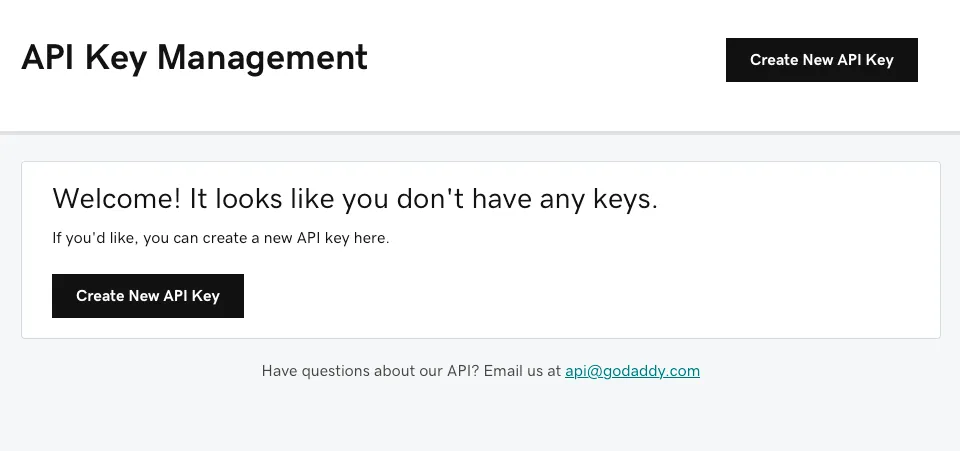
Step 3: Type your API name
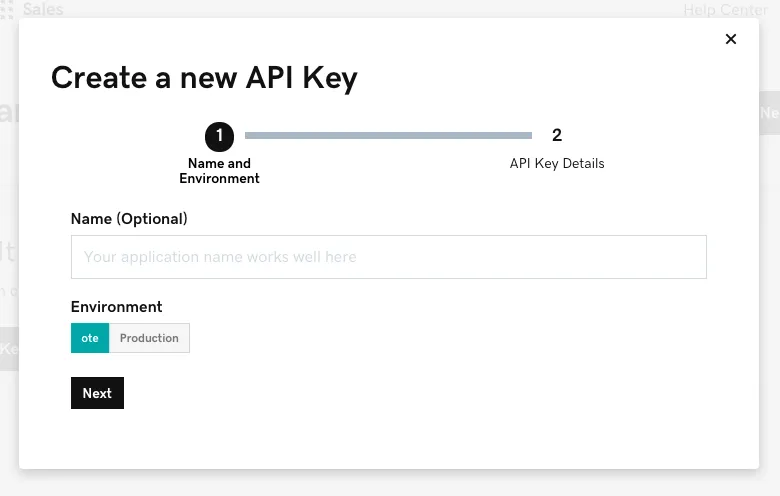
Step 4: Choose “OTE” or “Production” from the “Environment” drop-down menu (OTE is advised).
Step 5: Choose “Next”. The Key and Secret (token) information must be copied and pasted into a text editor or password manager because it will not be displayed again.
Step 6: Click “Got It” after copying your API Key and Secret. Once you click this button, you will be redirected back to the main API management dashboard.
How to Use GoDaddy API Key?
After generating your GoDaddy API Key and Secret, you can authenticate and start sending requests to the GoDaddy API. The API uses key-based authentication through the Authorization header.
There are two types of API users, and your setup depends on which category you fall under:
- Self-Serve Users: A self-serve user operates on their own GoDaddy account. This user authenticates with their API key and does not need to reference subaccounts or include the X-Shopper-Id header in API requests.
- Reseller Users: A reseller operates on behalf of customers. This user must create a subaccount for each end customer and include the corresponding X-Shopper-Id value in API calls. The X-Shopper-Id represents the specific shopper account being managed.
Some API endpoints may also require a customerId, which can be retrieved from the GoDaddy account dashboard or related API endpoints.
When sending a request, you add this header to your API call. For example, the following request checks domain availability:
GoDaddy provides both test and production environments. Developers typically begin in the test environment before switching to production. Some production endpoints require minimum domain thresholds depending on the API being used.
How to Fix Common GoDaddy API Key Errors
When working with a GoDaddy API key, authentication and permission issues are the most common problems. Below are the typical errors and how to resolve them.
Error 1. 401 unauthorized
Error description:
You can recognize this error when:
- The API returns a 401 Unauthorized status code
- The response message says “Invalid API key” or “Unauthorized”
- Your request fails even though the endpoint is correct
How to fix:
You should verify that your API Key and API Secret are correct. The Authorization header must follow the format sso-key API_KEY:API_SECRET. If your key was regenerated or revoked, you need to update the credentials and resend the request.
Error 2. Access denied
Error description:
You can recognize this error when:
- The API response contains “Access Denied”
- The endpoint works in the test environment but fails in production
- Your account does not have permission to access a specific endpoint
How to fix:
You should confirm that your account meets the required production criteria, such as minimum domain thresholds or an active Discount Domain Club – Domain Pro Plan. You also need to verify that you are using the correct environment (test or production).
Error 3. 429 client error (Rate Limit Exceeded)
Error description:
You can recognize this error when:
- The API returns a 429 status code
- The response mentions rate limit restrictions
- You send too many requests within a short period
How to fix:
You must limit your requests to 60 per minute per endpoint. You should implement request throttling, retry logic with delay, or caching to reduce unnecessary API calls.
Error 4. GoDaddy DNS API issues
Error description:
You can recognize this error when:
- The API returns an error while updating or retrieving DNS records
- The domain does not exist in the selected environment
- The response indicates a permission or ownership issue
How to fix:
You should verify that the domain belongs to the account associated with your API key. You also need to confirm that you are using the correct API base URL for the test or production environment.
Understanding these common errors helps ensure stable and secure integration when using a GoDaddy API key.
Conclusion
So that’s it, we’ve shown you how to generate your GoDaddy API key and use it properly to support your migration to or from GoDaddy. With the correct credentials and setup, our LitExtension experts can securely access the necessary data to ensure a smooth transfer process.
Once your API key is configured correctly and all requirements are met, your GoDaddy migration can move forward safely and without unnecessary interruptions.