Migrating from a hosted platform, such as BigCommerce, Volusion, or Shift4Shop, works a little differently from cart to cart, since each platform requires different credentials to connect. But in general, here’s how it works:
Step 1. Set up Source Cart and Target Cart
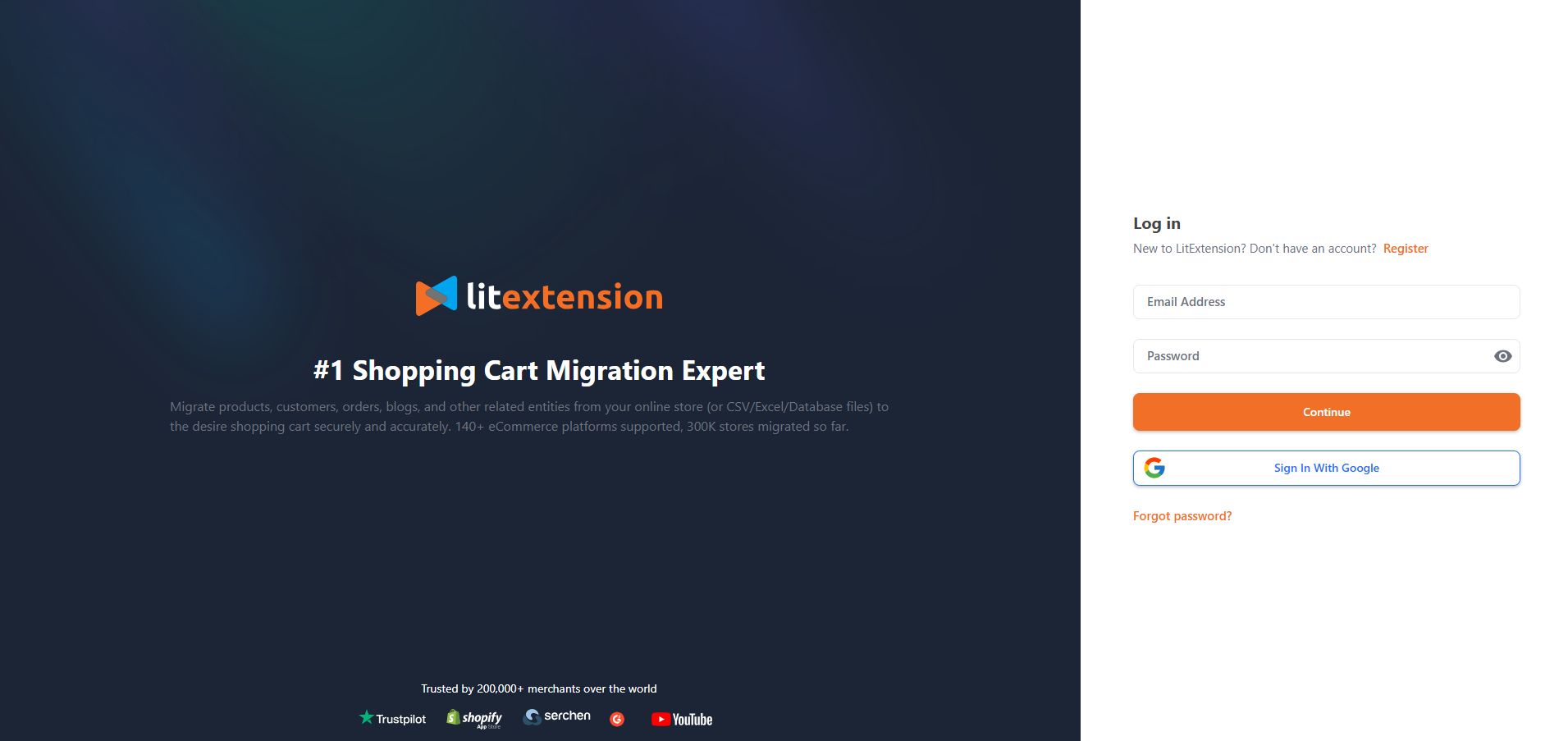
Before the migration from a hosted platform with LitExtension, you’ll need to sign in to the LitExtension app first using a registered account or Google account. Then, from the main dashboard, click the “Create Migration” button to start.
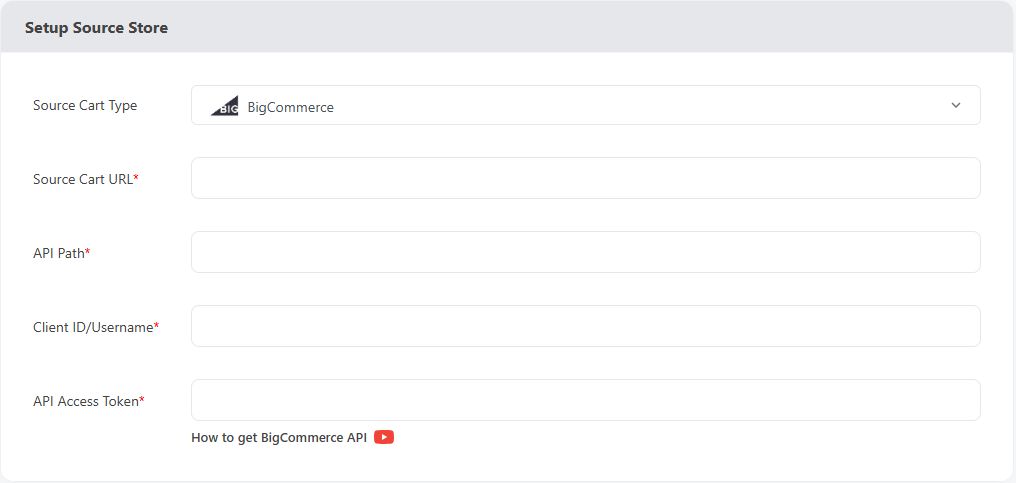
In the Source Cart Setup section, choose your hosted platform from the drop-down list. Then, depending on your eCommerce platform, you’ll need to fill in the corresponding credentials.
When everything is filled out, scroll down to the Target Cart Setup section and select your target cart name. Depending on whether your Target Cart is also hosted or open-source, you’ll either fill in similar account credentials or install the LitExtension Connector to your store’s root folder, following the on-screen instructions.
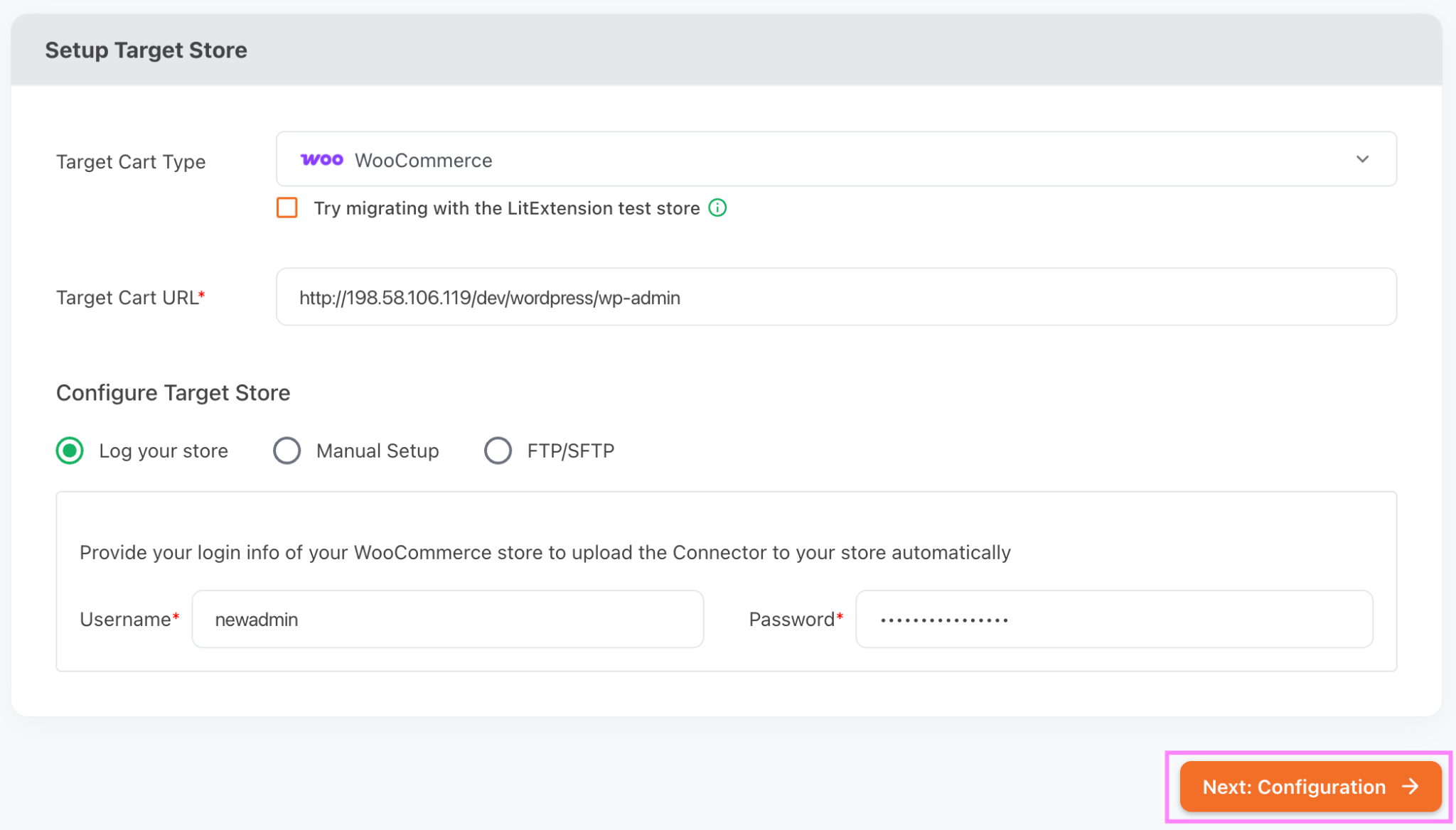
Once both carts show as successfully connected, click “Next: Configure Your Migration.”
Step 2. Select data you want to migrate
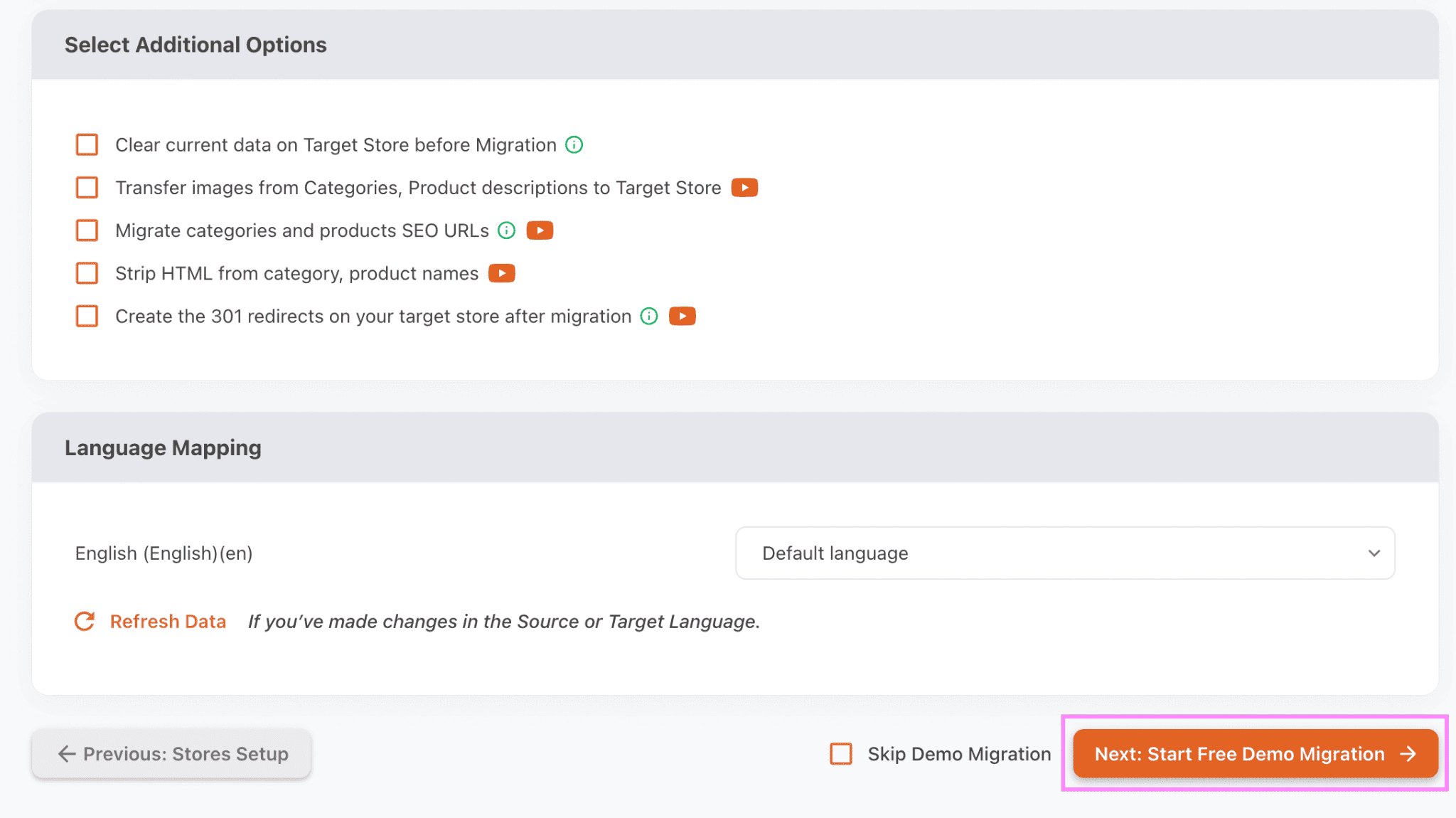
In this section, tick the box for what you want to transfer. Our Automated Migration Package includes products, reviews, categories, customers, orders, pages, blog posts, and coupons. You can also explore Additional Options to enhance your migration and map your language and order status settings so they carry over correctly.
When you’re ready, run a Free Demo Migration to preview the results, or skip straight to checkout.
Step 3. Run the full migration from your hosted platform
LitExtension transfers your data to your Target Cart entirely behind the scenes, so there’s no need to keep your device on during the process, and you can continue running your business as usual. Once the migration is complete, you’ll receive an email notification and can review the results by clicking “Check Result“.
