Based on 2,000+ reviews on:


Migrating from WooCommerce to PrestaShop helps businesses gain more control and better performance. PrestaShop supports over 300,000 active stores and offers native multistore and multilingual features, which WooCommerce often requires multiple plugins to handle. In addition, PrestaShop delivers stronger back-office management and lower dependency on third-party extensions.
During every WooCommerce to PrestaShop migration, LitExtension protects your data with absolute security. Our solution also ensures accurate data transfer, zero downtime, and 24/7 support from a dedicated team. The entire WooCommerce to PrestaShop migration stays simple and fast, with only three clear steps from start to finish.
Ready to move your store with confidence? Try free demo now.
What Data Can Be Migrated From WooCommerce to PrestaShop


-
Products
- Name, Short Description, Full Description, Status.
- Manufacturer.
- SKU.
- Features.
- Price, Special Price, Special Price From-To Date.
- Meta Title, Meta Keywords, Meta Description.
- Weight, Width, Height, Length.
- Related Products, Product Tags.
- Barcode.
- Combinations (Weight, Attributes, Quantity, Images, Price, Name).
- Additional Images.
- Stock Availability.
Products Categories
- Name, Description.
- Thumbnail Image.
- Meta Title, Meta Description.
-
- ID, First Name, Last Name, Email, Date of Birth, Passwords, Created Date, Telephone.
- Customer Group.
- Newsletter.
- Address (Zip Code, City, State, Country, First Name, Last Name)
-
- Order ID, Order Number.
- Order Date.
- Order Status.
- Order Items (Name, SKU, Option), Product Price, Quantity.
- Sub Price, Discount Price, Tax Price, Shipping Price, Total Price.
- Custom Order Status, Shipping Price Order Status, History.
- Customer Name, Email.
- Billing Address (First Name, Last Name, Company, Address 1, Address 2, Country, State, City, Zip Code, Telephone).
- Shipping Address (First Name, Last NameCompany, Address 1, Address 2, Country, State, City, Zip Code, Telephone).
-
- Name, Description.
- Meta Title, Meta Description, Meta Keywords.
- Image.
-
- Tax Class (Name).
- Tax rate (Country, Rate).
-
- Description.
- Coupon Code, Coupon Expire Date.
- Discount Amount, Type Discount.
- Uses Per Customer, Minimum Spent.
-
- Title, User Name.
- Created Date.
- Product.
- Status, Rate.
- Comment.
-
- Title, Description.
- Meta Title, Meta Description, Meta Keyword.
- Created Date.
- URL Key.
-
- Products (Name, Short Description, Description, Meta Title, Meta Description, Attributes)
- Categories (Name, Description, Meta Title, Meta Description)
- CMS Page (Name, Description, Meta Title, Meta Description)
Note: Additional fee may apply
(*) Please note that the data listed above may vary depending on your Source Store.
Additional Options
Clear Sample Data On PrestaShop Before Migration
You can delete the sample data on PrestaShop in accordance with selected entities for migration… More Details →
RecommendedPreserve Product, Order, Customer IDs on PrestaShop Store
This option helps keep your product ID, customer ID or order ID the same during your store migration… More Details →
 How It Works Recommended
Create 301 Redirects on PrestaShop Store
Automatically redirect your old store’s URLs to the new ones during the migration… More Details →
RecommendedMigrate Images from Products, Categories, Blog Descriptions
This option helps you to migrate images in descriptions of products, categories, and blog posts… More Details →
Strip HTML Tags from Category and Product Names
Strip HTML tags from category and product names automatically when migrating your store … More Details →
How to Perform WooCommerce to PrestaShop Migration

Select WooCommerce as “Source Cart” and Prestashop as “Target Cart” from the dropdown list. Afterward, enter store URL and follow brief instructions to set up the PrestaShop migration process.

Choose the entities you want within the WooCommerce to PrestaShop such as products, categories, orders, customers, SEO URLs, and even more.

Let’s start the WooCommerce to PrestaShop Migration. Once the upgrade process is kicked off, it will constantly run even when you turn off your browser.
Automated WooCommerce to PrestaShop Migration Services
Migrate your entire store safely on LitExtension’s Cloud-based platform. No heavy modules to install, no risk of server crashes, and no website downtime like traditional solutions.
WooCommerce to PrestaShop with LitExtension
LitExtension handles the entire move for you through a simple, guided workflow. In just three steps, you connect your two stores, choose what to migrate, and let the cloud do the rest – no coding, no manual CSV wrangling, and no downtime for your live site.
Step 1. Set up your WooCommerce and PrestaShop stores
First, visit the LitExtension website and sign in, then click “Create New Migration” to get started.
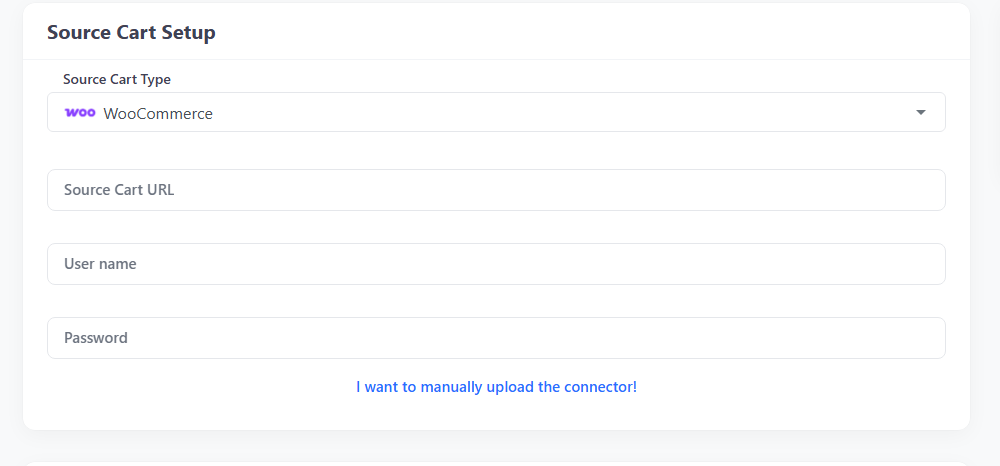
From the dropdown menu, select WooCommerce as your Source Cart. You’ll then be asked to provide your WooCommerce store’s URL, along with your store’s username and password, to establish a secure connection automatically.
Alternatively, if you prefer a manual setup, click “I want to manually upload the connector” and follow the step-by-step instructions provided by LitExtension. Either method only takes a few minutes and ensures your WooCommerce store is safely connected to the system.
After your WooCommerce store is successfully connected, it’s time to link your PrestaShop store as the Target Cart. Here, enter your PrestaShop store URL and follow the on-screen instructions to install the Connector.
(Note: In case you’d like to test the migration using LitExtension’s demo environment instead of your own store, simply tick the “Try migration use LitExtension test store” box).
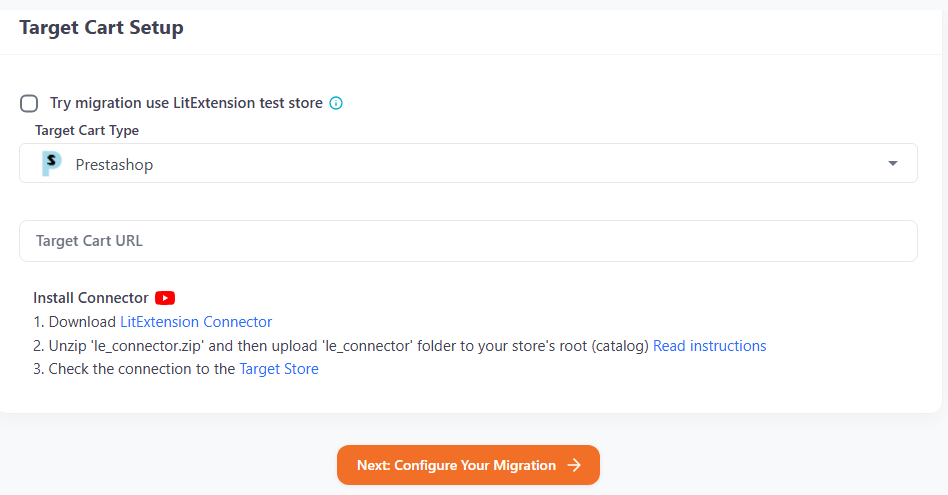
Once both stores are properly connected, click “Next: Configure Your Migration.”
Step 2. Choose the data you want to migrate
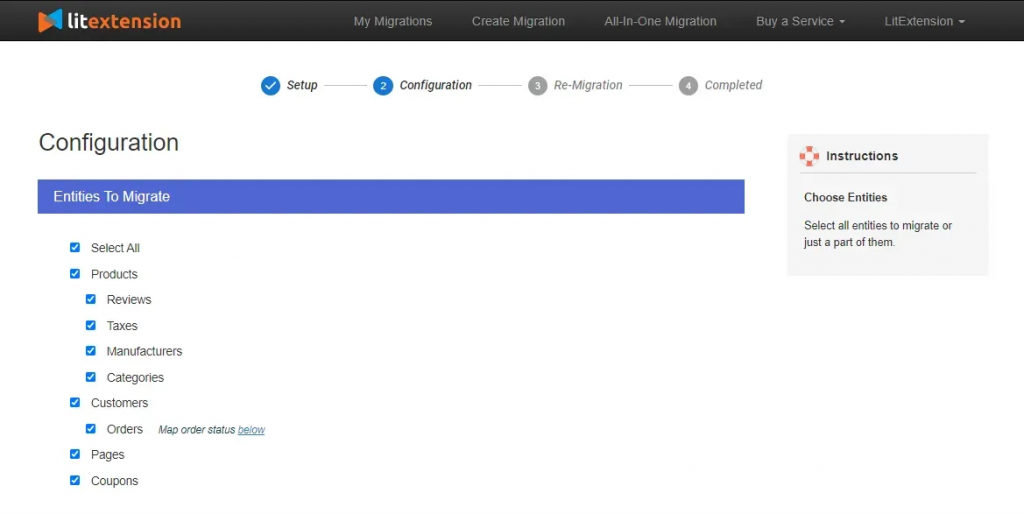
At this stage, LitExtension will automatically display all the data entities available for transfer. You can either handpick specific data types or simply click “Select All” to move everything in one go.
Beyond the standard entities, LitExtension is built to handle the trickiest, most platform-specific data that WordPress/WooCommerce stores rely on – the details generic tools often lose in translation:
| Data Entity | Description | Status |
|---|---|---|
| Products, Categories, Combinations | Core catalog data, including variants and attributes | Standard |
| Customers & Addresses | Full customer profiles and saved addresses | Standard |
| Orders & Order Items | Complete order history with line items | Standard |
| Coupons & Discounts | Promotional rules and codes | Standard |
| Reviews & Ratings | Product reviews carried over intact | Standard |
| Yoast SEO / RankMath to PrestaShop SEO | Accurately maps Meta Titles and Meta Descriptions from WordPress’s most popular SEO plugins into PrestaShop’s native SEO fields | Featured |
| WordPress Shortcodes | Cleans leftover shortcode markup out of product and post descriptions so PrestaShop content displays properly, not as raw code | Featured |
| Custom Order Statuses | Preserves custom WooCommerce order statuses and maps them smoothly to equivalent statuses in PrestaShop | Featured |
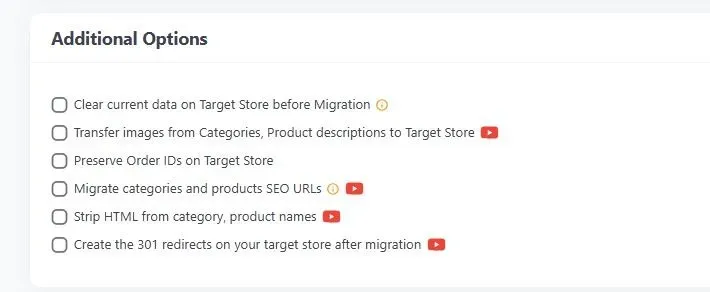
To make your migration even more seamless, you can customize the process with additional options – for example, preserving your original product IDs, keeping existing order numbers, or maintaining SEO-friendly URLs. These advanced options help the new store function and rank just like your old one, though some may involve a small additional fee.
Step 3. Run a demo migration and launch the full transfer
Before performing the complete migration, you can try LitExtension’s Free Demo Migration. This quick demo transfers a small sample of data so you can preview how your WooCommerce products, customers, and orders will appear on your new PrestaShop store.
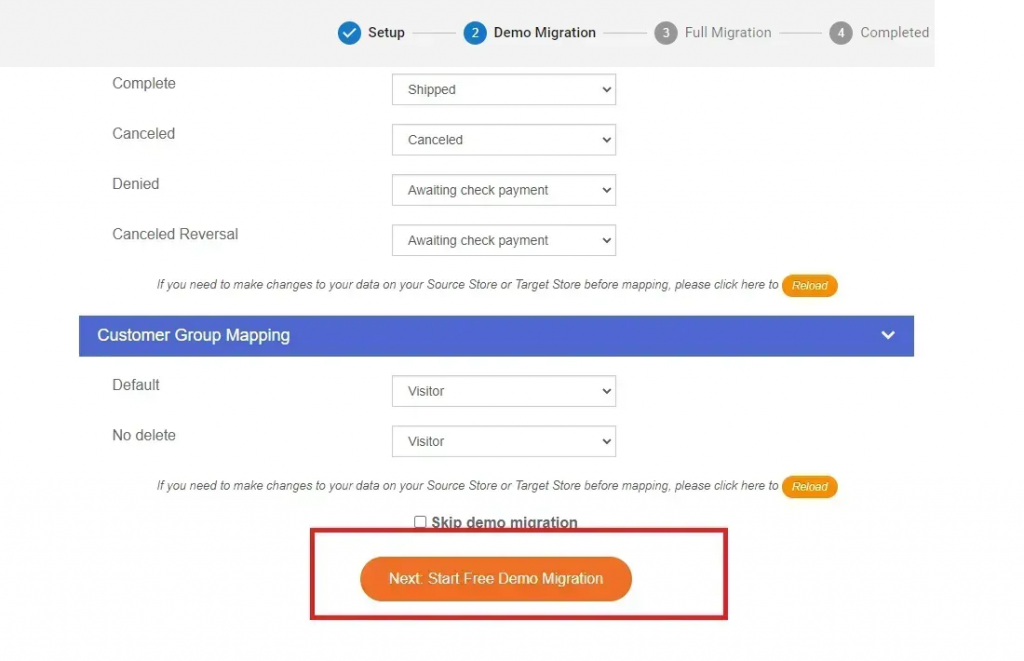
Once you’re satisfied with the demo results, you can confidently proceed with the full migration. The entire process runs automatically and securely in the cloud, meaning you don’t need to keep your computer on or your browser open. When the migration finishes, LitExtension will send you an email notification, and your new PrestaShop store will be ready to go live.
LitExtension vs. PrestaShop Modules vs. Connectors
Not sure which approach actually fits your situation? Here’s how the three options really compare:
| LitExtension (Cloud Migration) | PrestaShop Modules (e.g. MigrationPro, LeoTheme) | Connectors (e.g. Webkul) | |
|---|---|---|---|
| What it does | Full, one-time migration of your entire store, run on LitExtension’s cloud infrastructure | Installed directly on your server to pull data into PrestaShop | Keeps two live stores (e.g. WooCommerce and PrestaShop) selling in sync at the same time |
| Server load | None – all processing happens off your server, so your site stays fast and online throughout | Runs on your own hosting; large databases can overload resources and trigger timeouts | Requires constant two-way syncing, which keeps both databases working and growing heavier over time |
| Data coverage | Full migration: products, orders, customers, coupons, reviews, and SEO data | Often limited – some modules (like LeoTheme) only move Products, leaving orders, customers, and SEO behind | Focused on syncing inventory/orders between two active stores, not a complete one-time transfer |
| Best for | Merchants who want to move house once, completely and safely | Small catalogs willing to accept the risk of server strain and partial data coverage | Merchants who intentionally want to keep selling on two platforms at once |
| Downtime risk | Minimal – your live store isn’t touched during the process | Higher – heavy imports on your own server can slow or crash your site | Low, but ongoing sync overhead adds long-term server cost |
In short: if your goal is a clean, complete, one-time move away from WooCommerce – not an ongoing dual-store setup, and not a resource-hungry local module – LitExtension’s cloud-based approach is built for exactly that.
Bonus: After-migration support
LitExtension doesn’t stop at transferring your data: we also provide continuous post-migration services to keep your stores synchronized. You’ll get:
- Unlimited Recent Data Migrations within 60 days after your migration starts, allowing you to transfer any new products, orders, or customers added to your WooCommerce store (as long as the data is within 5% of your original migration volume).
- One free Re-Migration during that same 60-day window in case you want to redo the entire process.
- Unlimited Smart Updates for 90 days (after your migration starts) to automatically sync any changes between your WooCommerce and PrestaShop stores.
These perks ensure your new PrestaShop site remains accurate, up to date, and fully aligned with your business operations even after launch.
On the other hand, if you’d rather have the entire process handled for you instead of managing any setup or configurations on your own, this is also the perfect moment to consider LitExtension’s All-in-One (AIO) migration service.
Unlike the Basic plan, where you oversee parts of the workflow, the AIO package assigns you a dedicated Personal Assistant who manages every detail from start to finish – connecting your WooCommerce and PrestaShop stores, configuring advanced options, validating data accuracy, and ensuring your final store works flawlessly. It’s the ideal choice for busy merchants or anyone who prefers a fully guided, zero-stress migration experience!
You can explore the full list of AIO benefits here.
Migrate from WooCommerce to PrestaShop Manually
We have just discussed the LitExtension Automated tool, arguably the fastest and most convenient route for your migration from WooCommerce to PrestaShop.
That said, if you want complete control over every detail (or your catalog is small), you can choose to migrate manually instead. Just keep the trade-offs in mind: it’s slower, more error-prone, and you’ll be responsible for cleaning, mapping, and validating the data yourself.
Step 1. Back up and prepare safe environments
Before touching data, take a full backup of your WooCommerce site: database and files. In practice, that means:
- Dump your MySQL database
- Download /wp-content/uploads/ where product images live. If anything goes wrong, you can restore quickly rather than trying to reverse partial changes.
- Also, set up a staging PrestaShop site for the import; it helps keep your live store untouched while you test the mapping and fix surprises.
When everything looks correct, you’ll promote the staging site or replicate the process on your live PrestaShop.
Step 2. Export source data from WooCommerce
To use the built-in tool for products, go to “WooCommerce” > “Products” > “Export” and click “Generate CSV”. For products, go to WooCommerce > Products > Export.
For other data types like orders, customers, or coupons, use the “WooCommerce > Export” menu to select the data type and format, then click “Export”.
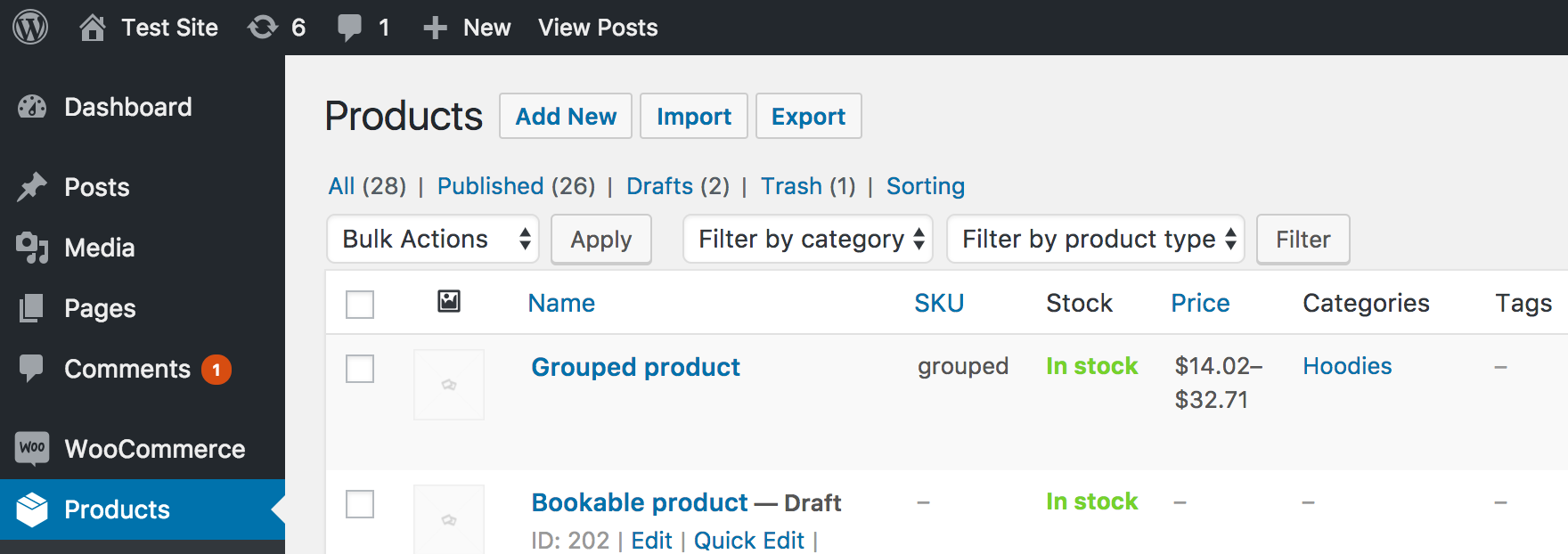
Be aware that customer passwords won’t port cleanly between platforms; plan to force password resets in PrestaShop.
Step 3. Normalize and map to PrestaShop CSV formats
Now, open your exported CSVs in a spreadsheet and transform columns to match PrestaShop’s import schema. Start with categories and products, then combinations (variants), then customers and addresses.
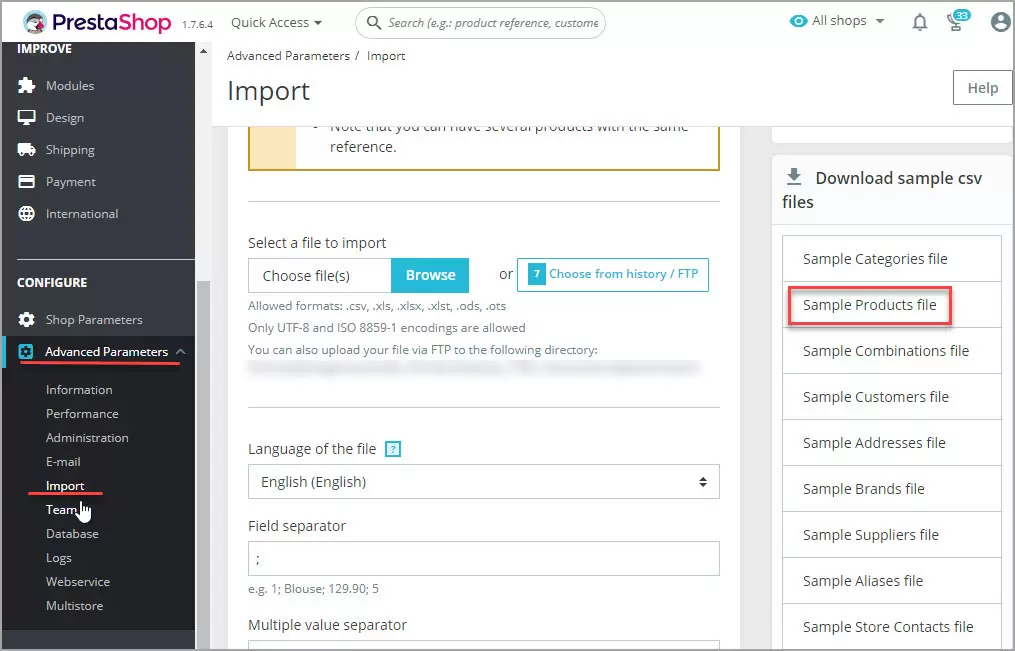
- Use PrestaShop’s sample CSVs as templates for field names and order.
- Keep your separators and encodings consistent-UTF-8 with clear delimiters avoids subtle import failures.
- Also, pay special attention to attributes and combinations. If WooCommerce used attributes like “Color” and “Size,” make sure you replicate those as PrestaShop attributes and link each combination to the correct product.
To ensure 100% precision, we suggest going to Advanced Parameters → Import to download a sample CSV as a reference.
Step 4. Move and reference images correctly
Copy product images from /wp-content/uploads/ to a web-accessible folder on your PrestaShop server, such as /img/import/.
- Use a predictable structure and filenames to save you time when validating the catalog.
- If you host images on a CDN or separate domain, gather absolute URLs that PrestaShop can fetch during import.
- In your product CSV, include a column for image URLs. For multiple images per product, list them in a single cell separated by commas.
After import, regenerate thumbnails in PrestaShop so dimensions and quality match your theme.
Step 5. Import in the right order via PrestaShop Back Office
Finally, log in to PrestaShop and go to Advanced Parameters → Import.
- Import Categories first so products have valid destinations.
- Then import Products, followed by Combinations if you use variants.
- Next, import Customers and Addresses.
Each import gives you a field-mapping screen; double-check mappings before running, and start with small test files to confirm behavior.
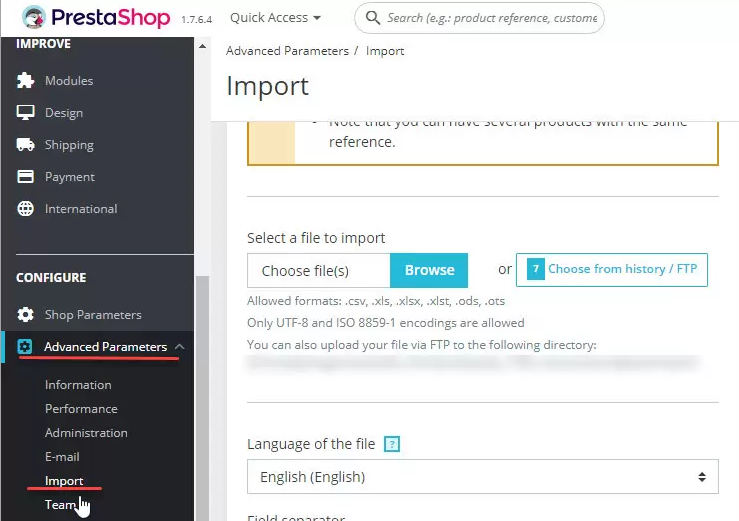
Go to Advanced Parameters → Import to import your CSV to PrestaShop.
Note: PrestaShop’s native importer does not bring in historical orders the way products and customers are handled. If you truly need orders in the new back office, that usually requires custom SQL work or a specialized solution. Many stores keep the WooCommerce site read-only for historical lookups, while running all new transactions on PrestaShop.
Why Migrate from WooCommerce to PrestaShop?
Now, let’s see why the migration from WooCommerce to PrestaShop is a necessary move in the first place! Though both platforms are capable, there are practical reasons some stores decide to make the switch:
Catalog depth and native merchant controls
Unlike WooCommerce, PrestaShop is built around product management first, with robust handling of attributes, combinations, specific prices, and catalog rules. If you run many SKUs, lots of variants, or region-specific pricing, those controls are available where you expect them – inside the eCommerce core – rather than scattered across multiple plugins.
This native focus can reduce maintenance and lower the risk of conflicts as your catalog grows. When the rules that define your catalog live in the platform itself, changes are easier to test and audit, and you spend less time stitching together overlapping extensions.
Multi-store, languages, and regional nuances
Secondly, PrestaShop’s multi-store and multi-language features are part of its DNA. If you operate multiple storefronts under one back office (say, brand-specific catalogs or country-targeted shops) you can manage them centrally while keeping pricing, currencies, and tax rules tailored per store.
And for teams working across regions, this perk also simplifies content operations. Translators and merchandisers can work in one admin, update language-specific data, and keep product structures aligned without jumping between separate WordPress or WooCommerce instances.
Performance and maintainability
Lastly, keep in mind that WooCommerce still rides on WordPress at the end of the day, which is powerful but general-purpose. On the contrary, PrestaShop’s single-purpose design often means fewer moving parts to maintain for commerce workflows. Fewer plugins to keep in sync can translate into easier updates, clearer debugging, and more predictable performance under load.
Better yet, that focus also benefits your team. When features you rely on are native, your documentation is simpler, your QA surface is smaller, and you’re less dependent on a specific plugin developer’s update schedule for mission-critical tasks!
Extra Tips for Successful Migration
Before we wrap up, it’s important to remember that a solid plan shortens your timeline and reduces cleanup. The following tips focus on doing the right prep before you move, so your PrestaShop catalog feels correct on day one:
Normalize attributes and taxonomy before you export
Open your WooCommerce catalog and fix attribute inconsistencies first. Align names (“Color” vs “colour”), standardize option values (“Gray” vs “Grey”), and remove legacy attributes that are no longer used. Also, clean category hierarchies so there’s a single, sensible path per product. The goal is to create one canonical representation of your products so the import doesn’t multiply variants or misplace items.
Once your taxonomy is clean, re-generate your product export. A clean source file maps far more easily to PrestaShop’s attributes and combinations. You’ll spend your time validating results rather than hunting for why ten “Blue” options became eleven after import.
Work in small, repeatable batches on staging
Don’t attempt a “big bang” import on your first try. Start with a handful of categories and a dozen products that represent edge cases (simple items, variants, long descriptions, lots of images). Import, review, adjust your mapping, and repeat. When your mapping feels right, scale up in batches until you’ve run the full catalog!
This rhythm gives you fast feedback and prevents one bad column from corrupting thousands of rows. It also builds a repeatable checklist you can follow when you run the final import against the live PrestaShop instance.
Protect SEO with redirects and link hygiene
Finally, if your URLs will change (and they often do when switching platforms), plan 301 redirects from old WooCommerce product and category URLs to their new PrestaShop equivalents.
You should export a list of top-traffic URLs from analytics, map them to the new structure, and test them on staging. Also, don’t forget to fix internal links in product descriptions where possible so customers aren’t bounced through redirects unnecessarily.


Leave The Work For The Experts
If you’re non-tech, let our PrestaShop migration experts handle your migration from A to Z.
Save your time for more important tasks.

How Your Data Is Secured During Migration?

Server Security

Data Security

Data Access Restriction

GDPR Compliance

NDA

Payment Security
Why choose Automated Migration for Prestashop Migration