Moving from Wix to Shopify with LitExtension. Transfer your Wix store data, including products, customers, orders, and categories, to Shopify while keeping your business running smoothly throughout the process.
With LitExtension’s All-in-One Migration Service, our experts handle your Wix-to-Shopify migration from start to finish, keep you informed at every stage, and promptly address any issues that arise.
Your Wix store remains fully operational throughout the migration, so you can continue receiving orders without interruption while we transfer your data accurately and securely to Shopify.
 Based on 3,000+ reviews on:


 | LitExtension is an Official Shopify Partner

Step 1: Share your Wix and Shopify store details and migration requirements. Our experts will assess your data, understand your Shopify setup, and recommend the best approach for a smooth migration.

We map your Wix data to Shopify, prepare both stores, and configure the migration based on your specific requirements to ensure an accurate and consistent transfer.

Once everything is ready, our team handles the migration, testing, and post-migration tasks for you. Your Wix store stays live while the migration runs securely in the cloud.
How our Wix to Shopify Migration Service works
Every Wix to Shopify migration is handled through a structured 7-step process designed to transfer your store data accurately and minimize disruption to your business.
- Technical consultation with our migration experts
- Pre-migration preparation and customization
- Demo migration
- Full migration
- Migration results testing
- Post-migration services
- Post-migration support
Step 1. Technical consultation
Your migration starts with a one-on-one consultation with our experts. We review your Wix store, understand your requirements, and define the migration scope before any data is transferred.
During this stage, our team will:
- Analyze your store size, structure, and complexity.
- Determine which products, customers, orders, and other data need to be migrated.
- Review custom fields, store-specific data, and special requirements.
- Identify potential migration challenges in advance.
- Map the relationships between your Wix data and the corresponding Shopify structure.
- Define the migration approach, timeline, and required resources.
This preparation gives both you and our migration team a clear roadmap before the migration begins.
Step 2. Pre-migration preparation and customization
Once the scope is confirmed, we prepare your Wix source store and Shopify target store for migration. Our team checks the required access, reviews your Shopify setup, and configures the migration according to the requirements agreed upon during consultation.
We also map Wix data fields to their Shopify equivalents. If your store contains custom fields or non-standard data, our experts determine the appropriate way to transfer or restructure them so the migrated data remains consistent in Shopify.
Step 3. Demo migration
Before the full migration, we can transfer a sample of your products, customers, and orders to Shopify. This allows our team to review how your Wix data is mapped and displayed on the new store before processing the complete data set.
For stores with fewer than 2,000 entities, the Demo Migration is skipped by default unless requested. When a demo is performed, we review the results and make any necessary adjustments before starting the Full Migration.
Step 4. Full migration
After the migration configuration is finalized, we transfer all selected data from Wix to Shopify according to the agreed setup. Our team also maintains important data relationships, such as connections between products and their collections, wherever supported.
Your Wix store remains live throughout the migration. The transfer runs in the cloud, so you do not need to pause your store or put it into maintenance mode while the migration is in progress.
Step 5. Migration results testing
After the Full Migration is complete, our experts review the transferred data to make sure the results match the agreed migration scope.
We check key entities such as products, customers, orders, and other migrated data, identify any inconsistencies, and resolve migration-related issues before confirming the project results.
Step 6. Post-migration services
Your Wix store can continue receiving new orders, customers, and other updates while the migration is taking place. LitExtension provides post-migration services to help synchronize those changes with your Shopify store after the initial migration.
- Recent Data Migration: Migrate newly generated data representing less than 5% of the initial migration within 30 days after completion.
- Re-Migration: Run the migration again within 30 days after the original migration is completed.
- Smart Update: Update migrated data within 90 days after completion.
These options give you additional flexibility to finalize your Shopify store without rushing to shut down your Wix store immediately after the initial transfer.
Step 7. Post-migration support
Our service does not end once your data reaches Shopify. For 30 days after migration completion, our support team remains available to answer migration-related questions and help resolve issues associated with the transferred data.
This gives you time to review your new Shopify store carefully before fully transitioning your business away from Wix.
Prefer to migrate from Wix to Shopify manually?
For smaller stores, you can also migrate from Wix to Shopify manually by exporting your available Wix data, restructuring the files to match Shopify’s required format, and importing them into Shopify.
Manual migration can work if you have a relatively small amount of data and are comfortable working with CSV files. However, Wix and Shopify use different data structures, so some information cannot simply be exported from one platform and imported directly into the other.
Step 1. Export your data from Wix
Wix does not provide a single export covering every type of store data, so you need to export the available data separately.
Export Wix products
- From your Wix Admin dashboard, go to the “Products” section.
- Select the products you want to export.
- Click “More Actions” and select “Export”.
- Download the exported CSV file.
Wix CSV export is available for physical products. Digital product files may need to be downloaded and uploaded to Shopify separately.
Export Wix customers
Customer information is managed through the Contacts section in Wix.
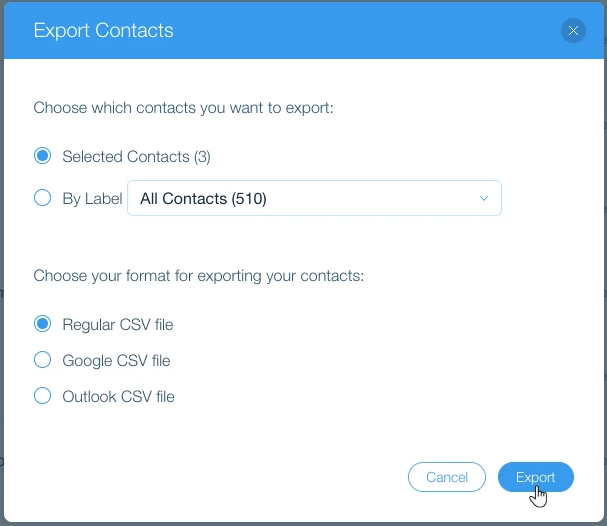
- Open your Contact List in the Wix Admin dashboard.
- Select the contacts you want to export.
- Click “More Actions” and choose “Export contacts”.
- Select the contacts and file format you want to export.
- Download the exported file.
Export Wix orders
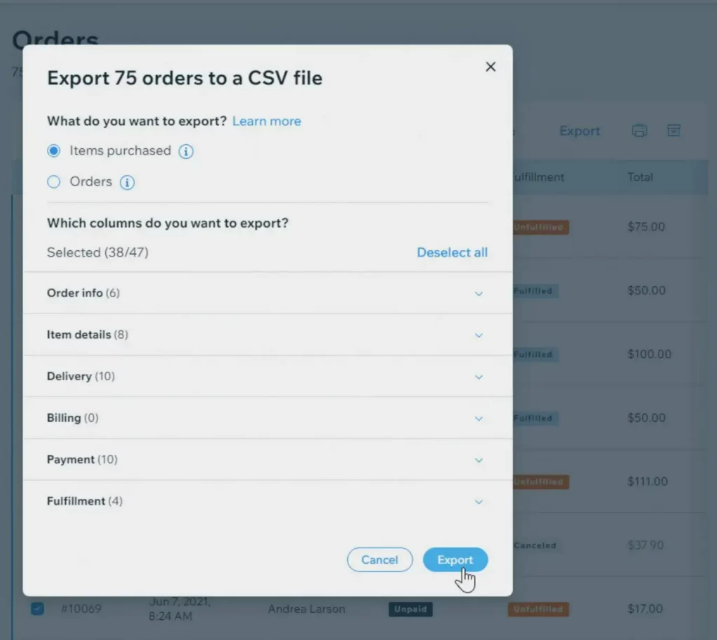
- Go to the “Orders” section in your Wix Admin dashboard.
- Select the orders you want to export.
- Click “Export”.
- Choose the columns you want to include and download the CSV file.
Step 2. Prepare your Wix data for Shopify
Wix CSV files do not use the same structure as Shopify import files. Before importing your data, you need to reorganize the exported fields to match Shopify’s required columns and formatting.
Review each file for missing or inconsistent values, map Wix fields to their Shopify equivalents, and pay particular attention to products with variants or custom information. CSV files should also be saved using UTF-8 encoding before import.
Step 3. Import your data into Shopify
Once the files are formatted correctly, you can import supported data through your Shopify Admin.
- Go to the relevant section in Shopify Admin, such as “Products” or “Customers”.
- Select the import option and upload your prepared CSV file.
- Preview the imported data before confirming the import.
- Review the results after Shopify finishes processing the file.
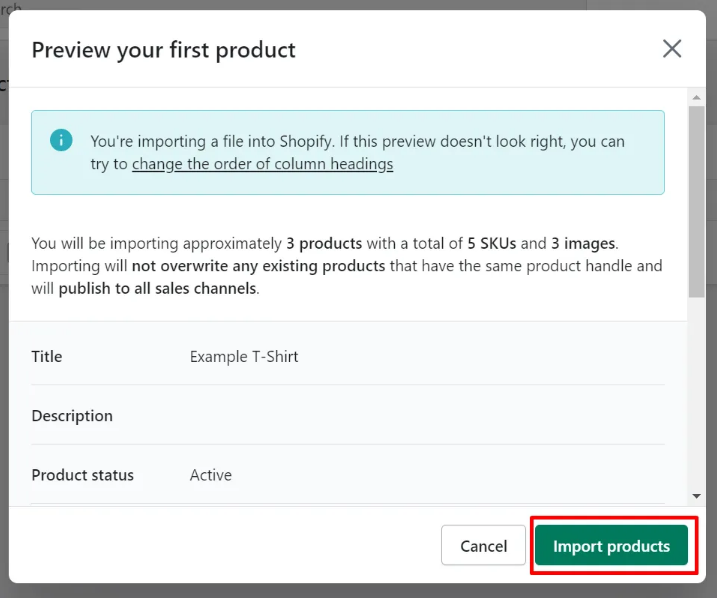
Order history requires additional handling because Shopify does not provide the same native CSV import workflow for orders. This is one of the areas where a managed migration can significantly reduce manual work.
If restructuring CSV files, mapping data, and validating the results sounds too time-consuming, LitExtension’s All-in-One Migration Service can handle the Wix to Shopify transfer for you.
Common Wix to Shopify migration mistakes to avoid
A successful migration involves more than transferring products. Before launching your Shopify store, make sure you avoid these common issues:
- Closing your Wix store too early. Keep your source store accessible until you have confirmed that all required data and content are available in Shopify.
- Skipping 301 redirects. Wix and Shopify use different URL structures. Redirect important old URLs to their corresponding Shopify pages to avoid unnecessary 404 errors and SEO disruption.
- Overlooking data that cannot be exported directly. Digital products, blog content, and other store-specific information may require additional handling outside the standard CSV process.
- Failing to review product options and variants. Differences between the two platforms can affect how complex product structures are represented after migration.
- Launching without testing your new store. Review your migrated products and customer data, then test checkout, payments, shipping, taxes, and other essential store functions before directing customers to Shopify.
Ready to move from Wix to Shopify?
You can migrate a smaller Wix store manually, but the process becomes significantly more complex as the volume and variety of your data increase.
With LitExtension’s All-in-One Wix to Shopify Migration Service, our experts handle the technical work from consultation and data mapping to migration, testing, and post-migration support. Your Wix store can remain available throughout the process, allowing your business to continue operating while we prepare your new Shopify store.
Book a free consultation with our migration experts to discuss your Wix to Shopify migration requirements.
Join 200,000+ businesses that have migrated with LitExtension. Start a Free Demo Migration to preview how your Wix products, customers, orders, and URLs will be transferred to Shopify before running the full migration.
Wix Data We Can Migrate to Shopify
Our migration experts can transfer products, customers, orders, content, SEO data, and other supported records from Wix to Shopify. Data stored in Wix apps or custom structures may require additional assessment and handling.


-
Products
- Product Name, Description, URL Slug.
- Main Image, Images and Videos.
- Price, Sale price, Cost of Goods.
- Categories
- SKU
- Quantity
- Track Inventory
- Brand
- Shipping Weight
- Show in Online Store
- Additional Info Sections
- Product Options
Products Categories
- Category Name,
Category Image.
-
Customers
- First Name/Last Name.
- Primary Phone
- Billing/Shipping Address.
Customer Address
- First name, Last name.
- Company
- Street line 1, Street line 2.
- City, Postcode, Country / Region, State.
-
Orders
Payment status, Fullfilment status. - Customer
- Shipping
- Tax
- Coupon
- Customer Paid
- Delivery Method
Order Items
- Product name
- Price
- Qty
SKU
Can’t find the data you need to migrate? Contact Us or click on the Live Chat for a free consultation.


Let Experts Handle Your Migration









How Your Data Is Secured During Migration
At LitExtension, we prioritize data security and use strict practices, technologies, and policies to keep your data protected throughout the migration. Learn more in our Data Security Policy.

Server Security

Data Security

Data Access Restriction

GDPR Compliance

NDA

Payment Security
Why Choose LitExtension Wix to Shopify Migration Services


Who We Truly Are? Let Our Customer Define!

Incredible customer support! What a daunting task it is to move your website. I am migrating my Wix site to Shopify and was worried about migrating my many blog posts. LitExtension made it SO much easier! I’m surprised at how fast everything was completed, including link redirects. I had a question about the links inside each blog post and Mak went through and made sure everything was perfect. Thank you so much for all of your help, really incredible. 🙂
It’s not the first time I use litextension migration services for Shopify. Earlier I did a Prestashop migration to Shopify and now I did from Wix to Shopify. Both migrations went 100% according to expectation and without any data lost. Thank you so much specialy to Andy Dang for his on going support. Will use this service for sure again when required.
I worked with Andy at LitExtension to migrate my Wix store to Shopify. The project included 600+ customer contacts and 200+ products with 2000+ product images. The migration was smooth and fast. The job was completed exactly as expected. I highly recommend Andy and the team at LitExtension.