nopCommerce to Magento migration transfers your products, customers, orders, and categories accurately and securely with LitExtension’s proven migration service. Our Magento experts handle the complete migration on your behalf, so you don’t have to manage the technical work yourself.
Your current store keeps taking orders the whole time, and nothing changes on the customer-facing side until you’re ready to switch over. You’re covered by up to 60 days of support after your Full Migration completes.


How to Perform nopCommerce to Magento Migration

Share your nopCommerce store details, migration goals, product and order volume, and Magento setup with our team. We review the supported source data and any custom requirements before defining the migration plan.

Our experts map supported nopCommerce product, customer, and order fields to Magento, configure the migration environment, and run a Demo Migration so you can review representative records before the full transfer.

After the demo is approved, we perform the Full Migration, monitor the transfer, and validate products, variants, images, customers, orders, and categories before handover.
nopCommerce to Magento Migration: A Complete Step-by-Step Guide
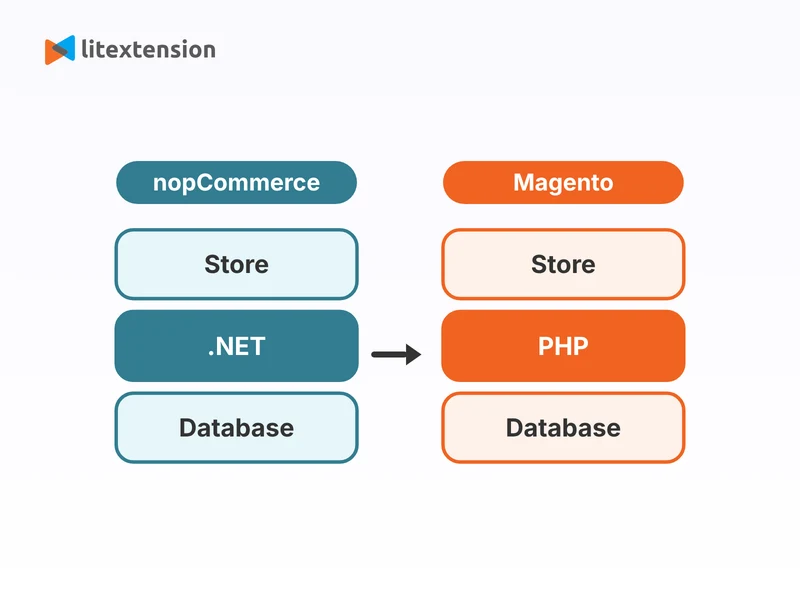
A nopCommerce to Magento migration moves your products, categories, customers, orders, and more from a .NET store to a PHP-based Magento store. This guide shows you how to prepare, how to migrate with the LitExtension Automated Migration Tool or the All-in-One Migration Service, how to transfer data by hand, and what to check before you go live.
Why Should You Migrate from nopCommerce to Magento
Here are four reasons store owners move from nopCommerce to Magento:
1. Magento handles large catalogs and several stores from one admin panel
Magento supports configurable products with rich attributes, and it lets you run several websites and store views from one admin. If your catalog grows or you plan to sell in more countries and languages, you can scale more easily without starting over on another platform.
2. Magento gives your team a PHP stack and a large marketplace of ready-made tools
nopCommerce runs on .NET. Magento runs on PHP, which many hosts and developers support. Magento also has a large marketplace and a worldwide network of agencies, so you can add payment, shipping, ERP, marketing, and analytics tools often without writing custom code.
3. Magento gives you strong SEO and merchandising controls
You can edit URL keys and meta data, use layered navigation filters, and build promotions with cart price rules directly in the admin. These tools help you keep the organic traffic your store earned and turn more visitors into buyers.
4. Adobe maintains Magento with regular releases and security patches
Magento comes in two editions: the free Magento Open Source and the licensed Adobe Commerce. Adobe publishes regular updates for both, so your store keeps receiving fixes as the platform evolves. Weigh the costs before you switch. Magento usually asks for more hosting resources and developer time than a small nopCommerce store, so compare the total cost of the new setup with the growth you expect.
nopCommerce to Magento Migration Checklist: What to Prepare
A few preparation steps save hours later and keep your data clean from the first transfer. Complete this list before you connect your stores.
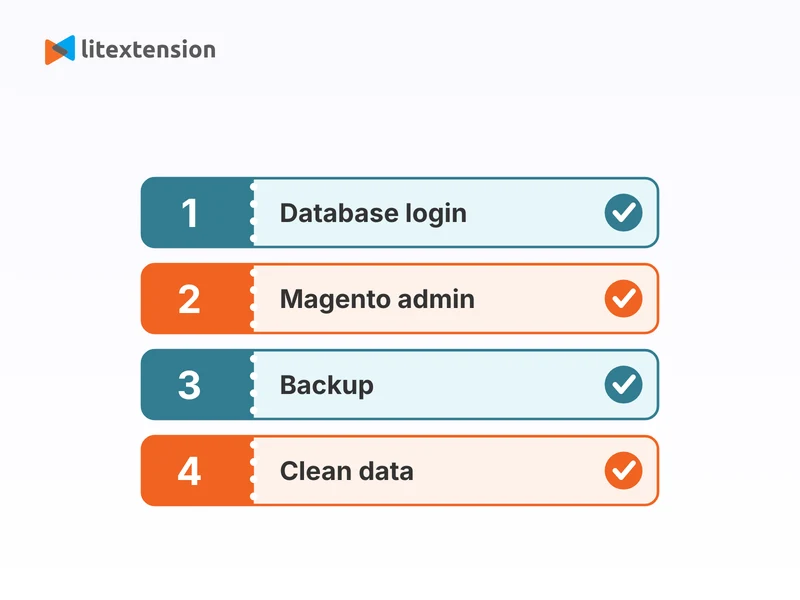
- Back up your nopCommerce database and files before you change anything.
- Collect your nopCommerce database details: host, port, username, password, and database name. SQL Server uses port 1433 by default, and you can find these details in /App_Data/Settings.txt or ask your hosting provider.
- Install a fresh Magento store on hosting that meets Magento’s system requirements, and keep its admin login ready.
- Gather FTP or SSH access to Magento so you can upload the LitExtension Connector to its root folder.
- Count your products, customers, and orders in nopCommerce, because the number of entities sets your migration cost.
- Clean duplicate products, inactive customers, and outdated orders, so you move only data you want to keep.
- Record your current product and category URLs, so you can check redirects after the move.
- List your languages and stores, because you map them to Magento store views during setup.
- Choose a Magento theme and the extensions you need, because nopCommerce themes and plugins do not move to Magento.
- Plan for customer passwords: to let customers keep their old logins, install the Customer Password Migration plugin on Magento before you start.
How to Migrate from nopCommerce to Magento with LitExtension Automated Migration Tool
If your nopCommerce store runs on a standard database with no heavily customized fields or unique workflows, the LitExtension Automated Migration Tool lets you handle the whole nopCommerce to Magento migration yourself, with no coding or technical background. The tool walks you through connecting both stores, choosing your data, and running the transfer from one dashboard. This method is fast and cost-effective for clean data. If your store relies on custom attributes or specialized setups, the expert-led migration service below fits better.
Step 1. Set up Source Cart and Target Cart
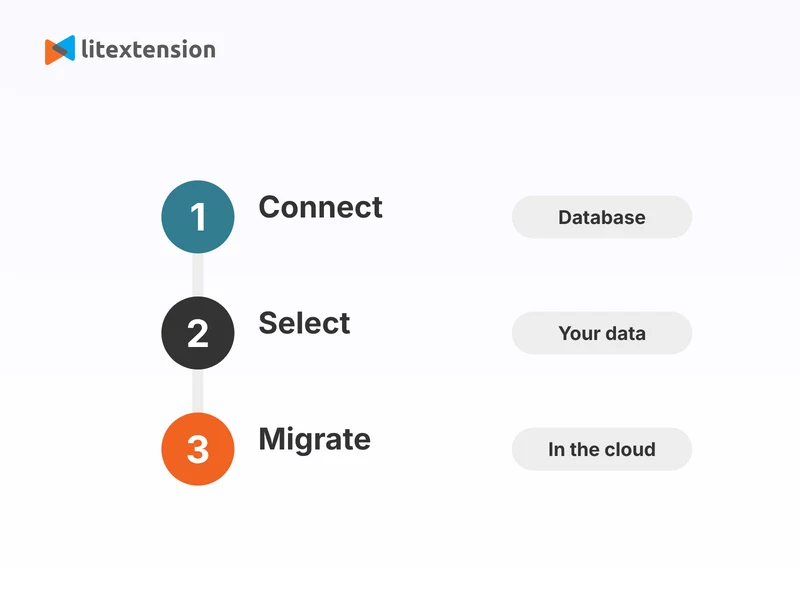
First, sign in to the LitExtension app with your registered email and password, or with your Google account. From the dashboard, click “Create Migration“. Select nopCommerce from the Source Cart drop-down and enter your store URL. nopCommerce connects through your database, so enter the database host, port, username, password, and database name that you collected earlier. LitExtension reads the data directly from the database, and you do not install a Connector on nopCommerce.
If your server blocks outside connections, ask your hosting provider to allow access or contact our support team. Next, set up your Target Cart: choose Magento and enter its URL. Download the LitExtension Connector, upload it to your Magento root folder following the video guide, and wait for the message “Connector was successfully installed“. When both stores show as connected, click “Next: Configure Your Migration“.
Step 2. Select data to migrate
Tick the data you want to move. For a nopCommerce to Magento migration, you can select Products, Product Categories, Customers, Orders, Manufacturers, Coupons, Reviews, CMS Pages, and multiple languages. If you have custom data outside these types, click the “Support” button and our migration experts will review your needs. You can also switch on Additional Options to fine-tune the result. Hover over each option to read its guide, or watch the video beside it:
- Create 301 Redirects to Your Magento Store: sends visitors from old nopCommerce URLs to the new Magento pages.
- Preserve Order IDs on Your Magento Store: keeps your original order numbers. This option needs the Clear Data option below.
- Strip HTML Tags from Category & Product Names: removes stray HTML code from your names.
- Clear Data on Your Magento Store Before Migration: deletes the existing data on your Magento store first, so old and new records do not clash. This action cannot be undone, and the tool makes no backup before it deletes, so back up Magento first.
- Migrate Images in Product & Category Descriptions: moves the images that your descriptions link to.
If the tool offers “Migrate Customers Password” for your pair, install the Customer Password Migration plugin on Magento first, and keep it active until every customer has logged in once. Finally, map your languages and order statuses, and map stores or customer groups if the tool asks, so they appear correctly on your new store. When you finish, run the Demo Migration to preview the result. A demo usually takes 10 to 20 minutes. You can also click “Skip Demo Migration” to go straight to the confirmation and checkout page.
Step 3. Perform full migration
Now the tool does the heavy lifting. LitExtension migrates your data in the cloud, so you do not need to keep your computer on, and you can keep selling on nopCommerce while the transfer runs. When the migration ends, you receive an email, and you can click “Check Result” to review your new Magento store.
How to Migrate from nopCommerce to Magento with LitExtension Migration Service
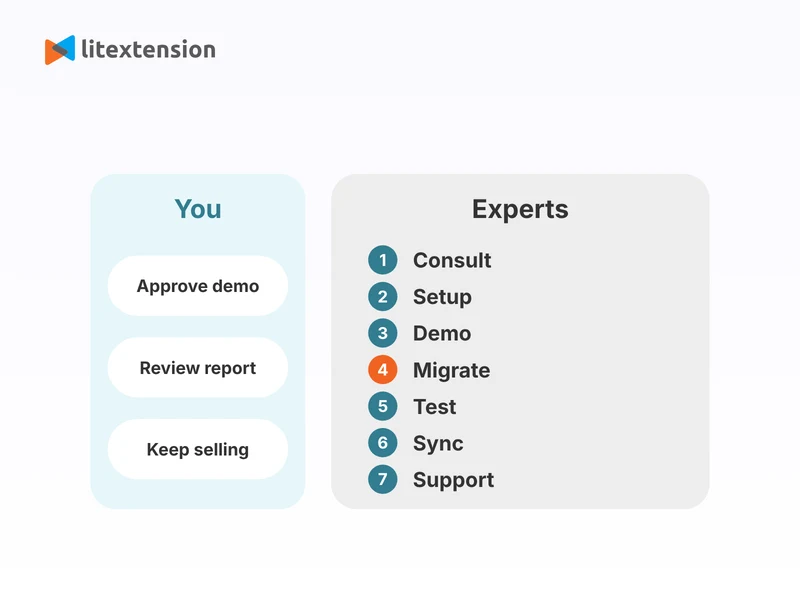
If you want a safe, time-saving way to move your store, LitExtension offers a dedicated service for nopCommerce to Magento migration. Our experts guide the whole project, so you do not manage the technical work yourself, and you can stay focused on your business while specialists move your data. The steps below show how LitExtension experts migrate your store from start to finish.
Step 1. Technical consultation with LitExtension experts
Your migration begins with a personal technical consultation. Our team studies the structure, size, and business needs of your nopCommerce store, then reviews your products, categories, customers, orders, and other data to decide exactly what moves. By spotting challenges early, we build a plan that fits your store. If your setup uses unique workflows, custom plugins, or custom fields, we document them carefully so nothing gets lost or misplaced on Magento. At the end of this step, we sign a Service-Level Agreement (SLA) that confirms the timeline, the data volume, and your custom requirements.
Step 2. Pre-migration setup
Next, we prepare both platforms for an accurate transfer. We check that your nopCommerce and Magento stores are ready, and we collect the store URLs, database details, admin credentials, and technical settings that we need for a secure connection. We also confirm that your Magento store can receive the incoming data. Then we map your data. We align your nopCommerce categories, customer groups, languages, and order details with Magento’s structure, and we adjust the setup for custom fields or business rules. By the end of this step, we have mapped and validated the key data elements.
Step 3. Demo migration running
Before the full transfer, we run a demo migration. We move a small sample of your nopCommerce data to Magento so you can preview how it looks, and so we can fine-tune the setup. Our team then tests the result internally and works to fix any inconsistency before the full migration starts.
Step 4. Perform full nopCommerce to Magento migration
After you approve the demo, we run the full migration and move all your selected data into your Magento store, following the plan we built earlier. The migration runs on our secure cloud system, so your nopCommerce store stays live during the migration and you can keep selling.
Step 5. Migration results testing
When the migration ends, we test everything we moved. Our team checks every critical element, and we work to fix any inconsistency, missing field, or formatting issue. Once the data matches your original structure, we share the results with you so you can review them.
Step 6. Post-migration tasks
Your nopCommerce store keeps running during the migration, so it can collect new orders, customers, or product updates. To bring your Magento store up to date, LitExtension offers these services at no extra charge during the Technical Support window:
- Recent Data Migration: unlimited runs, when the new data stays below 5% of the initial migration.
- Re-migration: 2 runs, when you need to run the full migration again.
- Smart Update: unlimited runs, to refresh data that the first full migration already moved.
Step 7. Customer support post migration
Our work does not stop when the migration ends. For up to 60 days after the migration, our Customer Support Team answers your questions, solves issues, and guides you through your new setup. The window lasts 30 days for All-in-One orders of $1,000 or less, and 60 days for larger orders. You can send a ticket at any time, and we reply within 24 hours during working hours, Monday to Friday, 8:00 to 20:00 (UTC+7).
Manually Transfer Data from nopCommerce to Magento
The manual route costs nothing but your time, and it gives you direct control over every file you move. It also has real drawbacks: it takes a lot of time, it invites errors, and it needs technical skill. nopCommerce makes it harder, because its order export comes in two partial files. For a store with more than a few hundred products, or any store that relies on order history, LitExtension’s automated tool or migration service saves you time and lowers the risk of lost data. If you still prefer to do it yourself, follow these steps.
Step 1. Back up your nopCommerce store
Download a full copy of your nopCommerce database and files, and store the copies in two places. This backup protects you if an export or import goes wrong.
Step 2. Export your data from nopCommerce
Export each data type from your nopCommerce admin panel, one at a time:
- For products, go to Catalog → Products → Manage Products, click Export, and choose all or selected products.
- For categories, go to Catalog → Categories → List and choose Export to XML.
- For manufacturers, go to Catalog → Manufacturers and choose Export to XML.
- For customers, go to Customers → Customers and choose Export to XML.
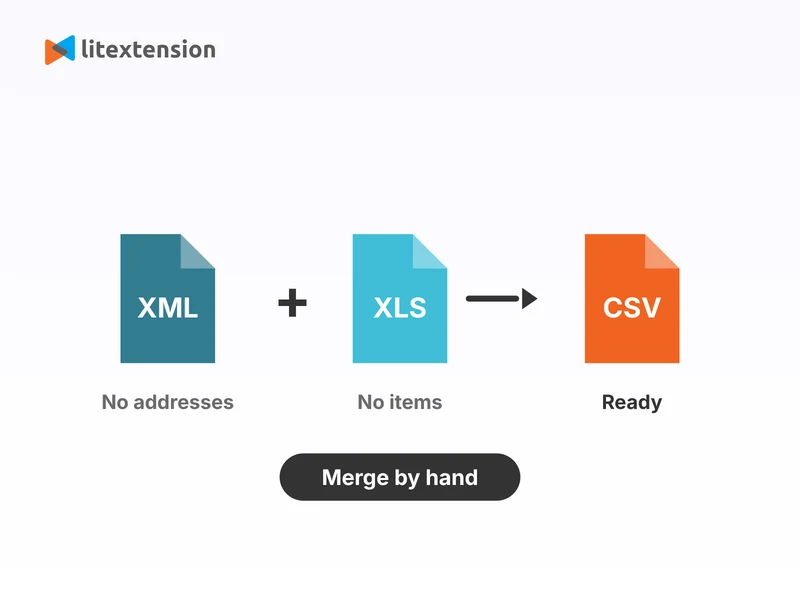
- For orders, go to Sales → Orders and export both XML and Excel (XLS) files. The XML file has no shipping or billing addresses, and the Excel file has no order items, so you need to combine the two files to get complete orders.
- Convert every XML file to CSV with a spreadsheet tool.
Step 3. Reformat your files for Magento
Open each file in a spreadsheet tool and rename the column headers to match Magento’s import field names. Remove duplicates, fix encoding problems, and save each file as a UTF-8 CSV. For products, make sure each row includes the required fields, such as SKU, attribute set, product type, and name, because Magento’s importer rejects rows that miss them.
Step 4. Import products and categories into Magento
Use Magento’s built-in importer to bring in your product file:
- In your Magento admin, go to System → Data Transfer → Import and choose Products as the Entity Type.
- Upload your product CSV, then click Check Data and fix every row that Magento flags.
- Click Import. Magento creates your categories from the categories column of this file.
- Upload your product images to Magento’s import images folder before you import, and reference each image by file name in the CSV.
Step 5. Import customers into Magento
Return to System → Data Transfer → Import, choose Customers Main File, and import your customer CSV. Then import the Customer Addresses file. Magento cannot read your customers’ old nopCommerce passwords, so customers need to reset them. Check the result under Customers → All Customers.
Step 6. Recreate orders, coupons, reviews, and pages
Magento has no native order import. You can install a third-party order import extension and follow its guide, or you can recreate your most important orders one by one under Sales → Orders → Create New Order. Coupons, reviews, and CMS pages also need extensions or manual re-creation. As you can see, the manual process asks for time, precision, and patience with repeated fixes. If order history and customer records matter to your business, LitExtension can help with all of it, with a demo migration before the full run.
nopCommerce to Magento Migration Checklist: Post Activities
Do not send traffic to your new store until you have checked it. Work through this list after your nopCommerce to Magento migration finishes.
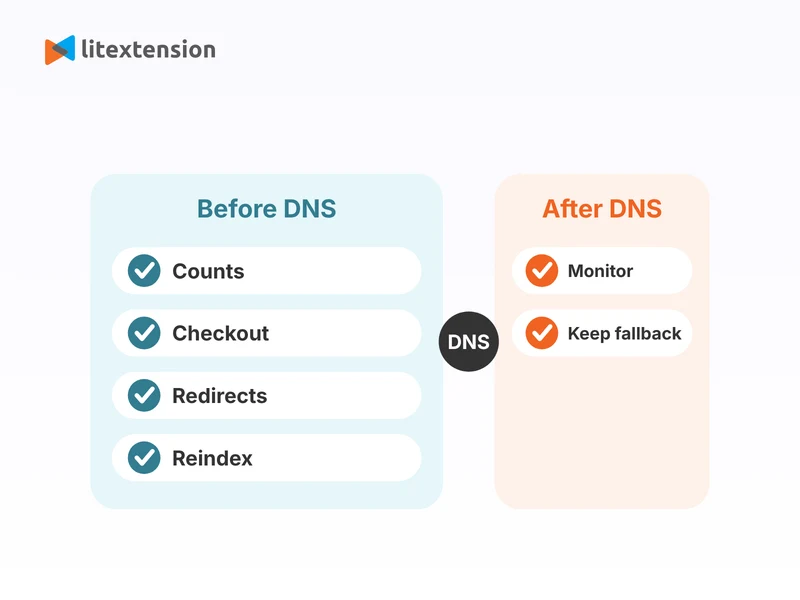
- Compare the number of products, categories, customers, and orders in Magento with your nopCommerce counts.
- Spot-check product pages across categories, including titles, SKUs, prices, variants, images, and descriptions.
- Review your category tree and confirm each product sits in the right category.
- Check each language on your store views, so product names, descriptions, and categories show in the right language.
- Test the full checkout with test orders, including payment, shipping, taxes, and order emails. Set up payment and shipping methods in Magento first, because they are not part of the data transfer.
- Check your 301 redirects by opening a sample of old nopCommerce URLs. During a demo, Magento often runs on a temporary domain, so some redirects only work after you switch to your main domain.
- Reindex your data under System → Index Management and flush the cache, so Magento shows every migrated product.
- Install your chosen theme and extensions, then test the design on mobile and desktop.
- Sync orders and customers that arrived during the migration with Recent Data Migration or Smart Update, within your support window.
- Delete the LitExtension Connector files from Magento after the migration ends.
- Keep the Customer Password Migration plugin active until all customers have logged in once, if you used it.
- Switch your DNS to Magento last, and keep your nopCommerce store online until real orders reach Magento.
Troubleshoot Common Issues with nopCommerce to Magento Migration
A migration can hit a few common snags, especially when a .NET store moves to a PHP platform. This table shows what to expect and how LitExtension helps.
| Migration issue | Why it happens | How LitExtension helps |
|---|---|---|
| Database connection fails | The host, port, or login details are wrong, or a firewall on your server blocks outside connections to the SQL Server database. | LitExtension support checks your connection details with you and your hosting provider, then helps you retest the connection. |
| Plugins and themes | nopCommerce plugins and themes run on .NET, so they cannot work on Magento, which uses PHP extensions and its own theme system. | LitExtension migrates your store data and can recommend a suitable Magento theme. Development services can rebuild custom features or a similar look and feel. |
| Customer passwords | nopCommerce stores passwords in its own encrypted format, which Magento cannot read directly, so customers cannot log in with old passwords by default. | The Customer Password Migration plugin on Magento converts each password at the customer’s first login, where your pair supports it. Otherwise, customers reset their passwords. |
| Old URLs return 404 errors | nopCommerce URLs differ from Magento’s URL keys, so old links break after the switch. | The Create 301 Redirects option points old URLs to the matching Magento pages. Test them after you switch to your main domain. |
Join 200,000+ businesses that have migrated with LitExtension. Start a Free Demo Migration to preview how your nopCommerce products, customers, orders, and URLs will be transferred to Magento before running the full migration.
What Data Can Be Migrated From nopCommerce To Magento
Use the tabs below to see which nopCommerce data fields we can migrate to Magento.


-
Products
- Name, SKU, Short Description, Full Description, Status.
- Manufacturer.
- Price, Special Price.
- Tags.
- Meta Title, Meta Description.
- Weight, Width, Height, Depth.
- Attributes.
- Variants.
- Thumbnail Image, Additional Images.
- Created Date.
- Quantity, Manage Stock.
Product Categories
- Name, Description.
- Sort Order.
- Image.
- Meta Title, Meta Description.
-
- First Name, Last Name, Email.
- Password, Username.
- Status.
- Billing Address (Company, Address 1, Address 2,m Country, State, City, Zip Code, Telephone).
- Created Date.
- Displayname.
-
- Order ID, Order Date, Order Status.
- Order Items (Name, SKU, Option), Product Price, Quantity.
- Sub Price, Discount Price, Tax Price, Shipping Price, Total Price.
- Order Comments.
- Customer Name, Email
- Billing Address (Company, Address 1, Address 2, Country, State, City, Zip Code, Telephone).
- Shipping Address (Company, Address 1, Address 2, Country, State, City, Zip Code, Telephone).
-
- Name.
- Slug.
- Description.
- Image.
-
- Description.
- Coupon Code, Coupon Date.
- Customer Groups.
- Uses Per Coupon, Uses Per Customer.
- Discount Amount/Percent.
- Coupon from date, Coupon to date.
-
- Status.
- Rate.
- User Name, User Email.
- Comment.
- Created Date.
-
- Created Date.
- URL.
- Description.
- Categories.
- Thumbnail Image.
- Title.
-
- Products (Name, Description, Attribute)
- Categories (Name, Description)
Can’t find the data you need to migrate? Contact us or click on the Live Chat in the right corner for a free consultation.


Leave The Work For The Experts
If you’re non-tech, let our Magento migration experts handle your migration from A to Z.
Save your time for more important tasks.

How Your Data Is Secured During Migration?

Server Security

Data Security

Data Access Restriction

GDPR Compliance

NDA

Payment Security
Why Choose nopCommerce to Magento Migration Services


Who We Truly Are? Let Our Customer Define!