PrestaShop to BigCommerce Migration
 Based on 3,000+ reviews on:


PrestaShop to BigCommerce migration transfers your important data, including products, customers, orders, and more, whether you run it yourself with our Automated tool or let our experts handle it through the All-in-One service, the process completed securely and accurately.
There’s no technical work required on your part. Start with a free demo to see the results first, then our team maps your PrestaShop catalog structure to BigCommerce’s format and validates each entity against your original store, backed by up to 60 days of support after your Full Migration completes.
What Data Can Be Migrated From Prestashop to BigCommerce
Use the tabs below to see which PrestaShop data fields we can migrate to BigCommerce.


-
Products
- Name, SKU, Short Description, Full Description, Status.
- Manufacturer.
- Price, Special Price.
- Quantity, Manage Stock.
- Meta Title, Meta Description.
- Weight, Width, Height, Depth.
- Tags.
- Attributes.
- Variants.
- Thumbnail Image, Created Date, Additional Images.
Product Categories
- Name, Description.
- Sort Order.
- Image.
- Meta Title, Meta Description.
-
- First Name, Last Name, Email.
- Billing Address.
- Status.
-
- Order ID, Order Date, Order Status.
- Order Items.
- Total Price, Sub Price, Discount Price, Tax Price, Shipping Price.
- Order Comments.
- Customer Name, Email.
- Billing Address, Shipping Address.
-
- Name, Slug, Description, Image.
-
- Description.
- Coupon Code, Coupon Date.
- Customer Groups.
- Uses Per Coupon, Uses Per Customer.
- Discount Amount/Percent.
- Coupon from date, Coupon to date.
-
- Status, Rate.
- User Name, User Email.
- Comment.
- Created Date.
-
- Created Date, URL, Title.
- Description.
- Categories.
- Thumbnail Image.
(*) Please note that the data listed above may vary depending on your Source Store.
How to Perform Prestashop to BigCommerce Migration

1. Connect Your PrestaShop and BigCommerce Stores
Select PrestaShop as your Source Cart and BigCommerce as your Target Cart, then enter your store URL and follow the setup instructions to link both platforms.

2. Select Data and Migration Options
Choose the products, customers, orders, and other supported data you want to migrate, then select the Migration Options needed for your BigCommerce setup.

3. Run Demo and Full Migration
Run a free Demo Migration to review sample results. After validation, start the Full Migration to transfer the selected PrestaShop data to BigCommerce.
Prerequisites for a Successful PrestaShop to BigCommerce Migration
Before initiating the data transfer, taking time to prepare both your PrestaShop store and your new BigCommerce store will help you avoid data conflicts, minimize downtime, and ensure a clean, accurate migration from start to finish. Here are the key steps to complete before you begin.
- Back up your PrestaShop store: Create a complete backup of your product catalog, customer database, order history, and any custom content such as CMS pages. While LitExtension never modifies your original store, having your own backup provides a reliable safety net throughout the process.
- Install the LitExtension Connector: Download the LitExtension Connector file, extract the zip file, and upload it to your PrestaShop store’s root folder. This allows the migration tool to securely access your store’s data without manual API configuration. The system will automatically verify the installation and confirm the connection on screen.
- Set up your new BigCommerce store: Sign up for a BigCommerce account and complete the initial setup, including choosing your plan, selecting a theme, and configuring basic settings such as currency, shipping zones, and tax rules. Having your target store ready before migration begins helps prevent configuration conflicts.
- Generate your BigCommerce API credentials: You’ll need to generate a Client ID, Access Token, and API Path through a custom API account in your BigCommerce admin panel. Copy these credentials immediately, as some values are only displayed once and cannot be retrieved later.
- Audit and clean up your data: Remove outdated products, duplicate entries, or irrelevant customer records from your PrestaShop store before migrating. A clean dataset results in a faster, more accurate migration and a more professional BigCommerce store from day one.
- Decide which entities to migrate: Determine in advance which data types matter most, such as products, categories, customers, orders, coupons, or CMS pages. Knowing your priorities allows LitExtension to tailor the migration to your needs and gives you a more accurate cost and time estimate.
How to Perform PrestaShop to BigCommerce Migration
LitExtension’s migration wizard makes transferring your data from PrestaShop to BigCommerce a straightforward, guided process. Below is a detailed walkthrough of each step involved.
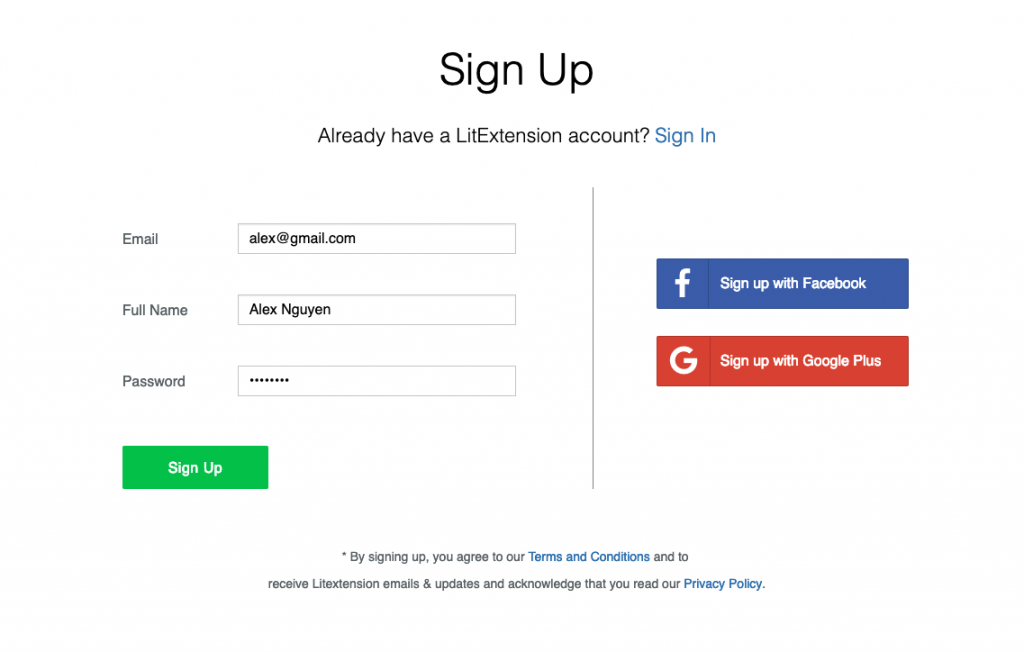
1. Create a LitExtension Account
Register an account on the LitExtension site, or Sign In easily using your existing Google or Facebook account. Once logged in, navigate to the Migration Page and click “Create New Migration” at the top right of the screen to get started.
2. Create a New Migration
With your account ready, it’s time to configure both your source and target stores. This is done in two parts.
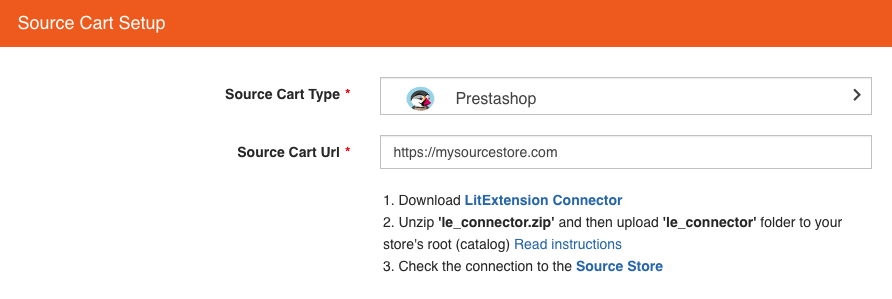
2.1. Enter PrestaShop Store Information
Select PrestaShop as your Source Cart Type and provide your store’s URL into the blank bar. Next, click the LitExtension Connector button to download the connector, extract the zip file, and upload it to your PrestaShop store’s root folder. The Connector Installation will then be automatically checked and confirmed on screen, with no manual verification required on your end.
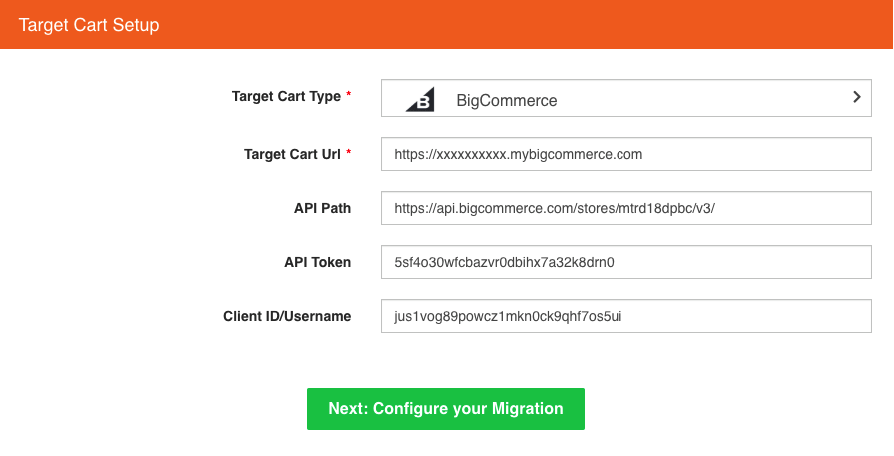
2.2. Enter BigCommerce Store Information
Select BigCommerce as your Target Cart Type and provide your BigCommerce store’s URL into the blank bar. Then, follow the brief on-screen instructions to get your API credentials, including your Client ID, Access Token, and API Path, and fill them into the corresponding fields to establish a secure connection.
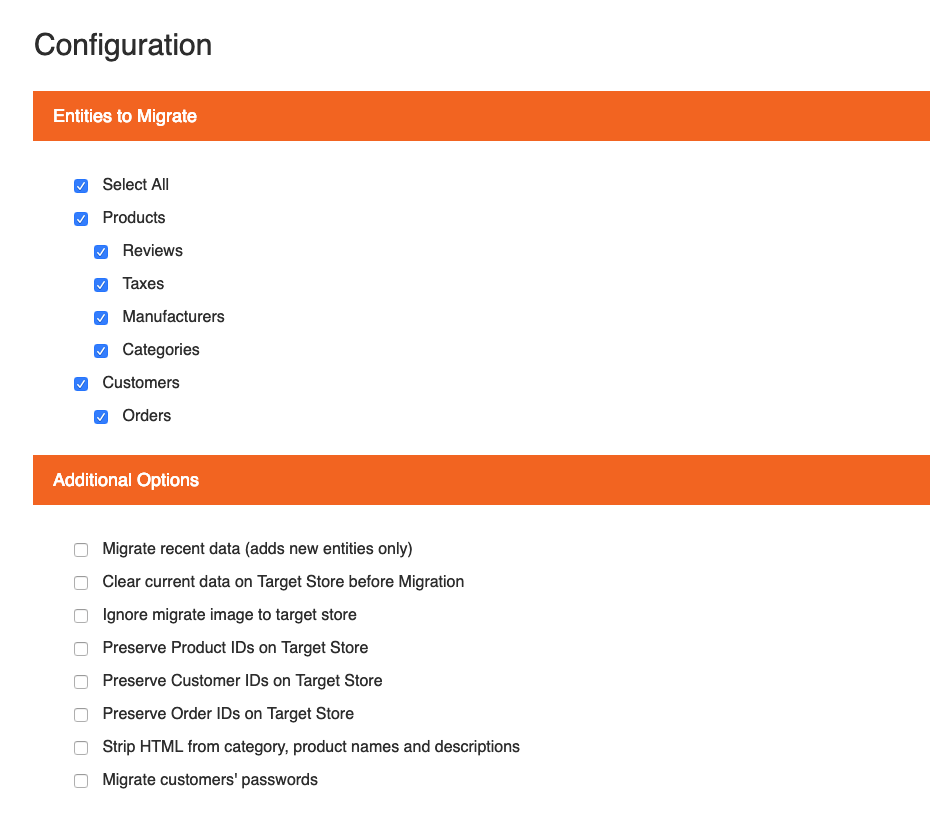
3. Select Entities You Want to Migrate
With both stores connected, you can now choose exactly which data to transfer. Select either all entities together or only certain data types based on your business needs, for example, only Products, Customers, and Orders.
LitExtension also provides Additional Options at this stage to extend your migration possibilities. These include clearing existing sample data on your BigCommerce store before migration, preserving product, customer, and order IDs, enabling 301 redirects to protect your SEO rankings, migrating images embedded within product and category descriptions, and stripping unnecessary HTML tags during the transfer. Languages, Order Statuses, and Customer Groups will also be matched and mapped to display correctly on your new store.
4. Perform Migration from PrestaShop to BigCommerce
Once your settings are confirmed, you’re ready to run the migration. You can try a demo first or proceed to a full migration immediately, depending on your confidence in the configuration.
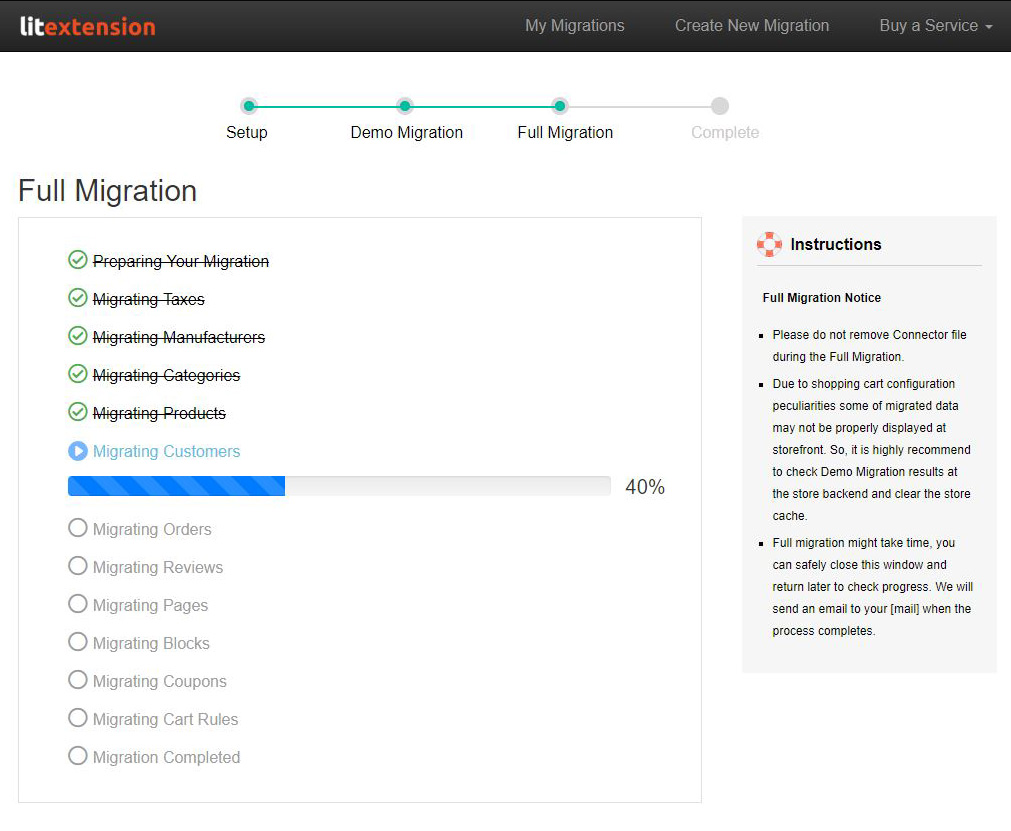
- To Try Demo: Start your demo migration with a limited number of entities. You will see the same actions as the actual migration and can verify data accuracy before committing. You can skip this step at any time by clicking the “Skip Demo Migration” button to move straight to the full migration.
- To Perform Full Migration: Click “Skip Demo Migration” to proceed directly to the full transfer. Once the migration is kicked off, it will run automatically and continuously, even if you close your browser or disconnect from the internet. An email notification will be sent from the LitExtension system as soon as the migration is complete and your data is ready on BigCommerce.
With your data successfully transferred, a few important tasks remain before your new store is fully ready to welcome customers.
Post-Migration Steps: Finalizing Your New BigCommerce Store
Completing the data transfer is a major milestone, but a handful of follow-up tasks will ensure your new BigCommerce store is fully functional, properly optimized, and ready to go live.
Thorough Data Verification:
- Check product details, including descriptions, images, pricing, SKUs, and variants.
- Verify customer accounts and associated contact information.
- Confirm order history, statuses, and totals match your original PrestaShop store.
- Review CMS pages for accurate content and formatting.
Configure Payment & Shipping Settings:
- Set up and test your preferred payment gateways on BigCommerce.
- Configure shipping zones, rates, and carrier integrations.
- Place test orders to confirm transactions process correctly.
SEO & Redirects Audit:
- Confirm your 301 redirects are properly forwarding old PrestaShop URLs.
- Submit an updated sitemap through Google Search Console and Bing Webmaster Tools.
- Monitor search rankings and organic traffic in the weeks following migration.
Test Store Functionality:
- Test account creation, login, and password reset for customers.
- Try product searches and the full checkout flow.
- Verify contact forms, coupons, and other interactive elements.
- Check mobile responsiveness across different devices.
Customize Your Theme and Branding:
- Tailor your BigCommerce theme to reflect your brand’s colors and identity.
- Ensure a consistent, polished design across all pages.
Install Essential Apps:
- Explore the BigCommerce App Marketplace for tools you relied on in PrestaShop.
- Set up apps for marketing, analytics, or customer service as needed.
Update DNS Settings:
- Once satisfied with your new store, point your domain’s DNS records to BigCommerce.
- Plan this step carefully to minimize disruption during the switch.
Ongoing Monitoring:
- Track store performance, page speed, and customer feedback after launch.
- Reach out to LitExtension’s 24/7 support team if any issues or data discrepancies arise.
By following these steps closely, you can ensure a smooth, accurate, and successful transition from PrestaShop to BigCommerce, setting your store up for stronger performance and easier growth going forward.


Leave The Work For The Experts
If you’re non-tech, let our BigCommerce migration experts handle your migration from A to Z.
Save your time for more important tasks.

How Your Data Is Secured During Migration?

Server Security

Data Security

Data Access Restriction

GDPR Compliance

NDA

Payment Security
Why choose Prestashop to BigCommerce Migration Services


