
Bulk-adding orders one at a time isn’t practical once a store passes a certain size, which is exactly when WooCommerce import orders turns into an urgent search – usually during a platform migration, a data backup, or a warehouse sync that’s fallen behind. WooCommerce doesn’t make this simple by default, either: there’s no built-in CSV import for orders, so getting bulk data in (or out) means either a plugin or a migration tool. Don’t worry, we can help you here!
This guide covers both directions – importing orders into WooCommerce and exporting them back out – across the manual, plugin, and migration-service methods, along with the errors that tend to show up along the way.
Before you start: WooCommerce order screen doesn’t include a CSV import option by default – the built-in Import tool under Products only handles product data, not orders. A plugin or migration tool is required either way.
One more thing worth knowing if you’re migrating a whole store: import/export plugins for WooCommerce consistently recommend bringing in customers and products before orders, since order records reference both – importing out of sequence is a common, avoidable source of mismatched data.
How to Perform WooCommerce Import Orders: 3 Methods Compared
There are three ways to move order data in and out of WooCommerce, each suited to a different situation.
Method | Best for | Pros | Cons |
Manual entry (built-in) | A handful of orders, occasional entry | Free, no setup, works for WooCommerce import orders without plugin | Not practical for bulk: one order at a time, no export |
Third-party import plugin | Recurring or bulk imports, custom fields | Real CSV support, advanced field mapping, handles larger volumes | Usually paid for full features, still manual setup |
Migration tool & Files migration service | Full store migrations, moving orders between platforms | Handles orders, customers, and products together; built for scale | Not designed for a single small batch; better suited to a full migrate WooCommerce orders job |
The built-in method works fine right up until volume becomes the problem – past a handful of orders, typing each one in by hand stops being a reasonable use of time. A plugin closes that gap: real CSV support and field mapping mean that the same volume that took hours to do manually can run in minutes, with recurring imports that don’t require starting from scratch each time. Migration tools solve something else entirely, though – not speed, but scope. Once orders, customers, and products all need to move together, from one platform or store to another, the task has stopped being an import and become a migration.
How to Manually Import WooCommerce Orders
For the occasional order – a phone sale, an offline purchase, a handful of backdated entries – WooCommerce’s built-in order screen handles it without any plugin.
Important note: WooCommerce does not support order import via CSV by default. You must use a plugin for bulk order import. Manual creation is only suitable for low-volume or occasional orders.
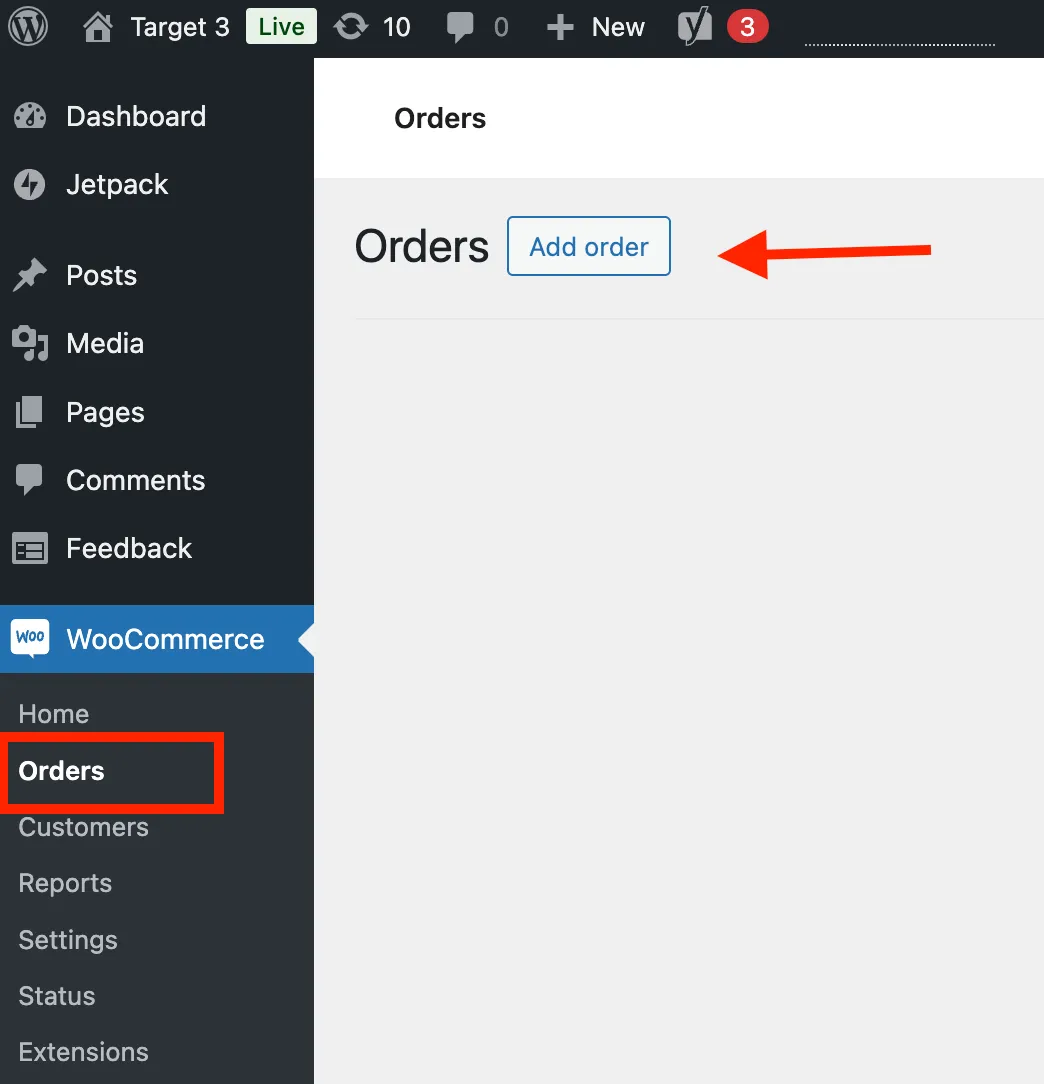
From your WordPress dashboard, go to WooCommerce > Orders and click Add order. This opens a blank form with three things to fill in:
- General details: order date, status (Pending, Processing, Completed, and so on), and the customer, either an existing account or a guest
- Billing and shipping: name, address, and contact info for both; a “Copy billing address” shortcut speeds up the shipping section when they match
- Items: click Add item(s) > Add product(s), search for what was ordered, adjust quantity and pricing if needed, then hit Recalculate to confirm the totals are correct.
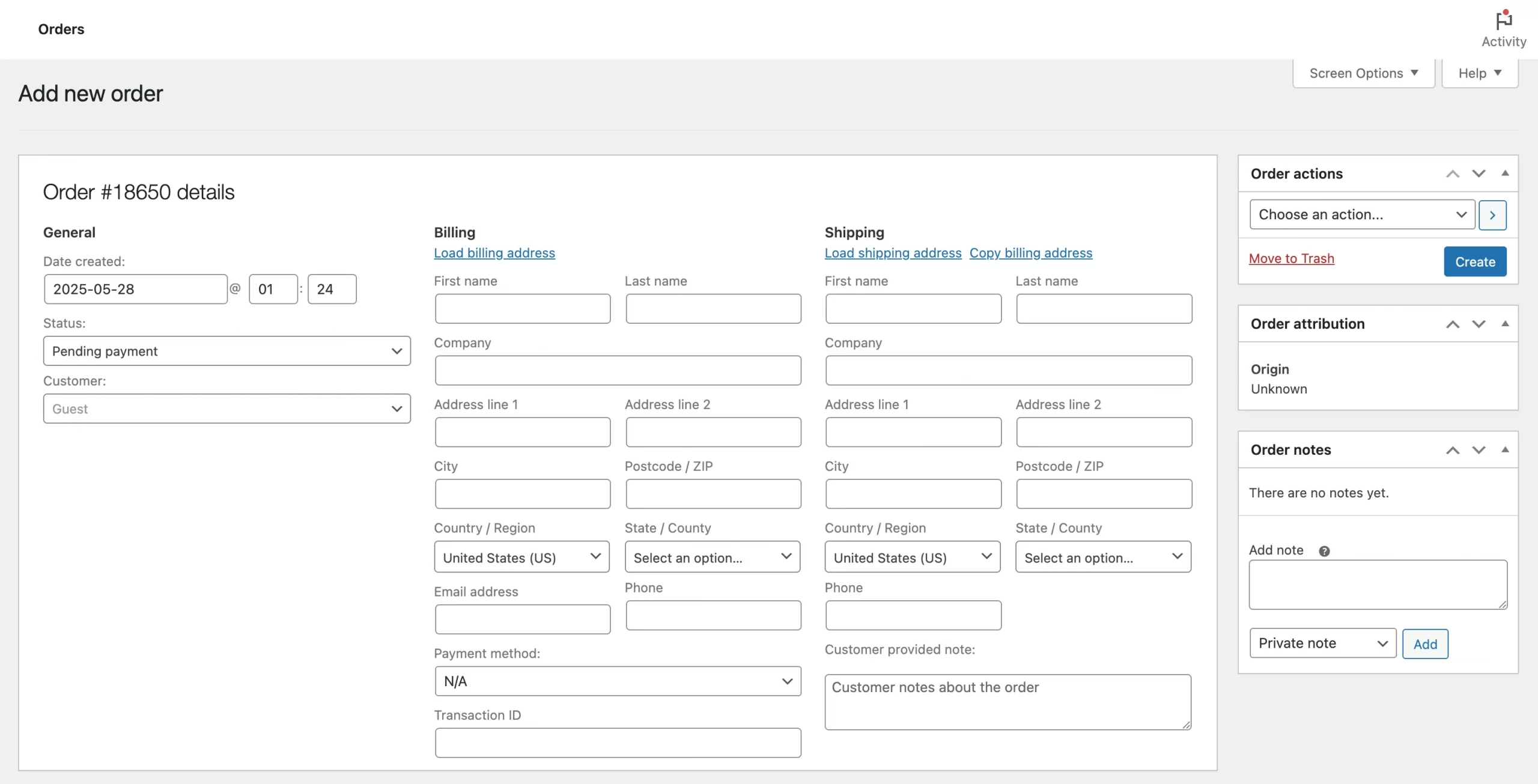
Optional extras, such as customer notes, custom fields, downloadable product access, sit further down the form if the order needs them, but most manual entries won’t.
Once everything looks right, click Create to save the order. It’ll appear in your Orders list exactly like any order placed through checkout.
This works well for genuinely one-off entries. It stops making sense fast once volume climbs past a handful – there’s no bulk option here, and typing out dozens of orders by hand is exactly the kind of task a plugin exists to remove.
How to Import WooCommerce Orders with a Plugin
Once volume rules out manual entry, a plugin picks up the job – and unlike the built-in order screen, it actually supports CSV files. Several plugins can handle WooCommerce import orders this way; WP All Import is a common example, so here’s what the process looks like with it.
Once the plugin and its WooCommerce Add-On are installed:
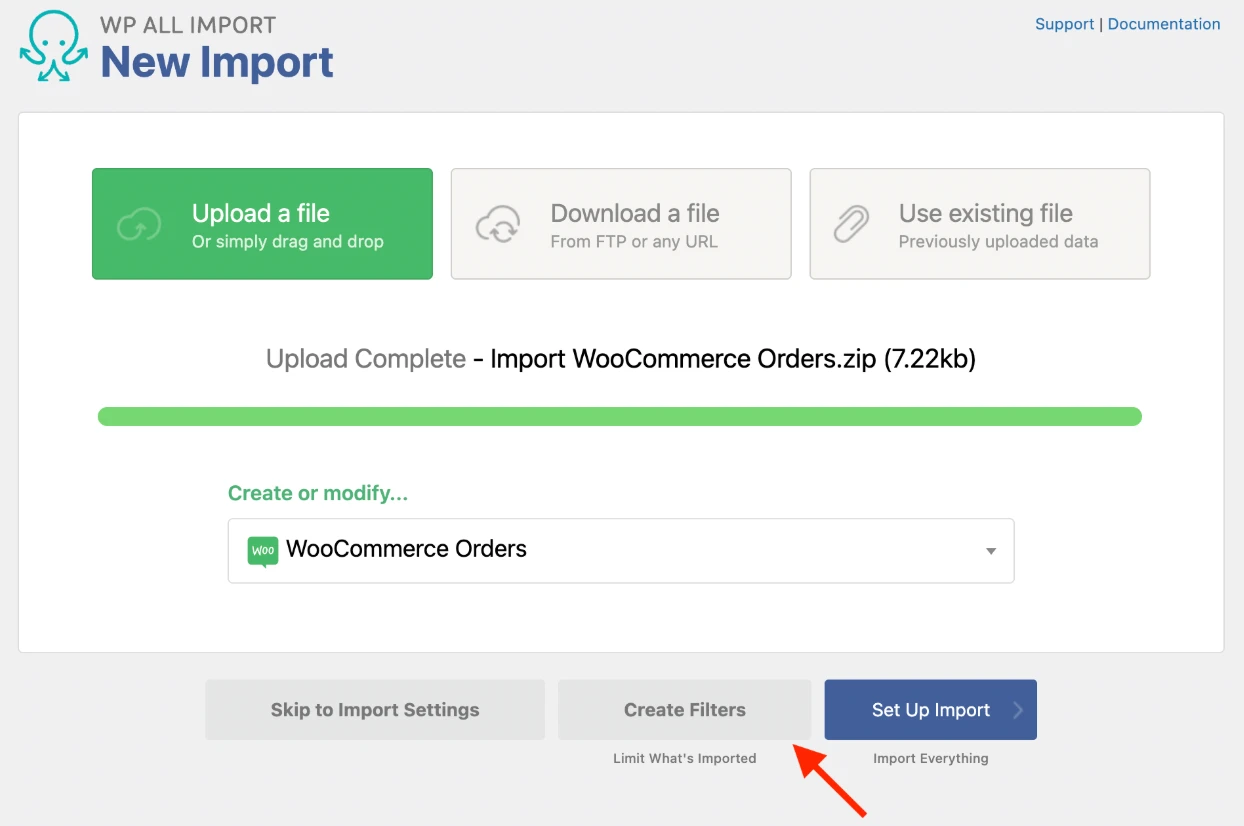
First, go to All Import > New Import, upload your file, select WooCommerce Orders, and click Create Filters.
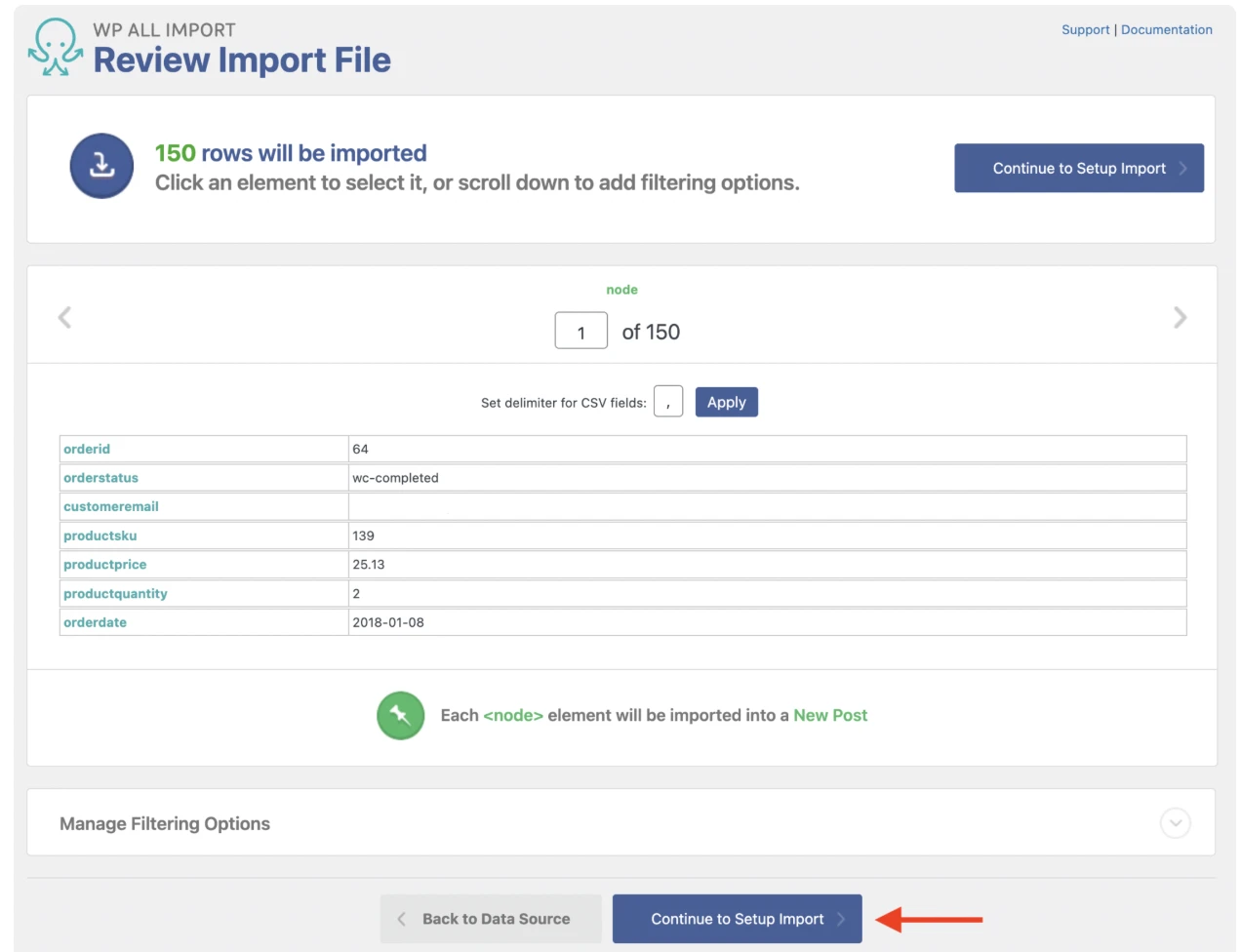
Then, review the import file. Check the record count and step through individual rows to confirm your data was interpreted correctly. Filtering options here let you narrow the import to a subset of orders if needed, then click Continue to Setup Import.
At this stage, it’s time to map your data. During the migration process, businesses should also consider email security measures by using tools like a DNS checker to verify DNS records and help maintain secure, reliable communication.
This is the most detailed step, since orders touch several parts of WooCommerce at once: order status and date come first, followed by billing (where you match the order to an existing customer, typically by email, or leave it unmatched), shipping, and payment details. Line items are mapped separately, such as products, fees, coupons, and taxes; each has its own section, and the Total field must be set manually, since nothing is calculated automatically during import.
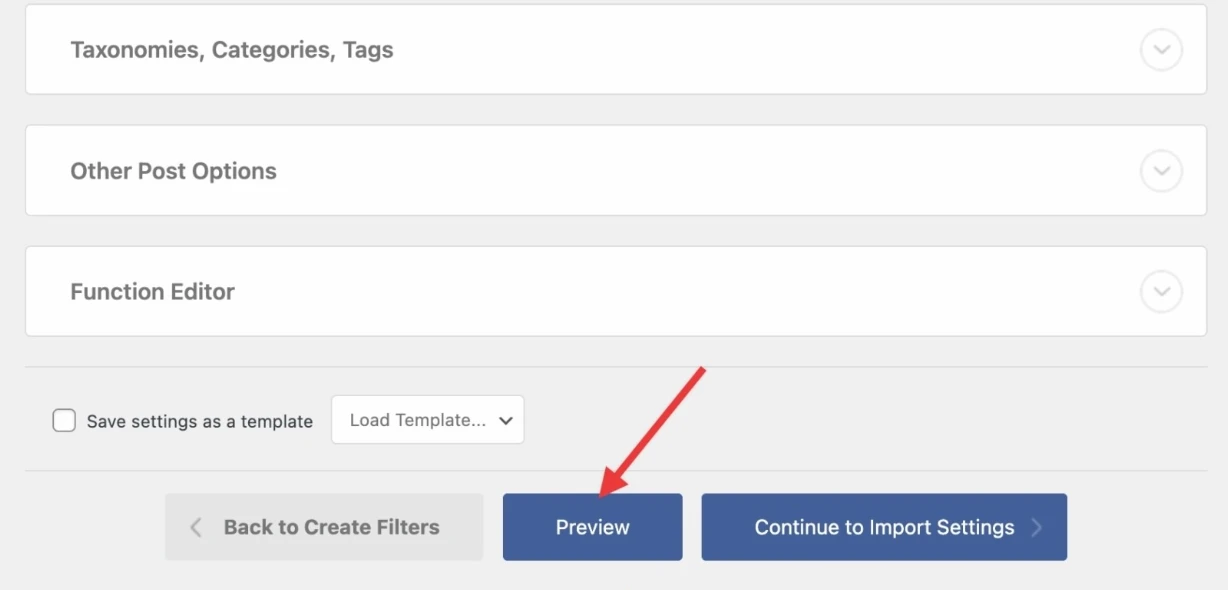
A Preview button here shows exactly how the imported orders will look before anything is committed.
Finally, configure settings and run the import.
Click Auto-detect to let the plugin identify each order’s unique identifier, then decide how repeat imports should behave, whether to update existing orders or skip duplicates. Customer email notifications are blocked by default, which is usually what you want for backdated or migrated orders; leave that setting alone unless customers should actually be notified. Review the summary, click Confirm & Run Import, then check WooCommerce > Orders to confirm what came through.
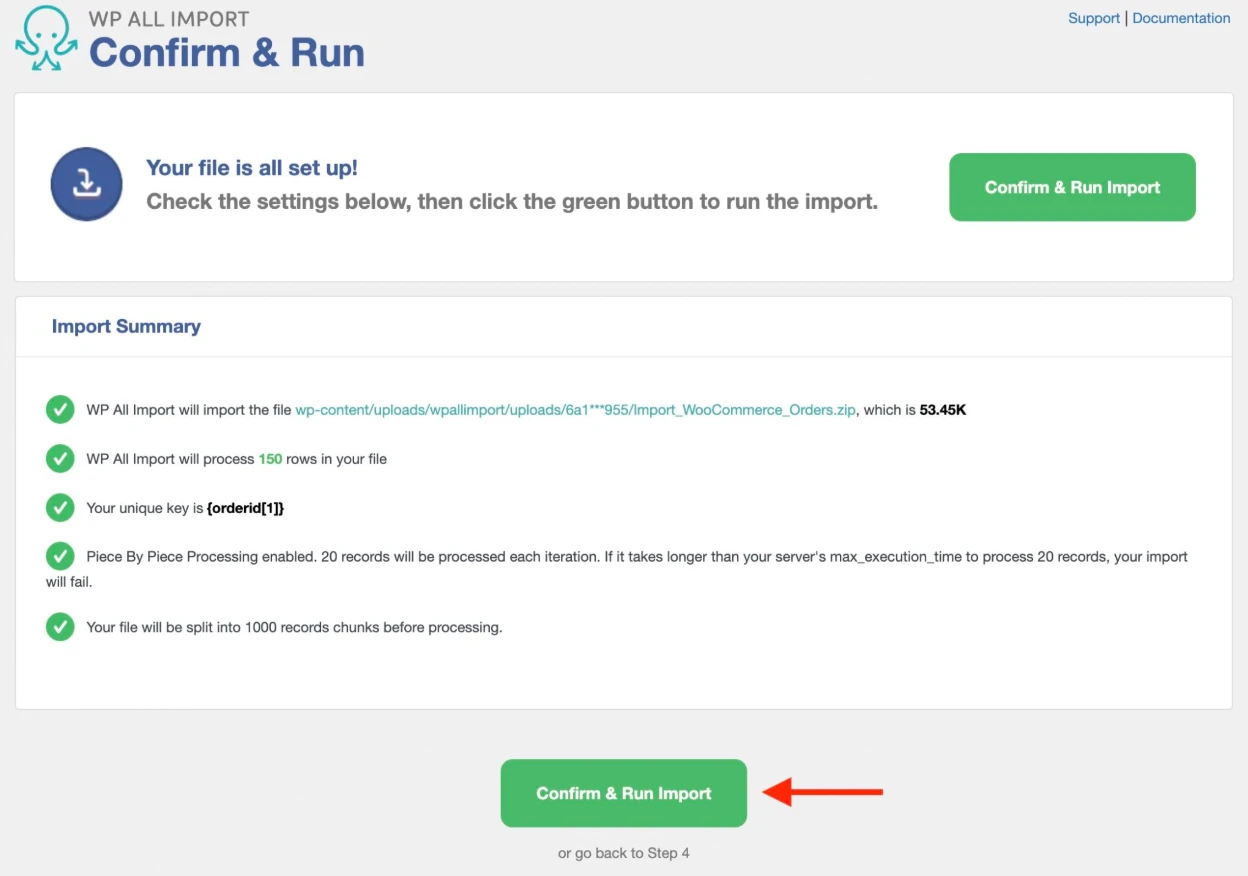
One thing worth knowing before a full run: if an order’s customer can’t be matched, say, the email in your file doesn’t match any existing account, that order is skipped entirely by default, not imported as a guest. If you want unmatched orders to come through anyway, there’s a separate setting to import them as guest customers rather than skip them. This is exactly why the sequencing note at the start of this guide (customers and products before orders) matters here specifically: importing orders before their customers exist guarantees this exact problem.
This same general flow – select the data type, map fields, configure, run – applies across most order import plugins, even though screens and terminology vary from tool to tool.
Bonus: How to Export WooCommerce Orders
Export works the same way import does: WooCommerce’s built-in options are available, but they’re limited.
The Analytics report (WooCommerce > Analytics > Orders) exports a CSV, but it leaves out full line items, customer addresses, and shipping details – fine for a sales overview, not for a complete backup. The native Tools > Export option produces an XML file instead, which is missing product names and quantities entirely, so it’s really only useful for a basic site-to-site transfer, not for analysis.
For a complete, detailed order export order import for WooCommerce workflow – custom fields, scheduling, multiple file formats – a plugin like WP All Export fills the gap the built-in tools leave. If that’s what you need, we’ve covered the full walkthrough, plus a comparison of other export plugins like Advanced Order Export for WooCommerce, in a dedicated guide to exporting WooCommerce orders.
And if export is just one piece of a larger move, say, you’re migrating WooCommerce orders to a new platform entirely, not just backing them up, that’s exactly what LitExtension’s migration tools, covered above, are built for.
Advanced WooCommerce Store Migration with LitExtension
Manual entry, plugins, and the built-in export tools all get the job done – until they don’t: manual entry stalls at scale, plugins silently skip unmatched customers, and neither export option captures a complete order. LitExtension migration solutions are built around these exact gaps, handling orders, customers, and products together rather than as separate jobs that can fall out of sync.
Automated Migration Tool
If you’re moving orders from a live store on another platform into WooCommerce, LitExtension connects to both stores directly – no manual export file to prepare, and no risk of the customer-matching problem from plugin import, since customers and orders migrate together rather than as separate imports run in whatever order you happen to do them.
But first, remember to create your account! Go to this link to enter your name, email, and password, then click Register. (Or, if you already have an existing Google Account, go to this link and click Sign in with Google.)
Step 1. Connect your Source & Target stores
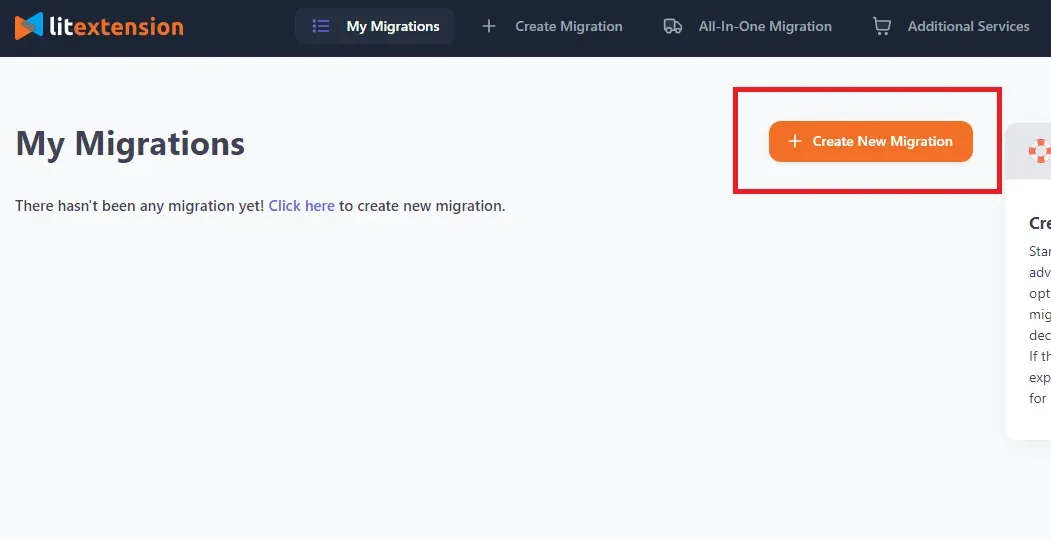
From your LitExtension dashboard, click +New Migration, choose your current platform as the source cart, and enter your store credentials. Based on your platform type (open-source or hosted), connect your store using the preferred method, following the wizard guidelines.
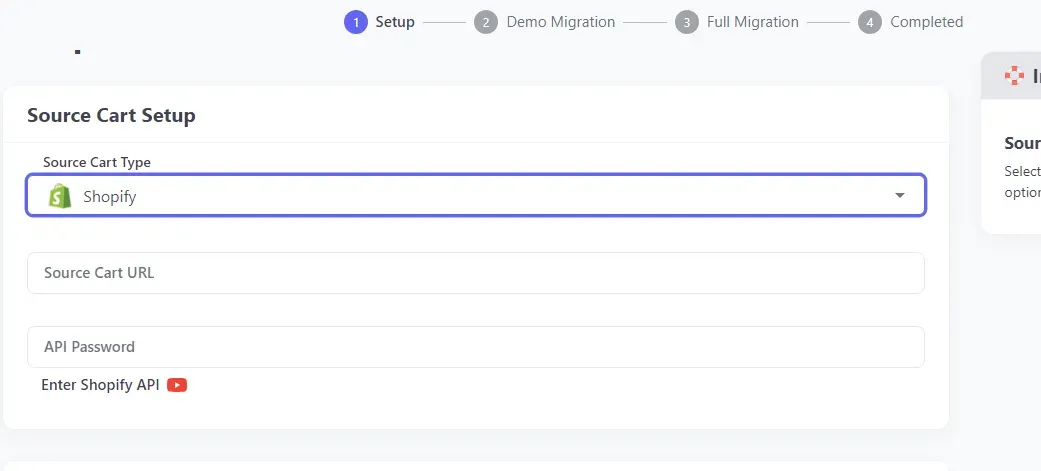
Repeat the same flow to set up WooCommerce as your Target Store. Then, click Next: Configuration.
Step 2. Choose entities to migrate
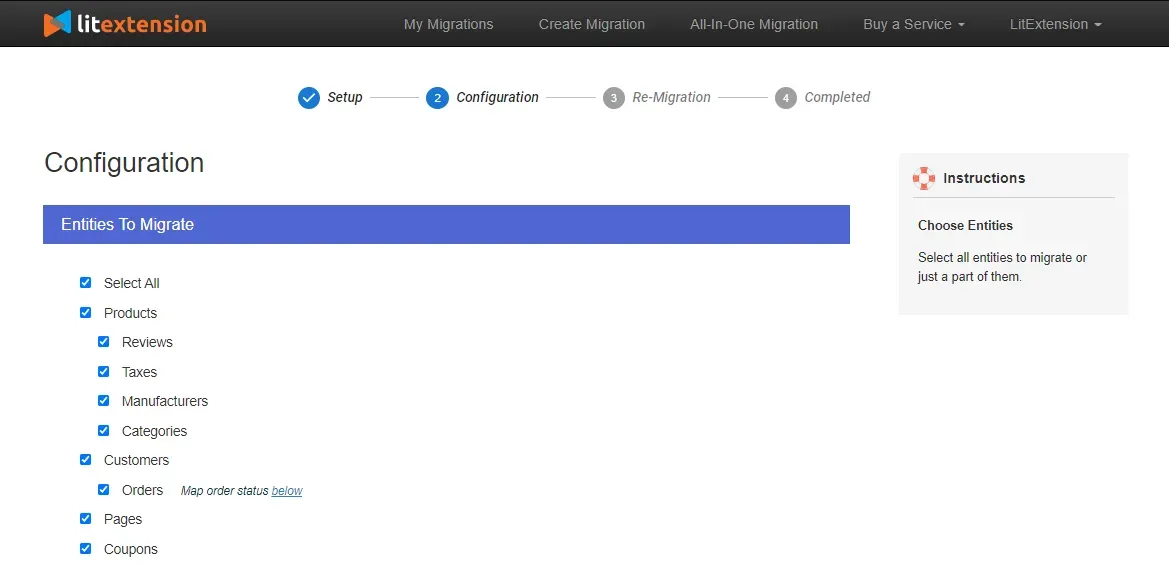
Now, it’s time to decide what you want to migrate to WooCommerce!
In the Configuration dashboard, select Orders, along with Customers and Products, since orders reference both; leaving either out reproduces the exact mismatch problem this guide has flagged twice already. This step also includes Order Status Mapping, so your old platform’s status labels (say, “Fulfilled“) map correctly to WooCommerce’s own (like “Completed“) instead of landing somewhere unexpected.
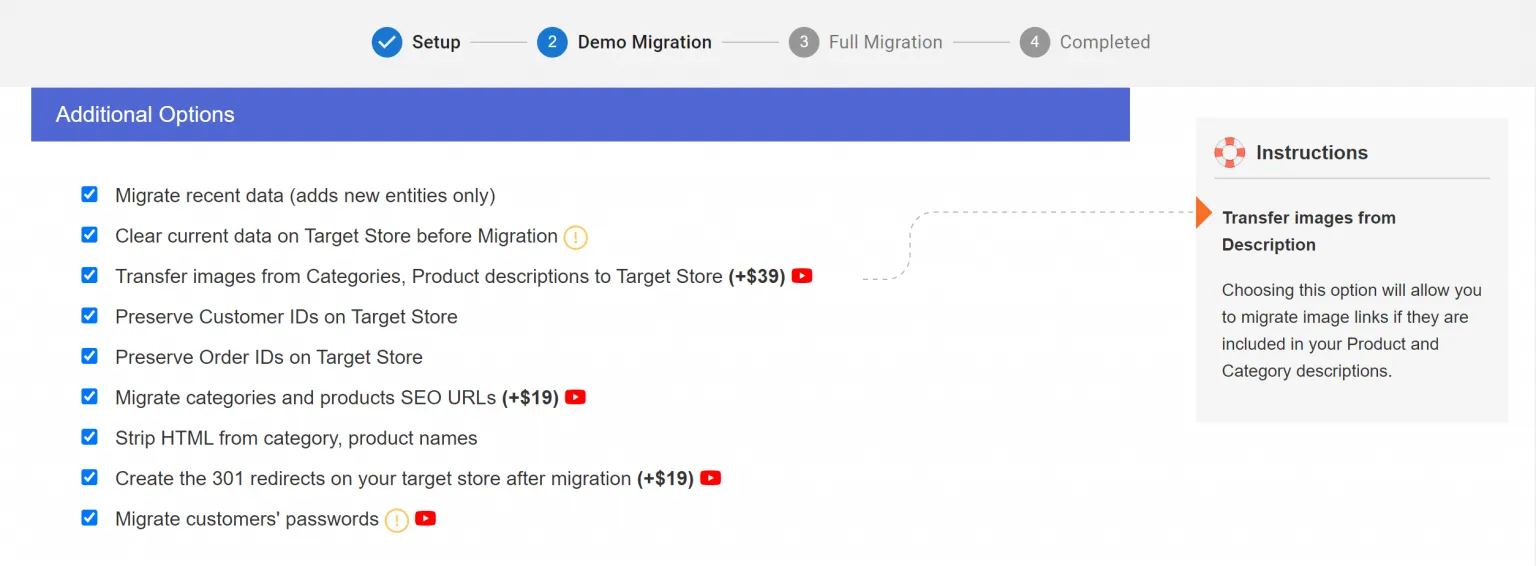
Still have more requirements? No problems! Aside from the basics, LitExtension also offers Additional migration options, such as migrating recent data, creating 301 redirects on the Target Cart, and more (as shown in the image below):
Step 3. Launch the migration
At this stage, choose to run a FREE Demo migration to migrate up to 20 entities and check whether order statuses, customer links, and line items all come through as expected.
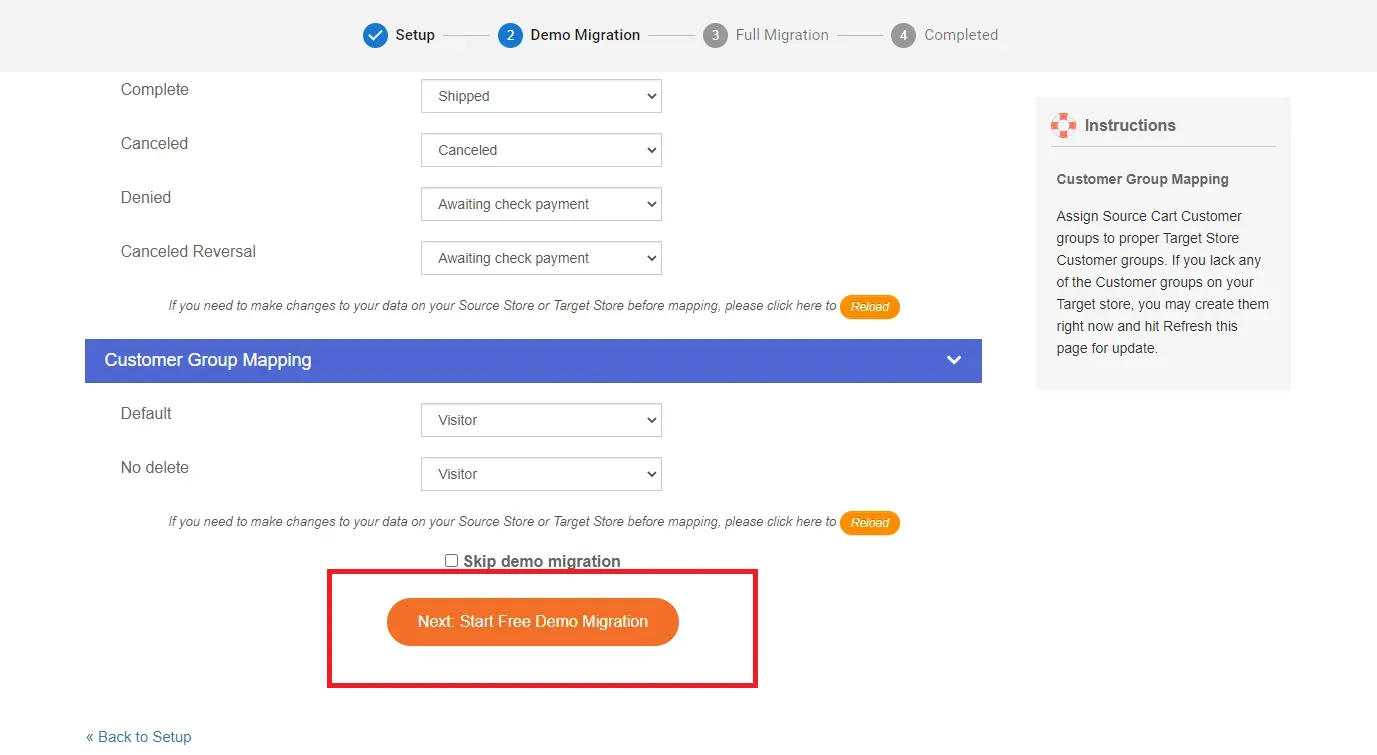
Otherwise, go straight to run the full migration by clicking Next: Start Full Migration. It will run in the background, so there’s no need to keep your browser open. Your current store stays fully live throughout, so customers can keep ordering while the migration happens behind the scenes.
Seamless Order Import to WooCommerce
With LitExtension automated migration tool, you can import orders to WooCommerce seamlessly, together with products, customers, and more.

CSV Files Migration Service
If your order data only exists in files: an old platform that’s already shut down, a legacy export sitting in a spreadsheet, or you’d simply rather not manage the technical side yourself, this service handles the entire process for you. Explore our CSV to WooCommerce migration tool to compare Automated and All-in-One options for your files.
Here’s how LitExtension handles your WooCommerce CSV import:
Step 1: Consultation & Files submission
It starts with a migration consultation: tell us what you’re working with: your CSV, Excel, or XML files, the order volume involved, and any specifics about how your order data is structured. From there, send over your files, and we’ll confirm exactly what’s needed before any work begins.
Step 2: Customization & Demo migration
Our team cleans and maps your order data to WooCommerce’s expected structure – aligning order statuses, matching customers, and organizing line items correctly – the detailed work a plugin would otherwise leave to you. Before touching your live store, we run a demo migration on a sample of your orders and send it your way for review, so you can confirm everything looks right while it’s still easy to adjust.
Step 3. Full migration & Delivery
Once the demo is approved, we run the full migration with constant monitoring, transferring every order into your WooCommerce store. Our QA team then double-checks the results – order totals, statuses, and customer links – against your original files before handing the store over to you. You can now run your store with confidence, knowing every order made the trip intact.
Whichever path fits, both go further than what we’ve covered so far in this guide: orders, customers, and products move together, in the right order, with nothing silently skipped and nothing left out of the file, the way the built-in export tools leave things out.
WooCommerce Orders Import, Done Right!
With LitExtension’s experts by your side, you can migrate safely and keep your business running flawlessly.
Troubleshooting Common WooCommerce Order Import Issues
Even a properly formatted file can run into the same handful of problems once it reaches WooCommerce. Here’s what tends to go wrong, and what actually fixes it.
Orders get skipped instead of being imported
This is almost always a customer-matching failure – the order references a customer who doesn’t exist yet in WooCommerce, and by default, unmatched orders are skipped rather than imported. Import customers first, or enable the “import as guest” option if the order should come through regardless.
Order totals or pricing look wrong
Order totals aren’t recalculated automatically during import – whatever number is in your file is what WooCommerce uses, even if it doesn’t match the actual line items. Double-check your file’s total column before importing, rather than assuming WooCommerce will catch the math for you.
Taxes or shipping don’t appear on imported orders
This usually traces back to store settings, not the import file itself. Taxes need to be enabled under WooCommerce > Settings > General, and the shipping method referenced in your file needs to exist and match exactly on the receiving store.
Products import without linking to existing listings
When a product can’t be matched, usually a SKU or ID mismatch, it still gets added to the order, just without any connection to your actual product catalog. Confirm your file’s product identifiers match what’s already in WooCommerce before running a large import.
Re-running an import creates duplicate orders
This happens when the plugin can’t tell an order it’s seen before from a new one. Most tools let you set a unique identifier, usually the order ID, specifically to prevent this on repeat imports.
Order statuses don’t match after import
A status from your old platform (“Fulfilled,” “Shipped“) doesn’t always map cleanly to WooCommerce’s own statuses (“Completed,” “Processing“). Check the status mapping before running the import, rather than after orders are already showing the wrong stage.
Best Practices for Successful WooCommerce Import Orders
Every issue above has a fix, but the better outcome is not needing one. Most of what breaks during a WooCommerce order import – skipped orders, wrong totals, mismatched statuses – traces back to a handful of avoidable habits, not bad luck. Here’s what actually prevents the list above from happening in the first place.
- Import customers and products before orders: this single sequencing choice prevents most of the skipped-order and broken-link issues covered above.
- Test with a small batch first: 5–10 orders is enough to catch a mapping or formatting problem before it affects your full order history.
- Back up your store before a large import, especially if importing directly to a live site rather than staging.
- Turn off customer email notifications during import: unless customers should actually receive confirmation emails for backdated or migrated orders.
- Double-check order totals and status mappings manually; neither is recalculated or auto-matched during import, so both need a manual review.
- Spot-check a sample of imported orders afterward: a completed import doesn’t guarantee every order landed correctly.
WooCommerce Import Orders: FAQs
How to add bulk orders in WooCommerce?
You can’t do this manually without a plugin. To add multiple orders at once, use a plugin that supports CSV import. Or, to simplify the entire process, you can also use LitExtension — the most reliable automated migration tool to transfer bulk WooCommerce orders with zero downtime.
How to migrate WooCommerce orders?
The easiest way is with a migration tool like LitExtension, which transfers orders, customers, and products automatically. Alternatively, you can manually export orders via CSV and import them into the new site using an order import plugin.
How do I import order history in WooCommerce?
You’ll need to export your order history as a CSV file from your previous system or site, then use a plugin to map the fields and import them into WooCommerce. This is a common step during store migrations or rebuilds.
Can I import orders with downloadable products or custom fields?
Yes, advanced import plugins support downloadable files, order metadata, and custom fields—as long as your CSV is formatted correctly and the fields are mapped during import.
Will customers be notified after importing orders?
That depends on the plugin settings. Most tools let you choose whether or not to trigger emails like order confirmations or status updates during the import process. It’s best to turn off emails during bulk imports to avoid confusing customers.
How does WooCommerce handle order IDs when importing orders, and how can I preserve the original order numbers?
When importing WooCommerce orders, if the CSV file contains order_id and order_number, WooCommerce attempts to import these values. However, if the order_id conflicts with an existing order ID in the store, the imported order will be treated as a new item, causing the order_id and order_number to change accordingly. To preserve the original order numbers during import, it is recommended to install and activate a sequential order number plugin or a third-party plugin designed for this purpose. These plugins help import order numbers as-is, maintaining consistency in your order records.
What import options are available when importing WooCommerce orders using the Import Export Suite plugin?
The Import Export Suite plugin for WooCommerce offers three main import options when importing orders:
- Quick Import: Imports basic or standard fields and is best used when the input file was exported using the same plugin. It supports importing files from local storage, URL, or FTP.
- Pre-saved Template: Allows importing data using templates saved from previous advanced imports, retaining filter criteria and column mappings.
- Advanced Import: Provides a detailed import process with options for filtering, column selection, and advanced settings. You can also save these settings as a template for future use.
Users select the post type as "Order" and then choose one of these import options to proceed with the import process.
Final Words
WooCommerce import orders comes down to matching the method to the job: manual entry for the occasional order, a plugin once volume makes that impractical, and LitExtension when orders, customers, and products all need to move together – whether that’s a full migration or a store you’re setting up for the first time. Export works the same way, scaling from a quick built-in report to a dedicated plugin depending on how much detail you actually need.
If a full WooCommerce migration is what you’re after, rather than a one-off import, our team can walk you through what will fit your store. And for more on getting the most out of WooCommerce, our other WooCommerce guides are worth a look.


