Every Shopify merchant eventually faces it: a customer changes their mind, a payment looks suspicious, or an item suddenly goes out of stock. In these cases, knowing how to cancel Shopify order quickly and correctly can save you from fulfillment headaches, unnecessary shipping costs, and frustrated customers.
In this guide, we'll walk you through the complete guide to cancel Shopify order, including:
- How to cancel Shopify order individually and in bulk
- Actions to take after a cancellation
- Considerations before cancelling Shopify orders
- Best practices to cancel Shopify order successfully
- How to give your customers a self-service cancel button
Let's get started!
How to Cancel Shopify Order
Learning how to cancel Shopify order is essential for every merchant. A customer might regret their purchase minutes after checkout, a payment could be flagged for fraud, or a supplier might suddenly report a stockout, all situations where a quick cancellation prevents bigger problems down the line.
Before diving in, one critical rule to keep in mind: Shopify only allows cancellation of unfulfilled or partially fulfilled orders. With that said, here are the two ways to cancel orders in Shopify: individually or in bulk.
Individually cancel Shopify orders
The first approach is to cancel orders one at a time, giving you full control over refund methods, restocking, and customer notifications for each case. Here's how to cancel Shopify order individually.
- Step 1: Log in to your Shopify admin dashboard and navigate to the “Orders” tab.
- Step 2: Click the order you want to cancel to open it.
- Step 3: Under “More Actions”, select “Cancel order” from the drop-down list.
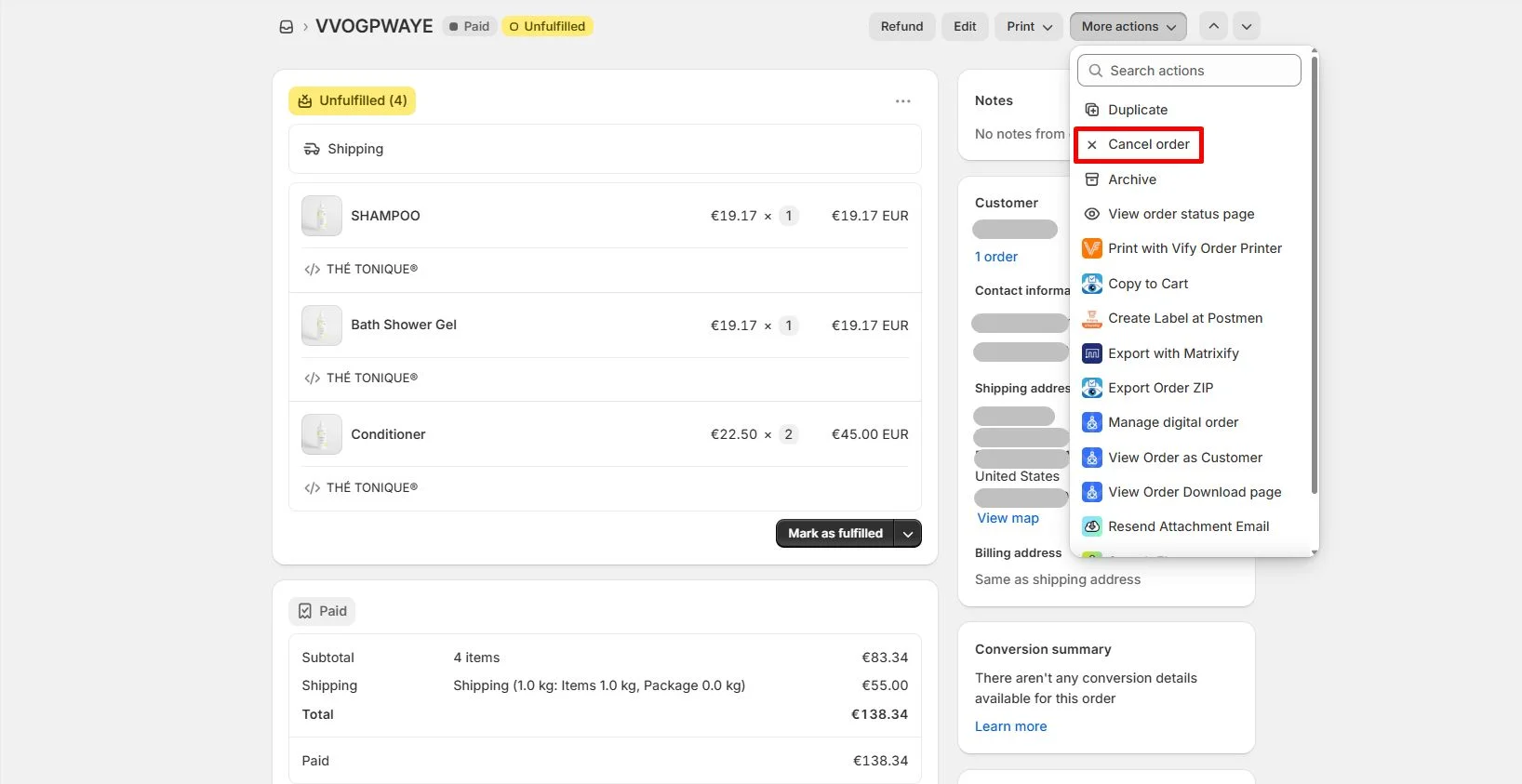
- Step 4: Choose your refund method in the “Refund Payment” section, including:
- Original payment method: The refund goes back to the card or payment source used at checkout
- Store credit: Issue the refund as store credit and set an expiry date for the credit
- Later: Skip the refund for now and handle it manually at a later stage
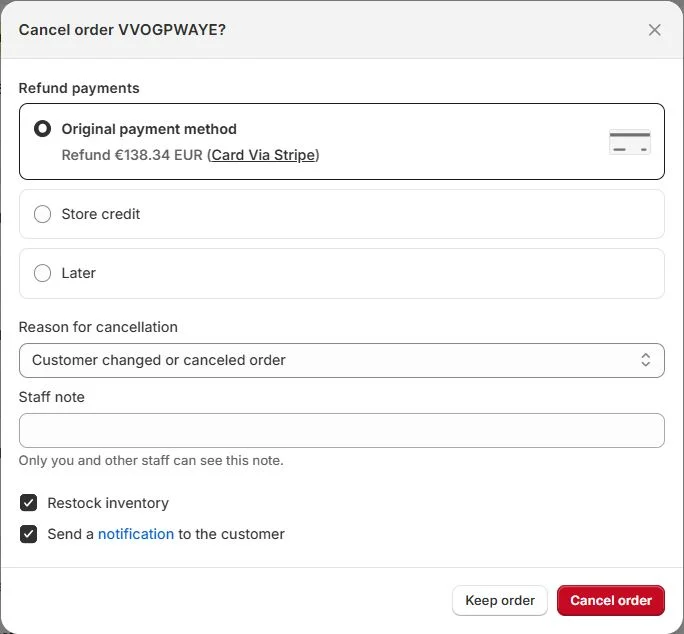
- Step 5: Select a cancellation reason from the dropdown menu.
- Step 6 (optional): Add a staff note for internal reference.
- Step 7 (optional): Check Restock Inventory if you want the canceled items to be automatically returned to your stock levels.
- Step 8 (optional): Enable customer notification to automatically send the customer an email informing them of the cancellation.
- Step 9: Click “Cancel Order” to confirm.
Cancel Shopify orders in bulk
When you need to cancel multiple orders at once, Shopify's bulk cancellation action lets you handle them all in one go. Please note that with this approach, the option to handle the refund later may not appear, which means all canceled orders will be refunded immediately. Therefore, if you need to delay refunds or handle them individually, cancel those orders one by one using the method described above.
With that in mind, let's learn how to cancel Shopify order in bulk.
- Step 1: Navigate to the Orders tab in your Shopify admin dashboard.
- Step 2: Tick the checkbox of the orders you want to cancel.
- Step 3: Click the “…” option and select “Cancel orders”.
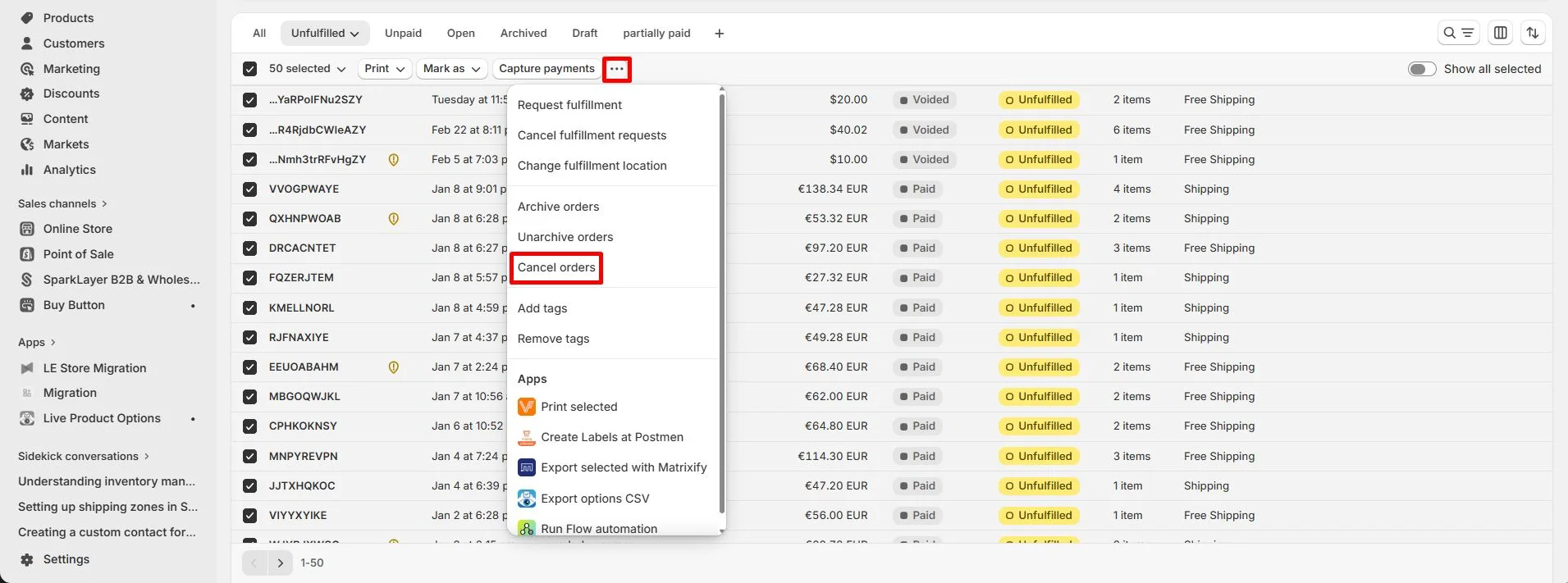
- Step 4: Choose your refund method in the Refund Payment section:
- Original payment method: Refunds are returned to the customer's original payment source
- Store credit: Refunds are issued as store credit; set an expiry date from the dropdown
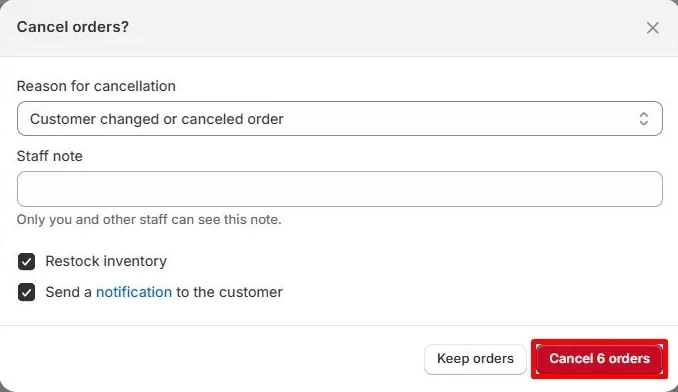
- Step 5: Under the “Reason for cancellation”, select one from the drop-down list.
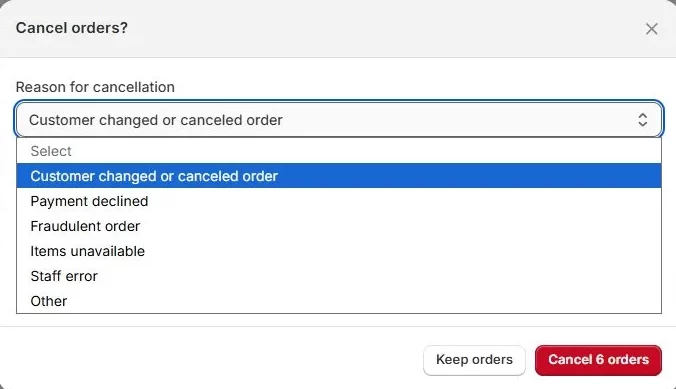
- Step 6 (optional): Add a staff note for internal reference
- Step 7 (optional): Check the “Restock inventory” checkbox to automatically return items from all canceled orders back into your stock.
- Step 8 (optional): Enable the “Send a notification to the customer” option to send cancellation emails to all affected customers simultaneously.
- Step 9: Click the “Cancel orders” to confirm.
And that's how to cancel Shopify order, whether you want to suspend it individually or in bulk. This action will certainly come in handy if you want to stop orders from processing when preparing for a data transfer to another platform. If you want to make this switch, LitExtension can be your trusted partner in platform transitioning.
Shopify Migration Made Easy With LitExtension!
LitExtension offers great migration solutions that help you transfer your data from the current eCommerce platform to Shopify accurately, painlessly with utmost security.

Follow-up Actions After Shopify Cancel Order
Knowing how to cancel Shopify order isn't always the final step. Depending on the state of the order at the time of cancellation, there are several follow-up actions you may need to take to keep your operations clean and your customers satisfied.
Below are the steps you need to take in a different order state.
1. The order was paid for but no items were fulfilled
This is the most common scenario, and it comes with the most follow-up considerations. When you cancel a paid, unfulfilled order, you'll need to:
- Decide how to handle refunds (full amount or partial)
- Track non-refunded orders to avoid chargebacks
- Contact your fulfillment partner to confirm the order has been stopped on their end
- Void the shipping label if it was already purchased.
2. The order was fulfilled, but the payment hasn't been collected
Canceling an order in this state means you will no longer be able to collect payment for it. Since the items have already been fulfilled, you'll need to use the returns process to get the items back from the customer.
3. The order was not paid and not fulfilled
This is the simplest scenario. Since no payment was collected and nothing was shipped, there's no refund to process. All you need to do is archive Shopify order to keep your dashboard clean and clutter-free.
Considerations Before Cancelling Shopify Orders
Understanding how to cancel a Shopify order correctly goes beyond just clicking the cancel button. Rushing through the process without checking key factors first can lead to inventory discrepancies, unhappy customers, or financial losses. Here's everything you need to consider before you get started.
1. Check the fulfillment status first
Shopify only allows cancellation of unfulfilled or partially fulfilled orders. If the order has already been fully fulfilled and shipped, cancellation is no longer an option. You'll need to initiate a return and refund process instead.
2. Account for third-party fulfillment
If you work with a dropshipping supplier, 3PL warehouse, or external fulfillment partner, canceling the order in Shopify alone is not enough. You must also notify your fulfillment partner directly to stop the shipment; otherwise, the order may still be picked, packed, and shipped regardless of what your Shopify Admin shows.
3. Understand how payment was captured
The payment status of an order affects what happens when you cancel it:
- If payment was authorized but not yet captured, canceling the order may automatically void the charge; no refund needs to be issued.
- If payment was already captured, you'll need to actively choose a refund method during the cancellation process.
4. Flag fraud-related cancellations
If you're canceling because an order appears fraudulent, don't just cancel and move on. Take the extra steps to:
- Mark the order with the Fraud cancellation reason in Shopify
- Consider blocking the customer's email address or billing information
- Review whether similar orders from the same source are still active in your queue
5. Void the shipping label if already purchased
If a shipping label was generated before you decided to cancel, make sure to void the label through Shopify or your shipping carrier. Failing to do so means you'll be charged for a label that was never used.
Best Practices for Successful Shopify Order Cancellation
Knowing how to cancel a Shopify order is one thing; doing it in a way that protects your business, maintains customer trust, and keeps your operations running smoothly is another. Follow these best practices to make every order cancellation as clean and professional as possible.
- Act as fast as possible: The sooner you cancel a Shopify order, the easier the process is for everyone involved.
- Always notify the customer: A brief apology and a clear explanation of what happens next, especially regarding the refund timeline, can prevent unnecessary support tickets and negative reviews.
- Set a clear cancellation policy: Setting clear expectations upfront significantly reduces the volume of cancellation requests and customer disputes you'll need to manage.
- Automate high-risk order cancellations: This reduces manual workload and minimizes the risk of fraudulent orders slipping through during busy periods.
- Reconcile your finances after every cancellation: Canceled orders and their associated refunds should be reflected accurately in your accounting software to avoid discrepancies in your financial reporting.
Mastering how to cancel a Shopify order the right way is ultimately about building a resilient, customer-friendly operation. The merchants who treat cancellations as part of their standard operating procedure, rather than a one-off inconvenience, are the ones who maintain stronger customer relationships and cleaner back-end operations in the long run.
Bonus: How to Add Cancel Button for Customers on Shopify Store
Once you know how to cancel a Shopify order from the merchant side, the next logical step is allowing your customers to do it themselves. However, by default, Shopify does not provide a built-in “Cancel Order” button for customers on the order confirmation page or within customer accounts. As a result, customers must email your support team, and you must manually process every cancellation request from the Shopify Admin.
With that being said, if you still want to add a cancel button on your customers' end, using a third-party tool is a great way to do so. We have tested several of the best Shopify apps to help you choose the ideal one for your business.
App Name | Pricing | Key Features |
OrderEditing.com | From $99 to $599 per month | - Self-serve cancel with automated refund processing - Refund to store credit or original payment method - Configurable editing and cancellation time windows |
Revize: Order Editing & Upsell | From $0 to $149 per month | - Self-serve cancel button with refund options (original payment method or store credit) - Full order editing: change variants, quantities, swap or add products - Edit shipping address post-purchase |
CP: Order Editing & Upsell | From $0 to $129 per month | - Instant customer cancellation with automated refund - Refund to store credit or original payment method - Customer notification email on cancellation |
Codify ‑ Order Cancel | Free | - Cancel button on order status page and customer account page - Configurable cancellation time window - One-click reorder button after cancellation |
How to Cancel Shopify Order – FAQs
How do I cancel an order on Shopify?
To cancel a Shopify order, follow these steps:
- Step 1. From your admin dashboard, choose the "Orders" tab.
- Step 2. Open the order you want to cancel by clicking on it.
- Step 3. From the "More actions" drop-down, select "Cancel orders".
- Step 4. Under the "Refund payments" section, choose your refund method (Original payment method, Store credit, or Later).
- Step 5 (optional). Select a reason for cancellation.
- Step 6 (optional). Add a staff note for internal review.
- Step 7 (optional). Enable Restock inventory and Send a notification to the customer if needed.
- Step 8. Click the "Cancel order" to confirm.
What happens after I cancel a Shopify order?
Once you cancel a Shopify order, several things happen automatically depending on the options you selected during cancellation:
- The order status is updated to Cancelled in your Shopify Admin and remains visible in your Orders list for record-keeping.
- If you chose to issue a refund immediately, the customer's payment is returned to their original payment method or store credit.
- If you selected Restock Inventory, the canceled items are automatically returned to your stock levels.
- If you enabled customer notification, Shopify sends the customer an automated cancellation email.
Can my customers cancel a Shopify order and get a refund?
By default, Shopify does not offer a native self-service cancel button for customers, meaning customers cannot cancel their own orders directly from your store without contacting you first.
As a merchant, you would need to process the cancellation manually from your Shopify Admin and choose whether to issue a refund at that point.
Final Words
Knowing how to cancel a Shopify order and doing it correctly is an essential skill for every merchant running a Shopify store. From canceling individual orders and processing bulk cancellations, each step in the process plays a role in keeping your store operations smooth and your customer relationships intact.
Last but not least, don't forget to visit our LitExtension Blog and Resources for in-depth guides, practical tips, and the latest insights on the eCommerce world.