
Looking for a way to perform the BigCommerce CSV import smoothly and effortlessly? Tune right in! Let LitExtension walk you through detailed steps on how to import products and customers to BigCommerce using CSV files.
Keep scrolling to discover:
- What are BigCommerce CSV files?
- When do you need to perform BigCommerce CSV import?
- Which data can you import to BigCommerce using CSV files?
- What to prepare before the BigCommerce CSV import?
- How LitExtension performs your BigCommerce CSV import
- How to import to BigCommerce manually
Without further ado, let’s get rolling!
What Are BigCommerce CSV Files?
BigCommerce CSV files are the main way to move data into and out of a BigCommerce store in bulk. As its name suggests, a CSV file (or Comma Separated Values file) represents a table of data in which each line of the file corresponds to a row, and the values within each line are separated by commas. It can be opened and modified by any spreadsheet program, such as Microsoft Excel, Google Sheets, or LibreOffice Calc.
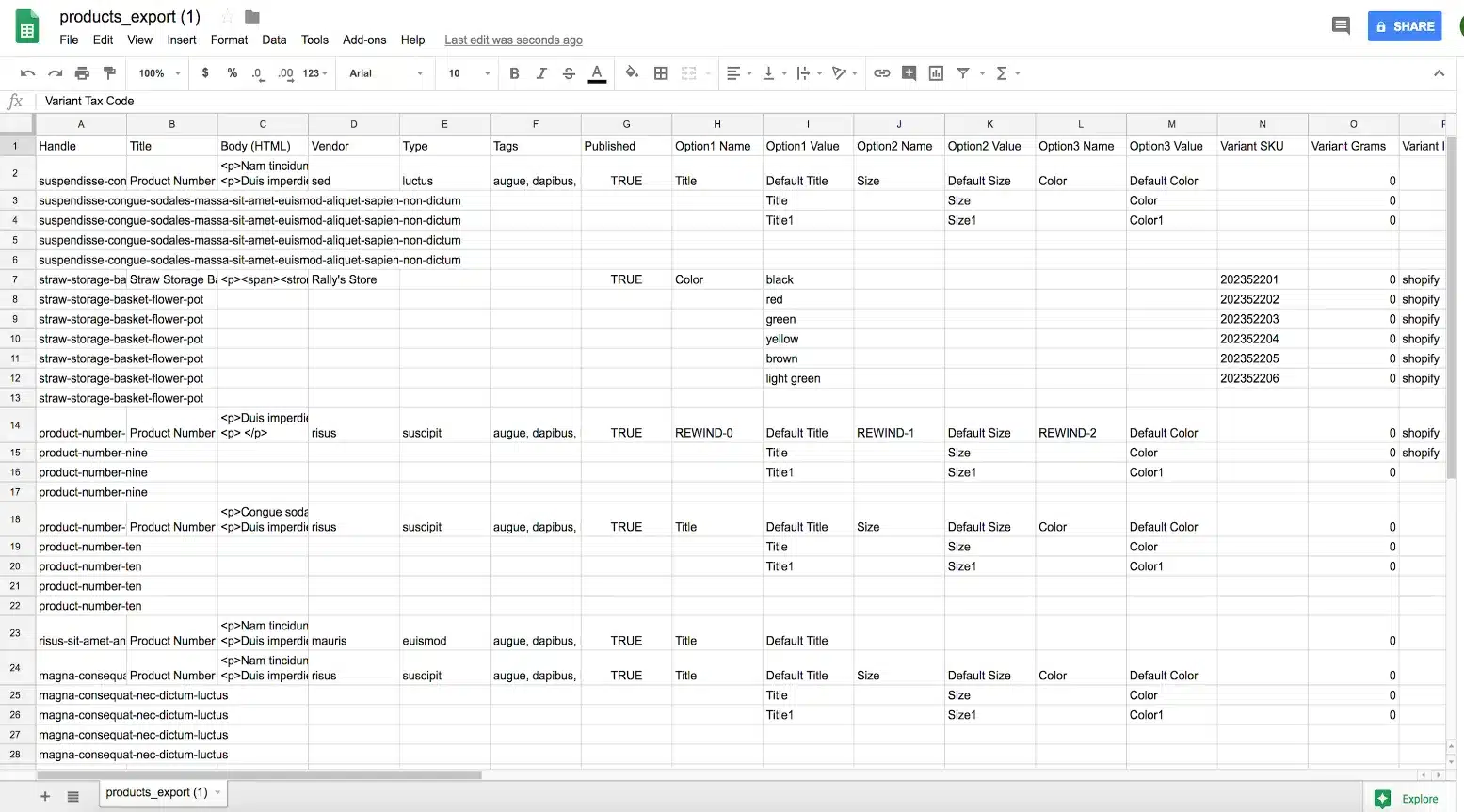
BigCommerce CSV files will come in handy when you want to exchange data between platforms since they can be easily processed by various programming languages and database systems.
When Do You Need to Perform a BigCommerce CSV Import?
It’s not every day that you need to search for how to import products to BigCommerce using CSV files. Nevertheless, a BigCommerce CSV import will certainly be helpful in these situations:
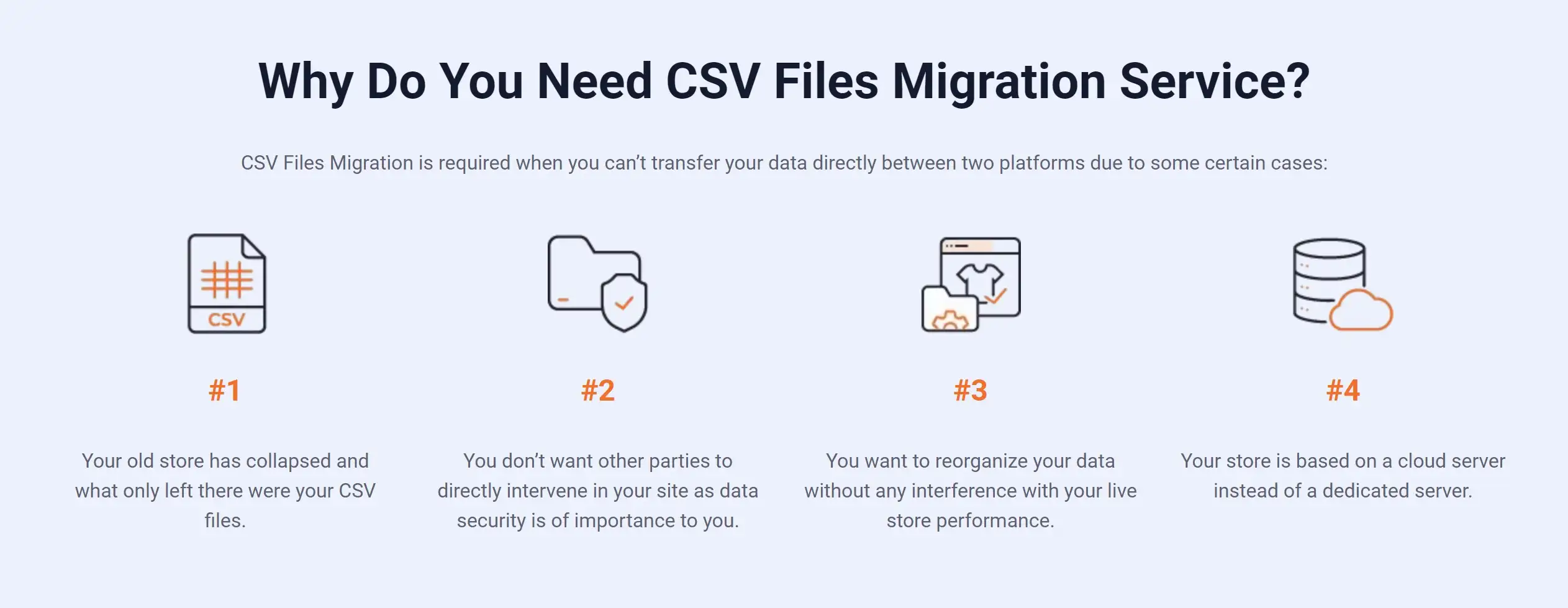
- You want to migrate to BigCommerce, but your old eCommerce website has collapsed. All you have left is the CSV files.
- Your old platform has no direct migration path or API access, so exporting CSV files is the only way out.
- You want to move data without giving a third party direct access to your old store’s admin.
- You need to add or update hundreds of products, prices, or stock levels at once.
- You’re moving data from a spreadsheet, ERP, or supplier feed rather than from another online store.
Which Data Can You Import to BigCommerce Using CSV Files?
Don’t forget to check out the supported data types below before importing your files:
- Products (including variants, images, custom fields, and categories)
- Product SKUs (stock levels, dimensions, and prices)
- Customers (email, name, addresses, customer groups, store credit, and even passwords)
- Order tracking numbers
- 301 redirects (available on paid plans)
Note that BigCommerce doesn’t let you import orders with CSV files. Historical orders can currently only be added via the API, which is where a migration tool like LitExtension comes in handy.
In case you cannot find the data type you want to import to BigCommerce, don’t hesitate to contact us to get assistance.
What to Prepare Before the BigCommerce CSV Import?
#1 Back up and export data on your current website
The very first thing you need to do before importing products to BigCommerce is to back up all your data. Even though LitExtension never alters your source data, a backup will save you if anything unexpected happens.
After that, it’s time to export your data into a CSV file format. Each platform comes with different ways to store and export your CSV file. Therefore, our advice is that you should carefully read the platform documentation to understand how to export products, orders, and customers. Keep in mind that BigCommerce’s native importer accepts products and customers, but not orders.
If your BigCommerce store already has data, also export an unedited copy of it and run a test import with a single product first. This way, your live catalog stays safe if the file has errors.
#2 Create a new BigCommerce store
Now that your raw data is ready to be migrated, don’t forget to get your new store ready before the BigCommerce CSV import.
Please follow our guide below or check out our in-depth BigCommerce tutorial to learn how to create a BigCommerce store.
1. Create a BigCommerce account.
2. Create a stunning website with the best BigCommerce themes.
3. Configure settings like products, customers, tax, and shipping.
4. Enhance your business with the best BigCommerce apps.
5. Launch your BigCommerce store.
How to Perform the BigCommerce CSV Import with LitExtension
If you are looking for an easy and effortless way to import products to BigCommerce with CSV files, LitExtension is right at your fingertips. Our Files Migration solution lets you move CSV, Excel, or Google Sheets data to BigCommerce quickly, accurately, and securely, either on your own with our automated migration tool or with our experts doing it for you.
Unlike BigCommerce’s native importer, LitExtension can also move orders, coupons, CMS pages, and blog posts from your files, along with products and customers.
Prefer to do it yourself? With the Automated Migration Tool, you simply add your files, connect your BigCommerce store, check the field mapping, and run a free demo before the full migration.
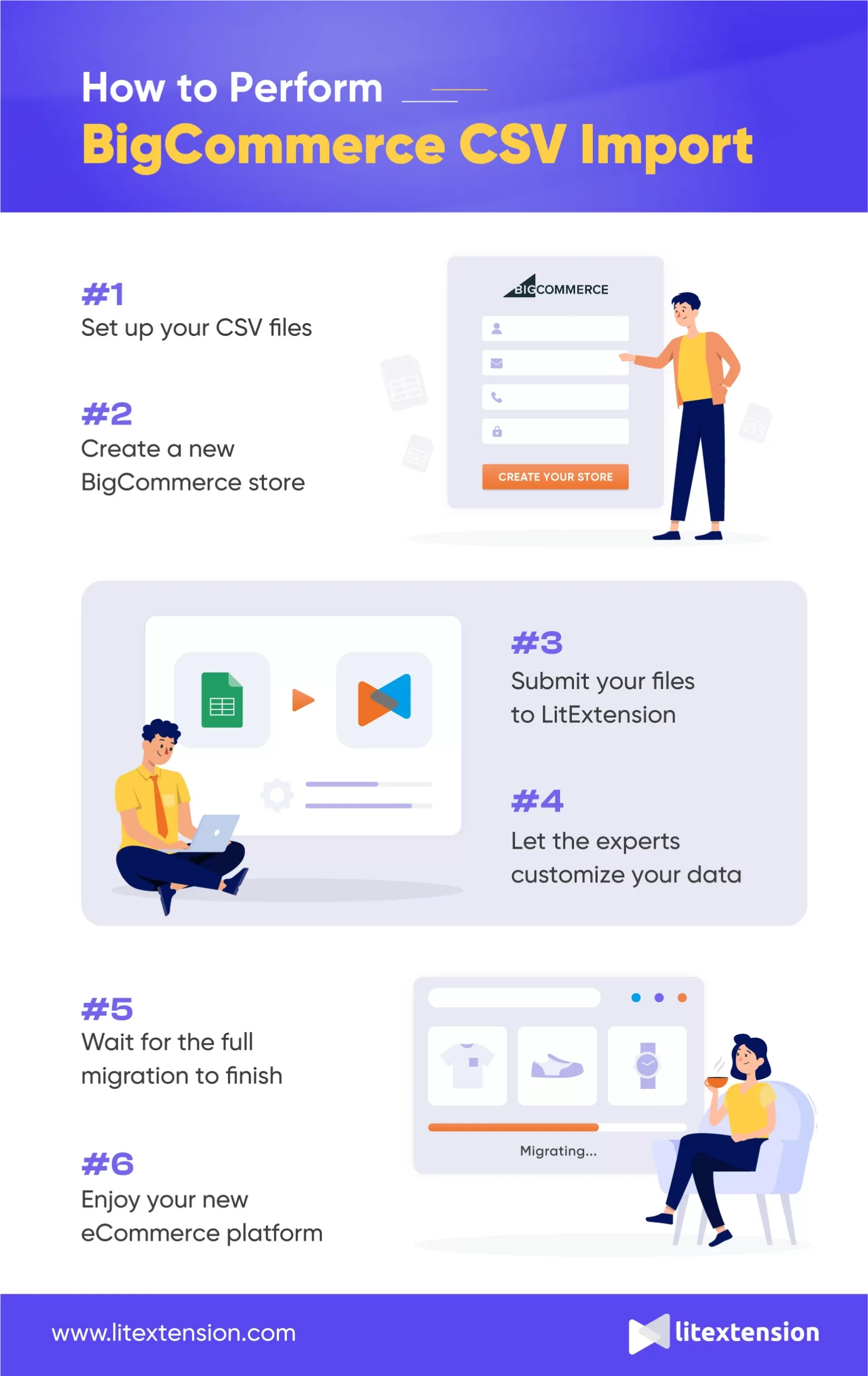
If you’d rather leave everything to our experts, the process takes four steps:
- Submit your files to LitExtension
- Let the experts customize your files to better fit your requirements
- Wait for the full BigCommerce migration to complete
- Check the final result and start selling
Or, in case you want a visualized approach to how to import products to BigCommerce from CSV, don’t forget to check out our video:
#1 Submit your files to LitExtension
First off, our team of experts will kickstart the process by gathering your CSV file and getting a clear grasp of your unique requirements. We want to make sure we’re on the same page, so LitExtension will set up a one-on-one consultation session to dive deep into your migration project. It’s crucial that we’re in sync because the end result hinges on the effectiveness of our teamwork.
To get things rolling, simply upload your files directly or share a Google Drive, Dropbox, OneDrive, or Google Sheets link with LitExtension. Once we have your file in our hands, we’ll swiftly move on to the next step.
#2 Let the experts customize your files
Now that we have your CSV file in hand, you can sit back, relax, and leave the rest to LitExtension. Our experts will take over your BigCommerce migration project from start to finish. No need to worry about formatting the file yourself—we are right here to help! Our technical specialists will meticulously tailor all the files to align perfectly with your specific requirements.
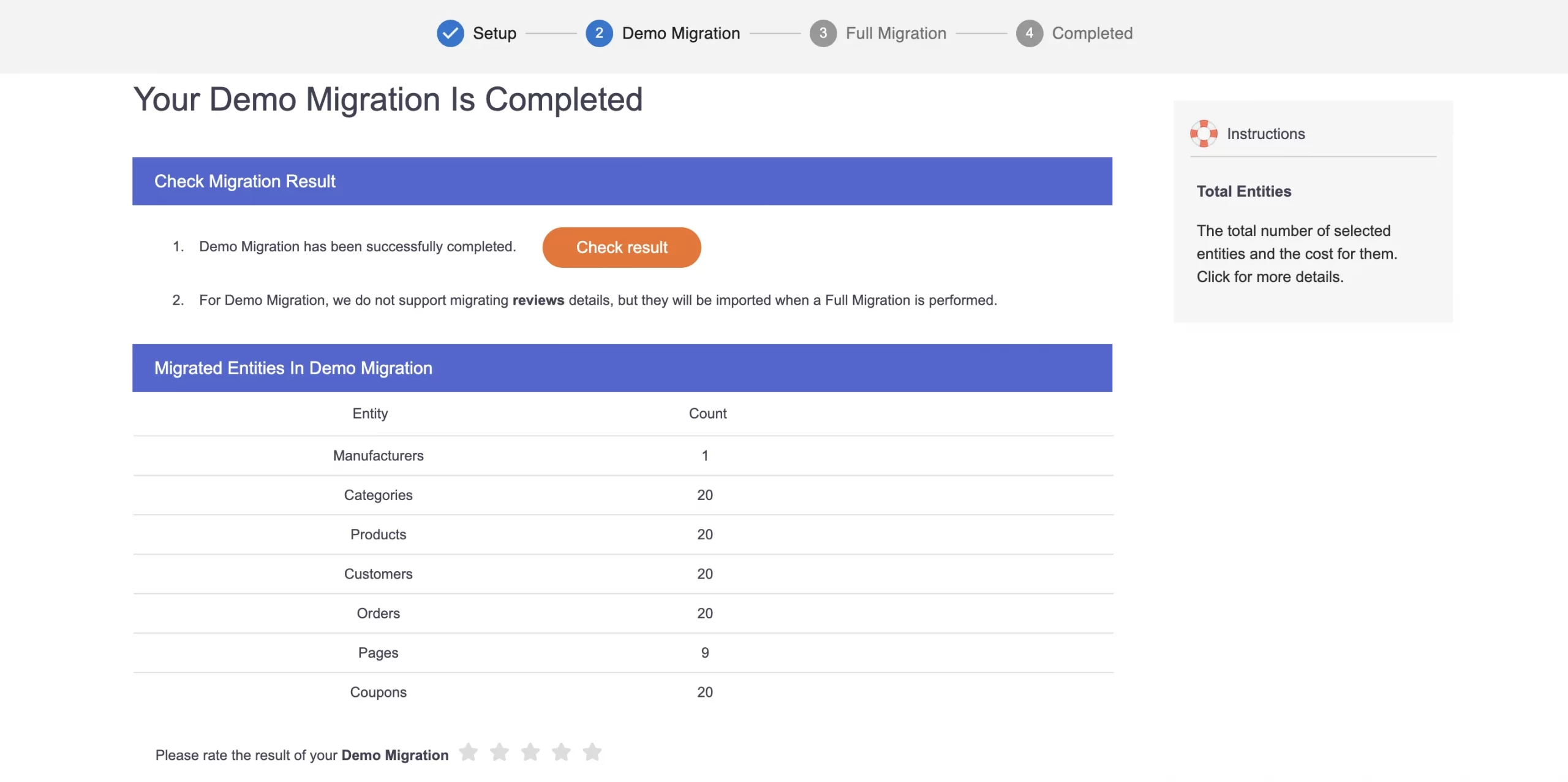
Additionally, we’ll conduct a comprehensive demo migration and thoroughly review the results to guarantee a seamless import process.
#3 Wait for the full BigCommerce migration to complete
Once you are satisfied with how the demo migration turns out, LitExtension will proceed to the full BigCommerce CSV files migration. At this stage, you can continue to do business as usual and keep generating profit. We guarantee to run the migration entirely on a cloud server, hence, there won’t be any interference with your live store.
#4 Check the final result and start selling
And that brings us to the end of the BigCommerce CSV import with LitExtension.
After the migration finishes, our experts will run several post-migration checks. You also get free recent data migration, re-migrations, and up to 60 days of support, so you can be sure all your information has been moved accurately and securely to BigCommerce with no data left behind.
BigCommerce CSV Import Made Easy!
LitExtension Automated Migration Tool moves products, customers, and orders from your CSV, Excel, or Google Sheets files to BigCommerce – fast, accurate, and hassle-free.

How to Perform a BigCommerce CSV Import Manually
BigCommerce currently offers two product import experiences. Stores with Multi-Storefront enabled use the Modern Product Import/Export, while single-storefront stores may still use the legacy importer. The steps in #1 cover the legacy importer. If you see a simpler screen with a Preview button, you’re on the modern one, so jump to #2.
#1 How to import products to BigCommerce (legacy importer)
Now, it’s time for you to import those exported data to BigCommerce. BigCommerce currently supports importing data in CSV file format. These files can contain a variety of data entities such as products (with images and variants), customers, tracking numbers, and 301 redirects. You can open CSV files using any spreadsheet program, making it very convenient for tracking.
Follow these steps:
1. Go to Products › Import.
2. Select the settings you want for your import under Import Options. There are some BigCommerce import product options, as seen in the image below.
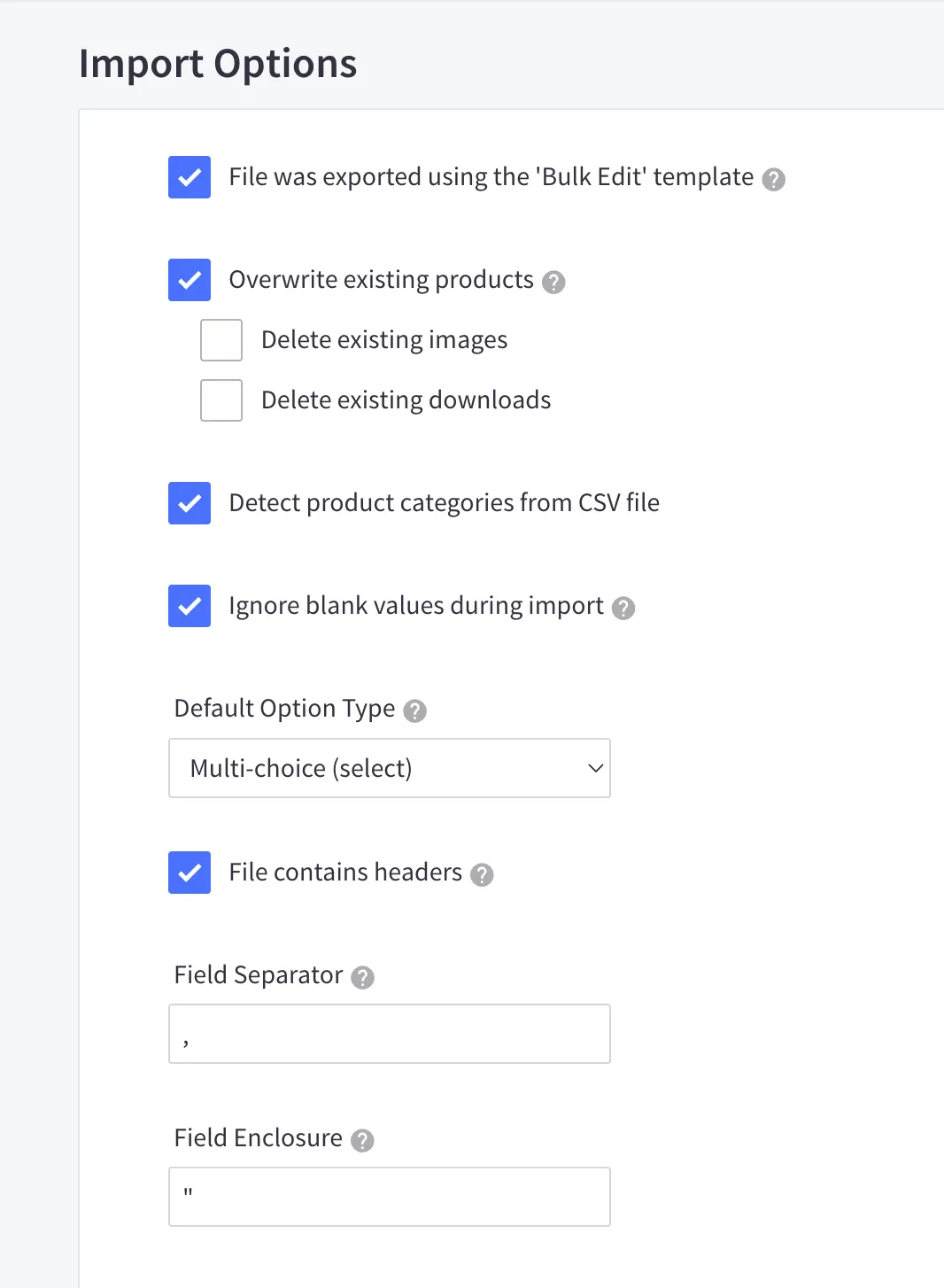
Select “File was exported using the ‘Bulk Edit’ template” if your file follows the BigCommerce Bulk Edit template. Choose this option, and it will automatically apply the recommended Import Options and skip the Link Import Fields step.
Next up, you’ll see the options Delete existing images and Delete existing downloads. We recommend you not choose these options if you don’t know what you are doing. These settings will permanently delete your existing images and downloads, and there’s no way to recover.
3. Next to Import File, click Choose File (or drag and drop) to upload your CSV. Remember that the only file format supported here is CSV.
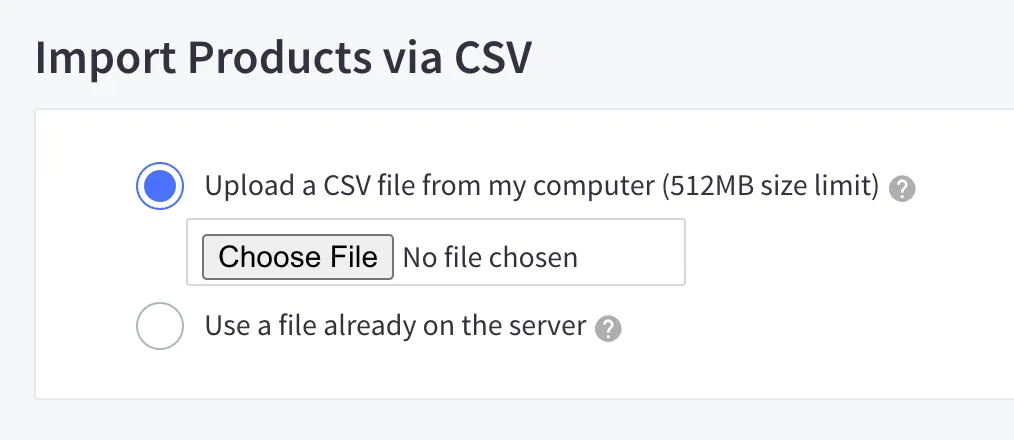
4. Click Next once you complete all the above steps.
5. On the Link Import Fields page, match each BigCommerce field to its CSV column. If you ticked the Bulk Edit template box, this is done for you, so you can skip this step.
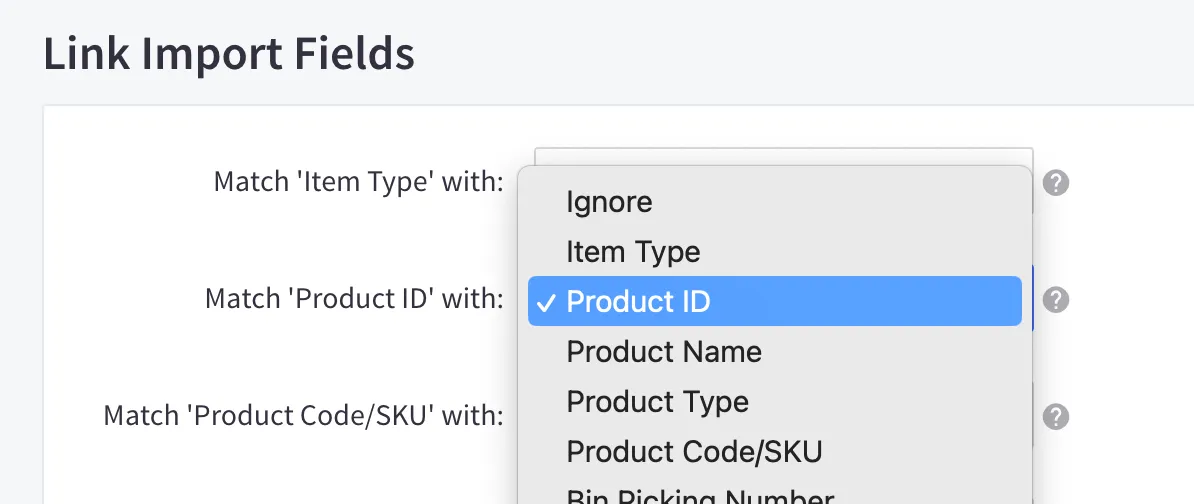
Set any field you don’t want to import, such as Product ID, to Ignore. We recommend you check every match carefully before moving on.
Be careful of data loss!
Always export a backup and test with one product first. If you’d rather not risk it, let LitExtension’s CSV to BigCommerce migration tool handle the import for you.
6. Click Next.
7. After that, click Start Import to begin importing products. When you finish, you will see an import summary.
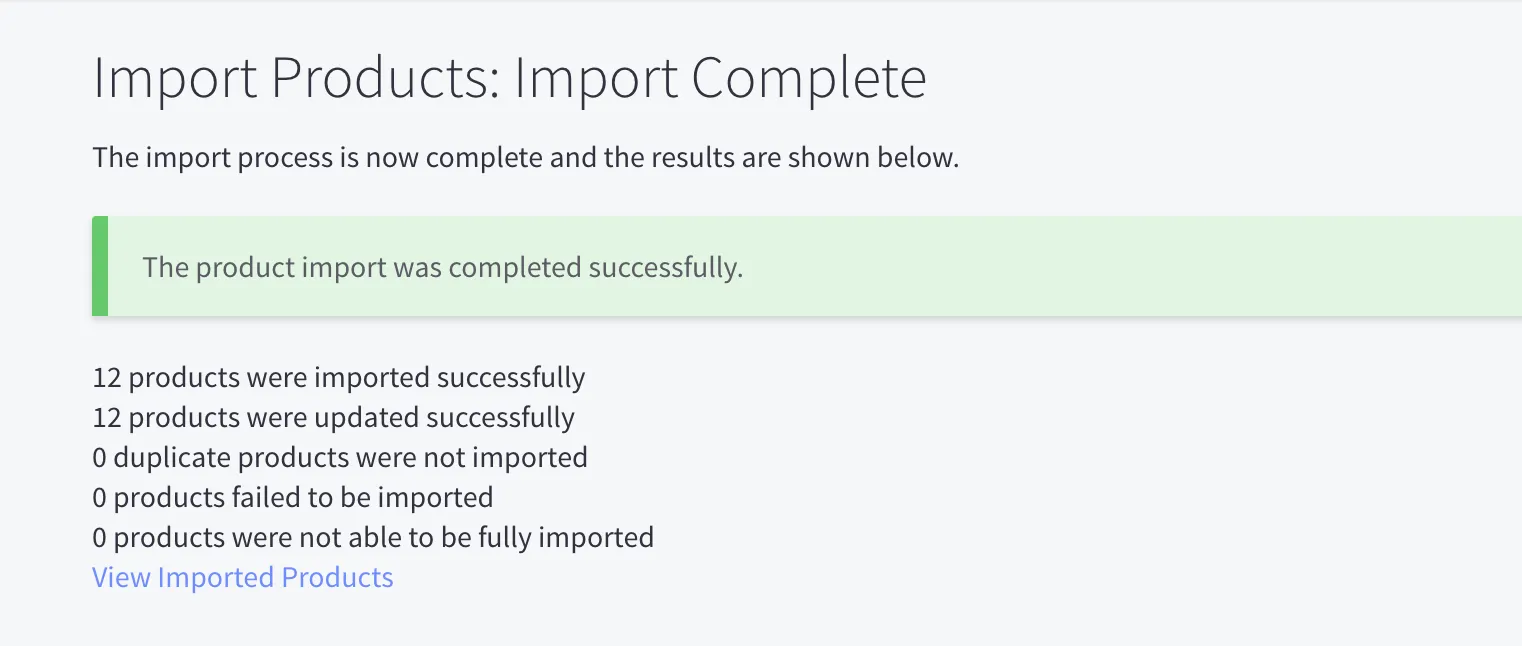
Now, you can click View Imported Products and see the final result.
#2 How to import products with the modern importer
The modern importer has a simpler workflow and runs in the background, so you can keep working elsewhere in the control panel. Follow these steps:
1. Go to Products › Import and upload your CSV file. For a first-time import, you can start from the sample template BigCommerce provides.
2. If you’re updating existing products, tick Overwrite existing products. Make sure your file keeps the product, variant, image, and custom field IDs; leave IDs blank for new items.
3. Click Preview to check how the first product in your file will look.
4. Click Start import. When it’s done, the summary shows how many products were imported successfully and lists any errors.
Keep in mind that the modern importer doesn’t support field separator or enclosure settings, files without headers, digital product files, or modifier options. It also can’t create new categories, so use the IDs of existing categories and brands in your file.
#3 How to import customers to BigCommerce
1. Go to Customers › Import. You need the Manage Customers and Import Customers permissions to do this.
If you upload a non-spreadsheet CSV and need to specify the import settings, you can typically leave the additional File Details settings alone.
- This file contains headers – Select if the file already contains column headings.
- Field separator – Define what punctuation is used to separate the fields.
- Field Enclosure – Define what punctuation is used to tie phrases together.
Then, click Next when you are ready.
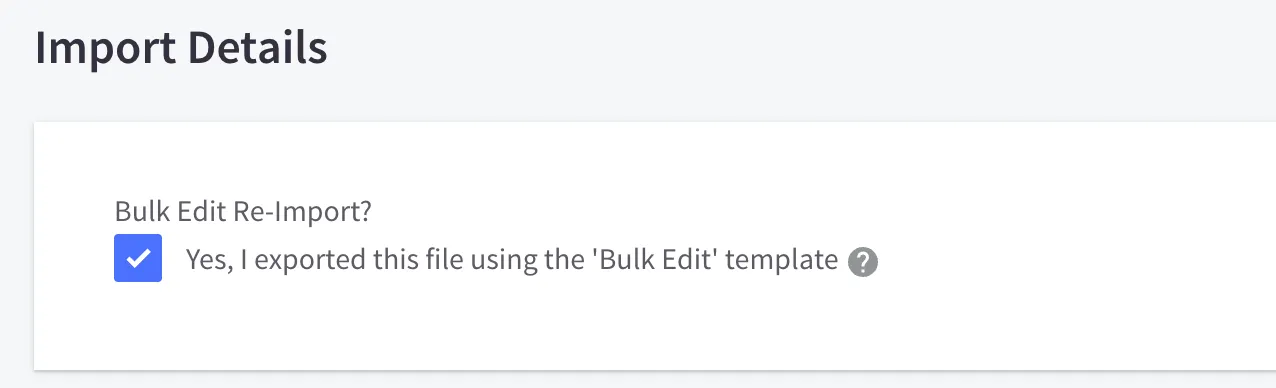
Or, if you’re using the Bulk Edit template when exporting customers, tick File was exported using the ‘Bulk Edit’ template. It applies the recommended settings and sets up the Link Import Fields step for you.
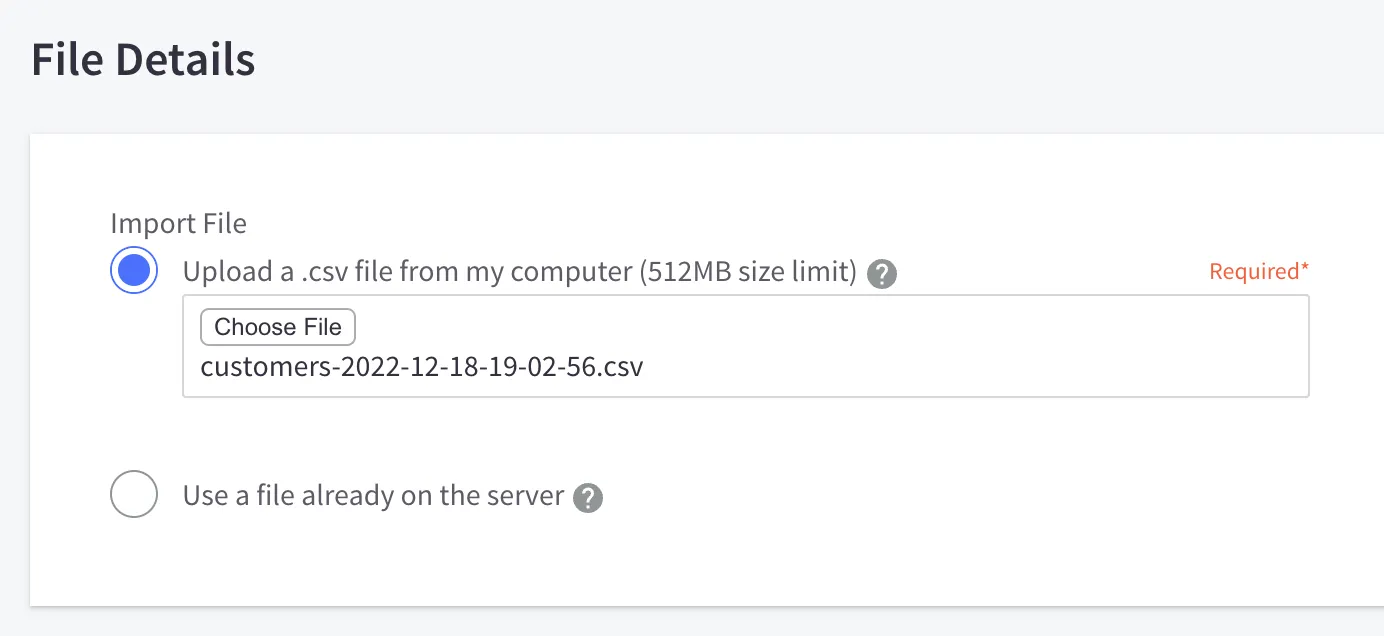
2. In the File Details section, next to Import File, upload your CSV file directly from your computer by dragging and dropping the file or browsing for it. For large files, upload them to the import_files folder via WebDAV and pick Use a file already on the server.
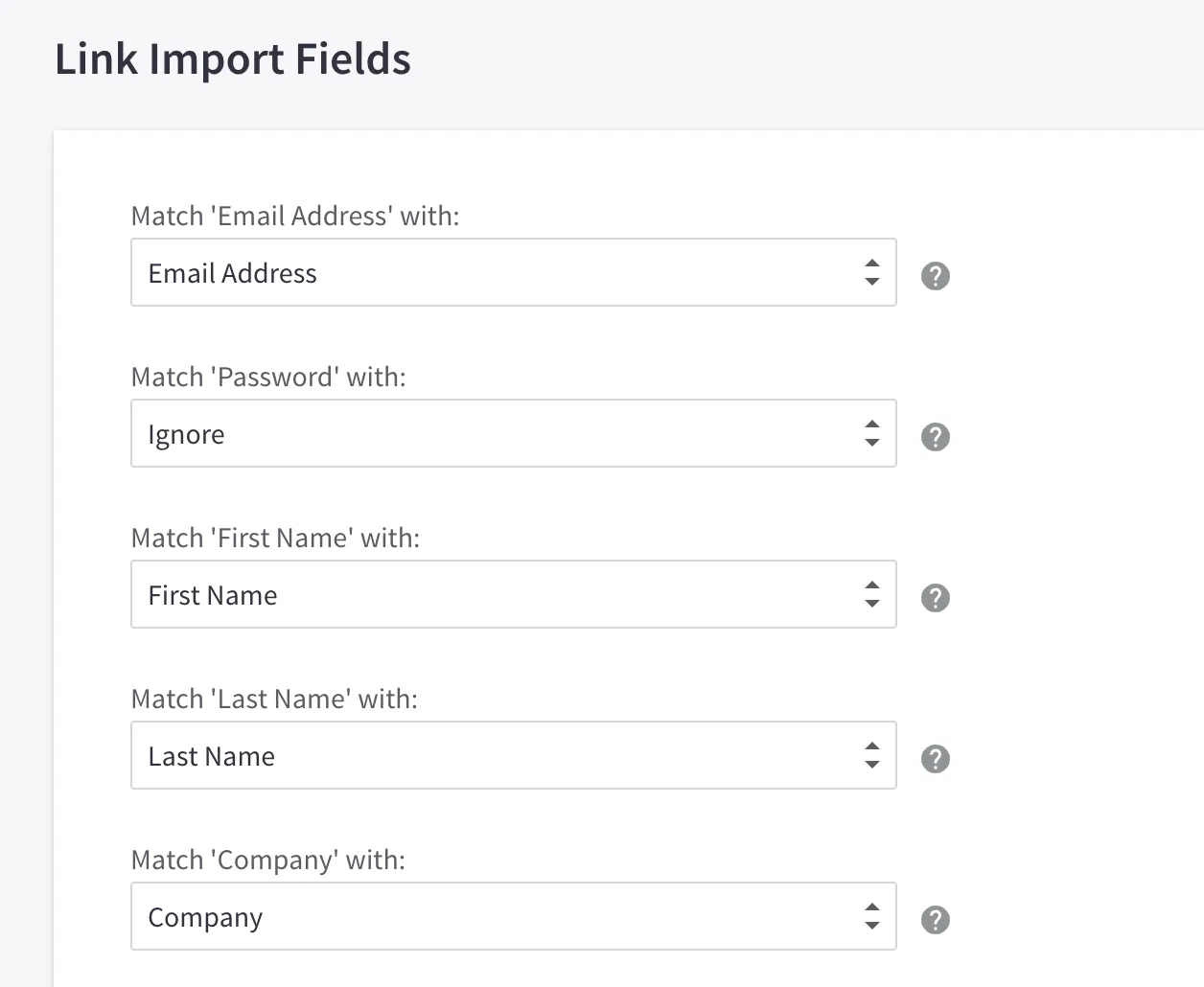
3. At this step, you need to assign column headers from the import file to their corresponding fields before proceeding. Use the Match field drop-downs to select your CSV’s corresponding column name. You do not need to match every column, but you must match the required ones: Email Address, First Name, and Last Name. Click Next when done.
4. Click Start Import when ready to begin importing your customers. When all is done, you will see an import summary.
Customer passwords can’t be exported, so your customers will need to reset theirs unless you add a Password column to your file before importing.
BigCommerce CSV Import, Done Right!
Let LitExtension’s experts clean, map, and import your files to BigCommerce with the All-in-One Migration Service while you keep selling.
Import to BigCommerce Using CSV Files – FAQs
How do you import a CSV file to BigCommerce?
Go to the matching import page (for example, Products › Import or Customers › Import), upload your CSV, match your columns to BigCommerce fields (or preview the first product in the modern importer), and click Start Import.
What are common issues when importing CSV to BigCommerce?
Common issues in a BigCommerce CSV import include wrong column headers, custom fields not in the required format (JSON in the modern importer), category or brand names used instead of IDs, and missing product or variant IDs when updating existing items.
Can I import orders to BigCommerce with a CSV file?
No. BigCommerce’s control panel only imports products, customers, tracking numbers, and 301 redirects; orders can only be added via the API. A migration tool like LitExtension can move orders from your files for you.
What are the limitations of BigCommerce?
BigCommerce comes with a few key limitations: Core and Growth plans auto-upgrade once your trailing 12-month sales pass $30K or $100K, Scale adds a 0.9% fee on sales above its cap, orders through non-embedded payment providers carry an extra 0.6–2% fee, and abandoned cart recovery is only available from the Growth plan.
Final Words
Now you’ve learned how to perform a BigCommerce CSV import for products and customers. It could be a simple task if you have experience doing it multiple times. But to those unfamiliar with data transfer or BigCommerce, it could take a lot of time to start from scratch. Along with that, it may contain the hidden risk of losing data during the import process.
Therefore, in case you’re too busy or wary about the risk when importing BigCommerce CSV files, we highly recommend LitExtension’s Files Migration tool. You can run the import yourself in a few clicks, or let our experts handle it for you. We will ensure the data compatibility of your CSV files in BigCommerce so that your data will be transferred accurately, rapidly, and securely.
Additionally, we also offer the All-In-One Migration package that will fully cover your migration/import to BigCommerce. For more information about how to migrate/import your data to BigCommerce, don’t wait too long to contact our support team. Our team is always happy to help, and you’ll usually hear back within 24 hours on business days.
Don’t forget to visit LitExtension Blog and join our eCommerce community to get more news and knowledge about eCommerce.

