
Whether you’re backing up your blog, moving content to a new site, or preparing posts for another platform, exporting WordPress posts is usually a simple process. The key is knowing what the export file actually includes, how WordPress handles images and media, and when the default export tool may not be enough.
In this guide, we’ll walk you through the main ways to export WordPress blog posts, from the built-in WordPress option to plugin-based methods for selected posts, CSV files, images, and larger content transfers.
What Does a WordPress Posts Export Include?
Before exporting your blog posts, it’s important to understand what the default WordPress export file can and cannot carry. This helps you avoid missing images, broken links, or incomplete content after importing the file into another website.
| Data type | Included in default WordPress export? | Notes |
|---|---|---|
| Post title and content | Yes | Your blog post titles, body content, excerpts, and basic post data are included. |
| Categories and tags | Yes | WordPress exports taxonomies attached to the selected posts. |
| Authors | Yes | Authors can usually be mapped during the import process. |
| Comments | Yes | Comments related to the exported content can be included in the XML/WXR file. |
| Custom fields | Yes, in many cases | WordPress can export custom fields, but complex plugin data may need extra checking. |
| Featured images and media files | Not as physical files | The export file stores references/links to media files, not the actual image files. |
| Theme design and layout | No | Themes, templates, widgets, and design customizations are not included. |
| Plugins and plugin settings | No | For a full-site backup or migration, use a backup/migration plugin instead. |
| CSV or Excel file | No | The built-in export tool creates XML/WXR files. Use a plugin if you need CSV or Excel. |
If you need to move more than blog posts, such as pages, products, customers, orders, images, and SEO URLs, consider planning a full WordPress migration instead of exporting posts alone.
How to Export Blog Posts from WordPress
WordPress includes a built-in export tool that lets you download your blog posts as an XML file. This method works best when you want to move posts to another WordPress site, create a content backup, or export posts by category, author, date range, or status.
Below is the step-by-step process to export posts from your WordPress dashboard.
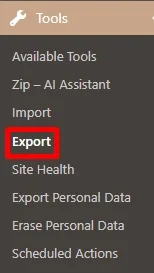
- Step 1. From your Admin Dashboard, go to “Tools” > “Export”.
- Step 2. Tick on the “Posts” option under the “Choose what to export” section.
- Step 3. Sort what you want to export from the drop-down list.
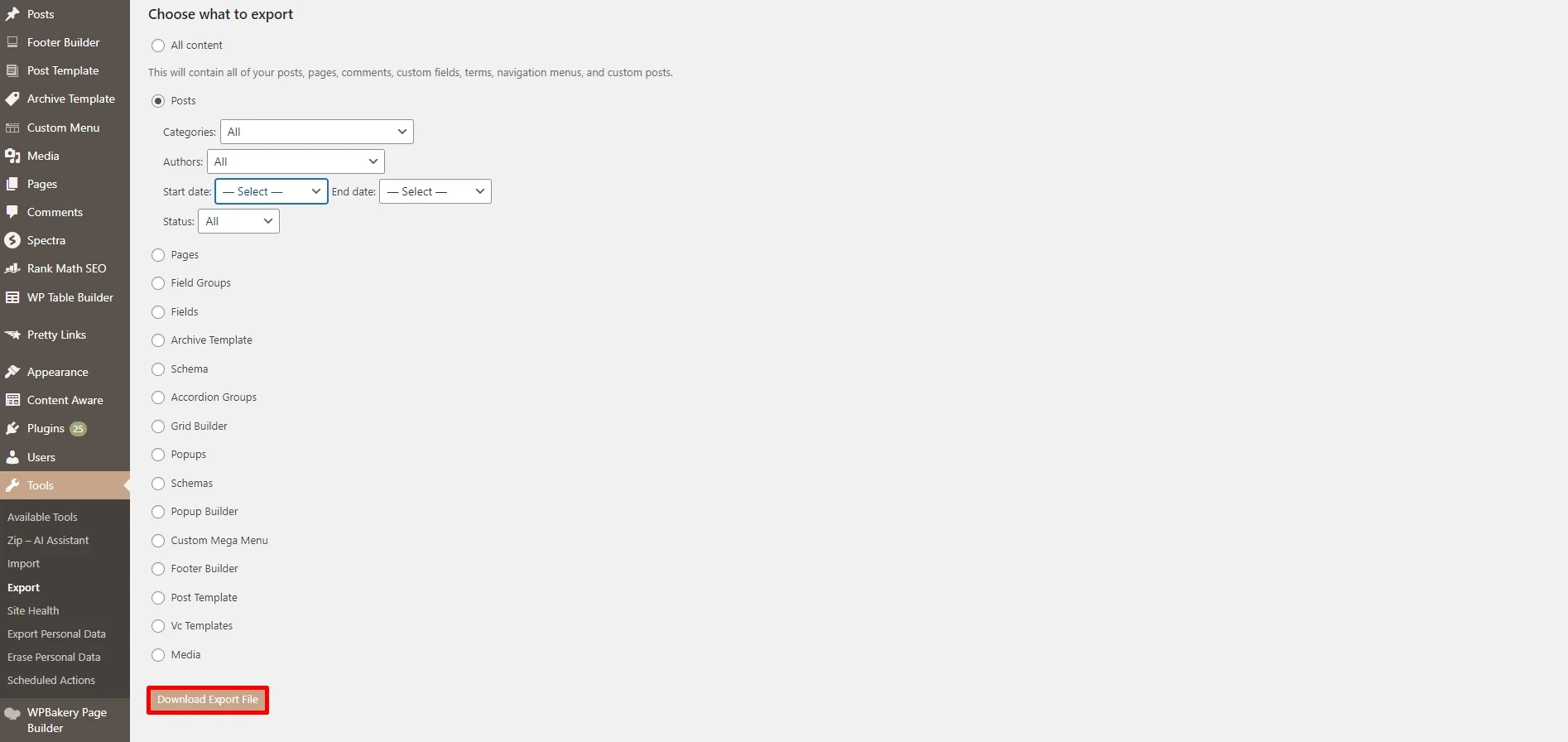
- Step 4. Click “Download Export File” button when everything’s done.
Step 1. From your Admin dashboard, navigate to “Tools” > “Export” in the settings bar.
Step 2. Tick the “Posts” option under “Choose what to export” option.
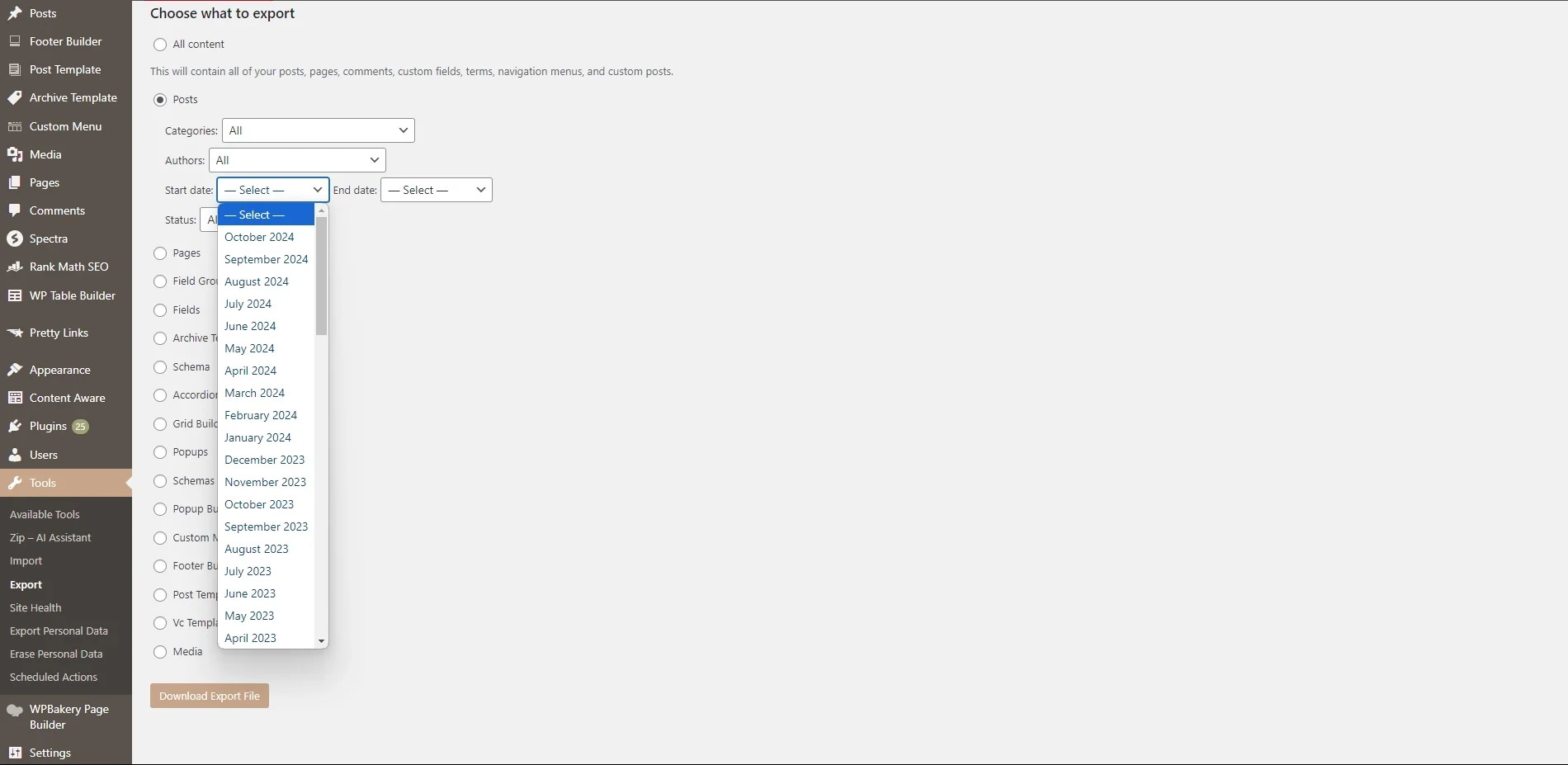
Step 3. Sort what posts you’d like to export from the drop-down list.
- Categories: Export all posts from a specific category
- Authors: Export all posts written by a specific author
- Start date – End date: Export WordPress posts in a period of time
- Status: Export posts based on their status (Draft, Published, Scheduled, or Trashed)
Step 4. When finished, choose the “Download Export File” and wait for your data to be downloaded. And that’s how to export posts from WordPress!
Please note that your export file will be saved under an XML format. To read this file, you can use any text editor program (like Notepad, Eclipse, Xmplify,…) or web browser (like Edge or Safari).
How to Export WordPress Posts with Images
Exporting WordPress posts with images can be a little confusing because the default WordPress export file does not store the actual image files inside the XML/WXR file. Instead, it includes references to your media files so the destination site can find and copy them during the import process.
That means the right method depends on what you want to do after exporting your posts.
Option 1: Import images using the WordPress XML file
If you are moving posts from one WordPress site to another, you can still use the default export file. After uploading the XML file to the new WordPress site, make sure to select Download and import file attachments during the import process.
This allows WordPress to fetch images and other attached media from the original website. For this to work properly, keep your original site public and accessible until the import is complete. If the source site is private, offline, blocked by security settings, or already deleted, the new site may not be able to copy the media files.
This method works best when:
- You are importing posts into another WordPress website.
- Your original website is still live and accessible.
- The images are attached to or embedded in the exported posts.
- You do not need a separate local backup of all media files.
Option 2: Download the wp-content/uploads folder manually
If you want to keep a full copy of your media files, or if your images fail to transfer during the import, you should download the wp-content/uploads folder manually from your hosting account.
Here’s how to do it:
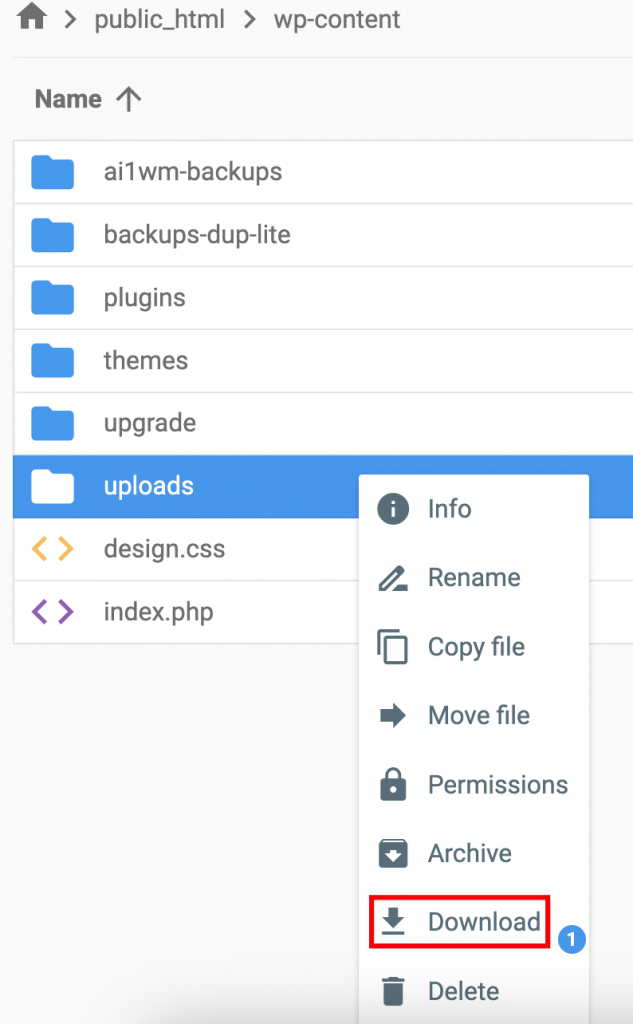
- Step 1. Log in to your hosting control panel and open File Manager, or connect to your website using FTP/SFTP.
- Step 2. Go to your WordPress root folder, usually public_html.
- Step 3. Open wp-content and locate the uploads folder.
- Step 4. Download the uploads folder to your computer, or compress it into a ZIP file before downloading if your hosting provider supports this option.
This folder contains your uploaded images and media files, usually organized by year and month. However, downloading this folder alone does not automatically update image URLs or attach media to posts on the destination site. You may still need to upload the files to the new site and check whether image links, featured images, and media references work correctly.
Option 3: Use a plugin for selected posts and media-heavy exports
For larger websites, selected post exports, or content with many images, a plugin may be easier than handling XML files and media folders manually. Some export plugins can help you include selected posts, related media, custom fields, taxonomies, and other post data in a more controlled format.
This option is especially useful when you need to export WordPress posts with images to CSV, Excel, or a custom migration file instead of using the default XML/WXR format.
What Can You Do After Exporting WordPress Posts?
After exporting WordPress posts, you can use the XML/WXR file for several purposes, such as importing posts into another WordPress site, keeping a content backup, or preparing your blog content for a platform migration. The best next step depends on what you want to do with the exported file.
Import posts into another WordPress site
The most common use of a WordPress export file is moving posts from one WordPress site to another. For example, you may want to transfer blog posts from a staging site to a live site, merge content from multiple websites, or move posts from WordPress.com to a self-hosted WordPress installation.
To import the file, go to the destination site and open Tools > Import. Then, choose the WordPress importer, upload your XML file, and follow the prompts to assign authors and import the content.
During the import process, pay attention to the attachment option. If available, select Download and import file attachments so WordPress can fetch images and other media files from the original website. Keep the original site accessible until the media import is complete, especially if your posts contain many images.
After importing, review the destination site carefully. Check whether:
- All selected posts were imported.
- Authors are mapped correctly.
- Categories and tags appear as expected.
- Featured images and embedded images display properly.
- Internal links do not still point to the old domain.
- Permalinks and post URLs follow your preferred structure.
- Draft, published, scheduled, and private posts have the correct status.
Keep the export file as a content backup
You can also keep the WordPress export file as a lightweight content backup. This is useful if you only want a copy of your posts, categories, tags, comments, and related content data.
However, remember that a WordPress posts export is not the same as a full website backup. It does not include your theme files, plugins, plugin settings, database settings, or physical media files. If you need a complete backup of your website, use a full-site backup solution instead of relying only on the posts export file.
Transfer blog content to another platform
If you are moving away from WordPress, the exported XML file can be a starting point for transferring blog content to another CMS, website builder, or eCommerce platform. Some platforms support WordPress imports directly, while others require a converter, plugin, or migration service.
Before starting, check whether your destination platform supports WordPress XML/WXR files and which content types it can import. You should also confirm how it handles images, post URLs, categories, tags, authors, comments, and SEO metadata.
If you are exporting WordPress posts as part of a larger website migration, it may be safer to plan the full transfer before uploading files manually. This is especially important when your project involves blog posts, media files, pages, products, customers, orders, redirects, and SEO URLs.
Want to Migrate to a New Platform?
LitExtension provides a well-optimized All-in-One migration service for your data transfer!

Best Plugins to Export WordPress Blog Posts
All-in-One WP Migration
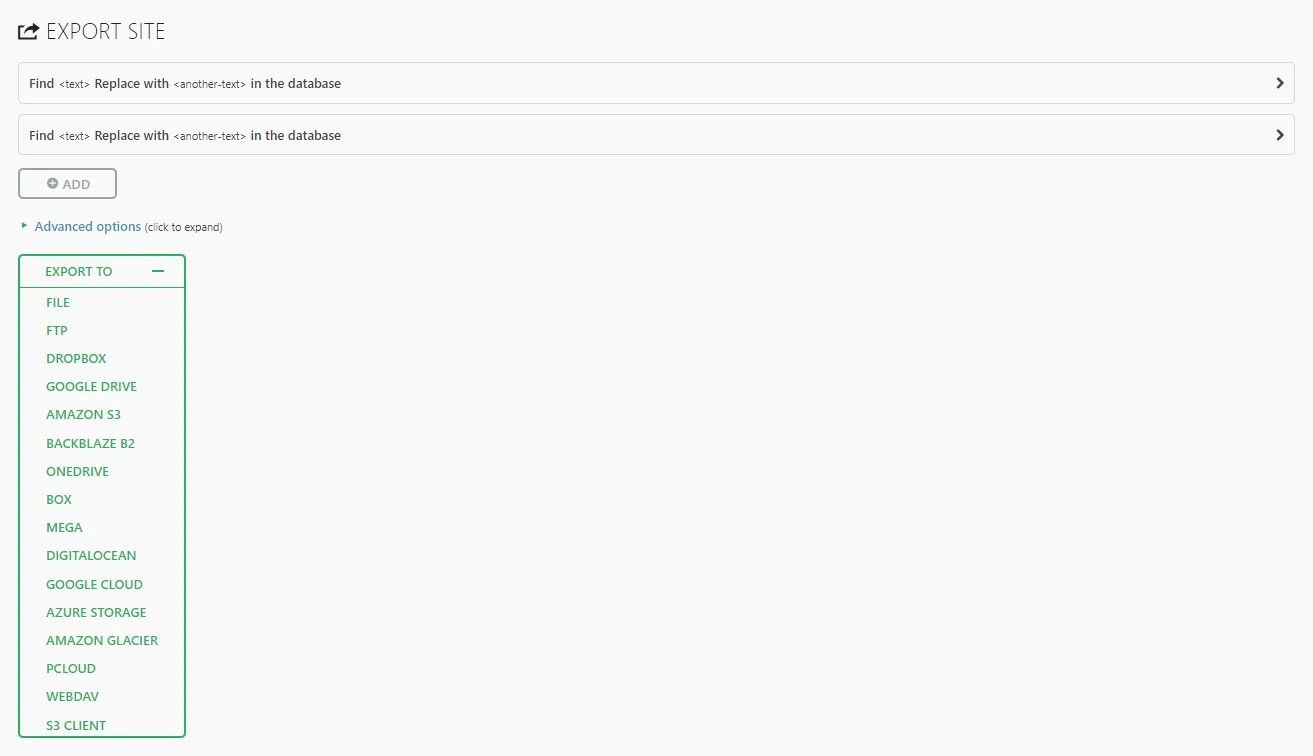
All-in-One WP Migration is a comprehensive WordPress plugin specializing in website migrations and WordPress backups. The plugin provides a user-friendly interface for creating complete website backups, including all files, databases, and settings. This makes it an ideal solution for exporting WordPress blog posts and transferring your content to a new host, creating backups for safekeeping, or deploying copies to staging environments.
Highlight features:
- Drag-and-drop functionality: Easily migrate your website with its intuitive drag-and-drop interface.
- Unlimited export: Export WordPress blog posts as many times as needed, without restrictions.
- Large website support: The plugin efficiently handles large websites and databases, ensuring smooth exports and migrations.
- Find & replace functionality: Easily update URLs and other site details after migration.
- No technical skills required: The plugin’s intuitive design makes it accessible to users of all technical levels.
Pricing: Free to install but might cost extra for upgrades
Export Media with Selected Content
The Export Media with Selected Content plugin is an invaluable tool for WordPress users who need precise control over media files during WordPress export posts. Unlike standard WordPress export functions that often handle media separately, this type of plugin streamlines the process by intelligently bundling media files directly with chosen content. This eliminates the hassle of manually transferring images, videos, and other media, ensuring a complete and error-free export package.
Highlight features:
- Content-specific media selection: Automatically include only the media files used within selected posts, pages, or custom post types during export.
- Organized file structure: Maintain a structured organization of media files within the export package, mirroring their arrangement on the original site.
- Customizable export options: Select specific file formats, sizes, or image resolutions for inclusion in the WordPress export posts.
- Compatibility with various export formats: Ensure seamless media inclusion when exporting content in different formats, such as XML or HTML.
- Simplified media management: The plugin streamlines the often tedious task of managing media files associated with specific content, particularly when exporting content archives or transferring select portions of a website.
Pricing: Free to install
Duplicator
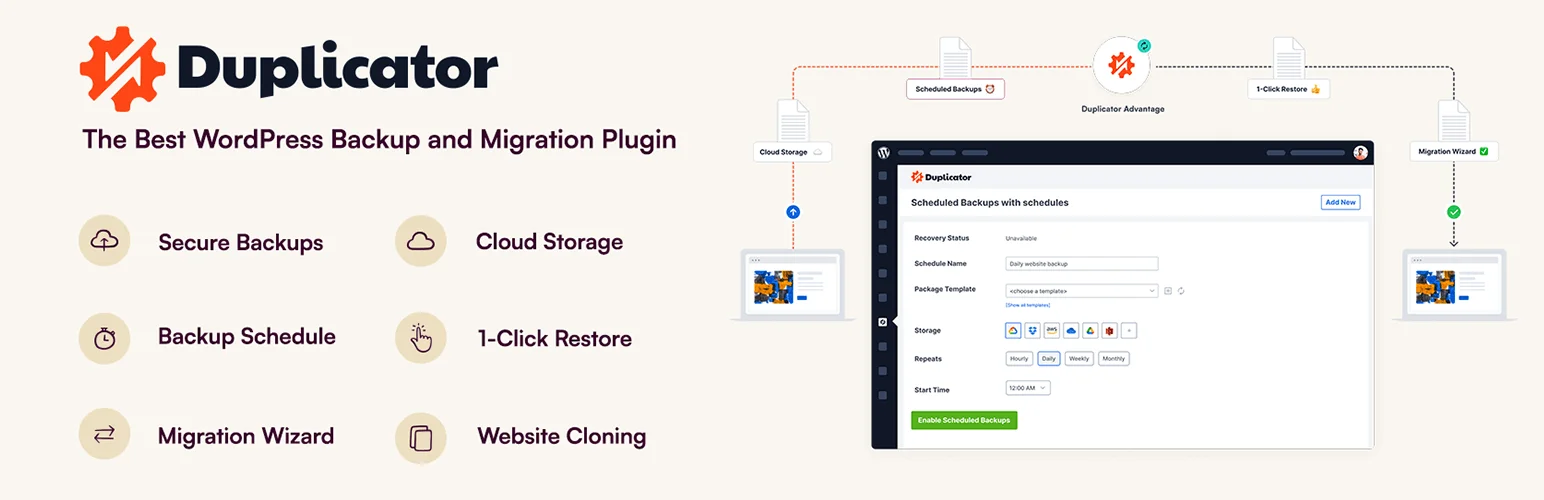
Duplicator is a popular WordPress plugin designed for website migrations, backups, and cloning. The plugin simplifies the often complex process of moving a WordPress website between hosts or servers. Duplicator bundles all website files and data into manageable packages, enabling easy transfer and redeployment. This eliminates the need for manual file transfers and database configurations, making it a valuable tool for both beginners and experienced developers.
Highlight features:
- Simple WordPress export posts process: Effortlessly export your content to a new host or domain name without technical headaches.
- Reliable backups: Create complete backups of your website for safekeeping and disaster recovery.
- Website cloning: Generate identical copies of your website for development, testing, or staging environments.
- Scheduled export for backup: Automate regular backups at defined intervals to ensure your data remains secure.
- Cloud storage integration: Store your backup files securely in popular cloud storage services like Dropbox, Google Drive, and Amazon S3.
Pricing: Free to install
Troubleshooting Common Errors with WordPress Export Posts
In most cases, the built-in WordPress export tool works well without any issues. Nevertheless, if your website contains a large amount of content or has been running for years, you may occasionally encounter some common errors during the export process:
Export process times out or fails to complete
This common issue occurs when WordPress attempts to export a large number of posts at once. In short, if your website contains thousands of blog posts, comments, categories, or media references, the server may run out of resources before the export can finish.
To resolve this issue, we suggest you export smaller portions of your content instead of selecting all posts. You can use the built-in filters to export posts WordPress by category, author, or date range and then repeat the process for the remaining content. That way, it will reduce the workload on your server and often prevent timeout errors.
Images don’t appear after downloading the export file
One common misconception is that the default WordPress export tool downloads your images along with your posts. However, in reality, the exported XML file primarily contains your post content, metadata, and references to media files rather than the image files themselves. As a result, you may notice that images are missing after importing the file into another website.
If this happens, make sure the destination website can access and import media files from the original site during the import process. If not, you’ll need to manually transfer the wp-content/uploads folder or use a dedicated migration plugin that includes media files in the migration.
Export completes but some content appears missing
Lastly, if the export finishes successfully but certain posts seem to be missing from the XML file, the issue is often related to the export filters selected during the process. For example, exporting only a specific category, author, status, or date range may unintentionally exclude some content.
That’s why you need to review the export settings carefully and verify that the correct filters were applied. If you’re unsure, run another export using the “All Content” option or perform additional exports for specific categories and date ranges to ensure that all desired posts are included in the final export package.
WordPress Export Posts – FAQs
How do I export posts on WordPress?
Here are 4 simple steps to export posts on WordPress:
- Step 1. Go to "Tools" > "Export"
- Step 2. Choose "Post" option
- Step 3. Select what you want to export
- Step 4. Click "Download Export File" button
Can you export a list of blog posts from WordPress?
Yes, you can! You can export a list of blog posts from a specific category, by a specific author, published on a period of time, or based on its status (Draft, Published, Trashed, Scheduled).
How do I export a WordPress spreadsheet of posts?
While WordPress doesn't directly export to spreadsheets, you can export your posts as an XML file and then import that file into a spreadsheet program. Most spreadsheet programs offer easy import options for XML files, allowing you to view and edit your post data in a familiar spreadsheet format.
Final Words
And that’s brings us to the end of our guide on how to perform WordPress export posts. We hope that you’ll find this article helpful in case you need to back up your data or transfer all blog posts to other platforms.
If you like this article, don’t forget to check out other articles about WooCommerce and WordPress on our website.

