Shopify speed optimization starts with finding out why your store feels slow, then improving the pages and elements that affect shoppers most. This guide shows you how to measure Shopify speed properly and make practical changes to images, apps, scripts, your theme, and the mobile experience.
Here’s a checklist of the Shopify speed optimization tips covered in this guide:
- Fix the hero section and other slow-loading main content;
- Optimize images without sacrificing quality;
- Reduce unnecessary apps and JavaScript;
- Review tracking scripts;
- Trim CSS, and fonts;
- Prevent images and widgets from shifting as pages load;
- Check your theme, mobile storefront, and checkout;
- Test again to see which changes helped.
Let’s get started!
Quick Diagnosis: What’s Slowing Your Shopify Store?
Shopify had the highest Core Web Vitals pass rate among the major eCommerce platforms in HTTP Archive’s 2025 comparison: 76% of Shopify stores met all three thresholds on mobile. That gives you a strong starting point, but speed still varies between stores and pages.
If yours feels slow, the symptoms below can help you find where to look first.
| What you notice | Likely cause | Relevant optimization area |
| The main image or content appears slowly | Large images or videos, too many sections, or scripts delaying the initial load | Images, videos, and theme content |
| Buttons, menus, or variant selectors respond slowly | JavaScript from apps, theme features, or tracking tools | Apps, scripts, and theme code |
| Images or buttons move as the page loads | Media or app widgets loading without space reserved for them | Image dimensions and page layout |
| Product or collection pages are slower than the homepage | Extra media, widgets, or too many products loading at once | The affected page template |
| The store slowed down after a recent change | A new app, theme update, custom code, or tracking tag | The most recent change |
These are clues, not confirmed causes. The next step is to measure how your store performs, identify the affected pages, and establish a baseline before making changes.
How to Measure Shopify Speed Properly
A single speed score cannot tell you everything about your store. Shopify speed optimization works best when you look at real visitor data, test the pages that matter, and track the same metrics after each change.
Check Shopify’s web performance reports
Your Online Store > Themes page shows a summary of three Core Web Vitals: LCP for loading speed, INP for responsiveness, and CLS for visual stability. More detailed reports are available under Analytics > Reports, where you can examine performance over time, by page URL, or by page type.

As a reference, a good result is an LCP of 2.5 seconds or less, an INP of 200 milliseconds or less, and a CLS of 0.1 or less. Shopify bases its reports on real visitor experiences, so the numbers may take up to 36 hours to reflect a recent change.
Test the pages your customers use
Google PageSpeed Insights gives you a closer look at an individual URL. Your homepage is a useful starting point, but a product page and a collection page may reveal different problems. The mobile and desktop results are also worth checking separately.
PageSpeed Insights shows real-world data when enough is available, alongside a lab test that helps identify possible causes. A low lab score is a reason to investigate its findings, but it should be considered alongside your real visitor data rather than treated as the sole measure of your store’s speed.
Record a baseline before making changes
A simple record of the page URL, device type, LCP, INP, and CLS will make your results easier to compare later. After an optimization, the same page and device view will show whether performance improved. Real-world metrics cover a longer period, so changes in those reports may appear more gradually than changes in a fresh lab test.
With the slow pages and weak metrics identified, you can move on to the Shopify speed optimization fixes that address your store’s actual bottlenecks.
Tip 1. Fix the Hero Section and LCP Element
The hero is often the largest element visible when a Shopify page opens. If it appears late, it can hold back your Largest Contentful Paint (LCP) result. For Shopify speed optimization, start with the hero on your homepage and the main image on your key product pages.
Never lazy-load the LCP image
First, test your homepage in PageSpeed Insights and find its Largest Contentful Paint (LCP) element. This is usually the largest image or block of text visible when the page opens.
If the hero image is the LCP element, make sure it loads straight away. Some themes apply lazy loading to every image, which makes the browser wait before loading the hero. Your theme developer can remove lazy loading from that image and give it priority over images farther down the page.
Handle sliders and background video
In Online Store > Themes > Edit theme, take another look at your first section. If it contains a slideshow, keep the opening slide and remove any others that do not add much for visitors. The first visible image should load immediately; images on later slides can wait until they are needed.
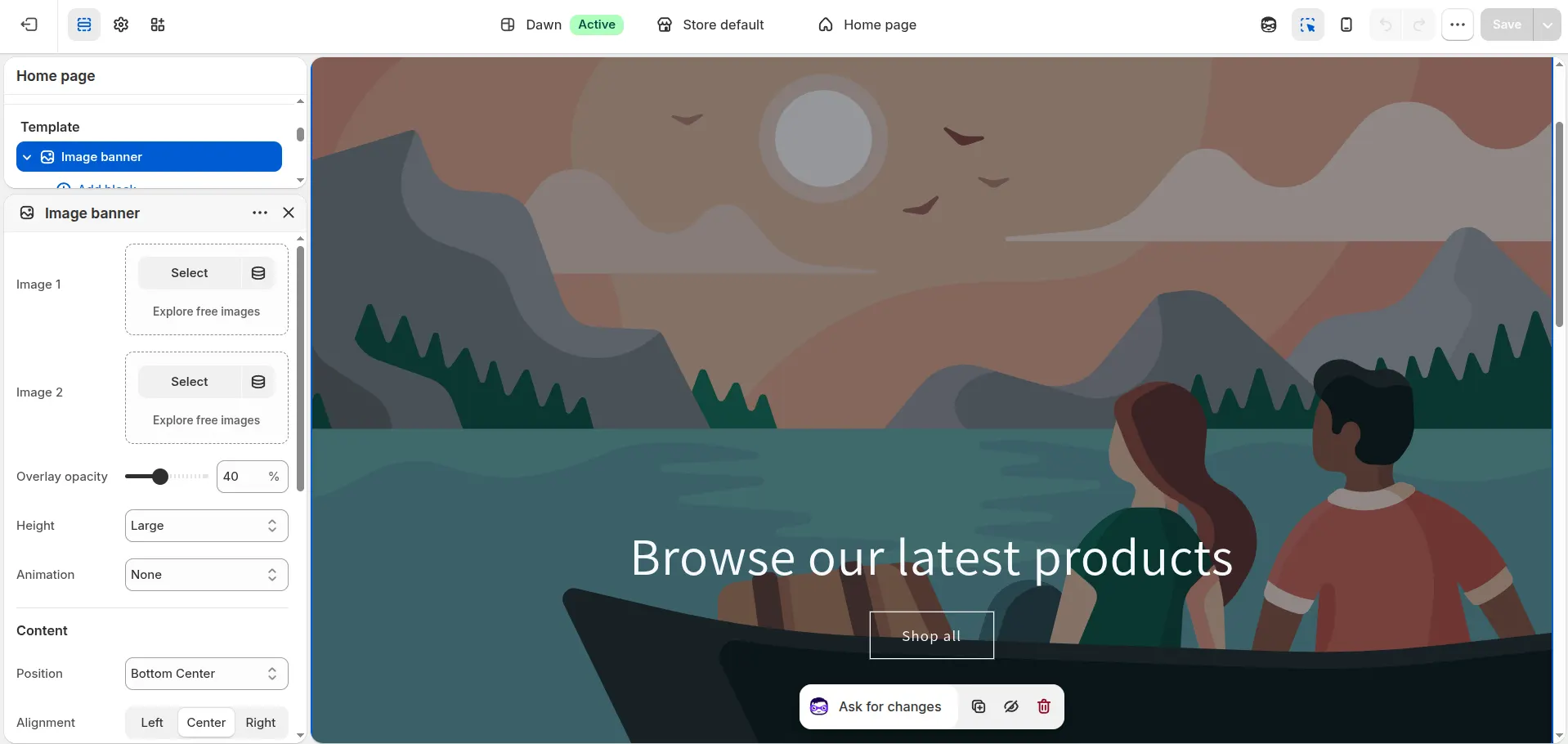
For a background video, try replacing it with a still image and compare the results. You can also check whether an animation keeps the hero hidden for a moment after the image has loaded. A small visual effect may be pleasant, but the main content should appear promptly.
Tip 2. Optimize Images for Speed and Quality
You want your product photos to look clear without making every visitor download an image much larger than their screen needs. Shopify helps by automatically optimising images through its CDN, but your image choices and theme settings still matter.
Serve responsive images with Shopify’s CDN
Check whether your theme serves smaller images on phones instead of sending the same large file used on desktop. Shopify’s CDN can generate different sizes, but the theme needs to request and display them appropriately. When preparing product photos, collection images, and banners, use our Shopify image sizes guide to choose suitable dimensions.
If you’ve added custom image code, ask your developer to check that it uses Shopify’s image tools and provides sizes for different screen widths. Then test a product page on mobile to see whether images still look clear and load promptly.
Lazy load below the fold only
Images farther down the page can wait until a visitor scrolls towards them. This is where lazy loading helps. Your hero image and other images visible as soon as the page opens should load straight away.
Check the result on both mobile and desktop. An image that sits far down the desktop page may appear much earlier on mobile, so it is worth testing the actual page rather than applying one rule to every image.
Tip 3. Reduce JavaScript and App Bloat
Apps can add useful features, but they may also load extra code whenever someone visits your store. If a menu, variant selector, or button feels slow to respond, your apps and theme scripts are worth reviewing.
Run a 20-minute app audit
A quick app audit can reveal easy Shopify speed optimization wins, especially if your store has features you no longer use or two apps doing the same job.
- Open your installed apps and note which ones add something visitors can see, such as reviews, chat, pop-ups, or product recommendations.
- In Online Store > Themes > Edit theme, check your app blocks and app embeds. Turn off any storefront feature you no longer need.
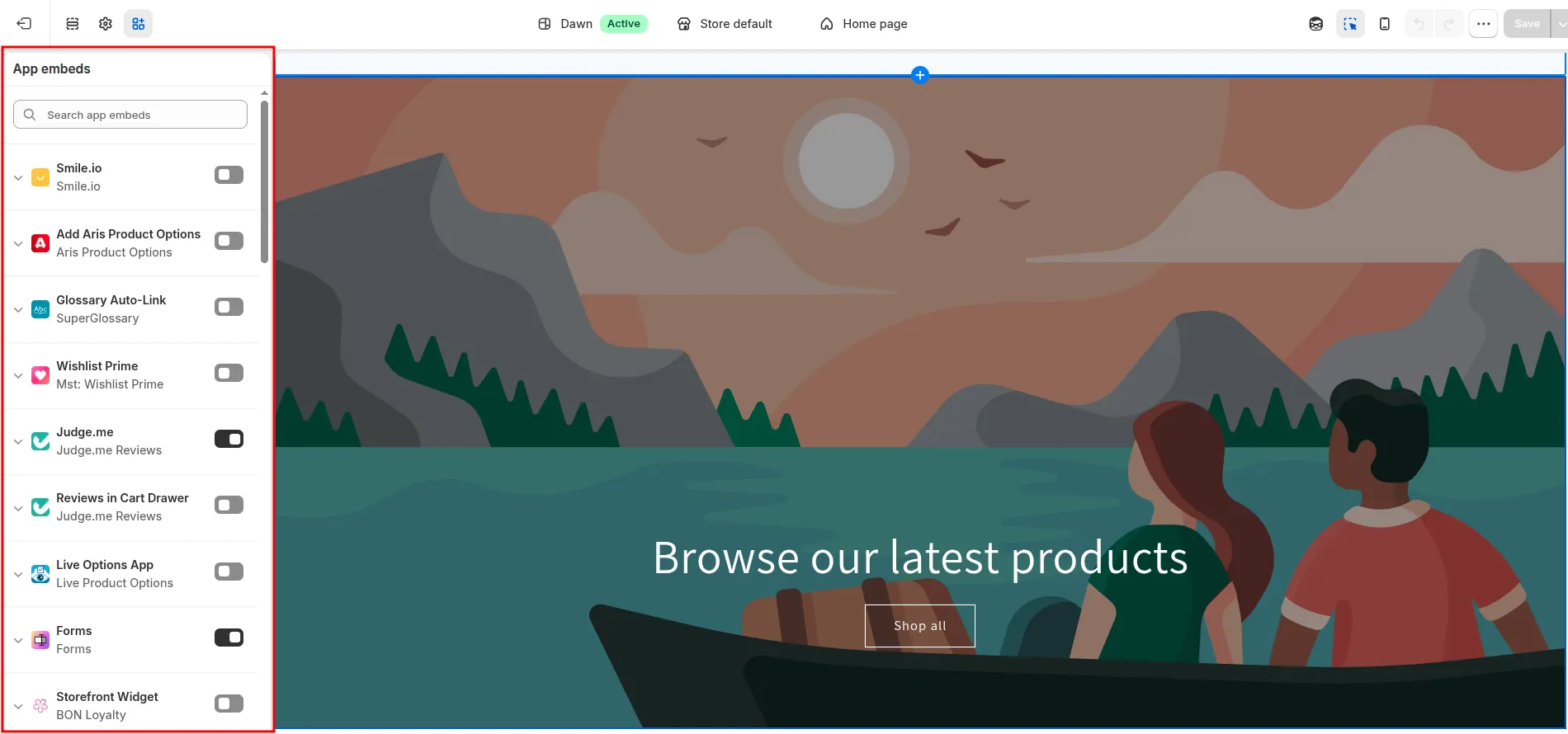
- Review tracking tags from past campaigns and remove those that are no longer useful.
- Change one thing at a time, then check that the store still works and test the affected page again.
If you uninstall an app, some of its code may remain in your theme. The app developer can help you check and remove anything left behind.
Defer, delay and load scripts conditionally
Some features are useful but do not need to load the moment a page opens. A developer can arrange for non-essential scripts to load later, or only on pages where they are used. For example, a feature needed only on product pages should not slow down every collection page.
Chat widgets and similar features may also be able to wait until a visitor opens them. After any change, try the buttons, menus, and checkout journey yourself. This helps you confirm that the store feels faster and still works as expected.
Tip 4. Manage Third-Party Scripts and Tracking
Tracking tools are easy to overlook when you’re working on Shopify speed optimization. A tag from an old campaign may still run on every page, and the same event may be recorded by both an app and a separate pixel.
You can review app and custom pixels under Settings > Customer events. If you also use Google Tag Manager, check its tags for anything outdated or duplicated. Keep the tracking you rely on, remove what you no longer use, and test a page view and purchase event to confirm the remaining setup works. Google Tag Manager helps you organise tags, but it does not automatically reduce the work they add to your store.
Tip 5. Trim CSS and Fonts
Your theme’s CSS controls how the store looks. Over time, old design changes and removed apps can leave behind styles that pages no longer need. Custom fonts can add extra files too, particularly when your store uses several font families and weights.
There are a few practical places to start:
- Check your theme settings. If several fonts are in use, try keeping one for headings and one for body text. A system font can be an option if it still suits your brand.
- Review styles left by old features. If PageSpeed Insights flags unused CSS, ask your theme developer to check for stylesheets tied to removed apps or sections.
- Keep the first screen styled from the start. Styles needed for the header and hero should load promptly. Styles for sections farther down the page may be able to load later.
Shopify already handles some file optimisation, so a separate tool to “minify CSS” may offer little benefit. For Shopify speed optimization, the more useful question is whether each page loads styles and fonts it actually uses. Compare the page before and after any theme changes to make sure it still looks right on mobile and desktop.
Tip 6. Prevent Layout Shifts
Next, check whether images, text, or buttons move as your page loads. These unexpected movements affect Cumulative Layout Shift (CLS) and can make a visitor tap the wrong place. Open a product page on your phone, watch what shifts, and fix the element responsible:
- Images: Make sure your theme reserves space for each image before it loads. Shopify’s image tools can supply the dimensions needed for this.
- App widgets: If reviews or other widgets appear late and push content down, reserve space for them in the page layout.
- Fonts: If text changes size when a custom font appears, use a fallback font with similar dimensions.
- Banners and animations: Avoid inserting a banner above content that is already visible or moving buttons as they become usable.
Then test the same page again and compare its CLS result with your baseline.
Tip 7. Speed Up Liquid and Theme Architecture
If your store still feels slow after you have cleaned up images, apps, and scripts, the theme itself is worth a closer look. It controls what each page loads and how long Shopify takes to put that page together.
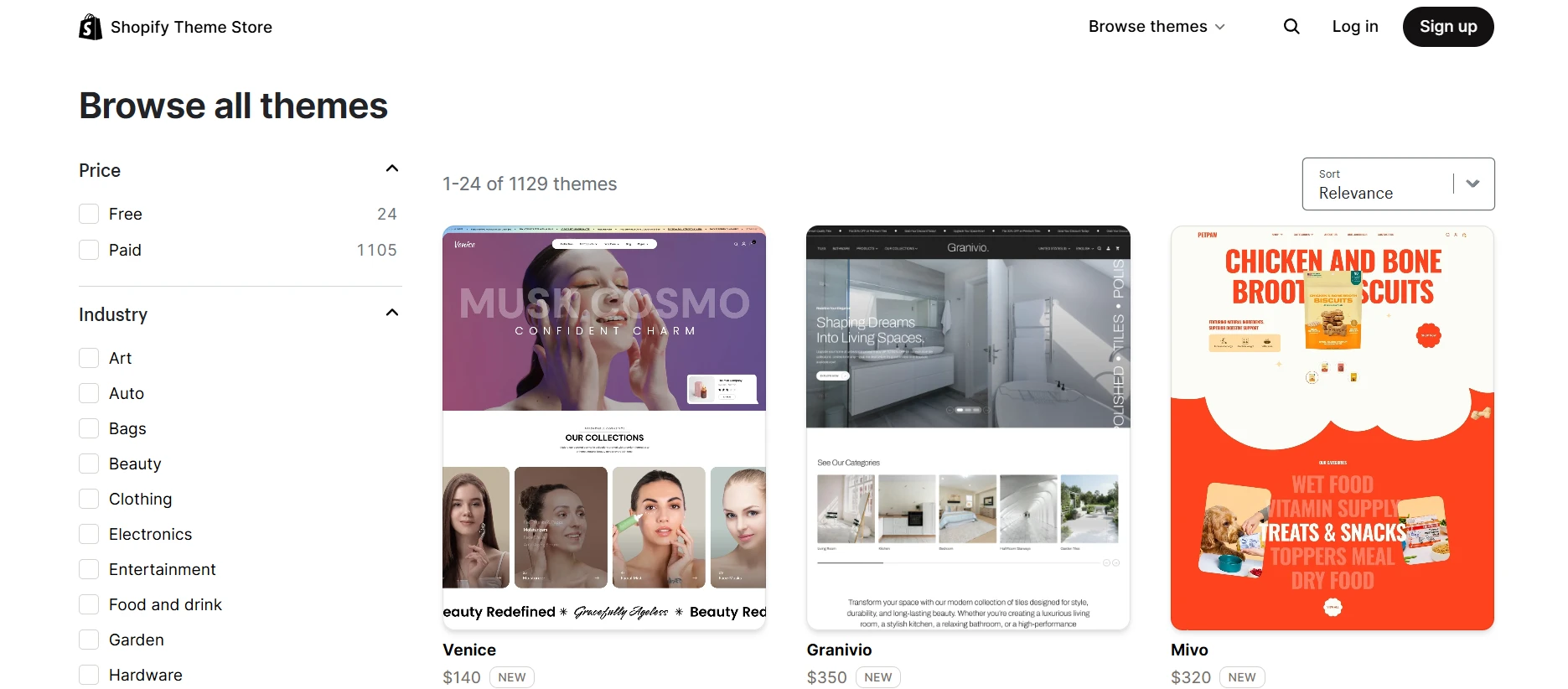
Choose a fast theme
A new theme is not always necessary. First, check whether your current theme has an update under Online Store > Themes. Preview the updated version and test its homepage, a product page, and a collection page on mobile, using your own images and content for a fair comparison.
If your theme still struggles, Dawn, Spotlight, and Horizon are free Shopify themes worth previewing. Shopify describes its free themes as optimised for web performance, but your final speed will also depend on the apps, media, and customisations you add. Improving your online store performance
Optimize Liquid render time
Liquid is the code Shopify uses to build your store’s pages. When a page takes a long time to start appearing, ask your developer to check its Liquid render time with Shopify Theme Inspector. This tool shows which sections or snippets take the most time, so they can work on the slowest part first.
Common fixes include showing fewer products at once, simplifying sections that repeat the same work, and removing unused theme code. Compare the page’s render time before and after the change, then check that product cards, filters, and other features still work as expected.
Tip 8. Optimize Mobile, Checkout and Drop AMP
Mobile performance covers more than one part of your store. For this Shopify speed optimization step, work through the storefront and checkout separately, then skip AMP unless you have a specific reason to maintain it.
- Improve the mobile storefront. Test your homepage, a collection page, and a product page in PageSpeed Insights. Check whether images fit the screen, buttons respond quickly, and content stays in place while loading. If a page is slow, reduce oversized images or sections that load before visitors need them.
- Check the mobile checkout. Go through a test purchase on your phone. If you use checkout extensions, review which ones appear and whether you still need them. A slow extension needs to be addressed in checkout; changing the storefront theme will not fix it.
- Skip AMP as a speed fix. You do not need AMP pages to appear in Google’s mobile search features. Focus on making your main Shopify pages faster and easier to use on a phone instead.
12 Common Shopify Speed Optimization Mistakes
You may have already made some of the improvements above. Before you finish, check for these common mistakes. A change that helps one page can have little effect elsewhere, and some quick fixes can make the shopping experience worse.
- Judging your store by its homepage alone. Test a collection page and a product page too. Each template can load different images, apps, and sections.
- Trusting a single speed score. Run tests more than once, then check Shopify’s web performance reports to see how real visitors experience your store.
- Testing only on desktop. Check the same pages on mobile, where large images and crowded layouts are easier to notice.
- Lazy-loading the hero image. The first image visitors see should start loading promptly. Save lazy loading for images farther down the page.
- Uploading one large image for every screen size. Check that your theme serves appropriately sized images on mobile rather than sending the full desktop version.
- Replacing every image with a lower-quality file. Aim for the smallest file that still looks good where it appears. A blurry product photo is a poor trade for a slightly better score.
- Keeping apps you no longer use. Review app embeds and leftover theme code as well as your installed apps. Uninstalling an app does not always remove everything it added.
- Assuming Google Tag Manager makes tags lightweight. Old or duplicate tracking tags can still run through it. Keep the events you need and remove the rest.
- Delaying every script and stylesheet. Content visible when the page opens still needs its code and styles promptly. Delay resources used later on the page instead.
- Ignoring elements that move during loading. Give images and widgets space in the layout before they appear, especially near buttons customers might tap.
- Switching themes based on a fast demo. Preview a theme with your own products, images, apps, and sections before deciding whether it improves your store.
- Making changes without checking the result. Test the same pages before and after each meaningful change. That way, you can see what helped and catch anything that stopped working.
The most useful Shopify speed optimization work usually comes from fixing a specific problem you’ve measured, then checking that the page still works well for customers. Shopify notes that apps, media, carousels, and analytics can all affect store performance, while its theme guidance recommends different loading strategies for content above and below the initial viewport.
If your speed audit has led you to reconsider whether Shopify still meets your broader business needs, it’s worth comparing other platforms before planning a move.
Let Our Experts Handle Your Store Migration!
With the All-in-One Migration Service, our experts take care of everything, ensuring a seamless and stress-free migration.

Shopify Speed Optimization: FAQs
Why is my Shopify store so slow?
Large images, heavy apps, tracking scripts, videos, and theme customisations are common causes. Start with the page that feels slow, then use PageSpeed Insights to see what loads late or blocks the page. The cause may differ between your homepage and product pages.
How do I check my Shopify store speed?
Go to Online Store > Themes in your Shopify admin to see your web performance summary. Then test your homepage, a collection page, and a product page in PageSpeed Insights, checking the mobile results as well as desktop.
What is a good Shopify speed score?
If you mean the PageSpeed Insights performance score, 90–100 is considered good. But the number alone does not tell the whole story. Also check whether your store meets the Core Web Vitals targets: LCP within 2.5 seconds, INP within 200 milliseconds, and CLS of 0.1 or less.
Does Shopify speed affect SEO?
Yes. Google’s ranking systems consider page experience, including Core Web Vitals. Improving speed can support SEO and make the store easier to use, but a fast page is not guaranteed to rank well; its content still needs to answer what people searched for.
What is the fastest Shopify theme?
There is no single fastest theme for every store. Dawn, Spotlight, and Horizon are sensible themes to preview if you want a simpler starting point, but your images, apps, and custom sections will affect the final result. Test each preview with your own content before switching.
Conclusion
In short, Shopify speed optimization is about making your store feel fast and easy to use for the people shopping there. Even a well-performing store needs regular attention as its products, content, and features grow.
We hope this article has helped you feel more confident about improving your Shopify store’s speed. And if you’re planning to move to Shopify, LitExtension can help you migrate your store data, giving you more time to focus on the experience you want to build.
For more practical Shopify tips, check out the other guides on our LitExtension blog.