Shopify CSV import lets you create or update many products at once from a spreadsheet. The safest workflow is to start with Shopify's current product CSV template, keep the required headers unchanged, test a small batch, and review the import preview before you overwrite existing products.
This guide explains how to prepare a Shopify product import CSV, add variants and images, update existing products, import inventory, and fix common errors. It also clarifies which data Shopify's native CSV tools can and cannot import.
- Shopify CSV import: quick answer
- Product CSV requirements
- How to import products to Shopify with CSV
- How to import variants and images
- How to update existing Shopify products safely
- How to import Shopify inventory with CSV
- Common Shopify CSV import errors
- When to use a migration service
- Shopify CSV import FAQs
Shopify CSV Import: Quick Answer
To import products into Shopify, go to Products > Import in your Shopify admin, click Add file, select a UTF-8 CSV file of no more than 15 MB, and click Upload and continue. Review the preview, then click Import products. Shopify emails you when the import is complete.
For a new product without variants, Title is the only required column. If the product has variants, add URL handle. To update existing products, include both URL handle and Title. Some fields have dependencies; for example, an update to SKU also requires the relevant option name and value columns.
Important: Shopify supports older column names for backward compatibility. For example, an older template might use Handle, Body (HTML), or Variant Price, while the current template uses URL handle, Description, and Price. For a new import, use the current Shopify product CSV template.
What Is a Shopify CSV File?
A CSV, or comma-separated values file, stores spreadsheet data as plain text. When merchants search for “Shopify import CSV,” they usually mean one of three separate workflows: products, customers, or inventory.
- Product CSV: creates or updates product details, variants, prices, images, tags, SEO fields, and supported product metafields.
- Customer CSV: imports customer profiles, addresses, tags, marketing preferences, and supported customer metafields.
- Inventory CSV: updates inventory quantities by variant and location. It is separate from the product import workflow.
Native Shopify CSV import does not import order history or customer passwords. Product CSV also does not support videos, 3D models, or variant metafields. These limitations matter when you are migrating a complete store rather than adding a simple product catalog.
Shopify Product Import CSV Requirements
Before you upload a Shopify product import CSV, check the following requirements:
- Save the file as a comma-separated CSV with UTF-8 encoding.
- Keep the file at or below 15 MB. Split a larger catalog into smaller files.
- Place Shopify's column headers in the first row and match their spelling and capitalization exactly.
- Use publicly accessible
https://URLs for product images. - Enter prices as numbers without currency symbols, such as
29.99. - Give every variant within a product a unique combination of option values.
- Export existing products before editing them if your goal is a bulk update.
Required Shopify product CSV columns
| Import task | Required columns | Important dependencies |
|---|---|---|
| Create a product without variants | Title |
Shopify supplies default values for omitted optional fields. |
| Create a product with variants | Title and URL handle |
Include the applicable option name and value columns. |
| Update an existing product | URL handle and Title |
Variant fields such as SKU or weight also require the related option columns. |
Do not treat every template column as required. Shopify's template contains many optional columns. Include the fields you need, but retain any dependent columns required to identify the correct product or variant.
Current and older Shopify CSV header names
Shopify maintains backward compatibility with older product CSV headers, but recommends the current format for future compatibility. If your exported file uses older names, do not rename columns casually during an update.
| Current header | Common older header | Purpose |
|---|---|---|
URL handle |
Handle |
Identifies the product and forms its URL slug. |
Description |
Body (HTML) |
Stores the product description. |
Price |
Variant Price |
Sets the product or variant price. |
Product image URL |
Image Src |
Provides a public URL for a product image. |
Image alt text |
Image Alt Text |
Adds accessible alternative text to an image. |
How to Import Products to Shopify With a CSV File
Follow these five steps for a native Shopify CSV import. If you are moving products from another platform, map the source fields to Shopify's current template before uploading the file.
Step 1: Download Shopify's product CSV template
Download Shopify's official sample product CSV and open it in Google Sheets, Microsoft Excel, Numbers, or another spreadsheet application. Remove the example products before adding your own data.
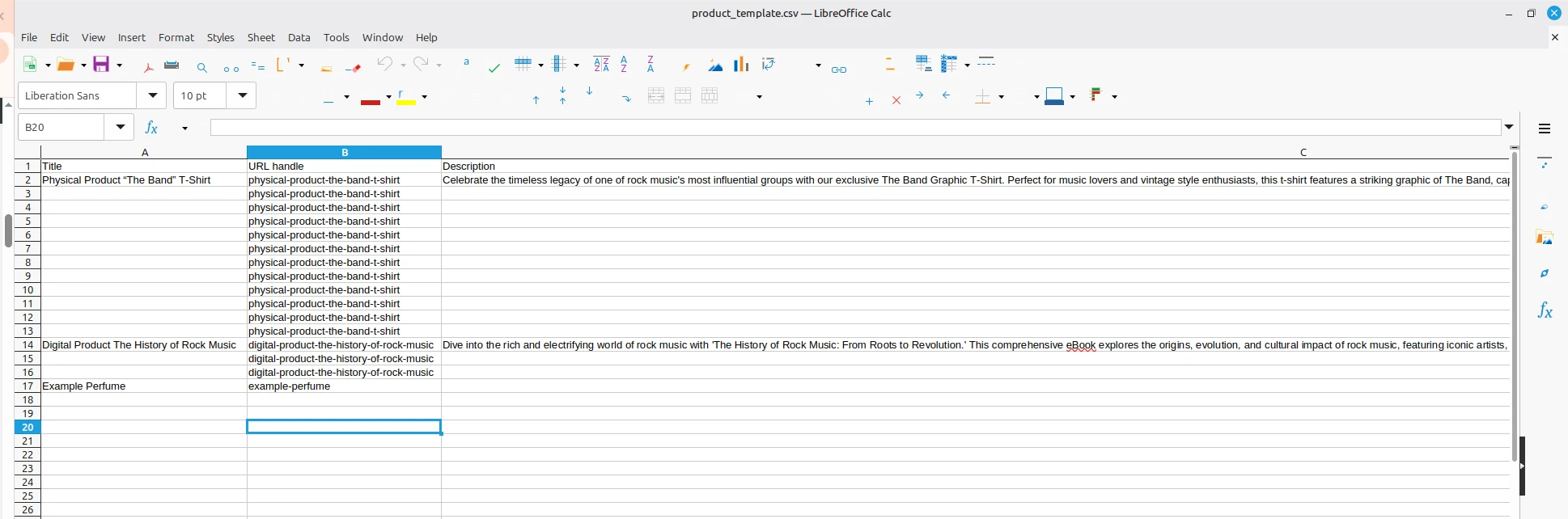
If you are updating products already in Shopify, export those products first from Products > Export. Editing that export is safer than rebuilding the file because it preserves the identifiers and structure Shopify uses to match existing records.
Step 2: Format the CSV as UTF-8
Keep the header row unchanged, separate each column with a comma, and save the file in UTF-8 format. Google Sheets exports CSV files in UTF-8 by default. In Excel, select the UTF-8 CSV option and confirm that commas – not semicolons – separate the fields.
Use straight quotation marks and wrap any field containing commas, line breaks, or HTML in double quotes. A formatting or encoding problem can create unexpected characters or trigger an illegal quoting error.
Step 3: Add and validate product data
Enter a Title for each new product. Add a unique URL handle when creating variants or updating an existing product. Then populate only the fields your catalog needs, such as description, vendor, product category, tags, price, SKU, barcode, weight, tax settings, and SEO fields.
Before continuing, validate these high-risk fields:
- URL handle: use letters, numbers, and hyphens with no spaces. Every product needs its own handle, but all rows belonging to that product use the same handle.
- Price: enter a number without a currency symbol.
- Boolean fields: use the values specified in Shopify's current column reference.
- Options: keep every option combination unique within the product.
- Images: verify that each URL is public and begins with
https://.
Step 4: Structure variants and images
A valid Shopify product import CSV uses one row per variant. Rows for the same product share one handle, while each row has a unique combination of option values such as Size and Color.
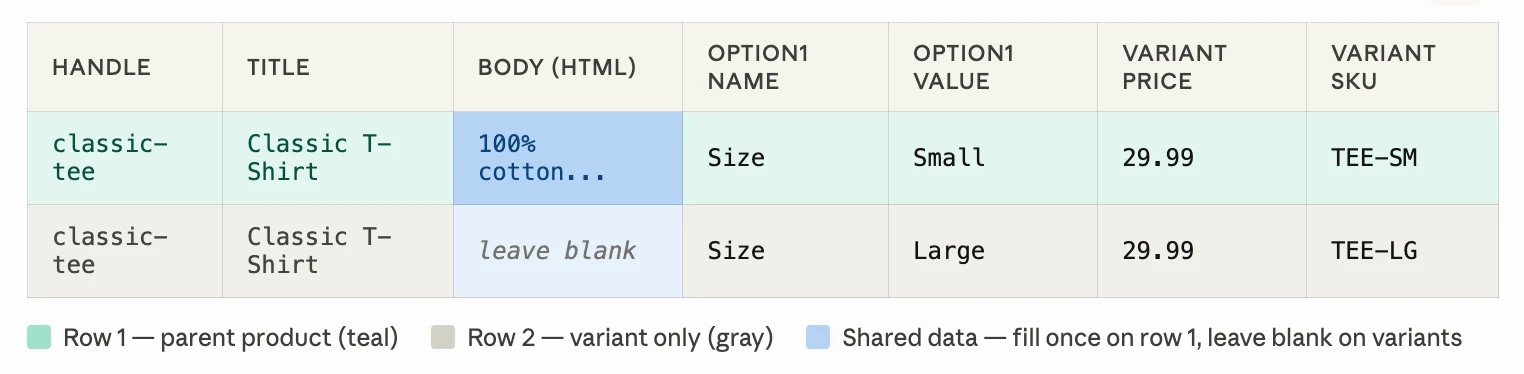
For example, a T-shirt with Small and Medium sizes needs two variant rows with the same product handle. The first row can contain the shared title, description, vendor, and tags. Each variant row contains its own option value, SKU, price, barcode, and other variant data. You should avoid these common variant mistakes:
- Do not remove dependent option columns. Updating a field such as SKU or weight without the related option name and value can delete existing variants and create a default variant.
- Do not change option values casually. Changes to Option1, Option2, or Option3 values create new variant IDs. This can break apps or other systems that reference the old IDs.
- Do not duplicate an option combination. Reusing a handle is correct for variants, but two rows under that handle cannot have the same complete option combination.
- Do not place local image paths in the CSV. Product images must be available at public URLs during import.
For multiple product images, add one row per image. Copy the product's handle into each image row and add the public image URL. Shopify supports up to 250 images per product through product CSV, but videos and 3D models must be uploaded separately.
Best practice: import two or three representative products first. Confirm their variants, images, prices, SKUs, and inventory behavior before importing the complete catalog.
Step 5: Upload, preview, and import the CSV
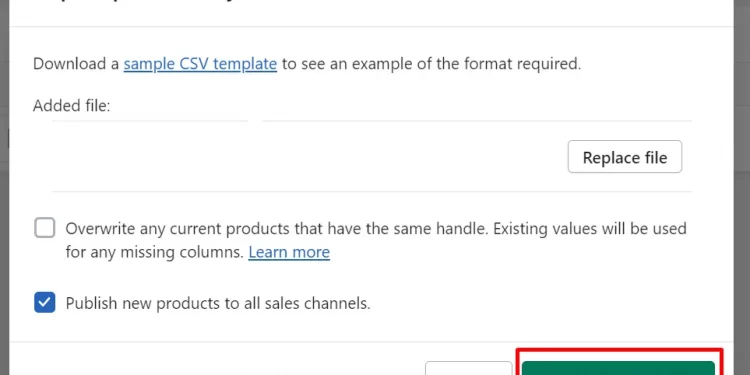
- In Shopify admin, go to Products.
- Click Import.
- Click Add file and choose your CSV.
- If appropriate, choose whether new products should publish to all sales channels.
- For an update, select Overwrite products with matching handles only after reviewing the overwrite warning below.
- Click Upload and continue.
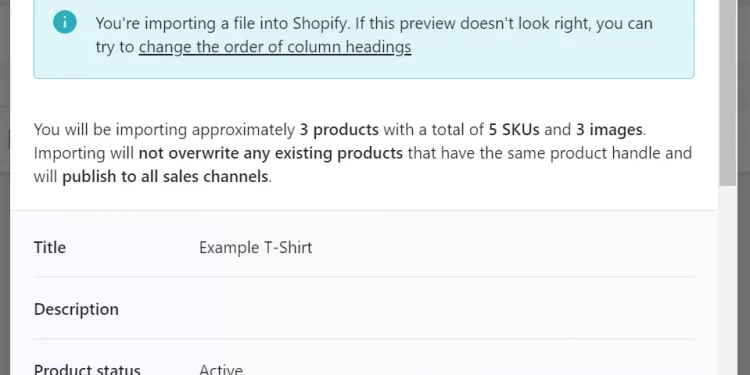
- Check the preview and product count, then click Import products.
Shopify sends a confirmation email after processing the file. A successful upload is not the end of QA: check several simple products, products with variants, products with multiple images, and products at different price points.
How to Update Existing Shopify Products Safely
To bulk update products, export them from Shopify, edit the required fields, and import the file with Overwrite products with matching handles selected. Shopify matches each row to an existing product by its handle.
The overwrite option requires special care:
- If an optional column is present but its cell is blank, Shopify can overwrite the existing value with a blank.
- If an optional column is omitted from the CSV, Shopify leaves that existing field unchanged.
- If a column depends on other fields that are missing, Shopify can delete or replace related data.
- If you change option values, Shopify creates new variant IDs.
- If you do not select the overwrite option, products with matching handles are ignored.
Keep an untouched copy of the original export. Remove optional columns you do not intend to update, but first check Shopify's data dependencies. Run a small test import and inspect the affected products before applying the update to the entire catalog.
How to Import Shopify Inventory With a CSV
A product CSV is not the safest way to update inventory across multiple locations. Use Shopify's separate inventory CSV import instead.
- In Shopify admin, go to Products > Inventory.
- Click Export and select the locations and variants.
- Choose All states for overwrite protection or Available for a simpler file.
- Edit the quantities in the exported CSV.
- Return to Products > Inventory and click Import.
- Upload the file, review the summary, and click Start import.
With the recommended All states format, enter the new whole-number quantity in On hand (new). Leave it blank when you do not want to change the quantity. Shopify compares On hand (current) with the live quantity and rejects stale rows, helping prevent an older file from overwriting recent sales or adjustments.
The inventory CSV requires Handle, Location, and the applicable option value columns. Location names are case-sensitive. The file can be no larger than 15 MB, and inventory quantities must be whole numbers.
Common Shopify CSV Import Errors and Fixes
Most Shopify CSV import failures come from outdated headers, missing dependent fields, invalid encoding, incorrectly structured variants, or inaccessible image URLs.
| Error or symptom | Likely cause | How to fix it |
|---|---|---|
| Network error: Unexpected token < in JSON at position 0 | One or more column headers do not match Shopify's template exactly. | Compare every header with the current template, including capitalization. |
| Illegal quoting error | Incorrectly encoded or positioned quotation marks, apostrophes, or commas. | Save as UTF-8 and use straight quotation marks around fields containing commas or line breaks. |
| Unexpected characters appear after import | The file was not saved with UTF-8 encoding. | Re-save or export the file as UTF-8 CSV, then import it again. |
| Some variants disappear or become a default variant | A variant-level field was imported without its dependent option columns. | Restore the option name and value columns from a clean export and test a small batch. |
| Variant row is rejected | The option combination is duplicated under the same handle. | Make the complete Size, Color, or other option combination unique. |
| Images are missing | The image URL is private, broken, removed, or unavailable during import. | Use a public HTTPS URL and keep the source image accessible until import finishes. |
| File fails or times out | The CSV exceeds 15 MB or contains a formatting problem. | Split the catalog into smaller files and validate each file before upload. |
| Existing values become blank | Blank optional columns were included during an overwrite import. | Restore from the original export and omit columns that should remain unchanged. |
What Shopify Can and Cannot Import With CSV
| Data | Native CSV support | Notes |
|---|---|---|
| Products and variants | Yes | Use the product CSV template and preserve option dependencies. |
| Product images | Yes | Images must be available at public URLs. |
| Product metafields | Yes, supported types | Create the metafield definitions first and use the required namespace and key format. |
| Variant metafields | No | Use Shopify's variant bulk editor or another supported method. |
| Videos and 3D models | No | Upload these media types separately. |
| Customers | Yes | Use the separate customer CSV template. |
| Customer passwords | No | Customers generally need to activate their accounts or set new passwords. |
| Inventory by location | Yes | Use the separate inventory CSV workflow. |
| Order history | No | Use a migration app, service, or custom API solution. |
Shopify CSV Post-Import Checklist
After Shopify finishes the import, review a representative sample and the overall catalog totals.
- Compare imported product and variant counts with the source file.
- Open products with one variant, multiple variants, and multiple option types.
- Check titles, descriptions, vendors, categories, tags, prices, SKUs, barcodes, and weights.
- Confirm that product and variant images appear in the correct order.
- Verify product status and sales channel availability.
- Check inventory at every Shopify location.
- Review product URLs, SEO titles, SEO descriptions, and image alt text.
- Test filtering, collections, search, and a sample checkout.
- Save the original CSV, final CSV, and Shopify's result email for reference.
When a Native Shopify CSV Import Is Not Enough
Shopify's native importer works well for simple product catalogs and focused bulk updates. A managed migration is more suitable when the source data does not already match Shopify's format or when you need to transfer data that native CSV cannot handle.
Consider a migration service when:
- your source files use custom columns or inconsistent structures;
- the catalog contains complex variants, custom relationships, or large volumes of media;
- you need to migrate customers, orders, categories or collections, reviews, coupons, blog content, or other store data together;
- you need custom field mapping or data transformation;
- you need to preserve SEO URLs and set up redirects;
- you want experts to validate the result before launch.
LitExtension's CSV Files Migration Service handles file assessment, field mapping, data transfer, and post-migration validation.
Make Your Shopify CSV Import Easier
Let LitExtension map, import, and validate your store data while you focus on launching your Shopify store.

Shopify CSV Import: FAQs
How do I import a CSV file into Shopify?
In Shopify admin, go to Products > Import, click Add file, and select a UTF-8 product CSV no larger than 15 MB. Click Upload and continue, review the preview and import settings, then click Import products.
What columns are required for a Shopify product import CSV?
For a new product without variants, Title is the only required column. For a product with variants, include Title and URL handle. To update an existing product, include both URL handle and Title. Variant fields might also require their related option columns.
What is the Shopify CSV import file size limit?
Shopify product, customer, and inventory CSV files cannot exceed 15 MB. If your file is larger, divide it into smaller batches and import each file separately.
Can Shopify import products with variants from a CSV?
Yes. Use one row for each variant and repeat the same product handle across all variants belonging to that product. Every variant must have a unique combination of option values, such as Size and Color.
Can I update existing Shopify products with a CSV?
Yes. Export the existing products, edit the required fields, and import the CSV with Overwrite products with matching handles selected. Be careful because a blank optional column can overwrite an existing value, while an omitted optional column leaves that value unchanged.
Why is my Shopify CSV import not working?
Common causes include incorrect column headers, non-UTF-8 encoding, improperly formatted quotation marks, missing dependent option columns, duplicate variant combinations, inaccessible image URLs, or a file larger than 15 MB. Check Shopify’s result email for details about failed rows.
Can I import product images with a Shopify CSV?
Yes. Add publicly accessible HTTPS image URLs to the product CSV and use one row for each additional product image. Keep the source images available until the import finishes. Product CSV files do not support videos or 3D models.
Can I import orders or customer passwords to Shopify with a CSV?
No. Shopify’s native CSV tools do not import order history or customer passwords. You will need a migration app, managed migration service, or custom API solution for supported order data. Customers typically need to activate their accounts or create new passwords.
Final Thoughts
A successful Shopify CSV import depends on using the current template, preserving field dependencies, and testing before a full upload. Native CSV is efficient for products, customers, and inventory, but it does not cover every type of store data.
If your files require complex mapping or you need to migrate a complete store, LitExtension can help prepare, import, and validate the data. For more guidance, browse our Shopify resources.