Should a person be a Shopify user, he must be familiar with terms like API, known as an application programming interface. In general, Shopify API Key enables users to access a program’s functionality or data so that it may be handled by another application. In order to generate the Shopify API keys, you will have to choose between creating public apps or private apps.
Don’t fret, you are in good hands! In this article, LitExtension – #1 Shopping Cart Migration Expert will walk you through:
- What is Shopify API key?
- Benefits of using Shopify API keys
- How to get Shopify API key for private apps?
- How to get Shopify API key for public apps?
- Key differences between Shopify Public Apps and Shopify Private Apps
- Best practices for using these keys
- Troubleshooting common issues
What is Shopify API Key? Definition & Common Uses
If you are fed up with reading walls of text, check out our latest detailed Shopify tutorial section below to get step-by-step API integration instructions.
To merchants/store owners/vendors, generating API keys helps them integrate with sales tax tools, connect their store with the Shopify CRM system or such.
Getting the Shopify API key indeed involves different procedures. This depends on whether you’re creating a private app for a specific store or a public app for the Shopify App store as a whole.
In practice, Shopify API keys are commonly used for several purposes:
- Controlling app access: API keys help verify which applications are allowed to connect with your Shopify store. This prevents unknown or unauthorized tools from requesting your store data.
- Managing data permissions: Along with API scopes and authentication methods, API keys allow merchants and developers to define what an app can access or modify, such as products, orders, customers, and inventory.
- Tracking and managing API usage: API keys help identify which application is making API requests. As a result, Shopify can monitor usage and manage limits to maintain stable performance.
- Automating integrations and store tasks: Many Shopify apps rely on API keys to automate everyday workflows. Examples include syncing product catalogs, updating inventory, importing orders, and transferring store data between platforms.
Getting the Shopify API key involves different procedures, depending on whether you’re creating a private app for a specific store or a public app for multiple Shopify merchants.
Benefits of Using Shopify API Keys
At this point, you might be asking yourself: Why bother learning how to get Shopify API key when you can simply upload a CSV file or connect apps?
While those methods may seem convenient, Shopify API keys provide a more secure and efficient way to connect your store with external tools:
- Deep and reliable integration with your store: API keys allow third-party apps to securely connect to your Shopify backend and access real-time store data with approved permissions.
- Improved security and controlled access: Instead of sharing your Shopify login details, you can use API key Shopify to control what data each application can access or modify.
- Less manual work: Once connected, API-based tools can automatically sync and update store data, reducing repetitive tasks such as manual imports and exports.
Migrate seamlely with LitExtension
Instead of using API, LitExtension Automated Migration Tool transfers products, customers, and orders to Shopify – fast, accurate, and hassle-free.

How to Get Shopify API Key for Private Apps?
In terms of authenticating with Shopify Private Apps, you can get API Keys (i.e. API Key and Secret Key) by using the Partner dashboard or your Shopify admin panel.
#1: Getting keys to run migration with LitExtension
To get the Shopify API key to run either a demo or full migration to a new store with LitExtension, you will need to get an Admin API access token.
Here’s how:
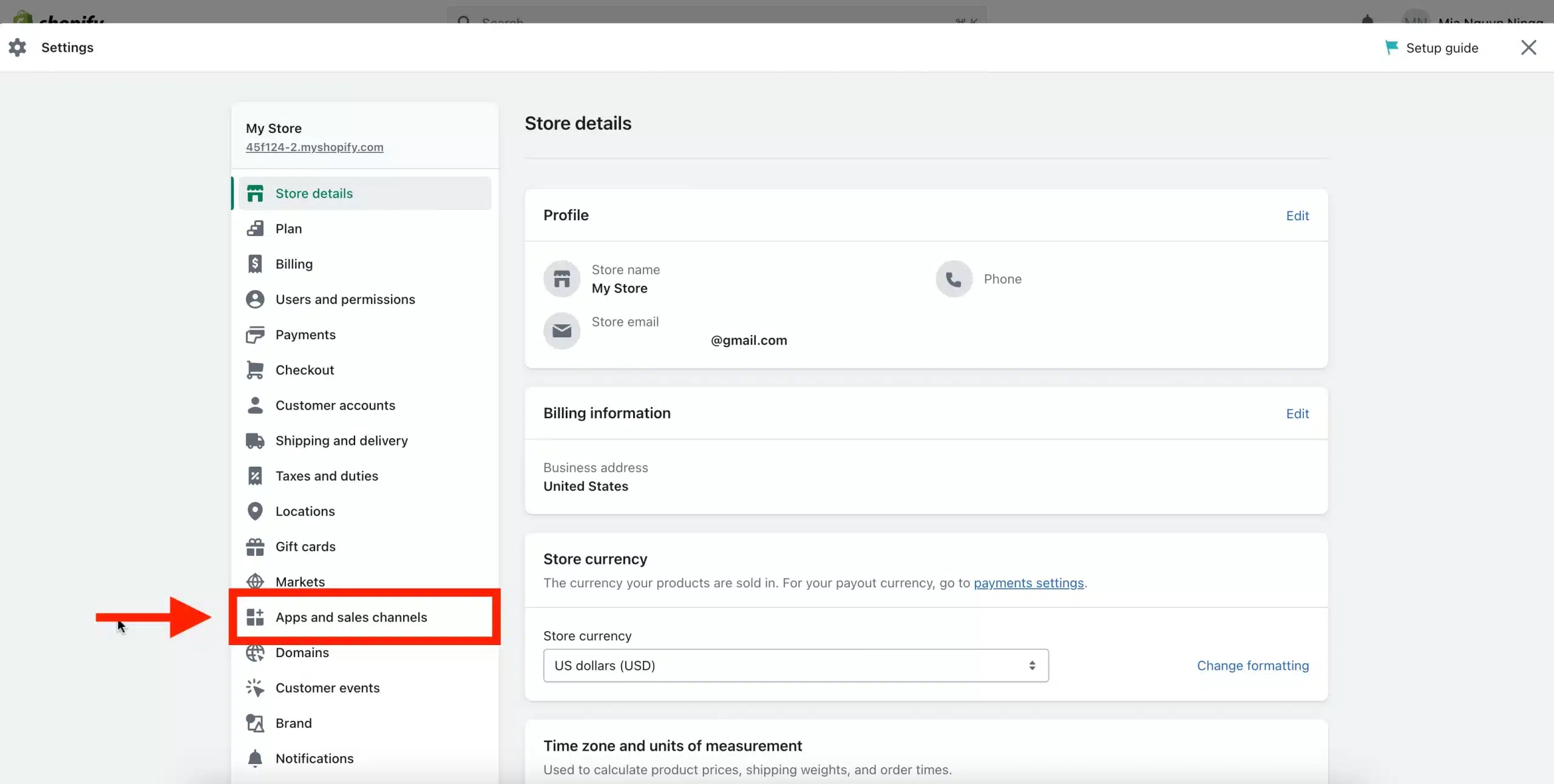
- First, log into your Shopify admin panel and go to Settings.
- Then, click on Apps and sales channels.
- Now, click on Develop apps.

- On the next page, hit Create an app and enter your App name.

- Click on Configure Admin API scopes.

- In this area, scroll down and tick all Permissions “Read_….” and “Write_…” (if any).
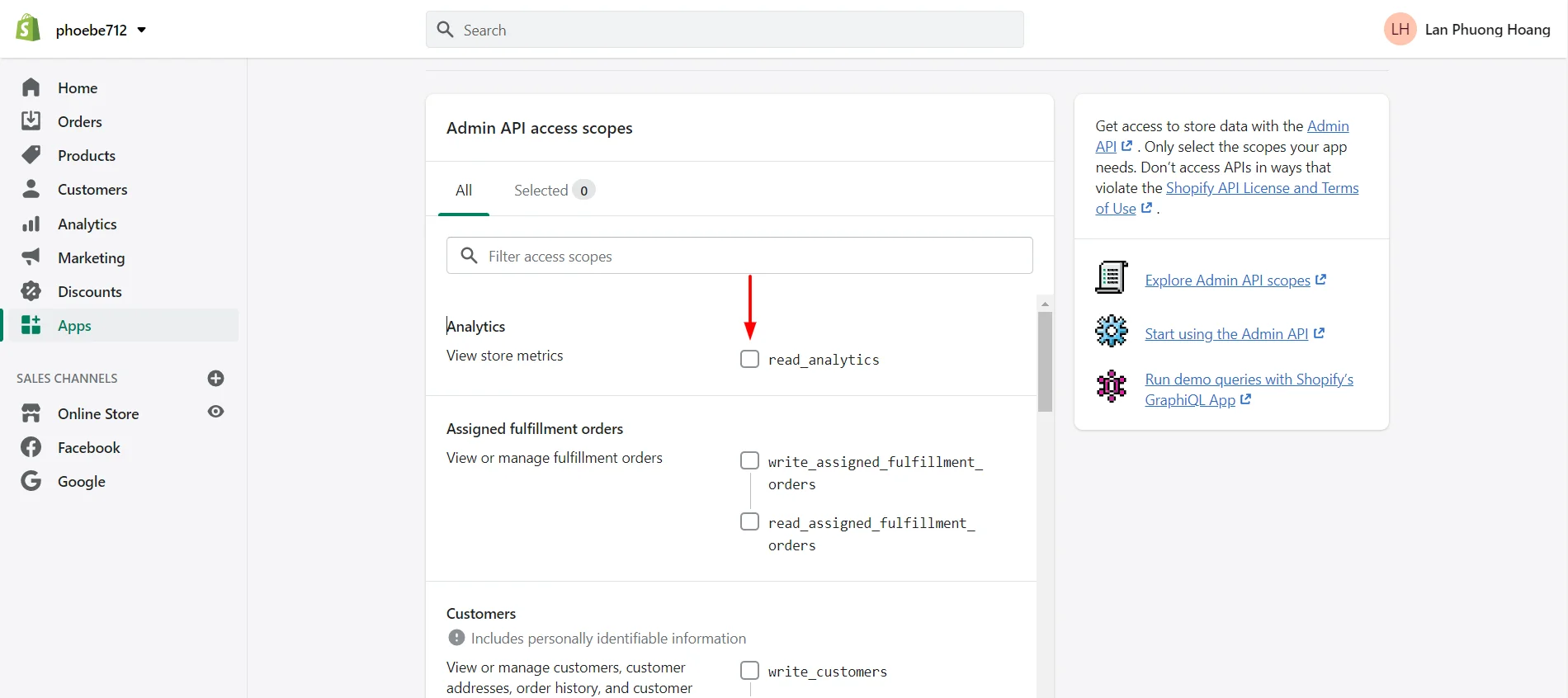
- Click Save at the bottom of the page.

- Scroll up and click Install app at the right corner of the dashboard to get your Admin API token.

- Click Install to give this app access to your data.

- Now, Shopify will reveal the Admin API access token, and you are ready to run your migration!

Note: Be noticed that Admin API token will only be revealed once due to data protection. Copy and save your Admin API access token in a secure place.
#2: Getting keys using Shopify admin panel
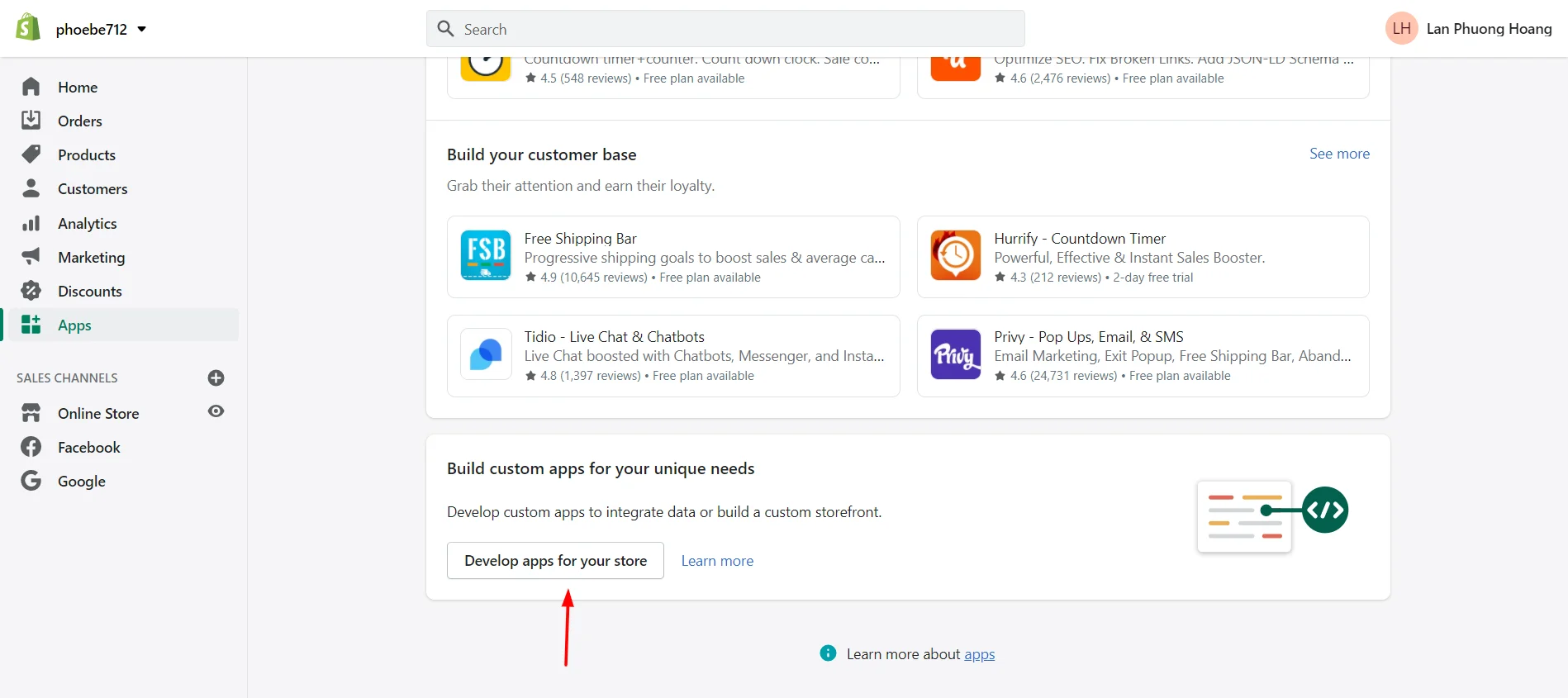
- Log into your Shopify admin panel, go to Apps Menu.
- Scroll down the page and click on Develop apps for your store.
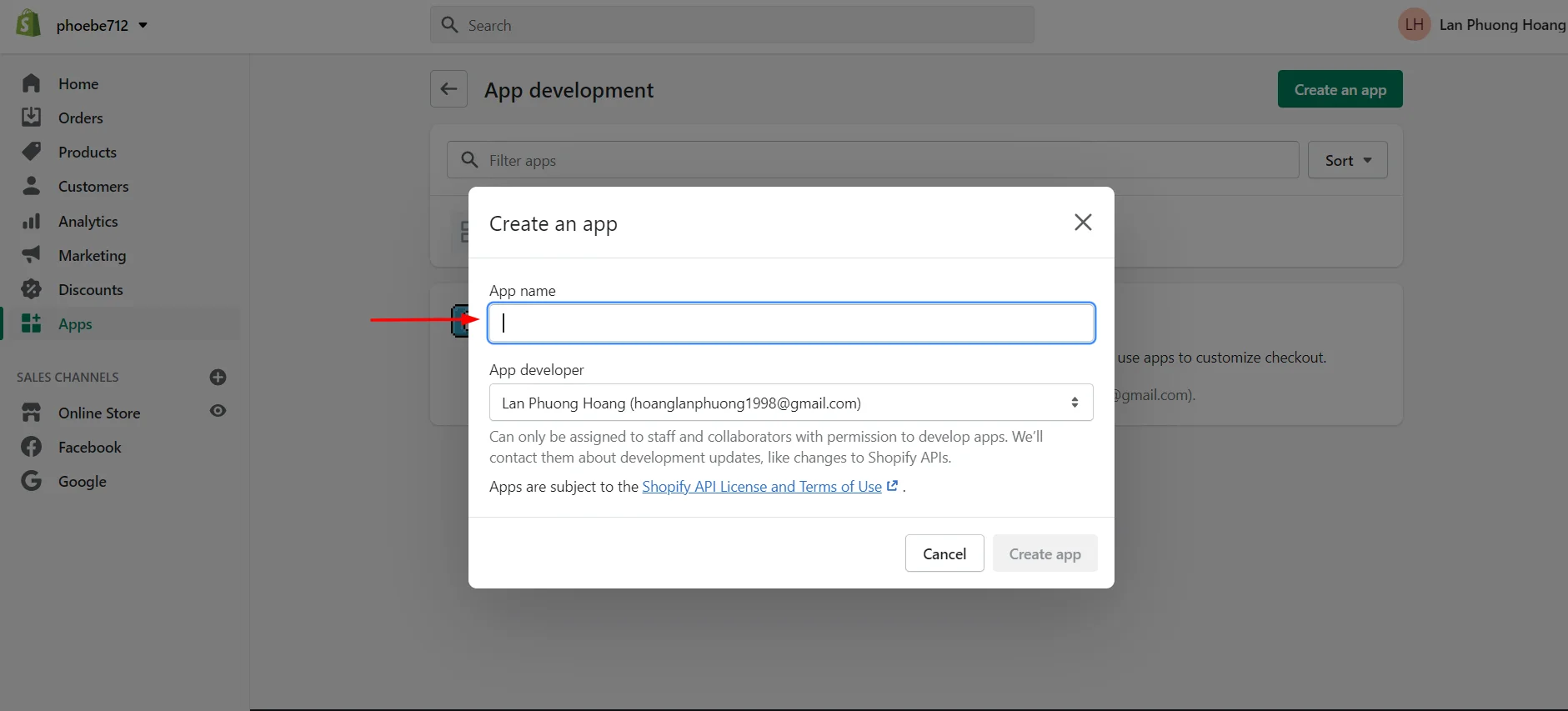
- Click on Create an App and then enter your App name.
- Click on API credentials then scroll down, in the Access tokens area, click Configure Admin API access.
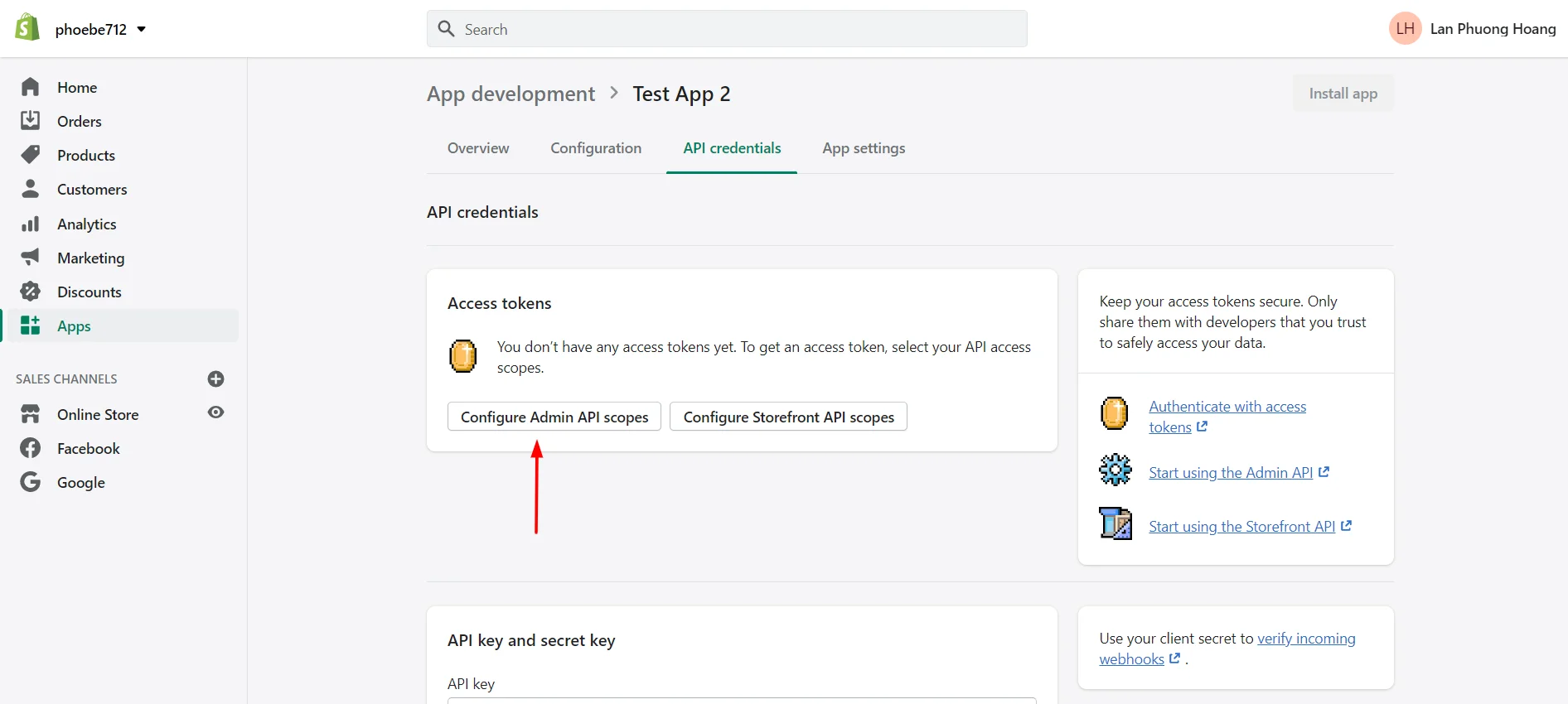
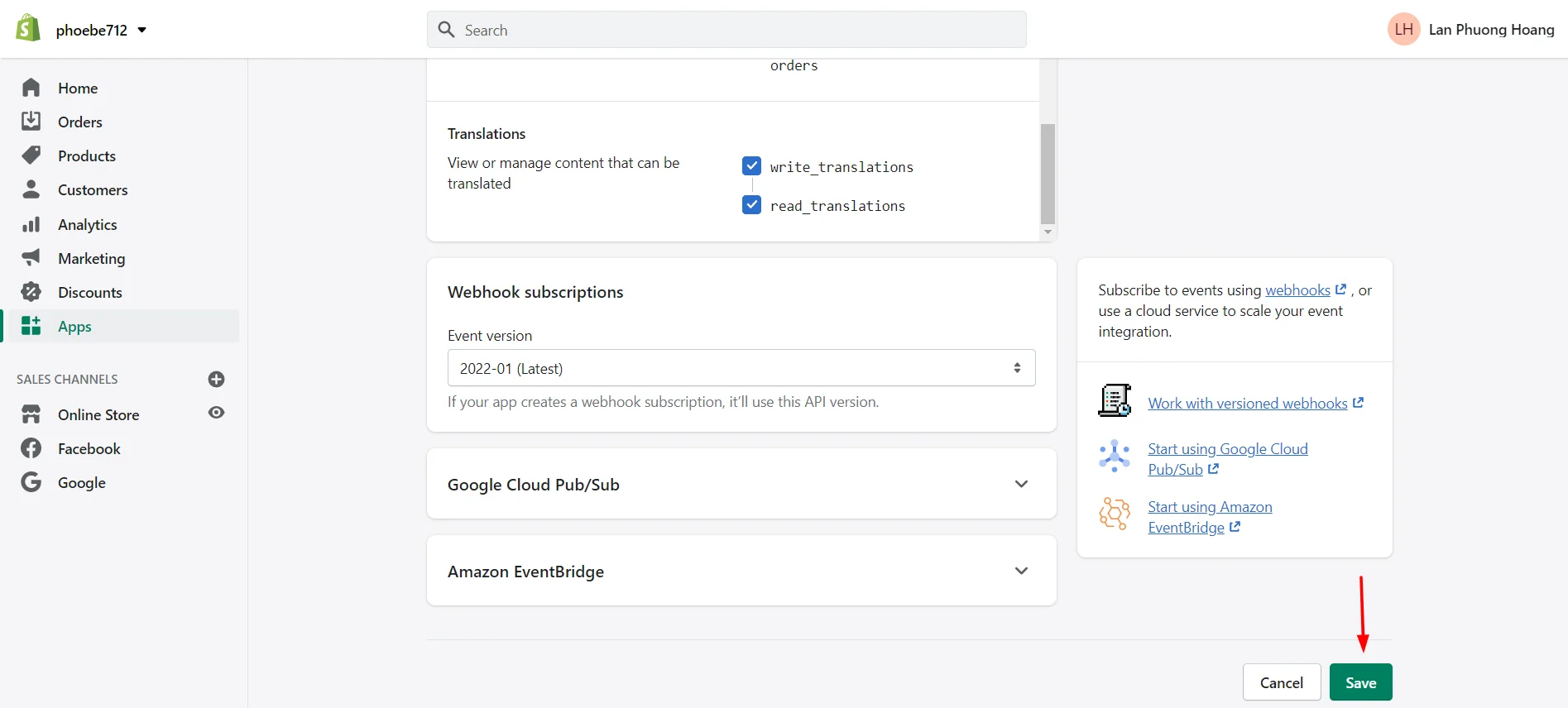
- In this area, tick all Permissions “Read_….” and “Write_…” (if any).
- Click Save App, at the bottom of the page.
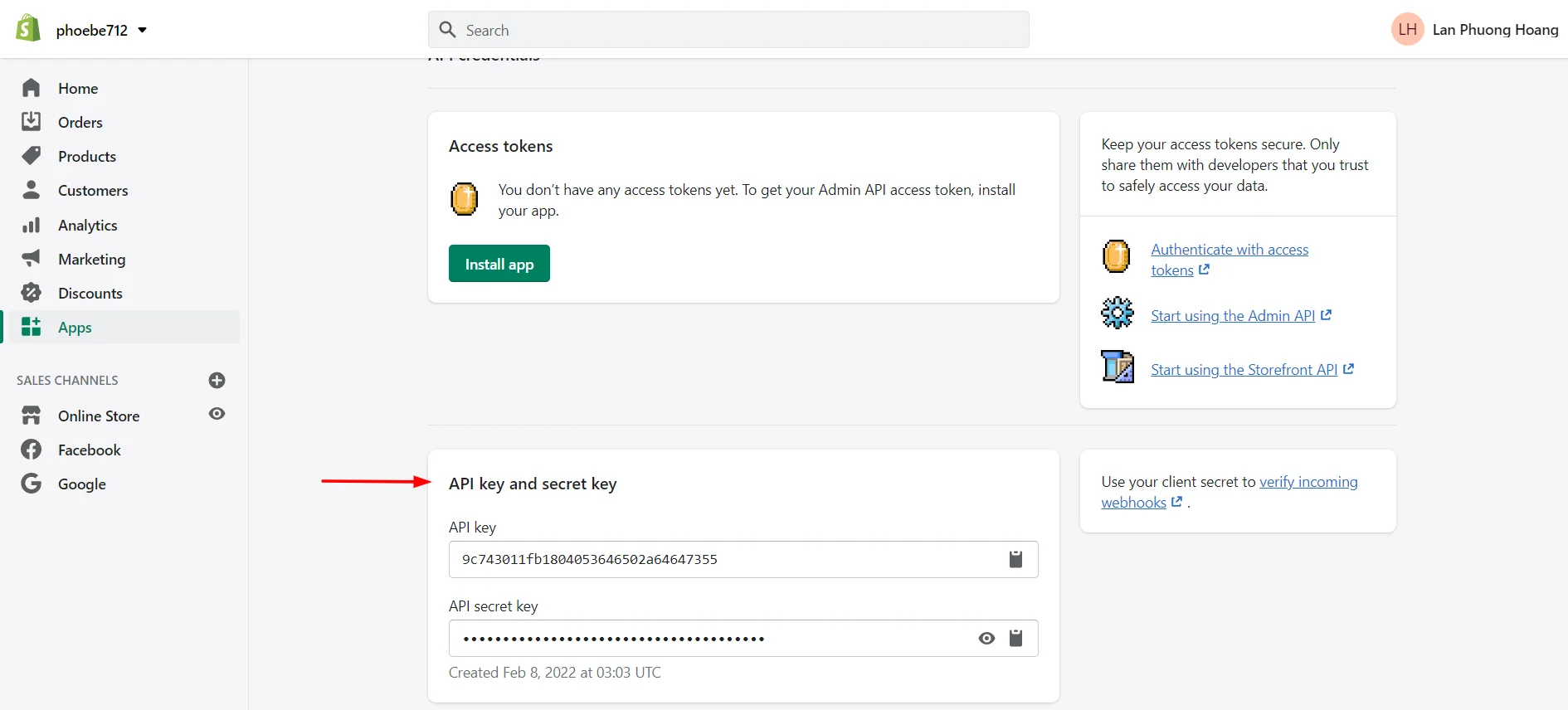
- Choose API credentials and you will see API Key and Secret Key (i.e. API Key and Password).
#3: Getting Shopify private app API key via your Partner dashboard
If you are part of the Shopify partners network – a broad community of designers, developers, marketers, and affiliates using the platform—you can use the Partner dashboard to get Shopify API keys.
Without further ado, let’s see the following steps:
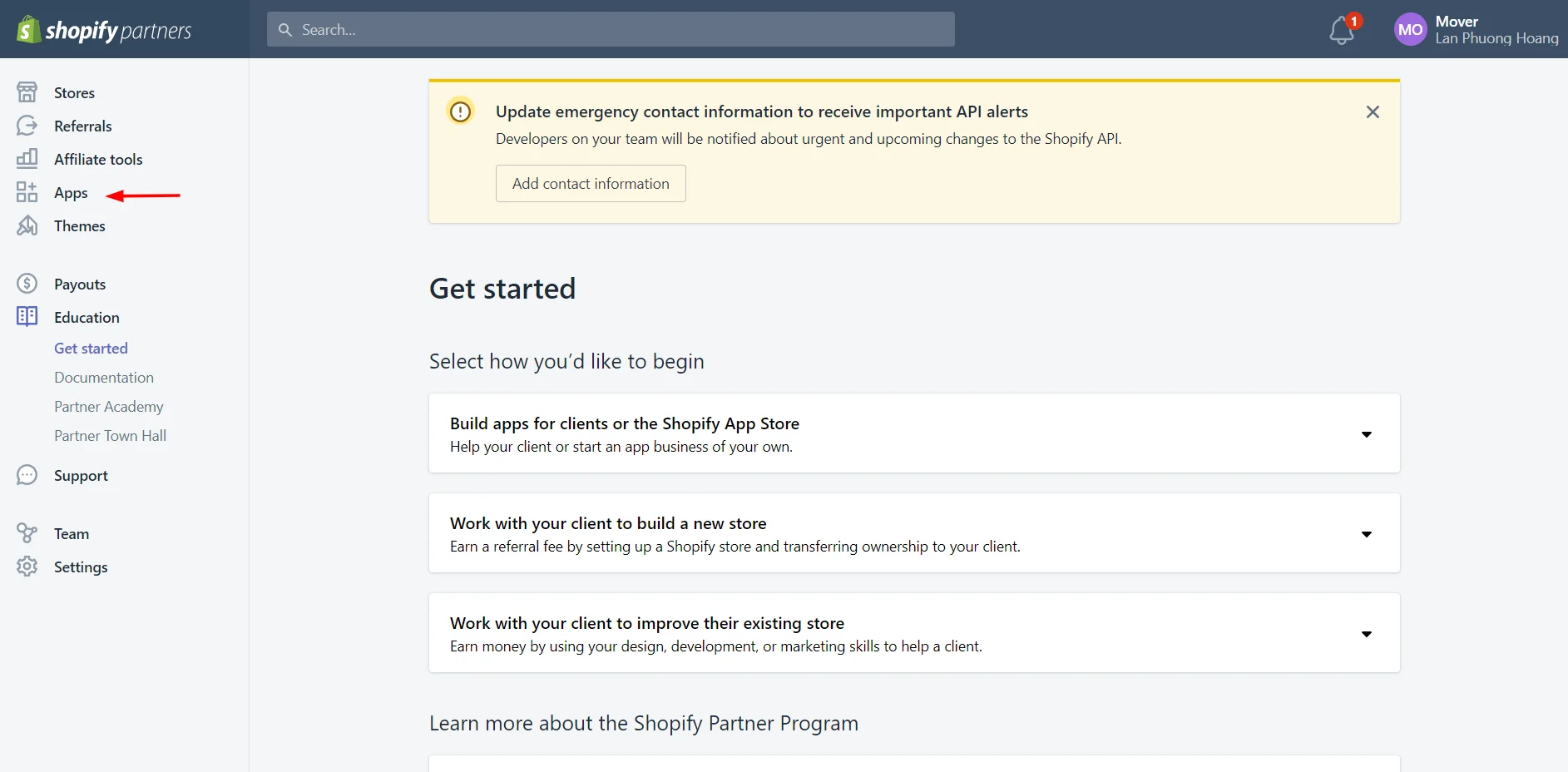
- Log into your Partner Dashboard.
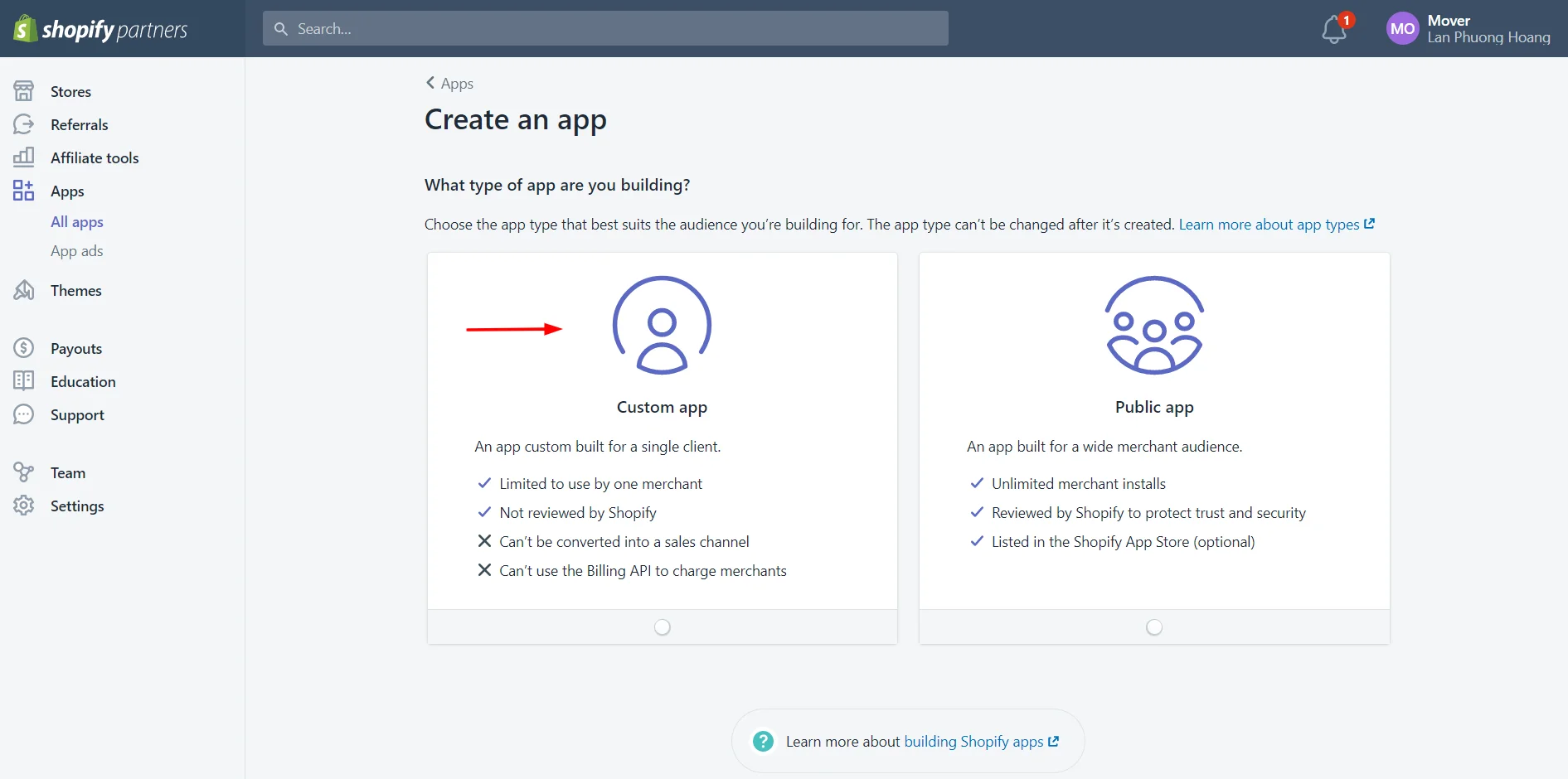
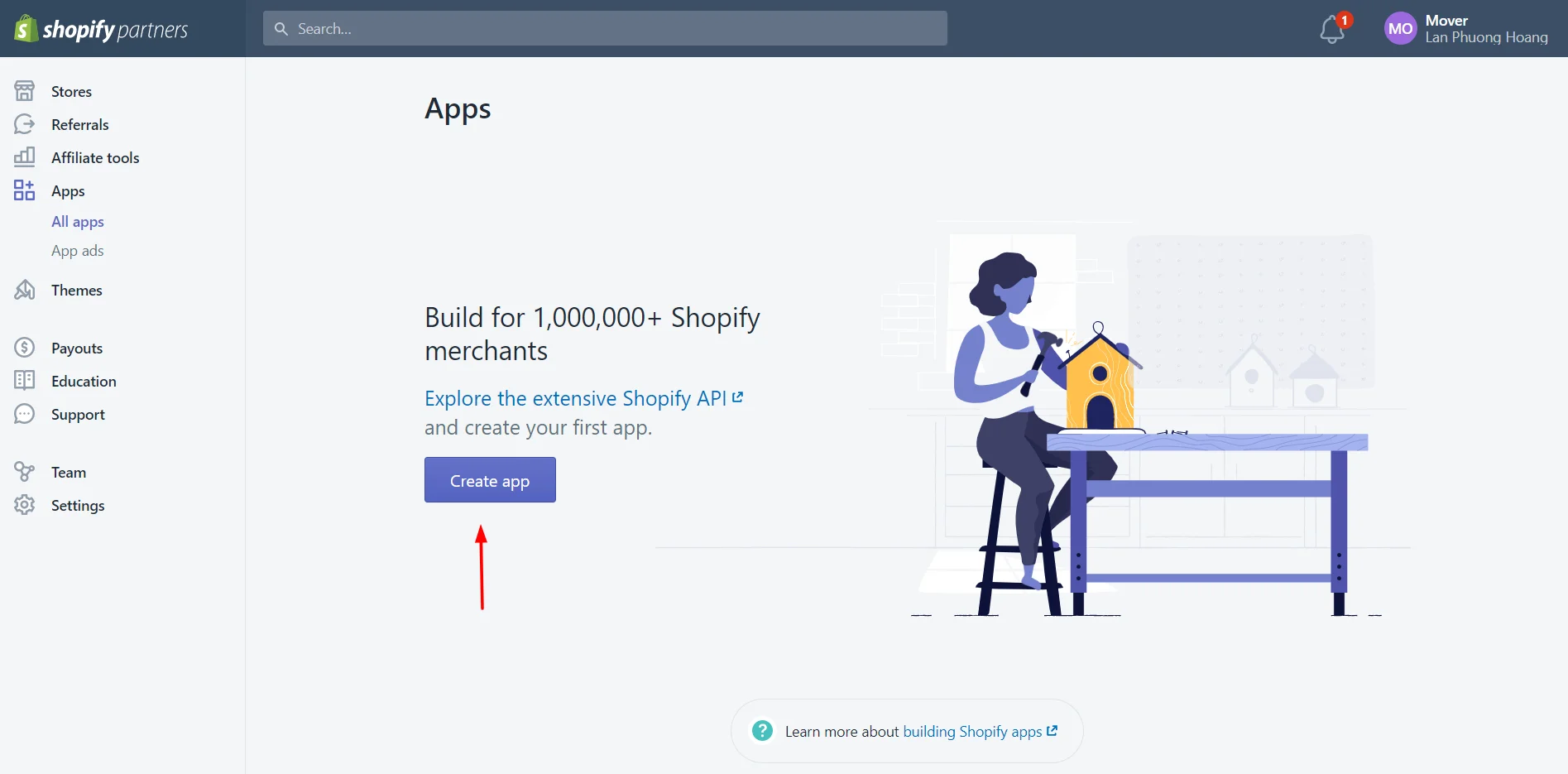
- Choose Apps and click on Create App.
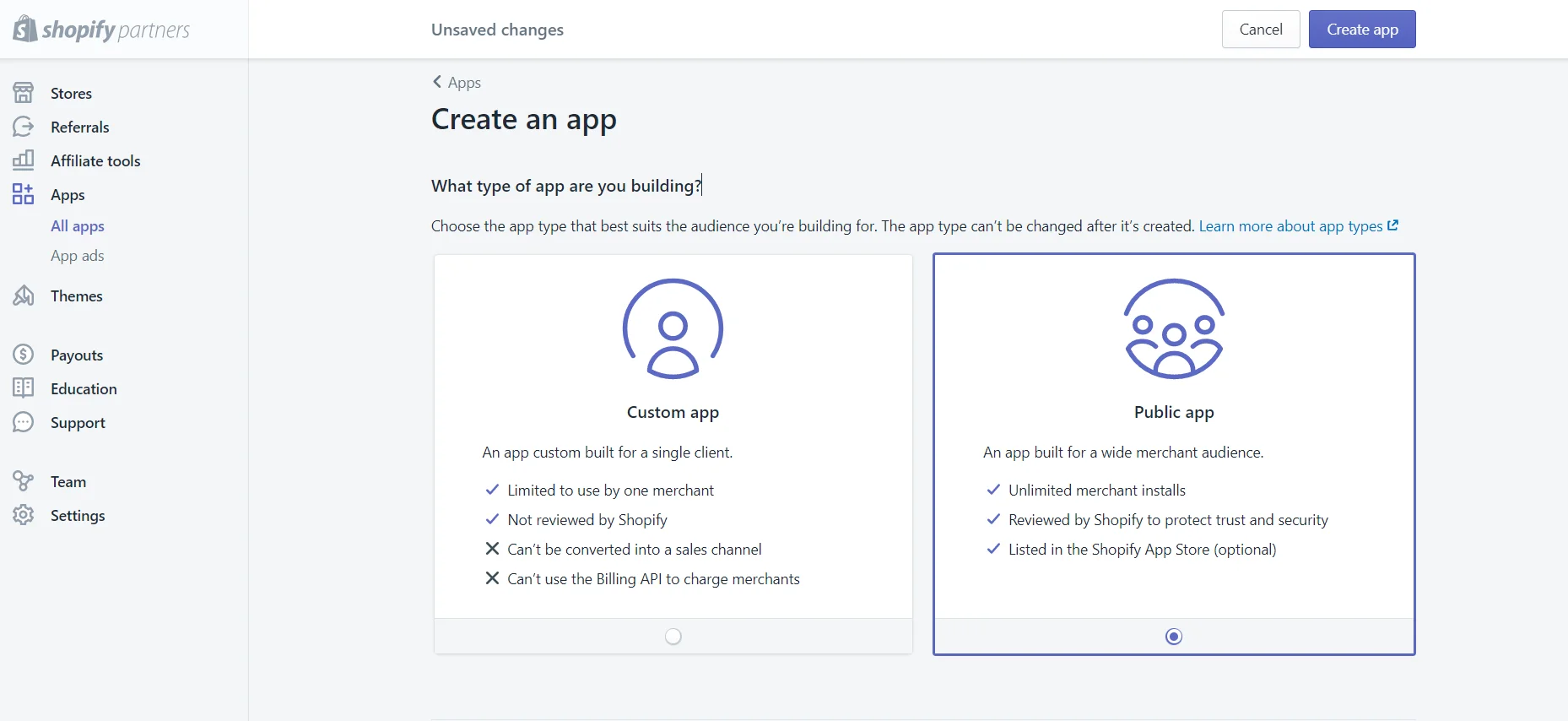
- Choose Custom App (known as Private App).
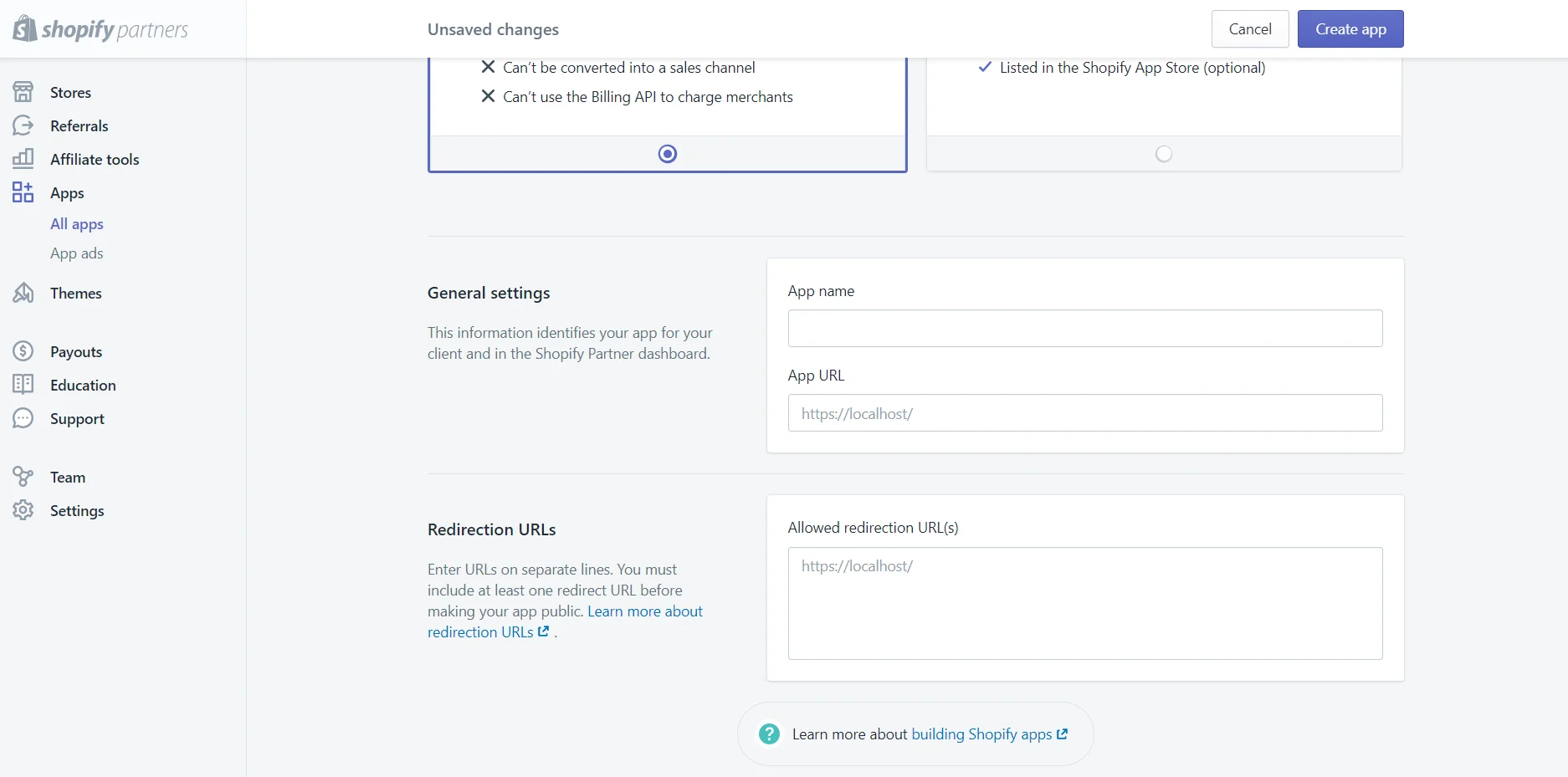
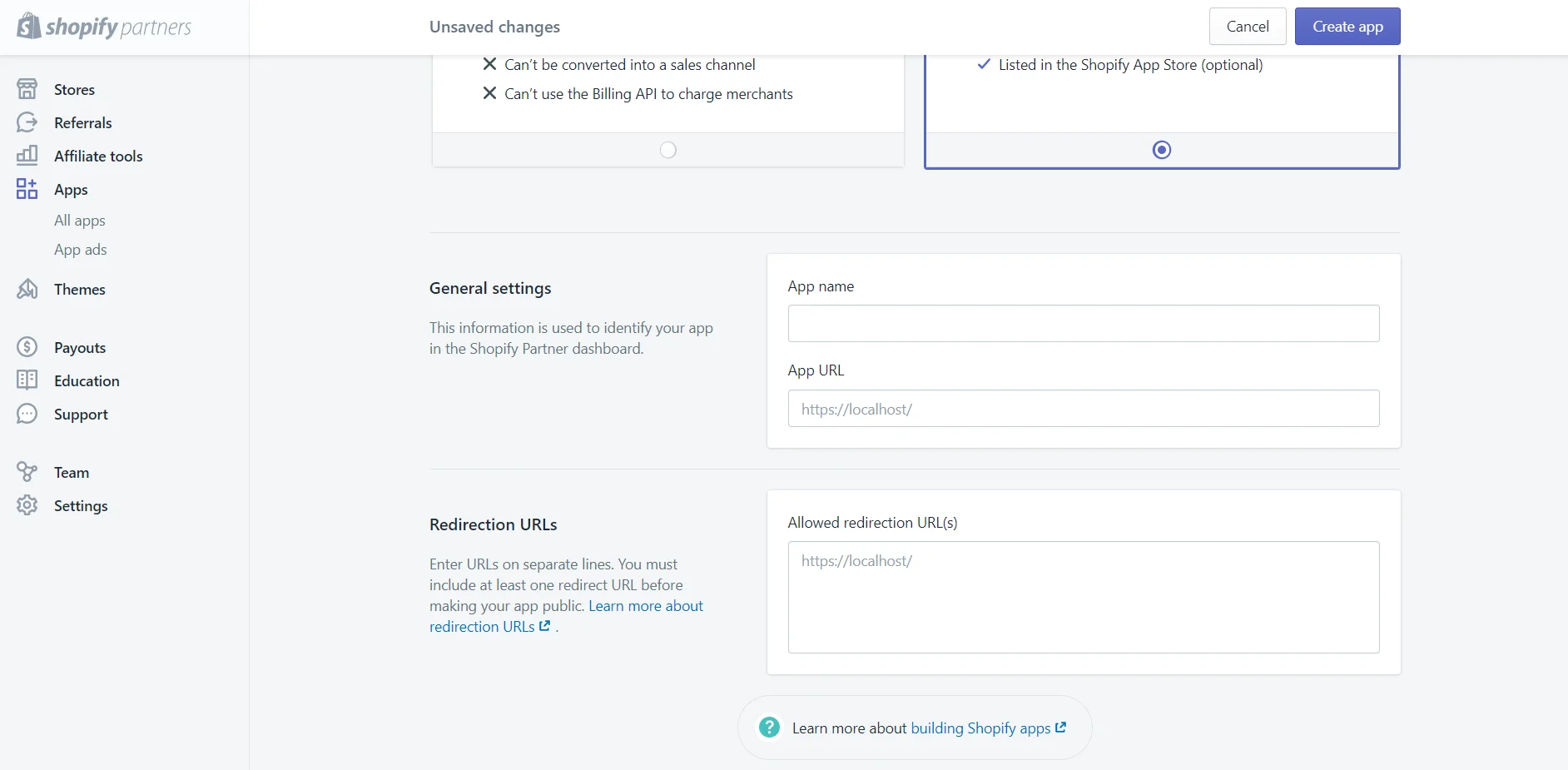
- Enter the App name and App URL in the General settings, and Allowed redirection URL(s). Then, click on Create app.
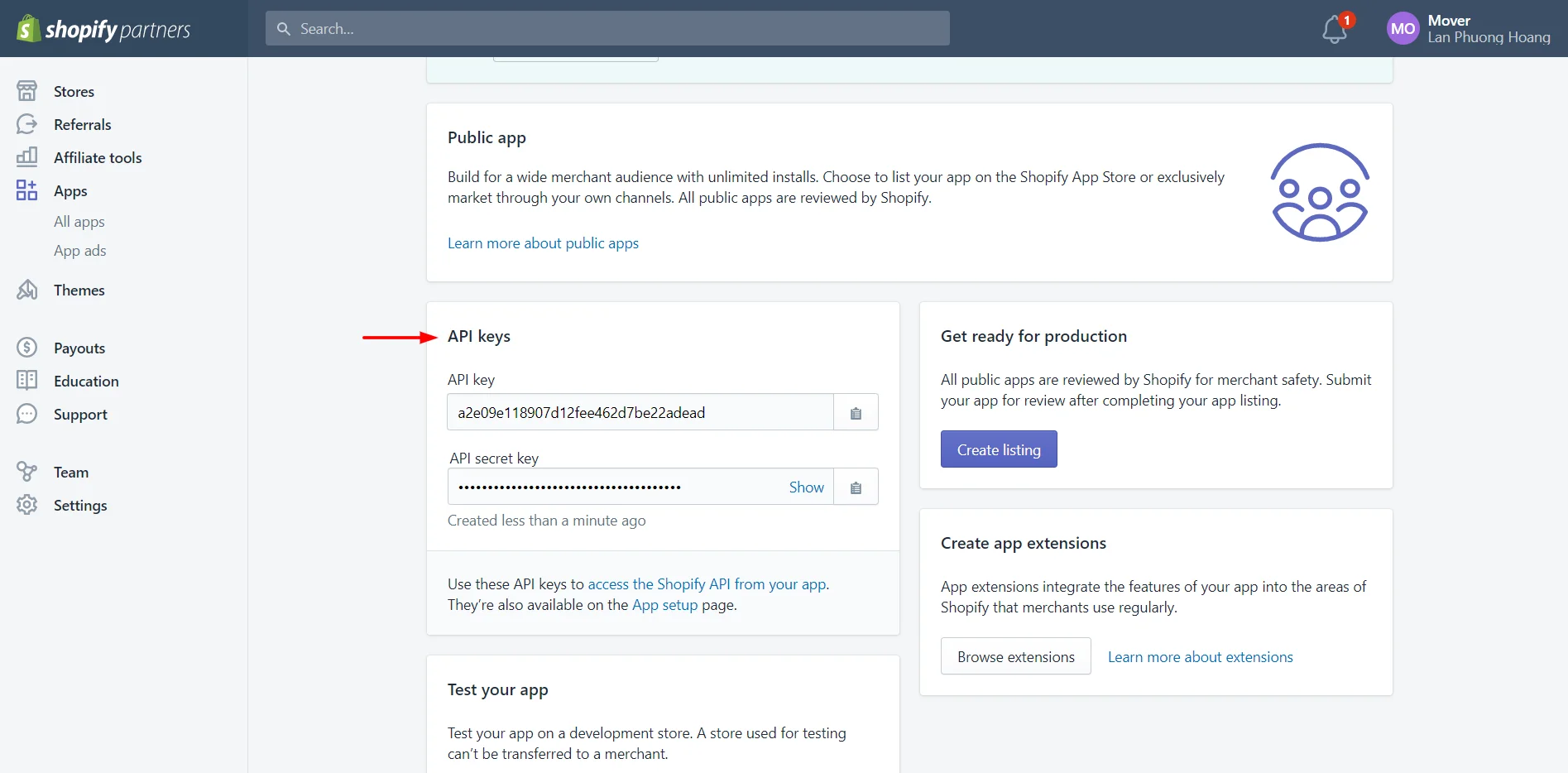
- Scroll down to the API keys to view API Key and API Secret Key.
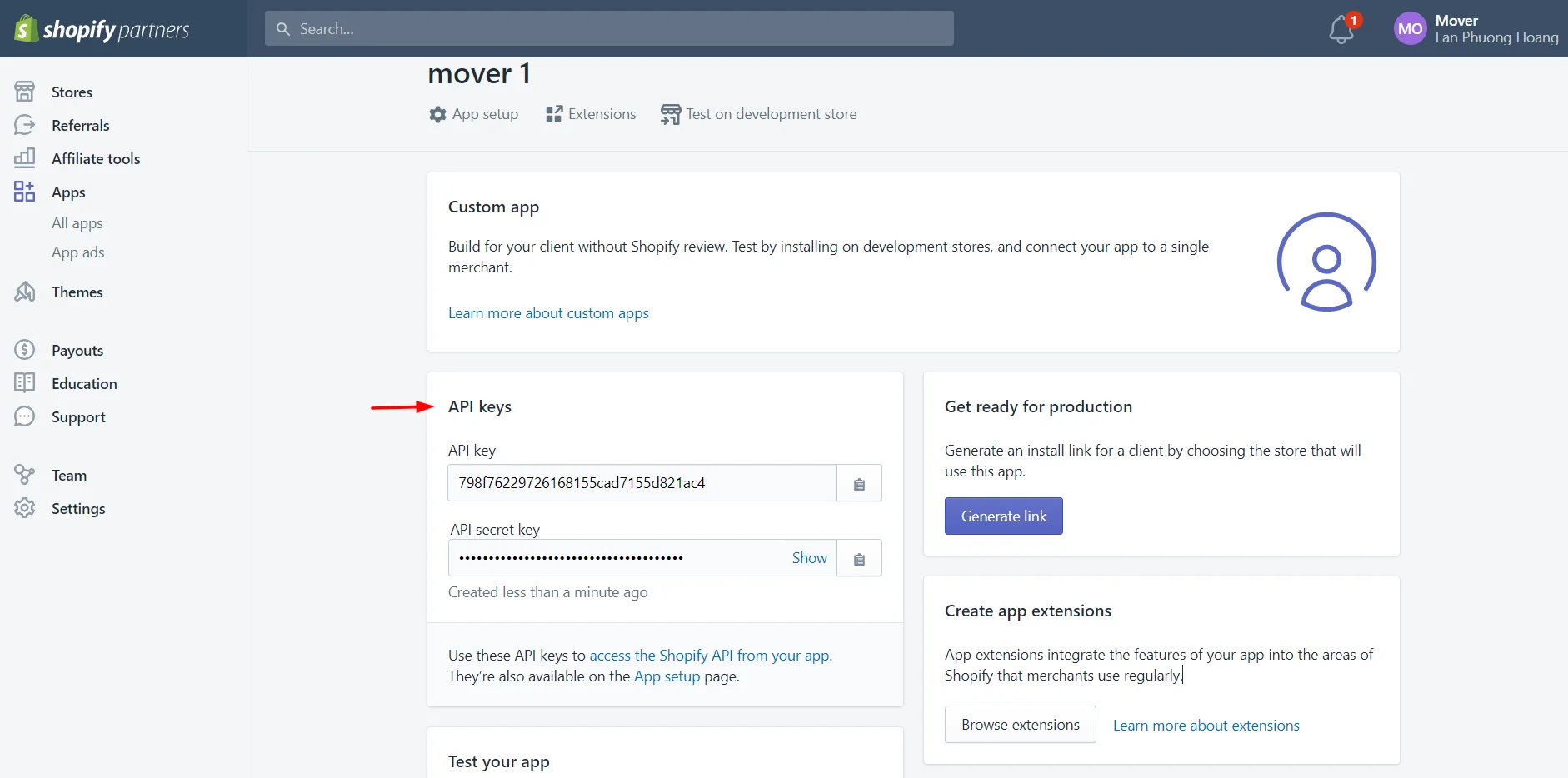
And that’s how to get the Shopify API key using your Partner dashboard!
How to Get Shopify API Key for Public Apps?
In order to authenticate with Shopify Public Apps as a registered Shopify Partner, it is essential to get credentials on the Partner dashboard and later use them for OAuth implementation.
Now, check out the following easy step-by-step guide on how to get public Shopify API Key:
- Log into your Partner Dashboard.
- Choose Apps and click on Create App.
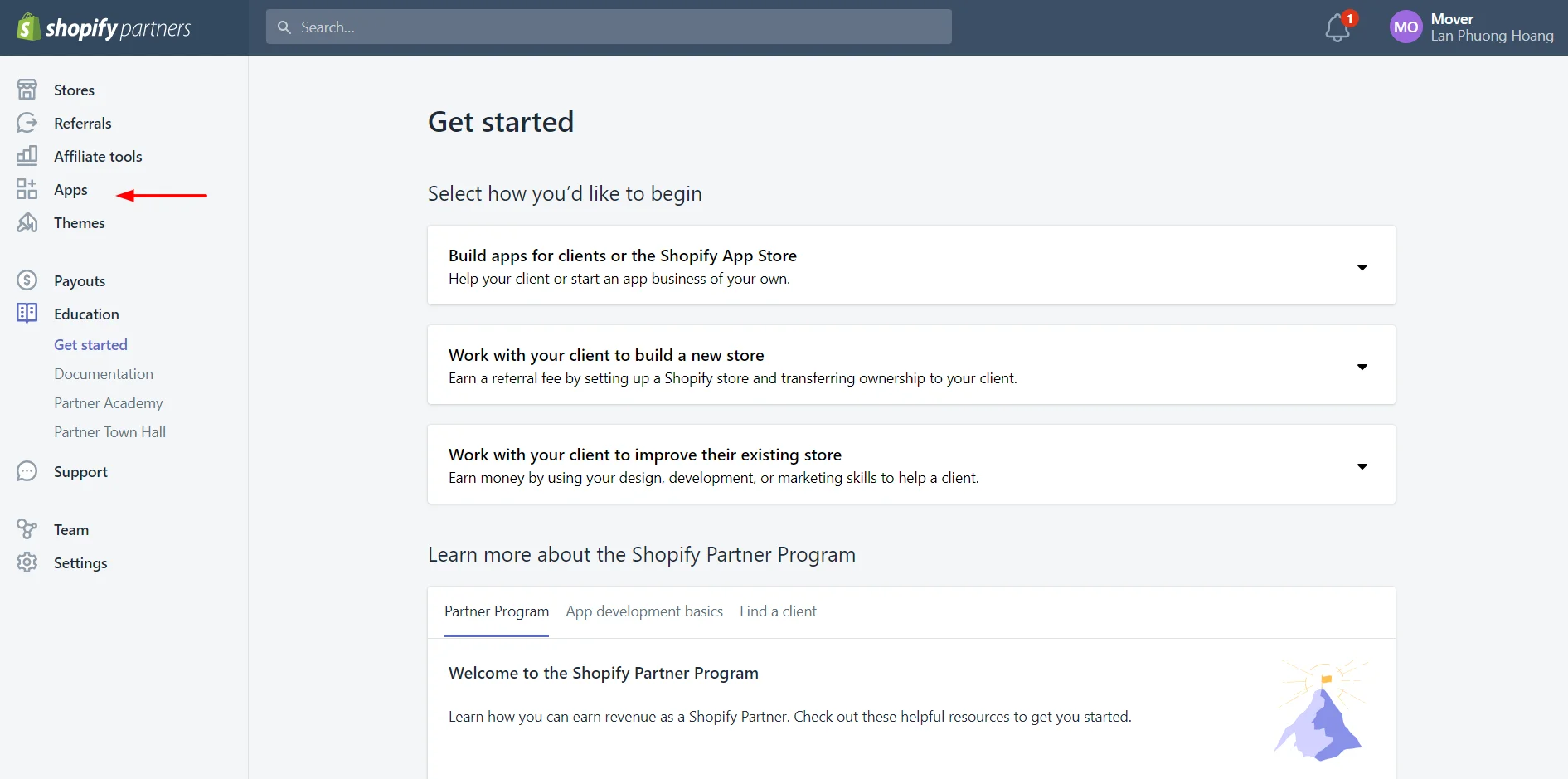
- Select Public App.
- Enter the App name and App URL in the General settings, and Allowed redirection URL(s). Then, click on Create app.
- Scroll down to the API keys to view API Key and API Secret Key.
Key Differences Between Shopify Private Apps and Public Apps
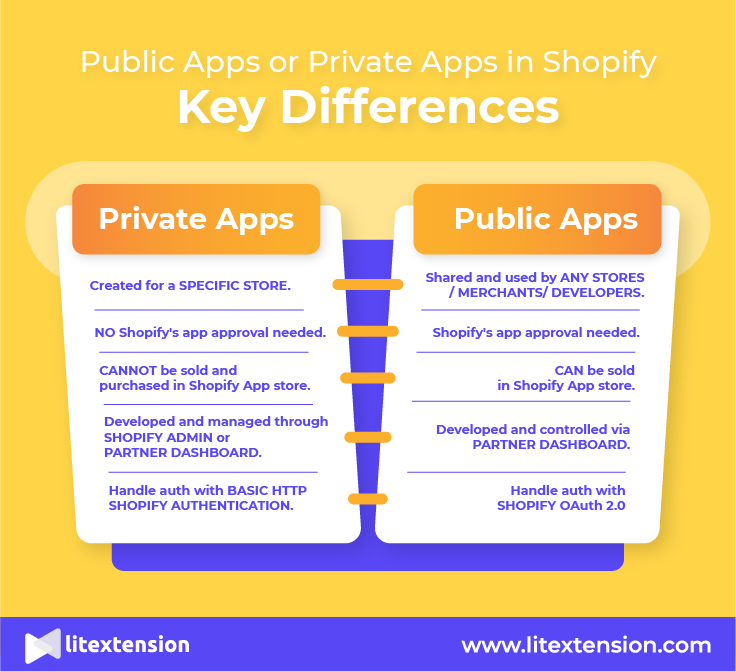
Private Apps:
- Online merchants can only create Private Apps for a specific store. They have certain special needs that are unique to that shop.
- Shopify applications do not need to go through Shopify’s app approval.
- You can’t sell apps in the Shopify App Store if you are a private Shopify app developer. You can’t buy private apps for your stores as a user.
- The private apps are created & managed via the Shopify admin panel or in the Partner dashboard under the private/custom app section.
- Handle auth with Basic HTTP Shopify Authentication.
Public Apps:
- Public apps are ones that are designed to be shared & used by any stores/merchants/developers.
- Before being permitted for usage in the Shopify shop, public apps should be accessed & thoroughly processed.
- Shopify Public Apps are allowed to be sold in the Shopify App Store.
- Shopify Public apps will be created & managed from the Partner dashboard.
- Handle auth with Shopify OAuth 2.0
Best Practices for Using Shopify API Keys
Now that you’ve learned how to find Shopify API key (whether for custom app integrations or configuring a Shopify backup tool), it’s equally important to understand how to use it properly! After all, if it falls into the wrong hands, your business could be at serious risk.
Below are some essential practices to ensure your API keys are used responsibly:
#1. Keep your API keys out of plain sight
The first and most fundamental rule is to never hardcode your API keys directly into your app’s source code, even when writing scripts to manage automated Shopify redirects or catalog updates.Instead, you should store them in secure locations, such as encrypted configuration files or environment variables. For those who deploy their store apps on a server or platform, ensure that only trusted personnel have access to these secure storage locations.
#2. Grant only the permissions you need
You don’t need every room key when you’re just trying to enter the kitchen; similarly, avoid giving full permissions to every API key (a standard security practice when learning how to add Oberlo to Shopify or other third-party integrations).
When setting up access, restrict the key’s capabilities to only what the task at hand requires. For example, if a key is meant only to read order data, it shouldn’t have write permissions for customer information. This principle of least privilege limits potential damage in case the key is ever misused or compromised.
#3. Rotate your API keys periodically
We are often advised to change our passwords every few months, and the same should also apply to the Shopify API key – whether you use it for backend data transfers or frontend features like how to add social media to Shopify embeds.
Over time, even well-protected keys can become vulnerable through unnoticed exposure or outdated configurations. Hence, by regularly revoking old keys and issuing new ones, you can significantly reduce the risk of long-term unauthorized access. Make sure your development process includes reminders or automated routines for this rotation.
#4. Actively track API key activity
Obviously, your API keys shouldn’t be used in the shadows – especially if you use custom keys to add ChatGPT to your Shopify store for automated customer service. You must monitor how, when, and where each key is being used. If you notice unusual activity (such as an unexpected spike in traffic or calls from an unknown IP), it might indicate that a key has been exposed or abused.
Troubleshooting Common Issues with Shopify API Keys
Lastly, to make your experience with the Shopify API key as smooth as possible, here are some of the most common problems users often face, along with general explanations and solutions for each:
Issue | Reason | Solution |
API key not generating | The app hasn’t been fully set up in the Shopify admin or Partner Dashboard. Hence, missing fields like App Name or redirect URL can block the process. | Review all required fields and ensure you’ve clicked “Create App” before expecting an API key. Try refreshing the page or using an incognito browser if the issue persists. |
Permissions missing or greyed out | Some access scopes are restricted based on the app type (e.g., public apps vs. custom apps). | Confirm the app type and consult Shopify documentation for available scopes. Switch app types if needed to gain access to broader permission options. |
Generated key doesn’t work | Admin API scopes may not have been properly configured, or the app installation was skipped. | Revisit the app settings, verify all necessary scopes are checked, and complete the “Install App” step to activate the API token. |
Admin API token can’t be viewed again | Shopify only shows the token once for security reasons. If not saved immediately, it cannot be retrieved. | Revoke the current token, generate a new one, and make sure to copy and save it securely right after it’s revealed. |
App cannot connect to store | Redirection URLs might be incorrectly formatted, or another app may be using conflicting scopes. | Check the app’s redirection settings carefully for typos or mismatches. Ensure no conflicting apps are active, then restart the connection process. |
Frequent API call errors | Errors may come from malformed requests, expired credentials, or surpassing Shopify’s call limits. | Review Shopify API documentation to ensure the request format is correct. Monitor your rate limits and implement throttling in your app to avoid overloads. |
Shopify API Key – FAQs
Is it secure to give an API key to a third party?
It is a definite NO! According to Shopify API License and Terms of Use, bear in mind that you may not share the API Credentials with any third party.
Is Shopify API free to get?
Storefront API is free to get and most of the other APIs are free too. However, there are some APIs that require Shopify Premium Plan or Shopify Plus, such as the checkout page.
How do I get Shopify API key?
You can generate your API key by creating a custom or public app through your Shopify admin panel or Partner Dashboard. Once the app is set up, go to the API credentials section to view the API key and secret.
Where to find Shopify API key?
After creating your app and assigning the necessary API scopes, the API key will appear under the "API credentials" tab in your app’s settings. If you’re using the Admin API, the access token will appear after you install the app. That’s how to find Shopify API key.
Can I use the Shopify API for free?
Yes, Shopify provides free access to its API for both store owners and Shopify Partners. However, using the API to build public apps or large-scale integrations may require a Partner account and must comply with Shopify’s API usage limits.
How do you get an API token in Shopify?
To get an Admin API access token, you need to create and install a custom app from the Shopify admin panel. After setting the appropriate API scopes and installing the app, Shopify will display the token once; be sure to save it securely.
Bottom Line
We hope this article helps you see the light at the end of the tunnel after struggling in getting Shopify API Key, whether you plan to build custom backend integrations or turn Shopify store into mobile app solutions. Now, you are ready and able to create an API key for your apps. Find your business’s goals and the types of apps you urge for. Ultimately, following the abovementioned steps, you will generate API Key without any challenges or confusion.
If you are currently using Shopify and may come across any issues, LitExtension – #1 Shopping Cart Migration Expert is here to cater to your needs! Our team will help you succeed in performing Shopify store perfectly! Please contact us, we are always here for help.