
Working with configurable products in Magento requires more than just adding variations. Without a clear structure, it’s easy to run into issues with attributes, SKUs, or product relationships. A well-prepared approach to Magento 2 import configurable products helps keep everything organized from the start.
In this article, we’ll walk you through the 3 steps to import configurable products on Magento 2 using a CSV file, including:
- Step 1: Download a sample CSV file from Magento
- Step 2: Format and map your product data correctly
- Step 3: Import configurable products into your Magento store
By the end, you’ll have a clear process to follow and avoid common mistakes during import.
What are Magento 2 Configurable Products?
Magento 2 configurable products are a product type that allows multiple variations to be grouped under a single main listing. Instead of creating separate products for each option, you can manage them under a single parent product, with each variation set up as a child product. These child products share the same base attributes but differ in specific options such as size, color, or material.
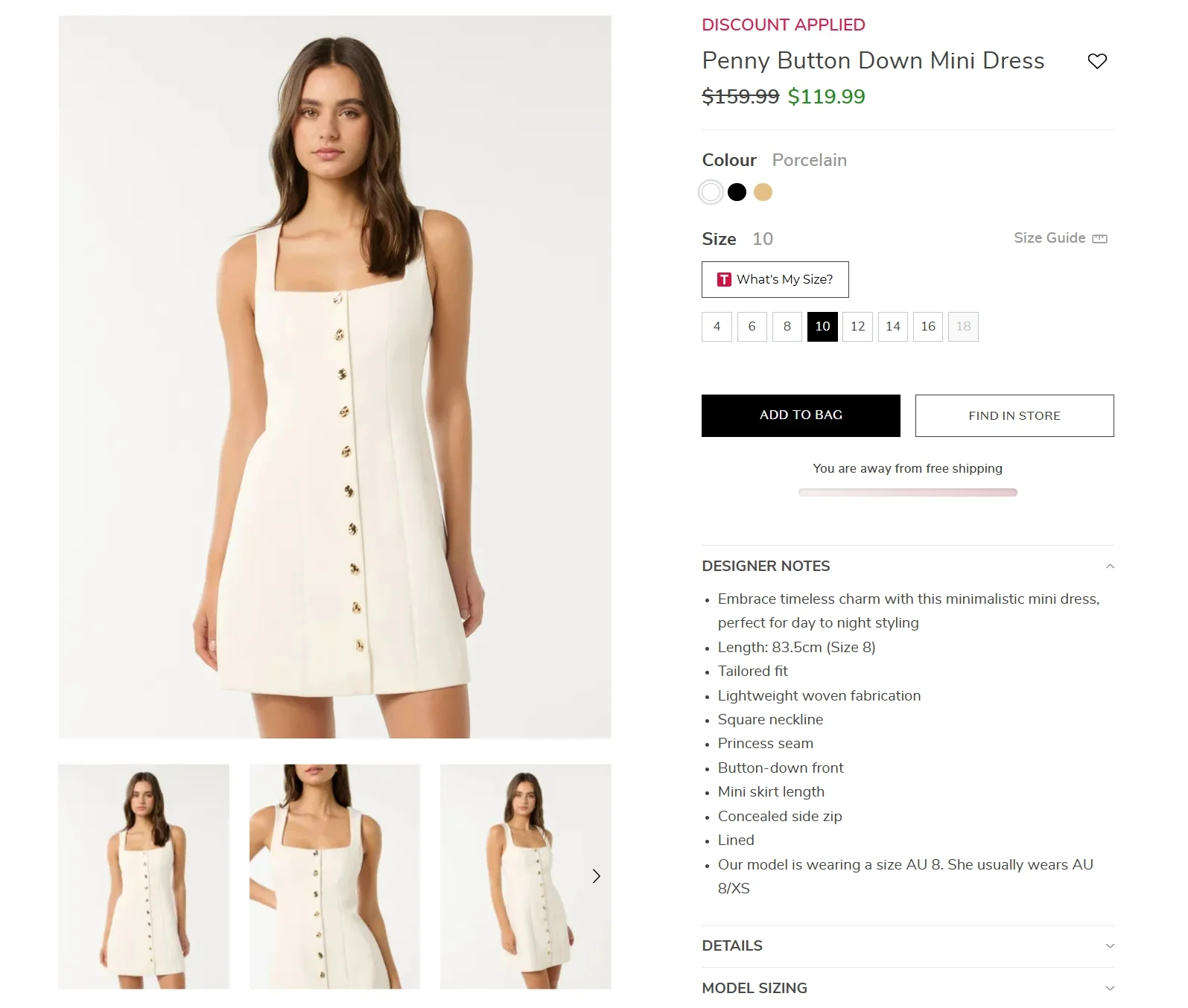
For example, if you’re selling a t-shirt, the main product listing may contain variations for sizes (small, medium, large) and colors (red, blue, green). This setup simplifies the customer’s shopping experience by letting them choose options without switching between product listings.
Because of this structure, working with configurable products manually can quickly become complex, especially when dealing with large catalogs or migrating data from another platform. Importing configurable products via CSV helps address these challenges by:
- Avoiding manual work: Creating dozens of variations for a single product takes time, while CSV import can populate hundreds of variants in seconds.
- Supporting bulk updates: Prices, stock levels, and attributes can be updated across thousands of products without editing each one in the Admin panel.
- Ensuring structure consistency: Parent and child products stay properly linked with accurate attribute sets such as size or color
- Speeding up migration and setup: Particularly useful when launching a new store or migrating from platforms like Magento 1, while maintaining data integrity.
- Simplifying attribute setup: Complex swatches, whether visual or text-based, can be generated automatically rather than configured manually.
With that foundation in place, let’s move on to the details on how to perform the entire import process!
How to Perform Magento 2 Import Configurable Products with CSV File
Now that you understand how configurable products are structured and why importing them matters, the next step is to put that into practice. Importing via CSV requires the right setup, especially when it comes to mapping variations and maintaining the parent–child relationships.
The steps below will guide you through the entire process, from preparing your file to completing the Magento 2 import configurable products with CSV file:
Step 1: Download the sample CSV file
To start, download the sample CSV file from the Magento 2 admin panel. This file provides a template to help you format your data correctly and understand the structure required for configurable products.
1. Log in to your Magento Admin dashboard. From there, navigate to System > Import under the “Data Transfer” section.
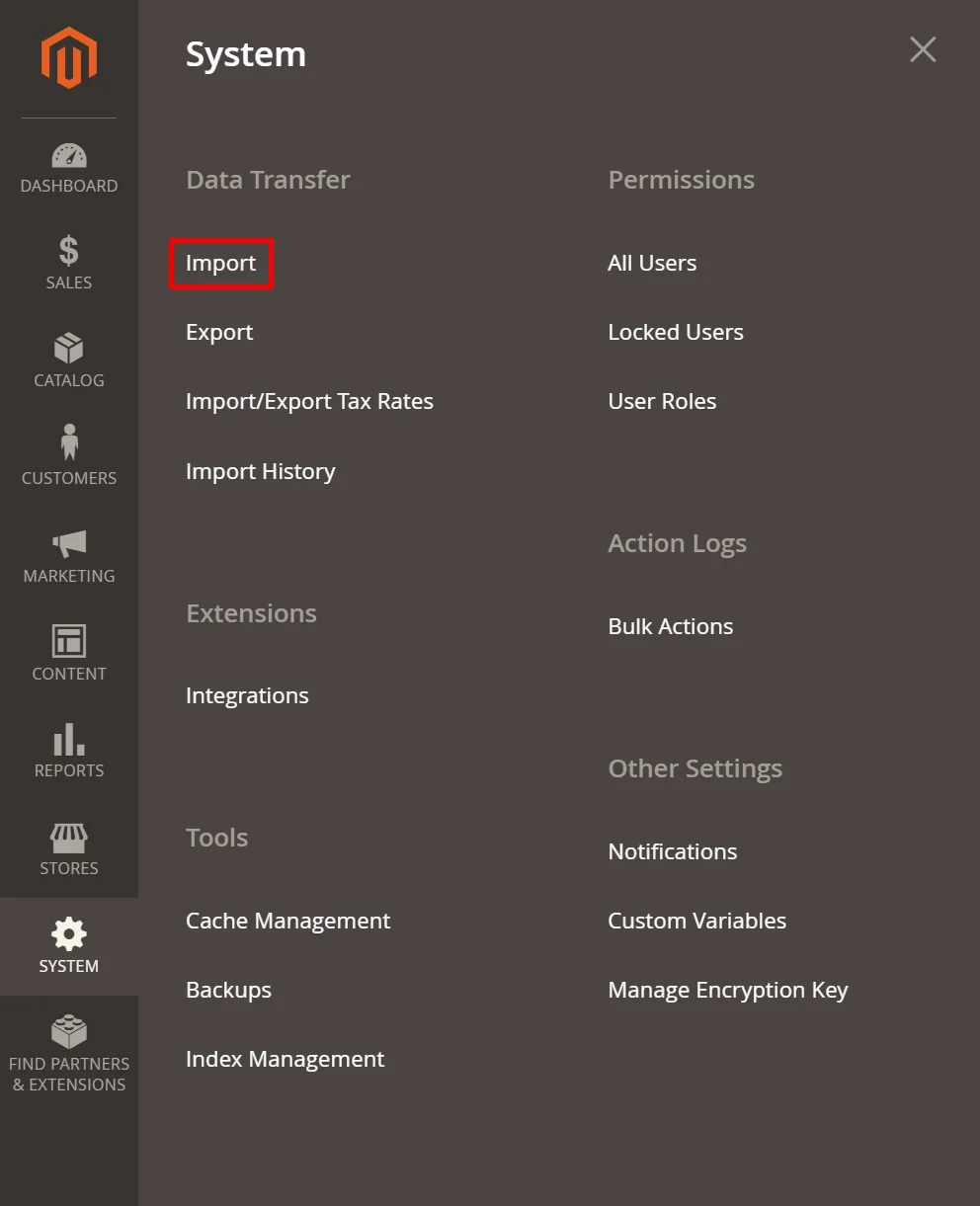

2. In the Entity Type, choose “Products” from the drop-down list. Then, click on the “Download Sample File” button and save the sample file to your local device.
Step 2: Format and map your CSV data
The next step in the Magento 2 import configurable products process is to prepare your product data. Preparing the data accurately is crucial, as even minor errors can lead to failed imports or incorrect product displays.

Start by making sure your product structure is properly organized. All simple (child) products should be listed before the configurable (parent) product they belong to. In addition, the value in the attribute_set_code column must match the exact name of the attribute set in your Magento store to avoid import errors.
Next, define the variations for each child product. Each row should include the necessary attributes, such as size or color, inside the additional_attributes column. These values must be consistent across all variations so Magento can properly group them under one configurable product.
On the configurable product row, you will need to establish the relationship between the parent and its variations:
- The
configurable_variationscolumn should include the full list of associated SKUs along with their attribute options - The
configurable_variation_labelscolumn should correctly map attribute codes to their display labels (for example, size = Size, color = Color)

Before finalizing the file, remove any unchanged rows to keep the import clean and focused. Only the updated parent product and newly added or modified child products should remain, while the header row must be preserved.

Step 3: Import configurable products to Magento
After your CSV file is ready, you can proceed with importing the configurable products to Magento 2.
To import the data:
1. Go to System > Import under the “Data Transfer” section in your Magento admin dashboard.
2. In the Entity Type, choose “Products” from the drop-down list.
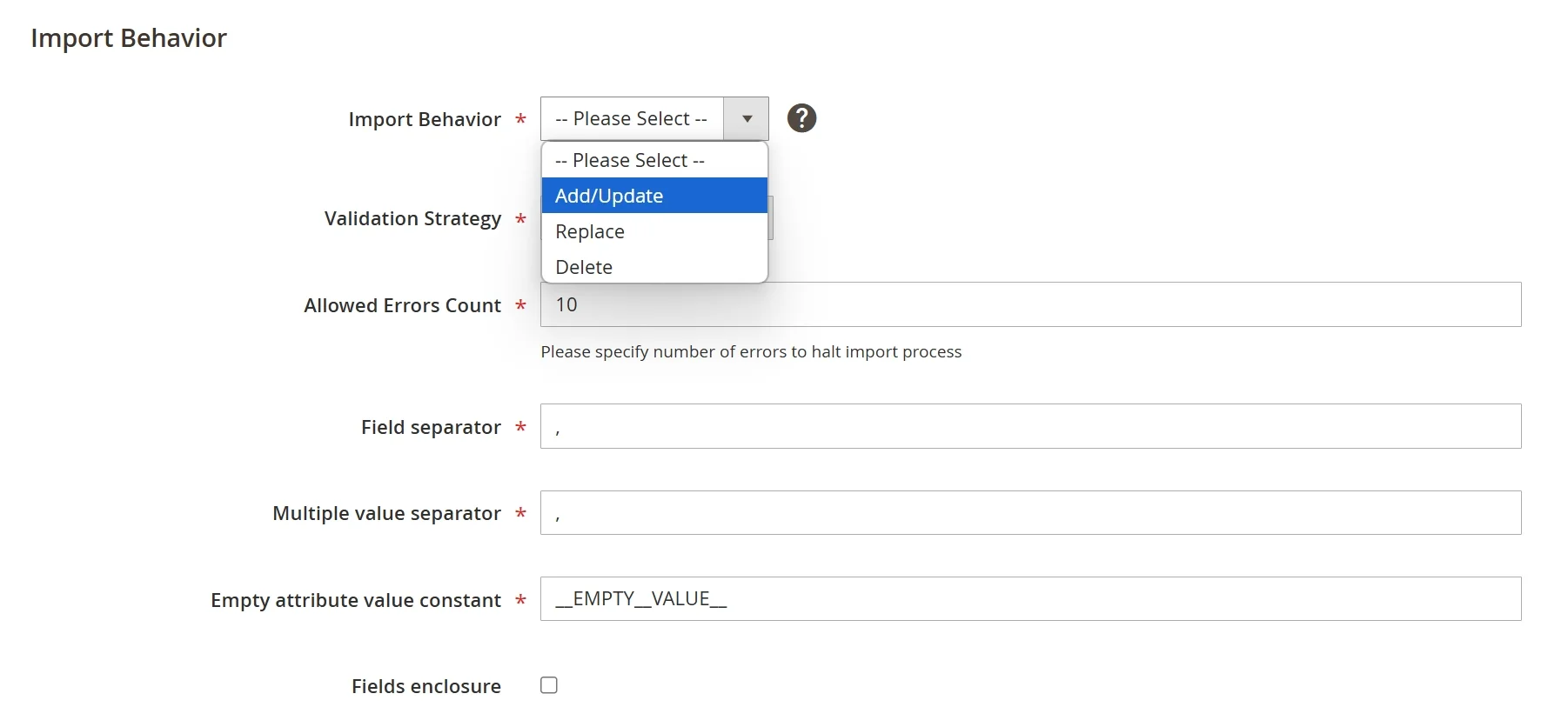
3. Select “Add/Update” option under the Import Behavior section. This will ensure new products are added, and existing ones are updated if needed. Don’t forget to configure other settings as well, especially
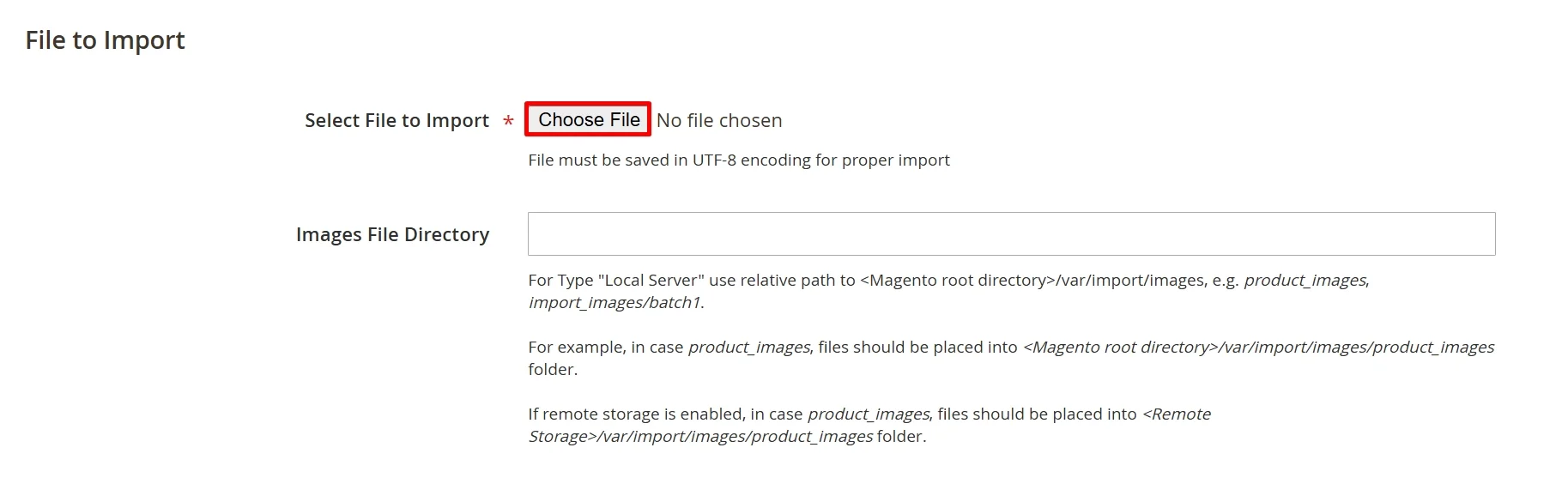
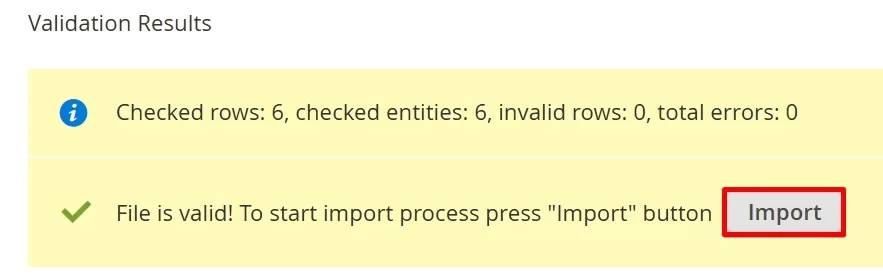
4. Click the “Choose File” button to upload your file. You can select the “Check Data” button at the top right corner of your screen to scan for errors before importing.
5. When the validation finishes, click the “Import” button to complete the Magento 2 import configurable products process.
Magento 2 Import Configurable Products with LitExtension
While importing configurable products manually in Magento 2 can be effective, it can also be time-consuming and prone to errors, especially if you’re managing a large product catalog or migrating from another platform.
In these cases, LitExtension can be your trusted partner in this area. We offer a solution to streamline this process, allowing you to import configurable products into Magento 2 automatically with expert support. Our service is ideal for businesses that want to ensure accuracy and efficiency without dedicating extensive internal resources to the task.
Here’s a visualization of how LitExtension handles your migration project:
Step 1: Consult LitExtension experts
The process begins with a consultation session where LitExtension experts assess your specific migration needs. During this session, we’ll discuss your product catalog, any unique attributes, and any customization requirements. This tailored approach ensures that the migration or import is customized to meet your business needs, providing a solid foundation for a successful import.
Step 2: Map and configure data by experts
Once the consultation is complete, LitExtension’s team begins data mapping and configuration. This step is essential to match your current data format with Magento 2’s structure. The team will ensure that each configurable product, along with its child variations, aligns correctly with Magento’s attributes, including SKUs, inventory, and pricing. This expert setup reduces the risk of errors and ensures all products display as intended on your Magento store.
Step 3: Perform Magento 2 import configurable products
With the data accurately mapped, LitExtension will carry out the full import process. This includes continuously checking for any potential issues, troubleshooting as necessary, and ensuring all products transfer smoothly. LitExtension’s team monitors the import from start to finish, so you can be confident that your configurable products will appear correctly, complete with all variations, attributes, and relationships intact.
Flawlessly Import Products to Magento!
LitExtension can safely transfer all you configurable products and other data to Magento with ease.
Bonus Reading: How to Export Magento 2 Configurable Products
Additionally, if you wish to export configurable products from Magento 2 to back up your product data, prepare for a migration, or simply review the structure of your existing items, here’s a step-by-step guide you need.
- Step 1: In your Magento Admin sidebar, go to Catalog > Products.
- Step 2: Click Filters, set Type to Configurable Product, then click Apply Filters.
- Step 3: Choose the configurable product you want to export and take note of its SKU.
- Step 4: On the Admin sidebar, go to System > Data Transfer > Export.
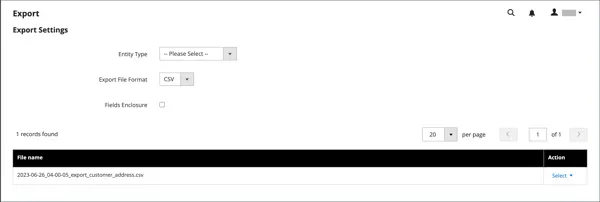
- Step 5: Then, under Configure Export Settings, set the following options:
- Entity Type to Products
- Export File Format to CSV
- Step 6: In the Entity Attributes section, scroll to find the SKU field.
- Step 7: Enter the SKU of the configurable product and click Continue to start the export.
Once the export is complete, Magento will generate a downloadable CSV file containing your configurable product data. You can then use this file for editing or as a reference for bulk imports.
How to Troubleshoot Magento 2 Import Configurable Products Errors
Even with a properly prepared CSV file, errors can still occur during the import process. Most issues come from incorrect formatting, missing relationships between products, or mismatched attribute values. Below are the most common errors and how to resolve them.
1. “Column names have duplicate titles”
Duplicate column headers in your CSV file will stop Magento from processing the import. The issue is usually caught during validation, where Magento flags the header row and prevents the file from being uploaded.
How to fix: Open the CSV file and review the first row carefully. Each column name must be unique, so remove or rename any duplicated headers before re-importing.
2. “SKU not found in rows”
Missing or mismatched SKUs can break the connection between configurable and simple products. Magento typically reports this during validation when it cannot find the referenced SKUs in the dataset.
How to fix: Check the configurable_variations column and make sure every SKU listed is present in the CSV. All values must match exactly, including capitalization and formatting.
3. “Invalid value in Attribute Set column”
An incorrect attribute set name prevents Magento from assigning the correct structure to your products. The system usually flags the attribute_set_code column when the value does not match any existing attribute set.
How to fix: Verify that the attribute set name matches one available in your Magento store. Even small differences in spelling or case can cause the import to fail.
4. “Imported resource not found” (Images)
Incorrect image paths or inaccessible files can result in missing product images after import. The problem may appear during the import process or only become visible when checking products on the storefront.
How to fix: Ensure all image paths are correct. For local files, confirm they are uploaded to the pub/media/import directory. For external links, make sure the URLs are valid and publicly accessible.
5. “Value for ‘configurable_variations’ attribute contains incorrect data”
Errors in the variation format can prevent Magento from linking parent and child products properly. During validation, the configurable product row is often rejected due to incorrectly structured data.
How to fix: Review the structure of the variation data and ensure it follows the correct format, such as sku=product1,size=M,color=Red. Each variation must align with the attributes defined for the child products.
6. “General system exception happened”
A generic system error usually indicates underlying issues in the CSV file, such as missing fields or invalid data formats. You can identify it when Magento returns a system exception without a detailed explanation.
How to fix: Check the import logs to identify the root cause. Then review your CSV file step by step and compare it with the sample file to locate and fix any inconsistencies.
Magento 2 Import Configurable Products: FAQs
How to import configurable products in Magento 2?
To import configurable products in Magento 2, please follow these steps:
- Step 1. Download the sample CSV file
- Step 2. Prepare your data for import
- Step 3. Import configurable products to Magento.
How to get configurable product attributes in Magento 2?
Configurable product attributes, like size or color, are set up within the Stores > Attributes section of Magento’s admin panel. Here, you can create and manage attribute sets for each product. These attributes must match exactly with those used in your CSV file for a successful import.
Why are my configurable products not showing on the storefront?
In most cases, missing products on the storefront are due to incorrect status, visibility, or broken parent–child relationships. To fix this, you need to:
- Check that the configurable product is Enabled with Catalog, Search visibility
- Ensure all child products are Enabled and in stock
- Verify that child products are correctly linked in the configurable_variations column
- Confirm that attribute values are consistent across all variations.
How do I link child products to a parent product in the CSV?
Add all child SKUs in configurable_variations using a format like sku=product1,size=M,color=Red, and define labels in configurable_variation_labels. Every SKU must exist in the file, and attribute values must match those in each child product’s additional_attributes.
Final Thoughts
As you can see, Magento 2 import configurable products is essential for stores looking to manage multiple product variations, perform bulk updates, or migrate data from another platform. With the right approach, you’ll have a well-organized catalog that enhances the customer experience, drives engagement, and supports your store’s growth.
If you like this article, don’t forget to check out other Magento blogs on our website for more business tips and expert insights.


