
When you move your business to a new billing system or eCommerce store, your invoice data is one of the records you may need to bring with you. Hence, learning how to migrate invoice safely should be among your priorities!
This guide will explain what to consider before migrating invoices, how to move them to a new billing system, and more. Keep scrolling for more details.
What to Consider Before Migrating Invoice
Before learning how to migrate invoice, there are a few things you need to clarify about the data you want to move and the system you are moving it to:
Which invoice records do you need to migrate?
First, you need to decide which invoices should appear in the new system. Do you need to move your entire invoice history, or only invoices from a specific period? You may also need to distinguish between paid, unpaid, partially paid, canceled, and draft invoices.
What related data needs to move with your invoices?
An invoice rarely stands alone: it usually references a customer, order, product or service, payment, tax, shipment, or credit memo. Decide which of these related records need to be available in the target system as part of the migration.
The relationship between an invoice and its order can depend on the platform’s underlying data structure. For example, LitExtension migrates Magento invoices alongside Orders; related data such as shipments and credit memos has its own migration considerations.
Does your source-to-target combination support invoice migration?
Do not assume that every migration route supports invoice data simply because the source platform can export invoices. The source and target systems may store invoice information differently, and the destination platform may not provide a way to import the same fields or relationships.
For eCommerce, invoice migration is currently only available for Magento-to-Magento migrations if you use LitExtension’s Automated Migration tool.
Do you need to keep existing invoice numbers and IDs?
Consider whether your existing invoice numbers and related order IDs need to remain unchanged after migration. This can matter if your invoices have already been referenced in accounting records, customer communications, tax documents, or internal systems.
How to Migrate Invoice to a New Billing System
When you migrate your invoices to a new billing system, working with only the invoice files themselves is still not enough. Customer records, products or services, tax settings, payments, and invoice details may all need to be transferred, so that the new system can correctly link each invoice to the right records.
The exact process varies by billing software, but most migrations follow the same basic workflow:
Step 1. Prepare the new billing system
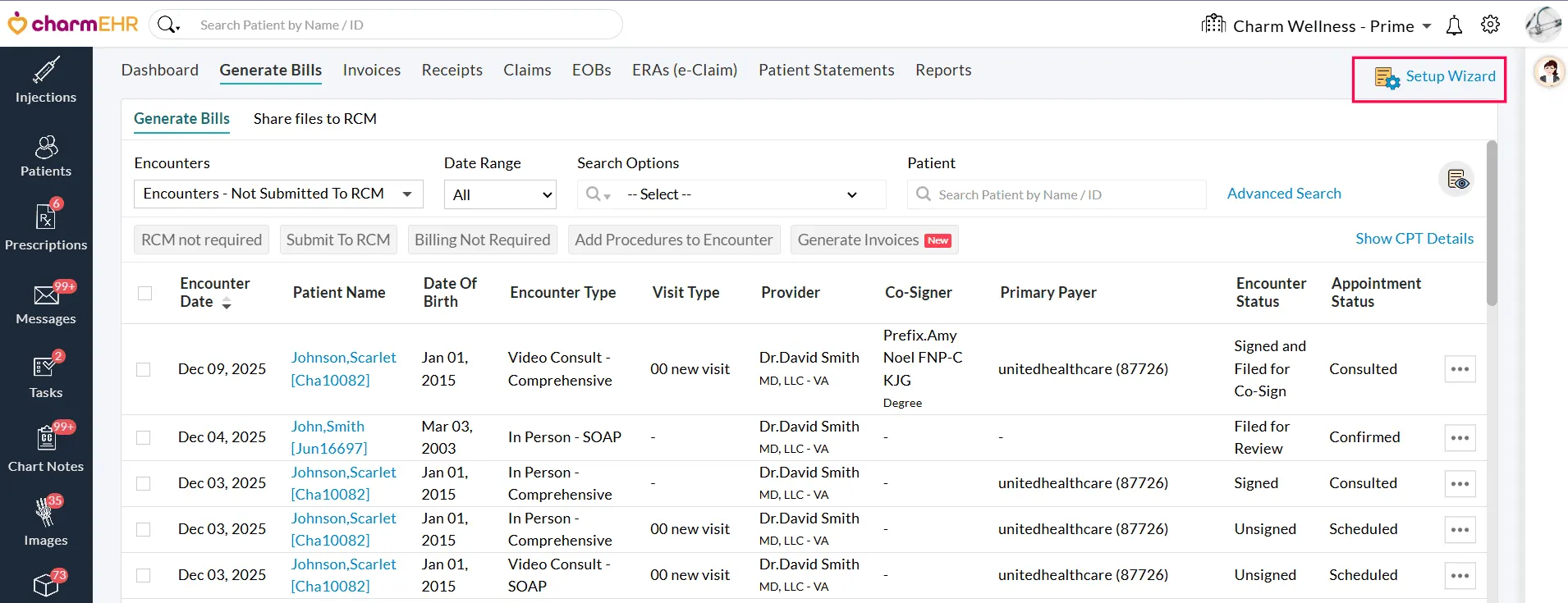
Before importing any data, you need to configure the new billing system to match your business and existing invoice data.
First, set up your organization profile, including your business name, address, contact information, and default currency. You should also review settings for payment terms, invoice numbering, discounts, and other invoice preferences that may affect how imported records are handled. For example, Zoho Invoice recommends configuring the organization profile and required preferences before beginning the data import process.
Next, configure your tax settings. Add the tax names and rates used in your existing invoices, particularly if you work with multiple tax rates or tax-inclusive and tax-exclusive pricing. Matching these settings before the import helps prevent incorrect tax information from appearing on migrated invoices.
You should also check whether the new system supports the custom fields used in your old billing software. If important invoice information does not have a corresponding standard field, create a custom field if the platform allows it.
Step 2: Export and structure your existing data
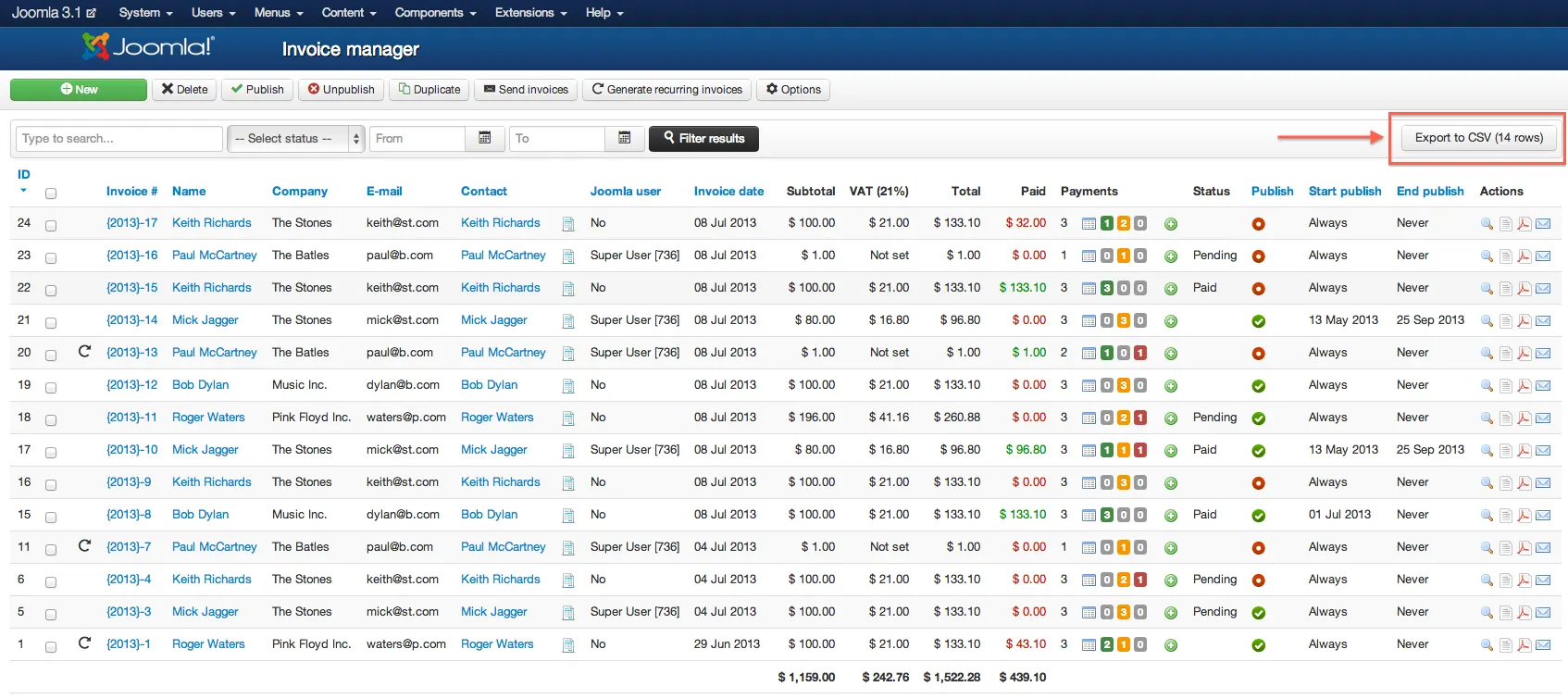
Now, export the records you need from your old billing or accounting system. Depending on the software, this stage may include separate files for customers, products or services, invoices, payments, credit notes, and other financial records.
CSV, XLS, and XLSX are among the formats commonly supported by billing and accounting platforms, although the exact requirements vary by destination system. We suggest downloaing the official import template from your new billing system; you can use this template as the structure for your migrated data.
Next, move your existing data into the new template and map each field carefully. Pay particular attention to:
- Customer names or IDs
- Invoice numbers, invoice dates, due dates
- Iitem names, quantities, prices
- Discounts, taxes, currencies, and payment information.
Then, check the formatting before importing: remove duplicate records and check for missing customer or product references as well.
Note:
Keep an untouched copy of your original exports as a backup. If an import fails or produces unexpected results, you can use these files to identify what changed and correct the data without having to export everything again.
Step 3. Import your data in the correct order
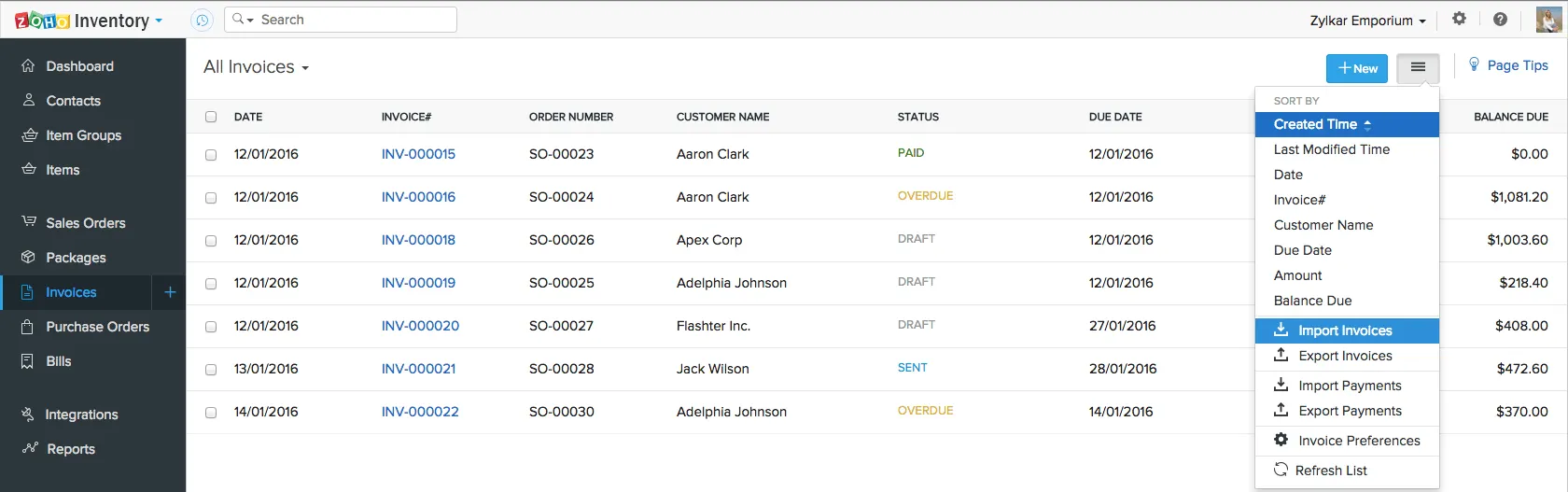
Do not import invoices before the records they depend on. If an invoice references a customer, product, or payment that does not yet exist in the new system, the import may fail or create incomplete records.
A typical migration sequence is:
Customers or clients → Products or services → Invoices → Payments → Credit notes and other related records
The exact order depends on the billing platform. Zoho Invoice, for instance, recommends importing customers and items before invoices and payments, so that transactions can be associated with the correct records.
Once those records are available, import your invoices. Map each column from your prepared file to the corresponding field in the new system, and review the preview before confirming the import. Again, make sure to check invoice numbers, customer references, dates, line items, quantities, prices, taxes, discounts, currencies, and payment terms carefully.
Import payments separately if the new system treats them as independent records. Also, for historical paid invoices, decide which records actually need to be moved. Some businesses retain older paid records in the legacy system and move only the transactions needed for current operations.
Step 4. Review and verify the migrated data
Finally, check the import report for errors. If the system identifies invalid fields or unmapped values, correct the source file and re-import the affected records.
Also, compare the old and new systems at the summary level: you can check the number of customers, products, invoices, and payments, then compare outstanding balances and other important accounting totals. If your business uses accounts receivable reports, make sure the outstanding invoice balance in the new system matches the corresponding balance from the old system.
Smart tip:
Keep your old billing system or an accessible backup of your exported data until the migration has been fully verified. Once the records and balances have been reconciled, you can start using the new billing system as your primary source for invoicing and payment management.
How To Migrate Invoice from Magento to Magento
We have just discussed how to migrate invoices to a new billing system. But what about invoice migration between eCommerce platforms?
An eCommerce invoice is closely tied to the order it belongs to, along with related records such as shipments and credit memos. And since each eCommerce platform structures these records differently, invoice migration is generally only available for specific platform pairs that use compatible data structures (such as Magento to Magento).
And here’s the great news: for Magento Magento migration, LitExtension’s Automated Migration Tool is one of the most solid options!
Ready to Migrate Your Invoices to Magento?
With LitExtension, you can automate your data transfer and get support throughout your migration journey.

You can transfer invoices, along with other types of data, to the new Magento store in just three simple steps:
Step 1. Set up your Source Cart and Target Cart
Before you start, register an account or sign in on LitExtension site first using your existing Google account.
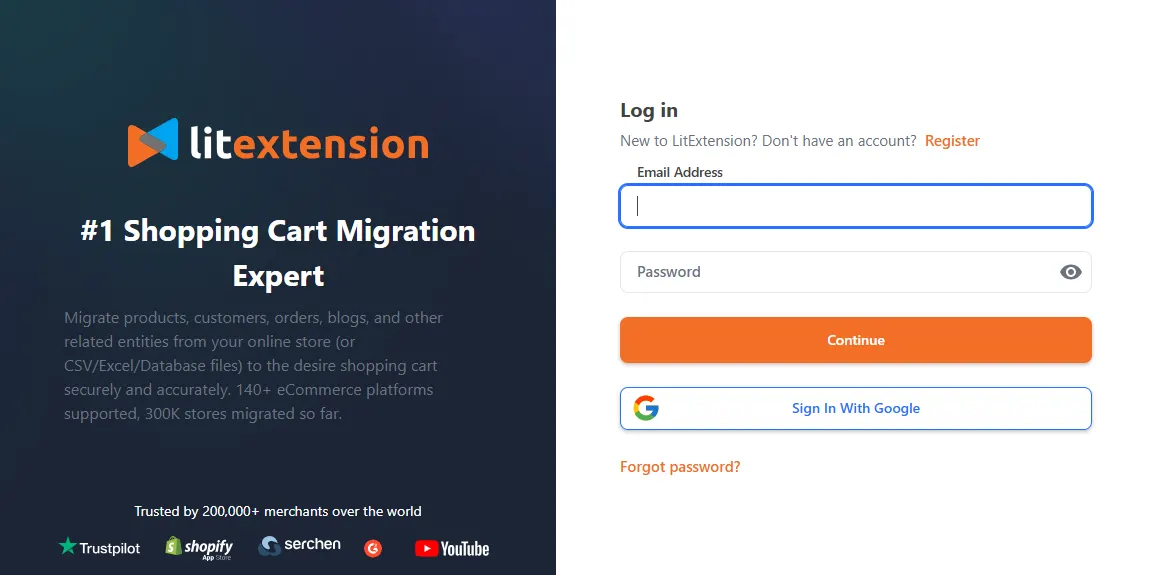
Then, on the Migration page, click “New Migration” at the top right button on the screen. Next, select Magento as Source Cart Type and provide its URL into the blank bar. Once done, choose your preffered connection method:
- For manual setup, follow the on-screen instructions to install the LitExtension Connector
- If you prefer the FTP/SFTP route, provide your FTP/SFTP details (host, port, username, password, and directory path) to upload the Connector to your store automatically.
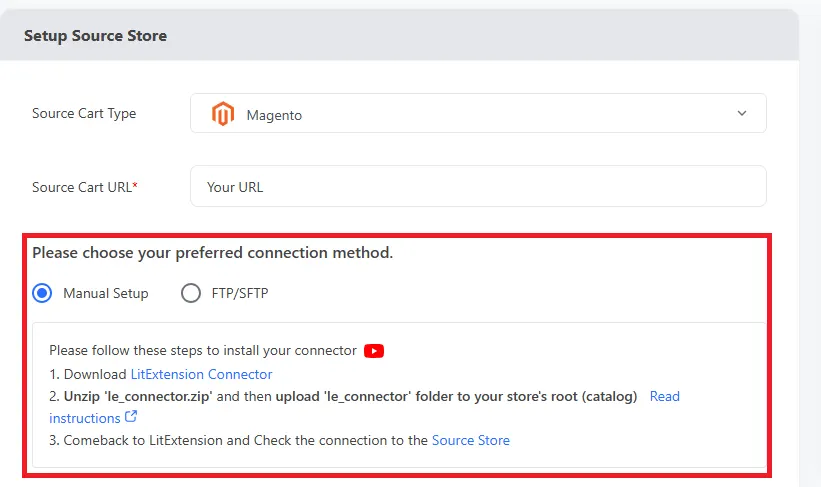
After the connector is successfully set up, scroll down to the “Set Up Target Cart” section. Select Magento as your Target Cart Type and follow the same steps as for your Source Cart.
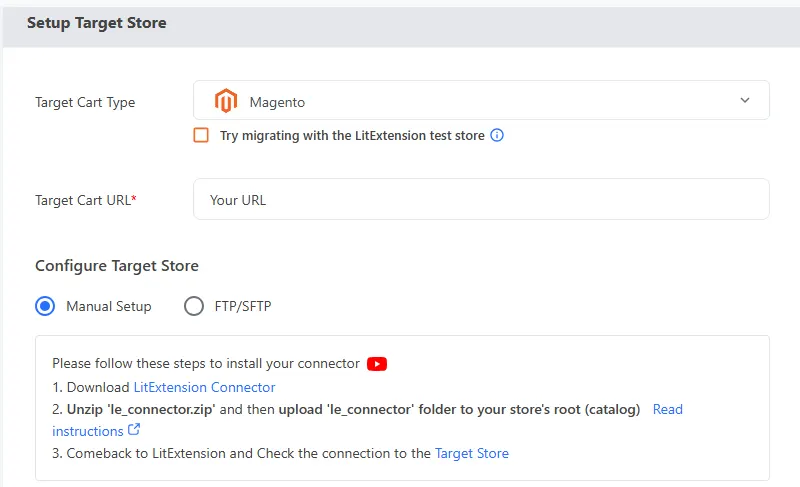
Once both your Source Cart and Target Cart are set up, click “Next: Configure your Migration” to proceed to the next steps.
Step 2: Select invoices & other entities you want to migrate
At this step, invoices will be migrated alongside Orders. Therefore, you need to choose “Orders” as one of the entities to transfer during the migration. Better yet, you do not have to pay any extra fees to migrate invoices, unlike with other shopping cart migration providers that usually charge an additional amount.
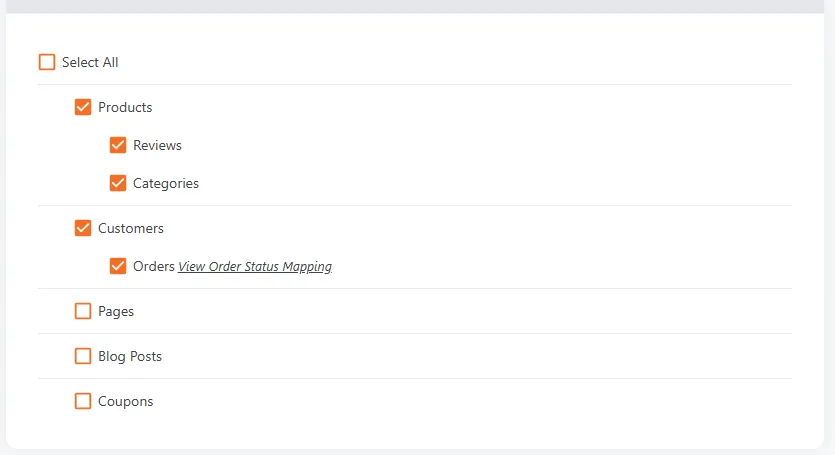
LitExtension also provides Additional Options here to extend your migration possibilities. Languages, Order Status and Customer Group will be matched together to display correspondingly in the new store.
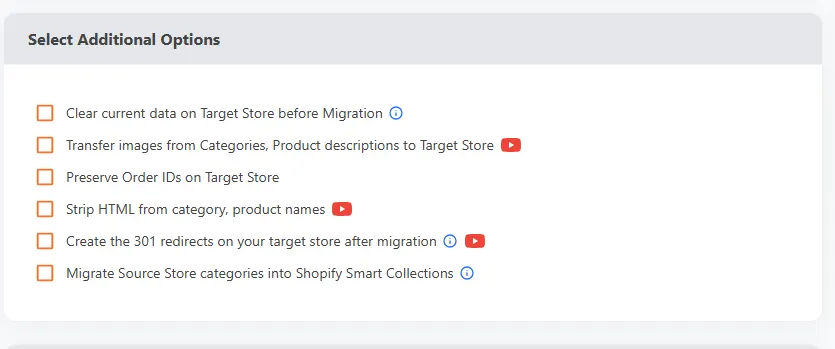
Plus, we have an option, “Preserve Order IDs on Target Store,” which means that invoice IDs and the invoices’ original order will also remain just the way they were on your source store. Furthermore. in case your target store happens to have any more invoices, they will be queued after the old orders. Take a look at how LitExtension preserves your order IDs here:
In case your source store does not have any order or invoice data yet and you still choose this option, we will preserve both the IDs and numbers of invoices and orders. However, if your target store contains at least 3 invoices or orders and you don’t choose the “Clear Data On Target Store before migration” option, it will automatically delete the existing data, import data from the source store, and preserve the IDs and numbers of invoices and orders.
If your target store has more than 3 invoices and you choose “Preserve Order IDs on Target Store,” it will automatically import new IDs according to the existing order on the target store.
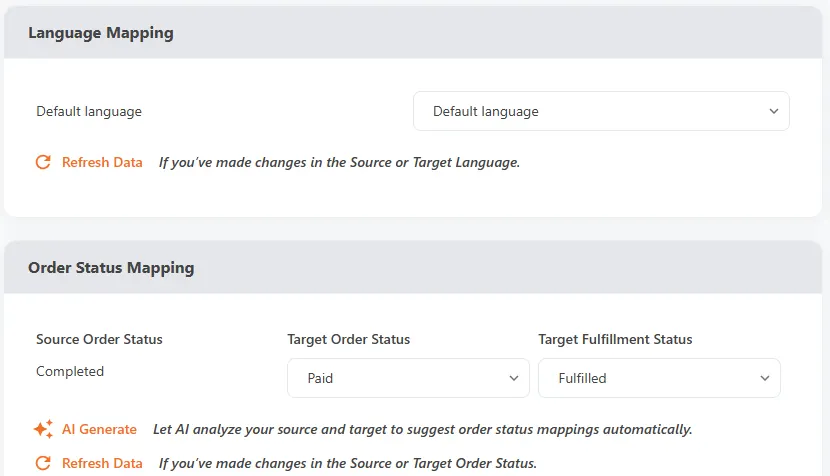
Optional: If you’ve changed the languages of the Source Cart or Target Cart, map them in the “Language Mapping” section. You can skip “Order Statuses Mapping” since both stores are on Magento, meaning they already use similarly structured order statuses.
Step 3: Perform migration from Magento to Magento
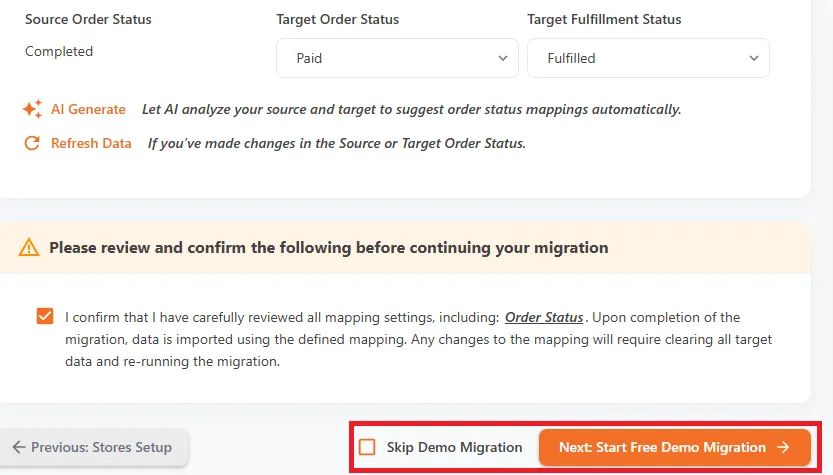
You can either try the demo first or run full migration immediately.
To try Demo: Start your demo migration with limited number of entities (up to 100). You will see the same steps as the actual migration.
To perform Full Migration: Please click on “Skip Demo Migration” button to perform full migration immediately. Once the migration starts, it will run seamlessly on the server. Therefore, there’s no need to keep your browser on while the process is running. It is completely safe to turn it off! Take a break, and you’ll receive email when the process is completed.
After the process, let’s check the result!
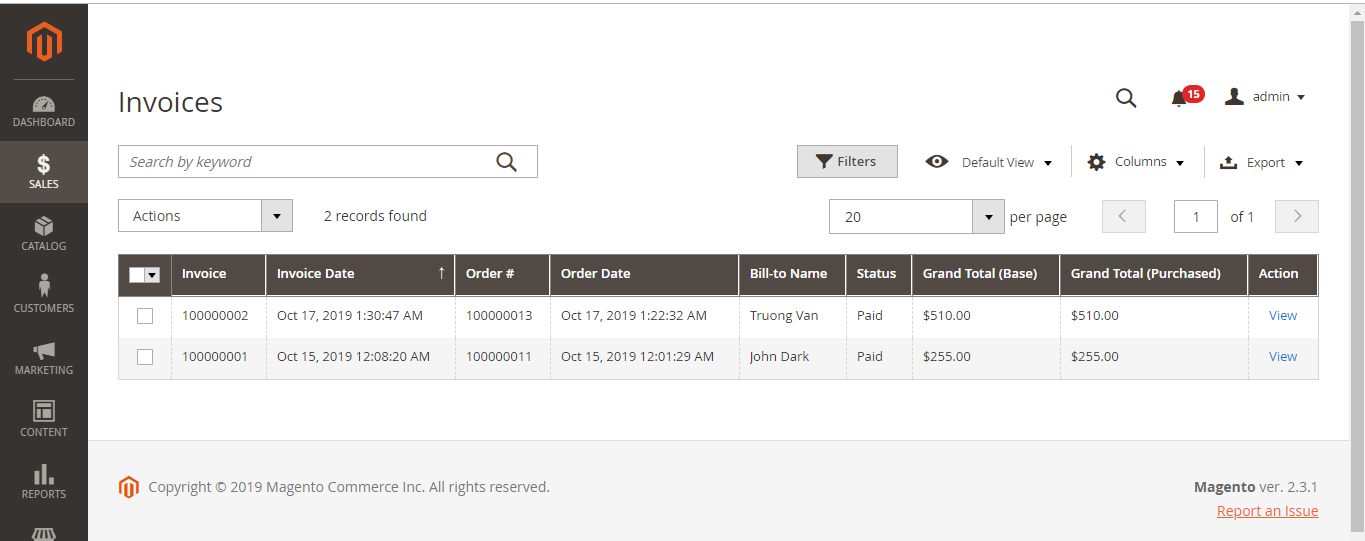
You can clearly see that the invoices from the old Magento store have been fully transferred to the target Magento store in the same order as they were in the source store.
Best Practices for Invoice Migration
The basic migration process covers what you need to move your invoice data, but it does not cover every decision you need to make during the process. A few extra practices below can make a big difference when you are dealing with a large invoice history or a Magento installation with customizations:
Avoid making major changes during the migration
It’s best to keep the source data stable while the migration is in progress. Large changes to products, customers, or store configurations can make it harder to determine whether differences in the target system came from the migration or from changes made afterward.
For Magento, this tip is especially important during an upgrade. Adobe recommends working through development and staging environments before deploying changes to production, rather than testing an upgrade directly on the live store.
Audit your Magento customizations before an upgrade
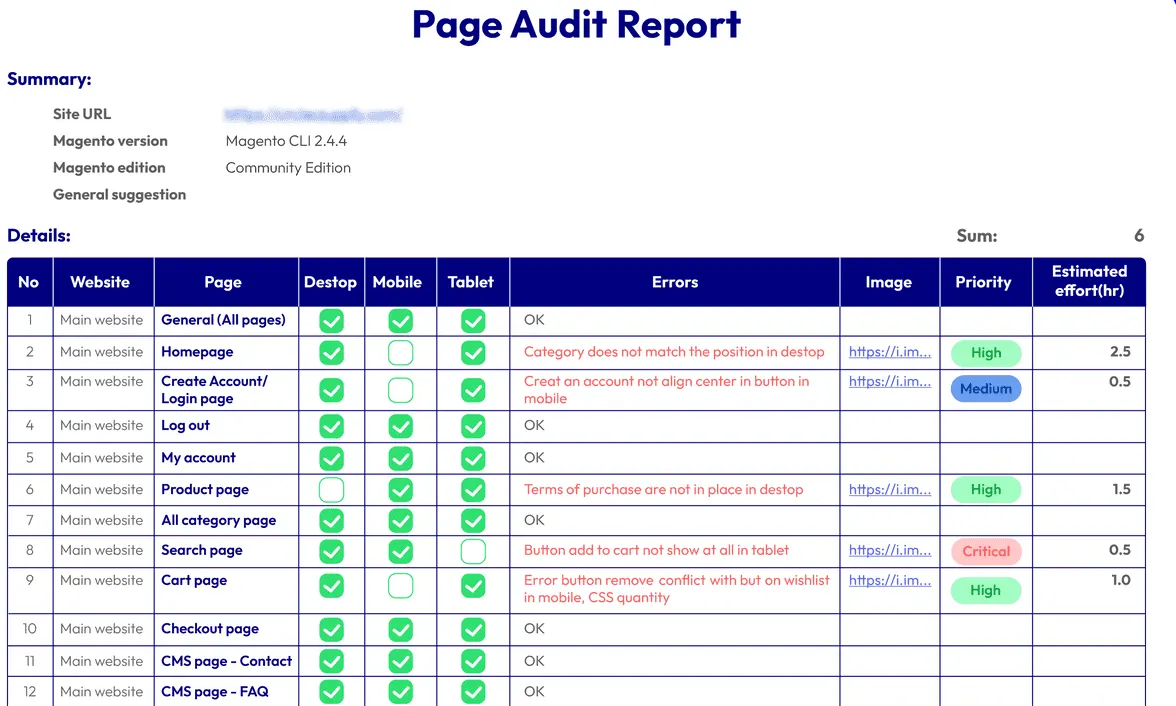
A Magento upgrade is far from a simple version change. Custom modules, themes, and third-party extensions can affect how the store handles orders and related data, including invoices.
Hence, you should make a list of the customizations and extensions currently installed, and determine whether each one is still needed and compatible with the target Magento version. We recommend checking third-party extension compatibility and using the Upgrade Compatibility Tool to identify potential code-level issues before an upgrade.
Plus, this is also a good opportunity to remove extensions that are no longer required. Fewer unnecessary dependencies can make future Magento upgrades easier to manage.
Test the complete order-to-invoice workflow
Do not limit your testing to whether an invoice appears in the target system. For a Magento-to-Magento migration, you should check representative orders and verify that the corresponding invoices are accessible from those orders. If your store uses refunds, shipments, or credit memos, include those scenarios in your test set as well.
And for a billing-system migration, it’s best to test different invoice scenarios such as unpaid, partially paid, fully paid, discounted, and tax-inclusive invoices if those cases exist in your business. Testing as many scenarios as possible will allow you to catch mapping or status problems before the new system becomes your primary system.
Keep a clear record of what was migrated
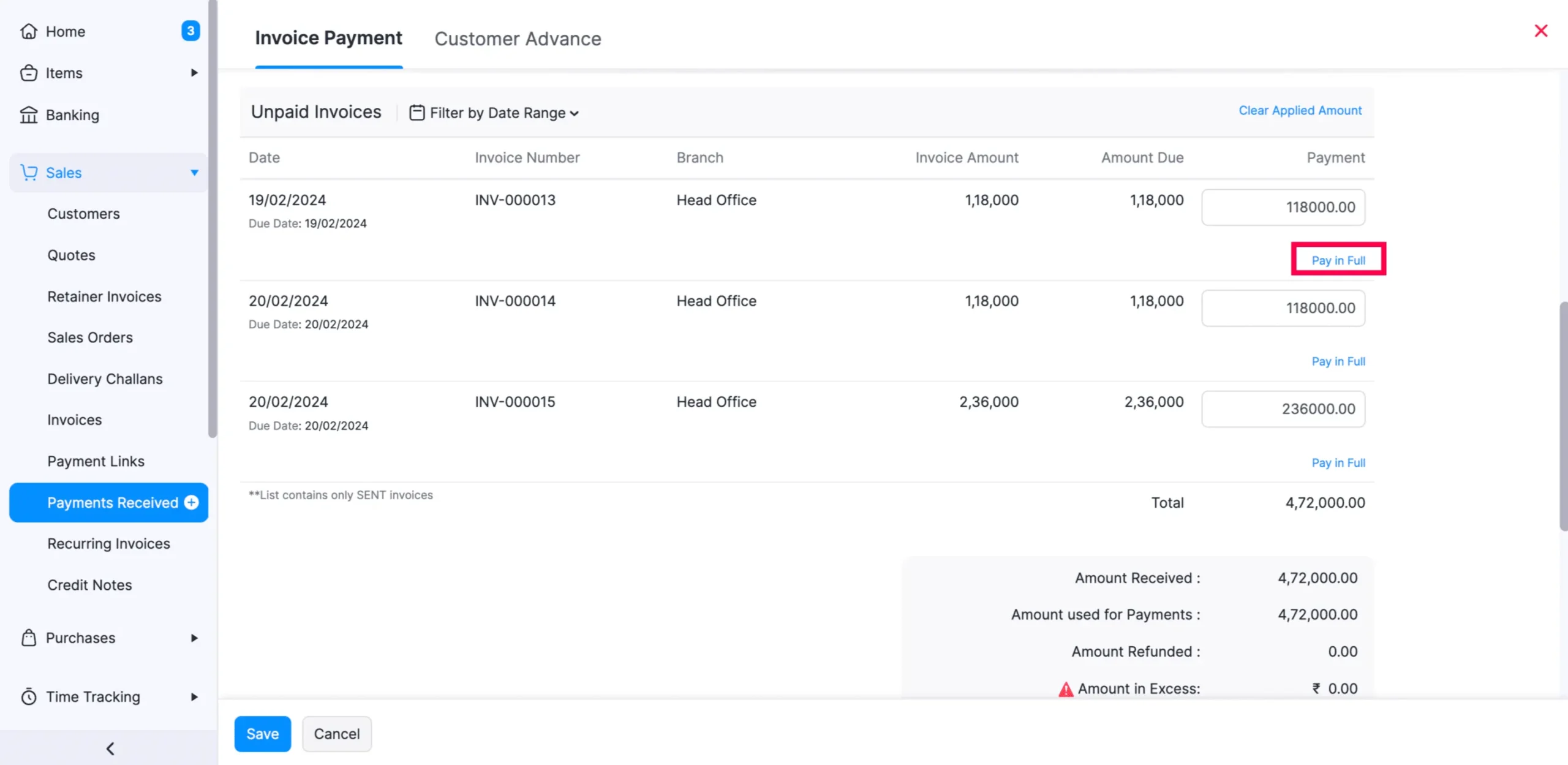
For larger migrations, create a simple migration record showing the source system, target system, migration date, data scope, and any exclusions or special configurations. Record decisions such as whether historical paid invoices were migrated or retained in the legacy system.
That way, later reconciliation (if any) will be much more straightforward, because you can distinguish between data that was excluded on purpose and data that was accidentally missed.
Common Invoice Migration Errors and How to Fix Them
Invoice migration errors usually come from one of three areas: incorrect source data, incompatible import formats or mappings, and connection or platform issues:
Required fields are missing or incorrect
Billing platforms often require specific fields before an invoice can be imported. Xero, for example, requires ContactName and InvoiceNumber for its invoice import. Meanwhile, QuickBooks requires fields such as invoice number, customer, invoice date, due date, and item amount.
How to fix it:
Download the destination platform’s current import template and compare your file against its required fields. Check that required columns are present and that values use the format expected by the destination system. Most importantly, do not change the template’s column headings when the platform requires them to remain unchanged.
Invoice numbers are duplicated
For many systems, each invoice in an import file must have a unique invoice number. In short, an invoice will not be imported if that number already exists in the destination system.
How to fix it:
Check the invoice numbers in both your import file and the destination system. Remove duplicates or use the destination platform’s automatic invoice-numbering option if you do not need to retain the original numbering. Zoho Invoice, for example, supports either retaining imported invoice numbers or allowing the system to generate new ones.
Customers or items cannot be matched
An invoice can fail when the customer or product/service referenced in the import file does not exist in the destination system or does not match the expected name or identifier. For instance, Xero recommends matching the contact name exactly to avoid creating duplicate contact records. Similarly, QuickBooks identifies invalid products/services as a cause of invoice import errors.
How to fix it:
Import or create customers and products/services before importing invoices. Then check the names, IDs, and other identifying fields in your invoice file against the records already available in the destination system.
Magento connector cannot be installed or reached
During a Magento migration, you may encounter an issue where the LitExtension Connector cannot be installed or accessed correctly.
If the “Connector Installed” message does not appear, you must check the Connector’s file and folder permissions first. The le_connector folder needs to be uploaded to the correct location, normally the root directory of your Magento store.
How to fix it:
Confirm that the Connector files are in the correct location and have the required permissions. Set 644 or 666 for connector.php and 755 or 777 for the le_connector folder, depending on your server configuration. If the Connector still cannot be accessed after these checks, contact LitExtension’s Support team for assistance.
How To Migrate Invoice: FAQs
What are the three types of invoices?
The three fundamental types of invoices used in standard transactions are the Proforma Invoice, Sales Invoice, and Commercial Invoice.
How to migrate invoice data from one system to another?
To migrate invoice data, you need to clean your records, map data fields, run a pilot test, and perform a full system transfer.
How do I import invoices to Excel?
To import PDF invoices into Excel, use Excel’s built-in Power Query tool for native files, or an AI extraction tool like InvoiceToExcel.ai for scanned documents.
Conclusion
And that’s how to migrate invoice! For busy Magento store owners who just want to leave invoice migration (as well as other types of data) to experts, LitExtension All-in-One is worth considering. We will take charge of the data migration and provide all the necessary customization (if requested) for you, so you can focus on growing your business.
Take the Stress Out of Magento Migration!
From data setup to final checks, LitExtension helps make your migration process smoother from start to finish.
If you have any more questions while using LitExtension’s service, please visit our Support Center or feel free to Contact Us. For more tips and guides, don’t forget to check out our LitExtension blog!

