Shopify variants let you sell different versions of one product, like sizes, colors, or materials, on a single product page. Knowing how to add variants on Shopify helps you organize your catalog, improve the shopping experience, and manage product data more efficiently.
In this guide, we will explore adding variants to your Shopify products step-by-step. Keep scrolling to discover more about:
- How to add variants to Shopify products?
- How to add a variant with category metafields?
- How to add values to existing Shopify options?
- How to add a variant on Shopify manually?
- How to add a variant by duplicating an existing variant?
- How to import product variants to Shopify in bulk?
Let’s explore!
What Should You Consider Before Adding Variants on Shopify?
Taking these factors into account can help you structure your products correctly and avoid issues as your catalog grows.
- Shopify allows up to 2,048 variants per product and a maximum of 3 option types. These options can vary by product, such as size, color, and style for apparel or material, finish, and weight for furniture.
- If multiple products share the same option values, consider using category metafields. This helps maintain consistent variant information across your catalog and makes updates easier to manage.
- For variant-specific details, Shopify supports variant metafields. These can be used to store additional information such as dimensions, materials, technical specifications, and other custom attributes.
- Stores with more than 50,000 variants are subject to Shopify’s daily variant creation limit when using CSV imports or third-party apps. In this case, you can add up to 1,000 new variants per day, unless you’re on the Shopify Plus plan.
- Shopify lets you control whether individual variants are published across different sales channels and product catalogs, giving you greater flexibility when managing product availability.
- If your products require more than the mentioned range, you’ll need a third-party app or custom solution to support these advanced configurations.
If you’re managing a large catalog with multiple product options, our Shopify variant limits guide offers additional tips on structuring variants efficiently and keeping your catalog organized as it grows.
How to Add Variants to Shopify Products?
When to use this method:
When you’re creating a new product with variant options or introducing additional options to an existing product, such as adding Color choices to a T-shirt that already comes in multiple sizes.
You can add Shopify options and option values to create new variants for your product. Once you save the variants, you can set prices for them.
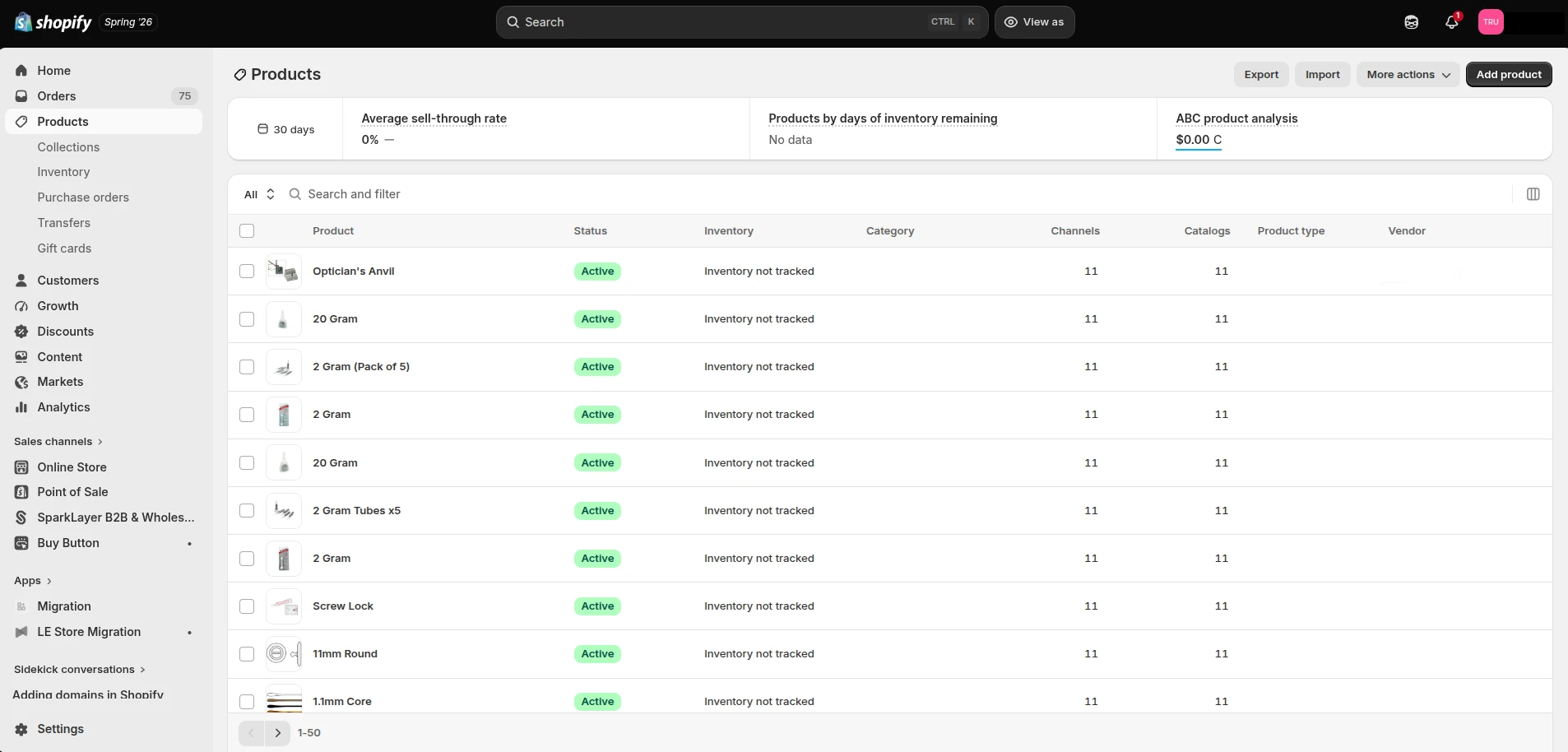
- Step 1. Within your Shopify admin, navigate to Products
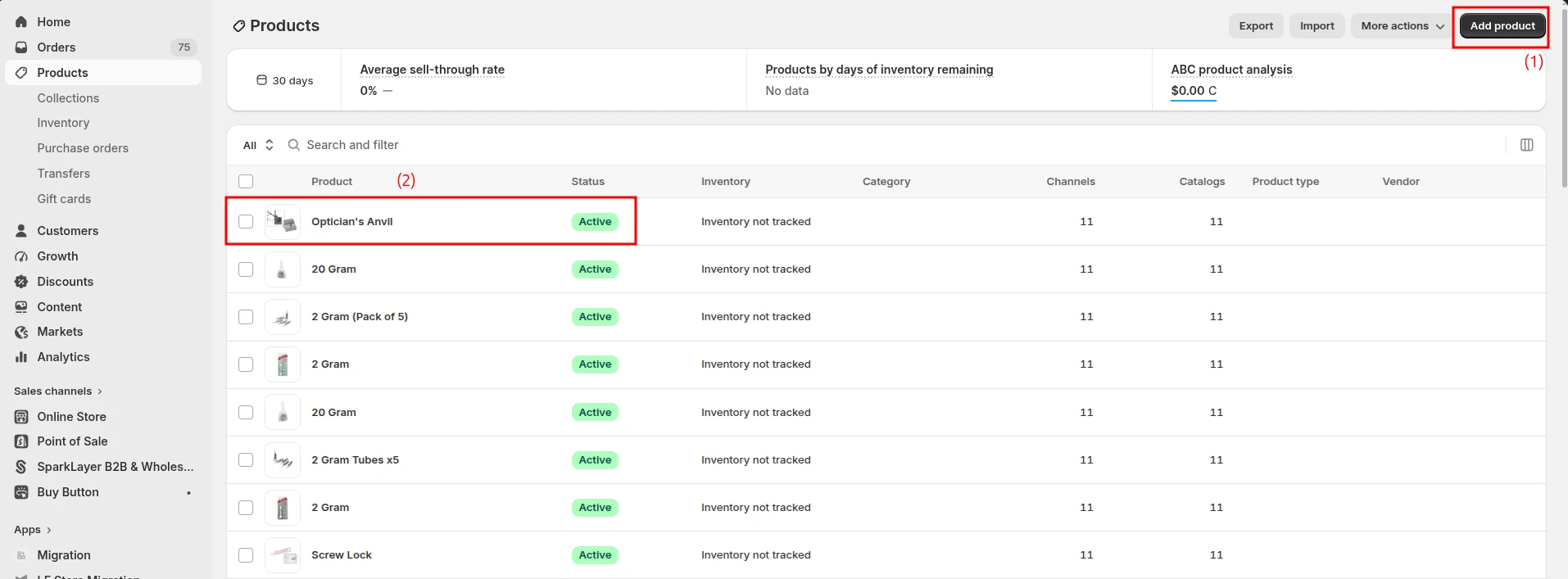
- Step 2. Click the product you want to edit (1) or click Add product if you’re going to add variants to a new Shopify product (2)
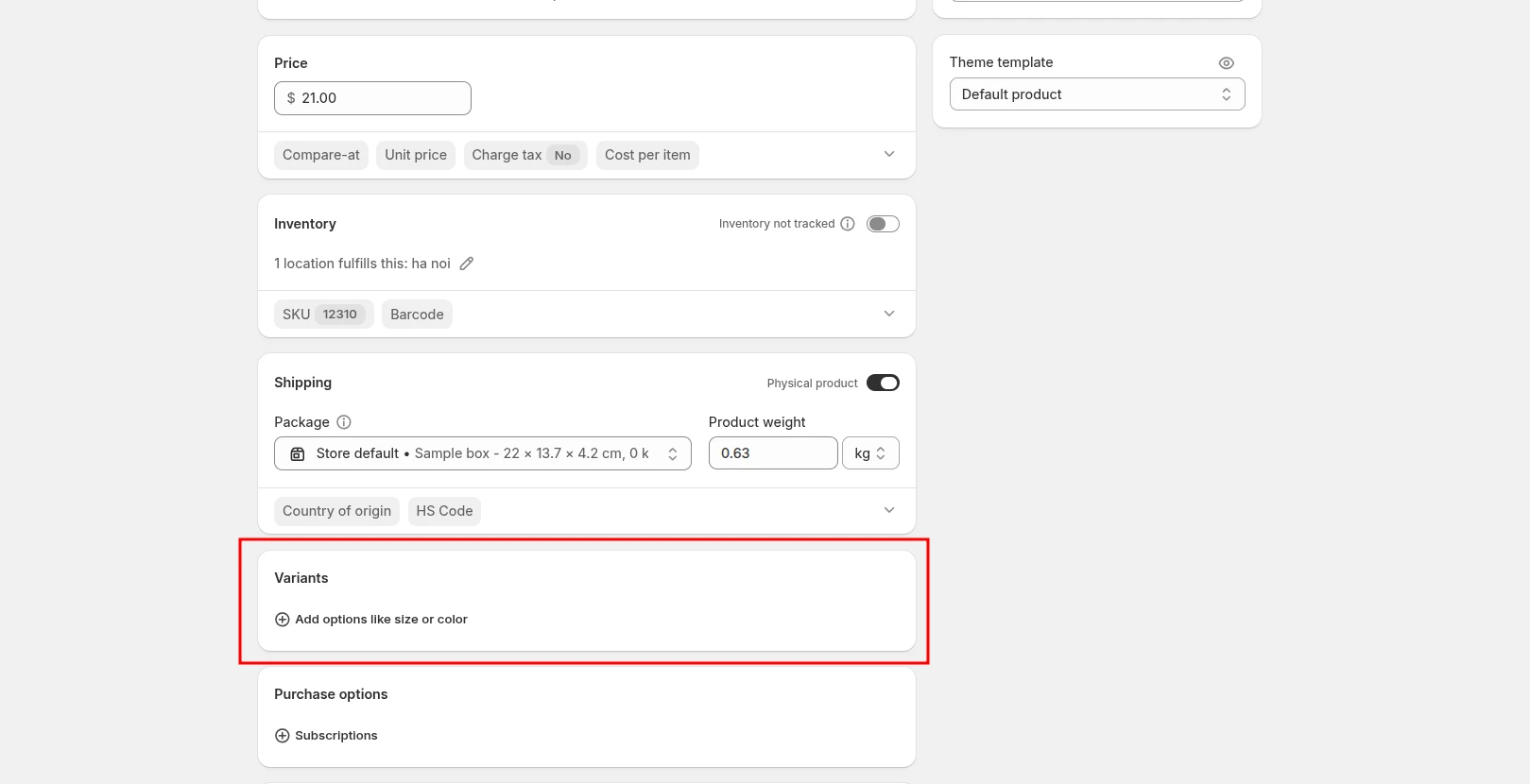
- Step 3. Navigate to the Variant section and click + Add options like size or color.
- Step 4. Enter an option name (for example, Color). This is the label customers will see on the product page.
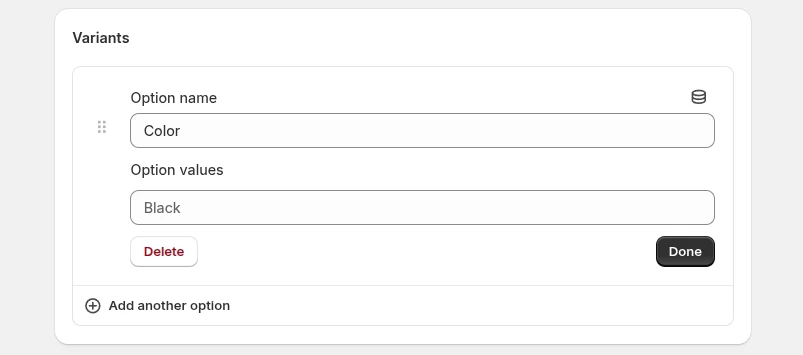
- Step 5. Add the corresponding option values, such as Red, Blue, White.
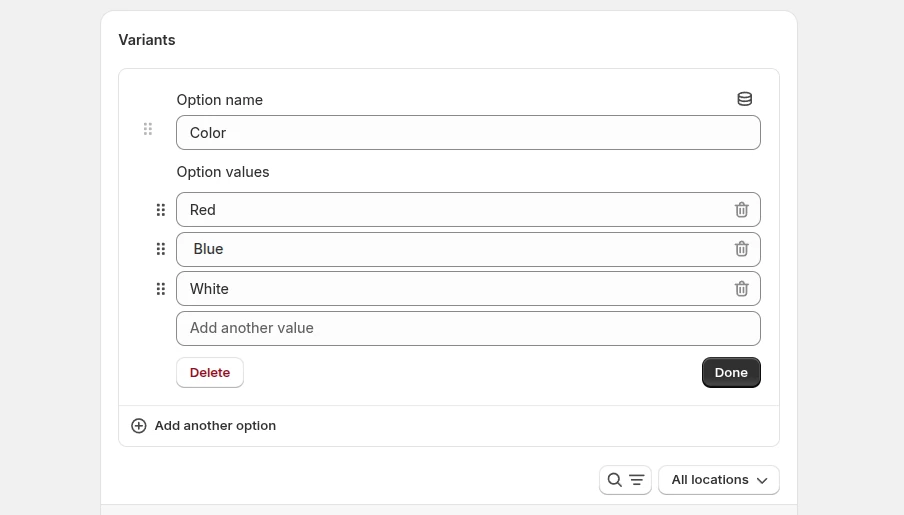
- Step 6. Click + Add another option if you wish to add a different option to your products, such as Weight, Age, etc. Be selective and mindful of the options you want to add because each product has a maximum of 3 options.
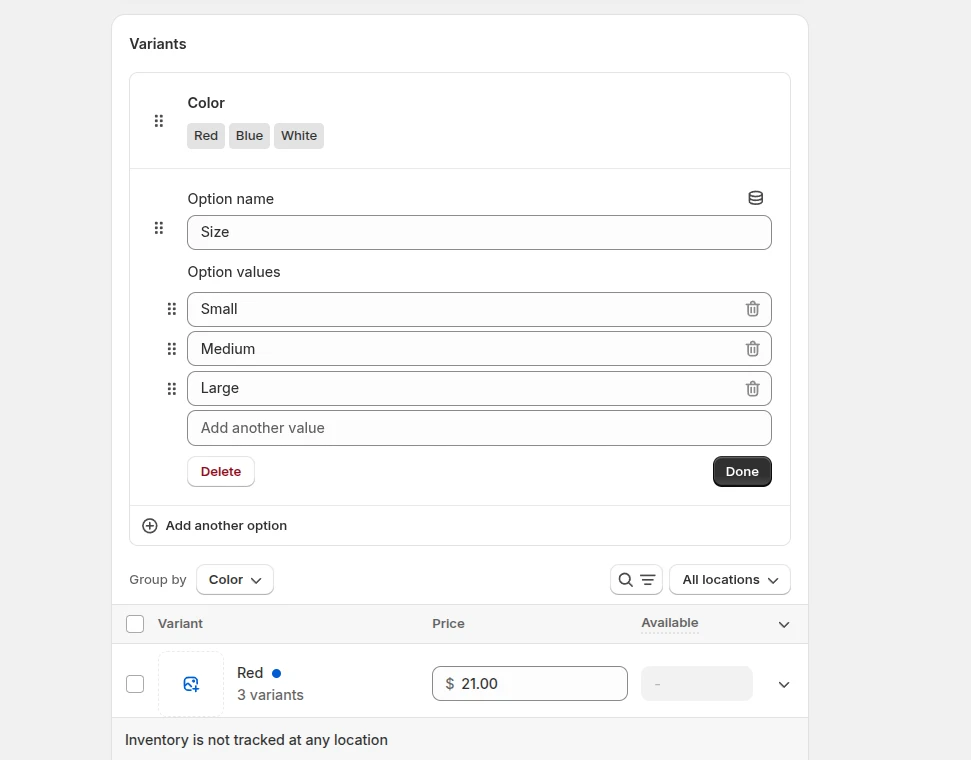
- Step 7. Finally, hit Done and Save.
How to Add a Variant with Category Metafields?
When to use this method:
This approach is useful for maintaining consistent variant data across multiple products. Any changes you make to shared option values can be applied wherever they’re connected.
Category metafields are the best choice for keeping variant options consistent across multiple products.
- Step 1. From your Shopify admin, go to Products and select the product you want to edit.
- Step 2. In the Variants section, click Add options like size or color.
- Step 3. If Shopify displays a compatible category metafield, select it to connect the variant option.
- Step 4. Shopify will automatically populate the available option values from that metafield. You can select existing values or add additional ones as needed.
- Step 5. If you want to create a custom option value, click Edit, then select Add new entry and enter the required details.
- Step 6. Click Save to apply the changes.
How to Add Values to an Existing Shopify Option?
When to use this method:
This approach saves time by generating multiple variant combinations at once. Instead of creating each variant manually, you only need to add a new value to an existing option.
This method lets Shopify automatically generate all corresponding variant combinations after you add a new option value.
- Step 1. Within your Shopify admin dashboard, navigate to Products.
- Step 2. Select the product you want to edit.
- Step 3. In the Variants section, click on the option you want to add values.
- Step 4. Then, in the Add another value field, enter the new value you want to add.
- Step 5. Click Done.
- Step 6. Optional: Shopify lets you add different images for each variant. Plus, you can set different prices, quantities, barcodes, etc, for the new variants. Or you can use the default settings based on your product details.
- Step 7. Don’t forget to click Save.
How to Add a Variant on Shopify Manually
When to use this method:
When you only need to create a single variant instead of generating multiple variant combinations. It gives you full control over the specific variant you want to add.
Follow these steps to create a new variant manually.
- Step 1. From your Shopify admin, go to Products and select the product you want to edit.
- Step 2. In the Variants section, click Add variant.
- Step 3. Enter the option values for the new variant using your existing product options (such as Size, Color, or Material).
- Step 4. Optionally, customize variant details such as the product image, price, inventory quantity, SKU, barcode, shipping information, and country or region of origin.
- Step 5. Click Save to create the new variant.
How to Add a Variant on Shopify by Duplicating An Existing Variant
When to use this method:
Duplicating an existing variant is one of the quickest ways to create similar product variations. Shopify copies the original variant’s details, allowing you to make only the necessary adjustments before saving.
Duplicating a variant copies its pricing, inventory, and other details, saving time. You must change at least one option value before saving, as identical variants aren’t allowed. To duplicate an existing variant:
- Step 1. From your Shopify admin, go to Products and select the product you want to edit.
- Step 2. In the Variants section, locate the variant you want to copy and click Duplicate.
- Step 3. Update at least one option value to make the new variant unique.
- Step 4. Optionally, adjust details such as the variant image, price, inventory quantity, SKU, barcode, shipping information, or country of origin.
- Step 5. Click Save to create the new variant.
Note: Like manually adding a variant, this method creates only one variant at a time. If you need multiple variant combinations, consider adding a new value to an existing option instead.
How to Import Product Variants to Shopify in Bulk with LitExtension
LitExtension lets you import product variants to Shopify in bulk. Instead of recreating variants one by one, you can migrate your products together with their associated variant data, including option values, prices, SKUs, inventory, images, and more.
For merchants managing large catalogs or complex product configurations, this method can save significant time. It can also be a practical solution if you’re exploring how to add more than 3 variants on Shopify through custom product structures or third-party apps and need to migrate that data into Shopify efficiently.
Step 1: Set up the source cart
To get started, install the LitExtension Store Migration app from the Shopify App Store and click Create New Migration.
Next, select your source cart and enter your store credentials to connect the two stores automatically. Alternatively, you can choose I want to manually upload the connector and follow the provided instructions if you prefer a manual setup.
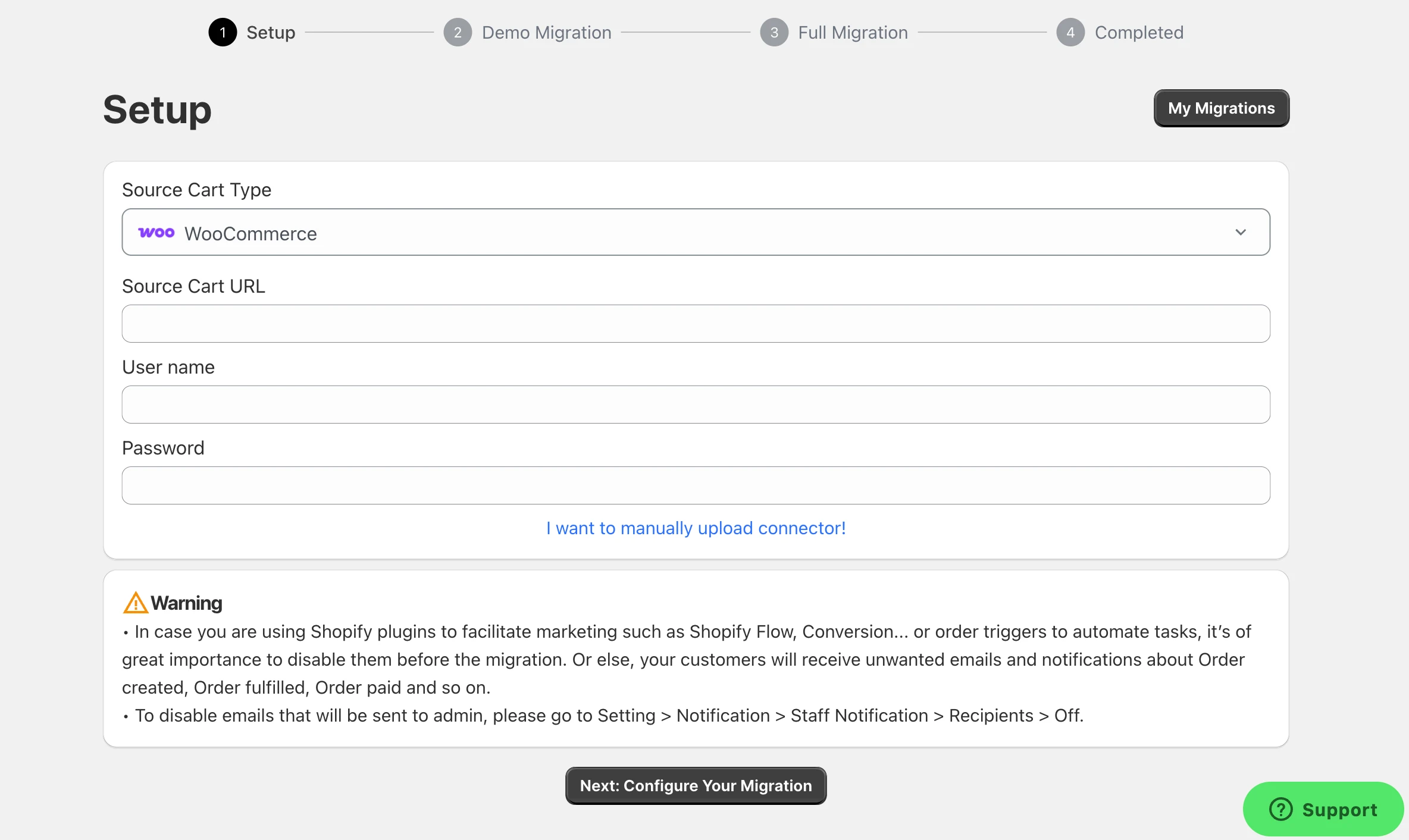
Once connected, click Next: Configure Your Migration.
Step 2: Select products to migrate
Here, select Products as the data type you want to migrate. All product variants associated with those products will be transferred as part of the migration.
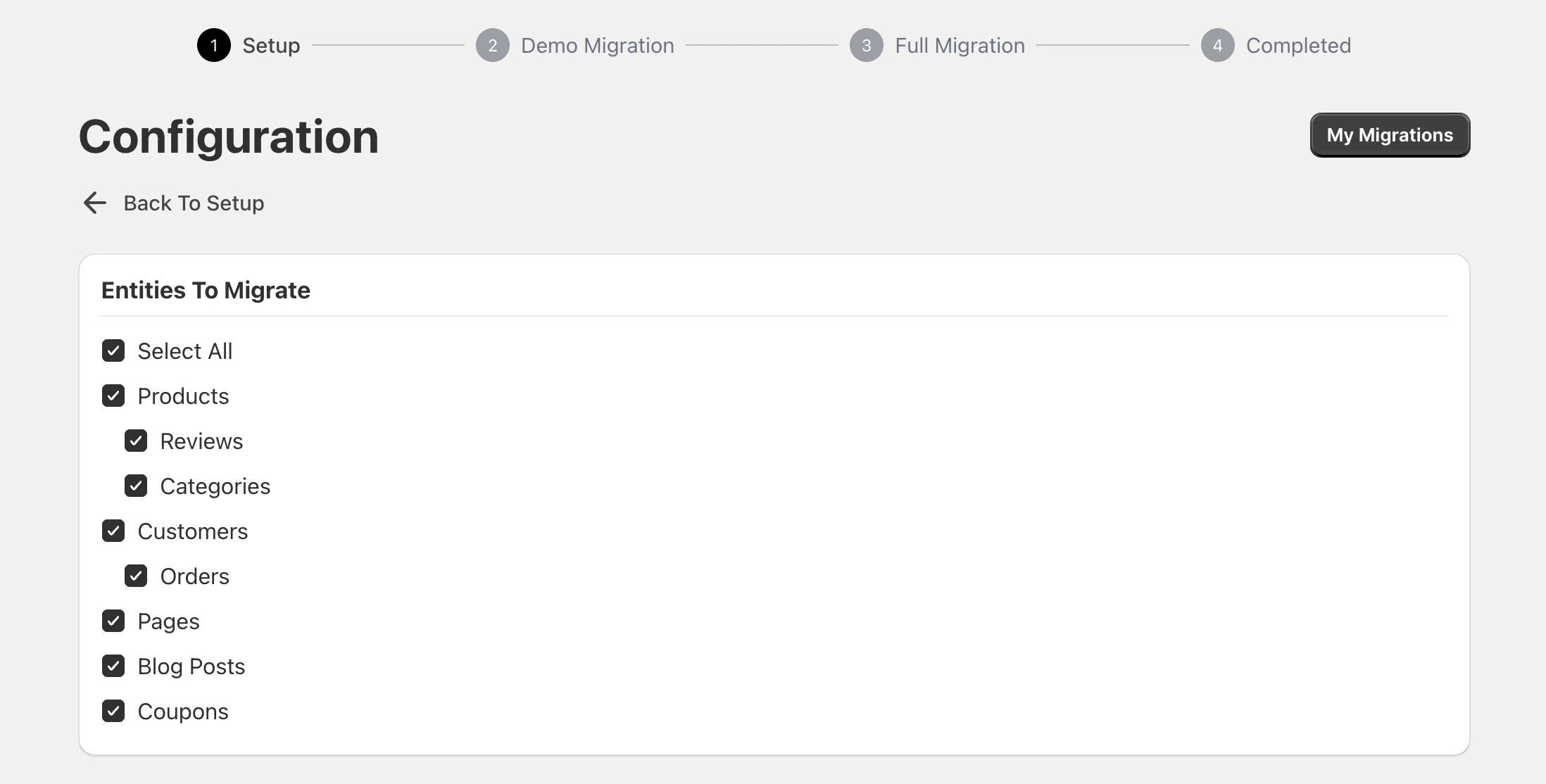
Before proceeding, review the Additional Options section to customize your migration settings. You’ll also have the opportunity to map languages and order statuses to ensure your data displays correctly after the migration.
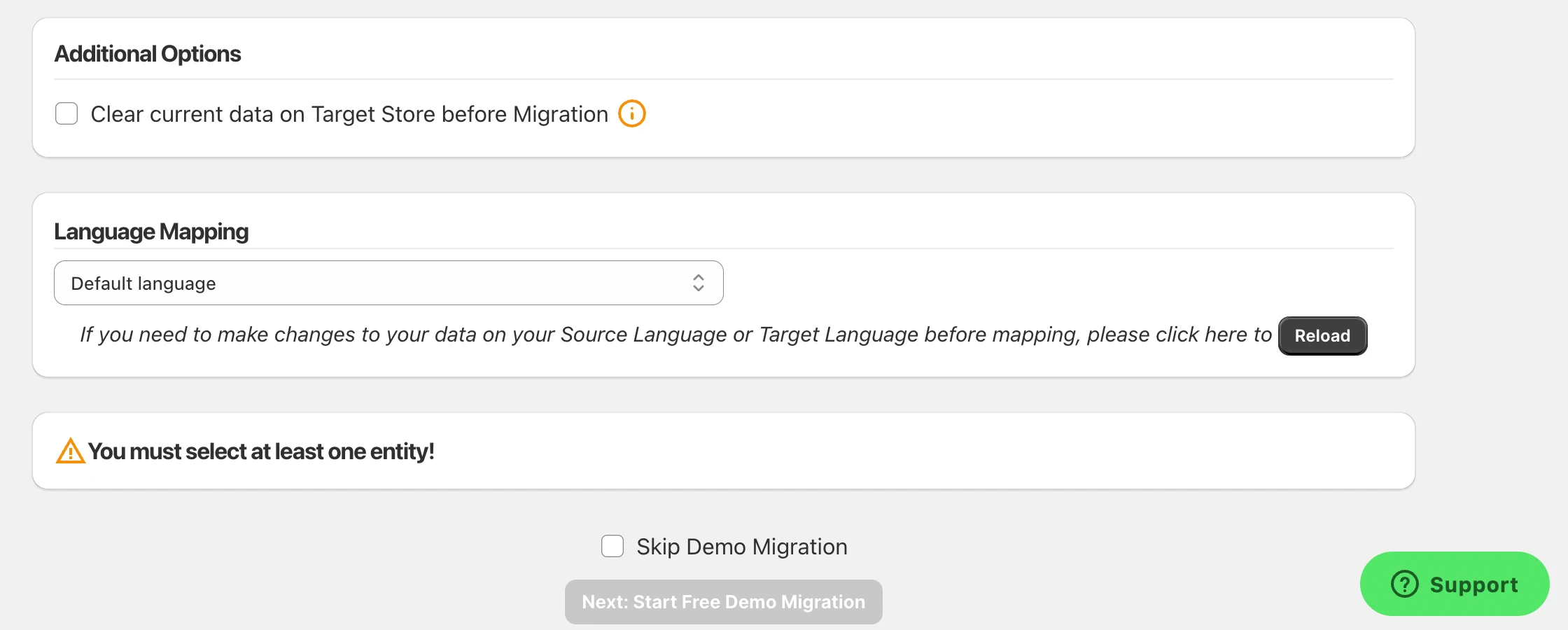
When everything is ready, click Next: Start Free Demo Migration. LitExtension allows you to run a free demo migration with a limited number of entities so you can preview the results before committing to a full migration.
Step 3: Run Full Migration
If you’re ready to proceed immediately, simply skip the demo and start the Full Migration. Once launched, the migration runs securely on LitExtension’s servers. There’s no need to keep your browser open, and your current store can continue operating normally throughout the process.
After the migration is completed, you’ll receive an email notification. Simply reopen the app to review the migrated data in your Shopify store.
Even after the migration is finished, your project remains protected by LitExtension’s post-migration services. Within 60 days of placing your order, you can take advantage of:
- Unlimited Recent Data Migration if your new data is less than 5% of the initial migration;
- Unlimited Smart Update;
- Free & unlimited Re-migration.
If you’d rather leave the technical work to experts, consider LitExtension’s All-in-One Migration Service. A dedicated Personal Assistant will manage the entire migration process and ensure your products, variants, and other store data are transferred accurately.
Let Our Experts Handle Your Shopify Migration!
With the All-in-One Migration Service, our experts take care of everything, ensuring a seamless and stress-free migration.

How to Add Variants on Shopify: FAQs
What is the difference between options and variants in Shopify?
Options are the product attributes customers can choose from, such as Size or Color, while variants are the purchasable product versions created by combining those option values. For example, a Small/Red T-shirt is a variant, while Size and Color are options.
How do I add variant description in Shopify?
Shopify doesn’t provide a dedicated description field for individual variants by default. However, you can add variant-specific information using variant metafields and display it on your product page through a compatible Shopify theme or custom theme customization.
Can each variant have its own price and image?
Yes. Shopify allows each variant to have its own price, compare-at price, SKU, inventory quantity, and product image. This is useful when different variants have different costs, stock levels, or visual appearances.
Can I add variants to multiple products at once?
Not natively. Shopify requires variants to be added on a product-by-product basis. For large catalogs, you can use CSV imports or a migration solution like LitExtension to transfer products and their variants in bulk, saving significant time and effort.
How many variants can a product have on Shopify?
A Shopify product can have up to 2,048 variants and a maximum of 3 option types. If your catalog requires more complex configurations, you may need to use third-party apps or custom solutions. For more details, see our guide on Shopify variant limits.
Will adding variants affect my product URL or SEO?
No. Variants don’t create separate product URLs by default, so adding variants won’t change your main product URL. Shopify keeps all variants under the same product page, helping consolidate SEO value.
However, variant selections can be reflected in the URL parameters, which makes it easier for customers to share or revisit a specific variant.
Final Words
In conclusion, knowing how to add variants on Shopify helps you improve your store. Variants let you offer more product options, match customer preferences, and increase sales and conversions.
Remember to follow the Shopify articles to discover more about the amazing world of eCommerce. Lastly, don’t forget to join our Facebook Community to connect with other experts and enthusiasts around the world.