
Setting up a Drupal redirect may seem straightforward, but an incorrect or missing rule can send visitors to a 404 page and prevent search engines from finding the new destination. This often happens when you change URL aliases, restructure content, or migrate an entire website.
To help you manage these URL changes properly, we have created this guide covering 4 redirect methods:
- Using the Drupal Redirect module;
- Adding rules to the Apache .htaccess file;
- Creating redirects programmatically in a custom module;
We’ll also cover redirect types, common errors, and useful companion modules. Keep reading for more!
What Is a Drupal Redirect? (And How It Differs from an Alias)
A Drupal redirect automatically sends visitors and search engines from one URL to another. For example, if you change a page from /summer-sale to /seasonal-offers, a redirect ensures that anyone visiting the old URL reaches the new page instead of encountering a 404 error.
Redirects are particularly important when you rename pages, reorganize your site structure, remove content, or migrate a website to or from Drupal. When configured correctly, they help maintain access to your content and preserve the SEO signals associated with old URLs.
Drupal redirects are often confused with URL aliases because both affect the URLs visitors see. However:
- A URL alias gives an existing Drupal path a cleaner address, such as changing
/node/25to/about-us. - A redirect forwards one URL to another, such as sending
/about-our-companyto/about-us.
When you change an alias, you should redirect the old one to the new URL so existing links continue to work.
Note: Drupal core supports URL aliases through the Path module. To manage redirects in the Drupal admin interface, you will generally need to install a contributed module such as the Redirect module.
Types of Drupal Redirects
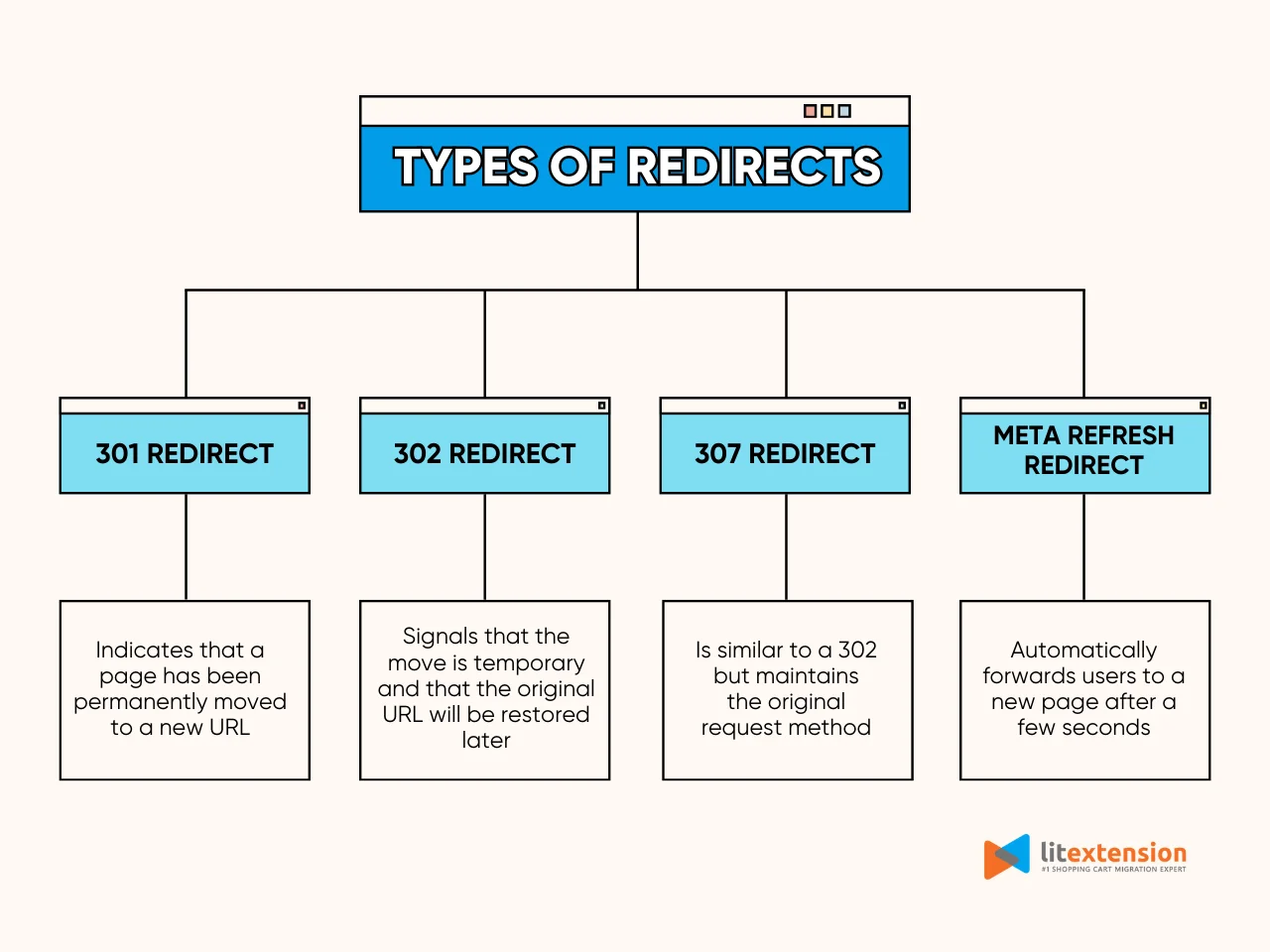
Drupal offers several types of redirects, each serving a specific purpose for managing URL changes and improving website performance. Understanding these types is essential for selecting the right redirect method based on your goals. Below are the most common types of Drupal redirect and their use cases.
1. 301 Redirect (Permanent redirect)
This type of redirect indicates that a page has been permanently moved to a new URL. It is the most SEO-friendly option because it transfers the page’s ranking power to the new location. You should use a 301 redirect when merging pages, updating URLs, or moving your site to a new domain.
2. 302 Redirect (Temporary redirect)
A 302 redirect signals that the move is temporary and that the original URL will be restored later. This type of redirect is useful for short-term promotions or A/B testing, as search engines do not pass link equity to the new URL.
3. 307 Redirect (Temporary redirect with method retention)
A 307 redirect is similar to a 302 but maintains the original request method (e.g., POST). It is ideal for ensuring that forms, search queries, or API calls are processed correctly without altering the request behavior.
4. Meta Refresh Redirect
This is a client-side redirect that automatically forwards users to a new page after a few seconds, typically seen in “If you are not redirected in five seconds, click here.” Although it is often used for announcements or countdown pages, it is less SEO-friendly than server-side redirects like 301 or 302.
By understanding these types and their functions, you can effectively manage URL changes, maintain SEO value, and improve user experience on your Drupal site.
When Should You Use a Drupal Redirect?
As your Drupal site grows, URLs may change for many reasons, from a simple page update to a complete website migration. In these cases, redirects help visitors reach the right content without running into broken links. You should use one when:
- Changing a URL alias: Redirect the old alias to the new one so bookmarks, backlinks, and search results continue to work.
- Deleting or merging pages: Send visitors to the closest relevant replacement instead of leaving them on a 404 page.
- Restructuring your website: Maintain access to content when categories, paths, or URL patterns change. In this scenario, don’t forget to run a Drupal export first before making any changes to your site structure. This way, you’ll have a safety net to fall back to when things go wrong.
- Migrating your website: Map old URLs to their corresponding pages on the new domain or platform.
- Managing duplicate URLs: Redirect alternative URL versions to the preferred canonical address.
- Running temporary campaigns or maintenance: Temporarily send visitors to another page, then restore the original URL later.
The key is to match each old URL with the most relevant destination rather than redirecting everything to your homepage. Then, choose a 301 redirect for permanent changes or a 302/307 redirect when the move is temporary.
If these URL changes are part of a full website replatforming, our LitExtension migration service can help you transfer your store data and manage the technical work.
Store Migration Made Easy With LitExtension!
LitExtension offers great migration solutions that help you transfer your data from the current eCommerce platform to a new one accurately, painlessly with utmost security.

How to Create Drupal Redirects in 3 Methods
There are three common ways to create Drupal redirects, depending on your technical experience and how much control you need. The Redirect module is the most accessible option, while .htaccess and programmatic redirects are better suited to server-level or custom requirements. Let’s go through each method below.
1. Using the Redirect Module
The Drupal Redirect module is suitable for creating and managing individual redirects without editing server files or writing code.
Step 1: If the module is not installed, open a terminal in your Drupal project’s root directory and run:
composer require drupal/redirect
Then sign in to Drupal, go to Extend, select Redirect, and click Install. You will need permission to install and administer modules.
Step 2: Navigate to Configuration > Search and metadata > URL redirects. You can also open the page directly at:
/admin/config/search/redirect
Review the existing list first to avoid creating duplicate or conflicting redirects.
Step 3: Click Add redirect and complete the form. For example, to send https://yourdomain.com/old-services to https://yourdomain.com/services, you can enter as follow:
| Field | What to enter | Example |
| Path / from | The old path, normally without the domain name or leading slash | old-services |
| To | An internal Drupal path, content item, or absolute external URL | /services or https://example.com/services |
| Redirect status | The HTTP status that describes the move | 301 Moved Permanently |
Step 4: Choose the redirect status:
- 301 Moved Permanently: For permanent URL changes, merged pages, or website migrations.
- 302 Found: For temporary campaigns, maintenance, or testing.
Other statuses are available, but 301 and 302 cover most content redirects.
Step 5: Click Save, then open the old URL in an incognito window to confirm it reaches the correct page without a redirect loop. You can also verify the response with:
curl -I https://yourdomain.com/old-services
A permanent redirect should return a 301 status and the correct destination in the Location header.
2. Using .htaccess in Apache
If your Drupal site runs on Apache, you can create redirects directly in the .htaccess file. This server-level method is fast and useful for permanent redirects, domain changes, or URL patterns, but it requires access to your website files.
Step 1: Connect to your server through your hosting file manager, FTP, or SSH. Open the Drupal root directory and locate the .htaccess file. Since it is a hidden file, you may need to enable Show hidden files.
Step 2: Download or copy the current .htaccess file as a backup before editing it. A syntax error can make the entire website unavailable.
Step 3: Find the existing RewriteEngine on line. Add your custom redirects after it but before Drupal’s main rewrite rules:
# Custom redirects
RewriteRule ^old-services/?$ https://yourdomain.com/services [R=301,L]
This redirects both /old-services and /old-services/ to /services.
Step 4: Replace:
- old-services with the old URL path, without the domain or leading slash.
- https://yourdomain.com/services with the complete destination URL.
- 301 with 302 if the redirect is temporary.
The R=301 flag returns a permanent redirect, while L tells Apache to stop processing additional rewrite rules after a match.
Step 5: For several individual pages, add one rule per URL:
RewriteRule ^old-about/?$ https://yourdomain.com/about [R=301,L]
RewriteRule ^old-contact/?$ https://yourdomain.com/contact [R=301,L]
RewriteRule ^old-services/?$ https://yourdomain.com/services [R=301,L]
If an entire directory has moved, you can use a capture group:
RewriteRule ^old-blog/(.*)$ https://yourdomain.com/blog/$1 [R=301,L]
For example, /old-blog/drupal-guide will redirect to /blog/drupal-guide. Test pattern-based rules carefully because they may affect more URLs than intended.
Step 6: Save the file and upload it back to the Drupal root directory if necessary. Then open the old URLs in an incognito window and confirm that they reach the correct destinations without chains or loops.
You can also verify the response from the command line:
curl -I https://yourdomain.com/old-services
A successful permanent redirect should return 301 Moved Permanently and show the correct destination in the Location header.
If the website returns a 500 Internal Server Error, restore your backup immediately and check the rule syntax or confirm that Apache’s mod_rewrite module and .htaccess overrides are enabled.
3. Programmatically (for developers)
For redirects that depend on custom logic, permissions, route parameters, or other runtime conditions, developers can define a route in a custom Drupal module and return a redirect response from its controller.
Step 1: In your custom module, create or open the routing file. For a module named custom_redirect, the file should be:
modules/custom/custom_redirect/custom_redirect.routing.yml
Add a route for the old URL:
custom_redirect.old_services:

path: '/old-services'

defaults:

_controller: '\Drupal\custom_redirect\Controller\RedirectController::oldServices'

requirements:

_permission: 'access content'
This tells Drupal to call the oldServices() method whenever someone accesses /old-services.
Step 2: Create the controller file at:
modules/custom/custom_redirect/src/Controller/RedirectController.php
Then add:
<?php

namespace Drupal\custom_redirect\Controller;

use Drupal\Core\Routing\LocalRedirectResponse;
use Drupal\Core\Url;

class RedirectController {

public function oldServices(): LocalRedirectResponse {
$url = Url::fromRoute(
'system.admin_content',
[],
['absolute' => TRUE]
)->toString();

return new LocalRedirectResponse($url, 301);
}

}
Replace system.admin_content with the route name of your destination. You can also pass route parameters, such as a node ID:
$url = Url::fromRoute(
'entity.node.canonical',
['node' => 42],
['absolute' => TRUE]

)->toString();
Step 3: To redirect to an external website, use TrustedRedirectResponse instead:
use Drupal\Core\Routing\TrustedRedirectResponse;

return new TrustedRedirectResponse(
'https://example.com/services',
301

);
Use LocalRedirectResponse for destinations on the same Drupal site. Only use TrustedRedirectResponse when the external destination is known and trusted.
Step 4: Enable the custom module if necessary, then rebuild Drupal’s cache so the new route is registered:
drush cr
Step 5: Visit /old-services and confirm that it reaches the correct destination. You can also use curl -I to verify the status code and Location header.
This method is useful for conditional or dynamic redirects, but it requires code deployment whenever the rule changes. For redirects that content managers need to update regularly, the Redirect module is usually more practical.
Companion Modules Worth Knowing
The Redirect module covers most day-to-day URL changes, but a few companion modules can make redirects easier to detect, automate, and manage at scale:
- Pathauto: Automatically generates readable URL aliases for content, taxonomy terms, and users based on predefined patterns. When used with Redirect, Drupal can create a redirect from the old alias whenever an alias changes, helping prevent broken links after content updates.
- Redirect 404: A submodule included with Redirect that records URLs returning 404 errors. You can review how often each missing URL is requested and create a redirect directly from the report. This is especially useful after a redesign or migration, although high-traffic sites should monitor the additional logging.
- Redirect Domain: Another submodule included with Redirect. It supports domain-level and wildcard redirects, making it useful when moving from an old domain to a new one or applying the same rule across a group of URLs.
You do not need to enable every module. Pathauto is helpful for consistent URL creation, Redirect 404 supports broken-link monitoring, and Redirect Domain is mainly needed for larger domain or migration changes.
Troubleshoot Common Errors While Performing Drupal Redirects
If a Drupal redirect does not work as expected, start with the source path, destination, cache, and any conflicting rules. Here are the most common issues:
| Issue | What to check |
| Redirect does not work | Confirm that the Redirect module and rule are enabled, the source path is correct, and Drupal’s cache has been cleared. |
| Redirect leads to a 404 page | Check that the destination URL is correct, published, and publicly accessible. |
| Too many redirects | Look for rules that redirect back to the source URL or send two URLs to each other. |
| Redirect chain (A → B → C) | Update the first rule so A points directly to the final destination, C. |
| Redirect opens the wrong page | Review wildcard, domain-level, and .htaccess rules that may be matching too many URLs. |
| An old 301 redirect still appears | Test in an incognito window and clear Drupal, browser, CDN, and proxy caches. |
| .htaccess rule does not run | Confirm that mod_rewrite and .htaccess overrides are enabled, and place the rule before Drupal’s main rewrite rules. |
| The site returns a 500 error | Restore the previous .htaccess file and check the new rule for syntax errors. |
After making changes, test the old URL again and use curl -I or browser developer tools to confirm the status code and final destination.
Bulk Redirects During a Site Migration
The Drupal redirect methods above work well when you only have a few URLs to update. During a full website migration, however, creating hundreds or thousands of redirects manually through the Redirect module or .htaccess can become difficult to manage and test.
This is where a bulk Drupal redirect plan becomes essential. Each eligible old URL should point directly to its corresponding page on the new store, helping visitors avoid 404 errors and reducing the risk of redirect chains after launch.
With LitExtension’s Drupal Migration Service, you can select the Create 301 Redirects Additional Option during migration setup. For supported migration pairs, our service automatically redirects eligible old store URL.

If your migration involves a large or complex URL structure, contact LitExtension experts to discuss your Drupal redirect requirements before launch.
Let Our Experts Handle Your Drupal Migration!
With the All-in-One Migration Service, our experts take care of everything, ensuring a seamless and stress-free migration.
Drupal Redirect – FAQs
What is the difference between a redirect and a URL alias in Drupal?
A URL alias gives an existing Drupal path a cleaner address, such as changing /node/25 to /about-us. Meanwhile, a Drupal redirect forwards visitors from one URL to another, such as from /old-about to /about-us.
When should I use a redirect?
You should create a Drupal redirect when you change a URL alias, move or merge content, fix broken links, restructure your site, or complete a website migration. The redirect helps visitors and search engines reach the correct page instead of encountering a 404 error.
What’s the difference between a 301 vs 302 redirect?
The main difference lies in how long the URL change is expected to last:
- 301 Moved Permanently: The original URL has permanently moved to a new location. It is suitable for renamed pages, merged content, and website migrations.
- 302 Found: The original URL has moved temporarily and will be restored later. It is suitable for maintenance, short campaigns, and testing.
Does the Drupal Redirect module work with Drupal 10 and 11?
Yes, the current Drupal Redirect module supports both Drupal 10 and Drupal 11. However, you should still review the latest release and requirements on Drupal.org before installing it.
How do I create a redirect in Drupal?
You can create a redirect by installing the Redirect module and navigating to Configuration > Search and metadata > URL redirects. From there, select Add redirect, enter the old path and new destination, choose an HTTP status, and click Save.
Final Thoughts
In conclusion, managing Drupal redirect effectively is essential for maintaining a smooth user experience and preserving SEO rankings during website changes. Whether you use the Redirect module or configure redirects through Apache, it’s crucial to choose the right method based on your needs.
If you like this article, please don’t forget to check out other eCommerce articles on our website for more expert tips and insights.

