
Your Drupal export method depends entirely on your goal. You may need to pull content for reports, back up site data, move configurations between environments, or migrate to a new platform. Drupal has built-in tools for each of these tasks.
In this article, we’ll walk you through everything you need to know about Drupal export, including:
- What you can export from Drupal;
- How to manually export Drupal data for backups and reports;
- How to perform a full Drupal export for migration;
- Common Drupal export problems and how to fix them.
Let’s get started!
What Can You Export from Drupal?
A Drupal export can include:
- Content: Articles, pages, and custom content types stored as nodes. Depending on the method you use, you can often export related data at the same time, including taxonomy terms, media files, and other referenced content, so those connections remain intact after import.
- Users: Registered user accounts, including usernames, email addresses, and assigned roles. This is especially useful when moving a membership site, community platform, or customer database to a new system.
- Site configuration: Content types, fields, views, image styles, display settings, and other site configurations. In modern Drupal versions, these settings are stored separately from content and can be exported as YAML (.yml) files, making it easier to recreate the same site structure elsewhere.
- Files and media assets: Images, documents, videos, and other uploaded files from your media library. Many Drupal export tools can package these assets together with the content that references them, helping ensure nothing gets left behind during the transfer.
The exact process varies depending on the type of data you want to export, which is why Drupal offers several export methods and modules. In the next section, we’ll walk through the most common options and explain when to use each one.
How to Export Drupal Database Manually for Backup & Reports
Depending on what you want to accomplish, you’ll typically use one of the following export approaches:
- Backup or migrate data between Drupal sites: Export content, users, configuration, and media files using Drupal modules and built-in tools.
- Reporting or data analysis: Export data to CSV or another spreadsheet-friendly format for easier review, filtering, and sharing.
Note: The methods below apply to Drupal 8, 9, 10, and 11. If you’re still running Drupal 7, you’ll need different modules and workflows, as the platform uses an older architecture.
1. How to Export Content and Users in Drupal
If you want to back up or move Drupal content and user accounts to another Drupal site, the easiest option is the Single Content Sync module. It lets you perform Drupal export content and users into portable files that can later be imported elsewhere.
After installing and enabling the module, Drupal adds export options to supported content and user pages.
To perform a Drupal content export from your site:
- Go to Content (
/admin/content). - Select the content items you want to export.
- Choose Export content from the Action dropdown menu.
- Click Apply.
- Download the generated ZIP file.
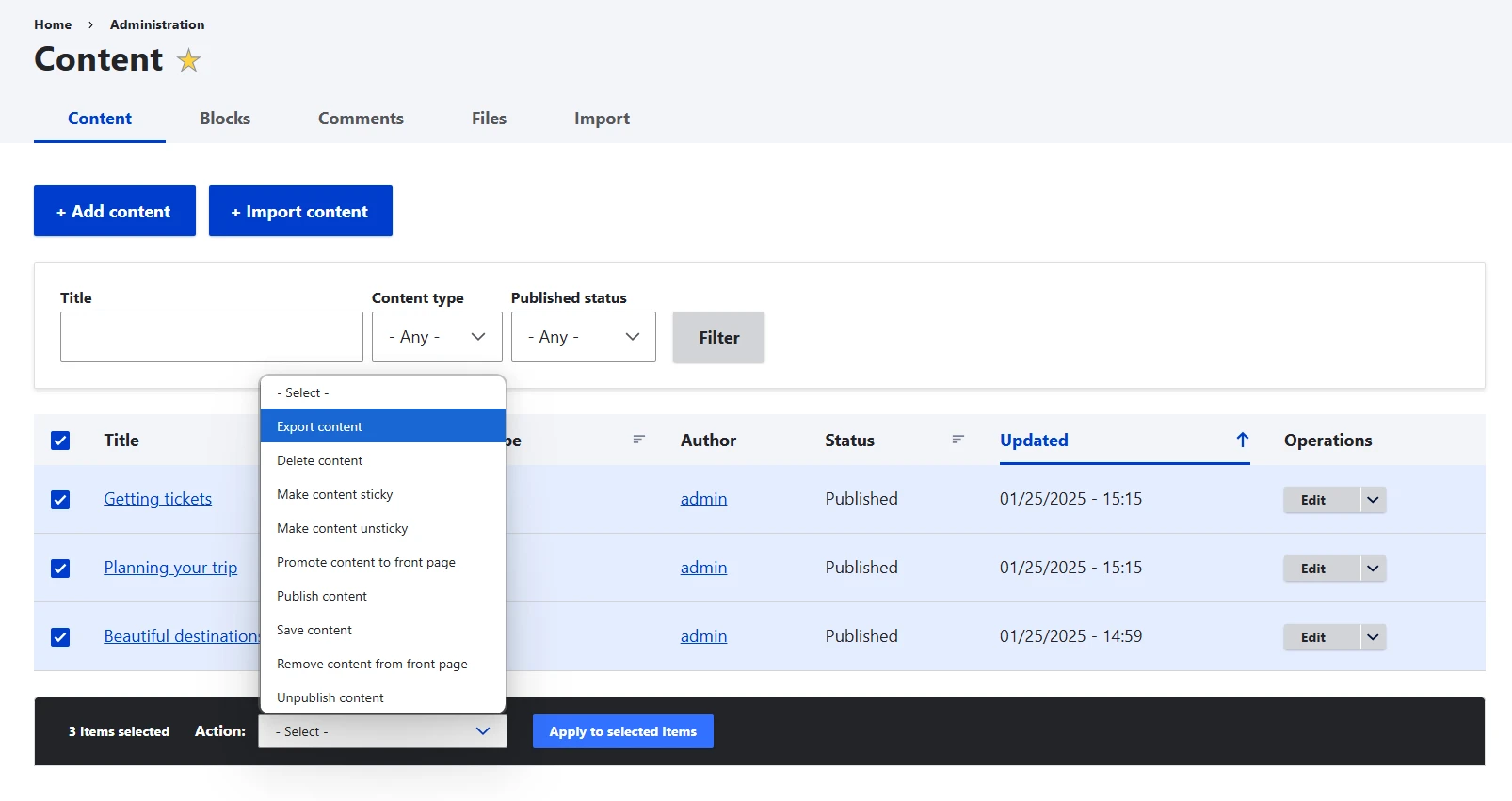
You can also export individual content items by opening the content and selecting the Export option. The exported file can include related content, translations, and referenced media, making it easier to preserve relationships between records when importing them into another Drupal site.
2. How to Export Files and Media in Drupal
Images, documents, and videos require a little extra attention during the export process.
In many cases, exporting content through Single Content Sync is enough because referenced media files can be bundled into the generated ZIP archive automatically. This is usually the easiest option since it keeps content and media linked together.
If you need a complete copy of every uploaded file on your site, you can also:
- Download the
sites/default/filesdirectory via SFTP. - Create a full-site backup with the Backup and Migrate module.
- Export your database and uploaded files together as part of a disaster recovery backup.
3. How to Export Users in Drupal
Performing Drupal export user accounts uses a different, purpose-built tool: the Users Export module. It adds a simple admin export page, so you don’t need to build a View for a basic export.
- Install and enable the Users Export module.
- Go to
/admin/people/exportin the admin UI. - Choose your output format (CSV, or other text file types depending on the branch/version).
- Run the export and download the file, which contains key user attributes such as uid, mail, name, created, access, and login.
💡 Tip: The module’s 3.x branch integrates with Views Data Export and supports CSV, JSON, and XML – handy if you later want to filter the user list or extend the export with additional fields.
One thing to keep in mind: passwords are stored hashed, so they won’t transfer in a usable form through this method. If preserving customer logins matters – which it almost always does when migrating a live store – you’ll need a dedicated migration tool (more on that later).
4. How to Export Site Configuration in Drupal
Content is only one part of a Drupal website. If you want to recreate the same site structure elsewhere, you’ll also need to export your configuration.
Drupal includes a built-in Configuration Manager that lets you export content types, fields, views, image styles, display settings, and other site configurations as YAML files.
To export data from Drupal configuration:
- Navigate to Configuration > Development > Configuration Synchronization.
- Open the Export tab.
- Choose Full archive to download all configuration settings.
- Alternatively, select Single item if you only need a specific configuration object.
Developers often perform the same task using the Drush command:
drush config:export
By default it exports all nodes to a directory like DRUPAL_ROOT/scs-export. You can customize:
- Entity type (node, taxonomy_term, block_content, etc.).
- Output path (e.g., drush content:export block_content ./export-folder).
- Options such as
--translate (include translations), --assets (include files), --all-content, --bundle="article", or --entities="1,4,7".
One important limitation is that full configuration exports are intended for different versions of the same Drupal site, such as development, staging, and production environments. Importing a full configuration archive into an unrelated Drupal site can lead to conflicts because of Drupal’s UUID requirements.
5. How to Export Data to CSV in Drupal
If your goal is reporting, auditing, or data analysis, YAML and ZIP files aren’t very practical. In this case, performing a Drupal CSV export makes much more sense.
The most popular solution is the Drupal Views Data Export module, which can export your content and user data as CSV, XLS, XML, or JSON files.
Here’s how it works:
- Install and enable views_data_export (and its dependencies, ideally via Composer).
- Create or edit a View Page listing the content you want (base table: Content / Node) and add the fields and filters you need.
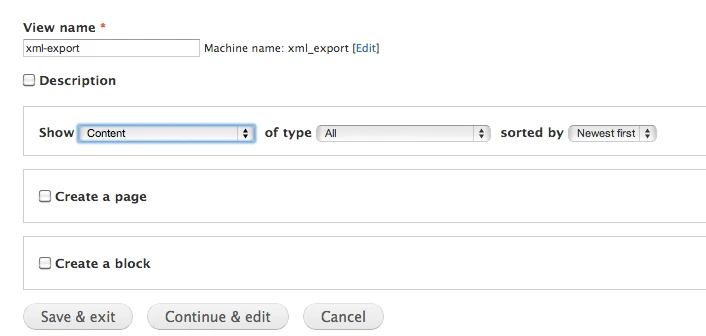
- In the View, add a new “Data export” display and choose format (CSV, JSON, XML, etc.).
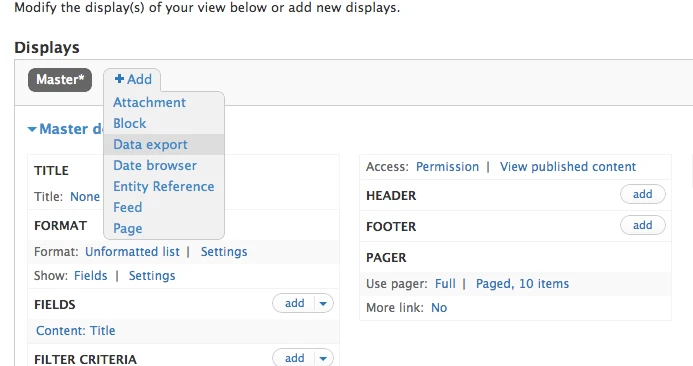
- Configure the export display (filename, delimiter, included fields) and save the View.
- Visit the View page; you’ll see a Download button that generates the export with any filters applied.
For large datasets, enable batch processing and sort the View by a unique field such as Node ID or User ID. This helps keep the exported results consistent and complete.
How to Perform a Full Drupal Export for Migration with LitExtension?
The manual methods above work well for backups, reporting, and moving data between Drupal sites. But if you’re migrating to another platform, these Drupal export ways can quickly become time-consuming and difficult to manage.
That’s where LitExtension comes in. With 15+ years of migration experience, we help you transfer your Drupal data accurately and securely to platforms like WordPress, WooCommerce, Shopify, and more – without the complexity of handling each data type manually.
With our All-in-One Migration Service, you’ll be assigned a dedicated Personal Assistant (PA) who manages the entire project for you. From migration setup and data mapping to testing and post-migration support, our experts take care of everything for you. Let’s see how LitExtension can help you migrate and export Drupal data more smoothly!
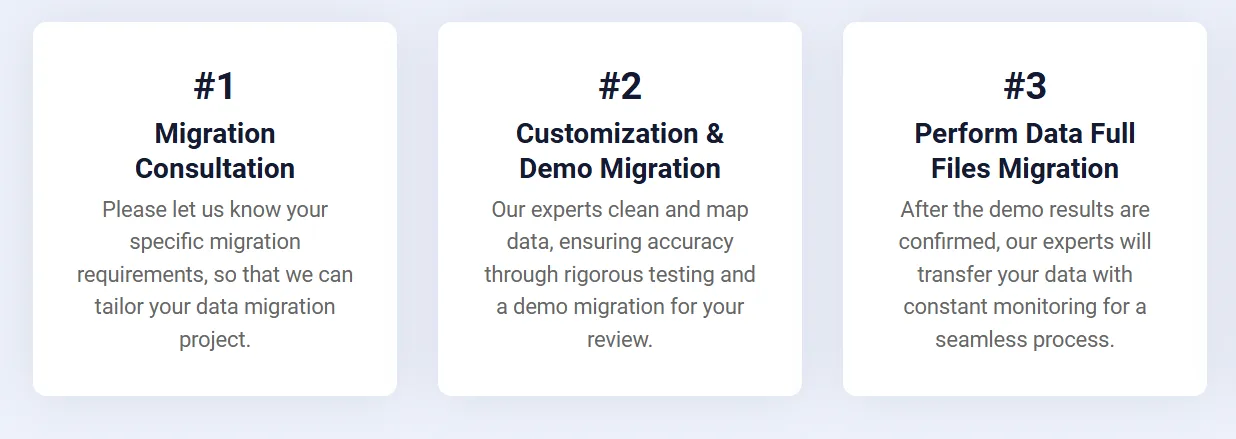
1. Receive consultations from our experts
Start by scheduling a consultation with our migration specialists. During this session, we’ll learn more about your current Drupal site, your target platform, and the data you want to migrate, such as content, users, media files, products, orders, and other important records.
Once we fully understand your requirements, we’ll recommend the most suitable migration approach, finalize the project scope, and prepare a Service Level Agreement (SLA). After that, you can leave the technical work to our team.
2. Configure data mapping and settings
Next, our experts will set up everything needed for a smooth migration. This includes reviewing your data structure, configuring migration settings, mapping data between platforms, and preparing your target store or website.
We’ll also back up your data, check for potential issues, and configure additional options when needed. Throughout this stage, you can request unlimited demo migrations to preview the results and ensure everything is transferred exactly as expected before the full migration begins.
3. Perform full Drupal migration
Once everything is ready, our team will carry out the full migration for you. We’ll monitor the process closely, keep you updated on the progress, and respond to any questions or requests within 24 hours.
Our support doesn’t stop when the migration is finished. After reviewing the migrated site, we continue to support you with:
- Free & Unlimited Recent Data Migration
- Free & Unlimited Smart Update
- Free 2 Re-migrations
- Up to 60 days of post-migration support
As you can see, the entire Drupal migration process can be handled from start to finish without requiring you to manage complicated exports, imports, or technical configurations yourself. Contact us today and let our experts take care of your migration for you.
Drupal Migration Made Easy With LitExtension!
LitExtension offers great migration solutions that help you transfer your data from Drupal to a new eCommerce platform accurately, painlessly with utmost security.

Common Drupal Export Problems and How to Fix Them
Even when you follow the export steps correctly, a few issues can still appear during the export, import, or migration process. Here are some of the most common Drupal export problems and what you can do to fix them.
1. Missing images, media files, or Taxonomy References
One of the most common issues occurs when content is exported without its related dependencies. Articles and pages often reference media files, taxonomy terms, authors, or custom entities. If these items aren’t included in the export, the imported content may contain broken images, empty fields, or missing references.
How to fix it:
- Export media together with the content that references it.
- Include taxonomy terms and other related entities in the export.
- Use export methods that preserve dependencies, such as Single Content Sync’s ZIP export.
2. Export times out or fails on large sites
Large Drupal sites can contain thousands of nodes, users, or media files. Exporting everything in a single operation may exceed your server’s memory or execution limits, causing incomplete exports or timeout errors.
How to fix it:
- Enable batch processing whenever possible.
- Export data in smaller groups instead of all at once.
- Increase PHP memory and execution limits if you manage the server.
3. Configuration won’t import into another Drupal site
This issue usually happens when attempting to import a full configuration export into an unrelated Drupal installation. Drupal configuration exports are designed for environments that share the same site UUID.
How to fix it:
- Use full configuration exports only between development, staging, and production versions of the same site.
- Export individual configuration items instead of the entire configuration set when moving settings to a different Drupal site.
4. Traffic drops after migrating to a new platform
When migrating from Drupal to WordPress, Shopify, or another platform, URLs often change. If old URLs aren’t redirected, visitors and search engines will encounter 404 errors, which can negatively affect SEO performance.
How to fix it:
- Create a URL mapping before the migration.
- Implement 301 redirects from old URLs to their new equivalents.
- Test important pages after launch to confirm redirects work correctly.
By identifying these issues early and applying the appropriate fixes, you can avoid the most common Drupal export and migration problems and ensure a much smoother transition.
Drupal Export: FAQs
How do I export Drupal content to CSV?
To export Drupal content to CSV, follow these steps:
- Install and enable the Views Data Export module.
- Create a View for the content you want to export.
- Add a Data Export display to the View.
- Select CSV as the export format.
- Run the export and download the generated CSV file.
How do I export Drupal config with Drush?
To export your Drupal configuration as YAML files, you can run the following command: drush cex. This command exports your Drupal configuration as YAML files.
Can I export an entire Drupal site?
Yes. A full Drupal export can include content, users, configuration, media files, and the database. You'll typically need a combination of export modules and backup tools to capture everything.
If you're migrating to another platform, our LitExtension experts will handle the entire process from start to end for you. We guarantee to move your data accurately with less manual effort.
How do I export Drupal to WordPress or Shopify?
You can migrate manually by exporting and importing your data. Alternatively, you can use LitExtension's migration service. Our migration experts handle the transfer of content, users, media, and other data from Drupal to WordPress and many more platforms, ensuring a smooth and accurate migration process.
Conclusion
We hope this guide has helped you find the best Drupal export method for your needs. Drupal gives you several ways to export data, and the right method depends on what you’re trying to achieve:
- Reporting and analysis: Export data to CSV with Views Data Export.
- Backups and Drupal-to-Drupal transfers: Use Single Content Sync, Configuration Manager, and backup tools.
- Platform migrations: Use a dedicated solution like LitExtension to transfer all your data with less manual work.
For more insights, feel free to explore our eCommerce blog or join our community to connect with other merchants and industry experts.

