For many Shopify merchants, growing an online store often involves significant changes along the way, including app installations, custom features, data migration, and more. Since these updates are likely to introduce technical risks, it's important to learn how to clone Shopify store before making major changes.
But how exactly can you do that, though? No worries! In this guide, we will walk you through two effective ways to do so:
Let's begin!
Why You Need to Clone Shopify Store
Here are several common reasons why store owners choose to copy Shopify store:
- Create a backup of your store data: Cloning your store can act as a safety net in case something goes wrong. If major changes or app conflicts accidentally disrupt your store, you can immediately restore important data such as products, customers, and store structure.
- Test themes, apps, or new features safely: Many merchants create a duplicate store to test new themes or experiment with custom code. This way, it's easy to evaluate how changes affect your storefront without risking errors or downtime on the live store that customers are actively using.
- Prepare for store migration or platform changes: When migrating a store (e.g., moving data between Shopify stores or transferring from another platform), creating a clone can help you test the migration process in advance. For example, during a migration project with services like LitExtension, merchants are often provided with a demo migration that transfers a small sample of data to a target store.
- Launch additional storefronts or regional stores: Businesses that expand into new markets sometimes duplicate an existing Shopify store as a starting point. Cloning allows them to reuse the same product catalog, store structure, and design while still customizing language or currency for different regions.
Now that you understand why this step is important, let’s discuss how to duplicate Shopify store in the next section.
Want to Migrate to Shopify?
LitExtension provides a well-optimized All-in-One migration service for your data transfer!
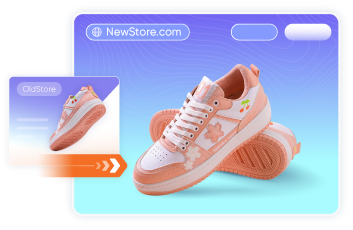
How to Clone Shopify Store Using Shopify’s Built-in Features
To clone your Shopify store using this method, you need to prepare both stores, export products and customers to CSV, and import the CSV files into the new stores. Finally, remember to restore store settings, apps, and additional content.
Step 1. Prepare both your Shopify stores
First, you need to log in to both the original and new stores using the store owner account. Only then will you have full permissions to export and import store data.
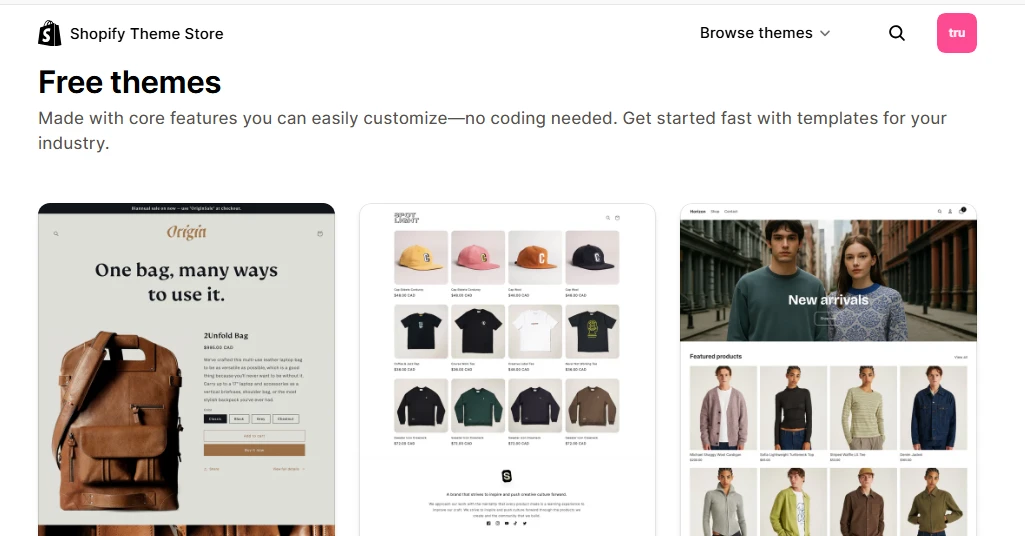
Also, confirm that the new store is using the same Shopify subscription plan as the original one. And don't forget to apply the same theme used in the original store. You can:
- Install the theme again from the Shopify Theme Store.
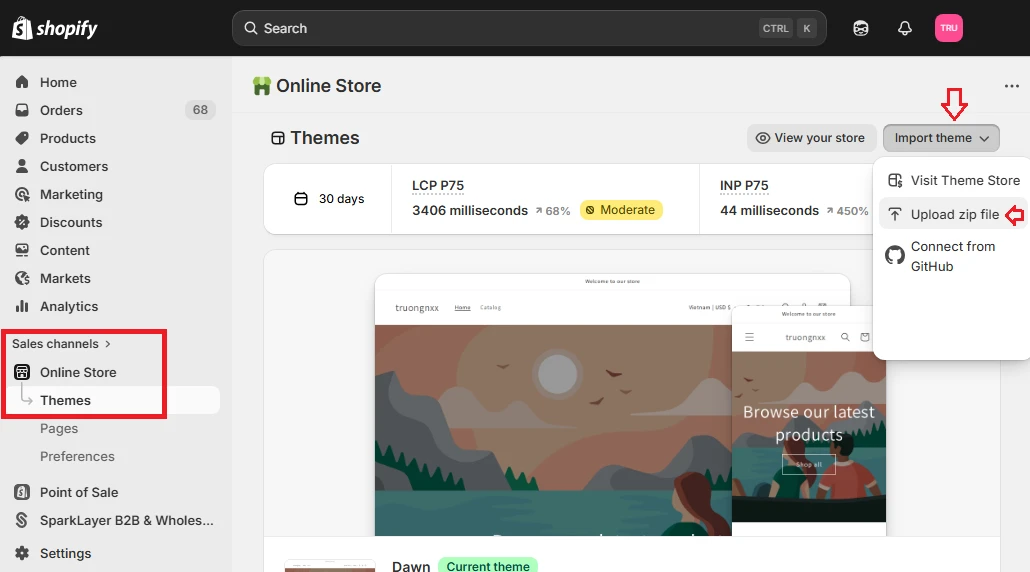
- Upload the theme file from your computer (if you have already downloaded it from the original store).
Step 2. Export product data
To move product data to the new store, you must export the product list as a CSV file from the original store.
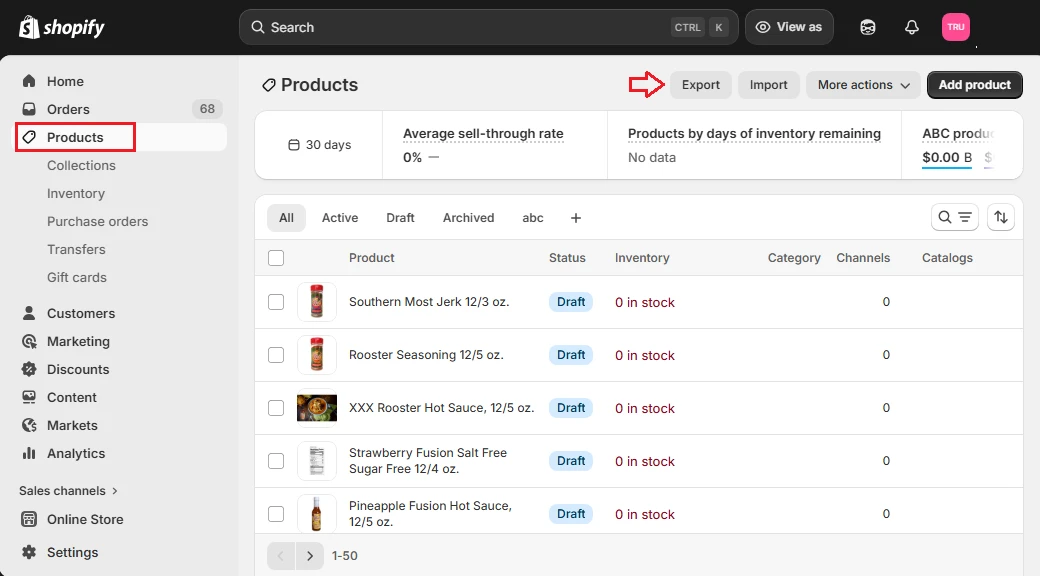
From your Shopify admin, go to Products and click Export.
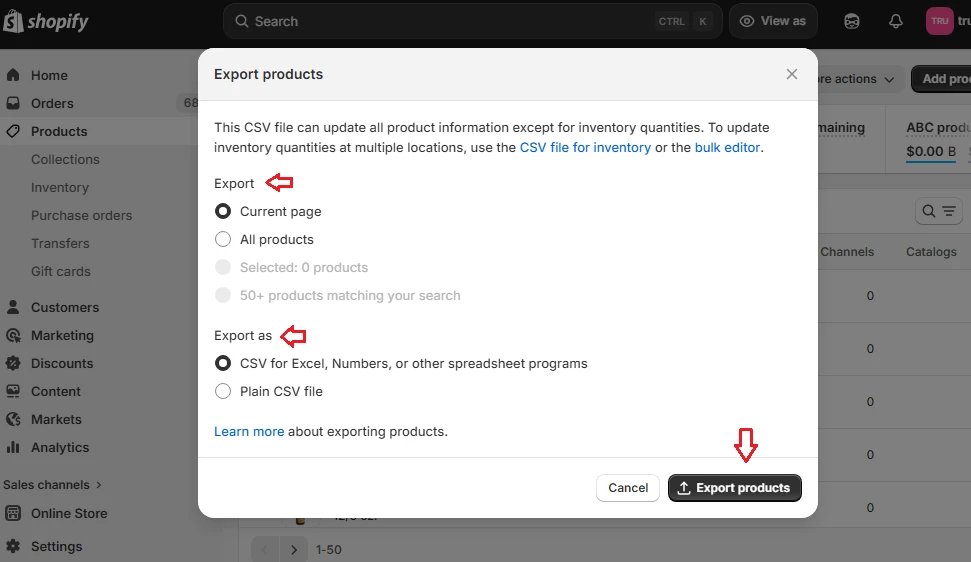
Shopify will display a dialog box where you can choose which products to include in the export. Available options include:
- The current page of products
- All products
- Products you have selected
- Products that match your search or applied filters
Next, choose the CSV file format:
- If you plan to edit the file using spreadsheet software, select CSV for Excel, Numbers, or another spreadsheet program.
- If you intend to open and edit the file with a plain-text editor, choose Plain CSV file instead.
Once your selections are complete, click Export products to download the CSV file.
Step 3. Export customer data
Similarly, customer data should also be exported as a CSV file so it can be imported into the new store later.
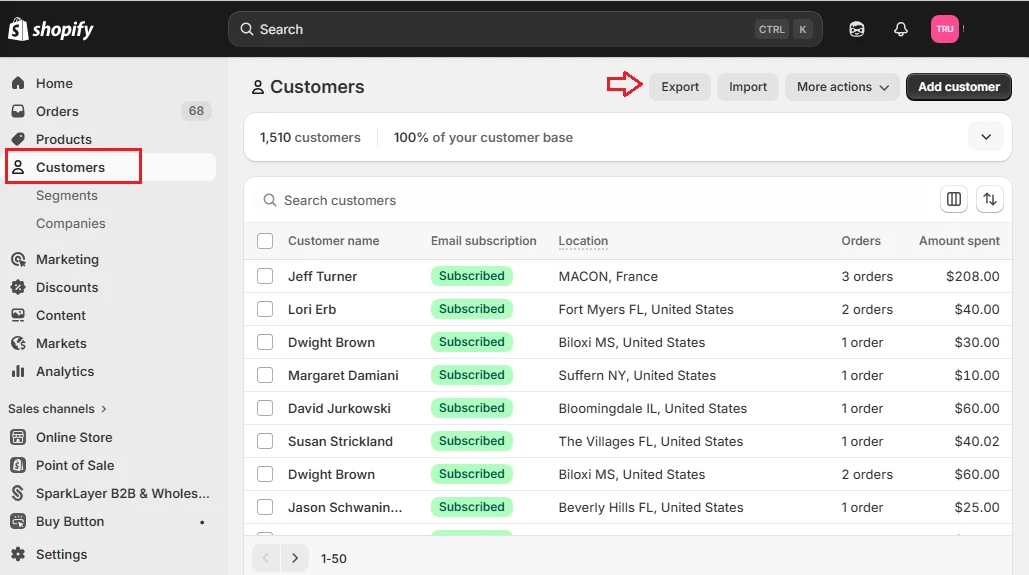
In the Shopify admin, go to Customers and click Export. You will then need to select which customers to include in the export. Shopify provides several options:
- Current page to export only the customers currently shown in the admin
- All customers to export the entire customer list
- Selected customers to export specific customers you selected
- Customers matching your filters to export a customer segment
If you want to include additional information, you can enable optional fields in the Fields included section. For example, you can check Customer tags to export customer tags or Customer metafields to include supported metafields.
Finally, choose the CSV format:
- Select CSV for Excel, Numbers, and other spreadsheet programs if you plan to work with spreadsheet software, or
- Choose Plain CSV file if you prefer editing with a plain-text editor.
Once done, click Export customers to download the file.
Step 4. Prepare product images for import (optional)
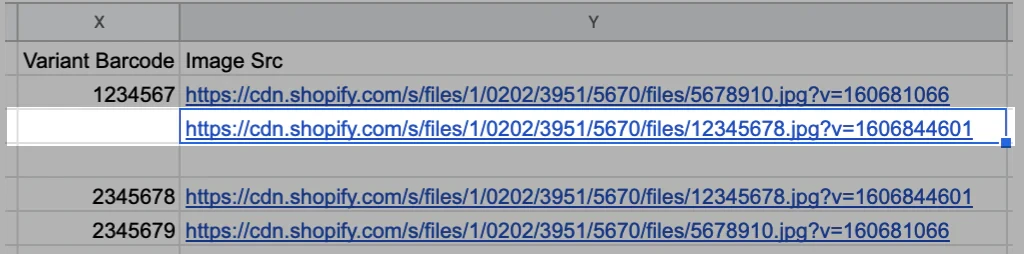
Since CSV files only contain text data, product images must be hosted online and referenced through public image URLs. Then, you need to copy the public URL of each image and include it in the CSV file where required.
But here's the great news: if the product CSV file was created by exporting data from Shopify, then no additional preparation is necessary because the image URLs already point to your existing website. Similarly, if you are migrating from another platform, you can usually reuse the current image URLs from that platform.
Step 5. Import Products and Customers into the new store
After preparing your CSV files, you can now import them into the new store.
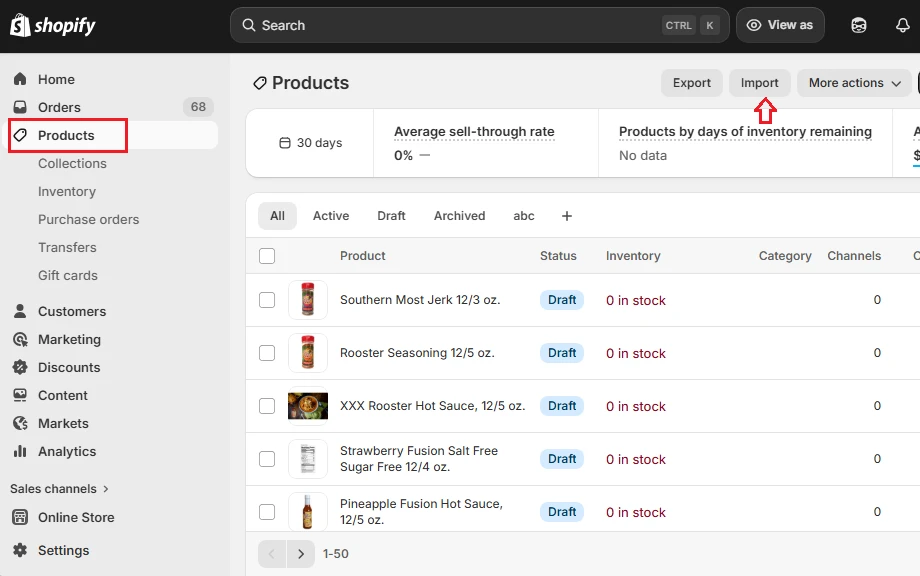
Go to Products in the Shopify admin and import the product CSV file you exported earlier.
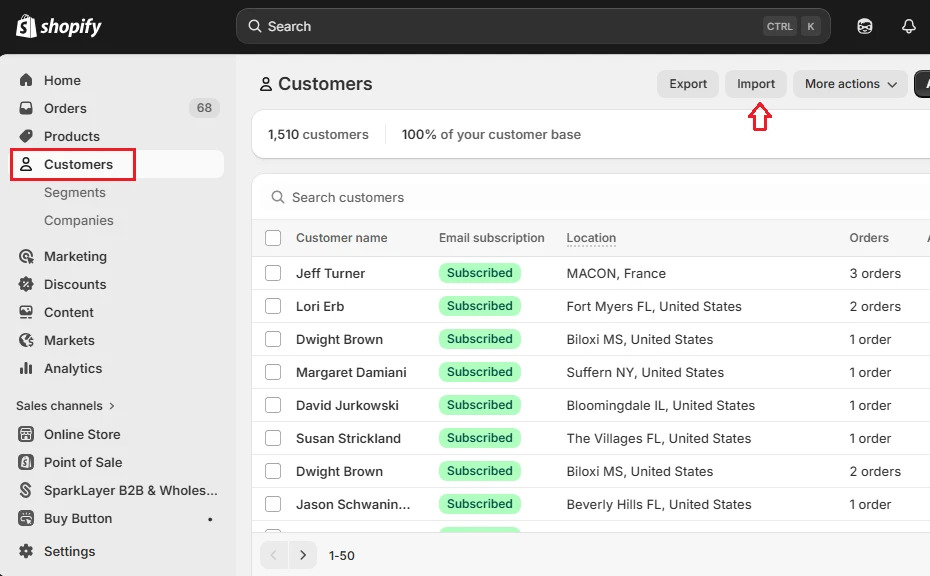
Likewise, navigate to Customers and import the customer CSV file.
Step 6. Restore store settings and additional content
Once the main data has been imported, the remaining store components must be rebuilt manually in the new store. Specifically, you need to:
- Reinstall all apps that were used in the original store
- Manually configure important store settings, such as taxes, shipping rules, checkout configuration, etc.
- Recreate additional content that cannot be transferred via CSV (blog posts, online store pages, and menus).
After completing these steps, the new store should closely replicate the structure and data of the original Shopify store!
Clone Shopify Store Using Shopify Apps
As mentioned, the previous method primarily exports basic data, such as products and customers. So, if you want to duplicate other elements or simply prefer a faster, more automated workflow, here are some apps to consider:
1. Matrixify (formerly Excelify)
- Pricing: Free plan available | Paid plans from $20 to $200/month
- Rating: 4.9 stars (from 980+ users on Shopify App Store)
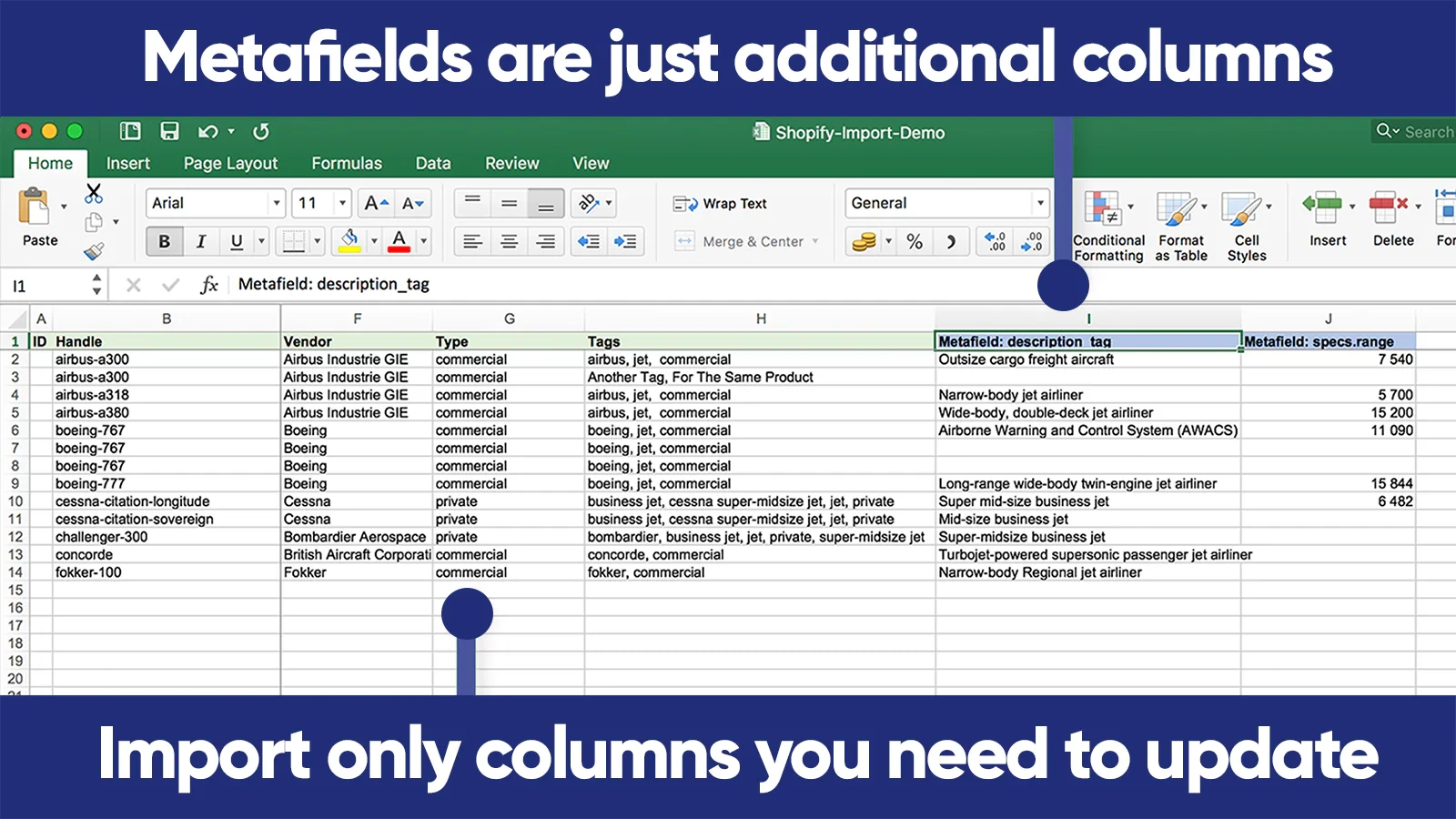
What makes Matrixify popular is its advanced data management and bulk migration system using Excel or spreadsheet files. It’s one of the most powerful tools available for exporting and importing large volumes of Shopify data.
Specifically, the app allows you to export store data into structured spreadsheet files and then import those files into another Shopify store. As a result, you are given full control over the data before importing it, which means you can edit product details, adjust inventory values, or modify data fields directly in Excel before completing the duplication.
Key features include:
- Bulk export and import of Shopify data through Excel or CSV files
- Migration of products, collections, inventory, and metafields
- Detailed import reports showing success or failure for each row
- Ability to update or overwrite existing store data during import
Thanks to its flexibility and data control, Matrixify is widely used by developers, agencies, and large stores that need precise control over store migrations.
2. Duplify – Duplicate Store
- Pricing: Free or $79/month
- Rating: 4.7 stars (from 110+ users on Shopify App Store)
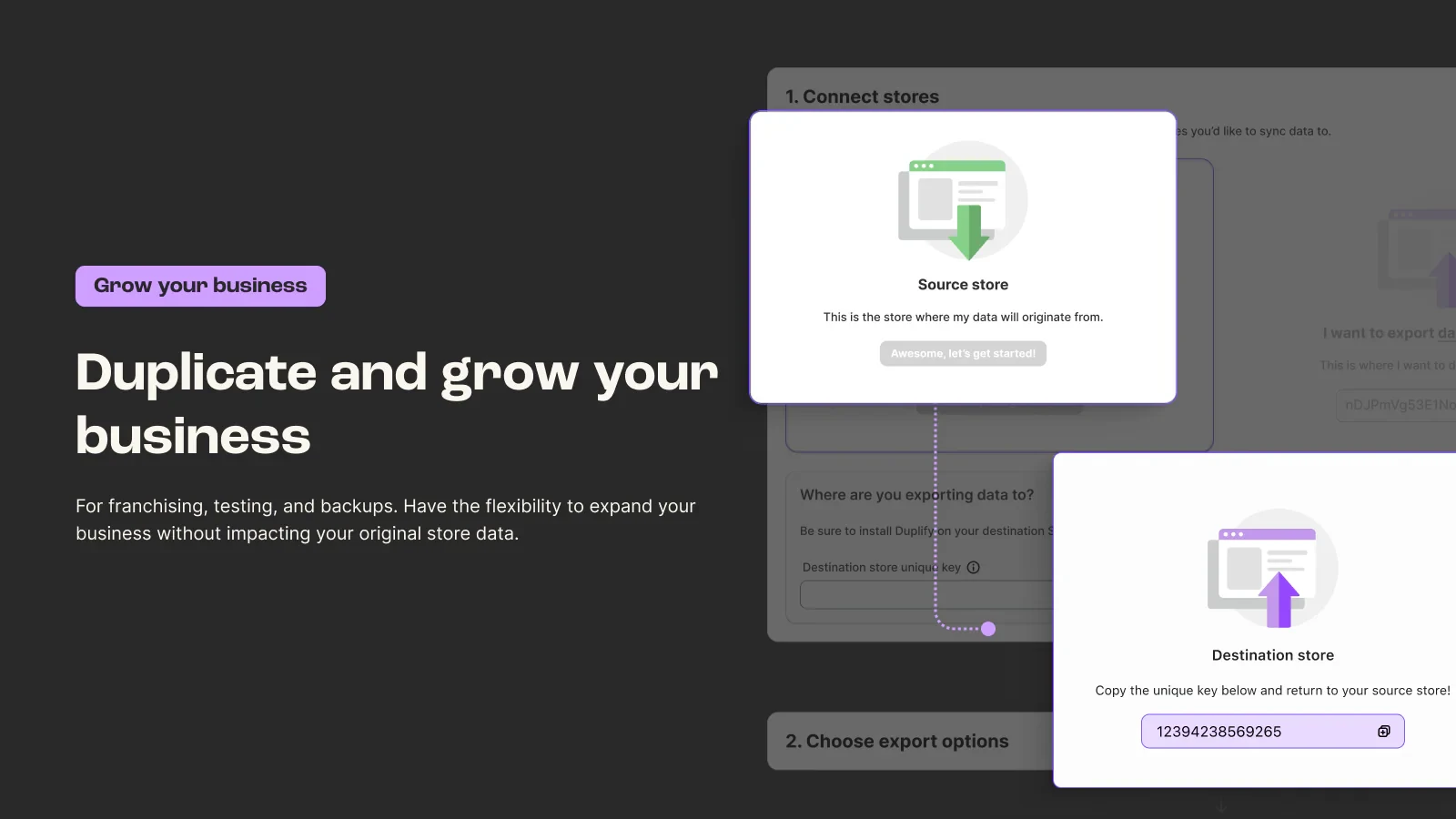
As its name suggests, one standout feature of Duplify is its ability to clone almost every type of store data in one workflow, including products, variants, media files, inventory, collections, pages, blogs, customers, redirects, metafields, and more.
Other useful features include:
- Copy product images, media, and files along with product data
- Transfer customer data and store content such as pages and blogs
- Duplicate metafields and advanced data structures
- Restore store data from backups if needed
Since it focuses heavily on complete store duplication and backup, Duplify is often used by merchants who need to replicate a store structure quickly when launching new storefronts or testing major changes.
3. Simple Sync – Copy Your Store
- Pricing: $129 to $499/month
- Rating: 5 stars (from 10+ users on Shopify App Store)
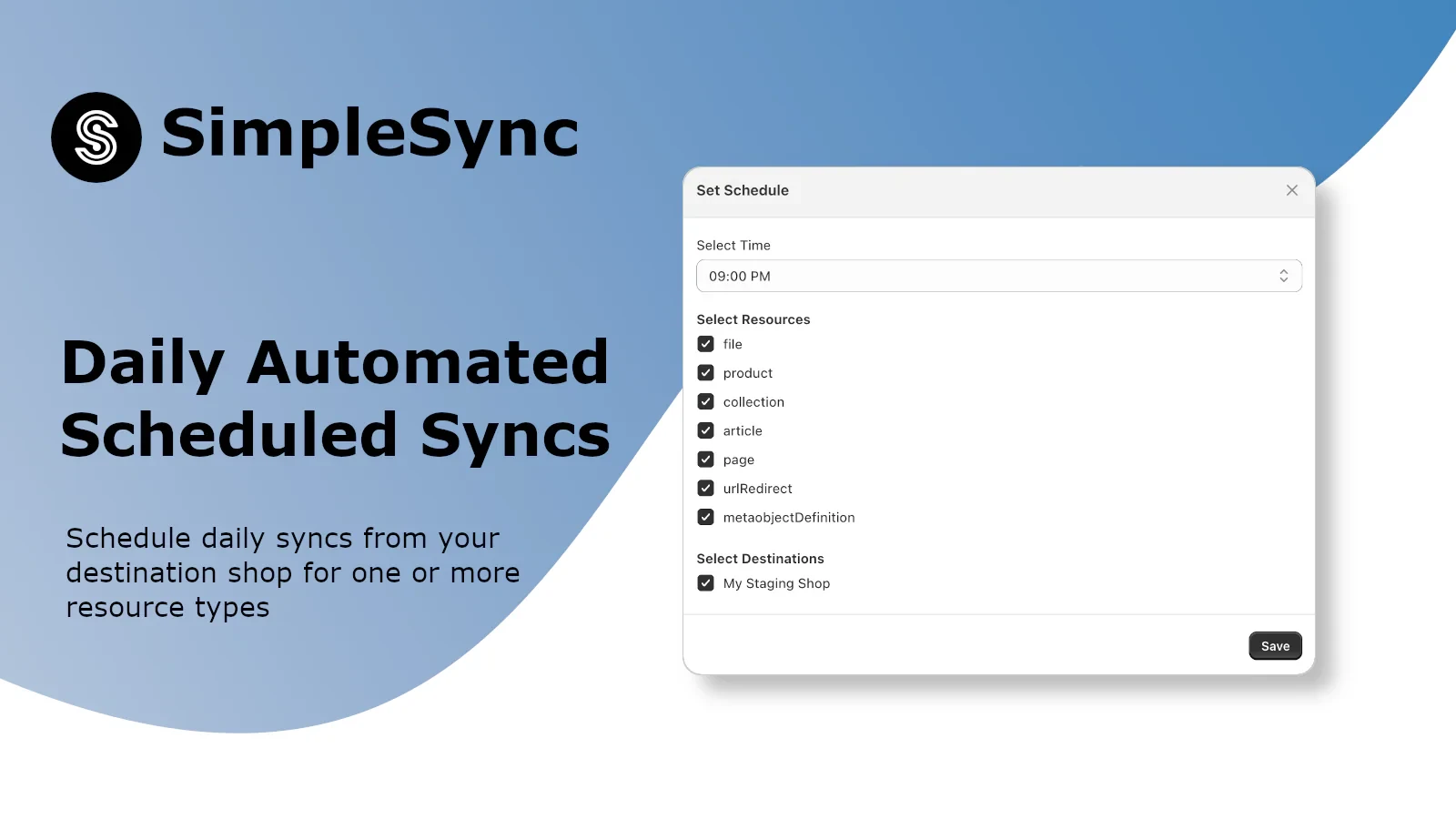
The most distinctive feature of Simple Sync is its scheduled synchronization between multiple Shopify stores. Instead of copying data only once, it allows you to keep stores automatically updated over time! Plus, with this app, you can duplicate core store elements such as products, collections, pages, blog posts, files, metafields, metaobjects, and redirects between stores.
Additional capabilities include:
- Copy store content in just a few clicks
- Set up staging or testing stores for experimentation
- Formatize data to multiple destination stores at once
Because of this synchronization functionality, Simple Sync is particularly useful for brands running multiple regional stores or agencies managing several Shopify storefronts.
4. Kopy-fy Import Copy Products
- Pricing: Free or $4.99/month
- Rating: 4.9 stars (from 25+ users on Shopify App Store)
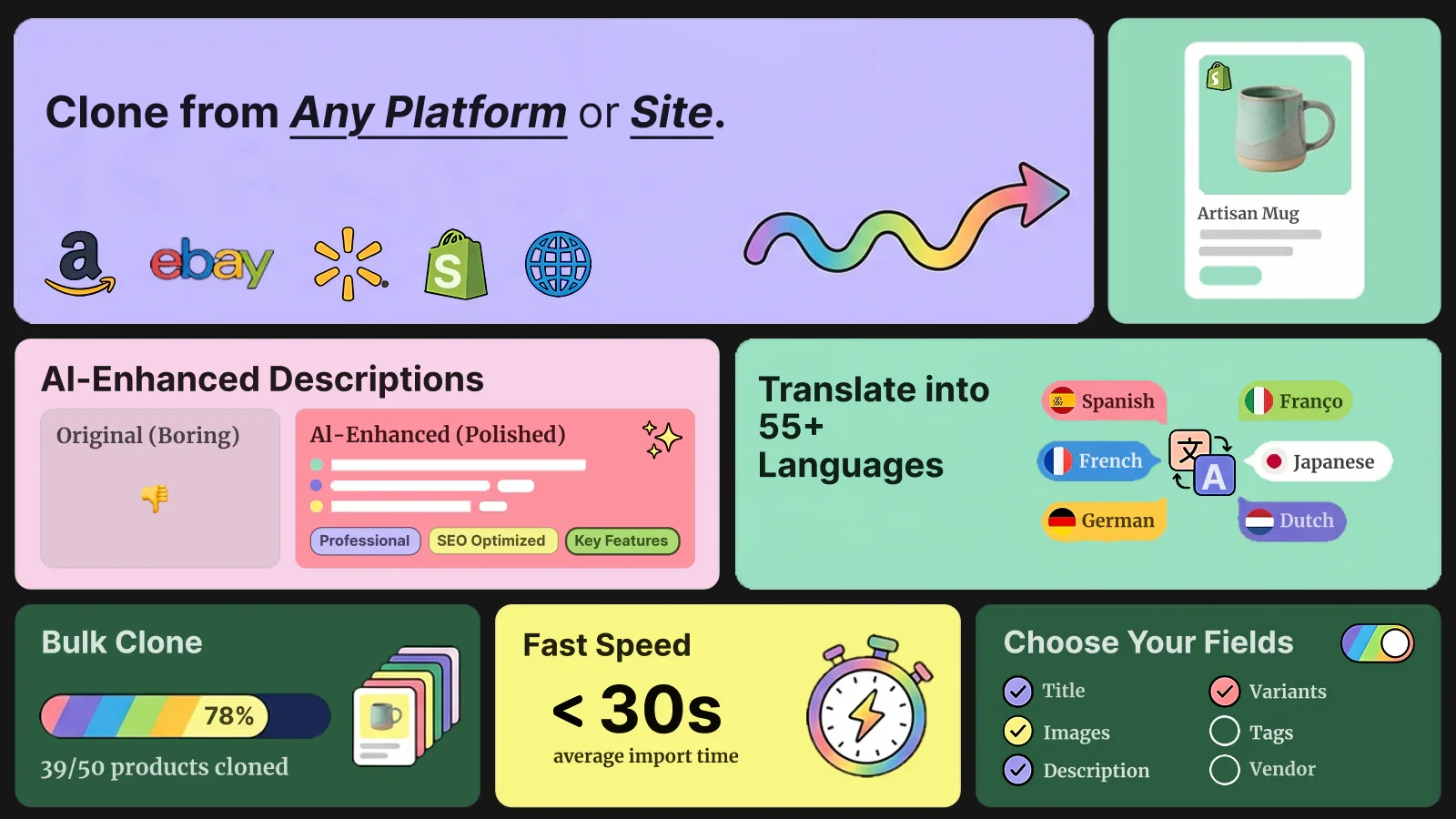
Unlike the previous apps, Kopy-fy focuses specifically on product catalog cloning, which is its most notable strength.
This app allows you to copy products from one Shopify store to another in bulk, automatically transferring key product details such as titles, descriptions, images, variants, pricing, and tags. Since it is optimized for product duplication, the app can copy large catalogs quickly (up to thousands of products) while reducing the risk of manual data entry errors.
Other features include:
- One-click product copying between stores
- Bulk cloning of multiple products at once
- Filtering options to select which products to copy
- Ability to edit product details before finalizing the clone
- Dashboard to manage and organize imported products
We highly recommend this app for dropshippers or merchants managing multiple stores with similar product catalogs, where the main goal is to replicate inventory rather than duplicate the entire store.
Best Practices To Successfully Clone Shopify Store
To ensure the cloning process runs smoothly and the cloned store works as expected, you should prepare your data beforehand, verify imported content, recreate critical store settings, and test the new store before going live.
1. Audit and prepare your store data before cloning
First, before starting the cloning process, you should take time to review the data in your original store. That way, you can prevent errors during export or duplication and ensure that only accurate data is transferred.
Some tasks you can do:
- Removing outdated products or duplicate entries
- Fixing incomplete product descriptions
- Confirming that all variants, SKUs, and prices are correct
- Cleaning up tags
2. Ensure media files and URLs are accessible
Another common issue when cloning a Shopify store is missing product images or broken media links. This problem usually occurs when images are not hosted on a publicly accessible server.
To avoid it, you should upload all product images to Shopify Admin → Content → Files or another reliable hosting platform before cloning the store.
- When exporting product data via CSV, make sure the image URLs in the file point to these hosted files.
- If you are copying products from another platform or store, double-check that the image URLs are still active and accessible.
3. Recreate store settings carefully
Though product and customer data can often be exported and imported, many other store configurations cannot be cloned automatically and must be recreated manually in the new store.
Hence, after cloning the main data, review and configure key settings (such as taxes and tax regions, shipping zones, etc.) carefully. The same applies to apps used in the original store since they do not transfer automatically. It's best to note down the apps' names (as well as the subscription plans you are using) before the cloning process, so that you don't have to waste time assembling them correctly later.
4. Test the new store before launching (unless you only save it as a backup)
After completing the cloning process, run a full check of the new store to confirm that everything functions correctly:
- Review products, collections, and customer data to make sure all information has been transferred accurately
- Confirm that menus, pages, and links are working properly.
- Perform a test order using Shopify's test payment mode or a supported payment gateway. That way, you can make sure everything works correctly before customers start using the new store.
By doing this step properly, you can catch configuration issues early and ensure that the new store is 100% ready for launch.
How to Clone or Duplicate Shopify Store: FAQs
How do I clone someone else's Shopify store?
To do so, you may replicate its public-facing elements and structure. However, keep in mind that directly copying a store's design, images, or product descriptions without permission may infringe on copyrights and is generally considered unethical.
Is it possible to have two Shopify stores?
Yes, you can absolutely have two or more Shopify stores. In fact, you can manage multiple stores (up to 10) under one email address.
Can you duplicate a Shopify store and make changes to it?
Yes, you can duplicate Shopify store to test changes or create a new store by exporting/importing data.
How do I delete a duplicate Shopify store?
To delete a duplicate Shopify store, log in as the store owner, navigate to Settings > Plan, and select Deactivate store.
Final Words
Learning how to clone Shopify store can become a powerful strategy for maintaining stability while continuing to grow and optimize your eCommerce business. We hope this guide has been of help to you!
For even more Shopify tips, check out our Shopify blogs or join our Facebook Community.