Your CSV import finished without a single error. Then you open your store and every product shows 0 in stock, or worse, “Sold out” to customers who were ready to buy.
The Shopify product import zero stock quantity issue usually comes from one of three causes: the Variant Inventory Tracker column is blank, your store has more than one location so Shopify ignores the product CSV’s quantity column, or the stock sits at a location that doesn’t fulfill online orders. Each one has a quick fix.
In this guide, we’ll walk you through:
- How to match your symptom to the right cause;
- Why Shopify imports products with zero stock;
- 6 fixes for single and multi-location stores;
- How to import products without resetting stock to zero.
Let’s get into the details!
Quick Diagnosis: Match Your Symptom to the Cause
Before you change anything in your CSV, find the symptom you’re seeing. The Shopify product import zero stock quantity issue can come from several different causes, and each symptom below points to one of them – so a quick check here keeps you from re-importing the same broken file again and again.
| Symptom | Likely cause | Go to |
| Every product shows 0 after your first import | Variant Inventory Tracker is blank, or your store has more than one location, so Shopify ignores Variant Inventory Qty | Fix 1, Fix 3 |
| Only some variants show 0 | Those variant rows are missing, or their Variant Inventory Qty cell is empty | Fix 2 |
| Stock dropped to 0 right after you added a second location | Product CSV quantities only apply to single-location stores | Fix 3 |
| The inventory CSV import says it succeeded, but nothing changed | You edited Available (not editable) instead of On hand (new), or a location name doesn’t match exactly | Fix 4 |
| Admin shows stock, but the storefront says “Sold out” | The stock sits at a location that doesn’t fulfill online orders, has no shipping rates, or the product isn’t published to the Online Store | Fix 5 |
| Stock looked right, then fell to 0 days later | A dropshipping or supplier app sync overwrote your quantities | Fix 6 |
| Stock reset after you re-imported products to update descriptions | The product CSV re-import overwrote the existing quantity values | Prevention tip below |
If more than one row matches what you’re seeing, start from the top. A blank tracker or a multi-location setup causes most cases of the Shopify product import zero stock quantity issue, and fixing those two often clears the other symptoms as well. If none of the rows fit, export a single affected product and compare its inventory columns with Shopify’s sample CSV – the difference usually shows up in a minute.
💡 Check your location count first
Go to Settings > Locations in your Shopify admin. If more than one location is listed, the product CSV won’t set your stock, and you’ll need the inventory CSV instead. Some fulfillment and dropshipping apps also count as locations, so a store you think of as “single-location” may not be one.
Why Does Shopify Import Products With Zero Stock?
Shopify uses two separate CSV files, and most cases of the Shopify product import zero stock quantity issue come from putting stock into the wrong one. Before you run a Shopify CSV import inventory, it helps to know what each file controls:
- Product CSV (Products > Import): creates and updates products – titles, prices, images, variants. Its Variant Inventory Qty column only sets stock for stores with a single location.
- Inventory CSV (Products > Inventory > Import): updates stock for products that already exist. You edit On hand (new), with one row per variant per location, and location names must match exactly.
Older threads say the product CSV “no longer imports inventory,” while newer guides say it works. Both are right, depending on how many locations the store has. A single-location store can set stock through the product CSV, as long as Variant Inventory Tracker is shopify. Once a second location is added, Shopify ignores that column, and quantities stay at 0 until you upload them through the inventory CSV.
This rule catches many merchants off guard because their store has more locations than they realize. Shopify counts retail stores, warehouses, and some fulfillment or dropshipping apps as locations, so a store that ships from “just one warehouse” may already fall under the multi-location rule.
How to Fix the Shopify Product Import Zero Stock Quantity Issue
Now that you know how Shopify splits stock between the product CSV and the inventory CSV, and why your location count matters, you can fix the problem at its source. Use the symptom you matched in the diagnosis table to jump to the right fix:
- Fixes 1–4 correct the CSV file itself;
- Fix 5 handles stock that exists but shows as “Sold out”;
- Fix 6 covers apps that overwrite your quantities after import.
Fix 1: Set Variant Inventory Tracker to “shopify”
Variant Inventory Tracker tells Shopify whether to track stock for a variant. If the column is blank, tracking stays off, and the product won’t hold a quantity no matter what you enter.
- Open your product CSV in Google Sheets (it handles encoding more reliably than Excel).
- Enter shopify in Variant Inventory Tracker on every variant row.
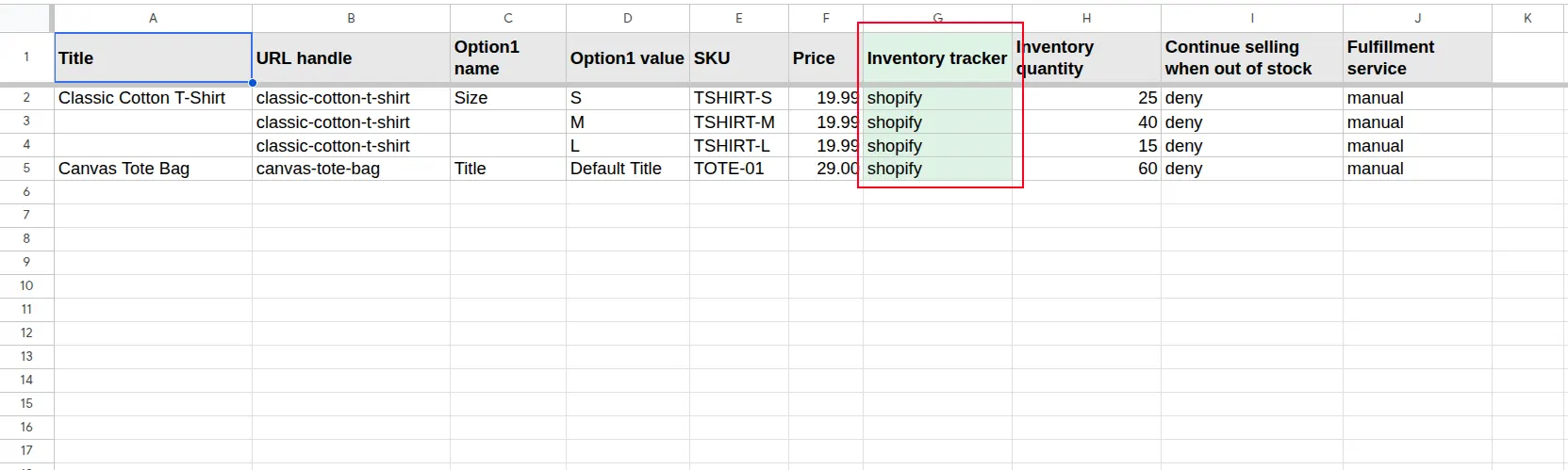
- Save the file and import it again with Overwrite products with matching handles checked.
Our tip:
Export one existing product from your store and use it as a template. You’ll see exactly which columns and values Shopify expects.
Fix 2: Fill Variant Inventory Qty on every variant row
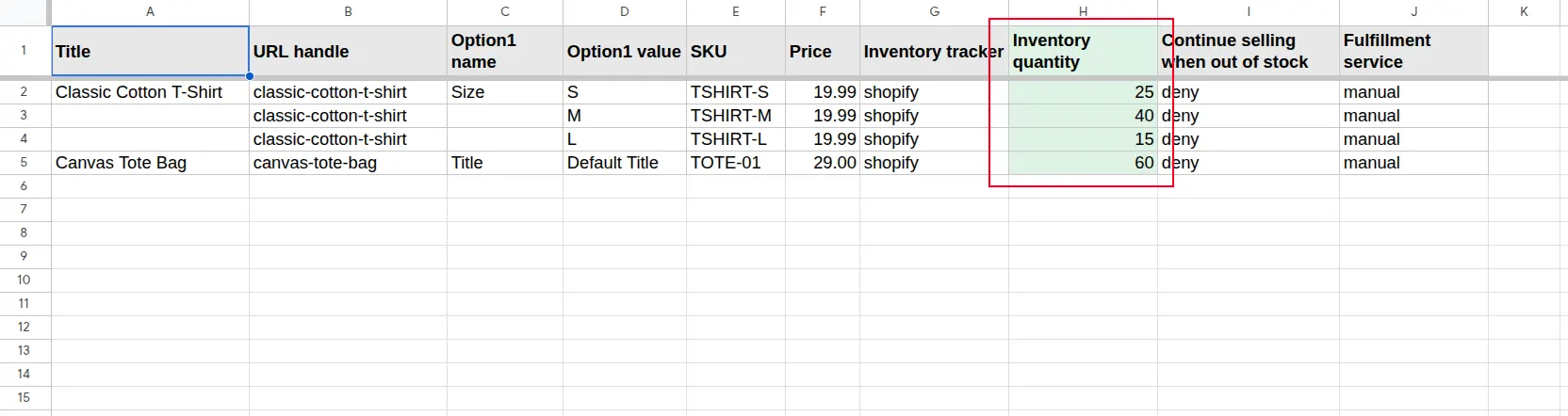
Shopify tracks stock per variant, so every size, color, or other option needs its own row with a number in Variant Inventory Qty. If the tracker is set but the quantity is blank, Shopify returns an error saying the inventory quantity needs to be set.
- Check that each variant row repeats the product’s Handle and has its option values filled in.
- Enter whole numbers only, without spaces or decimals.
- If a variant is genuinely out of stock, write 0 instead of leaving the cell empty.
Fix 3: Import products first, then inventory, for multi-location stores
If your store has two or more locations, the product CSV won’t set stock. Split the job into two imports:
- Import your product CSV to create the products.
- Go to Products > Inventory > Export and download the inventory CSV.
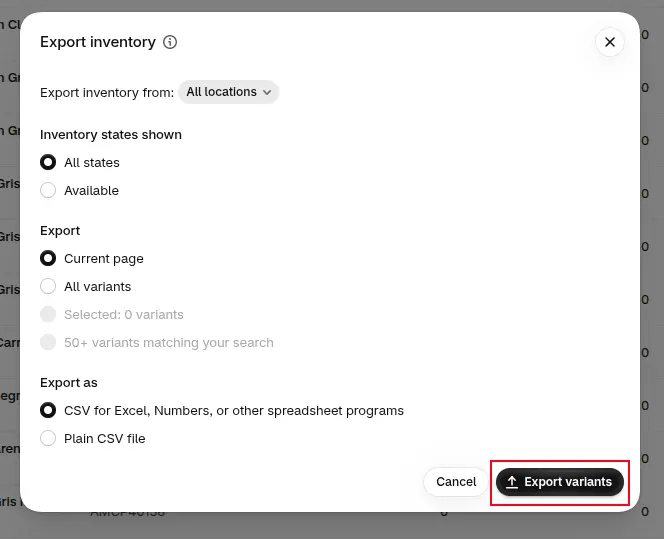
- Open the downloaded file and enter the quantity for each variant at each location in the On hand (new) column.
- Go back to Products > Inventory > Import and upload the file.
For a full walkthrough, see our guide on how to import and export Shopify inventory with a CSV file.
Fix 4: Edit the right column in the inventory CSV
If your Shopify inventory CSV import is not working, reporting success but changing nothing, it usually comes down to one of these:
- You edited the wrong column. Only On hand (new) can be edited. Available, Committed, and Incoming are read-only, so anything you type there is ignored.
- The safety check skipped rows. Shopify compares On hand (current) with your live stock before applying changes. If stock has moved since you exported, those rows fail validation. Export a fresh file and edit that one instead.
- Location names don’t match. Names are case-sensitive and must match Settings > Locations exactly. “Main warehouse” and “Main Warehouse” count as two different locations.
If you edit in Excel, save the file as CSV UTF-8 (Comma delimited) so quantities and special characters stay intact. Required headers, encoding, and variant row layout are all covered in our step-by-step Shopify CSV import guide.
Fix 5: Product has inventory but shows “Sold out” on Shopify
When Shopify products are showing sold out after import even though your admin shows the right quantity, the problem is where the stock sits, not the import itself.
- Go to Settings > Locations and make sure the location holding your stock has Fulfill online orders from this location turned on.
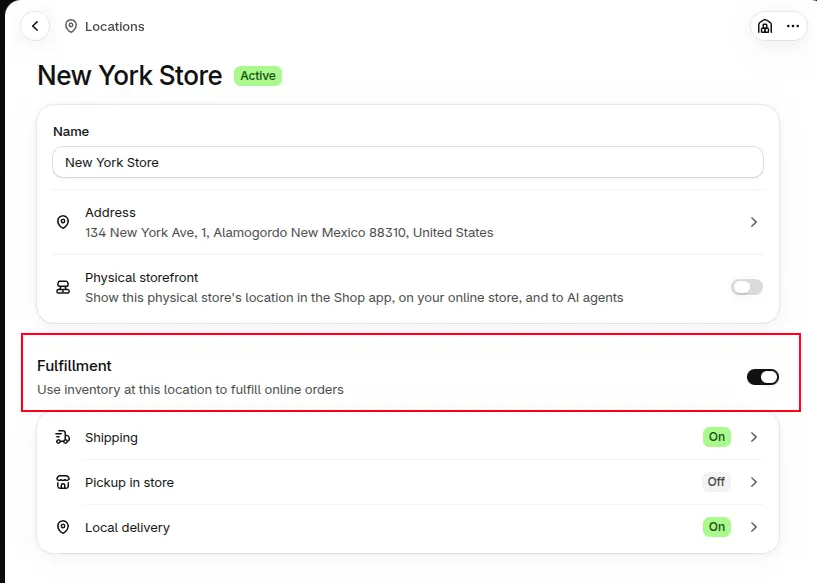
- Below that toggle, make sure at least one delivery method is on: Shipping, Pickup in store, or Local delivery. If all three show Off, customers have no way to receive orders from this location.
- Open the product and check that it’s stocked at this location, then confirm Online Store is selected under Sales channels.
Fix 6: Check dropshipping or supplier app sync
If stock looked right after the import and then dropped to 0 later, an app is probably overwriting it. Dropshipping and supplier-feed apps often control availability for the products they manage, and some set to 0 any product missing from the latest feed.
- Open the app and run a manual re-sync for the affected products.
- Check whether the app or its feed settings are set to zero out unmatched products.
- For print-on-demand products with no physical stock, turn off Track quantity so Shopify doesn’t treat them as sold out.
⚠️ Important
Always export a backup of your products and inventory before any import, and test the file with 3–5 products first. After the full import, export the inventory CSV and compare quantities against your source file by SKU to catch any rows that came in at 0.
How to Re-Import Products to Shopify Without Resetting Stock to Zero
Every fix above has the same weak spot: you only find out your quantities came in at 0 after the import has already hit your store. If you re-import products often, a safer approach is to catch stock errors before anything reaches Shopify.
That’s exactly what our LitExtension Store Migration app is built for. With over 15 years of migration experience and a deep understanding of Shopify, we’ve designed the app to keep import errors like this from reaching your store.
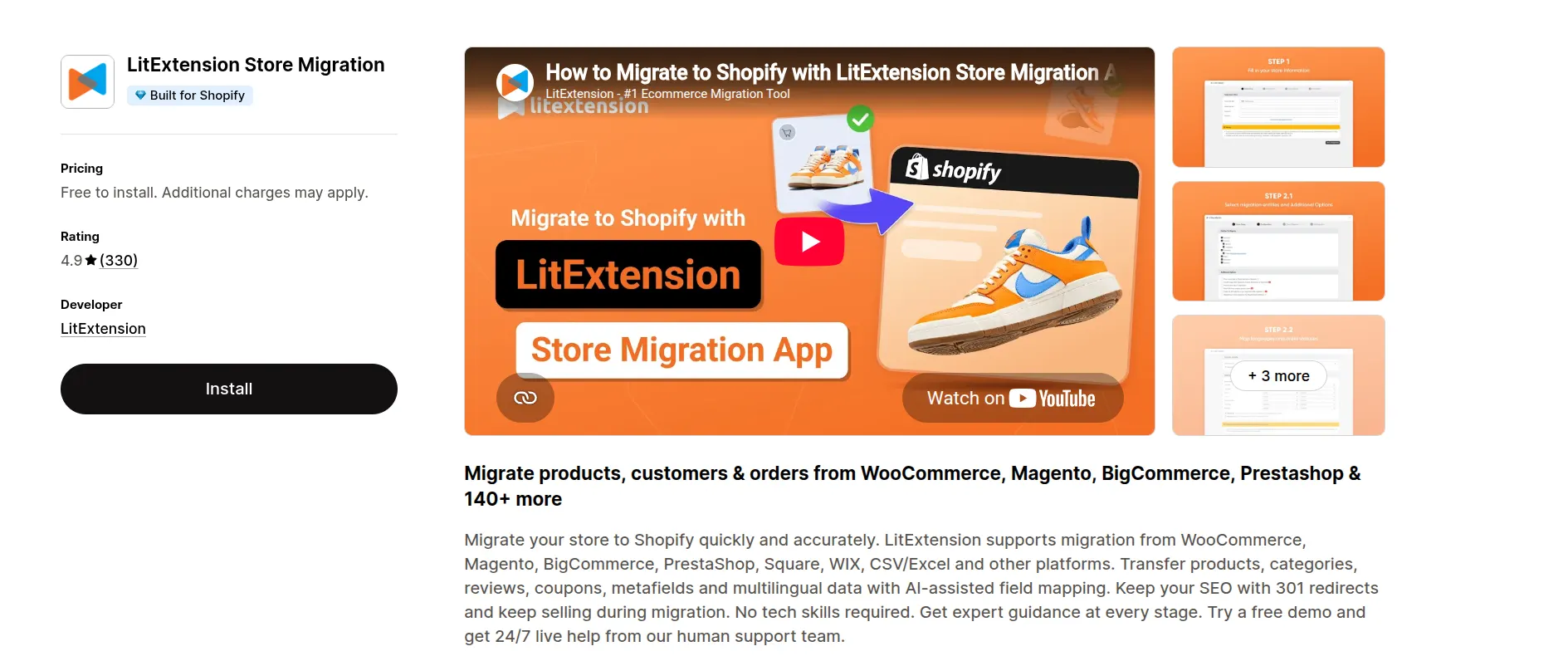
Here’s how it works:
- Upload your product file: Create a new import, select Files (CSV, Excel, Google Sheets) as the source, upload your file, and connect your Shopify store.
- Map fields and run a Data Check: Match your columns to Shopify fields, including quantity and inventory tracking. The Data Check then sorts every record into Ready, Errors, Warnings, or Skipped/Duplicates, so rows with missing or broken stock values show up before the import, not after.
- Run a Free Demo, then the full import: Import a small sample first and compare its stock levels with your file. Once the numbers match, start the full import. It runs on LitExtension’s servers, so you can close your browser.
If your file is more complex, say thousands of variants, custom fields, or data spread across several sheets, our All-in-One Migration Service can take it off your hands. A dedicated expert prepares your data, runs the import, and checks the results in Shopify for you, so you don’t have to touch the file at all.
Let Our Experts Handle Your Store Migration!
With the All-in-One Migration Service, our experts take care of everything, ensuring a seamless and stress-free migration.
Shopify Product Import Zero Stock Quantity Issue: FAQs
Why does my Shopify CSV import set inventory to 0?
There are usually three reasons: Variant Inventory Tracker is blank, Variant Inventory Qty is empty on some variant rows, or your store has more than one location, so Shopify ignores the quantity column in the product CSV. Set the tracker to shopify, fill in a quantity for every variant, and if you have several locations, upload stock through the inventory CSV instead.
Does the Shopify product CSV still update inventory quantities?
Yes, but only for stores with a single location. If your store has two or more locations, Shopify ignores Variant Inventory Qty, and you need to update stock through the inventory CSV under Products > Inventory.
Why are my products showing sold out after import?
If the admin shows stock but the storefront says “Sold out,” the stock usually sits at a location that doesn’t fulfill online orders. Turn on Fulfill online orders from this location in Settings > Locations, confirm the location has shipping rates, and make sure the product is published to the Online Store channel.
Can I import products and inventory for multiple locations in one CSV?
No. The product CSV can’t assign stock to multiple locations, so you need two steps: import your products first, then upload an inventory CSV. A single inventory CSV can cover all your locations, with one row per variant for each location.
How do I bulk update Shopify inventory without re-importing?
Use the bulk editor. Go to Products, select the items you want to update, click Bulk edit, and change the quantities directly. This works well for small batches. For hundreds of SKUs, editing an exported inventory CSV is faster.
Conclusion
After helping thousands of merchants bring their data into Shopify, we’ve learned one thing: an import isn’t finished until you’ve checked the stock. Most cases of the Shopify product import zero stock quantity issue we see weren’t caused by a bad file. They were caused by assuming the file worked.
So check your quantities after every import, and keep the diagnosis table above handy. And if you’d like a second pair of eyes on your data, our LitExtension Store Migration app and expert team are ready to help.