Managing your product visibility is one of the most important tasks when running a Shopify store. To help you do this, Shopify gives you full control through something called Shopify product status. This feature allows you to choose which products are live on your store, which ones are hidden, and which ones are no longer for sale.
In this guide, we'll walk you through everything you need to know about Shopify product status, including:
- What it is and how many types there are
- How to update Shopify product status
- How to update product status on Shopify in bulk
- How to export Shopify products based on their status
Let's get started!
Shopify Product Status – Everything Explained
In this section, we’ll break down what product status means, the different types available, and how each one affects your storefront. By understanding these statuses, you’ll be able to control product visibility with confidence and keep your catalog organized at every stage of your business.
What is Shopify product status
Shopify product status refers to the setting that controls whether a product is visible, hidden, or removed from your online store and sales channels. It helps you manage how each product appears to customers and whether it’s available for purchase.
Additionally, these product statuses will play an important role in how your store functions, especially when you’re preparing new items, removing outdated ones, or organizing large collections. By updating product status correctly, you can ensure a smooth shopping experience and keep your storefront clean and up to date.
Types of product status on Shopify
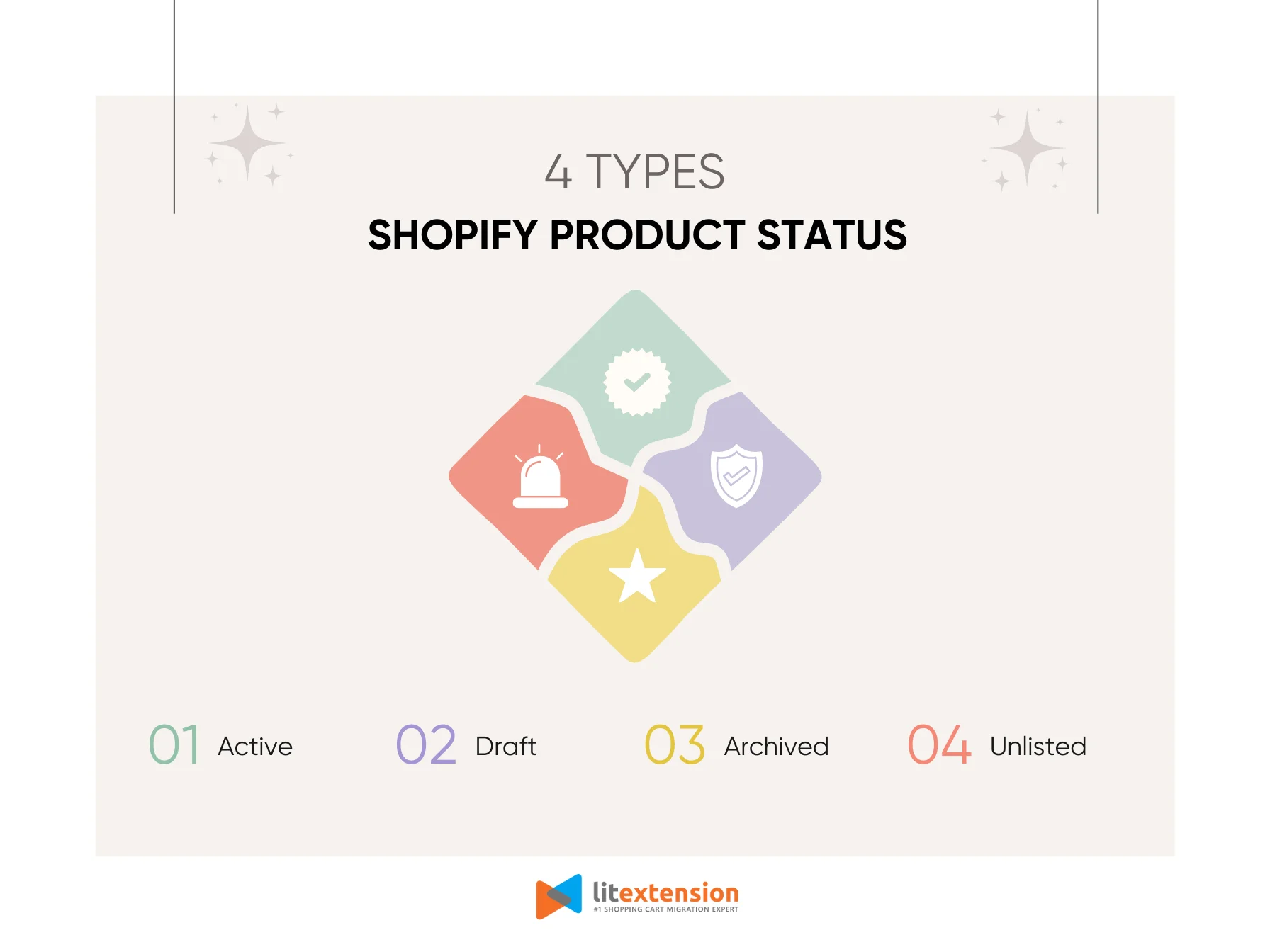
Shopify introduces four different product statuses to help you manage them better, including: Active, Draft, Archived, and Unlisted. In the following section, let's break down the definition of each type and when to use that status.
Active
The Active option in Shopify product status means a product is ready to sell, and you can publish it to your sales channels and apps. However, Shopify still gives you control over where it appears, so an active product won’t automatically show on every channel unless you make it available there.
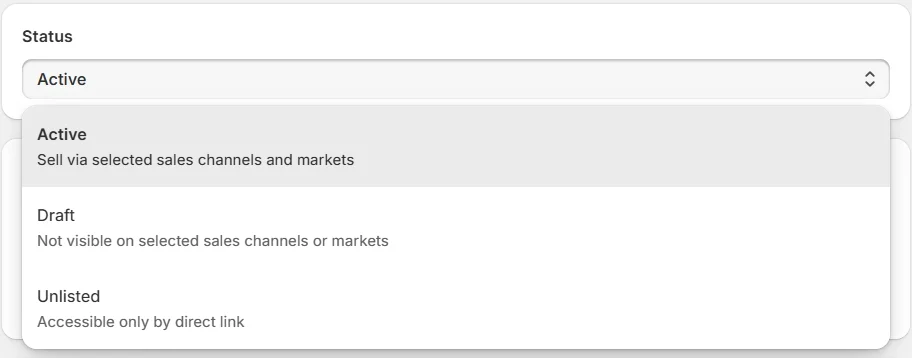
Store owners usually set a product to Active when the product page is complete, and the item is ready for customers to view and buy. This status is also useful when you want to relaunch a seasonal product, because you can switch it back to active and then publish it again on the right channels.
Draft
The Draft status in Shopify product status is used for products that are still being created or edited. When a product is in draft, it’s not published to any sales channels and won’t appear on your storefront. It remains hidden from customers until you manually update its status.
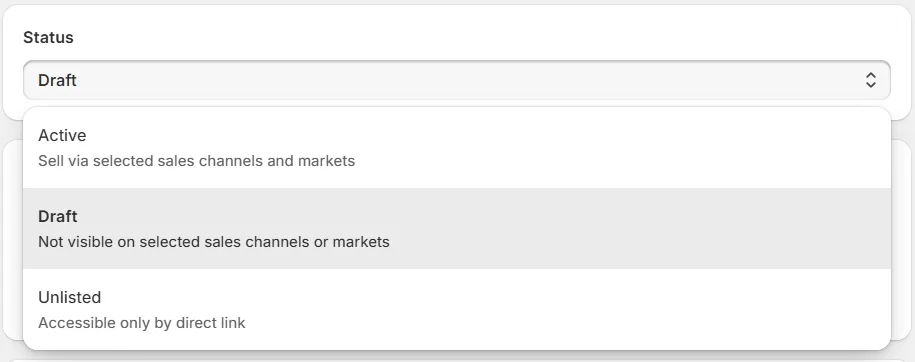
You can use the Draft status when you’re still adding product details, such as images, descriptions, or pricing. It’s also helpful for preparing future product launches or holding items that are temporarily out of stock without removing them from your store entirely.
Archieved
The Archived status means a product is no longer active in your store and has been removed from all sales channels. It’s not visible to customers and cannot be purchased. However, it’s still stored in your Shopify admin for record-keeping purposes.
Shopify store owners typically archive products that are discontinued, out of season, or no longer relevant. This helps keep the product catalog clean and organized while preserving historical data like order history and reporting.
Additionally, besides archiving products, this platform also supports Shopify archive orders, so don't forget to check out this feature if you need.
Unlisted
The Unlisted status is a newer option that allows you to keep a product active without displaying it publicly on your storefront. Unlisted products don’t show up in search results, collections, or navigation, but they can still be accessed through a direct link and purchased if enabled.
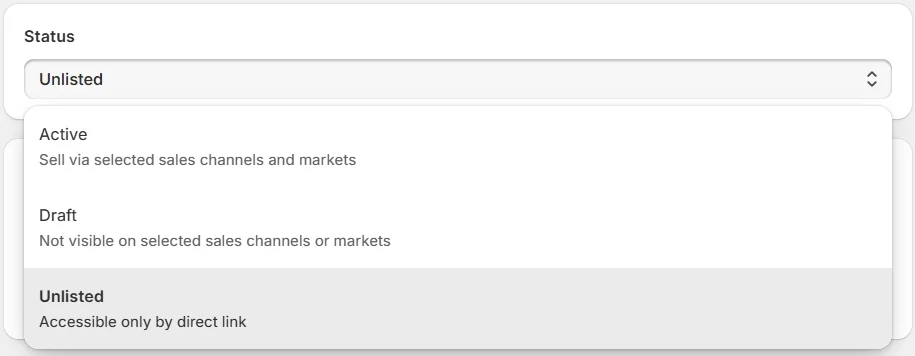
The Unlisted status is ideal for exclusive products, private offers, influencer campaigns, or early access sales. You can share the product link with a specific audience without making it available to the general public, giving you more flexibility in how you manage visibility.
How to Update Shopify Product Status
Now that you understand what each Shopify product status means and when to use them, the next step is learning how to update these statuses in your store. Whether you're making a product visible to customers, saving it as a draft, or archiving old items, updating product status is a simple but essential task. Here's how you can do it directly from your Shopify admin.
- Step 1. Log in to your Shopify admin dashboard and navigate to “Products” in the left panel.
- Step 2. Select the product you want to change its status.
- Step 3. Then, in the product dashboard, do one of the following:
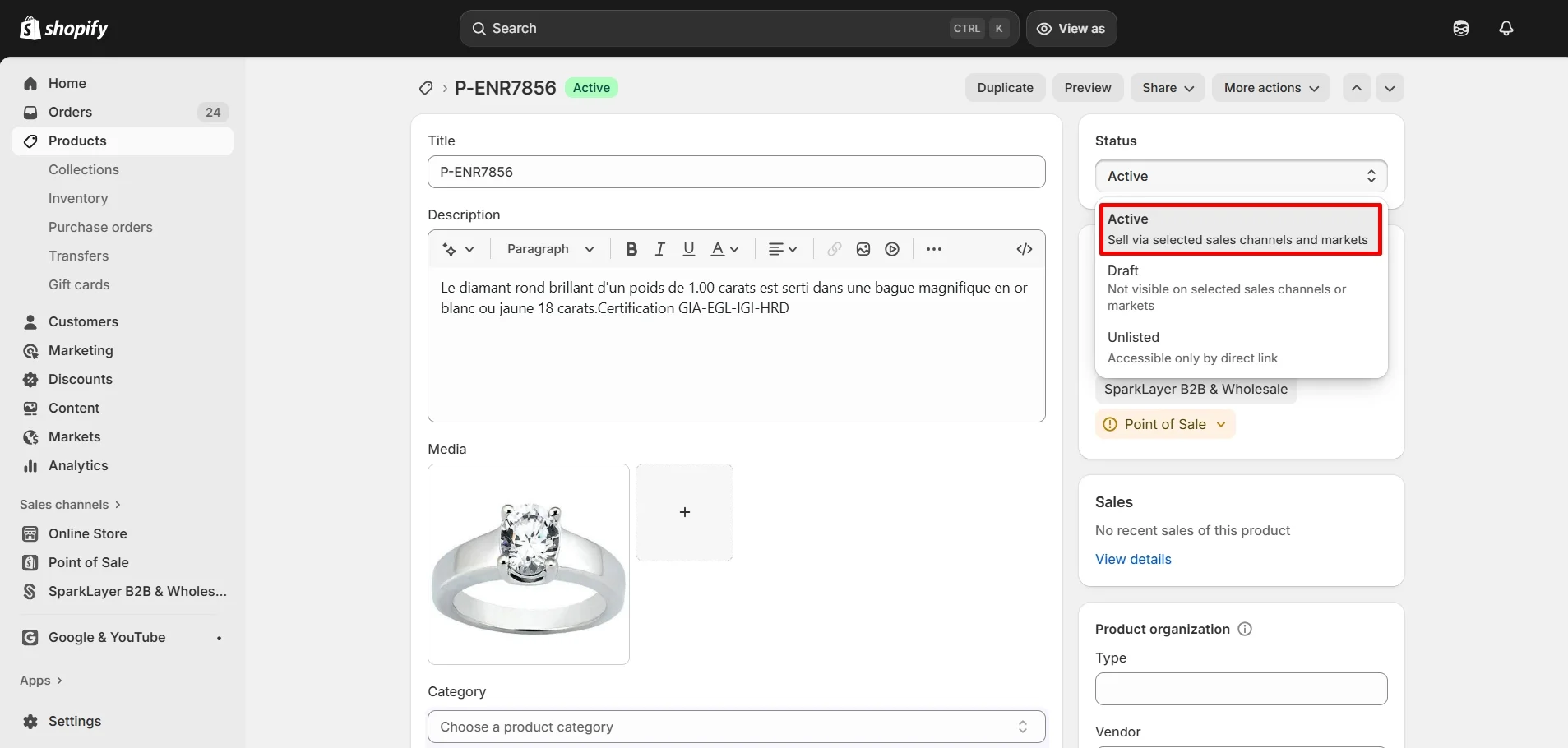
- To set a product status to Active, select the “Set as active” option under the “Status” section.
-
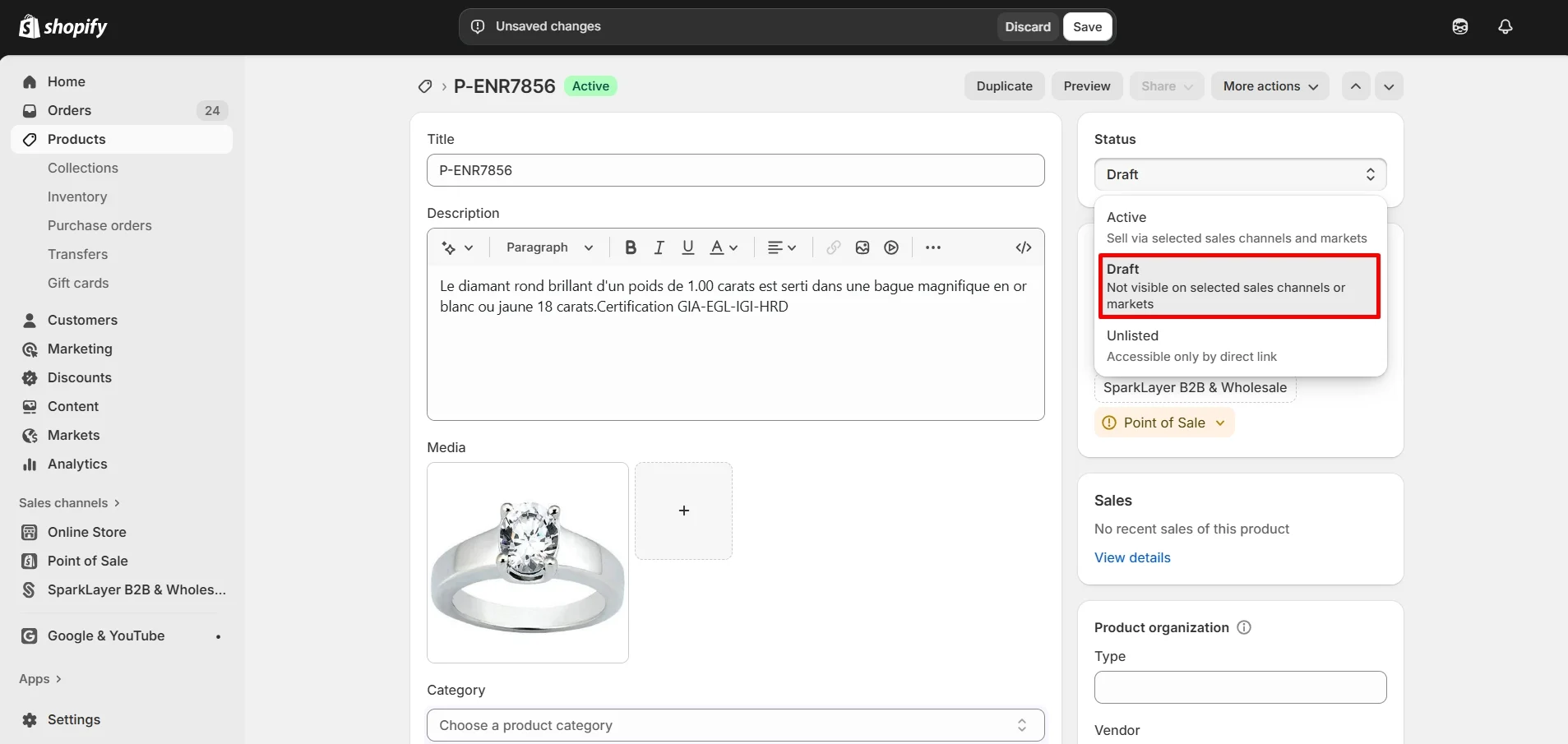
- To set a product status to Draft, select the “Set as draft” option.
-
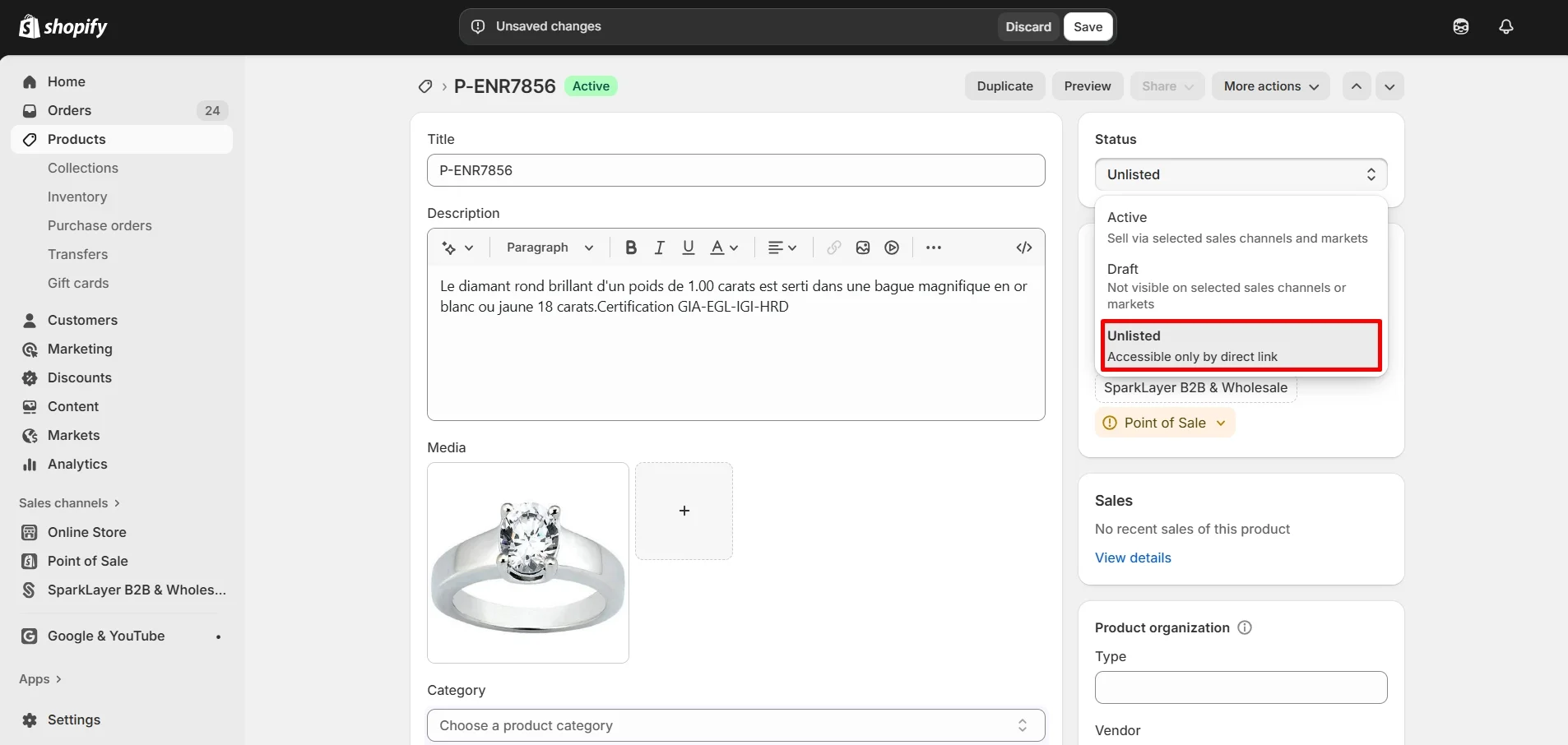
- To set a product status to Unlisted, select the “Set as unlisted” option.
-
- To set a product status to Archived, navigate to “More actions” > “Archive status”.
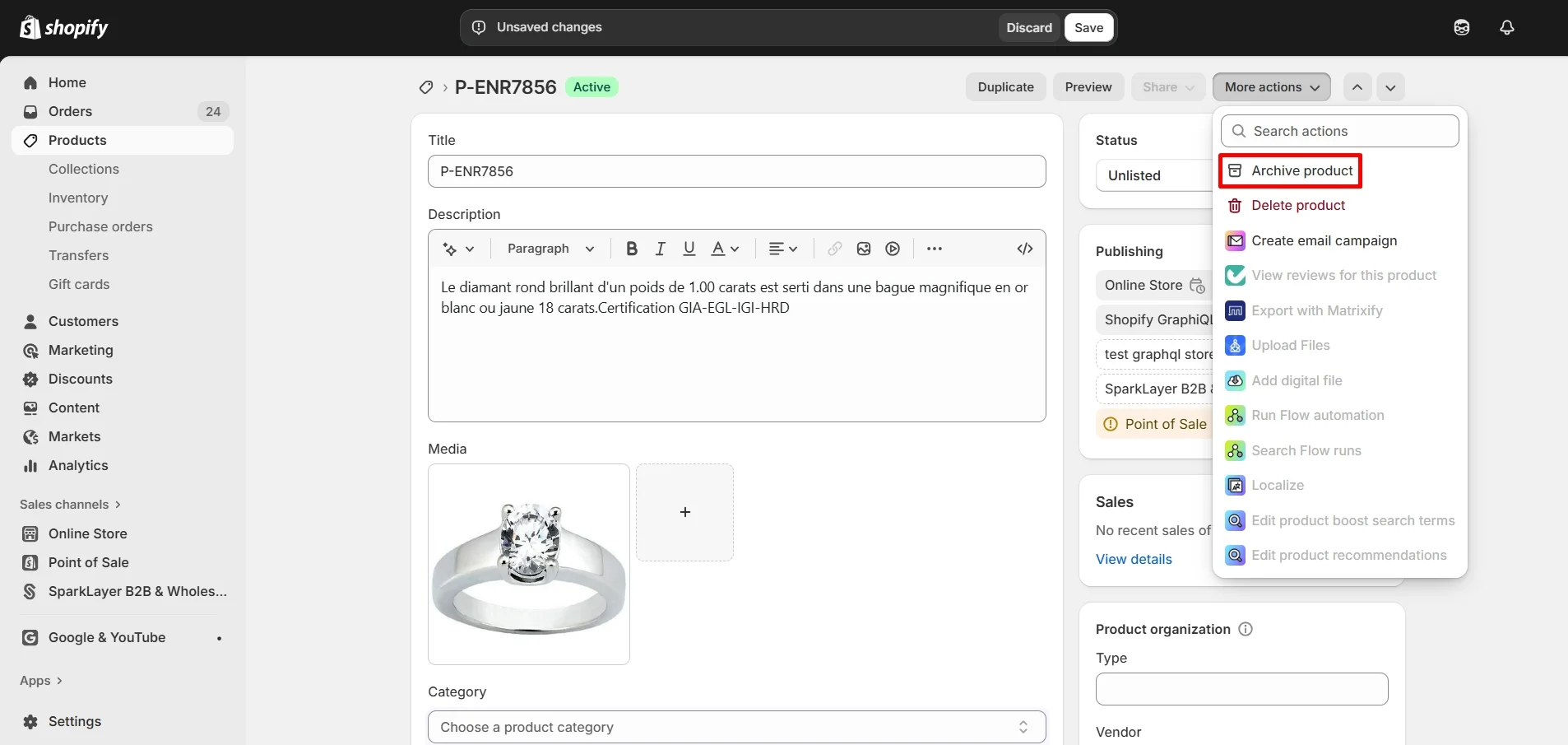
- Finally, click the “Save” button to finish.
How to Bulk Update Shopify Product Status
Now that you know how to update the status of a single product, it’s time to look at a more efficient method, especially if you’re managing a large catalog. Fortunately, Shopify makes it easy to bulk update product status, so you can save time and keep your store organized without editing each product one by one.
- Step 1. From your Shopify admin panel, navigate to the “Products” dashboard.
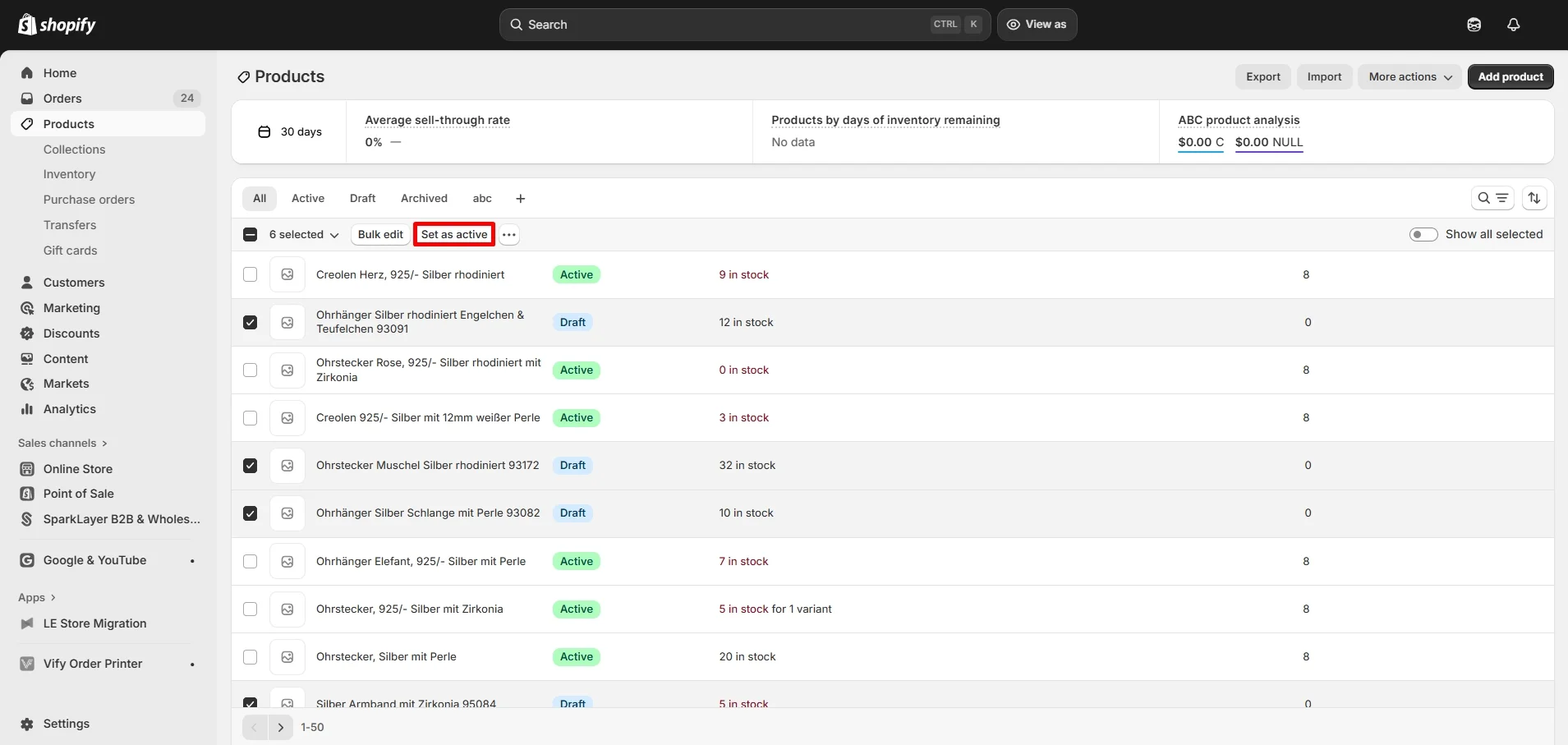
- Step 2.1. To bulk update your Shopify product status from Draft to Active, tick on the items you want to change, then click the “Set as active” button.
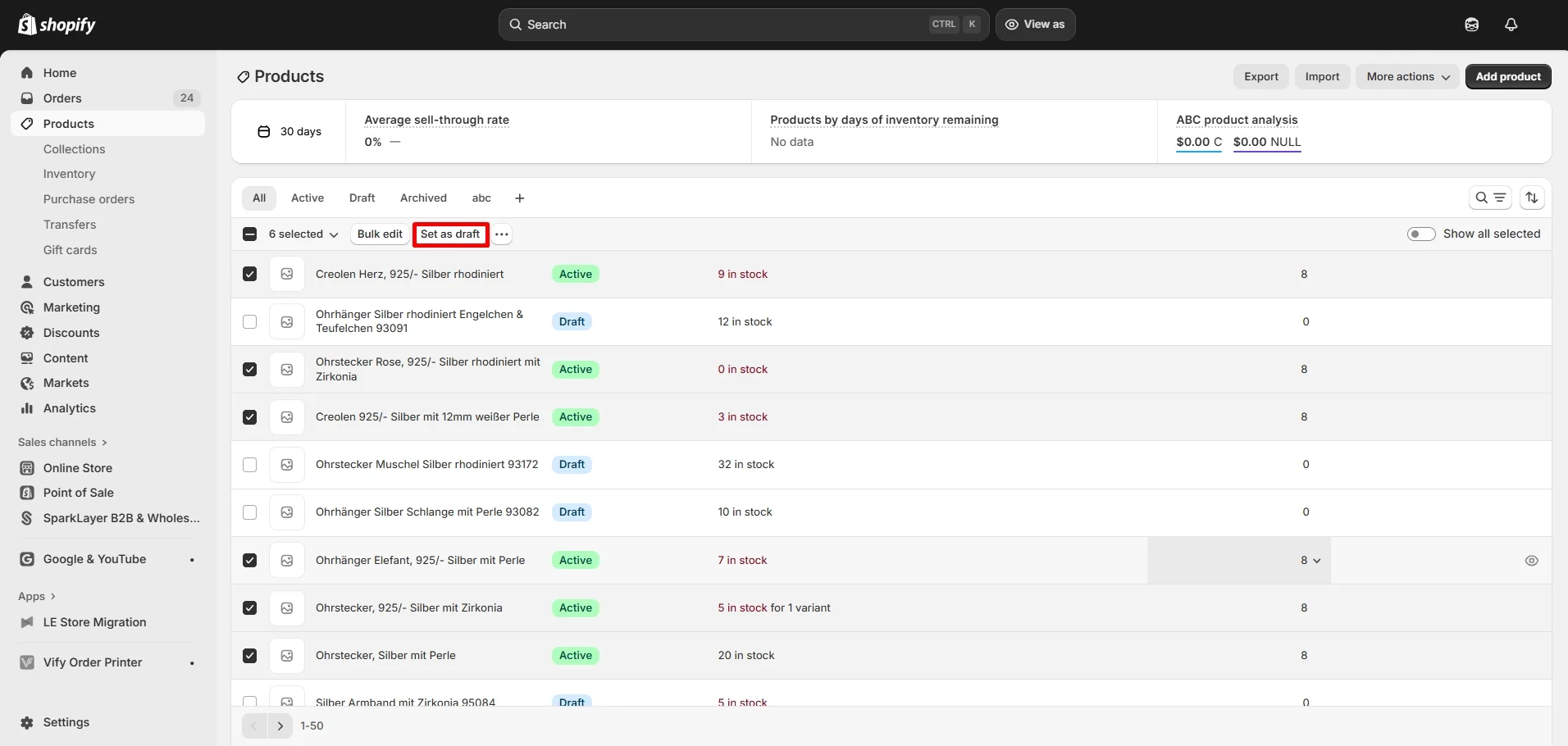
- Step 2.2. Similarly, to change product status from Active to Draft in bulk, choose the items you want to update and select the “Set as draft” button.
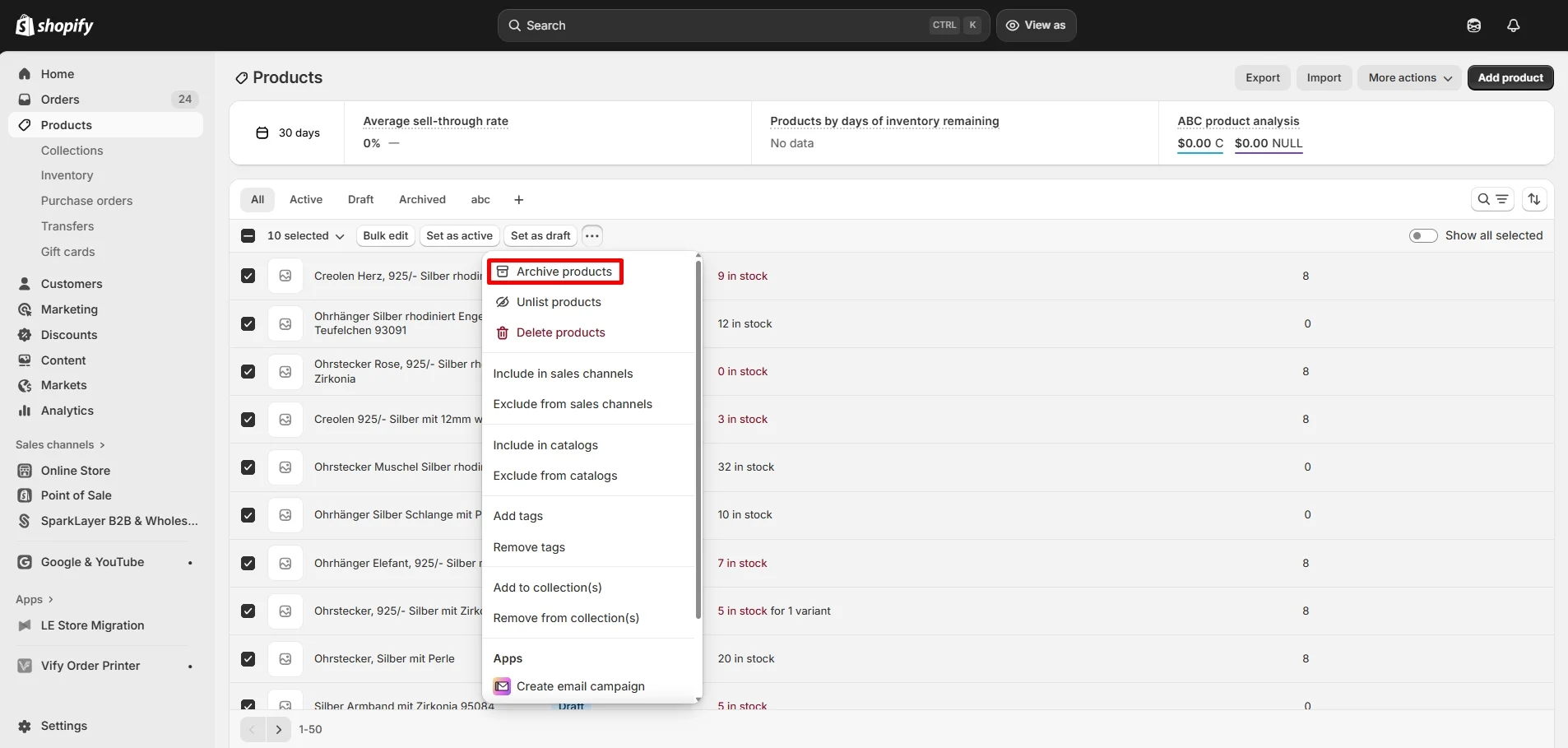
- Step 2.3. To bulk archive products, tick the box corresponding to the items you want to change, then click the “…” button and choose Archive products.”
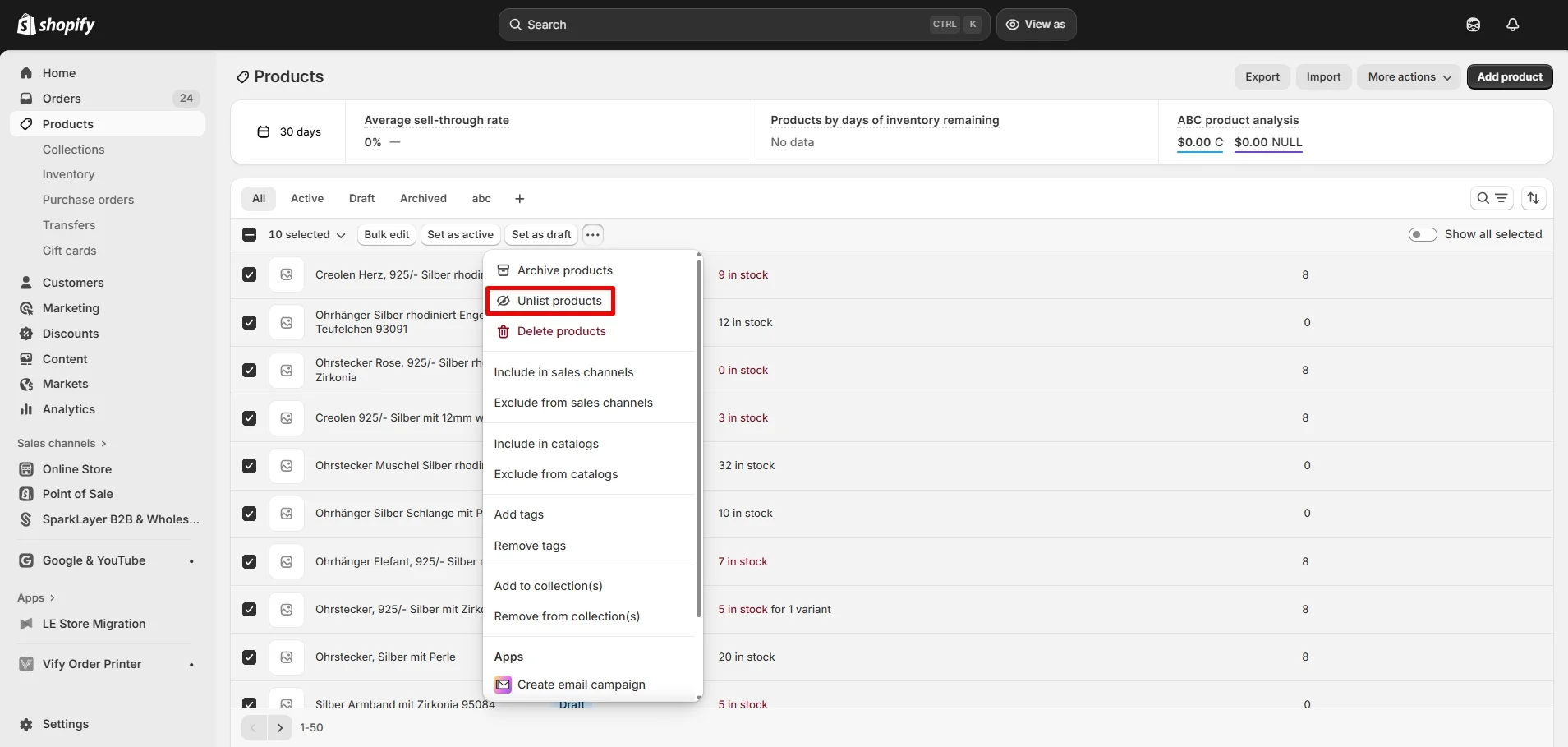
- Step 2.4. And finally, to unlist products in bulk, repeat the same process as step 2.3, and choose the “Unlist products” button.
Bonus Reading: How to Export Shopify Products Based on Status
After you update Shopify product status, and especially after you bulk edit it, you may also want a clean export for reporting, backups, or team review. A status-based export helps you separate active items from drafts or archived products, so you can work with the right product list without extra filtering later. In this bonus section, we’ll walk through practical ways to export Shopify products based on status.
- Step 1. Log in to your Shopify admin account and navigate to the “Products” dashboard.
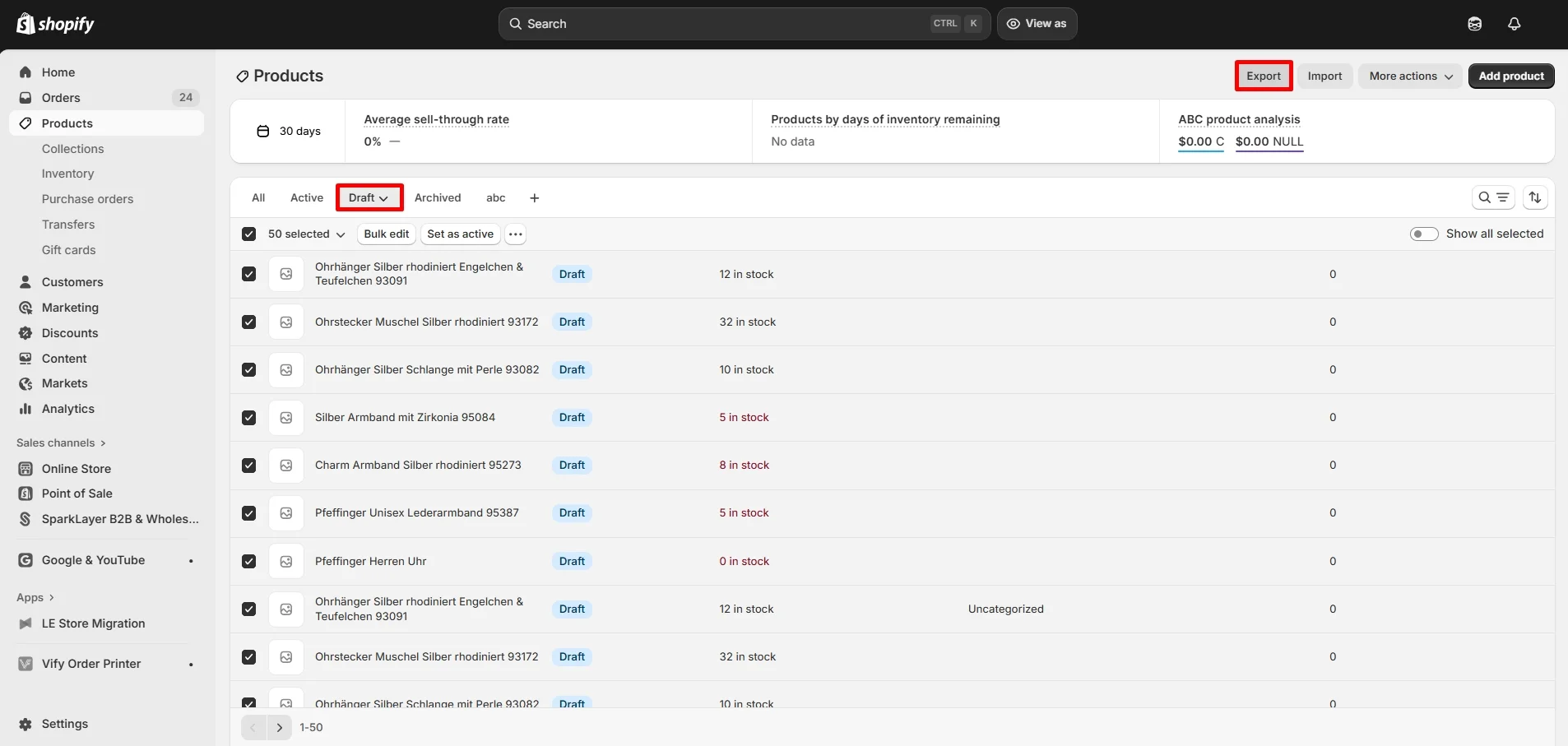
- Step 2. Select the tab with the product status you want to export, and tick “Select all”, then “Export”
- Step 3. After that, in the pop-up window, choose the “Selected” option and press “Export”. Don't forget to choose the type of CSV file you want to export into.
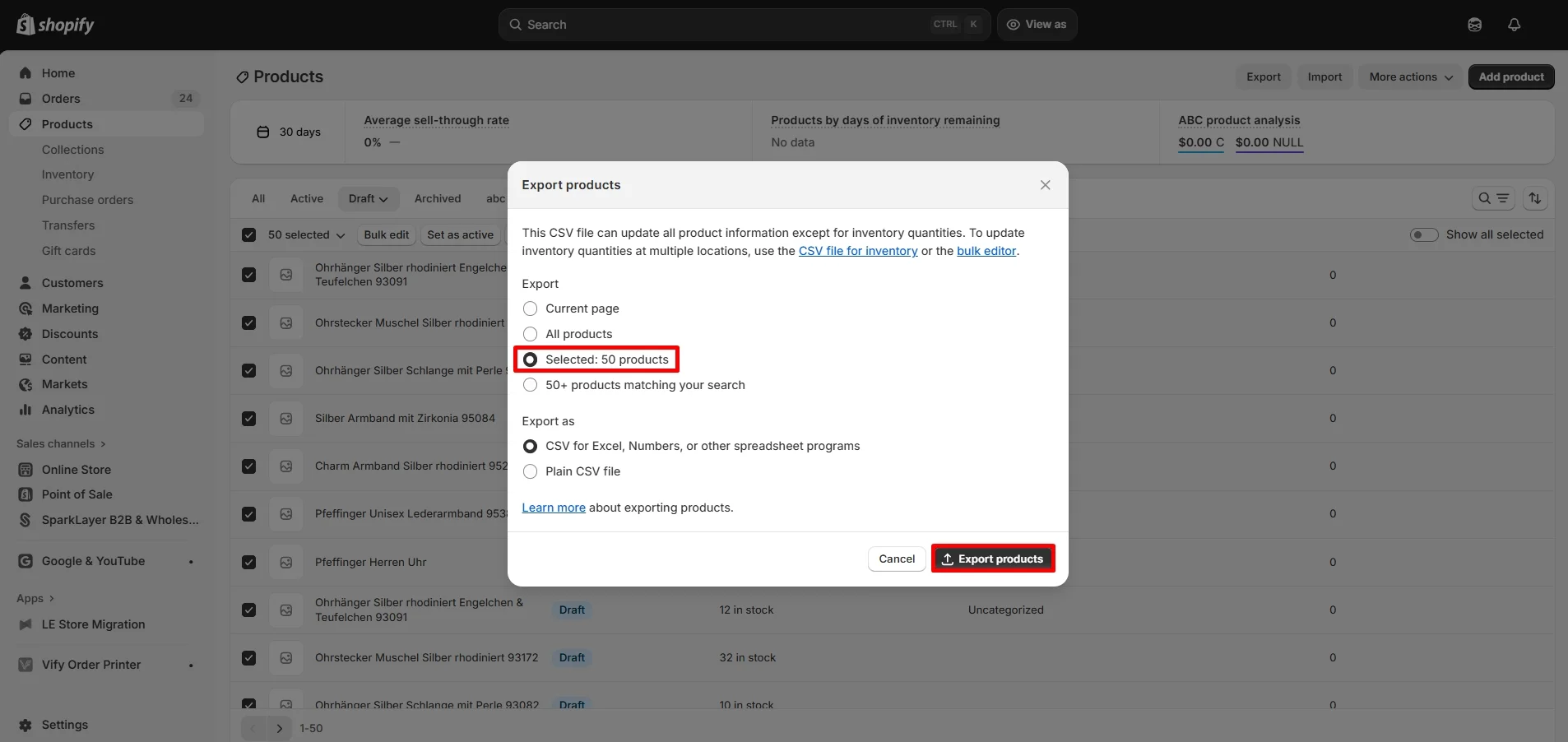
- Step 4. The CSV file will be sent to your email for download.
To learn more about the export process, don't forget to check out our article on Shopify export products.
Shopify Product Status – FAQs
How to make a product active on Shopify?
You can make a product active by opening Products in your Shopify admin, selecting the product you want to update, and then changing its Shopify product status to Active. After that, you should confirm the product is available on the right sales channels (like Online Store), because an active product still needs to be published to the channel you want customers to use.
Can I export Draft products only?
Yes, you can export draft products only, as long as you filter your product list by Shopify product status = Draft before you export. This approach helps you pull the exact list you need for review, content updates, or launch planning, without mixing in active or archived items.
What are unlisted products on Shopify?
Unlisted products are products that you keep available by direct link, but you do not show them in your storefront browsing areas. An unlisted product typically won’t appear in collections or store search, but you can still share its URL for private offers, early access campaigns, or exclusive customer groups when you want more control over visibility.
Final Words
In short, understanding how Shopify product status works is key to managing your store efficiently. Whether you're preparing new products, cleaning up outdated listings, or launching exclusive items, using the right status helps keep your catalog organized and your storefront running smoothly.
By learning how to update product statuses manually or in bulk and how to export products based on their status, you gain full control over how and when your products appear. This not only improves your workflow but also enhances your customers’ shopping experience.
And last but not least, don't forget to check out more guides and expert tips on our LitExtension Resources and Blog to run your business with confidence.