
As one of the most popular content management systems, Joomla rolls out major and minor releases every few months to keep merchants secure and up-to-date. Knowing how to perform a thorough Joomla update for your site, therefore, is an extremely crucial skill if you want to maintain a thriving business!
Today’s article will walk you through four essential steps to update Joomla safely:
- Step 1: Back up your Joomla files and database
- Step 2: Check the system and extension requirements
- Step 3: Run the update through the Joomla Update component
- Step 4: Test your website and resolve any post-update issues
We will also cover alternative update methods, major-version upgrades, and expert migration support for more complex Joomla websites.
Before You Update: Joomla System Requirements
Before starting a Joomla update, check that your hosting environment supports the version you plan to install. As of September 2026, the latest releases are Joomla 6.1.3 and Joomla 5.4.8. The following table summarizes their key server requirements:
| Requirement | Joomla 6.x minimum | Joomla 6.x recommended | Joomla 5.x minimum | Joomla 5.x recommended |
| PHP | 8.3 | 8.4 | 8.1 | 8.3 |
| MySQL | 8.0.13 | 8.4 | 8.0.13 | 8.1 |
| MariaDB | 10.4 | 12.0 | 10.4 | 11.1 |
| PostgreSQL | 12.0 | 17.6 | 12.0 | 16.0 |
| Apache | 2.4 | 2.4 | 2.4 | 2.4 |
| Nginx | 1.26 | 1.29 | 1.21 | 1.25 |
| Microsoft IIS | 10 | 10 | 10 | 10 |
Joomla 6 also requires the PHP modules json, simplexml, dom, zlib, gd, and an appropriate database driver such as mysqlnd, pdo_mysql, or pdo_pgsql. Joomla recommends enabling mbstring and setting the PHP memory limit to at least 256 MB.
You can check most of this information from your hosting control panel or by navigating to System > System Information in your Joomla administrator dashboard.
Meeting the server requirements alone does not guarantee a trouble-free update. Before proceeding, you should also:
- Update your extensions and template to their latest compatible versions.
- Check whether each third-party extension supports the target Joomla version.
- Review the Pre-Update Check, particularly before moving to a new major version.
- Test the update on a staging copy if your website uses custom code or essential third-party extensions.
- Create a complete backup of both your website files and database.
Note: Updating within the same Joomla major version is generally straightforward. If you are moving from Joomla 5 to Joomla 6, check our step-by-step guide to upgrading between major Joomla versions, as this process requires more thorough preparation and compatibility checks.
Simple Joomla Update: Standard One-Click Method
The built-in Joomla Update component is the easiest way to install an available core update. This method works best for maintenance and minor-version updates, provided your server, template, and extensions are compatible with the target release.
Step 1. Back up your current Joomla site
Before making any changes to the Joomla core files, you should create a complete backup of your website. Make sure the backup covers:
- All Joomla files and folders
- The complete website database
- The
configuration.phpfile - Any custom template or extension files
For extra security, store the backup separately from your live server. This provides a reliable restore point in case the Joomla update fails or causes compatibility issues.
Step 2. Access the update component
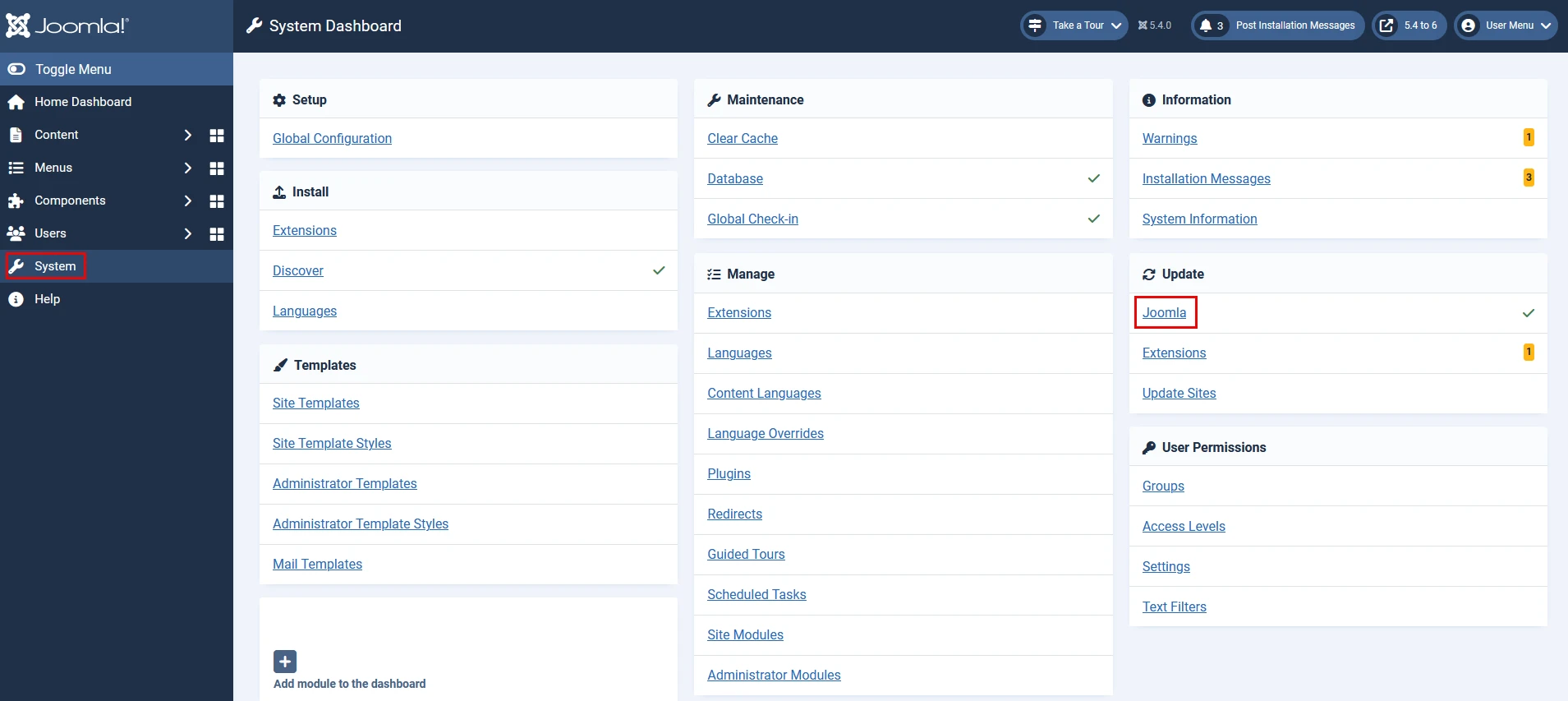
From the Joomla administrator dashboard, navigate to System > Update > Joomla. Since Joomla 6 belongs to the next major release series, its update may not appear while the default channel is active.
From the update screen, select Options and configure:
- Update Channel: Joomla Next
- Minimum Stability: Stable
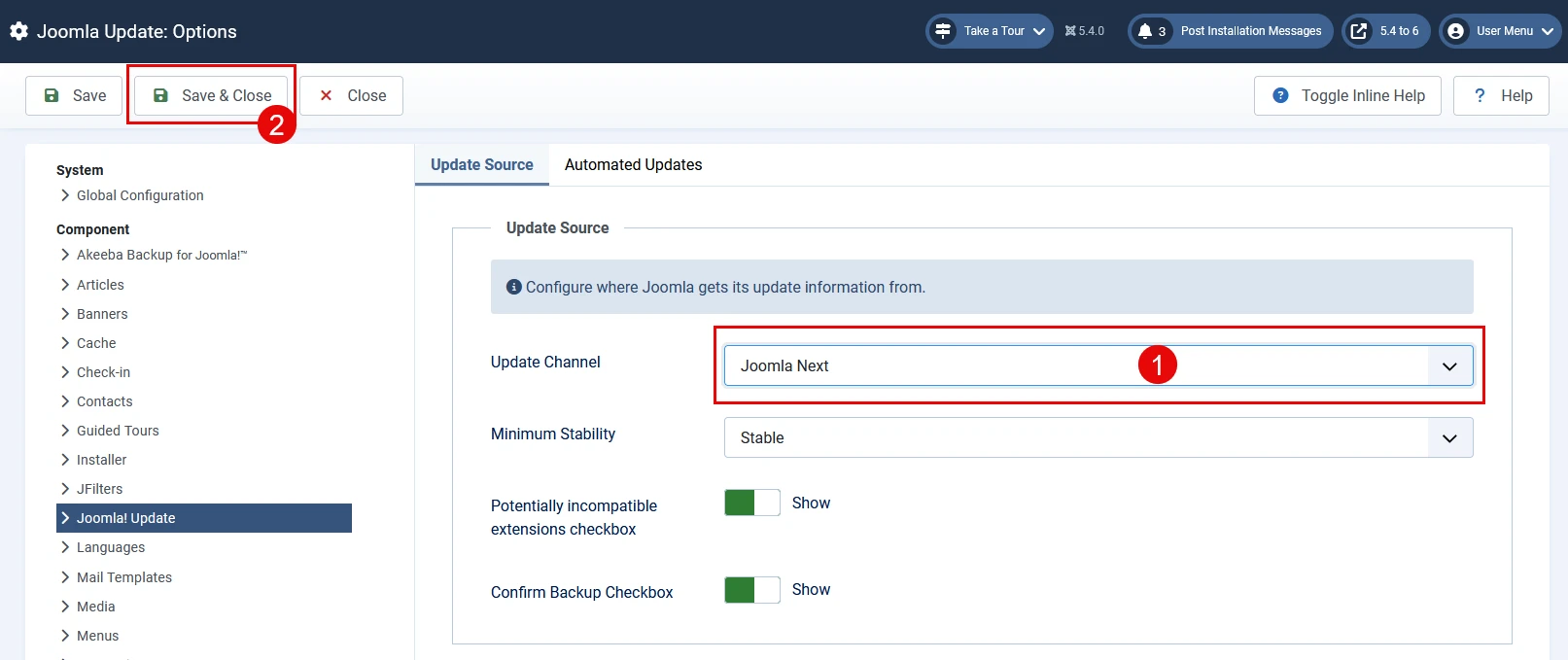
After clicking Save & Close, Joomla will check the update server again and display the available Joomla 6 release.
Step 3. Perform the Joomla update free
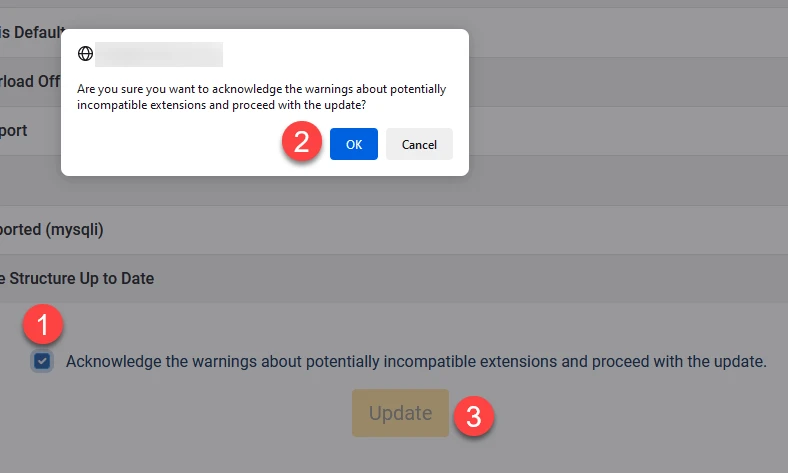
Once all compatibility checks have been reviewed, select the confirmation checkbox at the bottom of the Pre-Update Check page. This confirms that you understand the warnings and have verified your extensions before proceeding.
After the checkbox is selected, click Update to begin the Joomla 6 upgrade.
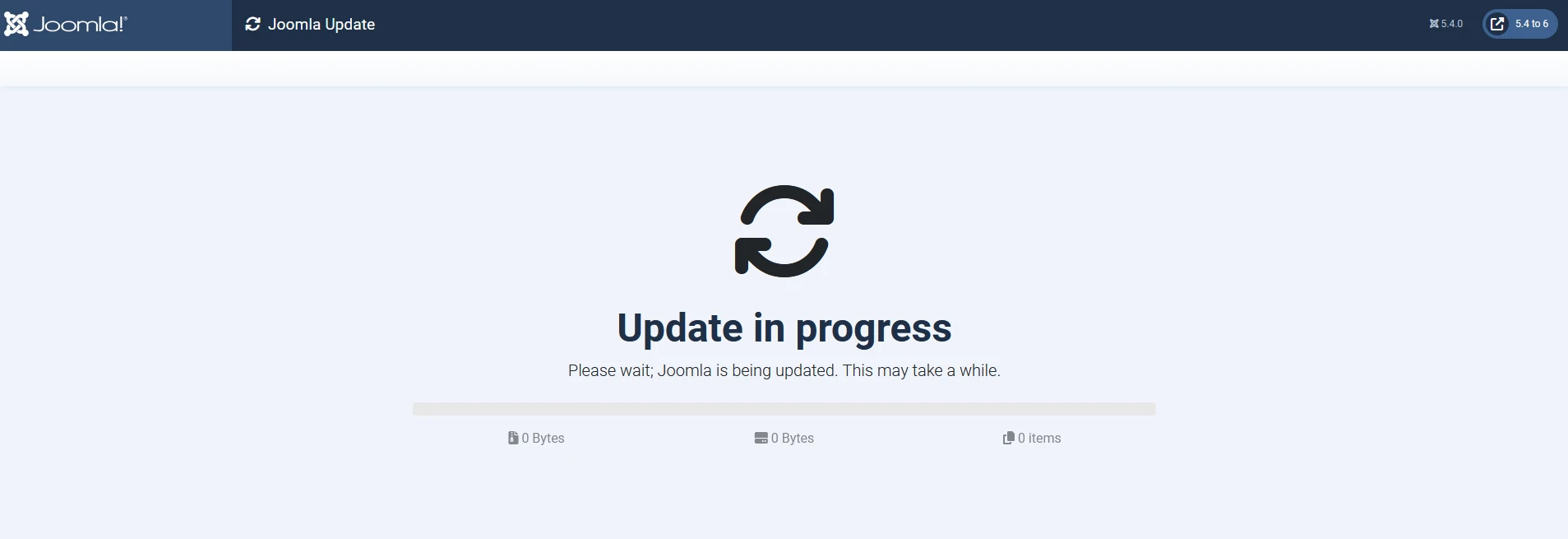
During the process, the browser tab should remain open while Joomla downloads the package, updates the core files and database, and removes obsolete files.
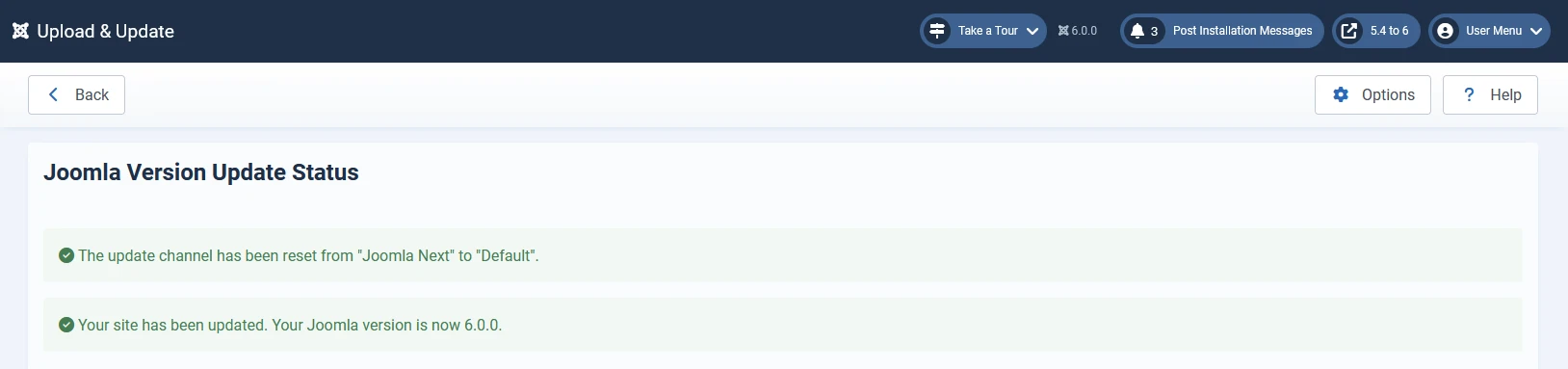
When the update is complete, Joomla will display a confirmation message with the newly installed version.
Step 4. Check the Joomla update notice (optional)
After the installation, return to the Home Dashboard or System > Update > Joomla. The system should confirm that your website is up to date.
You should also perform a quick post-update check:
- Open several frontend pages and confirm that they display correctly.
- Test the administrator dashboard and essential website functions.
- Check forms, menus, modules, templates, and third-party extensions.
- Clear both Joomla and browser caches if the layout appears incorrect.
- Review System > Maintenance > Database and fix any reported database issues.
- Check System > Update > Extensions for pending extension updates.
The latest official Joomla packages and release information are available from the Joomla Downloads portal.
Other Ways to Update Joomla (When One-Click Doesn’t Work)
If the standard one-click Joomla update fails, Joomla provides several alternative methods. The right option depends on the cause of the failure and the level of server access you have.
Before trying any of these methods, make sure that you have a complete backup and that your server meets the requirements of the target version. For a major-version change, follow our guide to upgrading between major Joomla versions instead, as the methods below are primarily intended for patch and minor updates.
Manual upload via the Update Component
The Upload and Update method is the safest alternative when Joomla detects an update but cannot download or extract it automatically. It still uses the native Joomla Update component, so Joomla can apply the package, run database updates, and complete the required post-installation tasks.
To perform the update:
- From the official Joomla Downloads page, find the target version and download its Upgrade Package in .zip format. Avoid the Full Package, which is intended for new installations.
- In your Joomla administrator dashboard, go to System > Update > Joomla.
- Open the Upload and Update tab.
- Drag the Upgrade Package into the upload area or click Browse for File to select it.
- Enter your administrator credentials if Joomla asks you to confirm your identity.
- Click Upload & Install and keep the browser window open until the process finishes.
The package must be smaller than the PHP limits configured on your server. If Joomla rejects the upload, check the following values in php.ini or ask your hosting provider to increase them:
upload_max_filesize = 64M
post_max_size = 64M
memory_limit = 256M
max_execution_time = 300
Both upload_max_filesize and post_max_size must be larger than the Joomla update package. Depending on the hosting environment, you may also need a higher execution time to prevent the process from timing out.
After the installation finishes, navigate to System > Maintenance > Database. If Joomla reports a database schema mismatch, select the affected item and click Update Structure. You should then clear the Joomla cache and check the frontend, administrator area, extensions, and template for errors.
Note:
Uploading a Joomla update package through Extensions > Install is not the same as using System > Update > Joomla > Upload and Update. Core update packages should be processed by the Joomla Update component.
Manual FTP update
An FTP update can help when you cannot access the Upload and Update screen, the server repeatedly times out, or Joomla cannot write to its own directories. However, this is a recovery-oriented method rather than the preferred update process.
Unlike the Joomla Update component, FTP only replaces files. It does not automatically run every database update or post-installation task, and it may leave obsolete core files behind. Therefore, this method is better suited to experienced users handling a patch or minor update.
First, download the correct Upgrade Package for your current and target versions from the official Joomla website. Once downloaded, extract the package on your computer.
You can then update the files as follows:
- Connect to the server using an FTP or SFTP client such as FileZilla.
- Locate the Joomla root directory. It normally contains folders such as administrator, components, includes, libraries, and plugins, as well as the configuration.php file.
- Temporarily place the website offline through System > Global Configuration > Site Offline, if you can still access the administrator area.
- Upload the extracted update files to the Joomla root directory.
- When prompted, choose to overwrite the existing files and merge the existing folders.
- Wait until every file has been transferred successfully before accessing the website again.
During this process, do not delete the Joomla root directory or overwrite configuration.php with a file from another installation. You should also preserve user-generated directories, including your images and custom media folders.
Once the upload is complete, log back into Joomla and go to System > Maintenance > Database. Select any reported schema issues and click Update Structure so Joomla can apply the available database changes.
Note:
A raw FTP upload does not fully reproduce Joomla’s native update process. If you can access the administrator dashboard, the Upload and Update method should be your first alternative. Avoid using FTP alone for a major upgrade such as Joomla 5 to Joomla 6.
CLI update (for developers/agencies)
For developers and agencies managing several websites, Joomla’s command-line interface provides a faster way to check and install core updates. This method is available in modern Joomla versions and requires SSH or terminal access to the server.
Before running any update command, connect to the server through SSH and move to the Joomla root directory:
ssh [email protected]

cd /path/to/your/joomla-site
The correct directory should contain configuration.php and the cli folder. You can confirm that Joomla’s CLI application is available by running:
php cli/joomla.php list
On Joomla 6, use the following command to check for an available core update:
php cli/joomla.php core:update:check
Joomla 4 and older Joomla 5 installations may instead provide:
php cli/joomla.php core:check-updates
Since core:check-updates was deprecated in Joomla 5.1 and removed from Joomla 6, checking the available commands with php cli/joomla.php list core is recommended before building an update script.
When the correct update is available, run:
php cli/joomla.php core:update
Joomla will download the update package, extract it, apply the required changes, and display the progress in the terminal. A successful command should return an exit code of 0.
If the server has multiple PHP versions installed, the default php command may not use the version required by your target Joomla release. In that case, call the correct PHP binary explicitly, for example:
/usr/bin/php8.4 cli/joomla.php core:update
For a safer maintenance workflow, you can take the website offline before running the update:
php cli/joomla.php site:down
php cli/joomla.php core:update
php cli/joomla.php cache:clean
php cli/joomla.php site:up
Afterward, confirm the installed Joomla version and review the command output for warnings. You should also open System > Maintenance > Database in the administrator dashboard and verify that the database schema is up to date.
For recurring maintenance, these commands can be integrated into a deployment script or scheduled task. However, an automated script should only proceed after creating a fresh backup and confirming that the update belongs to an approved version channel.
How to Migrate to a New Major Joomla Version via The Built-in Tool
A major Joomla upgrade involves more than replacing the core files. Changes to PHP requirements, database structures, deprecated code, templates, and third-party extensions can all affect how the website works after the migration.
For the safest upgrade path, older Joomla installations should move through each supported bridge version instead of jumping directly to the newest release. For example, a Joomla 4 website must first reach the latest Joomla 4.4 release before moving to Joomla 5, while a Joomla 5 website must reach Joomla 5.4 before upgrading to Joomla 6.
Step 1. Set up the development environment
Before making changes to the live site, you should create a complete staging copy that includes both the Joomla files and database. Within configuration.php, the database credentials, $log_path, and $tmp_path should then be updated for the staging environment.
For accurate testing, the staging server must meet the target version’s requirements. A Joomla 5.4 to 6.x upgrade, for example, requires PHP 8.3 or later. Outgoing emails, payment gateways, and scheduled tasks should also be disabled to prevent the staging site from triggering real transactions or notifications.
Once both the frontend and administrator dashboard work normally, you can proceed with the compatibility checks.
Step 2. Update your extensions
With the staging site ready, all extensions can be updated under System > Update > Extensions. The template, plugins, modules, and components should also be checked against the developers’ compatibility information.
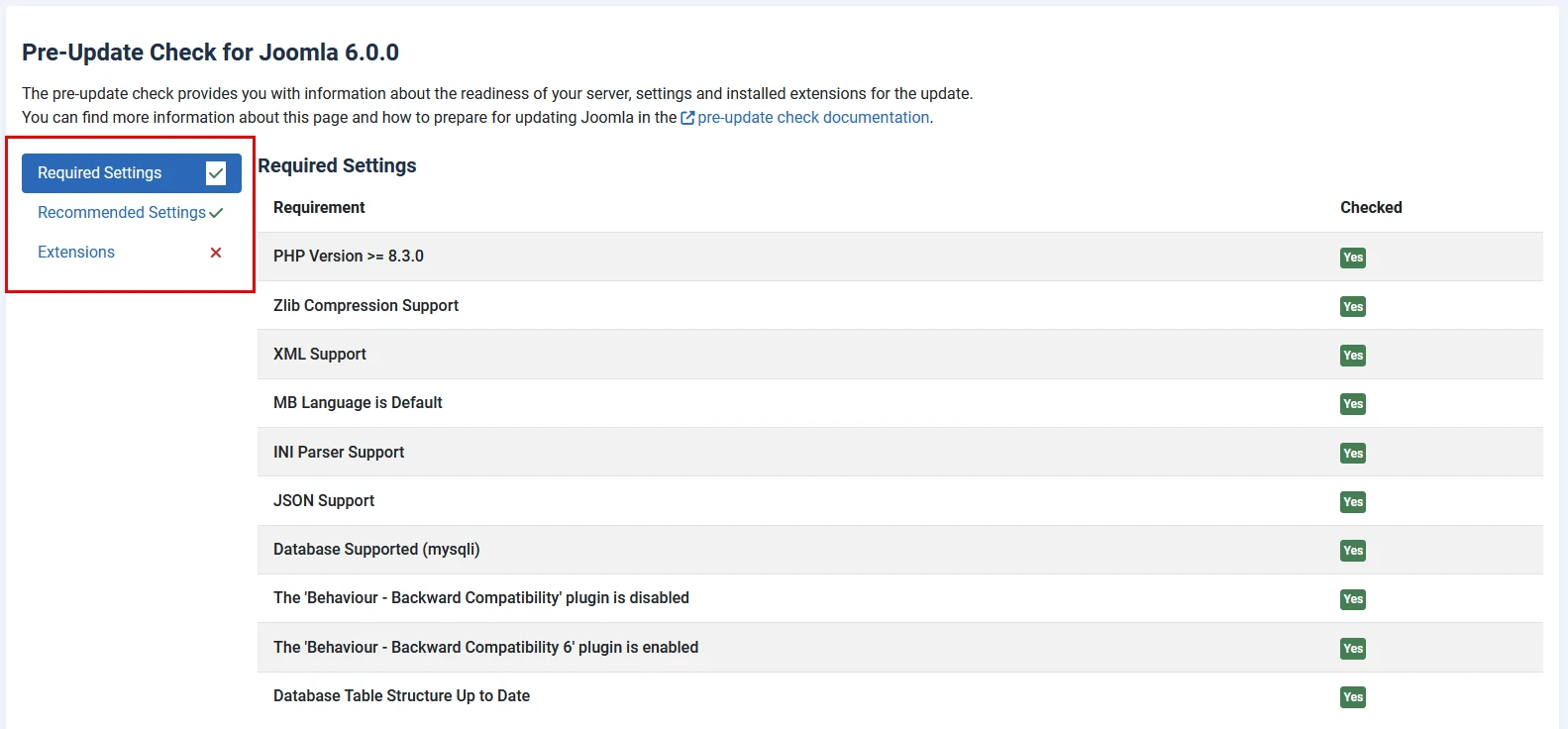
From System > Update > Joomla, the Pre-Update Check will flag extensions that may require updates or further review. Any unsupported extension should be replaced, removed, or updated by a developer before the migration.
For Joomla 5.4 to 6.x, two compatibility plugins require particular attention:
- Behaviour – Backward Compatibility 6 must be installed and enabled.
- Behaviour – Backward Compatibility for Joomla 5 must be disabled.
After the Joomla 5 compatibility plugin is disabled, the website should be tested again. Any resulting errors indicate that an extension or custom code still depends on the older compatibility layer.
Step 3. Migrate to the new version
Once the compatibility issues have been resolved, the update channel can be changed under System > Update > Joomla > Options. For the next stable major release, select Joomla Next and keep Minimum Stability set to Stable.
After saving these settings, Joomla should display the available major version. Before installation, all server, database, extension, and compatibility-plugin warnings in the Pre-Update Check should be reviewed.
When every required check passes, the migration can begin by selecting Install the Update. The browser tab should remain open until Joomla confirms completion.
In some cases, an additional update may be required afterward. For example, Joomla may first upgrade from 5.4 to 6.0 before offering the latest Joomla 6.1 release.
Step 4. Post-migration checks
Following the migration, the database structure should be checked under System > Maintenance > Database. If Joomla reports a mismatch, the affected item can be selected before clicking Update Structure.
The upgraded website should then be tested across its key areas:
- Frontend pages, menus, modules, and forms
- Administrator functions and media uploads
- Templates and custom overrides
- Third-party extensions
- URLs, metadata, redirects, and other SEO elements
- Emails, payment gateways, APIs, and scheduled tasks
- PHP, Joomla, and server error logs
Once testing is complete, both the Joomla and browser caches should be cleared. The same migration process can then be repeated on the live website during a planned maintenance window, supported by a fresh backup.
Advanced Joomla Migration with LitExtension
For older, highly customized, or business-critical Joomla stores, a manual migration can involve complex database mapping, extension compatibility checks, and SEO handling. In these cases, our LitExtension’s All-in-One Migration Service provides an expert-led alternative through three main steps:
- Consultation and store assessment: First, our experts review your current Joomla setup, target version, data volume, custom requirements, and compatible migration options. The agreed scope is then documented before the project begins.
- Data mapping and migration setup: Based on your requirements, our team prepares the target Joomla environment and maps supported data such as products, customers, orders, categories, CMS pages, blogs, and SEO URLs. A demo migration can also be conducted to verify the configuration.
- Full migration and quality check: Once the setup is approved, LitExtension experts perform the full Joomla migration and inspect the results for accuracy. Any supported newly added data can then be transferred before the new store goes live.
With the technical work handled by our migration experts, you can keep your current store operating while preparing the upgraded Joomla website for launch.
Joomla Migration Made Easy With LitExtension!
LitExtension offers great migration solutions that help you transfer your data from the current eCommerce platform to a new one accurately, painlessly with utmost security.

Troubleshooting Common Joomla Update Problems
Even with careful preparation, a Joomla update may fail because of server restrictions, incompatible extensions, or an incomplete installation. Below are the most common issues, along with their likely causes and practical solutions.
Joomla update not showing
Cause: Joomla may be using outdated update information, the wrong update channel, or a disabled Joomla Core update site.
How to fix: From System > Update > Joomla, click Check for Updates. If the update still does not appear, open Options and confirm that the correct update channel is selected. The Joomla! Core entry under System > Update > Update Sites should also be enabled.
Joomla Pre-Update Check shows warnings
Cause: The target version may not support your current PHP version, database, template, extensions, or compatibility-plugin settings.
How to fix: Each warning should be reviewed before the update begins. Server details are available under System > System Information, while extension compatibility should be confirmed through the developer’s documentation. Unsupported extensions need to be updated, replaced, or removed.
Joomla update package cannot be uploaded
Cause: The update package may exceed the upload or request limits configured in PHP.
How to fix: Within php.ini, both upload_max_filesize and post_max_size should be set higher than the package size. Additional increases to memory_limit and max_execution_time may also be necessary:
upload_max_filesize = 64M

post_max_size = 64M

memory_limit = 256M

max_execution_time = 300
“Failed to write file” or extraction error
Cause: Joomla may not have permission to write to its directories, or the temporary directory may be missing or incorrectly configured.
How to fix: Joomla directories should normally use permission 755, while files should use 644. Within configuration.php, the $tmp_path value should also point to an existing and writable directory. File ownership may need to be corrected by the hosting provider.
Joomla update freezes or times out
Cause: Limited PHP execution time, insufficient memory, or restricted server resources can interrupt the update.
How to fix: A higher max_execution_time and memory_limit may allow Joomla to complete the process. When the standard update continues to fail, the Upload and Update method or Joomla CLI offers a suitable alternative.
AJAX Loading Error or 403 Forbidden
Cause: A firewall, security extension, .htaccess rule, or hosting protection may block Joomla’s update extraction request.
How to fix: Server and security logs should first be checked to identify the blocked request. The relevant firewall or security rule can then be temporarily adjusted during the update. Once the installation finishes, the original protection should be restored.
Blank page or HTTP 500 error after updating
Cause: An incompatible extension, template, custom code, or unsupported PHP version may trigger a fatal error.
How to fix: Within configuration.php, Joomla error reporting can temporarily be enabled:
public $debug = true;

public $error_reporting = 'maximum';
The resulting error message or server log should indicate the affected extension or file. After the issue is resolved, debugging should be disabled again to prevent technical information from being displayed publicly.
Database schema mismatch after the update
Cause: The Joomla files were updated, but one or more database changes were not applied correctly.
How to fix: From System > Maintenance > Database, select the affected item and click Update Structure. The database status should then be checked again until Joomla reports no structural problems.
Joomla layout breaks after updating
Cause: Outdated cached assets, incompatible template overrides, or third-party CSS and JavaScript may conflict with the new Joomla version.
How to fix: Joomla, browser, server, and CDN caches should be cleared first. If the issue remains, the template overrides under /templates/your-template/html/ and recently updated extensions should be checked for compatibility.
If the update stopped midway, another installation should not begin until the current Joomla version and database state have been confirmed. When the site appears partially updated, restoring the latest complete backup is usually the safest way to restart the process.
Bonus: 3 Joomla Update Golden Rules
To ensure your update goes smoothly without any issues, always keep these three golden tips in mind:
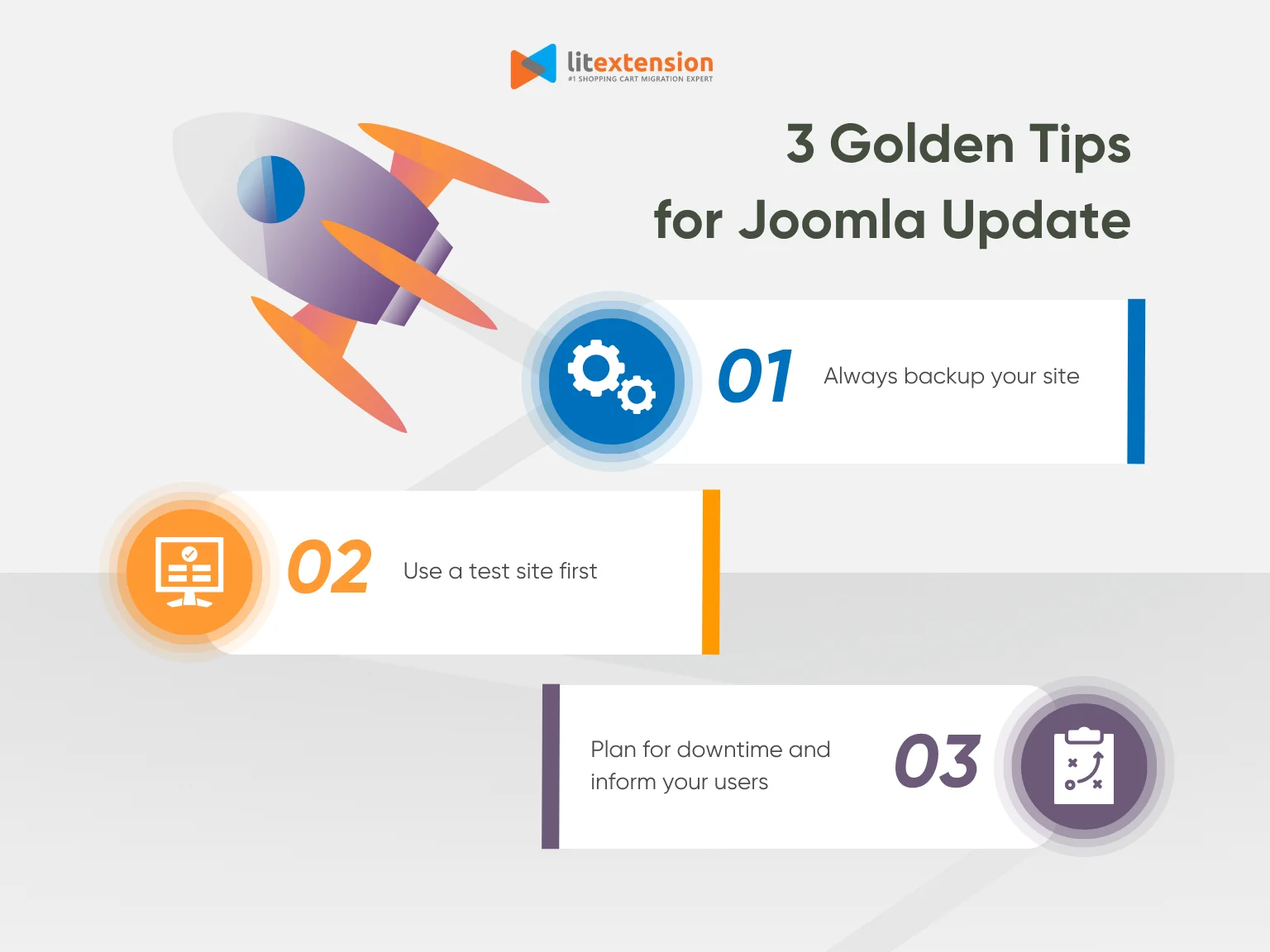
- Always back up your site: A complete backup should include both your Joomla files and database. With a recent restore point stored outside the live server, you can recover the website if the update fails.
- Use a test site first: Whenever possible, the update should be tested on a staging copy before reaching the live site. Any extension, template, or server compatibility issues can then be resolved without affecting visitors.
- Plan for downtime and inform your users: For minimal disruption, the update should be scheduled during off-peak hours, with users informed in advance when downtime is expected.
For complex Joomla migrations, LitExtension experts can prepare and transfer your store data in the background while your current website remains available for customers.
Joomla Update: FAQs
How do I update my Joomla version?
From the administrator dashboard, navigate to System > Update > Joomla. After reviewing the compatibility checks and creating a complete backup, click Install the Update. If the one-click update fails, the update package can be installed through Upload and Update or Joomla CLI.
How do I update to Joomla 6?
A direct upgrade to Joomla 6 requires your website to be running the latest Joomla 5.4 release. Before proceeding, all extensions and templates should be updated, the Joomla 6 compatibility plugin must be enabled, and the Joomla 5 compatibility plugin must be disabled.
From System > Update > Joomla > Options, select Joomla Next as the update channel and keep Minimum Stability set to Stable. Once the Pre-Update Check shows no blocking issues, you can install the Joomla 6 update.
Older Joomla websites must follow the supported upgrade path first, such as Joomla 3.10 to 4.4, then Joomla 5.4, and finally Joomla 6.
What are the system requirements for Joomla 6?
Joomla 6 requires at least:
- PHP 8.3
- MySQL 8.0.13, MariaDB 10.4, or PostgreSQL 12
- Apache 2.4, Nginx 1.26, or Microsoft IIS 10
- PHP modules including json, simplexml, dom, zlib, gd, and a supported database driver
- A recommended PHP memory limit of at least 256 MB
For better performance and long-term compatibility, Joomla recommends PHP 8.4, MySQL 8.4, MariaDB 12.0, or PostgreSQL 17.6.
Does anyone still use Joomla?
Yes. Joomla remains an actively developed open-source CMS with regular releases, security updates, extensions, templates, and community support. It is still a practical choice for structured content, multilingual websites, advanced user permissions, and projects that require more control than many hosted website builders provide.
Final Words
Performing a Joomla update, all in all, is relatively straightforward. Unfortunately, it might lead to serious compatibility issues down the line if the old and new versions have drastically different structures!
That’s why we highly recommend opting for a thorough, inclusive migration with the help of trusted services like LitExtension. With over 15 years of experience and 200,000+ satisfied customers, we have more than enough expertise to deliver a smooth, hassle-free Joomla migration no matter the obstacles. Let us take the heavy lifting off your shoulders and handle everything for you from start to finish!
For more information, check out our other eCommerce platform tutorials.

