Thinking about whether to export Wix site for a backup, a platform migration, or simply more control over your data? Whatever your reason, there are several ways to do it, and the right method depends on your goal.
Below, we’ll walk you through each option on how to export a Wix site so you can pick the one that fits best.
- Method 1: Manually export your Wix site via the dashboard
- Method 2: Copy and paste Wix content manually
- Method 3: Extract HTML code snippets from Wix
- Method 4: Perform advanced Wix migration with LitExtension
Let’s get started!
What Can You Export from Wix Site Natively?
Wix is a closed platform, which means it doesn’t offer a one-click “export everything” button like some other website builders. Unlike WordPress or Shopify, you cannot simply download a full backup of your Wix site and import it elsewhere.
That said, Wix does let you export certain types of content directly from your dashboard. Here’s what you can natively pull out of your Wix site:
- Store products – downloadable as a CSV file from the Wix Stores dashboard, including titles, descriptions, prices, SKUs, and inventory data.
- Contacts and customer lists – exportable as a CSV from your contacts panel.
- Orders and bookings – available as CSV exports from the relevant dashboards.
- Invoices and financial records – downloadable as PDFs or CSVs from the Wix Invoices section.
In short, Wix lets you walk away with your data, but not your design. If you’re planning to move your store or content to another platform, you’ll either need to combine several native export methods, rebuild the design from scratch on your new platform, or use a migration service like LitExtension to handle store data automatically.
Let Our Experts Handle Your Wix Migration!
With the All-in-One Migration Service, our experts take care of everything, ensuring a seamless and stress-free migration.

How to Export Wix Site Through the Dashboard
With the dashboard export option, you can mainly export structured content such as products, customers, orders, blog feeds, and invoices.
Wix does offer built-in export tools, but they only support certain types of data instead of your entire website. Below, we’ll show you how to export each supported data type from your Wix dashboard.
Step 1: Export your store products
From the left-hand menu, navigate to Catalog > Store Products. Click More Actions at the top of the page, then choose Export from the dropdown menu.
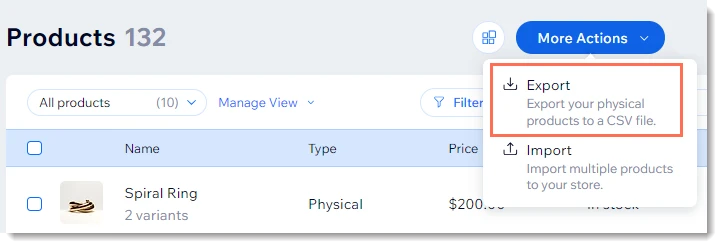
Wix will generate a CSV file containing your product information, such as names, descriptions, prices, SKUs, inventory levels, and product variants.
When exporting products from Wix, the CSV file includes product information in structured fields, but images are exported as external URLs rather than actual image files. If you’re planning to migrate to another platform like WooCommerce, you may need to re-upload images to the new platform’s media library and map them correctly in the CSV before importing.
Step 2: Export your contacts
Also, from the left sidebar, open the Customers & Leads > Contacts section under your CRM dashboard.
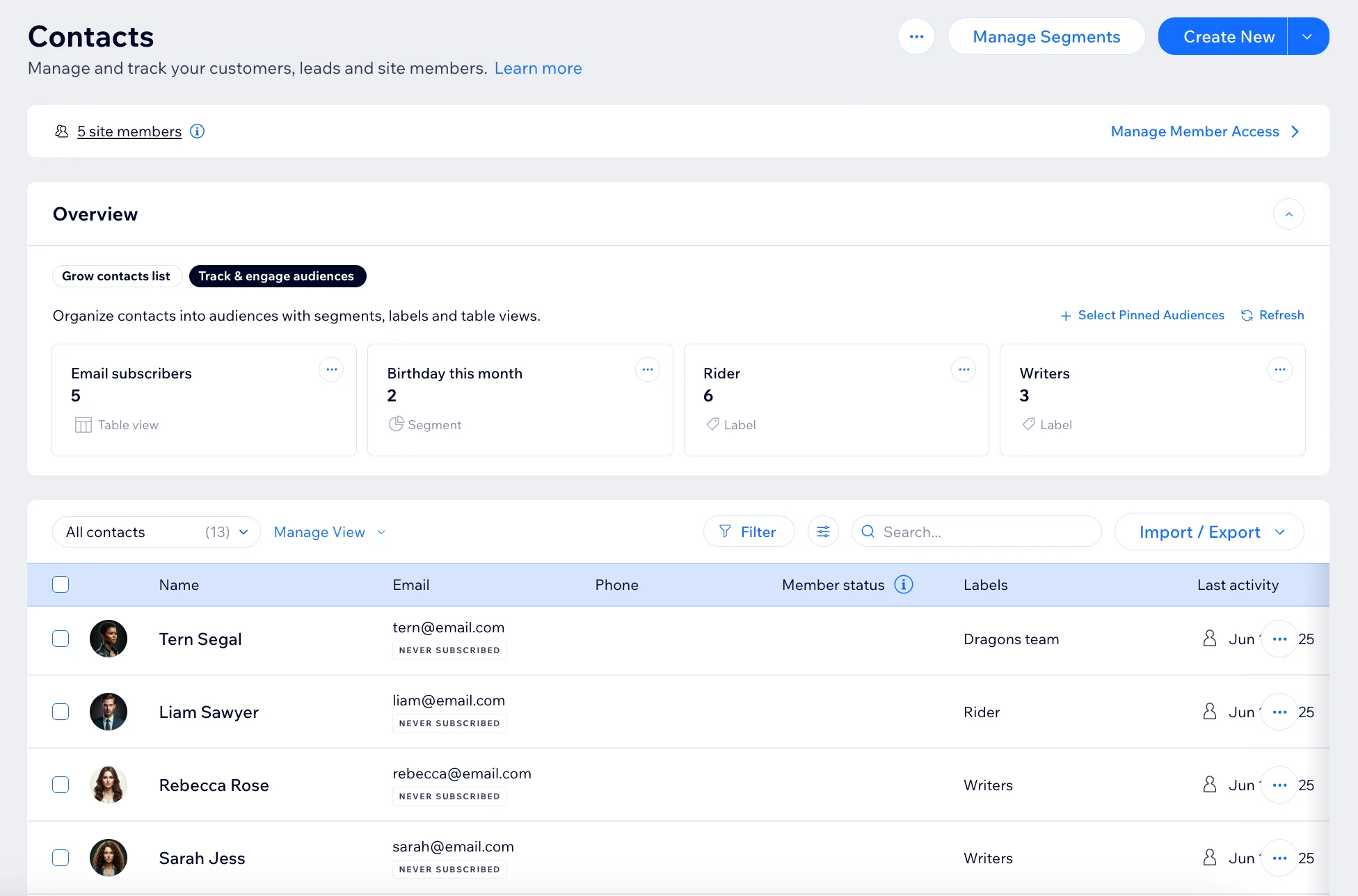
Then, choose which contacts to export from the dropdown (all contacts or specific labels) and select your preferred CSV file format. Click the Export button and choose where to save the file on your computer.
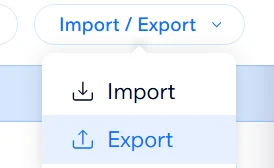
Your file will typically include the following information of the contacts:
- Customer names
- Email addresses
- Phone numbers
- Customer labels and tags
Step 3: Export your orders
Go to Sales > Orders under the Wix Stores section. Select specific orders by checking the boxes next to each order, or check the box next to Order at the top to select all. After that, click the Export button in the top right corner.

Here, you can decide the preferred file and display format. You can also customize which columns to include, such as billing, payment, fulfillment, or shipping details.

Finally, click Export and wait for the file to download.
Step 4: Download invoices and Financial Files
Under Finance Tools > Invoices, Wix allows you to export invoices individually as PDF files or in bulk as CSV files for accounting and reporting purposes.
Although this built-in method works well for exporting structured data, it does not export your website design, layouts, themes, or page-level SEO settings. If you are planning a full platform migration, you may need to refer to the next export Wix site ways.
How to Save Wix Content by Copying and Pasting Manually
If your Wix site is relatively small, manually copying and saving your content can be a simple way to create a backup before moving to another platform. While this method takes more time, it gives you full control over what you save and how you organize it.
Step 1: Open your live Wix site and create a list of all important pages you want to save, including blog posts, product pages, landing pages, and contact pages.
Step 2: Copy the text content from each page into a Word document, Google Doc, or text file. Try to preserve the original heading structure so rebuilding later becomes easier.
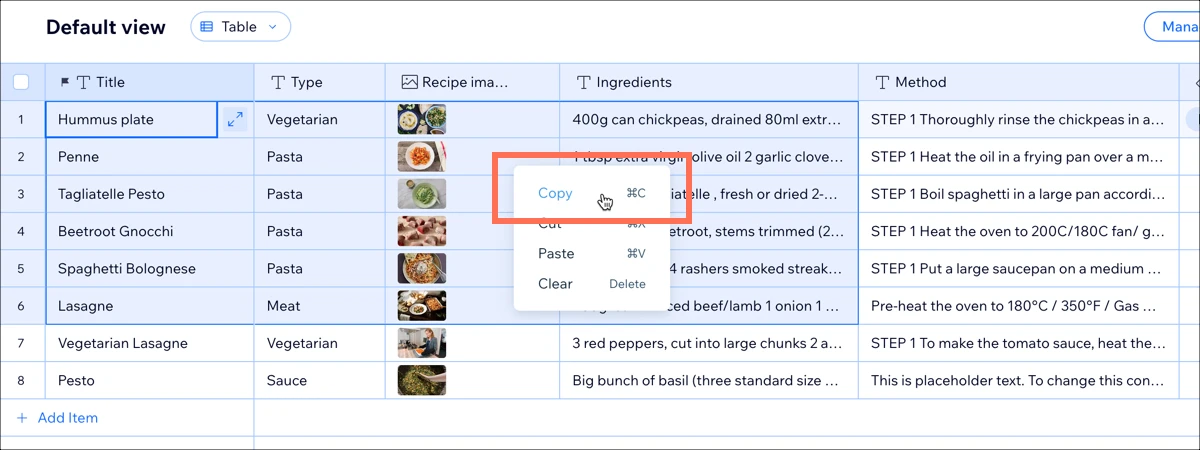
Step 3: Download your images and media files manually by right-clicking and selecting Save Image As. Organizing files into separate folders can help you manage content more efficiently later on.
Step 4: Record important site elements such as navigation menus, internal links, forms, and button destinations. These details are often overlooked during migration.
Step 5: Take full-page screenshots of your website using tools like GoFullPage. Screenshots are useful visual references when recreating your design on another platform.
Because this process is highly manual and time-consuming, we only recommend this method for smaller websites with fewer than 10–15 pages. For larger websites, trying to export a Wix site manually can quickly become difficult to manage.
How to Extract HTML Code Snippets from Wix
For developers or more technical users, extracting HTML snippets can be another way to export Wix site content manually. Although Wix does not allow users to download the full source code of a website, you can still pull HTML from individual pages through your browser’s developer tools.
Step 1: Open or publish the live Wix page you want to extract content from. Then right-click anywhere on the page and select Inspect or View Page Source in Chrome or your preferred browser.

Step 2: Inside the browser’s DevTools panel, use the element picker to select the specific section you want to save. Instead of copying the entire page source, only copy the relevant HTML block from the Elements panel.
Step 3: Paste the extracted code into your own HTML file and clean it up manually. Wix-generated markup usually contains deeply nested structures, platform-specific classes, scripts, and wrappers that are not ideal for direct reuse.
This method can be useful for preserving specific layouts, referencing design structures, or saving smaller sections of a Wix site. However, the exported code will not translate cleanly to platforms like WordPress, Shopify, or custom-built websites without additional development work.
How to Export Wix Site Fully with LitExtension
As you’ve probably noticed by now, the native and manual methods above all share the same limitation: they only let you export pieces of your Wix site. If you’re running an active store with hundreds of products, thousands of customers, and a full order history, the manual route simply isn’t realistic.
This is where LitExtension can help. We provide a more complete migration solution that helps transfer your important eCommerce data to a new platform more efficiently.
For Wix migration projects, your project is handled by a dedicated Personal Assistant. Our migration experts take care of the entire process for you – from setup to final testing – based on your specific migration requirements. Let’s take a closer look at how LitExtension can help you migrate and export Wix site data more smoothly.
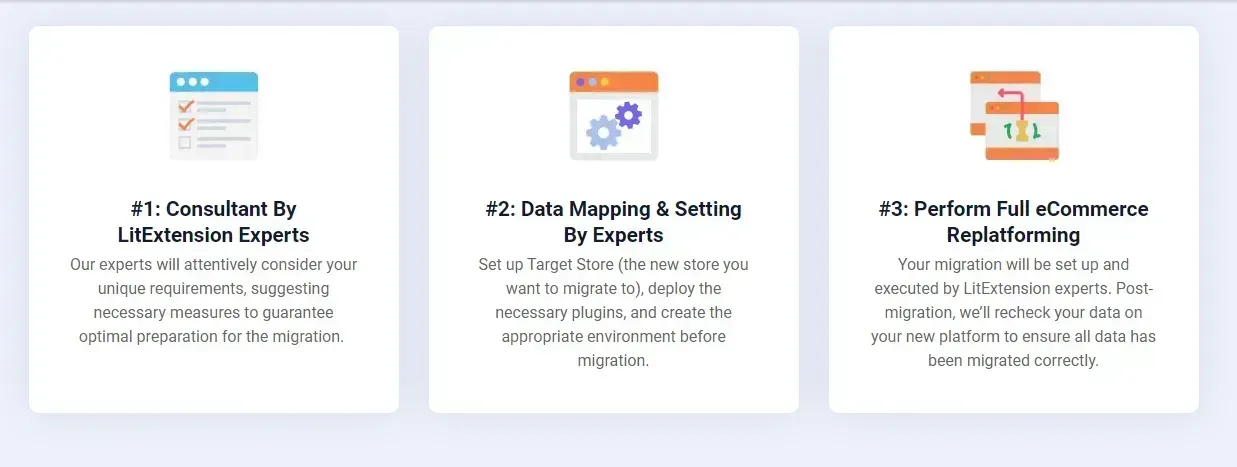
Step 1. Consultant by LitExtension experts
First of all, you should book a consultation with our specialists. We will discuss your specific goals and data migration needs during this session, including customer data, categories, orders, and even unique features you want to carry over from your current store.
Once all your requirements are finalized, you’ll sign a Service Level Agreement (SLA) and make your payment. From there, you can leave everything in our capable hands!
Step 2. Data mapping and setting by experts
Next, our team will prepare your new store to ensure the most frictionless migration. The members take charge of:
- Configuring essential redirects to maintain SEO
- Backing up your existing data securely
- Cleaning and organizing the data to eliminate errors
- Installing necessary extensions or add-ons
- Fine-tuning settings to match your requirements.
Throughout this process, LitExtension also provides unlimited demo migrations so you can review the progress and offer feedback as needed. That way, we can ensure every detail aligns with your expectations before the full migration begins.
Step 3. Perform full replatforming from Wix
Once the preparation phase is complete, we proceed to perform the ENTIRE migration for you.
Our team will keep you updated every step of the way and promptly address any questions or concerns – always within a 24-hour response window. Better yet, this package covers all additional options to give you the most comprehensive migration experience!
Again, keep in mind that our support does not end even after your migration is complete. After conducting a thorough store review for you, we will provide extended technical support services within up to 60 days since the full migration is completed, as follows:
- Free & Unlimited Recent Migration;
- Free & Unlimited Smart Update;
- Free 02 Re-migration.
As you can see, the entire migration process can be handled for you from start to finish, without needing to deal with complicated technical steps yourself. Contact us now to have your hassle-free Wix migration!
Wix Migration Made Easy With LitExtension!
LitExtension offers great migration solutions that help you transfer your data from the current eCommerce platform to Wix accurately, painlessly with utmost security.
Export Wix Site: FAQs
Can I export a site from Wix?
Yes, but only partially. Wix allows you to export certain types of data such as products, contacts, orders, and invoices.
Can you export Wix site to HTML?
Not fully. Wix does not provide an official feature to export a Wix site as clean HTML files. You can manually extract HTML snippets from individual pages using your browser’s developer tools, but the code often contains Wix-specific scripts and structures that are difficult to reuse directly on another platform.
Can you save a Wix website as a PDF?
Yes. You can save individual Wix pages as PDFs by using your browser’s Print > Save as PDF feature. This method is primarily useful for archiving visual content or creating offline references, but it does not preserve the website's editable functionality.
How to migrate a site from Wix?
There are several ways to migrate from Wix, depending on the size and complexity of your website.
- Smaller sites can often be moved manually by copying content and exporting available data through the Wix dashboard.
- For larger stores or full website migrations, many users choose automated migration services like LitExtension to transfer products, customers, orders, and SEO-related data more efficiently.
How to download Wix site files?
You can download certain files from Wix manually, including images, invoices, product CSV files, and exported customer or order data. However, Wix does not allow users to download the complete website package or server files like traditional self-hosted platforms do.
Final Words
We hope you now have a clear understanding of how to export Wix site, whether to create a quick backup, translate content, or migrate to a new platform altogether.
And for the latter (migrations), you can always trust LitExtension to deliver. We are more than capable of bringing you the same smooth, pleasant migration experience!
For more information, check out other Wix guides and connect with us in our Facebook Community.