
There comes a point when simply viewing your orders on Amazon isn’t enough. Maybe you need a CSV file for accounting, want to analyze sales performance, or are preparing to migrate your store. Whatever the reason, knowing how to export Amazon orders can save you a lot of time.
In this guide, we’ll show you the detailed steps on how to export Amazon orders:
- How to export Amazon orders as a seller;
- How to download Amazon order history as a buyer;
- How to advance export orders from Amazon.
Keep reading for more!
How to Export Amazon Orders to CSV as a Seller
If you sell on Amazon, exporting your orders is the fastest way to get sales data out of Seller Central and into a spreadsheet for accounting, inventory tracking, or reporting. There’s no single “Download All Orders” button, but the built-in Order Reports feature does the job once you know where to look.
Here’s how to export Amazon orders directly from Seller Central.
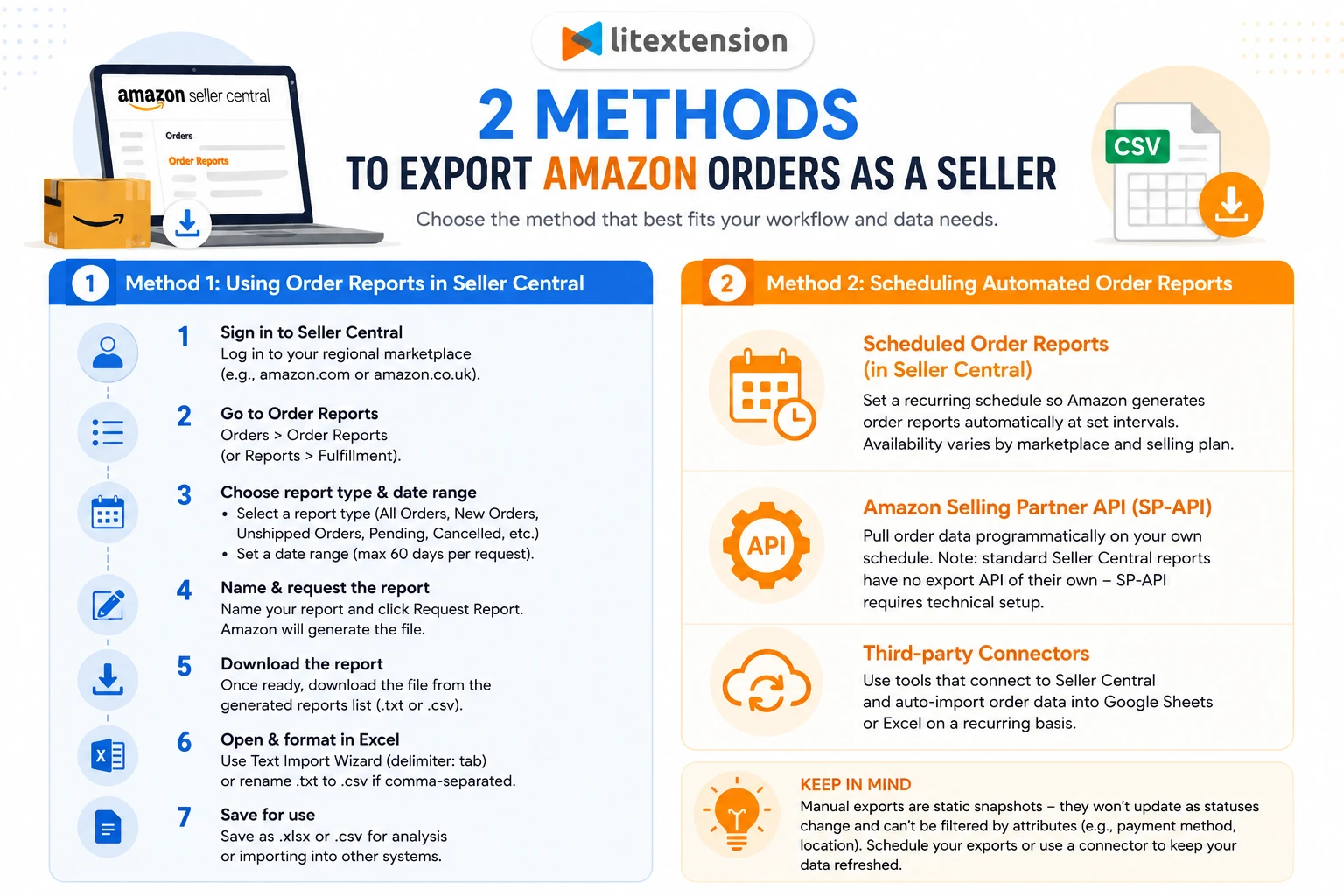
Method 1: Using order reports in Seller Central
These steps assume you have an Amazon Seller Central account, not just a buyer account. Amazon moves menu items around fairly often and labels can differ slightly by marketplace, but the overall flow stays the same.
1. Sign in to your Seller Central account on your regional marketplace (for example, amazon.com or amazon.co.uk).
2. From the top menu, open Orders > Order Reports. Depending on your account, you may also find order data under Reports > Fulfillment.
3. Choose your report type and date range
- Select a report type such as All Orders, New Orders, Unshipped Orders, Pending, or Cancelled.
- Set your date range. Keep in mind Amazon limits each Order Report request to a 60-day window, so a full year needs to be pulled in several batches (for example, month by month or by quarter).
4. Give the report a name so you can find it later, then click Request Report. Amazon queues the job and generates the file, which can take a few seconds to several minutes for larger ranges.
5. Once processing finishes, your report appears in the generated reports list. Click Download to save it. Files usually come as tab-delimited .txt or .csv, depending on your marketplace and report type.
6. If you get a .txt file, open it in Excel and use the Text Import Wizard to split fields by delimiter (usually tab) so each column lands correctly. You can also simply rename a clean .txt to .csv if the data is already comma-separated.
7. Save as .xlsx or .csv for analysis or for importing into other systems.
Method 2: Scheduling automated order reports
Requesting reports by hand works fine for occasional exports, but it gets tedious if you need order data every week. Amazon offers a couple of ways to reduce the manual clicking:
- Scheduled Order Reports (in Seller Central): In some marketplaces and account types, the Order Reports section lets you set a recurring schedule so Amazon generates reports automatically at set intervals. Availability varies by region and selling plan, so check whether the scheduling option appears in your account.
- Amazon Selling Partner API (SP-API): If you have developer resources, the SP-API can pull order data programmatically on your own schedule. Note that standard Seller Central reports have no export API of their own – the SP-API is a separate integration and requires technical setup.
- Third-party connectors: Several tools connect to your Seller Central account and auto-import order data into Google Sheets or Excel on a recurring basis. These are worth considering if you’re not technical but still want fresh data without repeating the manual export each time.
There’s one limitation worth planning around. Every manual export is a static snapshot, so it won’t update as your order statuses change, and you can’t filter by attributes like payment method or location. If you rely on order data for daily decisions, your best bet is to either schedule your exports or use a connector that keeps the data refreshed automatically.
How to Export Amazon Order History as a Buyer
Unlike seller accounts, Amazon buyer accounts don’t offer the same reporting tools. Instead, you can use one of the following methods to export Amazon orders and download your purchase history.
Method 1: The “Request Your Data” method
If you need a complete copy of your Amazon purchase history, Request your data is currently the most reliable method. Although it takes longer than downloading a report directly, it works for most Amazon accounts and provides comprehensive order data.
1. Sign in to your Amazon account on a desktop browser and go to Account & Lists > Your Account.
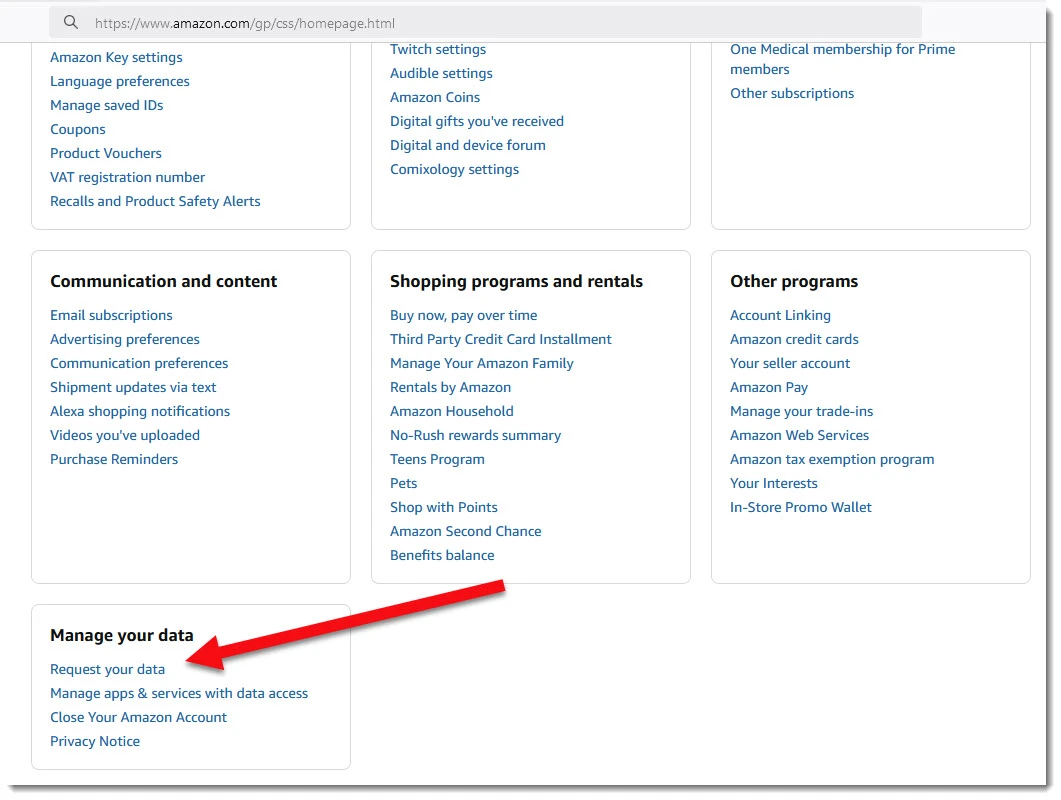
2. Scroll to the Manage your data section and select Request your data.
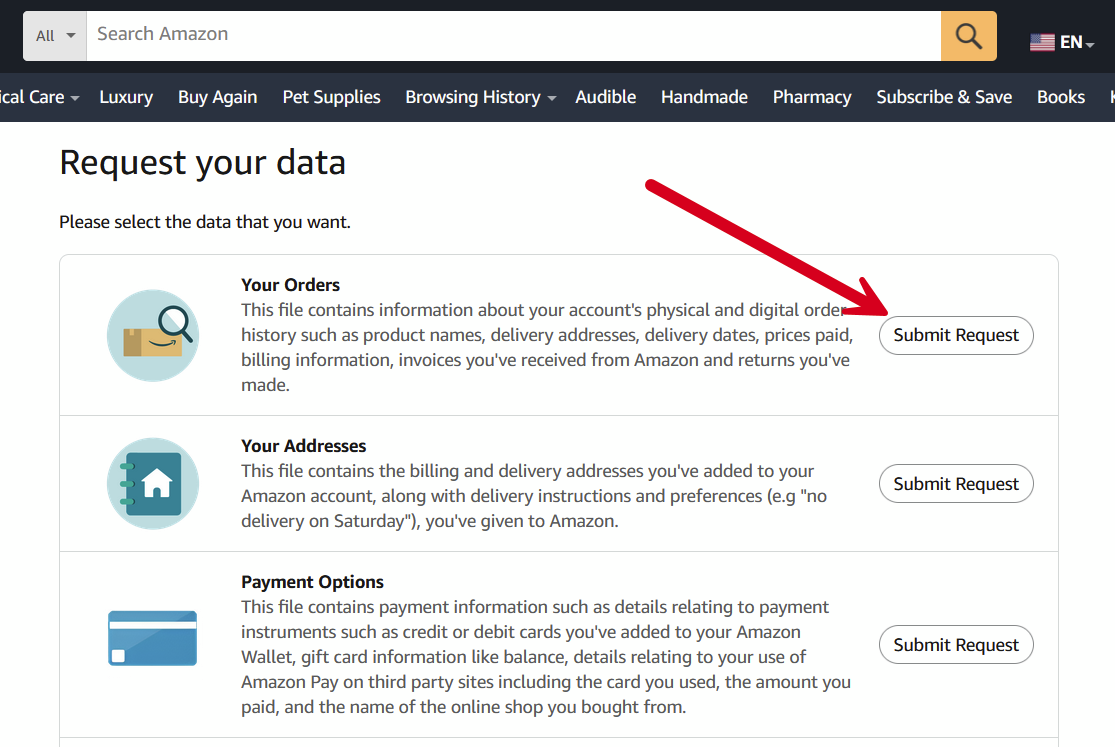
3. Choose Your Orders as the data type, then submit your request. Amazon may ask you to verify the request via email.
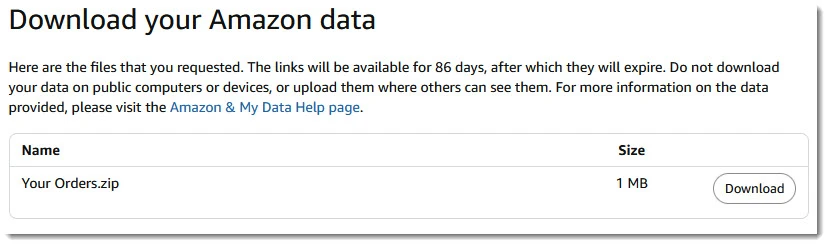
4. Wait for Amazon to prepare your export. While the official processing time can take several days, many users receive their download link within a few hours.
5. Download the ZIP file once it’s ready, then extract it and open the Retail.OrderHistory folder.
6. Open the CSV file in Excel or Google Sheets to view your order history, including purchase dates, products, quantities, prices, and other order details.
Method 2: Order History Reports page (if available)
Some Amazon accounts still have access to the Order History Reports page, which lets you export Amazon orders as a CSV report directly. However, this option is no longer available for all regions or accounts.
1. Sign in to Amazon and open Account & Lists > Order History Reports (if available).
2. Select the report type, choose your desired date range, and enter a report name.
3. Click Request Report and wait for Amazon to generate the file.
4. Download the CSV report once it’s ready and open it in Excel or Google Sheets for analysis.
Note: If you can’t find the Order History Reports page, use the Request your data method instead, as it’s currently the most widely supported option to export Amazon orders and download your order history.
Advanced Export Amazon Orders for Platform Migration with LitExtension
The methods above work well if you simply need to export Amazon orders for reporting or record keeping. However, if you’re moving your business to another eCommerce platform, exporting order data is only one part of the process. You’ll also need to migrate products, customers, categories, and other store data while preserving their relationships.
That’s where LitExtension’s All-in-One Migration Service comes in. Instead of handling the migration yourself, our experts manage the entire process – from planning and data mapping to testing and post-migration support.
Step 1. Consult with LitExtension experts
Our experts begin by learning about your Amazon store, the platform you’re migrating to, and the data you want to transfer. We also identify any custom requirements, such as preserving order IDs or migrating additional order information, before creating a tailored migration plan documented in a Service-Level Agreement (SLA).
Step 2. Set up pre-migration
Before exporting your Amazon orders, we verify your source and target stores, configure the required connections, and prepare any custom mapping needed for your order data. This helps ensure the export process runs smoothly and minimizes the risk of data inconsistencies.
Step 3. Run demo migration
Next, we perform a demo migration using a sample of your Amazon orders and other selected data. This gives you an opportunity to review the exported data, confirm that everything is mapped correctly, and request any adjustments before the full export begins.
Step 4. Perform full migration
Once the demo is approved, our experts perform the full Amazon order export and migration. Your order history, together with any other selected data, is securely transferred to your new eCommerce platform. Throughout the process, we monitor the migration closely and keep you updated on its progress.
Step 5. Test the migration results
After the export is complete, we thoroughly validate your Amazon orders using both automated and manual quality assurance checks. We verify that order details, customer information, and related data have been transferred accurately and function properly on the target platform.
Step 6. Perform post-migration tasks
Our support doesn’t stop after your Amazon order export is finished. Depending on your project, you can continue using our post-migration services. Within 60 days after the full migration, you will get:
- Unlimited Recent Data Migration (Free if new data is within 5% of your original migration package)
- Unlimited Smart Update
- 2 Re-migrations
Step 7. Contact customer support
Our support doesn’t end after your Amazon order export is completed. If you have any questions or need additional assistance, our dedicated support team is ready to help.
Here’s what you can expect:
- Dedicated Personal Assistant (PA) – A migration expert who manages your project from start to finish and keeps you updated throughout the process.
- Multiple support channels – Contact us via ticket, email, phone, online meetings, or a private Slack channel.
- Fast response time – We aim to respond to all inquiries within 12 hours.
- Extended support hours – Our customer support team is available 24/7 on business days and also provides support on weekends (excluding national holidays).
With LitExtension handling your Amazon order export and migration, you can focus on running your business instead of managing complex data transfers. Our experts take care of every step to ensure your order data is transferred accurately, securely, and with minimal disruption.
Store Migration Made Easy With LitExtension!
LitExtension offers great migration solutions that help you transfer your data from the current eCommerce platform to a new one accurately, painlessly with utmost security.

Common Problems When Exporting Amazon Orders
Although Amazon provides several ways to export order data, the process doesn’t always go smoothly. Below are some common issues you may encounter when exporting Amazon orders, along with practical solutions to help you resolve them.
Report generation takes too long or fails
Depending on the amount of data you’re exporting, Amazon may take several hours to generate your report. During peak periods, report requests can also become delayed or fail to complete.
Solution: Try exporting a shorter date range or generating a standard Date Range Report from Reports > Payments > Date Range Reports if you’re using Seller Central.
Missing or incomplete order data
You may notice that older exports don’t include all customer information. This is because Amazon removes or masks certain personally identifiable information (PII) after a period of time to comply with privacy regulations.
Solution: Export your order reports as soon as possible if you need complete buyer information. For businesses requiring more detailed order data, consider using API integrations that support additional data access.
CSV formatting issues
A common problem is that the exported CSV opens with all data displayed in a single column instead of separate fields, making the report difficult to read.
Solution: Import the file using Excel’s Text Import Wizard (or From Text/CSV option) and select Comma as the delimiter. This will separate the data into the correct columns.
Duplicate records or split orders
Amazon may export orders, refunds, shipping fees, and other transactions as separate entries. Orders containing multiple items shipped separately can also appear on multiple rows, making reconciliation more challenging.
Solution: Sort your report by Order ID to group related transactions together. If you regularly reconcile sales data, using Amazon’s official reporting structure or an automated integration can simplify the process.
Legacy MWS integrations no longer work
If you’re exporting Amazon orders through an older integration, it may stop working because Amazon has retired the Marketplace Web Service (MWS).
Solution: Upgrade your integration to the Selling Partner API (SP-API), which is Amazon’s current API for automated order exports and marketplace integrations.
Export Amazon Orders: FAQs
Can I still download Amazon order history as CSV directly?
Yes, but it depends on your account type. Amazon sellers can export order reports as CSV files through Seller Central. For buyer accounts, direct CSV downloads are limited, so you’ll typically need to use the Request your data feature or the Order History Reports page if it’s still available for your account.
How long does the Amazon data request take?
Amazon states that data requests can take several days to process. However, many users receive their download link within a few hours, depending on the size of the requested data and current system demand.
Can I export Amazon orders to Excel?
Yes. Amazon usually provides exported order data in CSV format, which can be opened directly in Microsoft Excel or imported into Google Sheets. If all the data appears in one column, import the file using the From Text/CSV option and select Comma as the delimiter.
How do I export orders as an Amazon seller vs a buyer?
The process differs depending on your account type. Sellers can export order reports directly from Amazon Seller Central using the Manage Orders or Reports section. Buyers don’t have access to these reporting tools, so they must use the Request your data feature or Order History Reports (if available) to download their purchase history.
Can I transfer my Amazon orders to another store?
Yes. If you’re migrating from Amazon to another eCommerce platform, you can transfer your order data along with products, customers, and other store information.
At LitExtension, we help automate this process with our migration service, ensuring your data is transferred accurately while minimizing downtime and manual work.
Conclusion
Exporting Amazon orders can be straightforward once you know which method fits your account type. We hope this guide has helped you understand how to export Amazon orders as both a seller and a buyer.
If you’re planning to migrate your Amazon business to a new eCommerce platform, our team at LitExtension is here to help. We can transfer your Amazon orders and other store data safely, accurately, and with minimal downtime.
For more eCommerce tips and migration guides, be sure to explore our other blog posts or join our community group!

