
Common WordPress errors are predictable issues that can disrupt your site, often stemming from conflicting plugins, theme issues, or PHP limits,.. Understanding how to fix these common errors is essential for troubleshooting and maintaining a healthy WordPress website. This ultimate guide provides step-by-step solutions for over 15 common WordPress errors, detailing the exact fixes for every major site disruption.
The most critical and frequently encountered errors include:
- 500 Internal Server Error
- Error Establishing a Database Connection
- The White Screen of Death
- 403 Forbidden
- 404 Not Found
- 400 Bad Request
- 502 Bad Gateway
- 503 Service Unavailable
- 504 Gateway Timeout
- 429 Too Many Requests
And many other errors. Keep scrolling to learn more!
15+ Common WordPress Errors and How to Fix Them
Now, you might be asking yourself, “How do i fix common WordPress errors or identify their causes in the first place?”
No worries. In this section, we will walk through exactly what each issue means and how to resolve it:
1. 500 Internal Server Error
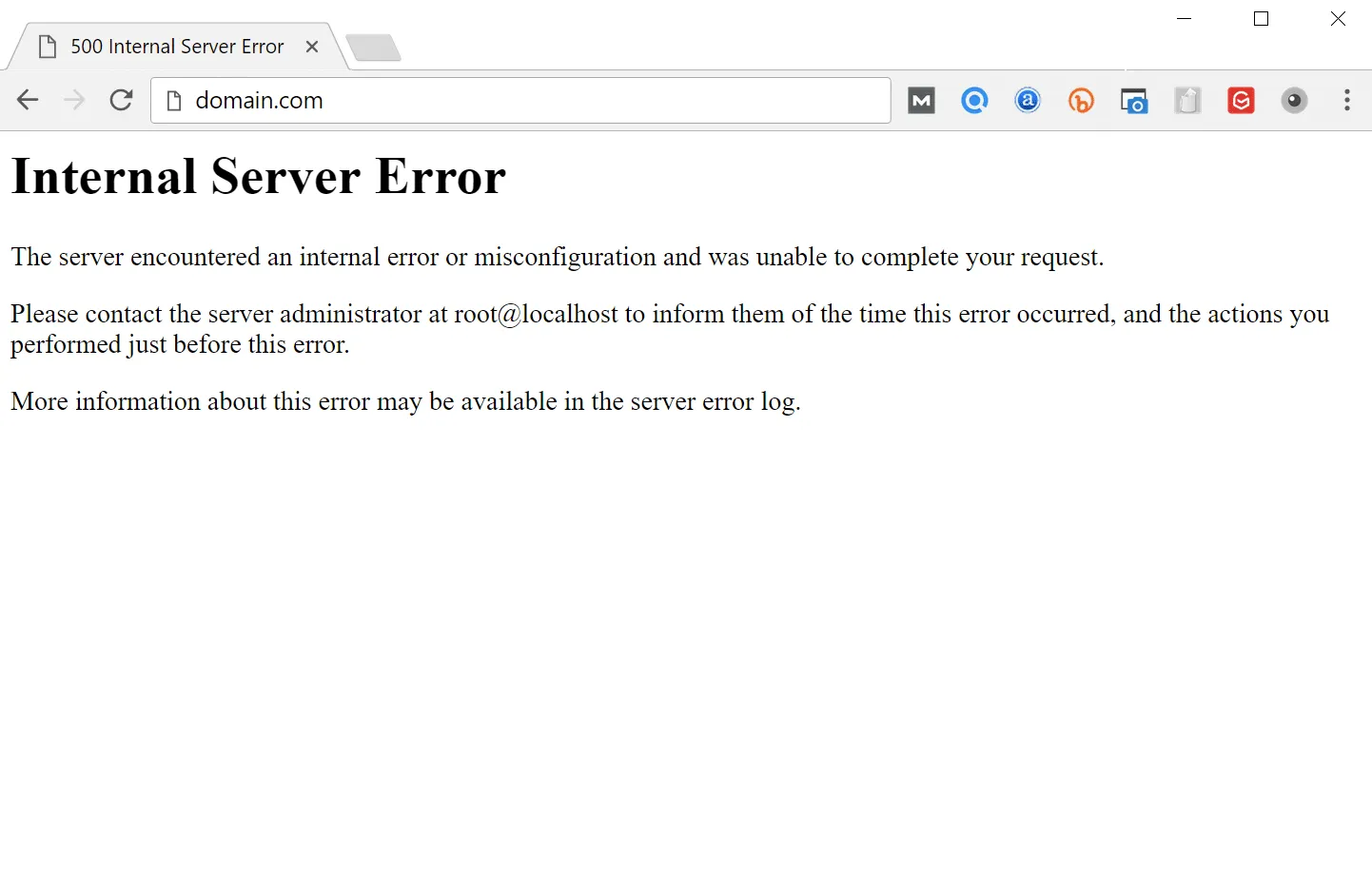
The 500 Internal Server Error is one of the most frustrating common WordPress errors, indicating a backend failure. This error often gives no direct hint as to its cause. The 500 error typically stems from deeply embedded issues within your system, including:
- A corrupted or misconfigured .htaccess file.
- A plugin or theme conflict.
- Exhausted PHP memory limits.
- An incomplete core update.
So, what can you do here?
- Connect to your site through FTP or your hosting file manager.
- Rename your .htaccess file (for example, .htaccess_old) to disable it, then try reloading your website; if it works, you can regenerate a new one by going to Settings > Permalinks in your WordPress dashboard and saving the changes.
- If the problem persists, deactivate all plugins by renaming the /plugins folder. When your site comes back, reactivate each plugin one at a time until the issue reappears.
- Additional: Increase your PHP memory limit or enable WP_DEBUG mode to catch the precise error message that’s breaking your site.
2. Error Establishing a Database Connection
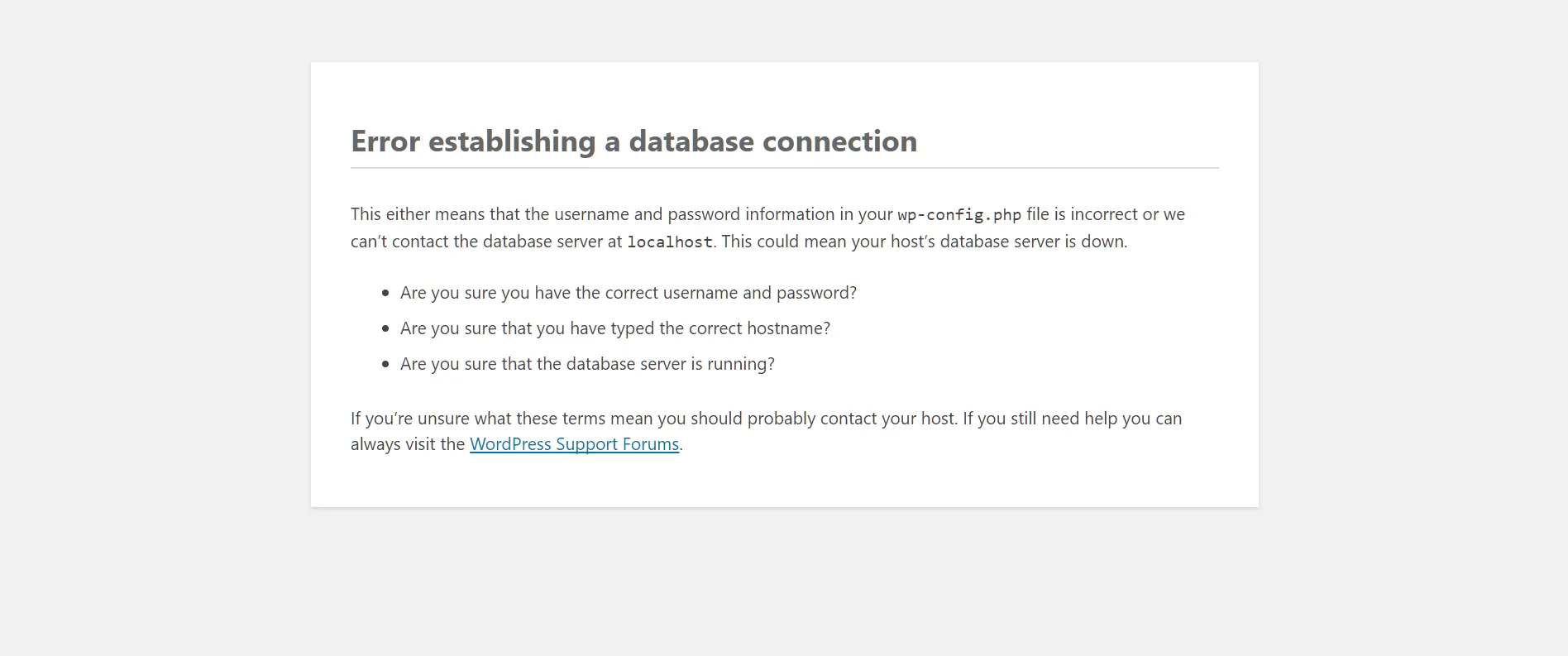
Once you’ve resolved server-related WordPress errors, you might face another critical issue that looks equally alarming: the Error Establishing a Database Connection.
This message indicates that WordPress can’t retrieve data from your MySQL database, which holds your posts, pages, settings, and user credentials. In this state, your website is effectively cut off from its brain: the server can respond, but it has nothing to display, leaving both your site and admin dashboard completely inaccessible.
This issue typically occurs when the database credentials in your wp-config.php file (like the database name, username, password, or host) are incorrect. It can also happen if your database server crashes or runs out of resources. Whatever the case, the message means one thing: WordPress is talking to a database that isn’t answering back correctly.
To resolve this:
- First, open your wp-config.php file and double-check that your credentials match those in your hosting control panel.
- If everything looks correct, log in to phpMyAdmin to confirm whether your database is still running.
- In case you find corruption, you can repair it by adding define(‘WP_ALLOW_REPAIR’, true); to your config file and visiting yourdomain.com/wp-admin/maint/repair.php. Run both repair and optimize options, then remove that line once done.
- If the issue persists, it’s likely a hosting problem, so your provider may need to restart your database service or restore a clean backup.
3. The White Screen of Death
From database errors, we move to one of the most infamous nightmares in WordPress, which is the White Screen of Death (WSoD).
Unlike other errors that display a clear message, the WSoD gives you nothing but a blank white page. No warning, no code, no hint! For beginners, this is terrifying because it seems like the entire site has vanished into thin air.
In reality, it’s usually a sign that a critical PHP script has crashed or exceeded the available memory limit. There are several possible culprits:
- A plugin or theme could contain faulty code that breaks execution.
- Your PHP memory might be exhausted, preventing scripts from running. Even a single misplaced semicolon in a custom code snippet can cause the screen to go completely blank.
- Sometimes, the WSoD affects only certain areas, such as the front end or admin dashboard, depending on where the conflict occurs.
To fix it, connect to your site via FTP and rename your /plugins folder to disable all plugins at once:
- If the site returns, one of them is the culprit, so reactivate each plugin individually until you identify which one triggers the issue.
- If it doesn’t work, switch to a default theme (like Twenty Twenty-Four) to rule out theme conflicts.
You can also add define(‘WP_MEMORY_LIMIT’, ‘256M’); in your wp-config.php to raise the PHP memory cap. Finally, enable WP_DEBUG to reveal detailed error messages instead of a blank screen, allowing you to trace the root cause directly.
4. 403 Forbidden
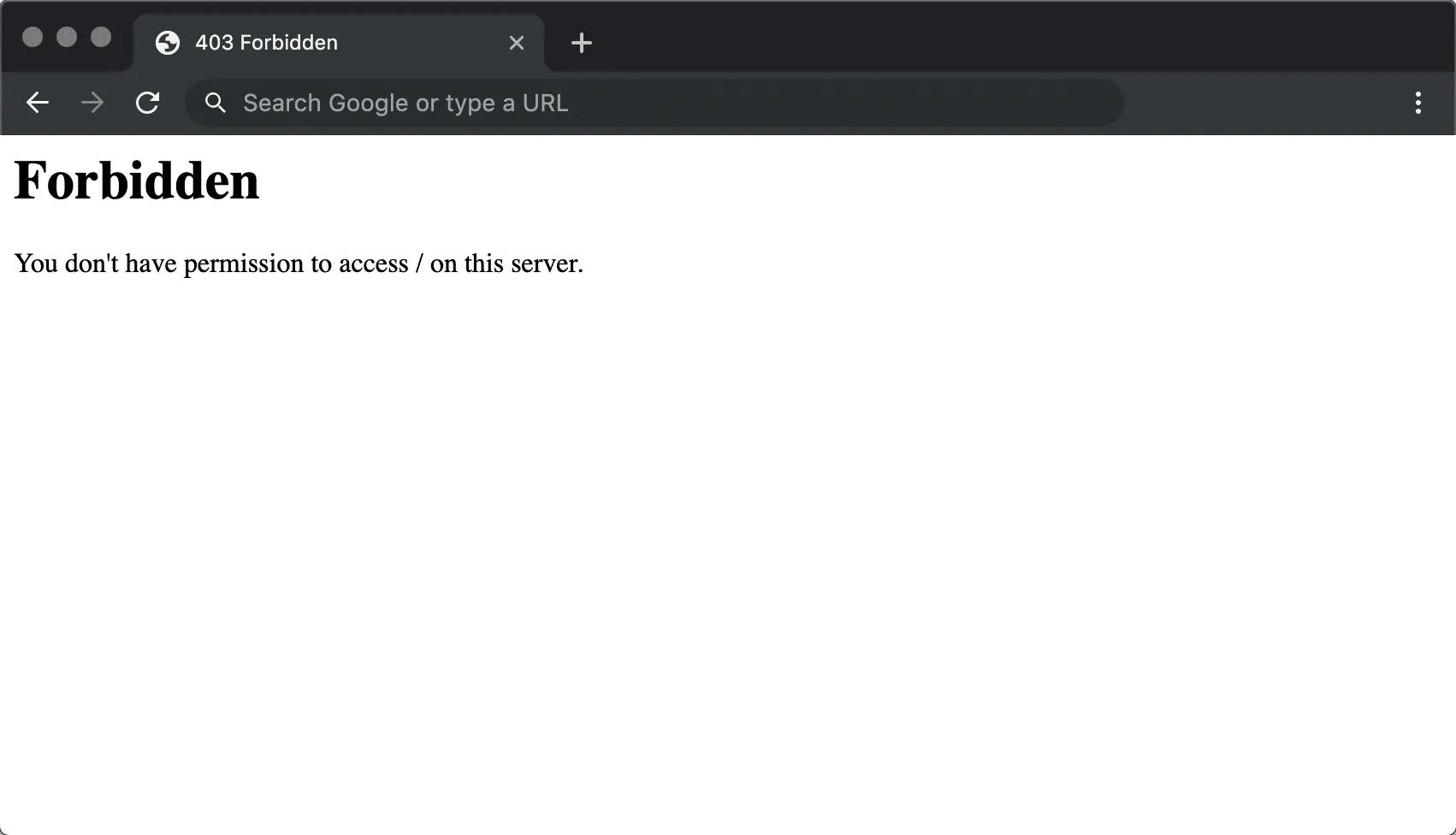
Next up is a more straightforward but equally disruptive problem, the 403 Forbidden error.
When you see this message, your server is telling you that it received your request but refuses to let you in. In simple terms, the door to that page or file exists, but you don’t have the right key. You might see this when trying to access the WordPress admin area, upload media, or even browse certain site URLs.
The cause often lies in misconfigured file or directory permissions that are too restrictive, preventing WordPress from reading or writing to essential files. It can also be triggered by overzealous security plugins, incorrectly configured .htaccess rules, or blocked requests from your CDN or firewall. Sometimes, hosts enable certain security layers that misinterpret normal WordPress activity as suspicious traffic, especially during plugin updates or file uploads.
To resolve the issue:
- Connect to your site through FTP and check your file permissions.
- Directories should typically be set to 755 and files to 644. If those values are correct but the problem continues, rename your .htaccess file to disable it temporarily.
- Try disabling your security plugins or hotlink protection settings, as these can mistakenly block access to key WordPress resources.
5. 404 Not Found
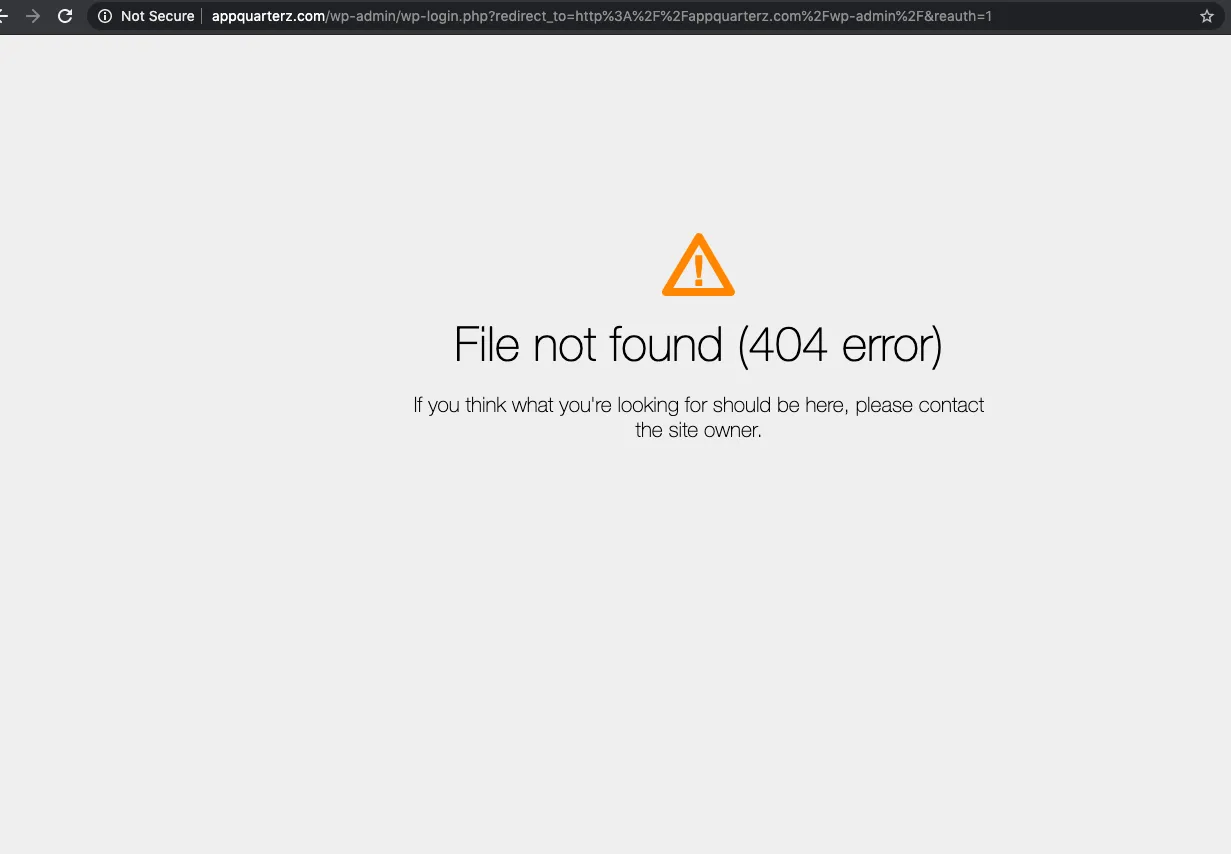
Unlike the 403 error, which blocks access, the 404 Not Found error means the server simply can’t find the page being requested. You’ll typically see this when a visitor clicks on a broken link or when you’ve deleted or renamed a post without setting up proper redirects. The error itself doesn’t break your site; it just disrupts navigation and hurts your SEO if it appears too often.
These WordPress errors usually originate from misconfigured permalinks, outdated URLs, or missing redirection rules after a site migration. In some cases, cached data or recently edited .htaccess files can also interfere with URL rewriting, resulting in 404s even when pages technically exist.
- The easiest fix is to go to Settings > Permalinks in your WordPress dashboard and click “Save Changes,” which forces WordPress to refresh your URL structure.
- If that doesn’t help, install a redirect management plugin like Redirection or Rank Math to manually reroute old URLs to new ones. Also, consider creating a custom 404 page that helps users navigate back to key parts of your site.
6. 400 Bad Request
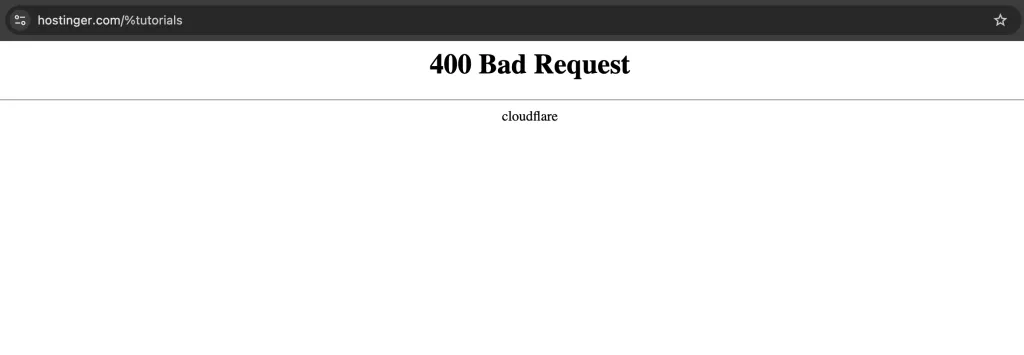
The next error, 400 Bad Request, is less dramatic but equally puzzling. It occurs when your server can’t understand or process the request sent by the browser.
Usually, this happens because something about the request (whether it’s a malformed URL, invalid cookies, or oversized uploads) doesn’t meet the server’s expectations. So, instead of providing content, the server simply rejects it. Plus, sometimes, the error is triggered when you attempt to upload files that exceed your server’s maximum allowed size or when there’s a mismatch between your local DNS and your server’s DNS records.
To troubleshoot these WordPress errors:
- Start by double-checking the URL for mistakes or strange symbols.
- Then, clear your browser’s cache and cookies, as these often hold outdated or conflicting session data.
- The problem persists? Flush your DNS cache (ipconfig /flushdns on Windows or dscacheutil -flushcache on macOS) and try accessing the page again.
- For upload issues, consider increasing the maximum upload size by editing your php.ini or .htaccess file.
7. 502 Bad Gateway
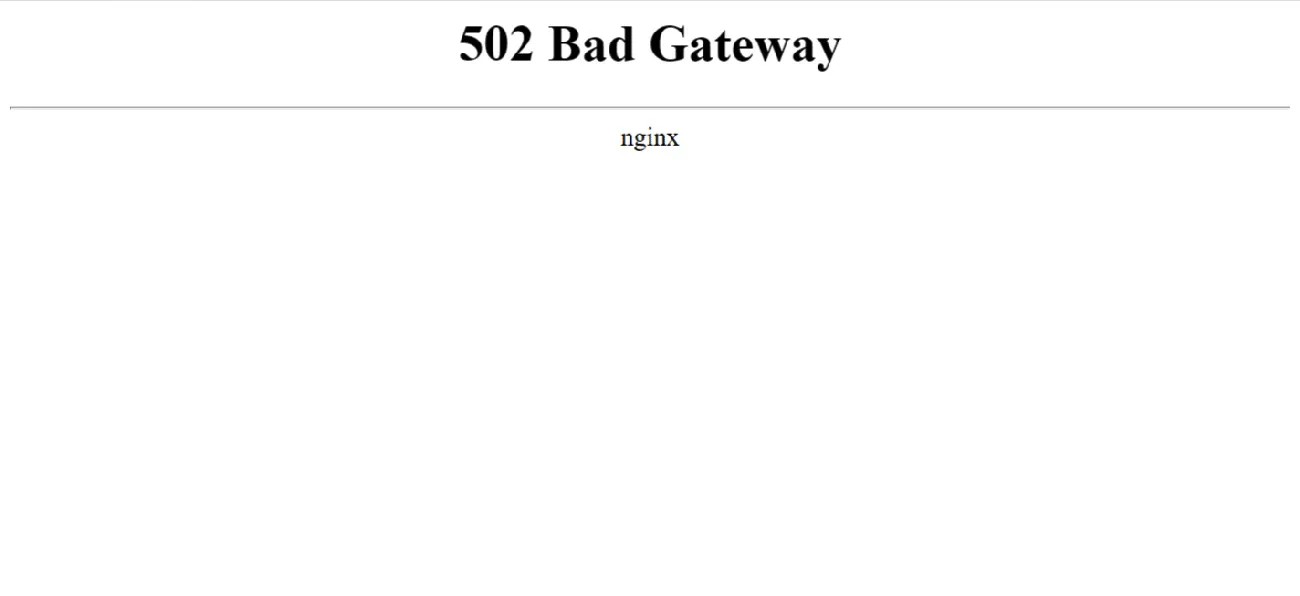
Sometimes, your site is up but still throws an error; that’s where the 502 Bad Gateway comes in.
These WordPress errors occur when one server (usually a reverse proxy or CDN) acts as a gateway to another server but receives an invalid or incomplete response. In simpler terms, your site is caught in the middle of a server-to-server miscommunication.
The problem can stem from a wide range of sources: an overloaded hosting server, misconfigured proxy settings, corrupted cache data, or even your firewall blocking a legitimate connection. It’s especially common when using services like Cloudflare, where traffic is routed through multiple layers before reaching your origin server.
So, to fix it:
- Start with the basics: refresh your browser and clear the cache. When that doesn’t help, temporarily disable your CDN or firewall to see whether the issue disappears.
- Check your DNS settings to ensure they’re pointing correctly to your web host.
- If you’re using a managed host, contact support to verify whether their upstream servers are experiencing downtime.
Whatever the solution you choose, there’s no need to panic: in many cases, the error will resolve on its own once traffic normalizes or the blocked connection clears.
8. 503 Service Unavailable

Closely related to the 502, the 503 Service Unavailable error indicates that your server is temporarily unable to handle requests. However, unlike 502, this one usually originates from your own site. You’ll often see it during scheduled maintenance, plugin updates, or times of heavy resource usage.
In WordPress, the 503 error commonly appears when a plugin or theme script consumes too much memory or triggers an infinite loop. High-traffic spikes can also overwhelm shared hosting servers, forcing them to reject new connections. The error may also persist if your site gets stuck in maintenance mode after an interrupted update.
Fortunately, the fixes for these WordPress errors are not too complicated.
- Simply connect to your site via FTP and rename your /plugins folder to disable all active plugins. If that brings your site back online, reactivate plugins one by one to find the troublemaker.
- Check whether there’s a .maintenance file in your site’s root directory; if so, delete it to bring your site out of maintenance mode.
- For recurring issues, consider upgrading to a higher hosting plan or enabling server-side caching to reduce load during peak times.
9. 504 Gateway Timeout
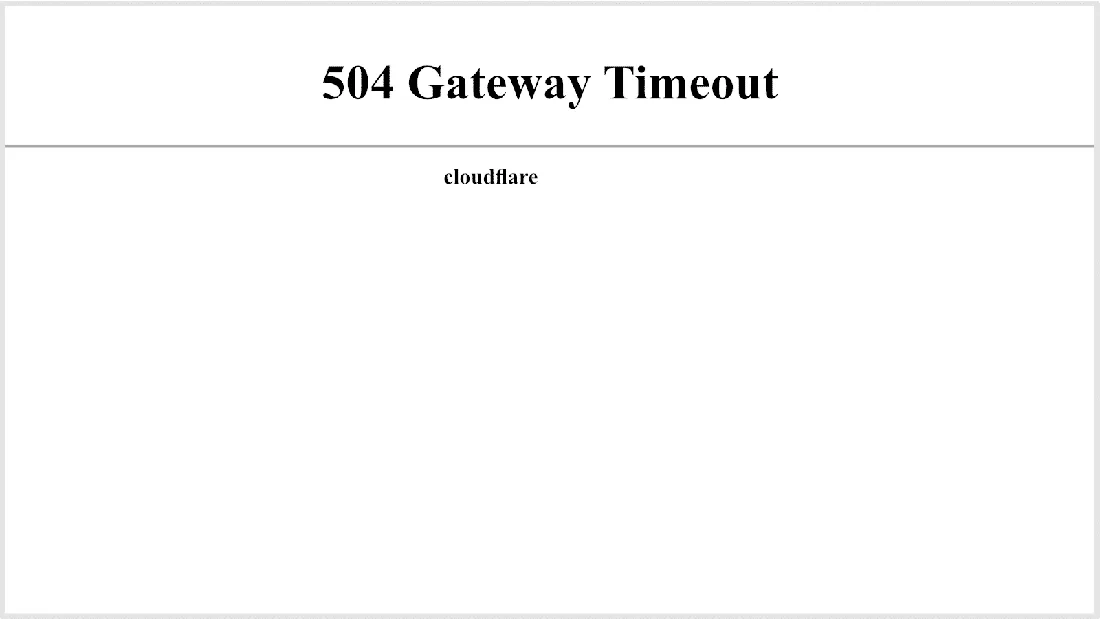
When your site seems to load endlessly and then fails, you’re probably dealing with a 504 Gateway Timeout error. This occurs when one server (such as your CDN or proxy) waits too long for a response from another server and eventually gives up. The result is a timeout message instead of your site.
The causes are similar to those behind 502 errors, including slow servers, long-running scripts, or DNS misconfigurations. It can also happen when your WordPress site makes heavy API calls or runs database queries that take too long to complete. The gateway expects a response within a set timeframe, and when it doesn’t arrive, it shuts down the connection.
To resolve this:
- Reload your page and test your internet connection. Don’t forget to disable your CDN or proxy temporarily to see if the issue lies there.
- Review your site’s performance: optimize large queries, check for slow plugins, and ensure your database isn’t overloaded.
- If you’re on shared hosting, this error can indicate that your account’s resource limits are being hit, so consider asking your host to increase the timeout limit or move you to a higher plan.
10. 429 Too Many Requests
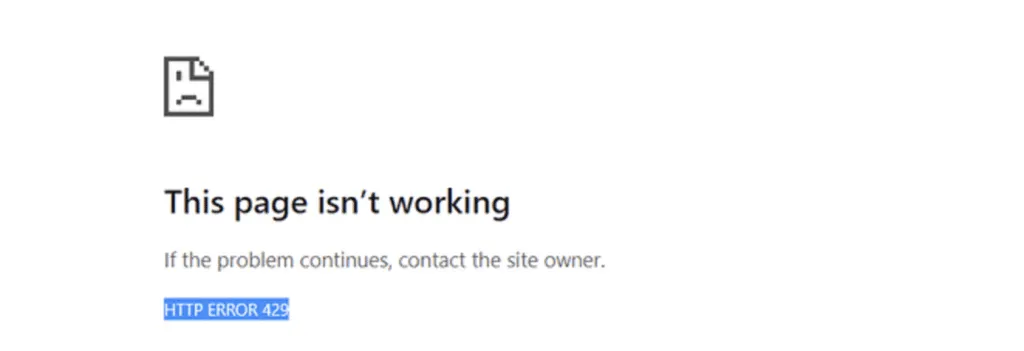
Next, we have the 429 Too Many Requests error, a security mechanism designed to protect servers from overload or abuse. It appears when the same client (such as a user, bot, or plugin) makes too many requests in a short time frame, triggering the server’s rate-limiting system. In practice, this could happen because of brute-force login attempts, aggressive bots, or even poorly configured plugins that send repetitive requests.
These WordPress errors might not sound severe, but they can lead to real downtime, especially if legitimate services like search engine crawlers or third-party APIs are being blocked.
Hence, you should identify the source of the excessive requests.
- If bots are the cause, enable rate-limiting or bot protection features in your hosting or CDN dashboard.
- If the issue comes from a plugin, disable it temporarily and monitor your site’s behavior.
- Changing your default WordPress login URL, limiting login attempts, and whitelisting trusted IPs can also prevent this from recurring.
11. 401 Error
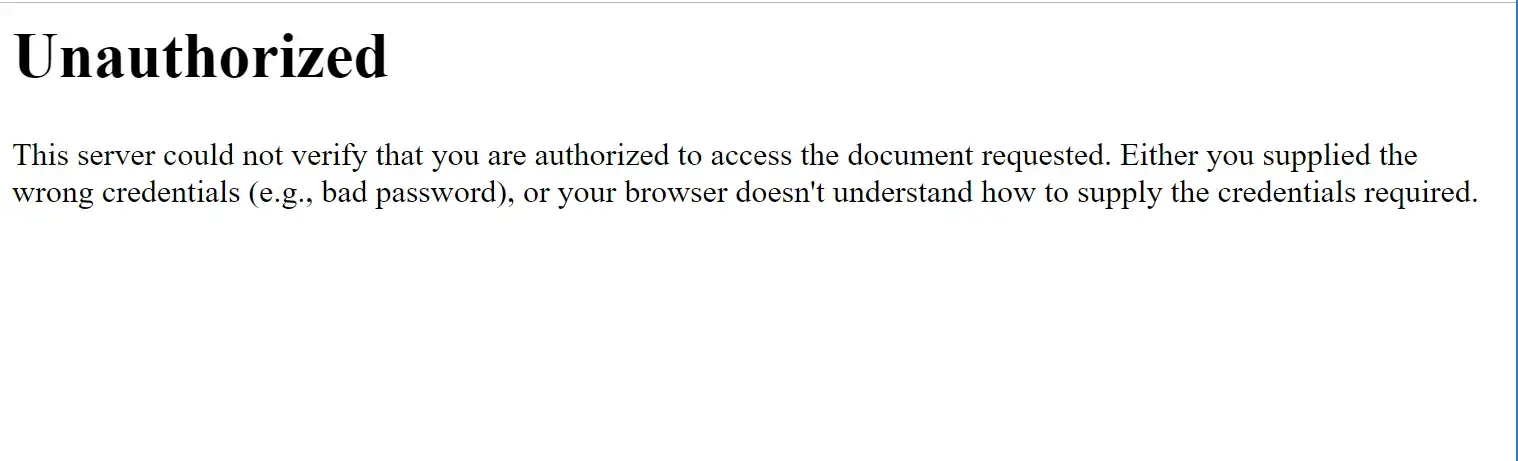
Following the 429 Too Many Requests issue, which deals with rate-limiting and server protection, the 401 Error is another access-related problem. But this time, it’s about authorization failure.
When this happens, your browser tries to reach a protected page or API resource, but the credentials provided are missing, invalid, or rejected. In WordPress, you’ll most commonly encounter it when logging in, accessing password-protected pages, or making API calls through plugins or integrations.
To resolve this:
- First, verify your login credentials and reset your WordPress password if needed.
- If the error is tied to API access (for example, REST API calls or integrations with WooCommerce or external CRMs), check that your keys or tokens are valid and correctly formatted.
- Temporarily disable security plugins and recheck your .htaccess rules, particularly those related to authorization directives.
- If you’re behind a reverse proxy or firewall, ensure it passes authentication headers properly to your server.
12. 413 Request Entity Too Large
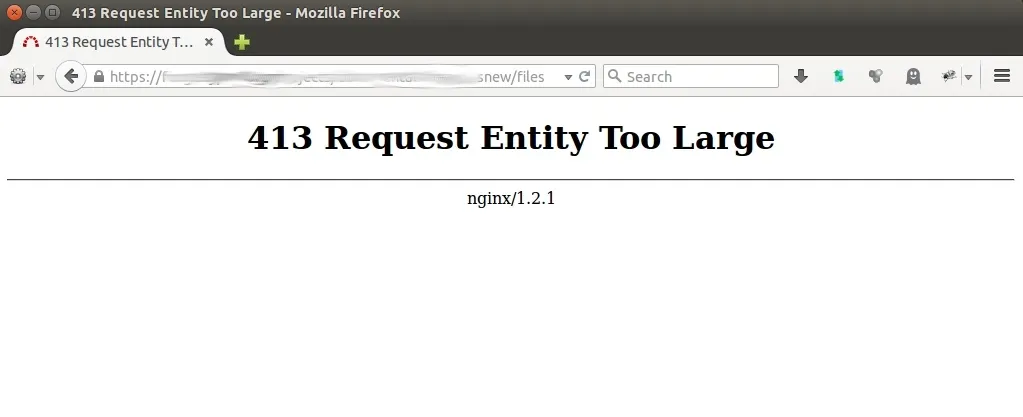
Once authorization is back in order, the next problem you may run into is the 413 Request Entity Too Large error, a clear sign that your server is rejecting an upload because the file size exceeds its limits. It often appears when uploading media, importing demo data, or installing plugins and themes through the dashboard.
This happens because your server has predefined limits in its PHP configuration (specifically, upload_max_filesize, post_max_size, or even max_input_time). If the file you’re trying to upload exceeds any of these, the upload is automatically stopped. Shared hosting environments are particularly restrictive here, with low upload thresholds to conserve resources.
Regarding such issues, you can increase those limits by editing your .htaccess or php.ini files. Add lines like:
php_value upload_max_filesize 128M
php_value post_max_size 128M
php_value max_execution_time 300
If you don’t have access to these files, reach out to your hosting provider and ask them to raise the limit. For immediate workarounds, you can upload large files via FTP instead, or use your host’s file manager to place them directly into the appropriate directories.
13. 501 Not Implemented
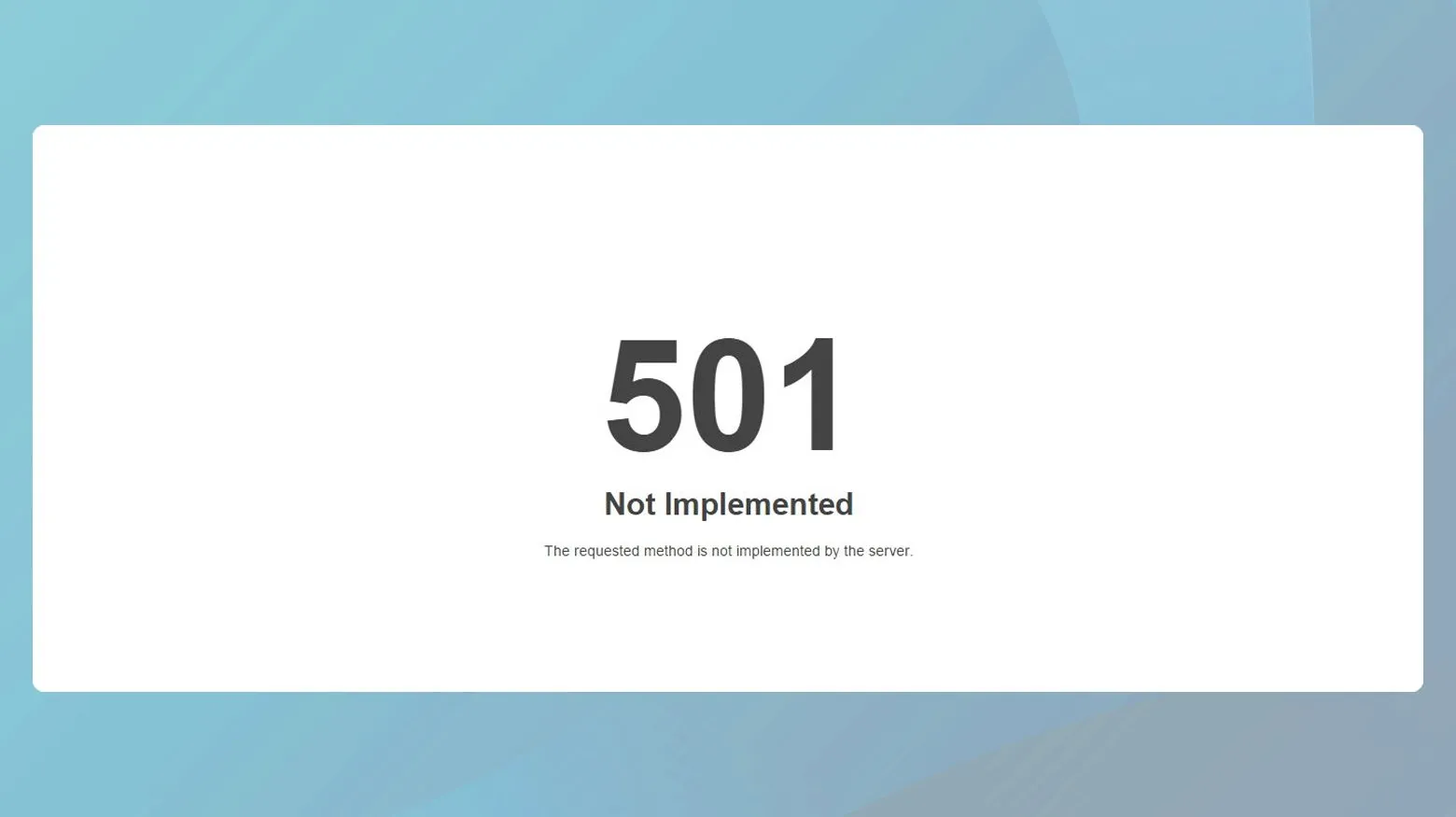
Moving from file size limits to functionality restrictions, the 501 Not Implemented error signals that your server doesn’t support the request method your browser or plugin is attempting to use. In simple terms, your site asked the server to do something (like handle a specific HTTP command), but the server responded, “I don’t know how to do that.”
This error can occur when your server software (e.g., Apache, Nginx, or LiteSpeed) is outdated or misconfigured, preventing it from processing certain methods like PUT, DELETE, or PATCH. Sometimes, proxy servers or firewalls strip away essential headers, making it seem like your request is malformed. Worse, in rare cases, broken plugins or faulty rewrite rules can generate requests that the server doesn’t recognize at all!
To fix it:
- Start by clearing your cache and disabling any proxy or CDN services to eliminate caching issues.
- Test whether the error persists when accessing your site directly from its origin server (bypassing the CDN).
- If the issue remains, contact your hosting provider to ensure that your server’s HTTP configuration supports all necessary request methods. In addition, updating your web server software to the latest stable version usually resolves 501 errors caused by unsupported functionality.
14. Cloudflare Error 521
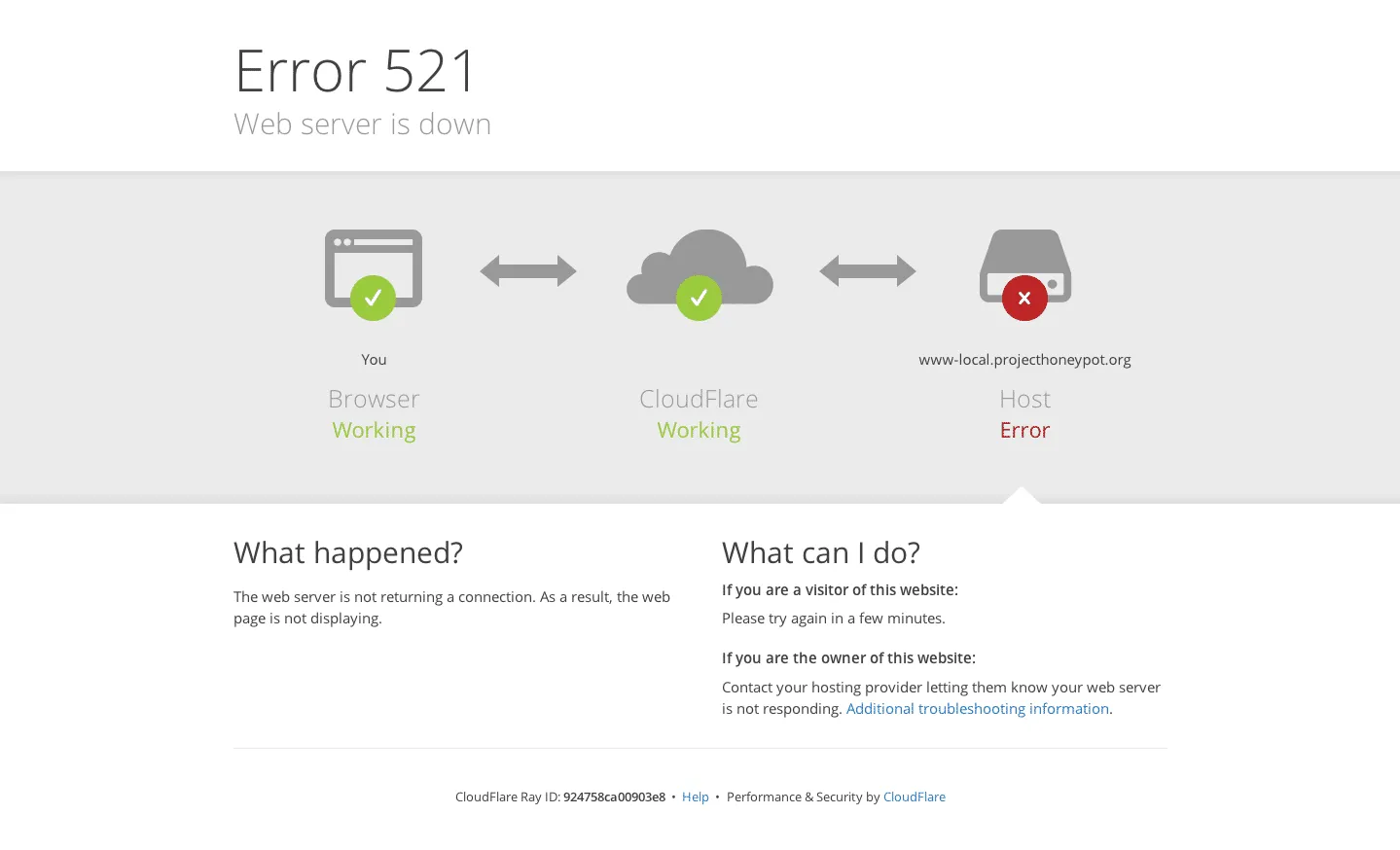
Another issue related to the previous communication failure, Cloudflare Error 521 indicates that your origin server is offline or refusing connections from Cloudflare. When visitors see this message, it means Cloudflare’s system (which acts as a content delivery and security layer) tried to fetch your website from its original host, but the host didn’t respond.
This problem often arises when your web server (Apache, Nginx, etc.) is down, crashed, or under heavy load. However, it can also occur if your server’s firewall blocks Cloudflare’s IP ranges, interpreting them as malicious traffic. If your SSL certificate is misconfigured or your hosting service restarts unexpectedly, Cloudflare may briefly lose connection to your origin as well.
For such WordPress errors, you should:
- First, verify whether your hosting server is running; you can do this by visiting your IP address directly in the browser or using a monitoring tool.
- If it’s online, make sure all Cloudflare IPs are whitelisted in your server’s firewall or security plugin. You can find the official IP list on Cloudflare’s documentation site.
15. WordPress Memory Limit Error
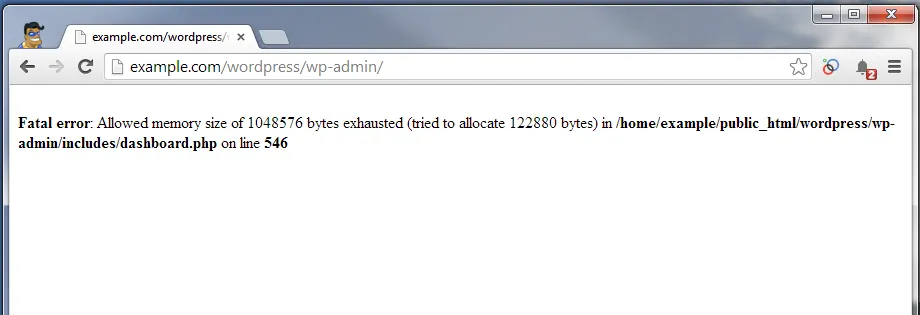
After addressing connection and proxy errors, another performance-related problem you might encounter is the WordPress Memory Limit Error. This appears when your site uses up all available PHP memory and can’t process additional tasks, typically during plugin installations, data imports, or large image processing. You’ll usually see an error like “Allowed memory size exhausted.”
The root cause is simple: your PHP memory allocation (WP_MEMORY_LIMIT) is too low for the processes running on your site. Heavy themes, multiple plugins running background tasks, or resource-intensive builders like Elementor can easily exceed modest limits like 64MB or 128MB.
To fix it, open your wp-config.php file and add this line above the “That’s all, stop editing!” comment:
define(‘WP_MEMORY_LIMIT’, ‘256M’);
If your host enforces a cap, you may need to contact them to raise the limit server-side. It’s also wise to audit your plugins by disabling those you don’t use and replacing bloated ones with lightweight alternatives. For large, dynamic sites, consider upgrading to a hosting plan with more memory or dedicated resources.
How to Fix The Most Common WordPress Errors: FAQs
Is WordPress having a problem right now?
No, the WordPress.org core platform almost never experiences outages. When something breaks, the issue is typically with your own hosting server, a plugin or theme conflict, or a misconfiguration within your site.
Why am I getting a WordPress error?
Most WordPress errors stem from conflicts, corrupted files, or server limitations. Also, plugins and themes often introduce bugs when they are outdated or incompatible with your WordPress version.
Why are people moving away from WordPress?
WordPress requires regular updates, security monitoring, performance optimization, and a basic understanding of plugins and hosting. Hence, casual site owners who want a “set-and-forget” solution may prefer closed platforms like Wix, Squarespace, or Shopify, where the provider manages everything behind the scenes.
Where can I see WordPress errors?
You can view WordPress errors in several places depending on the type of issue:
- Enabling WP_DEBUG in your wp-config.php file allows WordPress to display or log detailed error messages.
- Hosting dashboards often include an “Error Logs” or “Logs” section where you can view PHP, server, and database issues.
- Your browser’s Developer Console can reveal resource-loading errors like missing images or blocked scripts.
- For crawl-related SEO issues, Google Search Console provides detailed warnings.
Together, these tools give you a full view of what’s going wrong and where the problem originates.
Final Words
Dealing with WordPress errors can feel overwhelming, but once you understand why these issues occur and how to troubleshoot them systematically, managing your site becomes far less stressful. With this guide, you now have the foundation to diagnose issues quickly, take action with confidence, and keep your site healthier in the long run!
Still need assistance? Check out our WordPress/ WooCommerce blogs or join our Facebook Community.

