Since its release, WooCommerce has earned its place as one of the world’s leading eCommerce platforms, partly thanks to its very open ecosystem. However, that same openness also means WooCommerce security isn’t automatically guaranteed!
One overlooked update, one poorly coded plugin, or one exposed login route can be enough to compromise your entire operation. But no worries; the good news is that most risks can be avoided with a clear, structured approach, using the 15 best practices below:
- Ensure a secure and reliable hosting environment
- Secure your checkout and payment pages
- Enforce strong password standards across all accounts
- Offload payments to PCI-compliant gateways
- Add two-factor authentication
- Manage WordPress user roles with least privilege
- Shield your login page from brute-force attempts
- Monitor file changes and unexpected modifications
- Scan your website regularly
- Add security headers to harden browser-level protection
- Stop spam across comments, forms, and product reviews
- Track every action with a detailed site activity log
- Keep WordPress, WooCommerce, and plugins fully updated
- Use a web application firewall to filter dangerous traffic
- Harden your FTP access and restrict file permissions
Keep scrolling!
WooCommerce Security: Key Takeaways
- WooCommerce security matters because your store handles sensitive customer and payment data, and even a single breach can permanently damage trust and revenue.
- The most common WooCommerce security threats include brute-force login attacks, checkout skimming, malware infections, spam abuse, and identity-based transaction fraud.
- A secure WooCommerce store starts with strong fundamentals: reliable hosting, strict access control, enforced passwords, and mandatory two-factor authentication.
- Ongoing protection depends on proactive maintenance, including regular malware scans, activity logging, spam prevention, and keeping WordPress, WooCommerce, and plugins fully updated.
Why WooCommerce Security Is Important?
Security is a foundational part of running a WooCommerce store because every interaction on your site involves sensitive data. Customers share personal information, payment details, and order histories with the expectation that your platform will protect them.
So, if your store’s security is lower than the industry’s standard, attackers can intercept transactions, alter order data, or manipulate the checkout process in ways that directly harm both you and your buyers.
Beyond the immediate losses, a breach disrupts trust, which is something far harder to rebuild than any technical system. In eCommerce, confidence is currency, and customers rarely return to a store where their information was put at risk.
What are common WooCommerce Security Issues?
These are the 5 most common issues that WooCommerce store owners encounter:
- Brute-force attempts on your login page
- Credit card skimming attacks during checkout
- Malware infections targeting your WooCommerce store
- Spam floods across comments, forms, and reviews
- Identity and location-based fraud in customer transactions
The sections below break down each issue more clearly so you’ll know exactly what you’re dealing with:
1. Brute-force attempts on your login page
⚠️ Key warning signs:
- Massive failed login attempts: A high number of failed logins in a short period is the clearest sign of an ongoing brute-force attack.
- Unusual traffic patterns: An unexpected surge of requests to wp-login.php or wp-admin in analytics or server logs often indicates automated attack traffic.
- Performance issues: Brute-force scripts can overload server resources, causing slow admin access, checkout delays, or temporary downtime.
- Unfamiliar IP addresses or locations: Login attempts coming from unknown countries or constantly rotating IP addresses are a strong red flag.
- Spikes in server CPU usage: Sudden CPU or PHP worker exhaustion alerts from your host often coincide with brute-force activity.
Login pages are one of the most aggressively targeted areas of any WordPress-based store, simply because attackers know that breaking into an admin account gives them total control.
Brute-force attempts follow a straightforward pattern: bots cycle through thousands of usernames and passwords, trying combination after combination at high speed. Even if these attempts never succeed, they create a separate problem by overwhelming your server’s resources: PHP workers get tied up, database calls spike, and legitimate customers may experience slowdowns.
When a brute-force campaign does succeed, the consequences escalate quickly. An attacker with administrator access can:
- Alter orders
- Inject malicious scripts
- Create backdoor accounts
- Tamper with your payment settings.
What makes the situation more concerning is that brute-force attacks rarely stop once they begin; attackers tend to revisit sites where they previously saw weak resistance.
2. Credit card skimming attacks during checkout
⚠️ Key warning signs:
- Antivirus software warnings: Customers or administrators receive security alerts from antivirus tools when accessing the checkout page, often indicating malicious scripts.
- Unauthorized code injections: Malicious JavaScript appears in unexpected places, such as the database (for example, wp_options) or theme and plugin files, and activates during checkout.
- Suspicious server log activity: Direct API requests to checkout-related endpoints or abnormal traffic spikes targeting checkout URLs can signal automated skimming behavior.
- Rogue or compromised plugins: Malicious code is embedded inside a fake plugin or injected through a vulnerability in an otherwise legitimate extension.
- Unexpected file modifications: Files change without updates, including hidden payloads disguised as image files (PNG or JPG) to avoid detection.
Skimming attacks are among the most dangerous threats affecting ecommerce sites today. Instead of trying to steal passwords or backend access, attackers inject scripts that silently monitor and capture customer payment information during the checkout process.
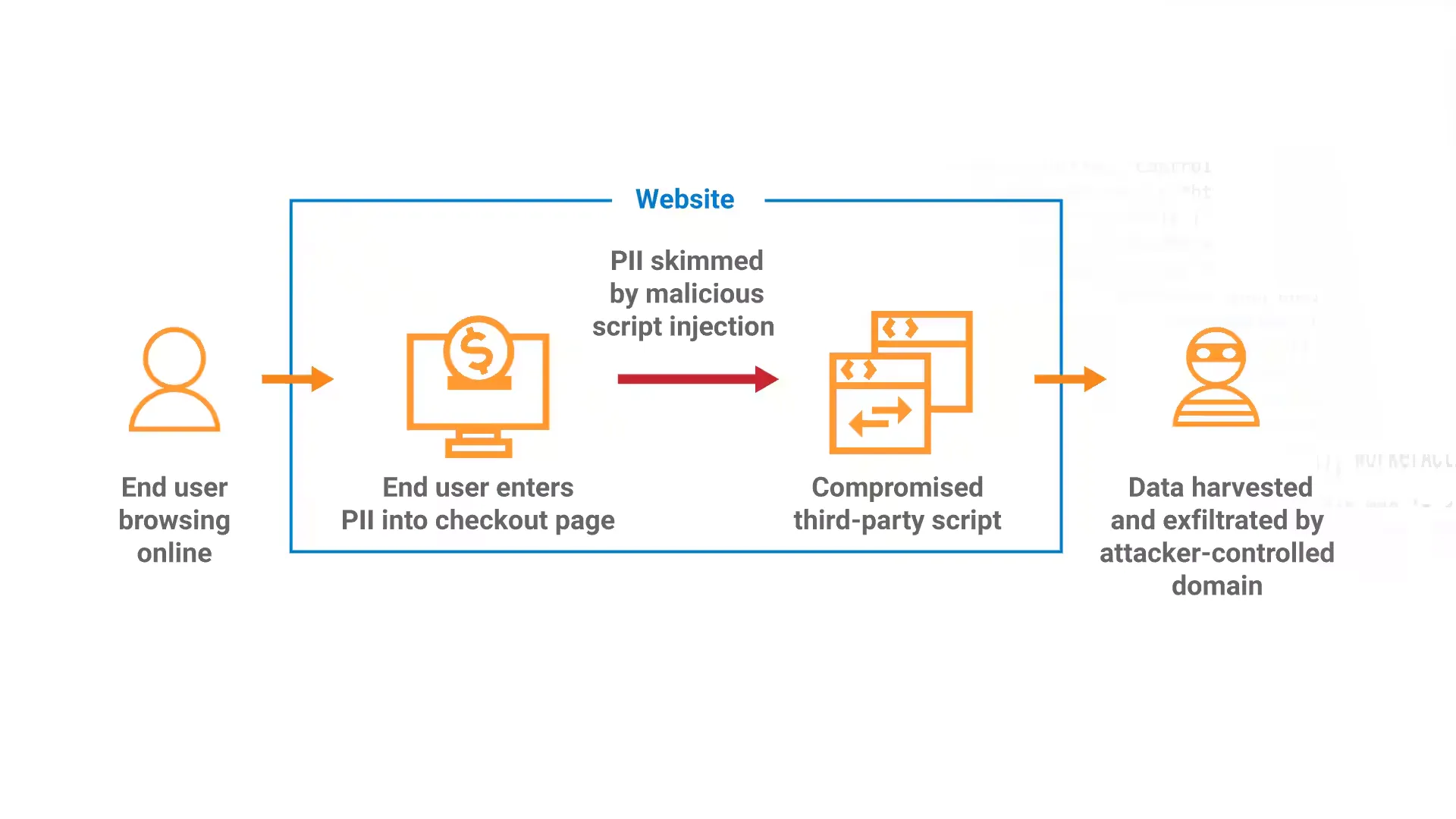
These scripts typically run invisibly, sending harvested card numbers and billing details to a remote server without affecting the visible behavior of your store. Because transactions continue to process normally, the issue often goes unnoticed until customers report unauthorized charges.
The most common entry point for these attacks is outdated or vulnerable code, particularly in checkout templates, payment extensions, or plugins that handle form fields. Once attackers gain the ability to write or modify files, they implant code snippets that latch onto WooCommerce’s checkout flow.
3. Malware infections targeting your WooCommerce store
⚠️ Key warning signs:
- Suspicious user accounts: New admin or editor accounts appear in your WordPress dashboard that you did not create.
- Performance issues: The site suddenly becomes slow, unresponsive, or frequently times out due to malicious scripts consuming server resources.
- Modified files and directories: You find unfamiliar files or unauthorized changes in WordPress core, theme, or plugin directories.
- Unusual traffic spikes: Sudden traffic surges, especially from unexpected geographic locations, may indicate bot activity or DDoS attempts.
- Server log irregularities: Server logs or security plugins report abnormal behavior such as repeated failed login attempts or automated probing.
Missing or disabled plugins: Legitimate security or backup plugins are disabled or removed without your approval.
Malware comes in many forms, and WooCommerce stores are prime targets because they hold valuable customer and order data.
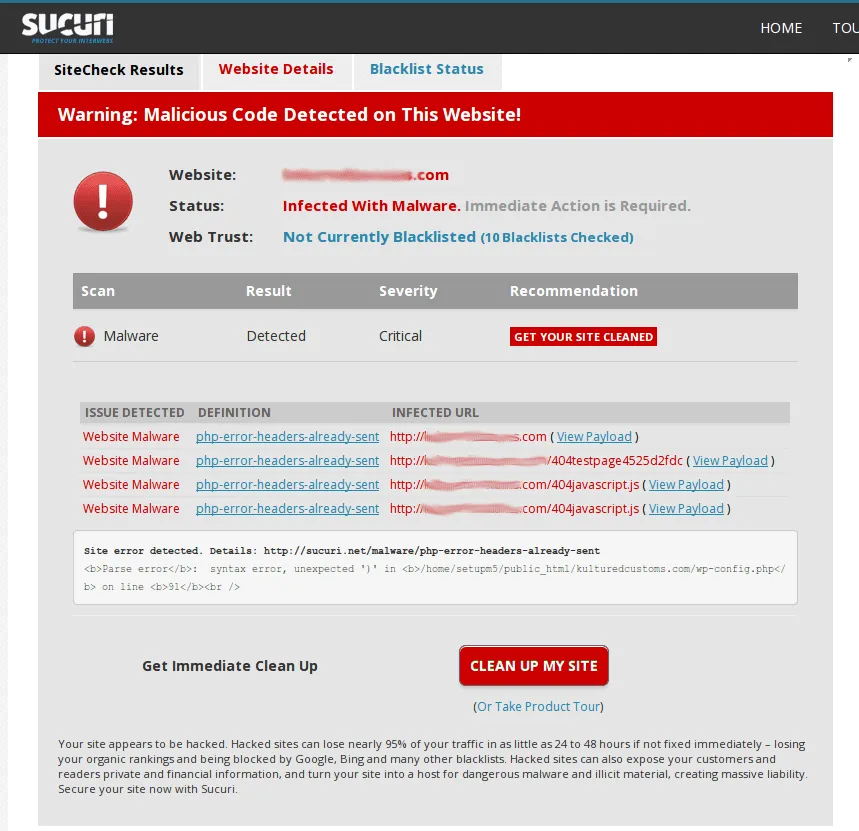
Infections often begin quietly (through outdated plugins, compromised themes, or poorly handled file permissions) and grow progressively more harmful if left undetected. Some malware strains attempt to redirect users to malicious websites, others add hidden admin accounts, and more sophisticated variants may inject code designed to skim payment information or manipulate search engine visibility.
Hence, one of the most difficult aspects of dealing with malware is that it rarely announces itself upfront. Stores may continue operating normally while malicious code sits beneath the surface, waiting for certain triggers or targeting only specific types of visitors. Store owners often discover infections only after Google flags their domain or customers report suspicious redirects.
4. Spam floods across comments, forms, and reviews
⚠️ Key warning signs:
- Sudden influx: A large, unexpected number of comments, reviews, or form submissions appear within a short time frame.
- Website performance issues: Page load times slow down, bandwidth usage spikes, or the database grows rapidly due to excessive spam entries.
- Moderation queue overload: Hundreds of comments or form submissions pile up in the admin panel, sometimes exceeding plugin display limits.
- Email inbox flooding: Form notification emails overwhelm your inbox, causing legitimate customer messages to be missed.
- SEO penalties or blacklisting: Search engines flag or penalize your site when spam content becomes publicly visible, harming search rankings.
Spam may look harmless on the surface, but on a WooCommerce store, it can quickly spiral into a credibility issue.
Attackers and automated bots target comment sections, product reviews, registration forms, and contact forms to spread unwanted links, advertise scams, or attempt phishing. Besides degrading the user experience, spam often carries embedded URLs that lead to malware-ridden sites, making it a genuine security risk rather than just a nuisance.
Spam floods also drain moderation time and can skew the authenticity of product reviews, which directly affects customer trust. Not to mention, more subtle spam attacks attempt to plant SEO-manipulation links, which can result in search engines penalizing your site if harmful content goes unnoticed.
5. Identity and location-based fraud in customer transactions
⚠️ Key warning signs:
- Inconsistent geographic information: The order IP location does not match the billing or shipping country, including “impossible travel” patterns across distant locations in a short time.
- Mismatched addresses: Billing and shipping addresses differ significantly, or orders ship to high-risk locations, hotels, temporary addresses, or mail-forwarding services.
- Rapid high-value orders: Large or expensive purchases placed suddenly by new or first-time customers, especially for high-risk products like electronics or gift cards.
- Multiple failed payments: Several failed transactions followed by a successful one, often indicating card testing with stolen payment details.
- Rapid-fire transactions: Many small purchases made in quick succession from the same IP address or account.
- Orders during off-hours: Transactions placed at unusual times in the customer’s local time zone, suggesting automated or rushed fraudulent activity.
Lastly, keep in mind that fraudulent transactions are not always the result of a technical breach. In fact, many attackers use stolen identities, spoofed IP addresses, or false geolocation data to make purchases that look legitimate at first glance.
WooCommerce stores are especially vulnerable during peak sale periods, when the volume of transactions makes it easier for fraudulent orders to blend in. These fraudulent purchases often trigger chargebacks, which not only incur financial penalties but also damage your payment processor’s trust in your business.
The complexity of modern fraud is that it rarely follows predictable patterns. Attackers may change billing and shipping details, use VPNs to mimic your target region, or test multiple small purchases before committing larger transactions. Left unchecked, identity-based fraud creates logistical headaches and weakens your relationship with your customer base.
Top 15 WooCommerce Security Best Practices
1. Did your website have a secure and reliable hosting environment?
For starters, remember that a secure hosting environment is the backbone of any WooCommerce store. Every WooCommerce security practice you apply later (firewalls, malware scans, login protection) depends on the stability and configuration of your server!
Hence, you should choose a host built for eCommerce workloads and configure it to eliminate the most common server-level risks:
- Choose hosting that supports full account isolation (CloudLinux, CageFS, LXD containers). This strategy prevents cross-contamination when another user on the same server gets hacked – one of the most common “unexplained” WooCommerce infections.
- Confirm the server runs actively supported PHP versions (8.1+) and keeps them updated automatically. Ask the host about their patch cycle—weekly, monthly, or ad-hoc. Anything slower than monthly is not acceptable.
- Check whether the host uses Imunify360, KernelCare, or equivalent server-level malware + kernel patching tools. These systems detect malicious files before they ever load into WordPress memory.
- Enable daily backups (preferably incremental or real-time) and ensure they are stored off-server. Backups stored on the same machine are useless if the server filesystem gets corrupted or encrypted by malware.
- Ask for Web Application Firewall at the server layer: mod_security (OWASP ruleset), NGINX WAF, or Cloudflare WAF support. Server-side WAF blocks malicious traffic before WordPress loads.
- Request access to error logs + access logs (especially on NGINX or Apache) so you can review injection attempts, spam traffic, or permission errors when something looks off.
- Confirm SSL certificates are handled at the server or Cloudflare level, not by plugin-based SSL rewrites that slow down requests and sometimes cause mixed content issues.
In addition, the fastest way to detect whether a hosting environment is genuinely secure is to inspect how it handles privilege separation and file write access. If your host uses the same user for all PHP processes, no amount of WordPress-level security will save your store from cross-account attacks!
2. Are your checkout and payment pages secured?
In a WooCommerce store, no area carries more risk than the checkout. This is where customer identities, payment data, and order logic converge into a single flow, making it the most valuable target for attackers.
What makes checkout security especially dangerous is that breaches here are often invisible. Transactions may continue to process normally while malicious scripts silently capture sensitive data in the background. By the time the issue is discovered, the damage has already spread beyond your store.
For that reason, checkout pages must be treated as a high-risk security zone, not just another part of your website. Hardening this layer requires reducing exposure, limiting script access, and continuously monitoring for changes that should never happen.
To harden your checkout properly, you should:
- Force HTTPS on all checkout-related URLs, including cart, checkout, and account pages, with no HTTP fallbacks.
- Disable mixed content entirely; even one insecure script can undermine encryption.
- Remove unnecessary third-party scripts from checkout pages, especially tracking or marketing tools.
- Restrict who can edit checkout templates and payment-related files.
- Monitor checkout files for unexpected changes or injected JavaScript.
- Test checkout behavior after every major plugin, theme, or WooCommerce update.
3. Did you enforce strong password standards across all accounts?
Password security in WooCommerce doesn't mean choosing a “strong” password once. You need to build an ecosystem where every access point is protected by rules strong enough that a single human mistake doesn’t compromise the entire store!
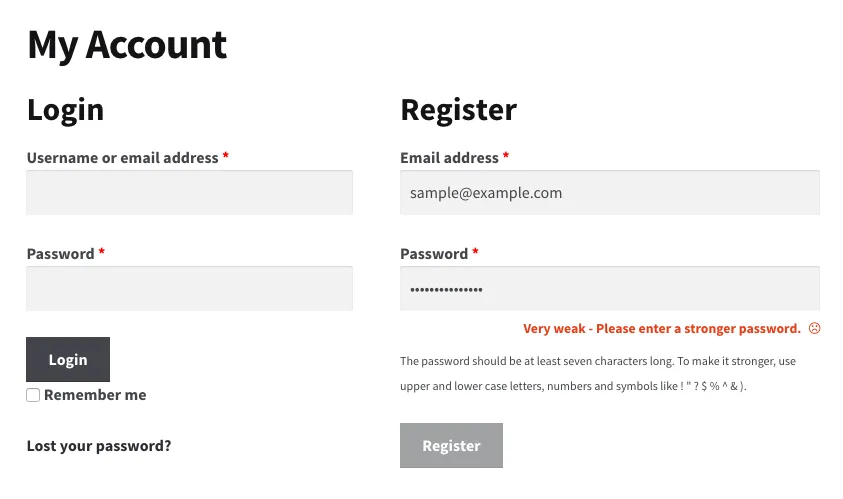
Let's see how you can enforce a password policy properly:
- Use a business-grade password manager (1Password Teams, Bitwarden Enterprise) and create separate vaults for devs, marketing, finance, etc. Give vault access, not individual passwords, to prevent accidental leaks.
- Install a password policy plugin (e.g., Password Policy Manager).
- Audit all existing accounts, including WordPress users, hosting panel accounts, database users, email accounts used for admin logins, etc.
- Disable “Admin” or easy-to-guess usernames, then create a new admin account with a unique username and remove the generic one.
- Clean up leftover accounts from freelancers (common security hole). Anyone who doesn’t actively work with you → delete, not “lower role.”
- Create a rule that passwords must NOT be shared via screenshots, email, Messenger, Zalo, or Google Docs. Only through encrypted vault sharing.
Furthermore, note that the biggest blind spot in WooCommerce password security is application passwords, a WordPress feature that creates long-lived access tokens for APIs and integrations. These tokens bypass normal login limits and are often forgotten. Attackers who find them can authenticate without passwords or 2FA.
Hence, always check Users → Profile → Application Passwords and delete every token that is not actively used by a verified integration.
4. Did you offload payments to PCI-compliant gateways?
One of the biggest security mistakes a WooCommerce store can make is handling credit card data directly. Doing so doesn’t just increase technical risk—it also dramatically expands your legal and compliance responsibilities.
Modern payment security is built around isolation. The less sensitive data your server ever touches, the smaller your attack surface becomes. This is why PCI-compliant payment gateways are a critical part of any secure WooCommerce setup.
To reduce payment-related risk, you should:
- Use gateways that tokenize card data and process payments off-site or in secure iframes.
- Avoid custom-built checkout forms that handle card numbers directly.
- Disable any option that stores card details in your WordPress database.
- Rotate API keys regularly and revoke unused credentials.
- Limit gateway permissions to only what is required for transactions.
- Review gateway logs for unusual behavior, failed attempts, or location mismatches.
5. Did you add two-factor authentication?
We all know 2FA is the strongest defense against credential theft because it adds a hardware or device requirement.
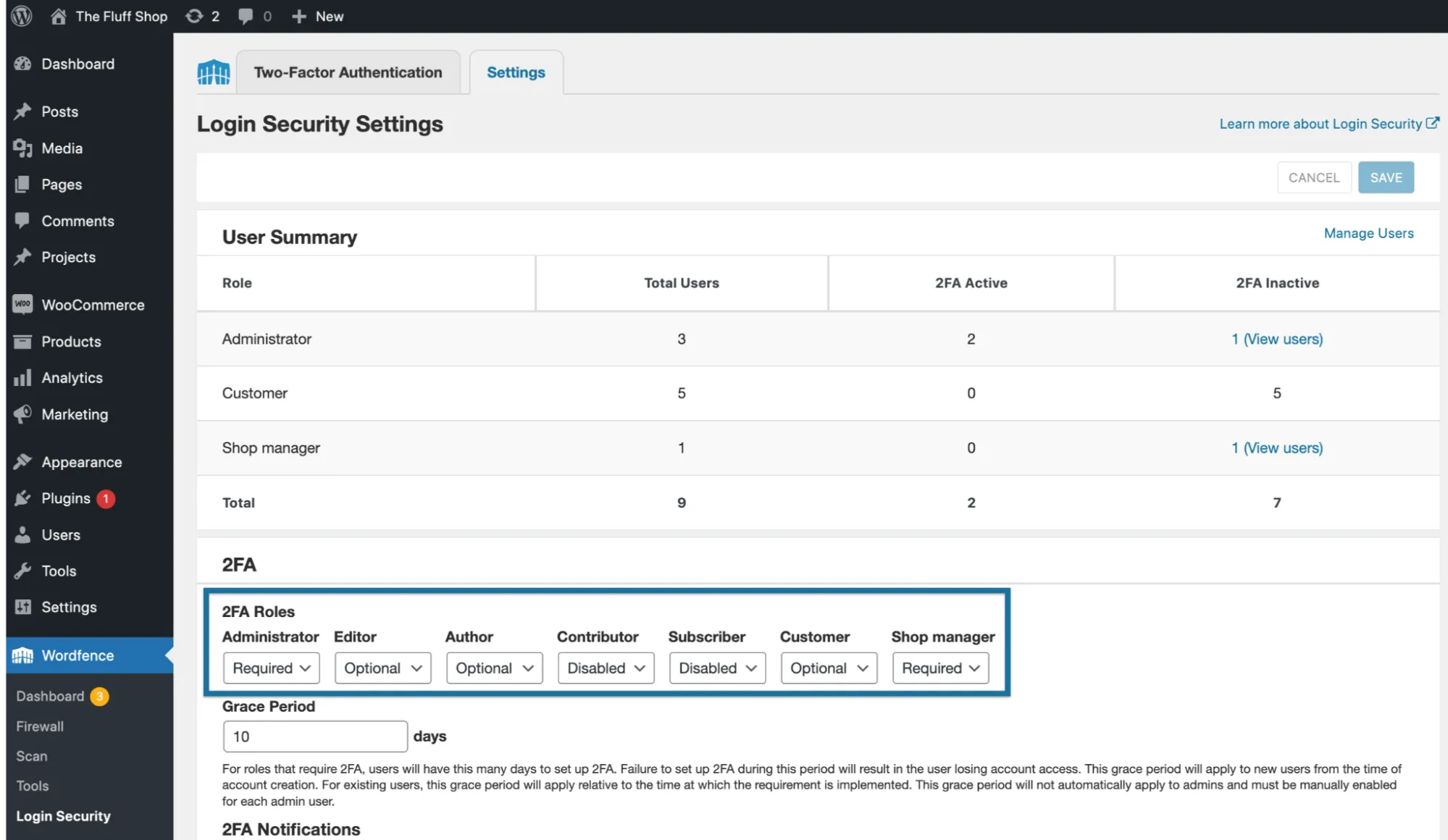
However, simply “turning on 2FA” isn’t enough. To achieve real WooCommerce security, you need to enforce 2FA consistently and make sure there are no alternative login paths that bypass 2FA entirely:
- Install a mandatory 2FA plugin (WP 2FA, miniOrange, Jetpack) and set enforcement for roles: Administrator, Shop Manager, Editor, and any custom role with order or settings access.
- Require TOTP-based authentication (Google Authenticator, Authy, Microsoft Authenticator). Do not allow SMS because it's too easy to intercept.
- Force setup before dashboard access, meaning users cannot click “skip for later.”
- Generate backup codes and store them ONLY inside your password manager, not screenshots or phone notes.
- Test 2FA bypass paths, like /wp-login.php, /wp-admin, XML-RPC logins, and REST API authentication. If any login path allows access without TOTP, you must disable or restrict that path.
- Turn off XML-RPC entirely unless you explicitly use Jetpack or a mobile app. That's because XML-RPC can bypass some 2FA plugins.
At the end of the day, the rule is simple: If your 2FA does not protect every possible login vector, then you do not actually have 2FA.
6. Did you manage WordPress user roles with the least privilege?
Many WooCommerce security incidents don’t start with sophisticated exploits. They start with a legitimate user account that has more permissions than it should.
As your store grows, so does the number of people who need access: developers, marketers, support agents, SEO specialists. If every one of them has broad permissions, a single compromised account can expose your entire system. That’s why access control must follow the principle of least privilege. Users should only have the permissions they need to perform their role, and nothing more.
To reduce internal and credential-based risk, you should:
- Assign the minimum role required for each user’s actual responsibilities.
- Avoid giving Administrator access unless absolutely necessary.
- Review user accounts on a fixed schedule and remove inactive users.
- Delete temporary or contractor accounts once work is completed.
- Monitor role changes and new user creation with alerts.
- Prevent non-admin users from installing plugins or editing files.
7. Did you shield your login page from brute-force attempts?
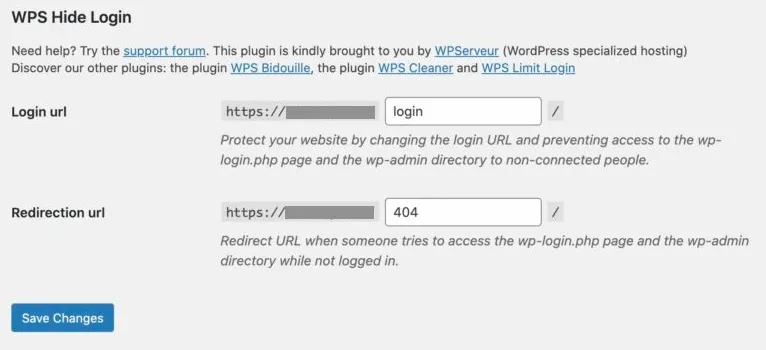
Brute-force attacks don’t need to succeed to be harmful; just the attempt alone can overload your PHP workers and slow your checkout! For that reason, the fix is not only blocking attempts but reducing the discoverability and accessibility of your login endpoints:
- Install a login limiter plugin and configure it to block after 3–5 failed attempts, extend lockout time for repeat offenders, or send email alerts for lockouts affecting admin usernames.
- Change the login URL using WPS Hide Login (e.g., /secure-dashboard-9583).
- Disable directory indexing and expose_headers in Apache/Nginx so bots can’t fingerprint your login endpoints.
- Enable reCAPTCHA/hCaptcha on a login – registration – password reset.
- Set server-level rate limiting in NGINX/Apache so high-frequency requests to wp-login.php or xmlrpc.php get rejected before triggering PHP execution.
- Block XML-RPC brute-force vectors unless needed.
- Whitelist admin IPs if your team works from fixed offices.
And remember, the hidden killer in brute-force security is PHP worker exhaustion. Even if every attack fails, each login attempt still triggers WordPress and WooCommerce to load, consuming a PHP worker. So when workers max out, checkout either stalls or fails; make sure to handle this issue as early as possible.
8. Did you monitor file changes and unexpected modifications?
Malware rarely announces itself by breaking your site. Instead, it hides quietly in modified files, injected scripts, or altered database entries, waiting for the right moment to activate. For WooCommerce stores, this is especially dangerous because even a small injected change can affect checkout behavior, customer data, or SEO visibility without obvious symptoms.
Therefore, a proper monitoring setup should:
- Track changes to WordPress core, plugins, and themes.
- Alert you immediately when files are added, removed, or modified.
- Flag executable files inside upload directories.
- Monitor database entries that load site-wide, such as autoloaded options.
- Keep a record of who changed what and when.
- Allow safe quarantine of suspicious files during investigation.
9. Did your website scan regularly?
Malware on WooCommerce security rarely appears as a broken page. More often than not, it hides inside minified scripts, database entries, or injected code within plugins/themes.
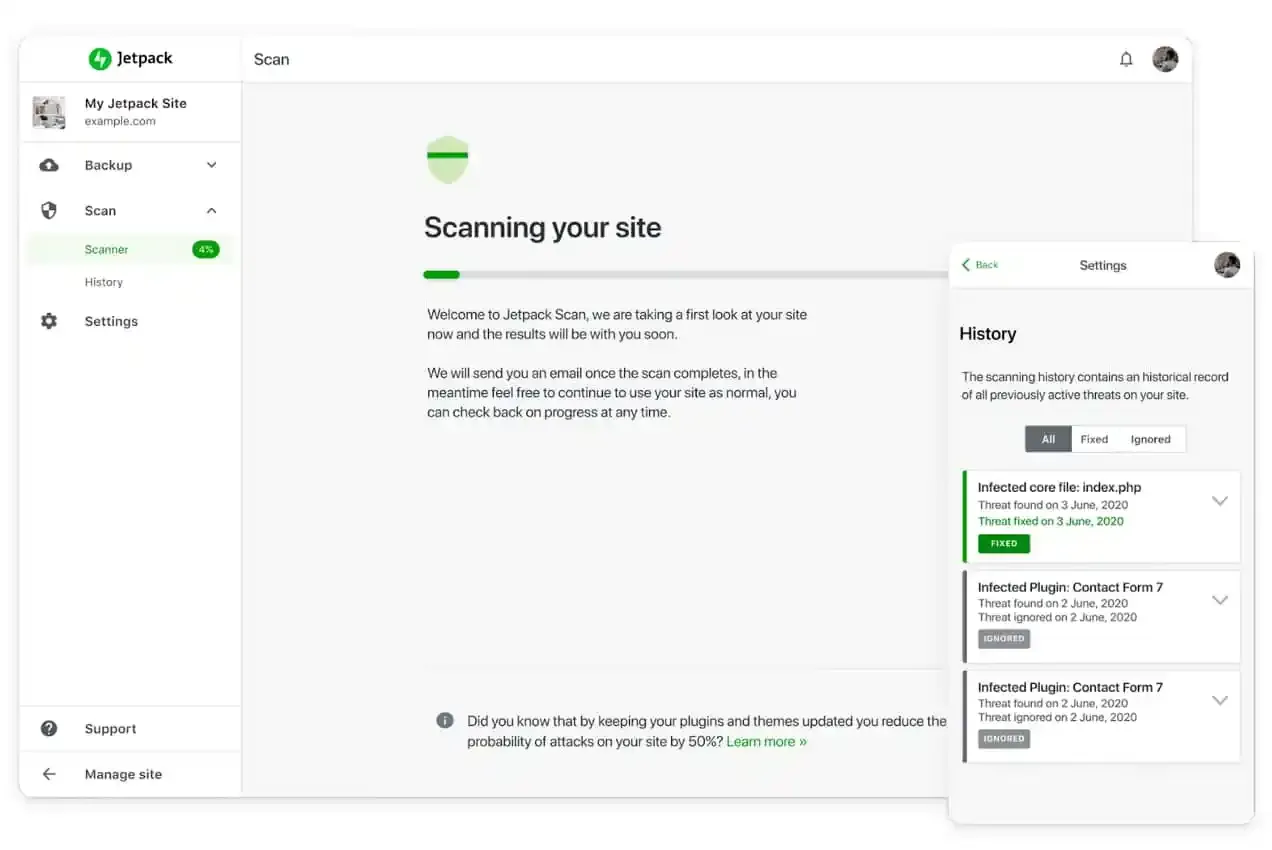
Therefore, the purpose of regular scanning is to catch infections while they are still small and containable:
- Use a scanner with real-time detection (Jetpack Scan, Wordfence Premium, Sucuri). Daily scanning is good, but real-time scanning actually catches active injections.
- Enable instant notifications via email + mobile app so you can respond within minutes.
- Turn on file integrity monitoring. WordPress core should match WP checksums exactly; any unexpected modification = red flag.
- Search your wp_options table monthly for suspicious autoloaded payloads (base64 injections, iframes, JS redirects).
- Inspect wp-content/uploads for PHP files. This folder should never contain executable scripts.
- Check recently modified files in /wp-includes and /wp-admin; these directories should almost never change manually.
- Quarantine infected files rather than deleting them immediately to avoid breaking your store during analysis.
Bonus: Most WooCommerce malware infections originate from nulled themes/plugins or compromised uploads folders, but the most destructive infections hide inside the wp_options autoloaded entries because they load on every page, including checkout. These entries often have innocuous-looking names. The quickest detection trick:
SELECT option_name, LENGTH(option_value)
FROM wp_options
ORDER BY LENGTH(option_value) DESC
LIMIT 20;
If you see a massive autoloaded option with obfuscated code, you’ve likely found the infection’s core!
10. Did you add security headers to harden browser-level protection?
Even when your server and application are well secured, browsers remain a common attack surface. Many modern attacks rely on tricking browsers into executing injected scripts or loading malicious content.
Security headers act as rules that tell browsers what they are allowed to do—and, more importantly, what they must never do. When configured correctly, they significantly limit the damage an attacker can cause, even if code injection occurs.
You can do the following to strengthen browser-side defenses:
- Enforce HTTPS connections to prevent downgrade and man-in-the-middle attacks.
- Block your site from being embedded inside malicious iframes.
- Restrict which external scripts, fonts, and resources can load.
- Reduce exposure to cross-site scripting (XSS) attacks.
- Prevent browsers from guessing incorrect content types.
- Recheck headers after CDN, hosting, or caching changes.
11. Did all the spam across comments, forms, and product reviews stop?
Some people treat spam on their sites as a mere annoyance, but it’s actually a huge WooCommerce security risk!
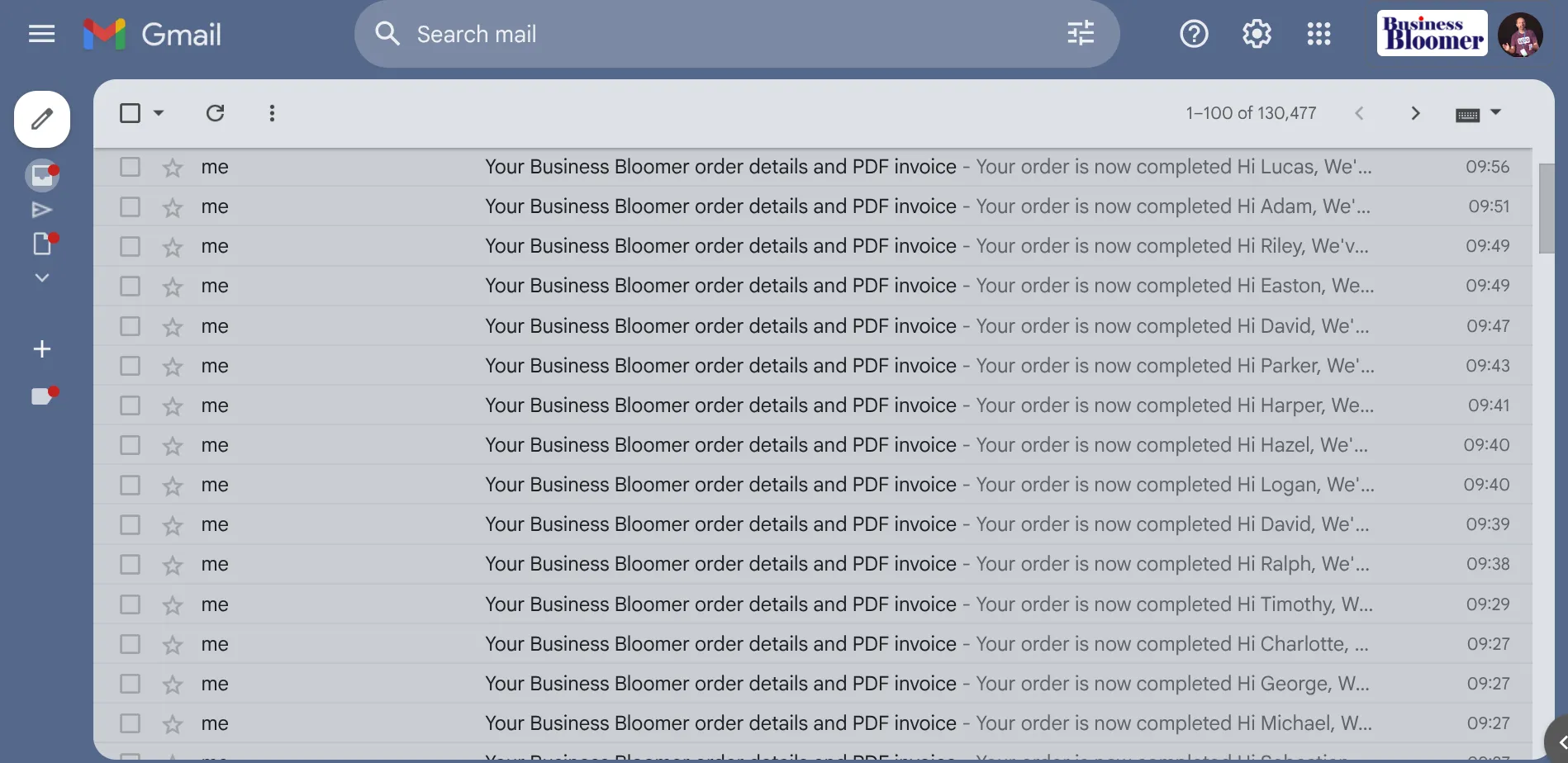
Attackers use spam comments, spam form submissions, and fake product reviews to plant malicious URLs, inject SQL payloads, or try automated XSS probes. Therefore, you must build input validation and filtration across every entry point where users can submit text or links:
- Enable native WordPress discussion controls. For example, it must require login before commenting, hold first-time commenters for manual approval, or auto-mark comments containing more than one link as pending.
- Enable “verified owners only” reviews in WooCommerce settings to block fake review spam.
- Deploy Akismet or Antispam Bee for ML-based filtering that detects spam patterns beyond simple keywords.
- Add hCaptcha/reCAPTCHA to contact forms, registration forms, product review forms, password reset, etc.
- Disable XML-RPC pingbacks and trackbacks to prevent spambots from pushing malicious referrer traffic.
- Install a firewall plugin (Wordfence/Sucuri) with filters for suspicious form payloads (SQL keywords, script tags, encoded payloads).
- Scan product reviews monthly for injected <script> or <iframe>. They are rare but high-impact when they happen.
Most importantly, WooCommerce stores are frequent targets for SEO parasite attacks: hackers inject spam links into old product reviews or comments to boost ranking for gambling/pharma websites. These injections often use invisible unicode characters so the link doesn’t appear in the admin’s normal font.
The trick: copy the suspicious text into a plain-text editor (VSCode) and enable “Render Control Characters.” You’ll immediately see hidden encoded glyphs that expose parasitic spam.
12. Do you track every action with a detailed site activity log?
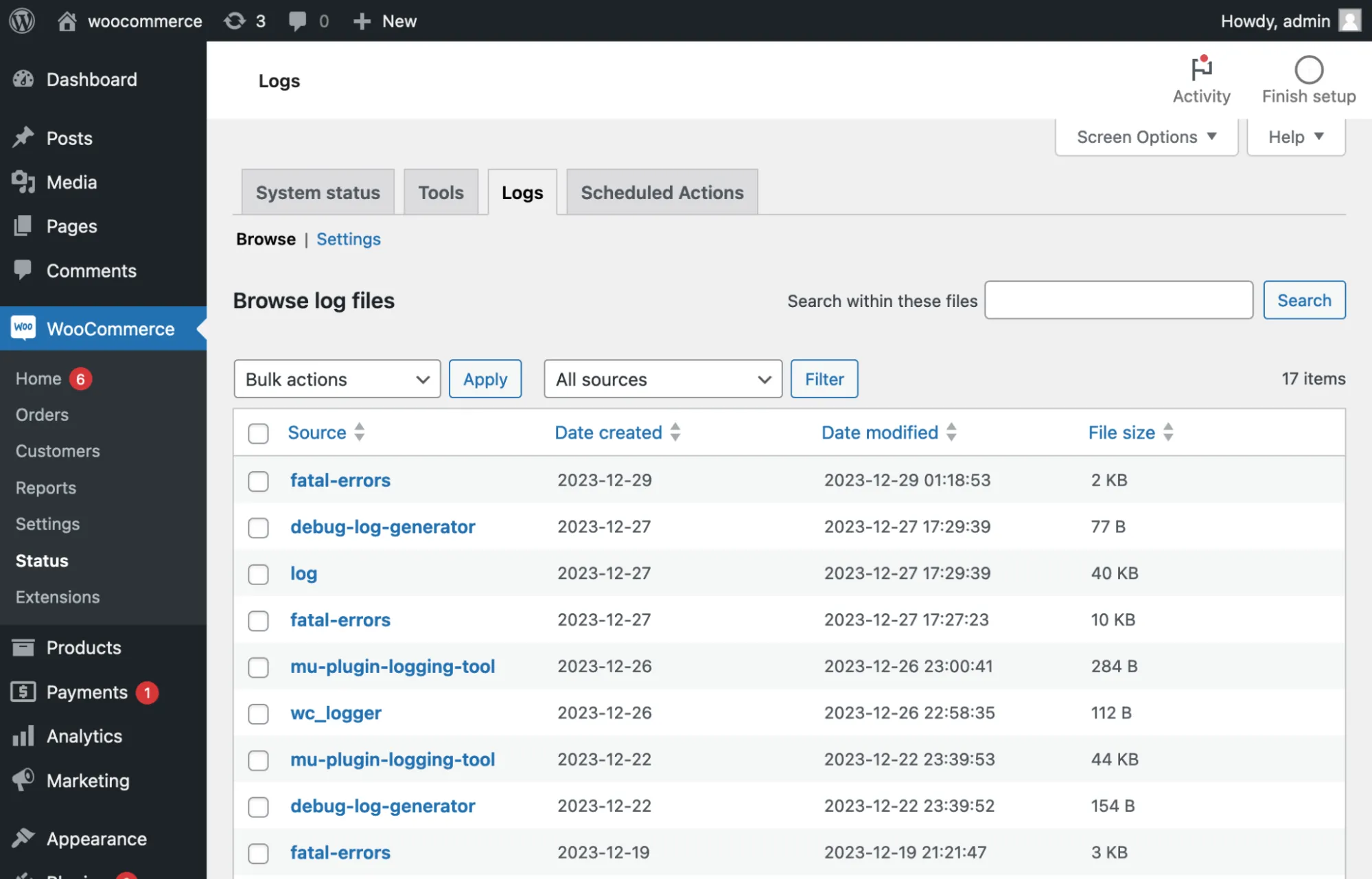
When multiple people manage a WooCommerce site (admins, support staff, developers, marketers), issues can appear without anyone knowing who changed what! Fortunately, an activity log can solve this by giving you a full timeline of every action:
- Use a robust activity log plugin (WP Activity Log, Jetpack Activity Log) that tracks user logins (and IP), changes to orders, coupons, and product data, settings edits (WooCommerce + WordPress core), etc.
- Store logs off-site (Amazon S3, Logtail, Papertrail) so attackers can’t tamper with them.
- Increase retention to 90–180 days. After all, problems often emerge long after the initial change.
- Monitor for high-risk actions with real-time alerts (e.g., plugin deletion, role elevation).
- Use logs when restoring backups. Also, pair timestamps with actions to pinpoint the exact breaking event.
- Export logs monthly as part of your maintenance cycle to create a long-term audit trail.
And from our experience, most attacks leave behind tiny traces before the actual damage occurs. A well-configured activity log lets you catch these subtle signals hours or days before the attacker escalates privileges or deploys malware. You can even consider logs as your early-warning radar.
13. Are WordPress, WooCommerce, and plugins fully updated?
Needless to say, outdated components are among the most common causes of compromised WordPress and WooCommerce security. In fact, a single outdated plugin can expose your entire WooCommerce installation even if everything else is hardened!
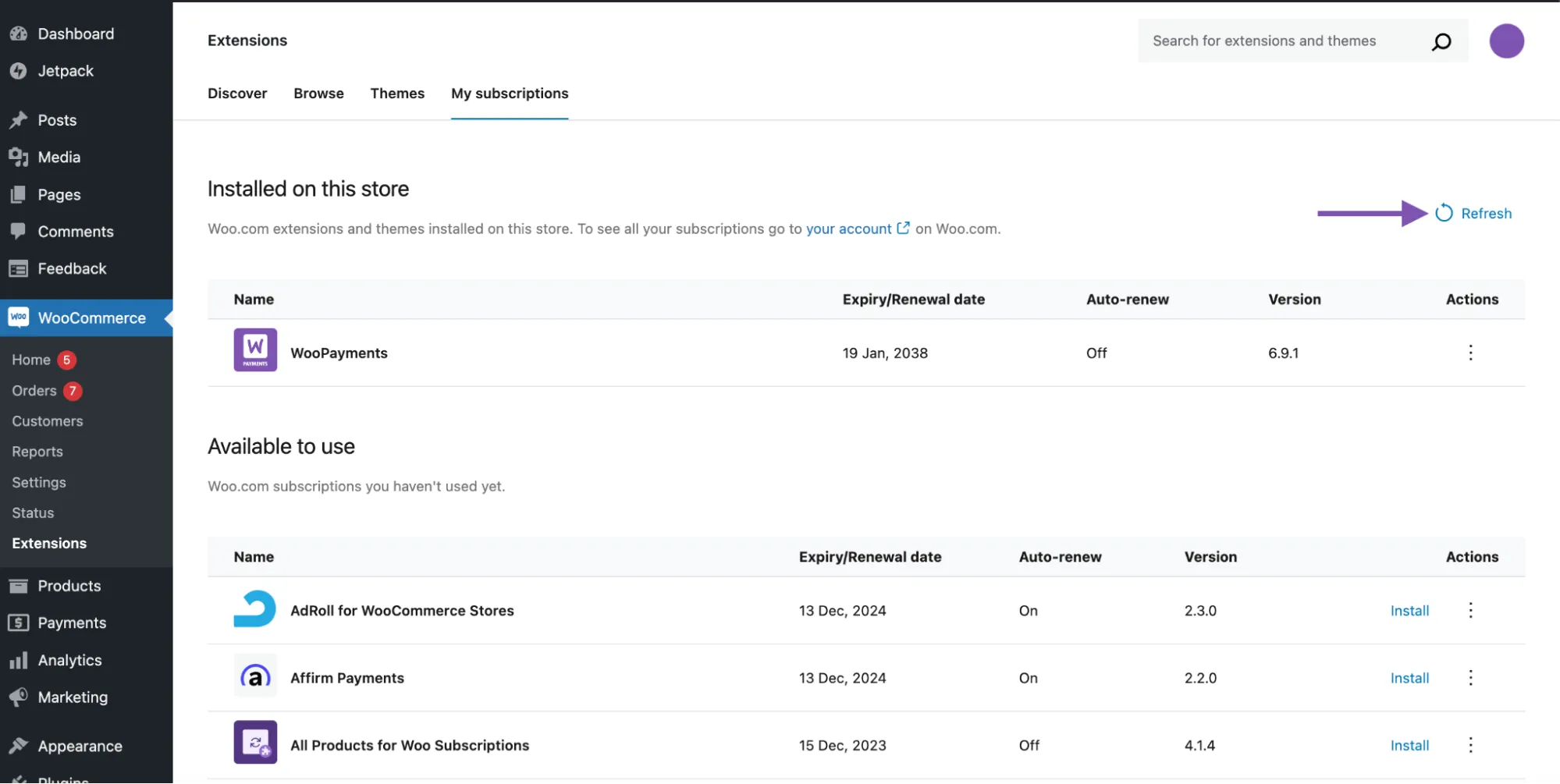
To maintain a safe, reliable WooCommerce security update, you should:
- Create a weekly update schedule. Don’t update randomly.
- Take a full backup before updating (files and database).
- Update in the following safe order. For example: plugins > themes > WooCommerce > WordPress Core
- Use a staging site to test major updates (especially WooCommerce releases).
- Enable auto-updates ONLY for trusted, frequently maintained plugins (e.g., WooCommerce extensions, Yoast, Jetpack).
- Delete unused plugins/themes entirely, not just deactivate them. Inactive code is still vulnerable code at the end of the day.
- Monitor vulnerability databases (WPScan, Patchstack) to track zero-day exploits.
The most dangerous vulnerabilities are supply chain attacks, where a plugin you trust gets sold to a shady developer who injects malware in a later update. To detect this early, monitor plugin update authorship. If a plugin suddenly changes publisher or ownership in the changelog, freeze updates and audit the code before proceeding.
14. Do you use a web application firewall to filter dangerous traffic?
A Web Application Firewall (WAF) blocks malicious requests before they reach WordPress. That means SQL injection attempts, XSS payloads, bot scrapers, and brute-force waves are filtered at the edge.
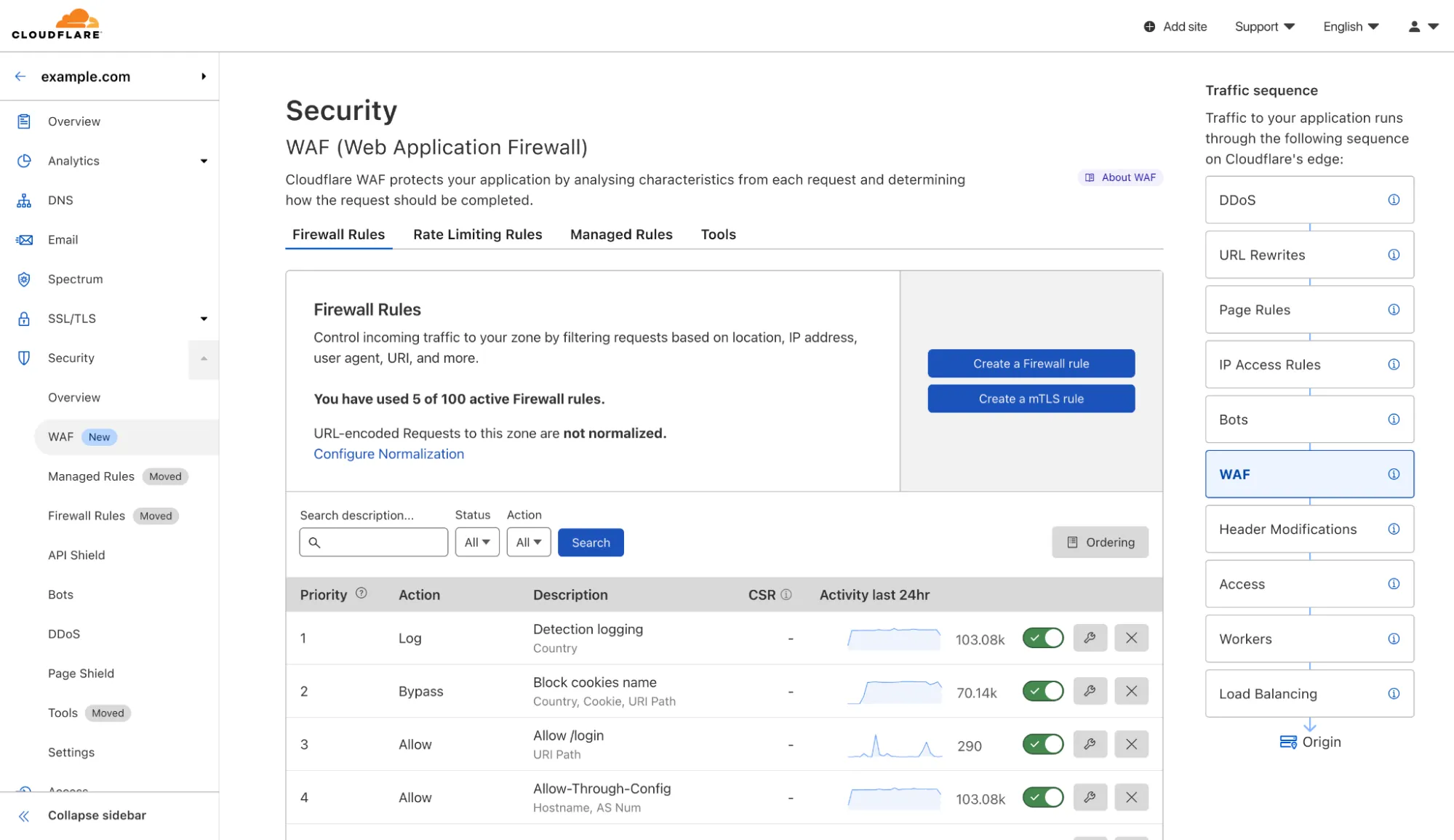
In such cases, a WAF essentially becomes the bouncer for your WooCommerce store, but only if configured correctly:
- Use Cloudflare WAF for the best balance of price and protection. And even though the free tier is already strong, Pro tier is ideal for most WooCommerce stores.
- Enable OWASP Core Ruleset (CRS) to block known attack signatures.
- Turn on bot mitigation, especially for add-to-cart pages and checkout.
- Create custom rules to block xmlrpc.php access (unless needed), direct access to wp-config.php, and repeated 404s from a single IP
- Enable rate limiting for /wp-login.php, /cart, /checkout, and /my-account
- Allowlist your admin IPs to bypass excessive filtering.
- Use Cloudflare Turnstile or hCaptcha for frictionless bot detection.
Most WAF users forget to block POST requests from unknown countries. Since WooCommerce stores typically only accept orders from specific regions, blocking POST requests outside those regions instantly eliminates 80% of automated attacks without affecting real customers. It’s one of the highest-impact WAF rules you can apply.
15. Do you harden your FTP access and restrict file permissions?
Last but not least, FTP/SFTP access gives direct control over your server files. Simply put, if an attacker gets in, they can rewrite any plugin, inject backdoors, or replace WooCommerce templates. Your WooCommerce security is threatened just like that!
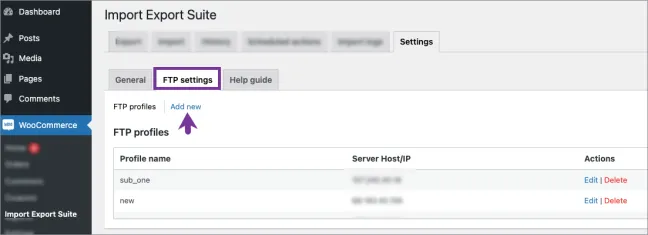
That's why proper FTP hardening is non-negotiable, yet often overlooked. The goal is to ensure only the right people (and the right processes) can write to sensitive directories:
- Use SFTP only, never plain FTP (unencrypted).
- Create individual FTP accounts for each team member; never share one master login.
- Restrict each account’s root directory so they only access what they absolutely need.
- Set strict file permissions: Files: 644, Directories: 755, wp-config.php: 600
- Disable file editing inside WordPress (DISALLOW_FILE_EDIT in wp-config.php).
- Audit FTP logs weekly for unknown IPs or unusual session durations.
- Delete old FTP accounts, especially those created for one-time developer tasks.
Bonus: Recommended WooCommerce Security Plugins
Aside from the core WooCommerce security practices you’ve explored, you can also strengthen your store with dedicated plugins: Wordfence, Patchstack, Defender Security, Solid Security, and All-In-One Security:
Name | Key Features | Pricing |
Wordfence | • Web Application Firewall (WAF) blocking malicious requests • Malware scans for infected files and backdoors • Login protection with 2FA and failed-login rate limiting • Real-time traffic monitoring for suspicious activity • Ability to block specific IPs, ranges, or countries • Real-time threat intelligence feed (premium) • File-repair tool comparing modified files to WordPress originals | Free version Premium from $119/year |
Patchstack | • Early vulnerability alerts for plugins/themes (48 hours before public disclosure) • Virtual patching that blocks exploits without updating your site • Central dashboard for site management and automated care plans • Access control based on country/IP rules • Security reports for clients or internal documentation • Hardened WordPress protection including login protection, disabling user enumeration, etc. | Free version Premium from $5/month/site |
Defender Security | • Malware scanning and vulnerability checks • Firewall rules blocking malicious IPs • Brute-force protection and masked login URLs • Two-factor authentication for secure logins • Security recommendations through an intuitive UI • Audit logs available in Pro version for user-action tracking | Free version Pro from $36/year |
Solid Security | • Brute-force protection with login attempt limits • File-change detection to catch unauthorized modifications • Database backup integration for data safety • Two-factor authentication built-in • Comprehensive vulnerability scanning • 404 detection that blocks suspicious scanners • “Away Mode” disabling backend access during set hours | Free version Pro from $99/year |
All-In-One Security | • Security hardening for user accounts and password rules • Login lockdown to block repeated failed logins • Database protection via table prefix changes • File-system scanning and critical file monitoring • Blacklist tools for known malicious IPs • Firewall rules filtering harmful traffic • Security scanner with reports and recommendations | Free |
WooCommerce Security: FAQs
How secure is WooCommerce?
WooCommerce is fundamentally secure as long as it’s used on a properly maintained WordPress installation, supported by a reliable host, and kept up to date. The platform itself follows strong coding standards and receives regular security patches.
However, its real-world security depends heavily on the ecosystem around it, including plugins, themes, server configuration, and user practices. Most vulnerabilities come not from WooCommerce core, but from outdated extensions, weak passwords, or misconfigured hosting environments.
How do I make WooCommerce secure?
To make WooCommerce secure, you should keep WordPress and WooCommerce updated, run the store on a trustworthy hosting provider, enforce strong password policies, enable two-factor authentication, and install a reputable firewall or malware-scanning tool.
How do I make my WooCommerce store private?
To make your WooCommerce store private, you can enable maintenance mode so visitors cannot browse products or complete purchases until you’re ready.
For more controlled environments, you can require users to log in before viewing the catalog, restrict the store to approved user roles, or block public access via a membership or wholesale plugin.
How do I prevent fake orders in WooCommerce?
To prevent fake orders in WooCommerce, you should tighten verification steps during checkout by:
• Enabling email or phone verification
• Using payment gateways with built-in fraud detection
• Enforcing address verification through AVS
• Requiring login for order placement
Is WooCommerce Safe?
Yes, WooCommerce is safe if you manage it properly. WooCommerce itself is a secure eCommerce platform. It is built on WordPress and follows strong coding and security standards. However, its safety depends largely on how you set up and maintain your store.
Final Words
And that's a wrap on our WooCommerce security checklist! They are not one-time fixes, but habits that strengthen your store over time and make security a natural part of how your business operates.
For even more WooCommerce tips and guidance, check out our WooCommerce blog and join our Facebook Community.