
WooCommerce makes it easy to create coupon codes for percentage discounts, fixed-cart discounts, fixed-product discounts, free shipping, and other promotions. However, creating coupons one by one becomes time-consuming when you need to launch a large campaign or move existing coupon data to a new store.
That’s where WooCommerce import coupons comes in. With a properly prepared CSV file and a compatible import tool, you can add hundreds or even thousands of coupons without rebuilding each one manually.
In this guide, we’ll show you how to import coupons into WooCommerce using two practical methods:
- Import WooCommerce coupons from CSV with Smart Coupons;
- Import and map coupon data with WP All Import.
We’ll also explain what to do if your coupons are part of a complete store migration to WooCommerce. Let’s get started!
Can You Import Coupons Directly into WooCommerce?
WooCommerce includes built-in tools for creating and managing coupons. From your WordPress dashboard, you can go to Marketing > Coupons to create coupon codes manually and configure their discount type, amount, expiry date, usage restrictions, and usage limits.
This approach works well when you only need a few coupon codes. However, for bulk WooCommerce coupon imports, you’ll need an extension or third-party tool that can process coupon data from a CSV file.
Before importing, your file should contain the coupon information you want to preserve, such as:
- Coupon code;
- Discount type and amount;
- Expiry date;
- Minimum and maximum spend;
- Product or category restrictions;
- Usage limits;
- Customer email restrictions;
- Free shipping settings, if applicable.
The exact column names and accepted values depend on the importer you use, so it’s best to prepare your CSV based on the template provided by that tool.
How to Import WooCommerce Coupons from CSV with Smart Coupons?
One of the most straightforward ways for WooCommerce import coupons in bulk is Smart Coupons, an extension available from WooCommerce.
Besides extending WooCommerce coupon functionality, Smart Coupons adds a dedicated CSV import feature under Marketing > Coupons. This makes it suitable when your coupon data is already prepared in a spreadsheet or CSV file.
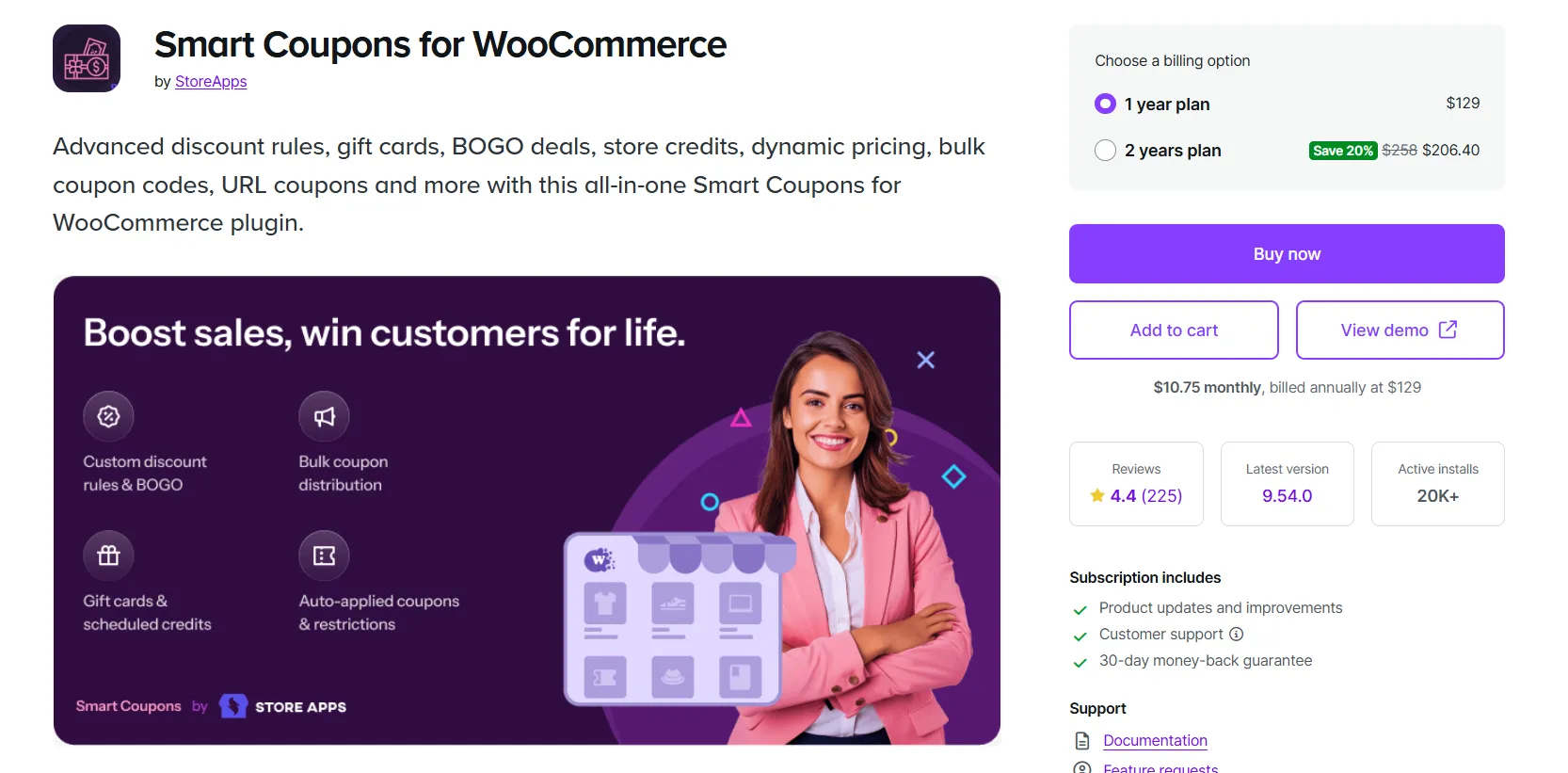
Step 1: Install Smart Coupons
First, install and activate the Smart Coupons extension on your WooCommerce store. Once activated, it adds additional coupon management features, including bulk coupon importing.
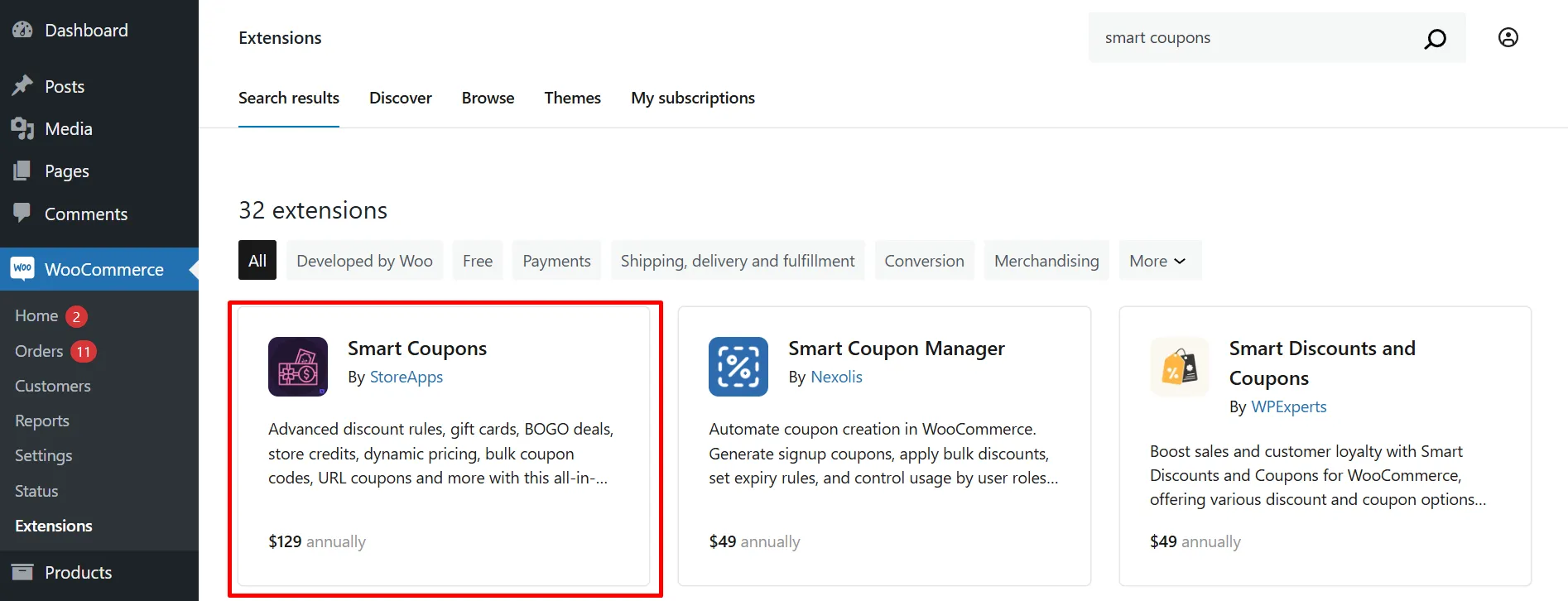
After activation, go to Marketing > Coupons. You should now see additional options provided by Smart Coupons, including the Import Coupons tab.
Step 2: Prepare your coupon CSV file
Smart Coupons includes a sample.csv file that you can use as a template. Instead of building the CSV structure from scratch, start with this sample and replace the example data with your own coupon information.
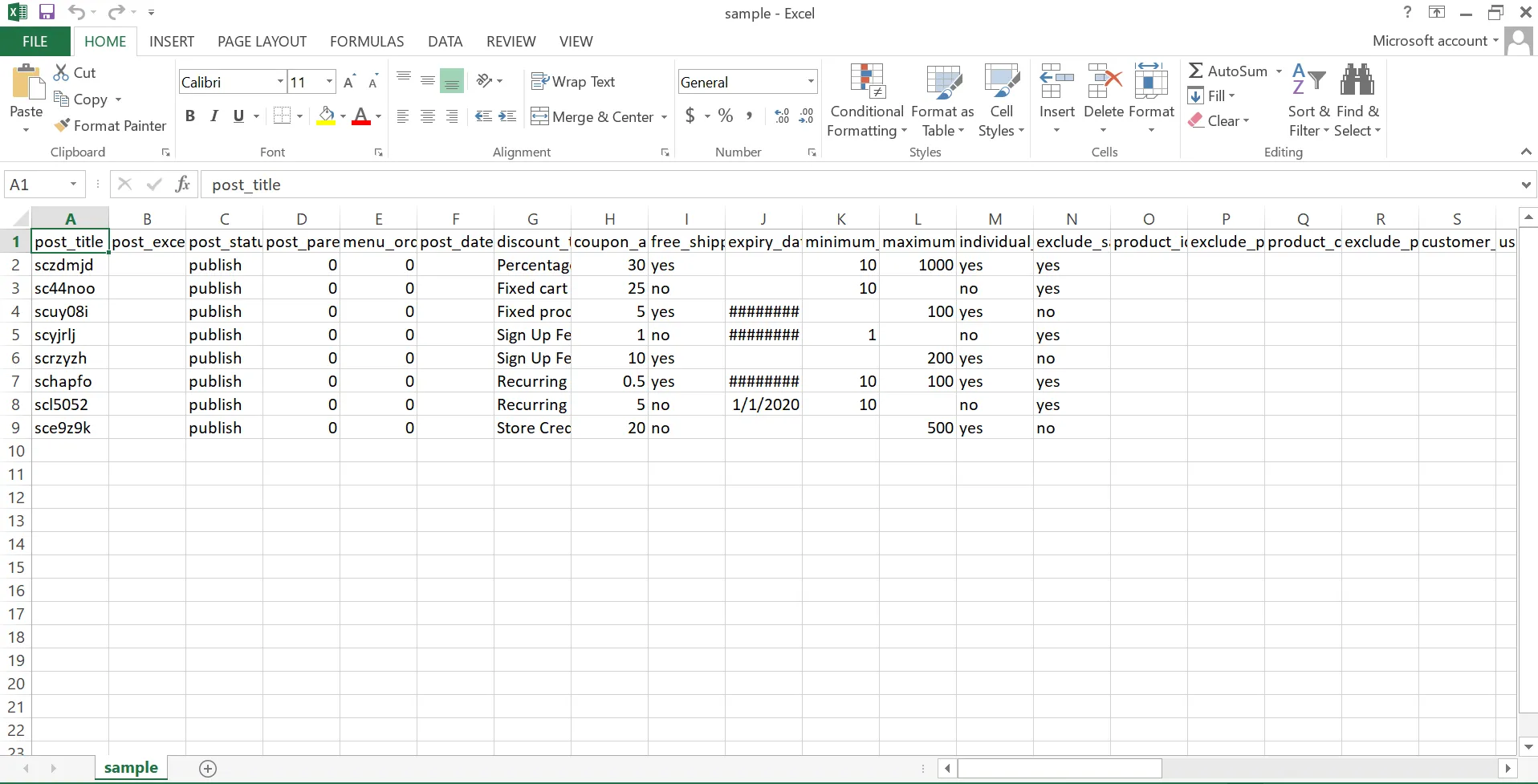
Some of the main fields you may see in the CSV include:
- post_title: The coupon code customers enter at checkout, such as SUMMER10.
- post_excerpt: An optional internal description that helps you identify the coupon or campaign.
- post_status: The status of the coupon. For example, publish makes the coupon active.
- menu_order: Controls the order of coupons in the admin area and can normally be left at 0.
- post_date: The date and time associated with the coupon.
- discount_type: Defines how the discount works, such as a percentage, fixed-cart, or fixed-product discount.
- coupon_amount: The discount value. For example, 10 represents 10% when using a percentage discount.
- free_shipping: Determines whether the coupon enables free shipping.
- expiry_date: Specifies when the coupon expires.
- minimum_amount: Sets the minimum cart subtotal required to use the coupon.
- maximum_amount: Sets the maximum cart subtotal allowed for the coupon.
Important: If your WooCommerce store uses a language other than English, make sure the values in the discount_type column match the translated discount-type values used by your site. Otherwise, the coupon may not be imported with the intended discount logic.
Before continuing, review your file carefully for missing coupon codes, invalid values, duplicate entries, and incorrect restrictions. It’s also a good idea to back up your WooCommerce store before running a large import.
Step 3: Upload and import the CSV file
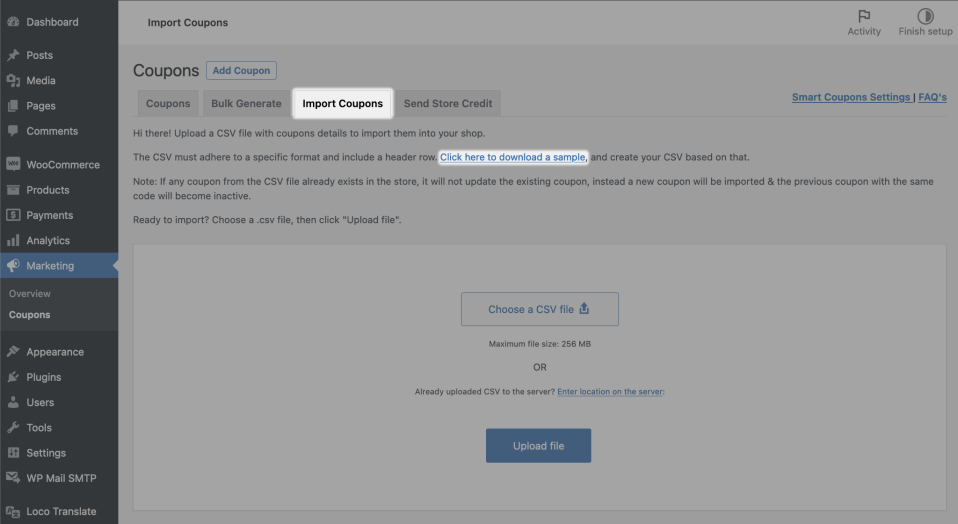
Once your CSV file is ready, go to Marketing > Coupons > Import Coupons from your WordPress dashboard. Click Choose a CSV file, select the coupon file from your computer, and then click Upload file.
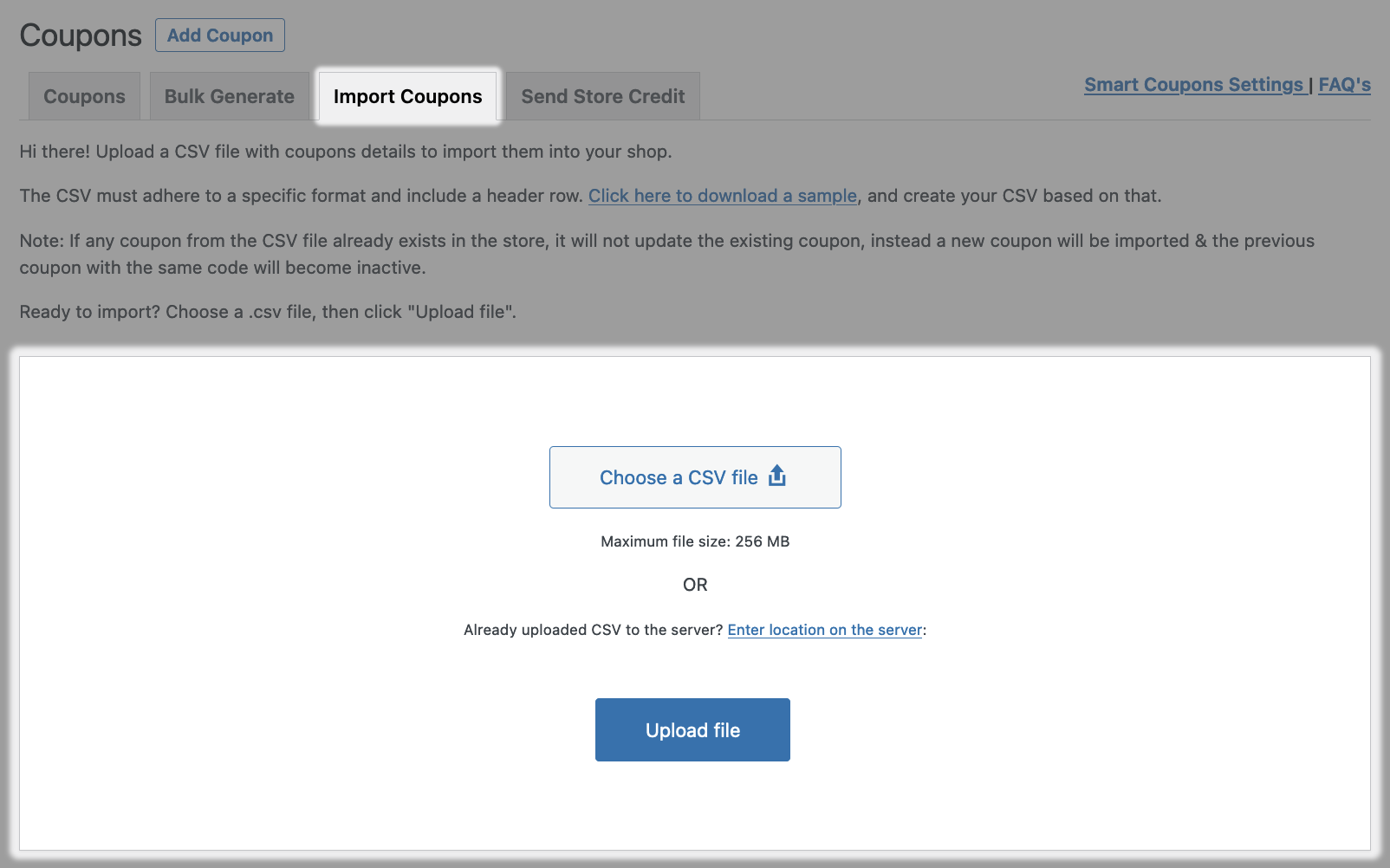
Smart Coupons can also send imported coupon codes to customers when email addresses are included through Usage restrictions > Allowed emails. This can be useful when importing customer-specific rewards or promotional codes.
When everything is ready, click Import and wait for the import process to finish.
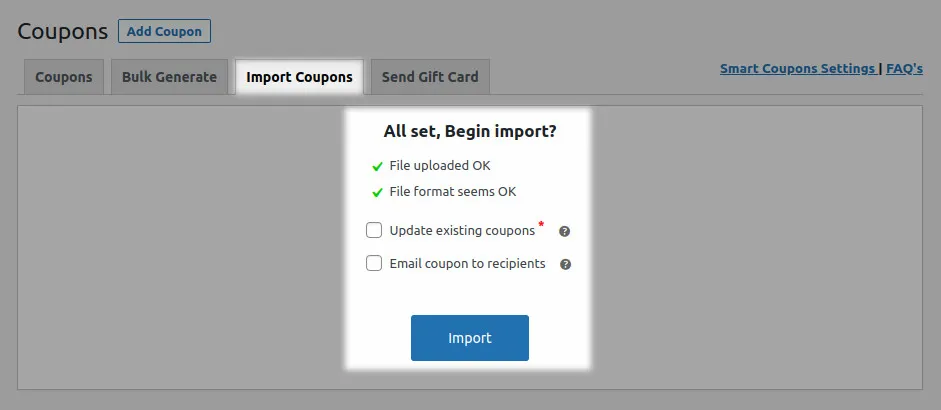
After the import completes, return to Marketing > Coupons and check several imported coupons manually. Confirm that the coupon code, amount, discount type, expiry date, restrictions, and usage limits match your source file.
Step 4: Import WooCommerce coupons with categories (optional)
Smart Coupons also lets you organize imported coupons into categories. This can be useful when you manage separate groups of codes for holiday sales, affiliate campaigns, loyalty rewards, partnerships, or other promotions.
Here’s how to include coupon categories in your import:
1. Go to Marketing > Coupons > Import Coupons and download the sample CSV file for reference.
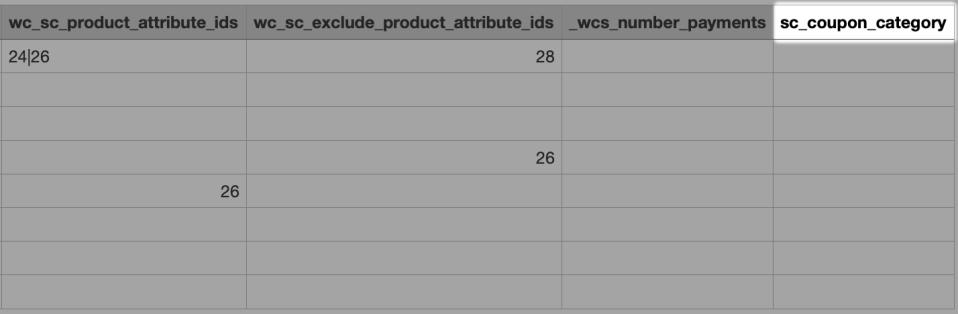
2. Make sure your CSV file includes a column named sc_coupon_category.
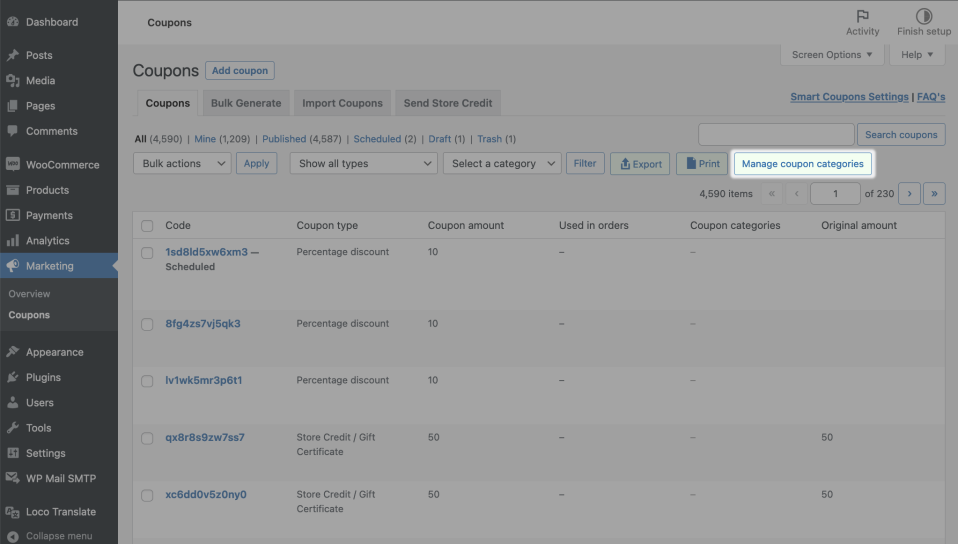
3. Go to Marketing > Coupons and click Manage Coupon Categories. From there, create or manage the coupon categories you want to use.
4. After creating the categories, note their category IDs.
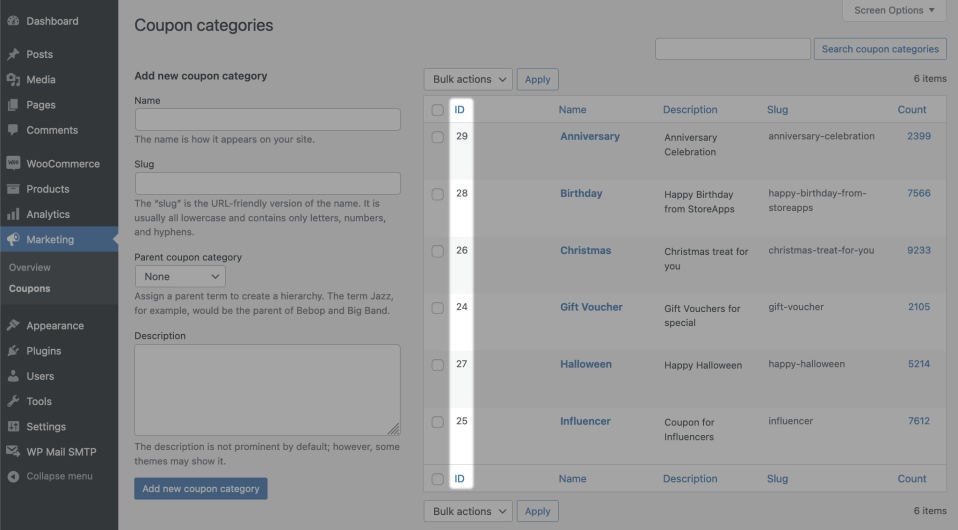
5. Add the corresponding category ID to the sc_coupon_category column for each coupon in your CSV file.
- To assign more than one category, separate the IDs with a pipe symbol (|).
- Example: 38|37|36
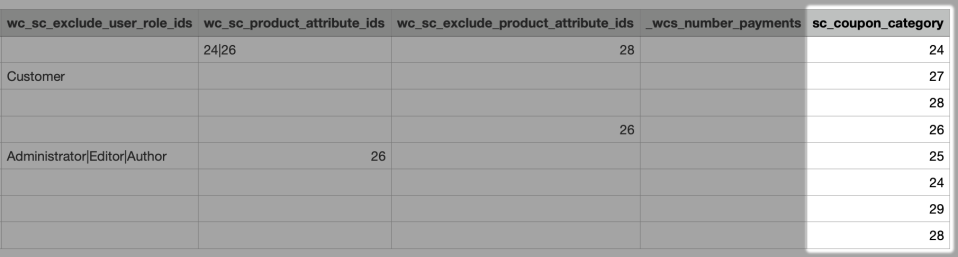
Save the updated CSV file and upload it again through Marketing > Coupons > Import Coupons. Smart Coupons will import the coupon data together with the assigned category information.
How to Import WooCommerce Coupons with WP All Import?
Another option is WP All Import. This method is useful when your CSV structure doesn’t match a fixed template and you want more control over how individual source fields are mapped to WooCommerce coupon data. To import WooCommerce coupons this way, you need WP All Import together with its WooCommerce Import Add-On.
Step 1: Create a new coupon import
Go to All Import > New Import in WordPress and upload your coupon file. Then select WooCommerce Coupons as the data type you want to import.
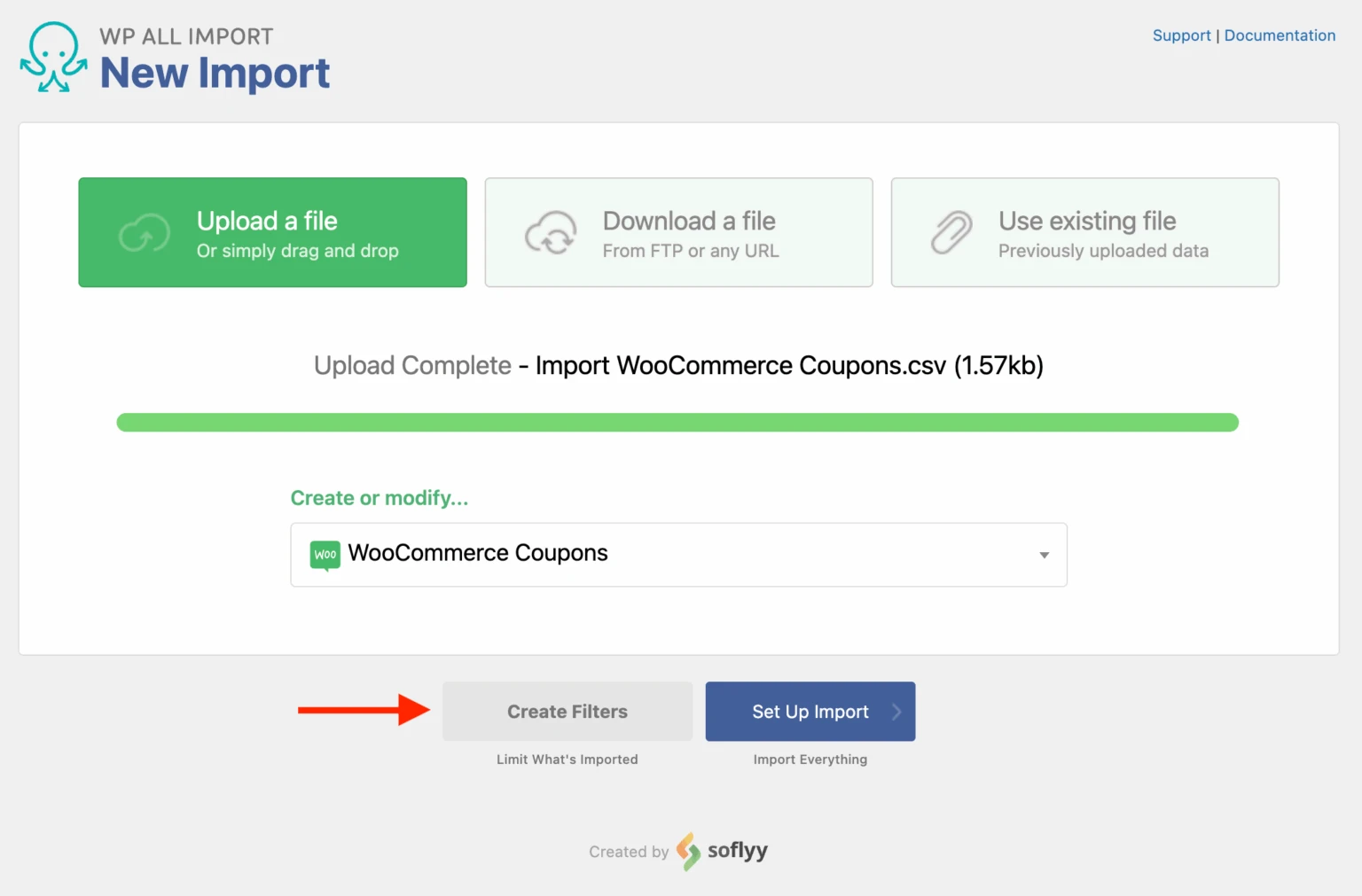
Review the records detected in your source file before continuing. If the data is incomplete or incorrectly formatted, it’s better to fix the source file first.
Step 2: Map your coupon data
WP All Import provides a drag-and-drop interface that lets you map fields from your source file to the corresponding WooCommerce coupon fields.
Typically, the coupon code is mapped as the title, while other coupon settings can be mapped to fields such as:
- discount_type for the coupon discount type;
- coupon_amount for the discount value;
- expiry_date for the expiration date;
- free_shipping for free shipping eligibility;
- individual_use for coupons that cannot be combined with others;
- usage_limit and usage_limit_per_user for redemption limits;
- product_ids and exclude_product_ids for product restrictions;
- minimum_amount and maximum_amount for cart value restrictions;
- customer_email for customer email restrictions.
This mapping process makes WP All Import particularly useful when you already have coupon data exported from another system but the column names don’t match WooCommerce directly.
Step 3: Configure and run the import
After mapping the required fields, configure the import settings and define a unique identifier so WP All Import can track each coupon record.
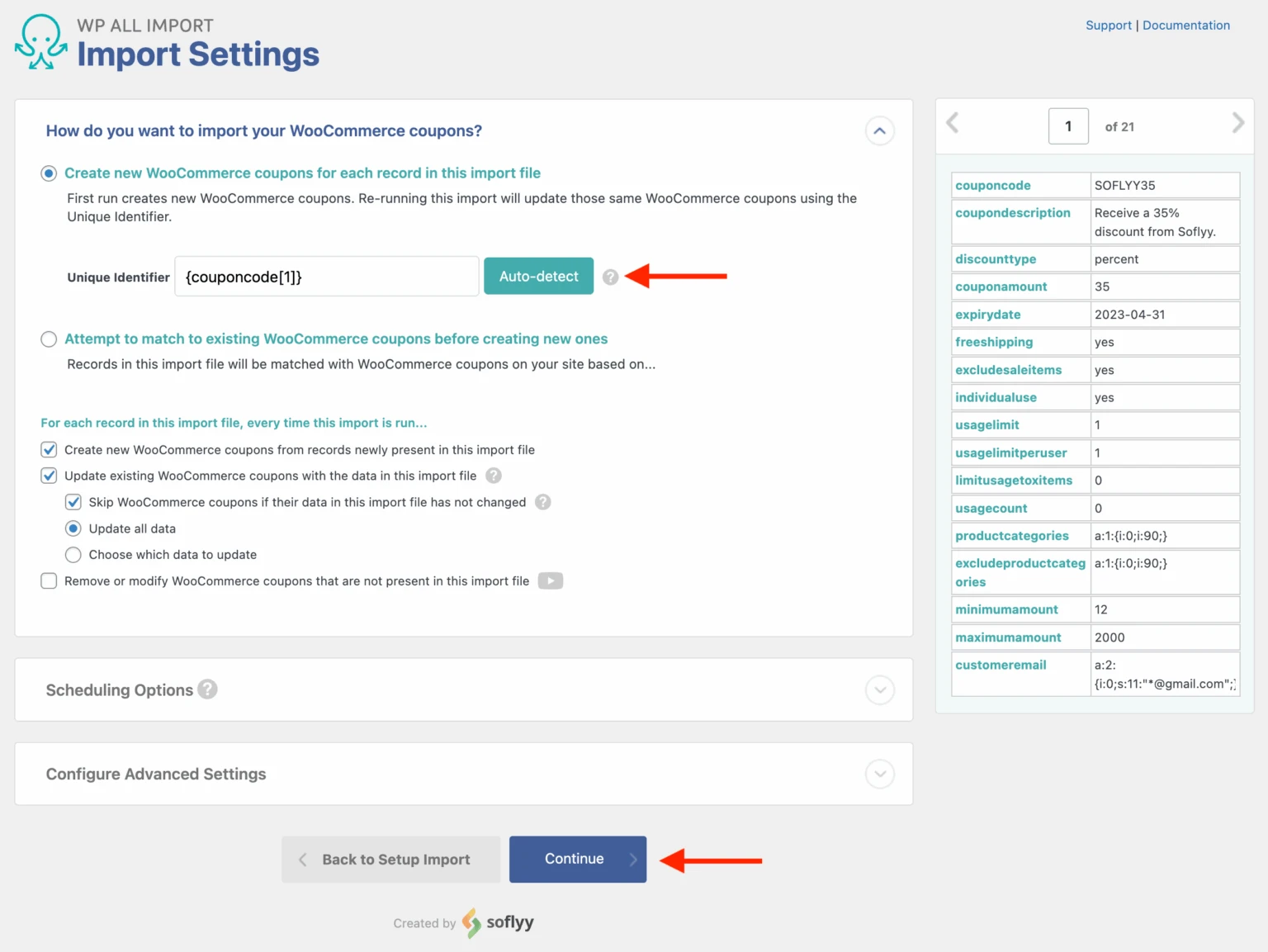
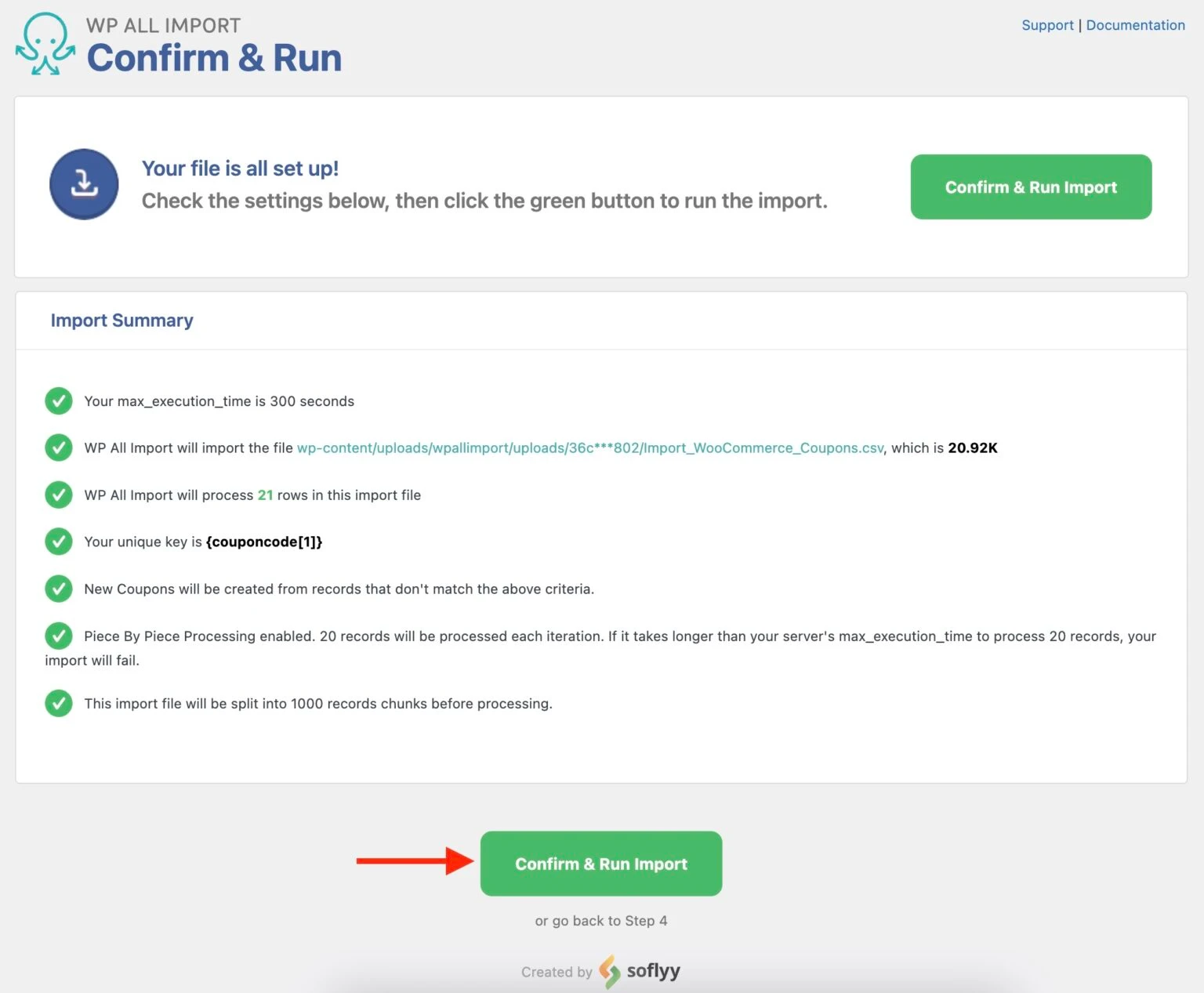
Then review the import summary and click Confirm & Run Import. Once the process finishes, go to Marketing > Coupons and verify that the imported codes and their settings are correct.
Smart Coupons vs WP All Import: Which Method Should You Use?
Both methods can handle bulk WooCommerce import coupons, but they suit slightly different situations.
- Use Smart Coupons if you’re already managing promotions inside WooCommerce and want a straightforward CSV-based workflow. Its sample file gives you a predefined structure, and the import process happens directly from the Coupons area.
- Use WP All Import if your coupon data comes from a custom spreadsheet, feed, or another system and you need to map source columns to WooCommerce fields manually. Its flexible field mapping can reduce the amount of spreadsheet restructuring required before import.
Whichever method you choose, test the process with a small group of coupons first before importing your full dataset.
How to Migrate Coupons from Another Store to WooCommerce?
The methods above work best when you already have a coupon file and only need to import it into WooCommerce. If your coupons are still stored on another eCommerce platform and form part of a complete store migration, transferring them separately can mean additional exporting, restructuring, and field mapping.
With LitExtension, you can migrate supported coupons alongside products, customers, orders, and other store data in three steps:
- Connect your stores: Set your current platform as the Source Cart and WooCommerce as the Target Cart, then provide the required connection details.
- Configure the migration: Select Coupons and any other entities you want to transfer. Then, configure the Additional Options and available mapping settings.
- Run the Full Migration: Start the migration and let LitExtension transfer the selected data to your WooCommerce store. You can run a Free Demo Migration beforehand to preview the results.
This approach keeps your coupons within the complete store migration, so you do not have to export, restructure, and import each data type separately.
Seamlessly migrate your store to WooCommerce!
LitExtension can safely transfer your data to unlock more growth on WooCommerce.
What to Check After Importing WooCommerce Coupons?
A successful WooCommerce import coupons doesn’t necessarily mean every coupon is configured exactly as intended. Before using the imported coupons in a live campaign, review a sample of them in Marketing > Coupons.
Pay particular attention to:
- Coupon code: Check that the code was imported correctly and contains no unwanted spaces or characters.
- Discount type and value: Confirm that percentage and fixed discounts use the intended settings.
- Expiry date: Make sure active coupons haven’t been assigned an incorrect expiration date.
- Usage restrictions: Review minimum and maximum spend, product restrictions, category restrictions, and email restrictions.
- Usage limits: Check the total usage limit and per-user limit where applicable.
- Free shipping: Verify whether coupons intended to provide free shipping have the setting enabled.
Finally, test several coupon codes on your storefront or a staging site. This helps confirm that WooCommerce applies each discount under the expected conditions before you distribute the codes to customers.
WooCommerce Import Coupons: FAQs
How do I bulk-add coupon codes to WooCommerce?
WooCommerce does not include a built-in bulk coupon importer, so you will need a compatible plugin. Prepare your coupon codes and settings in a CSV file, install an import plugin such as Smart Coupons or WP All Import, upload the file, map its columns to the corresponding coupon fields, and run the import. Test a small batch before importing the full list.
Can I update existing WooCommerce coupons through CSV?
Yes, provided your import plugin supports record updates. You will normally need to match each row to an existing coupon using its coupon code, ID, or another unique identifier. Before running the import, choose the option to update existing coupons instead of creating new ones, or you may end up with duplicate records.
Can I import used coupon counts and usage limits?
Yes, some WooCommerce import coupons plugins support fields such as usage_count, usage_limit, usage_limit_per_user, and limit_usage_to_x_items. However, field names and supported values vary between tools. Check your plugin’s CSV template and confirm whether it can preserve historical usage data, not just future usage limits.
Why are my imported coupons not working?
Imported coupons may fail if the CSV contains an unsupported discount type, incorrect expiry date, inactive status, invalid product IDs, or improperly formatted restrictions. The coupon may also have reached its usage limit or fail the minimum-spend, customer-email, or product eligibility rules. Open the coupon under Marketing > Coupons, check each setting, and test it in the cart with an eligible product and customer account.
What plugins can import WooCommerce coupons?
Common options include:
- WooCommerce Smart Coupons for structured CSV imports and bulk campaign management.
- Import Export Suite for WooCommerce for importing, exporting, mapping, and updating coupon records.
- Customer/Order/Coupon CSV Import Suite for importing coupons alongside customer and order data.
- WP All Import with the WooCommerce Import Add-On for custom CSV or XML files that require flexible field mapping.
The right option depends on your file structure, required coupon fields, update needs, and whether coupons are being imported separately or as part of a complete store transfer.
Conclusion
WooCommerce gives you built-in tools for creating coupons individually, while bulk coupon imports are better handled with a dedicated import extension. If your coupon data is already in CSV format, Smart Coupons provides a straightforward import workflow, while WP All Import offers more flexibility when your source fields need custom mapping.
If WooCommerce import coupons are only one part of a complete store migration, transferring them together with the rest of your eCommerce data using our WooCommerce migration tool can be more efficient. The right method ultimately depends on where your coupon data currently lives and how much control you need over the import process.
For more practical guides and tips, check out our other WooCommerce blog posts as well!


