
If you’re using GoDaddy, understanding how to redirect a domain on GoDaddy is essential. It ensures that in case there are any changes in your URLs, visitors who use old or alternate ones are automatically sent to your desired destination. This process helps maintain consistent branding, improve user experience, and preserve SEO rankings by avoiding broken links or duplicate content.
Fortunately, this platform makes it easy to set up redirection, even if you’re not a tech expert. In this guide, we’ll explain:
- How to redirect a domain on GoDaddy
- When should you redirect a domain on GoDaddy
- Troubleshoot common errors when redirecting
- Post-redirect checklist
Now, let’s get started!
How to Redirect A Domain on GoDaddy
To successfully redirect a domain on GoDaddy, you’ll need to follow these steps:
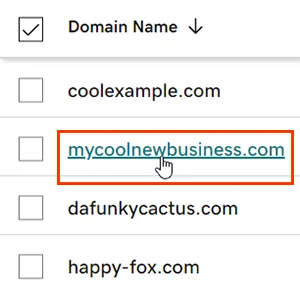
First, sign in to your GoDaddy Domain Portfolio using a registered account. Then, select a domain name to access the Domain Settings page.
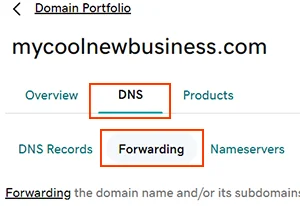
On the next page, switch to the “Forwarding” tab under “DNS”.
Here, select “Add Forwarding” and choose whether you want to forward your domain or a subdomain:
- Domain: Select this option to forward your root domain, such as yourbusiness.com.
- Subdomain: Select this option to forward a specific subdomain, such as shop.yourbusiness.com. Enter the subdomain you want to forward. GoDaddy will automatically update its DNS settings if the subdomain already exists or create it if it doesn’t.
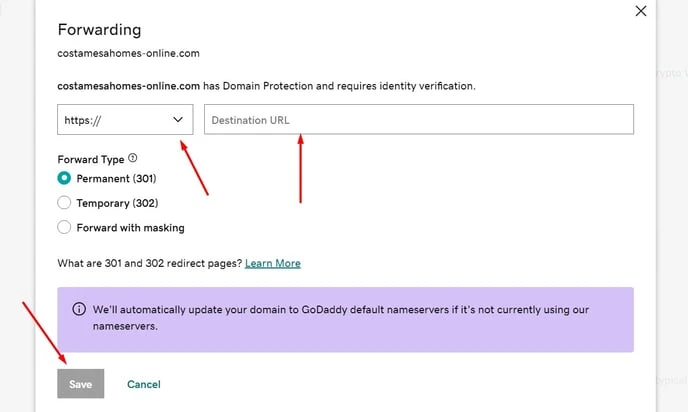
After that, choose either “http://” or “https://” as the protocol for your destination URL, then enter the URL you want visitors to be redirected to. GoDaddy automatically applies HTTPS forwarding when you set up or edit domain forwarding, so no additional HTTPS configuration is required.
When entering the destination URL, make sure it follows these requirements:
- The first and last characters must be a number or letter.
- Periods (.) are supported.
- The URL can contain up to 1,000 characters.
- Consecutive periods (…) and underscores (_) are not supported.
Then, you’ll need to choose the forwarding type: Permanent (301), Temporary (302), or Forward with masking. Once done, select “Save” to finish. If your domain has Domain Protection, you might need to verify your identity in this step.
And that’s the end of our guide on how to redirect a domain on GoDaddy. By following these steps, you can perform this process with ease since GoDaddy will automatically update your domain after the redirect.
Which Redirect Type Should You Choose?
As mentioned earlier, once you’ve entered the destination URL, GoDaddy lets you choose how visitors and search engines should handle the redirect. The forwarding type you select depends on whether you’re moving the domain permanently, redirecting it for a limited time, or want to keep the original domain visible to visitors:
Permanent (301)
A 301 redirect permanently sends visitors from your GoDaddy domain to the destination URL. It also tells search engines that the original domain has permanently moved to a new location, allowing them to update their index and transfer relevant SEO signals to the new destination.
This option is best when you’ve permanently changed your domain, moved your website to a new address, or no longer want the old URL to be used.
Temporary (302)
A 302 redirect temporarily sends visitors to another URL while indicating to search engines that the original destination may be restored later. Unlike a 301 redirect, it signals that the change is not permanent.
We recommend using a 302 redirect when you only need to send traffic elsewhere for a limited period, such as during temporary website maintenance, a short-term campaign, or a temporary change in site structure.
Forward with Masking
Lastly, Forward with Masking redirects visitors to the destination URL while keeping your original domain visible in the browser’s address bar. For example, visitors may be redirected to another website while continuing to see your original domain instead of the destination URL.
GoDaddy also allows you to add meta tags when using this option, which can provide additional information about the redirected page. However, because masking hides the actual destination URL, consider carefully whether this option is appropriate for your website and SEO needs.
When Should You Redirect A Domain on GoDaddy?
There are several situations when knowing how to redirect a domain on GoDaddy is essential. In this section, let’s explore the most common reasons for using domain redirection.
1. Rebranding your business
If your business changes its name or undergoes a rebranding, redirecting your old domain to the new one ensures your customers can still find you. This helps maintain traffic while aligning your website with your updated branding.
2. Website migration
If you migrate to GoDaddy, redirection ensures that visitors and search engines are automatically sent to the new site. This is crucial for preserving your SEO rankings and avoiding broken links.
Seamlessly migrate your store to a more robust place!
LitExtension can safely transfer your data to unlock more growth on the new platform.

3. Consolidating multiple domains
If you own multiple domains, you can redirect them to a single primary domain. This is useful for capturing traffic from alternative spellings, regional domains, or variations of your business name.
4. Running marketing campaigns
For promotions or advertising, you can create custom domains or URLs that redirect to specific landing pages. This makes campaign tracking easier and enhances user experience by providing memorable URLs.
5. Protecting your brand
Owning variations of your domain name and redirecting them to your primary website helps safeguard your brand from competitors or misuse. It also captures traffic from common typos.
Common Errors & Fixes
When learning how to redirect a domain to GoDaddy, it’s essential to be fully aware of potential issues that may arise during the process and how to troubleshoot them.
| Error | How to Check | Fix |
|---|---|---|
| Redirect not working | Open the old domain in a browser and check whether it reaches the intended destination. Review the domain’s DNS and forwarding settings in GoDaddy. | Ensure the DNS settings are correct and the forwarding type (301 or 302) is configured appropriately. |
| Changes not taking effect | Check whether the redirect works after waiting for DNS changes to propagate. | Allow time for DNS propagation, which can take up to 48 hours, then verify the forwarding settings again. |
| Infinite redirect loop | Check whether the source and destination URLs redirect back to each other or whether multiple forwarding rules conflict. | Remove conflicting redirects or correct the forwarding settings in GoDaddy. |
| HTTPS not redirecting properly | Open the HTTPS version of the forwarded domain and check whether it redirects successfully to the intended destination. | GoDaddy automatically applies HTTPS forwarding when domain forwarding is set up or edited. If HTTPS forwarding still fails, confirm that the destination URL is correct, and allow time for recent DNS or forwarding changes to take effect. |
| Incorrect destination URL | Compare the forwarding URL in GoDaddy with the intended destination and check for typos or missing protocol information. | Correct the forwarding address and make sure it includes the appropriate http:// or https:// protocol. |
| Mobile devices not redirecting | Test the old domain on both desktop and mobile devices to determine whether the issue is device-specific. | Check mobile-specific settings and confirm that the target website works properly on mobile. |
| Redirecting to the wrong page or site | Open the old domain and compare the resulting URL with the destination configured in GoDaddy. | Update the forwarding settings to point to the correct destination URL. |
SEO Considerations When Redirecting a Domain on GoDaddy
Overall, a domain redirect can help preserve your site’s SEO signals when URLs change. Nevertheless, setting up a redirect alone does not guarantee that your search performance will remain unchanged. Make sure to keep the following in mind when you map old URLs to new ones and configure your redirects:
Create a clear URL mapping
First, before redirecting your domain, you should create a URL mapping that matches each important old URL with its corresponding destination URL.
For a simple domain change where the URL paths remain the same, you may be able to use a consistent redirect pattern. However, if your URLs or site structure have changed, map individual old URLs to their most relevant new destinations. In addition, prioritize URLs that receive significant organic traffic, have valuable backlinks, or are important to your site’s internal linking structure.
It’s best to avoid sending multiple unrelated URLs to the homepage simply because it is the easiest destination. Google notes that irrelevant redirects can confuse users and may be treated as soft 404s.
Use 301 redirects for permanent changes
If you are permanently moving a domain or URL, use a 301 redirect rather than a temporary 302 redirect. A 301 tells search engines that the original URL has permanently moved to a new location. Google states that permanent redirects such as 301 do not cause a loss of PageRank, although search visibility can still fluctuate temporarily while Google recrawls and processes the changes.
For a domain migration, redirect each old URL directly to its corresponding new URL whenever possible. You should also update internal links, canonical URLs, and sitemaps to use the new URLs rather than relying on redirects indefinitely.
Avoid redirect chains and loops
A redirect chain occurs when one URL redirects through multiple URLs before reaching the final destination, such as `old-domain.com/page` → `new-domain.com/page-old` → `new-domain.com/page`. These extra hops add latency and make the redirect path more complicated for users and crawlers.
Hence, Google recommends redirecting directly to the final destination whenever possible. If a chain cannot be avoided, Google recommends keeping it short, ideally no more than three redirects and fewer than five.
On another note, a redirect loop is more serious because the source and destination URLs keep redirecting to each other or form a circular sequence. For example, `old-domain.com` could redirect to `new-domain.com`, or `new-domain.com` redirects back to `old-domain.com`.
This prevents the destination page from loading and can stop search engines from successfully processing the redirect. Therefore, always check your forwarding rules carefully to make sure every redirect eventually resolves to a final, accessible URL.
How to Redirect A Domain on GoDaddy – FAQs
How do I redirect a domain from GoDaddy?
Here are 6 steps to redirect a domain on GoDaddy:
1. Log in to your GoDaddy account.
2. Go to the Domain Manager and select the domain you want to redirect.
3. Click on Manage DNS and locate the “Forwarding” section.
4. Add a new redirect by entering the destination URL.
5. Choose the redirect type (301 for permanent or 302 for temporary).
6. Save your changes and allow some time for the redirect to take effect.
How do I use my GoDaddy domain with another host?
To use your GoDaddy domain with another hosting provider, update the domain’s DNS settings following these steps:
1. Log in to your GoDaddy account.
2. Go to Domain Settings for the domain you want to update.
3. Update the DNS nameservers to the ones provided by your hosting provider.
4. Save the changes and wait for DNS propagation (up to 48 hours).
How do I add a redirect rule in GoDaddy?
Please follow these steps to add a redirect rule in GoDaddy:
1. Navigate to the DNS Management section in GoDaddy for your domain.
2. Locate the “Forwarding” option and click Add Forwarding.
3. Enter the target URL you want to redirect traffic to.
4. Select the redirect type (301 or 302) and save your changes. The redirect rule will take effect after propagation.
How long does GoDaddy domain forwarding take?
Domain forwarding on GoDaddy typically takes a few minutes to start working. However, in some cases, it can take up to 48 hours for DNS propagation to complete. Be patient and check back later if the changes are not immediate.
Final Words
Learning how to redirect a domain on GoDaddy is a simple yet essential process. This platform provides user-friendly tools to set up and manage domain redirection, even for those without technical expertise. By following the steps outlined in this guide, you can confidently redirect your domain and address common issues.

