As one of the most popular eCommerce platforms, WooCommerce offers a huge range of powerful marketing tools to help merchants boost sales, including coupon codes. Better yet, there's no need for additional extensions; you can learn how to create and manage WooCommerce coupon codes straight from the dashboard!
In this guide, we’ll walk you through how to create coupon code in WooCommerce in just 5 simple steps:
- Step 1. Activate WooCommerce coupons
- Step 2. Create coupon codes on your WooCommerce store
- Step 3. Set usage restrictions and limits
- Step 4. Send coupons to your customers
- Step 5. Monitor how customers apply the coupons
- Step 6. Actively manage WooCommerce coupon codes
Let's get started!
How to Create and Manage WooCommerce Coupon Codes
To manage WooCommerce coupon codes, you must first enable coupons in the general settings, then create and configure them with the right discount types, restrictions, and usage limits. Once set up, your coupons should be strategically distributed through marketing channels and clearly communicated to customers.
Step 1. Activate WooCommerce coupons
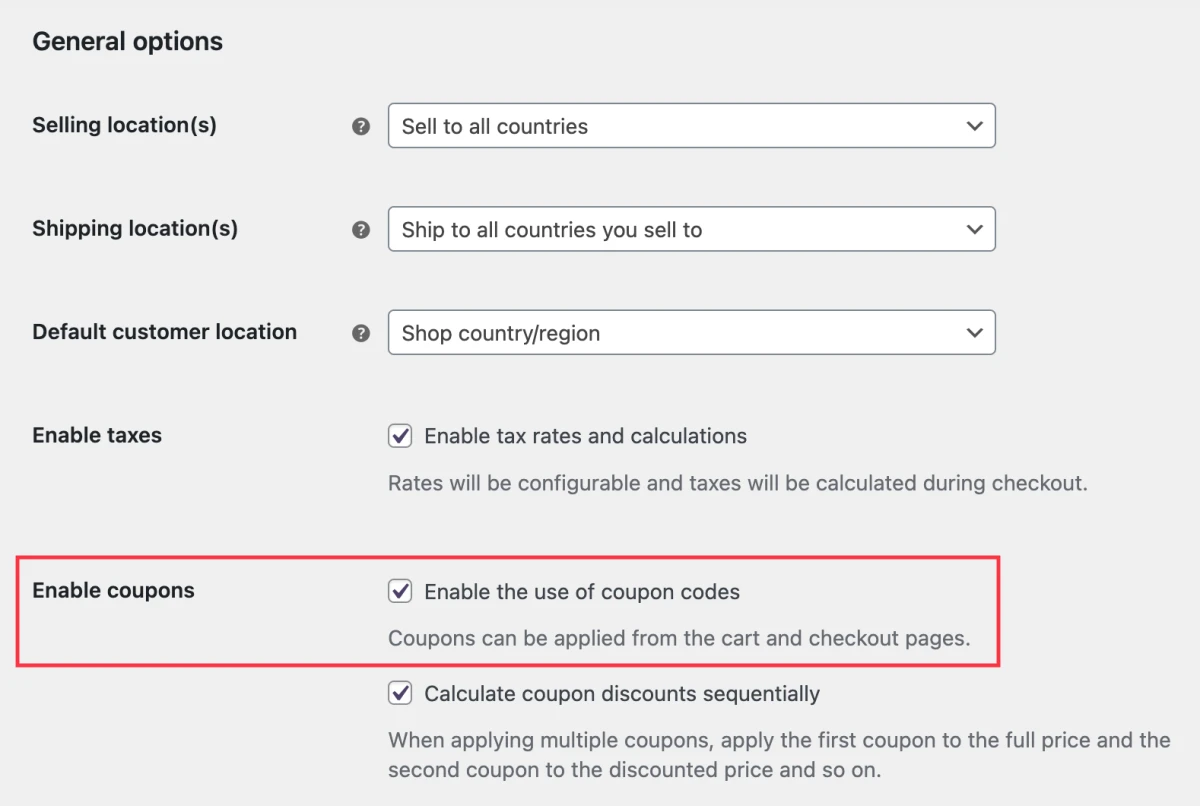
First, you must make sure the coupon feature is enabled in your store. To do so, go to WooCommerce → Settings → General, then check the box next to “Enable the use of coupon codes”.
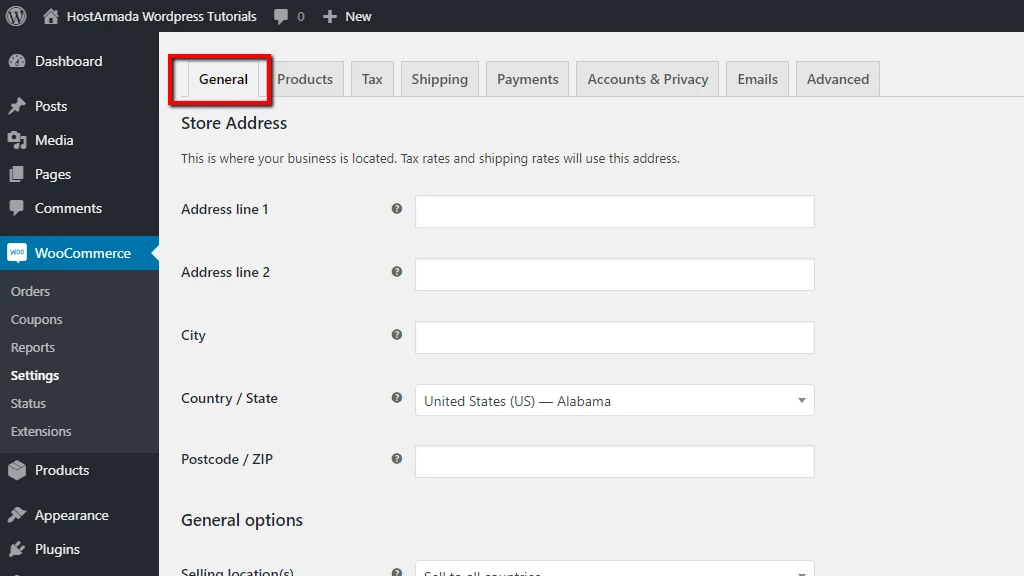
Once you click “Save,” the coupon management section will appear in your dashboard.
Step 2. Create coupon codes on your WooCommerce store
Now that coupons are activated, the next step is to create your first one! Head over to Marketing → Coupons and click “Create your first coupon” to begin setting up your promotion.
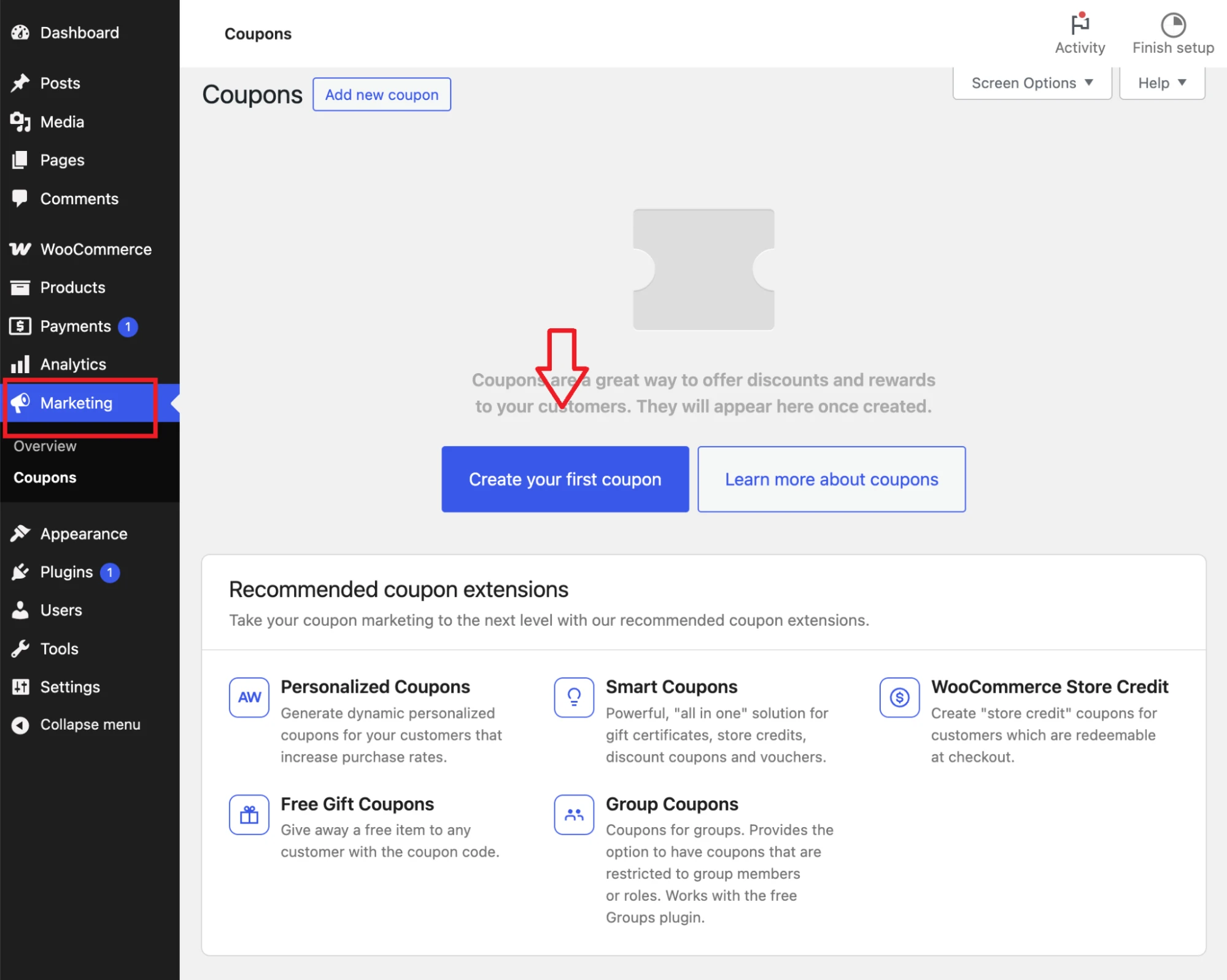
From here, you’ll define the core details that determine how your discount works:
- Enter the WooCommerce coupon code (or let Woo generate one for you)
- Choose the discount type: percentage (e.g., 10%), fixed cart discount (e.g., 10%), or fixed product discount (only for a particular product).
- Set the discount amount
- Decide if free shipping should be included
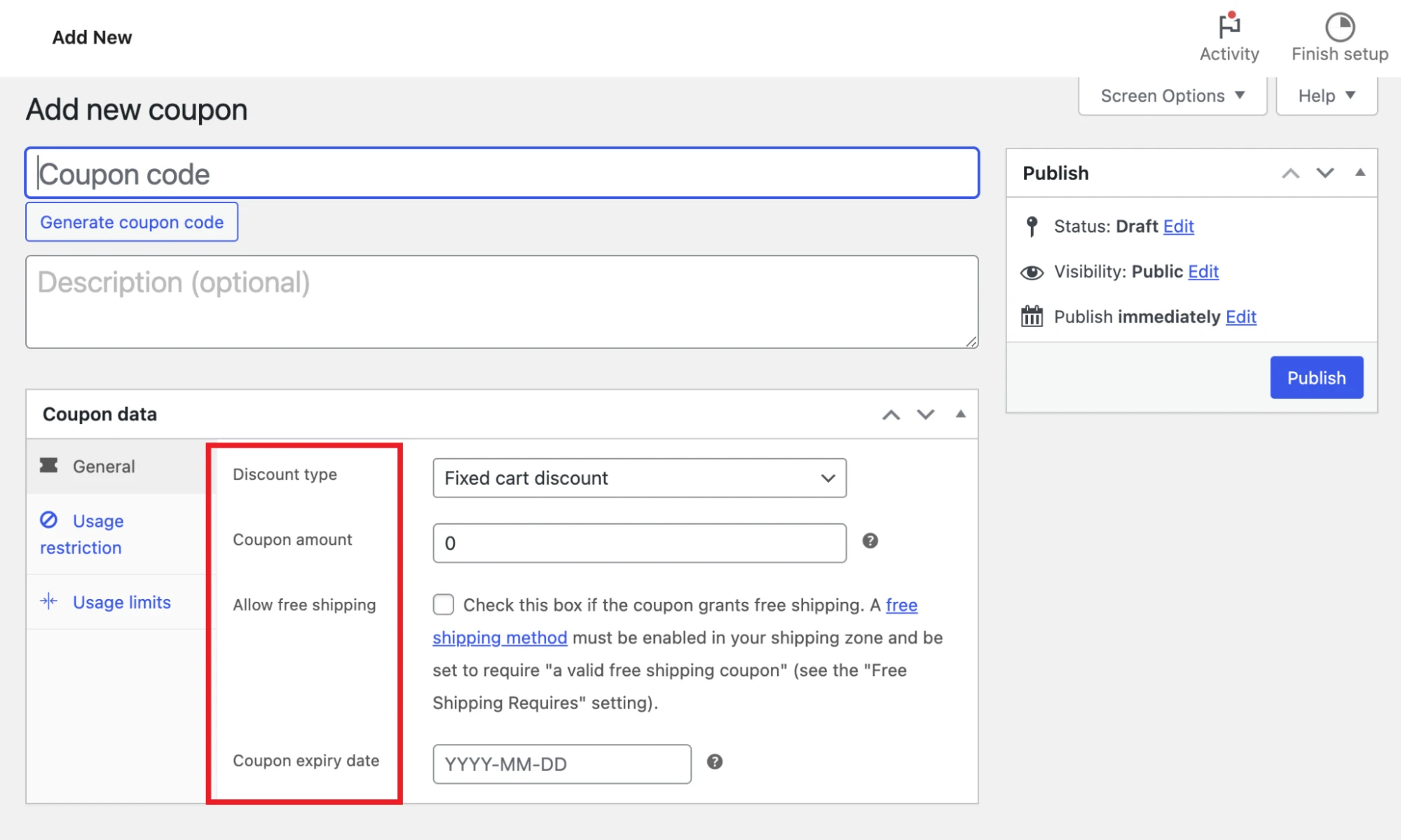
At this stage, you’re essentially building the core structure of your offer. However, to make your coupon more controlled and purposeful, you’ll need to refine it further in the next step.
Step 3. Set usage restrictions and limits
Once the basic coupon is in place, it’s time to fine-tune how and when it can be used. Inside the Usage Restrictions tab, you can define conditions such as:
- Minimum or maximum spend
- Limiting the coupon to specific products or categories
- Excluding certain items
- Restricting usage to particular customer emails.
Meanwhile, under Usage Limits, you control frequency, particularly:
- How many times a coupon can be used overall
- How many items it applies to
- How often each customer can redeem it.
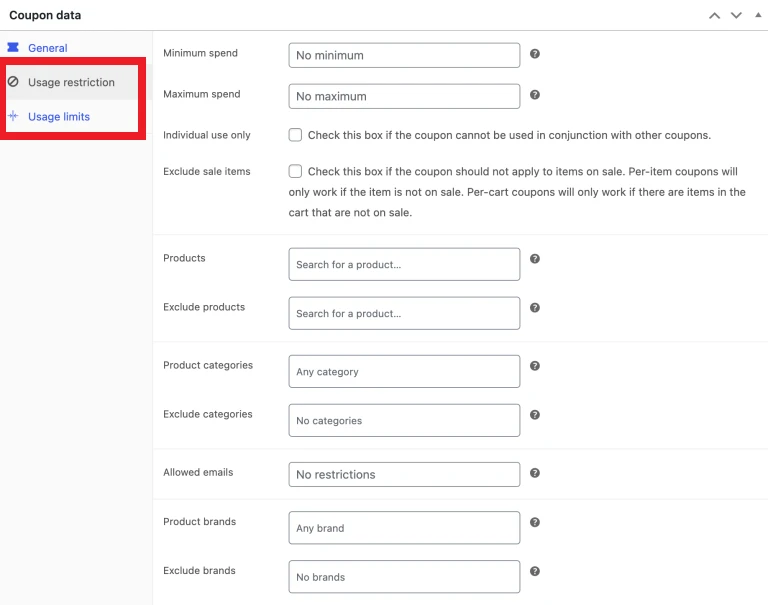
Configure the coupon further under “Usage restriction” and “Usage limit.”
Step 4. Send coupons to your customers
Unlike some platforms, WooCommerce doesn’t automatically distribute or apply coupon codes, so promotion is entirely up to you. You can share your codes through various channels, depending on your marketing strategy:
- Email campaigns for targeted outreach
- Social media for broader visibility
- On-site banners or pop-ups to capture active shoppers
Make sure you choose the right channel that fits your specific goals. For example, exclusive email coupons can strengthen customer loyalty. Public promotions, on the other hand, are more effective for driving short-term sales spikes.
Step 5. Monitor how customers apply the coupons
To apply the coupons, your customers simply need to enter the coupon code at the cart or checkout page; the discount is applied instantly if all conditions are met.
However, keep in mind that this step is closely tied to how you configured your restrictions earlier. If a coupon doesn’t apply, it’s usually because certain conditions (like minimum spend or product eligibility) haven’t been met. Hence, to avoid confusion, it’s always a good idea to communicate these requirements clearly when sharing your coupon.
Step 6. Actively manage WooCommerce coupon codes
Remember, your work isn't done even after our coupons are live. Over time, you’ll likely run multiple campaigns, so make sure to:
- Regularly review your coupons
- Remove or disable expired codes
- Adjust rules based on performance
- Monitor which promotions are actually driving conversions.
By continuously refining your approach, coupons will become a powerful tool for attracting new customers, retaining existing ones, and optimizing your overall sales performance.
Why Should You Use Coupon Codes for Your WooCommerce Sites
When used smartly, coupon codes can help influence purchase timing, order value, and even long-term customer relationships:
- Boost conversions and reduce cart abandonment: Many customers hesitate at the final step, especially when they start comparing prices or reconsider spending. A coupon (like a small percentage off or free shipping) acts as a nudge that lowers perceived risk and increases perceived value.
- Encourage repeat purchases and customer loyalty: Coupons can be used beyond first-time conversions. For example, sending a “10% off your next order” after a purchase creates a reason for customers to return. Over time, this builds a habit loop in which customers associate your store with ongoing value rather than just one-time deals.
- Support targeted marketing campaigns: Instead of applying storewide discounts (which can hurt margins), coupons let you run highly controlled promotions. You can target specific products, customer groups (e.g., VIPs, new users), or occasions (holiday sales, product launches). This precision helps you achieve specific goals, like clearing inventory or promoting high-margin items, without sacrificing overall profitability.
And that’s how to add coupon code in WooCommerce!
Best Practices to Manage WooCommerce Coupon Codes
To get consistent results from your coupons, you need to manage them with a clear strategy using three key practices: defining clear objectives, using simple, memorable codes, and setting proper expiry dates and limits.
1. Define clear objectives
Before creating any coupon, you must decide exactly what you want it to achieve. Otherwise, launching generic discounts without a clear purpose only leads to reduced margins and no meaningful results.
For example, if your goal is to increase average order value, set a minimum spend requirement (e.g., “$10 off orders above $80”). Or, if you're trying to clear inventory, limit the coupon to specific products or categories instead of applying it storewide.
2. Use descriptive, simple codes
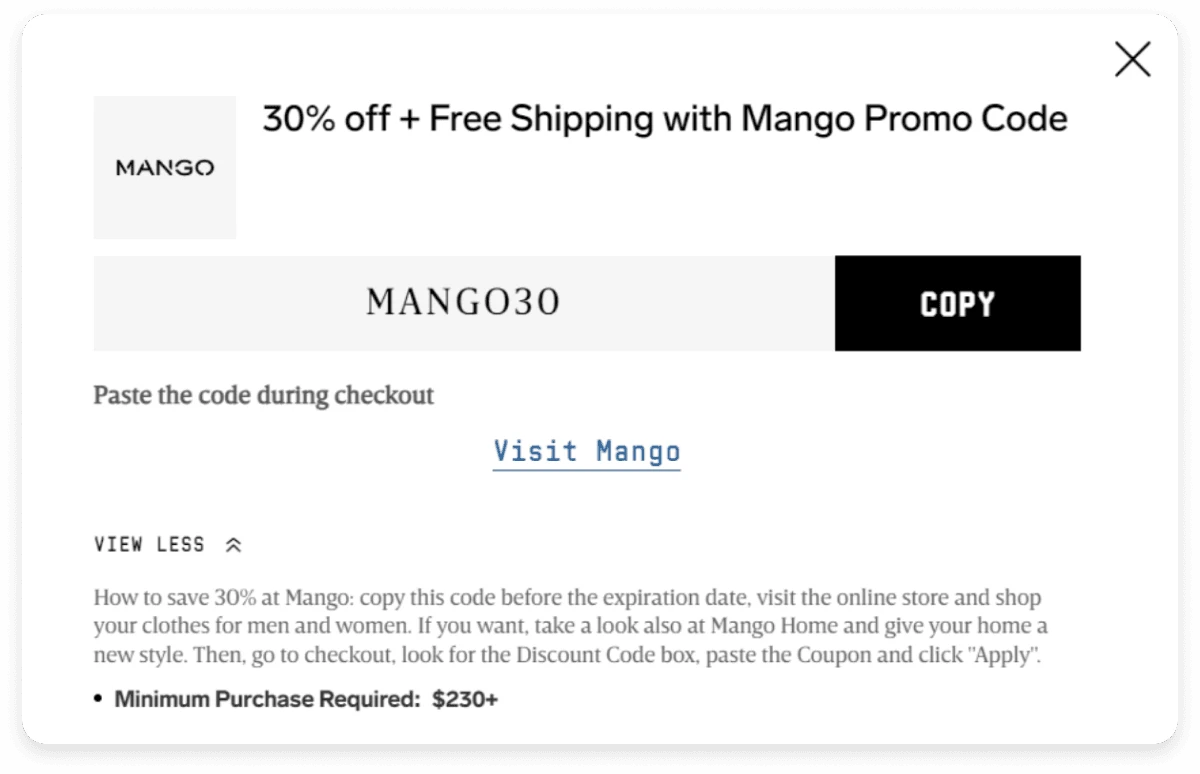
Secondly, your coupon code should be easy to read, easy to remember, and instantly understandable. Examples include SUMMER10, FREESHIP, or WELCOME15, which not only look cleaner but also reinforce the promotion itself.
In addition, if you're running multiple campaigns, consider using consistent naming patterns (e.g., SEASON-OFFER, VIP-ONLY). That way, you can quickly identify and manage them inside your dashboard.
3. Define expiry date and usage limits
Last but not least, leaving coupons open-ended is one of the most common mistakes. Without clear limits, discounts can be overused and shared widely, ultimately reducing your profit margins!
That's why you should always set an expiry date to create urgency; short-term offers tend to convert better because customers feel a need to act quickly. You can also pair this with usage limits, such as:
- Total number of redemptions
- Usage per customer
- Limits on applicable items
This combination helps you stay in control of your promotions while still creating a sense of exclusivity that drives future conversions.
How to Create A Coupon Code in WooCommerce: FAQs
Where to find coupon code in WooCommerce?
To find or create coupon codes in WooCommerce, navigate to Marketing > Coupons in your WordPress dashboard. From there, you can view existing coupons, edit them, or click "Add coupon" to create a new one.
How to offer coupons and discounts in WooCommerce?
To offer coupons in WooCommerce, go to Marketing > Coupons, click Add coupon, and define the discount type (percentage, fixed cart, or product) and amount. You can also set usage restrictions like minimum spend, email limits, and expiration dates.
How to automatically apply a coupon in WooCommerce?
To automatically apply a coupon in WooCommerce, enable the "Auto apply?" option within the coupon's "General" tab under Marketing > Coupons. Alternatively, use plugins like WooCommerce Smart Coupons or URL Coupons to create discount links or apply coupons based on specific user actions, products, or cart conditions.
How to create a free shipping coupon in WooCommerce?
To create a free shipping coupon in WooCommerce, enable coupons in settings, then navigate to Marketing > Coupons > Add Coupon. Under the "General" tab, check the Allow Free Shipping box.
Final Words
All in all, WooCommerce coupon codes are powerful tools to drive conversions and increase customer loyalty, and run targeted promotions without relying on additional plugins. Once you understand how to create and manage WooCommerce coupon codes effectively, they can become a core part of your marketing strategy!
And if you’re considering migrating to WooCommerce to take full advantage of these built-in features, LitExtension is here to help. With 14+ years of experience and a proven track record of supporting over 300,000 stores worldwide, we can ensure a smooth, secure, and accurate migration – so you can start optimizing your promotions right away.
Want To Migrate to WooCommerce?
LitExtension provides a well-optimized All-in-One migration service for your data transfer!